Pinterest is a visual discovery platform that lets users find and save ideas through images and videos organized into boards. Integrating Pinterest with Frontegg allows your application to read and manage boards, pins, and user account data on behalf of your users through OAuth 2.0 authentication.
Prerequisites
Prerequisites
- A Pinterest account with developer access
- Access to the Pinterest Developer Platform
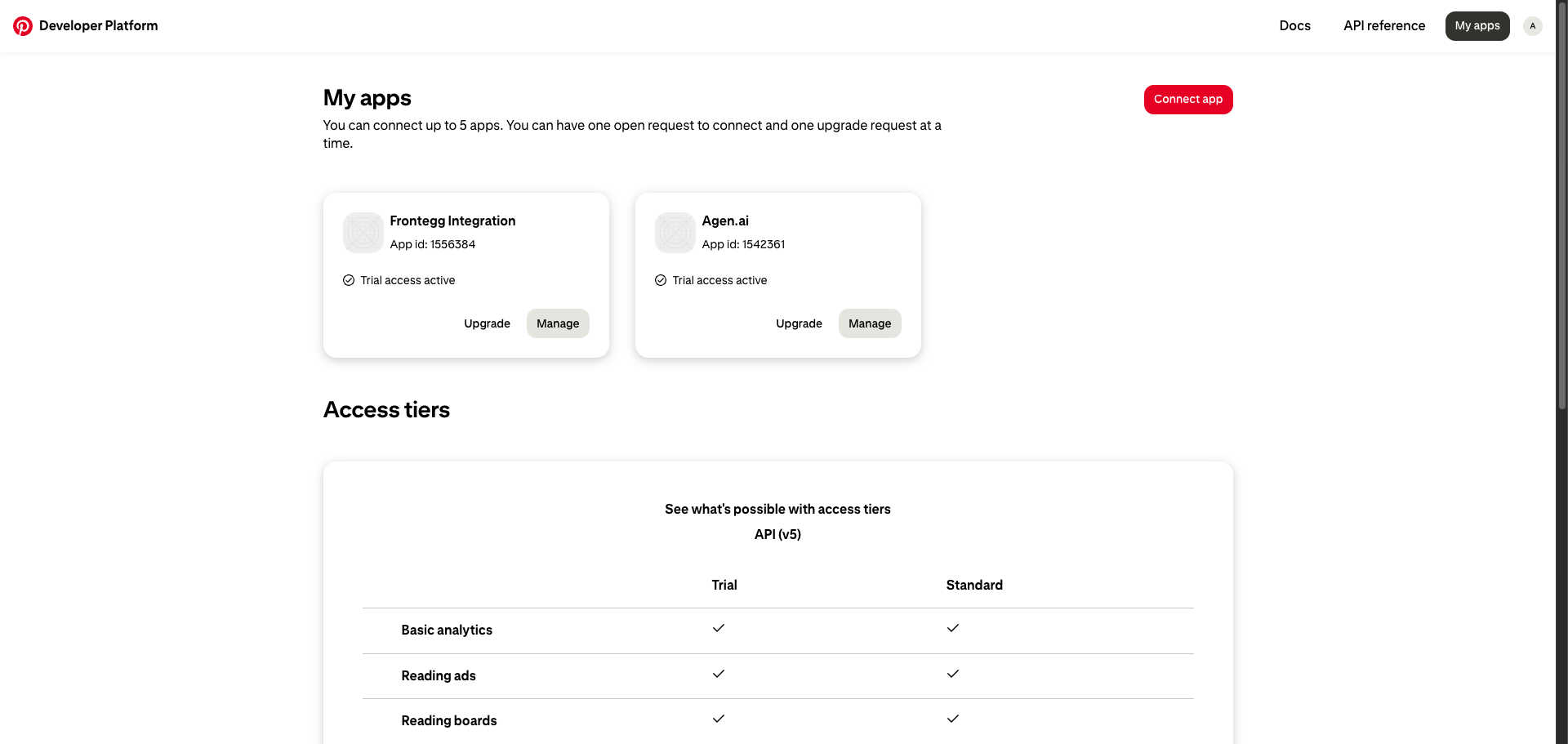
Navigate to developers.pinterest.com/apps and sign in with your Pinterest account. The My apps page lists all applications connected to your account.
Click Connect app to register a new application.
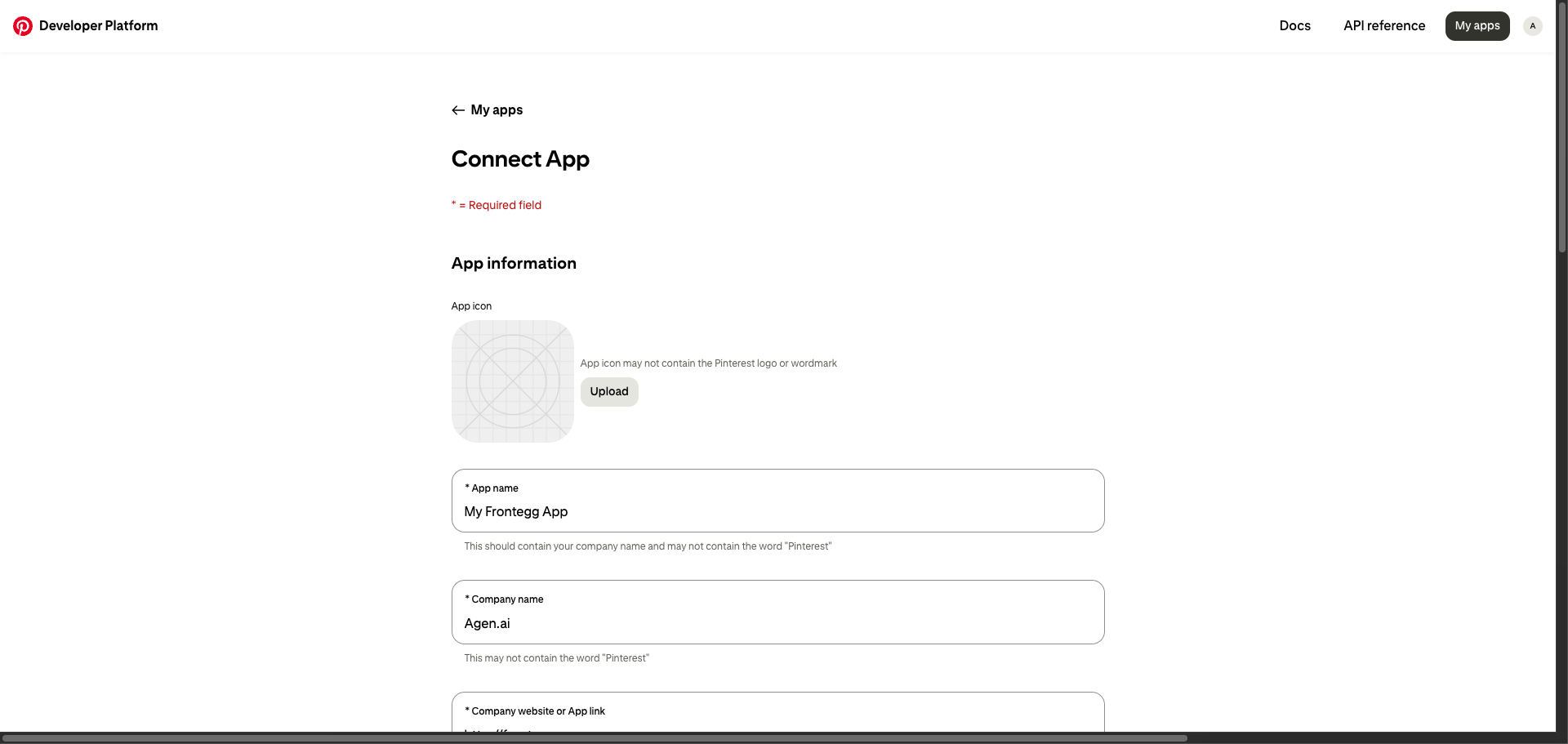
Complete the Connect App form with the following required fields:
- App name -- Enter a descriptive name (e.g., "Frontegg Integration"). The name must not contain the word "Pinterest".
- Company name -- Your company or organization name.
- Company website or App link -- Your company's website URL.
- Link to Privacy policy -- A URL to your privacy policy.
- App purpose -- A description of what your app will do.
- Use cases -- Select the use cases that apply (e.g., "Reporting", "Pinner App").
- Audience -- Select the intended audience (e.g., "Pinners", "Creators").
Complete the reCAPTCHA and click Submit connect request.
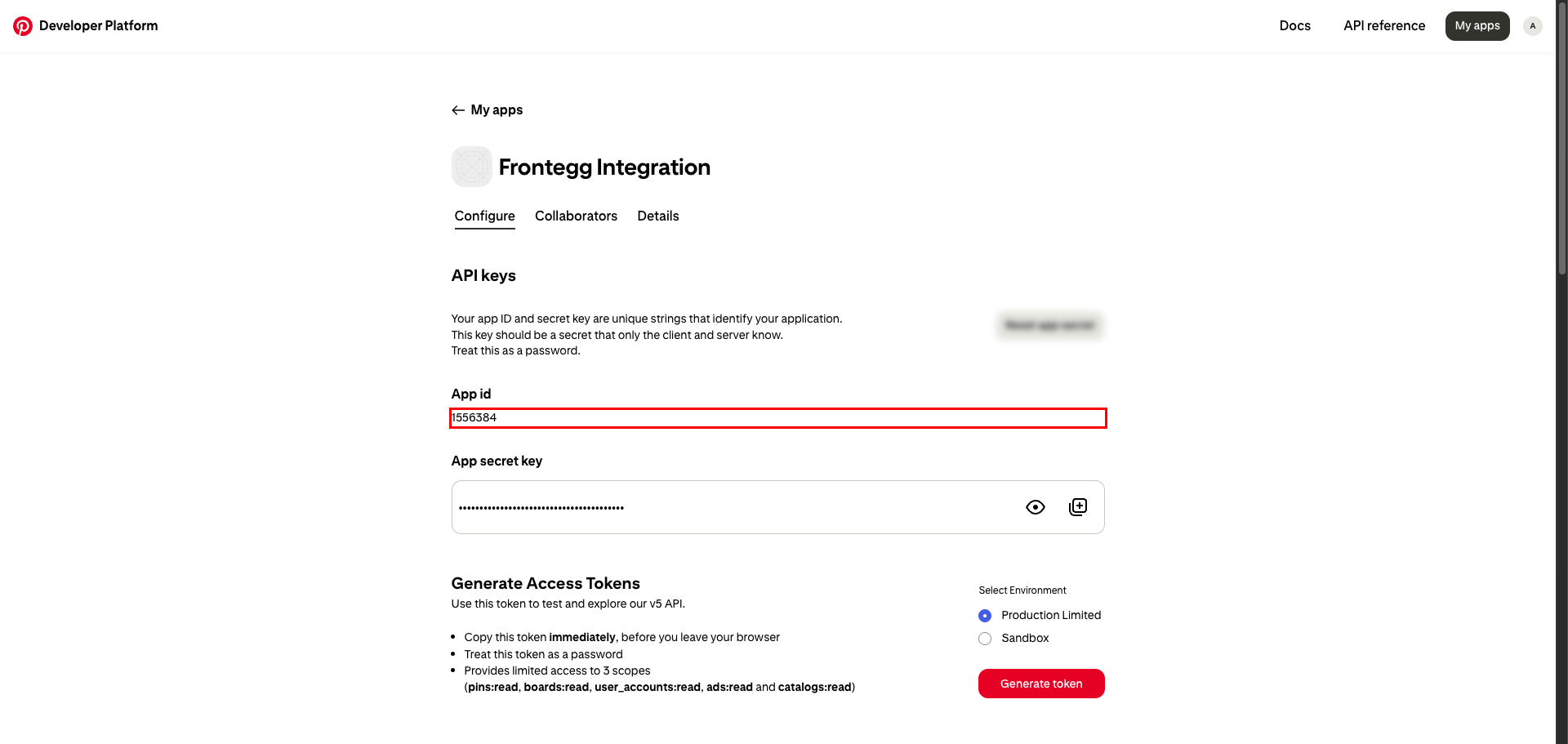
After your app is created, open it from the My apps page and scroll to the API keys section. Here you will find:
- App id -- Your application's unique identifier (equivalent to Client ID).
- App secret key -- Your application's secret (equivalent to Client Secret). Click Show app secret key to reveal it.
Copy both values and store them securely. The app secret key should be treated as a password.
Keep your credentials secure
Keep your credentials secure
Never share or commit your app secret key to version control.
Scroll to the Redirect URIs section. Enter the following redirect URIs in the input field, adding each one separately:
https://YOUR_MCP_GATEWAY_URL/integration-callback
Press Enter or click Add redirect link to save the URI.
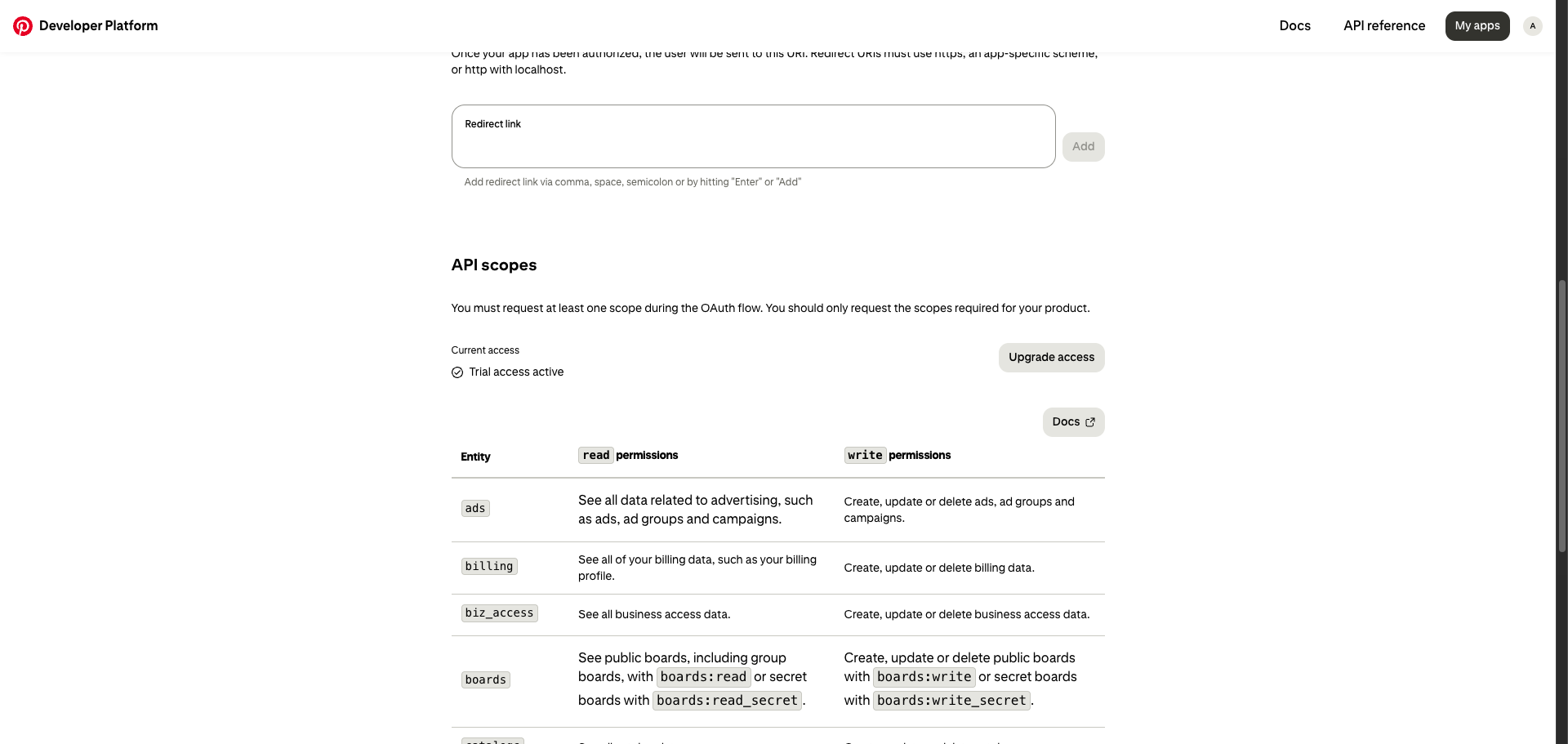
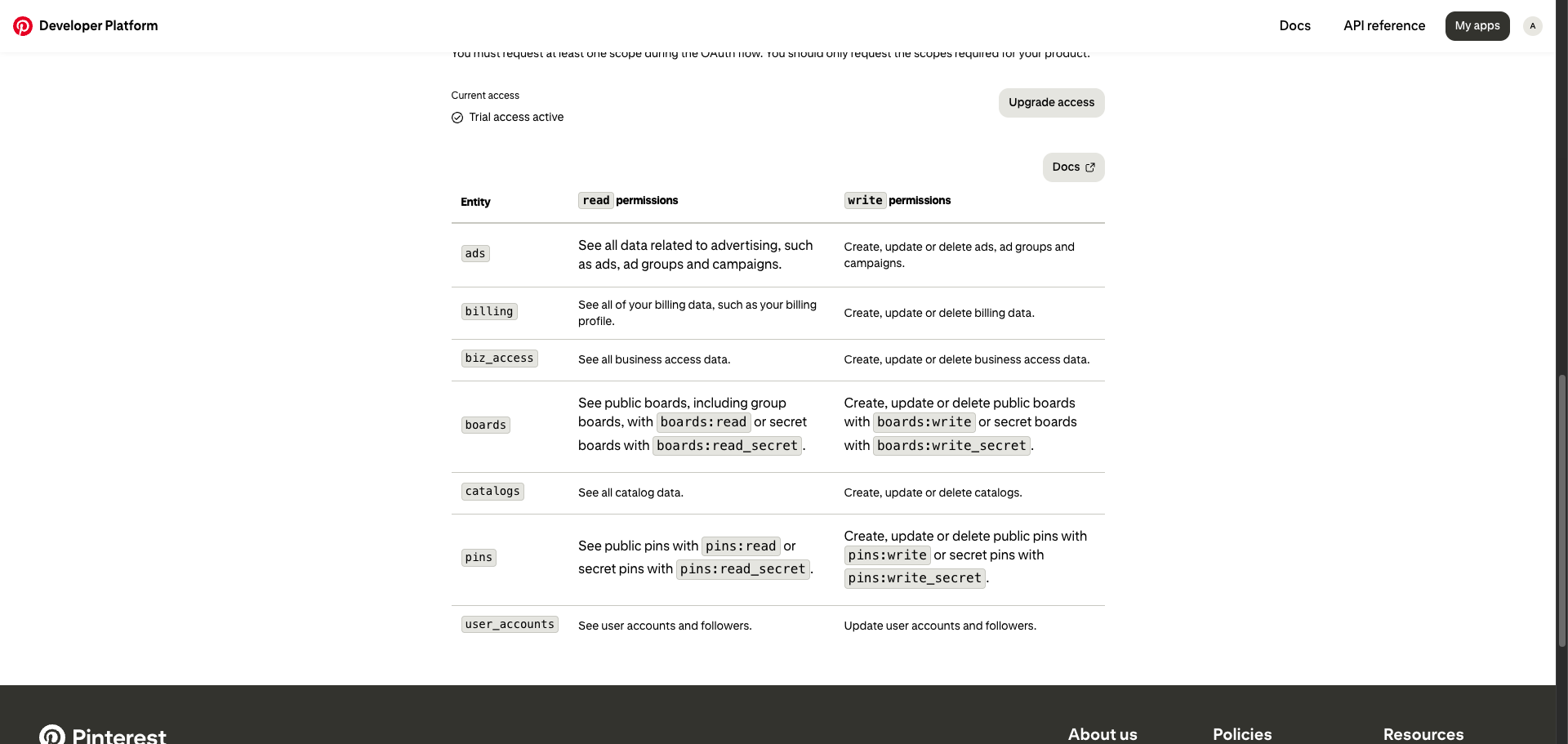
Scroll to the API scopes section to see the available permissions for your app. Pinterest grants scopes at the account level based on your app's access tier.
The following scopes are available and used by the integration:
| Scope | Description |
|---|---|
user_accounts:read | See user account information |
boards:read | See public boards and group boards |
boards:write | Create, update, or delete public boards |
boards:read_secret | See secret boards |
boards:write_secret | Create, update, or delete secret boards |
pins:read | See public pins |
pins:write | Create, update, or delete public pins |
pins:read_secret | See secret pins |
pins:write_secret | Create, update, or delete secret pins |
ads:read | See advertising data (ads, ad groups, campaigns) |
ads:write | Create, update, or delete ads |
catalogs:read | See catalog data |
catalogs:write | Create, update, or delete catalogs |
billing:read | See billing data |
billing:write | Create, update, or delete billing data |
biz_access:read | See business access data |
biz_access:write | Create, update, or delete business access data |
Minimum required scopes
Minimum required scopes
For basic functionality, you need: user_accounts:read, boards:read, pins:read.
Trial access limitations
Trial access limitations
New apps start with Trial access, which limits pins created through the API to be visible only to the authenticated user. To remove this restriction and access higher rate limits, apply for Standard access by clicking Upgrade access on the app page.
Once you have obtained your App id and App secret key from the steps above, enter them in the integration configuration page of the Frontegg portal:
- Open the Frontegg portal and navigate to [ENVIRONMENT] → Integrations → Pinterest.
- Enter the App id as the Client ID and the App secret key as the Client Secret.
- Select the required scopes.
- Click Save.