Google Calendar is Google's scheduling service for consumer and Google Workspace accounts.
It can be connected to Agen.co two ways, matching the Official / In-house filter in the connector picker:
- Official — Agen.co connects through Google's own hosted Calendar MCP server, so your AI agents use the same calendar, event, and free/busy tools Google exposes to MCP clients like Claude and Antigravity.
- In-house — Agen.co wraps the Google Calendar API directly through its own integration layer, using a dedicated OAuth client you register in Google Cloud Console.
Pick Official if the built-in MCP tools cover what your agents need. Fall back to In-house if you need broader API coverage.
Prerequisites
Prerequisites
- A Google account with access to Google Cloud Console
- A Google Cloud project with the Google Calendar API and Calendar MCP API enabled
- In Google Cloud Console, select your project and enable the Google Calendar API and Calendar MCP API.
- Go to APIs & Services → Credentials and click Create credentials → OAuth client ID.
- Set Application type to Web application and give it a name (for example,
Agen.co Google Calendar MCP). - Switch back to Agen.co, go to Connectors → My connectors, click Add connector, and in the search bar type
Google Calendarand select it from the results. - Get back to Google Cloud Console. Under Authorized redirect URIs, click Add URI and add both URLs Agen.co generates when you open the Add Google Calendar panel with Official selected:
- Callback URL — completes the initial OAuth handshake between Agen.co and your OAuth client.
- Gateway callback URL — used by the Agen.co MCP gateway for per-user authorization at runtime.
- Click Create, then copy the Client ID and Client Secret — the Client Secret is shown only once.
Keep your Client Secret safe
Keep your Client Secret safe
The Client Secret is shown only once. If you lose it, return to the client's detail page and generate a new one.
- In the left sidebar, go to APIs & Services → OAuth consent screen → Data access, and add the following scopes:
| Scope | Description |
|---|---|
https://www.googleapis.com/auth/calendar.calendarlist.readonly | List the user's calendars |
https://www.googleapis.com/auth/calendar.events.readonly | Read events |
https://www.googleapis.com/auth/calendar.events.freebusy | Read free/busy information |
https://www.googleapis.com/auth/calendar.events | Create, update, delete, and respond to events |
- Return to the Agen.co portal — the Add Google Calendar panel should already be open from step 4. Fill in the fields:
| Field | Required | Description |
|---|---|---|
| Instance Slug | Yes | Prefixes each imported tool as slug__tool, so a second instance of the same connector needs a slug of its own. Use lowercase kebab-case. You can change it later from the connector's settings. |
| Client ID | Yes | The Client ID from the OAuth client you created above. |
| Client Secret | Yes | The Client Secret from the OAuth client you created above. |
- Click Connect.
- You're redirected to Google to sign in and approve access.
- Return to Agen.co and click Add below the list of tools that were added.
Once connected, Google Calendar appears under My connectors with tools spanning:
| Area | What it covers |
|---|---|
| Calendars | Listing the user's calendars |
| Events | Creating, reading, searching, updating, deleting, and responding to events |
| Availability | Querying free/busy information |
Enabling the Google Calendar connector isn't enough on its own. Tool calls remain denied until you create a policy that grants access to the specific tools you want to expose.
Integrating Google Calendar with Frontegg allows your application to create and manage calendar events, list and update calendars, query free/busy information, and access user settings — all through Frontegg's integration layer using Google OAuth 2.0.
Prerequisites
Prerequisites
- A Google account with access to Google Cloud Console
- A Google Cloud project (you can create one during setup)
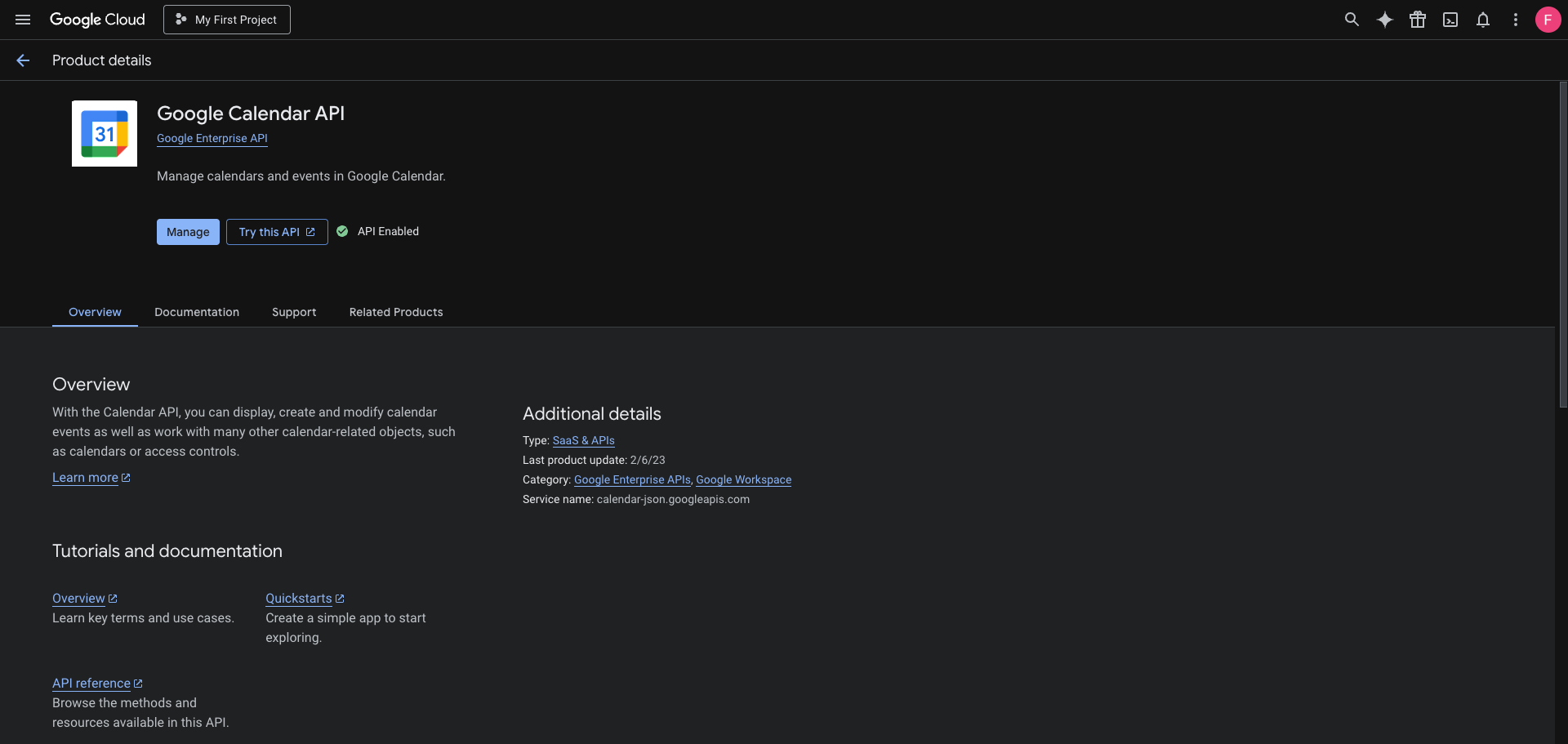
Go to the Google Calendar API page in the Google Cloud Console. Select your project from the top navigation, then click Enable if the API is not yet enabled. If you see Manage and API Enabled, the API is already active.
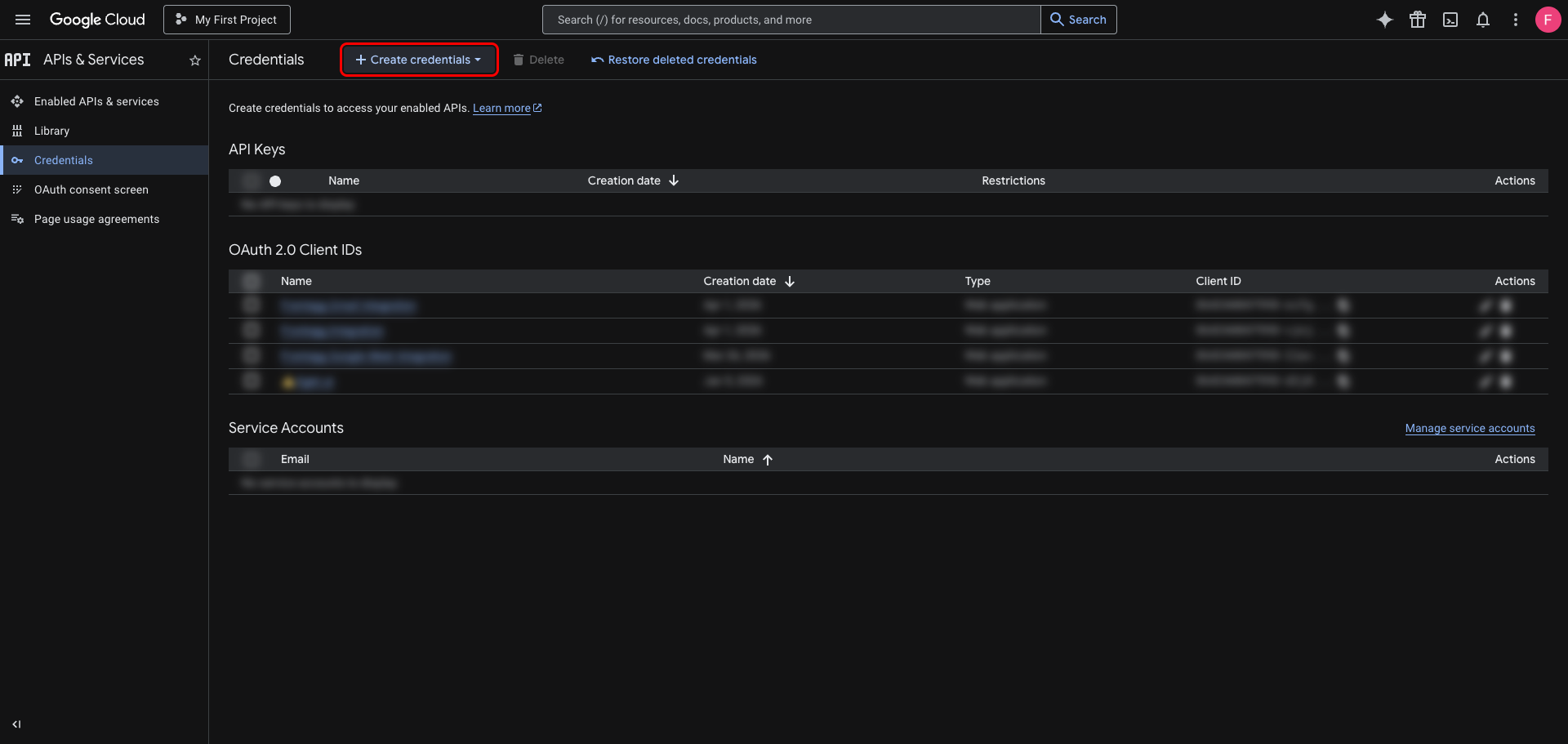
In the left sidebar, navigate to APIs & Services → Credentials. Click Create credentials.
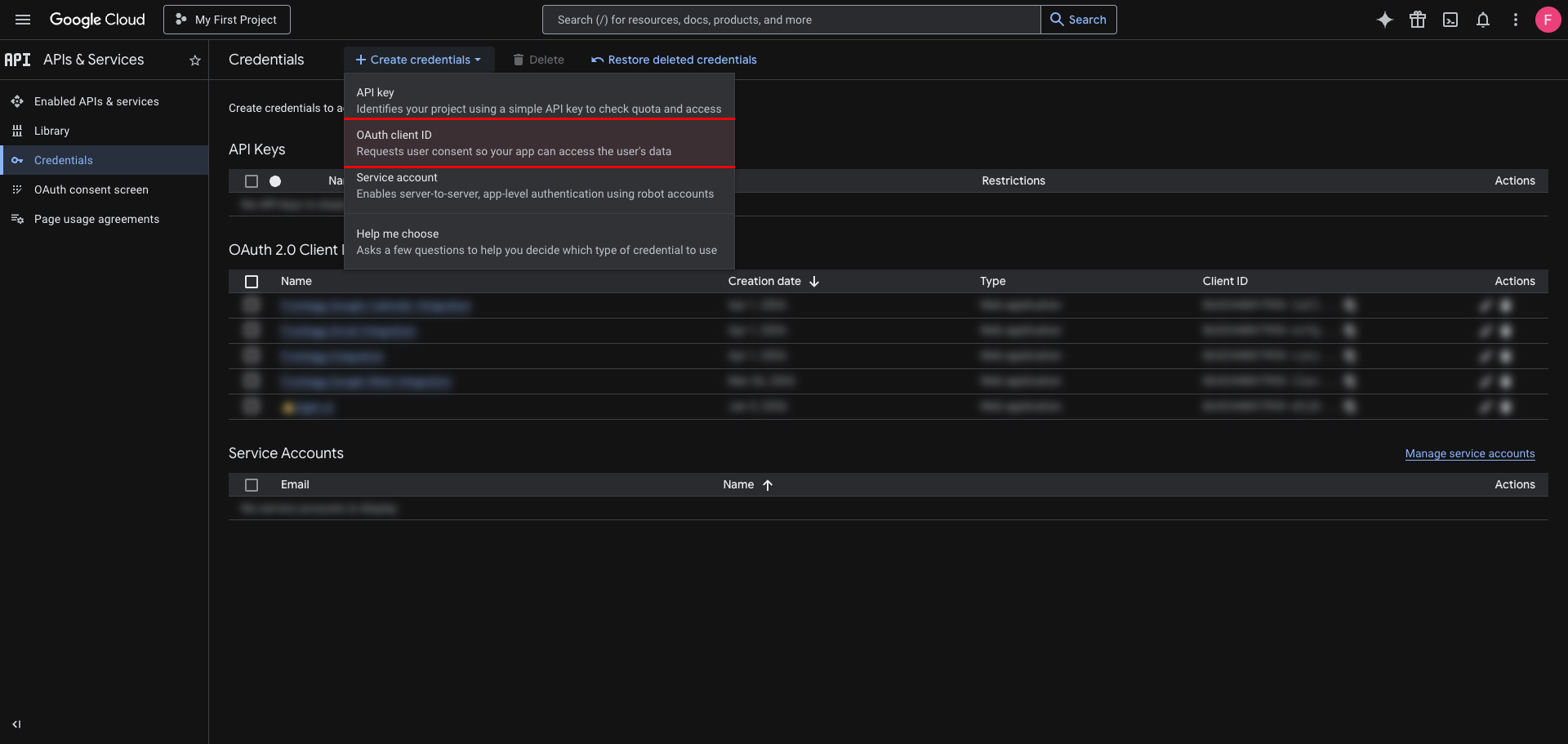
From the dropdown, select OAuth client ID.
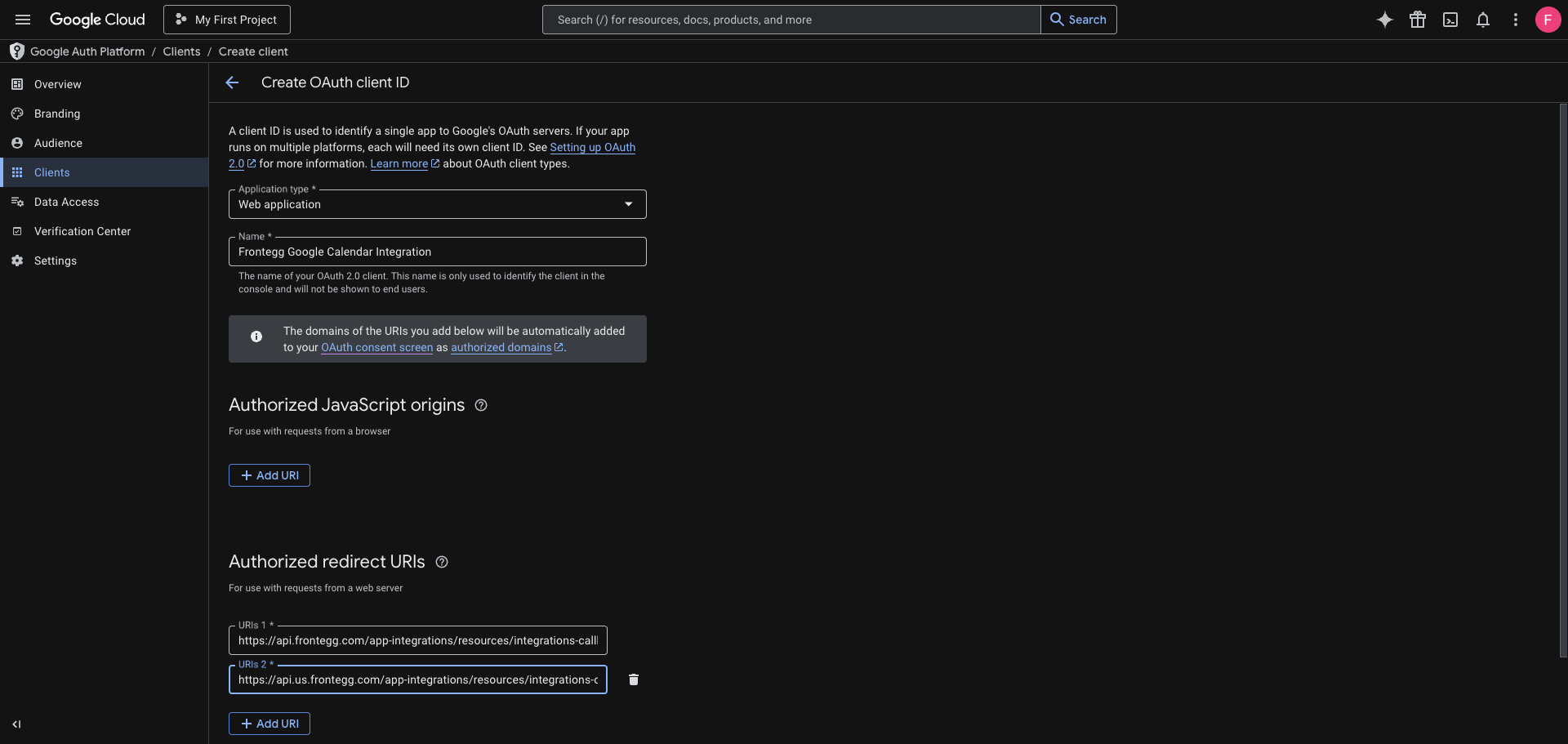
On the Create OAuth client ID page:
- Set Application type to Web application.
- Enter a name for the client (for example,
Frontegg Google Calendar Integration). - Under Authorized redirect URIs, click Add URI and add both of the following:
https://YOUR_MCP_GATEWAY_URL/integration-callback
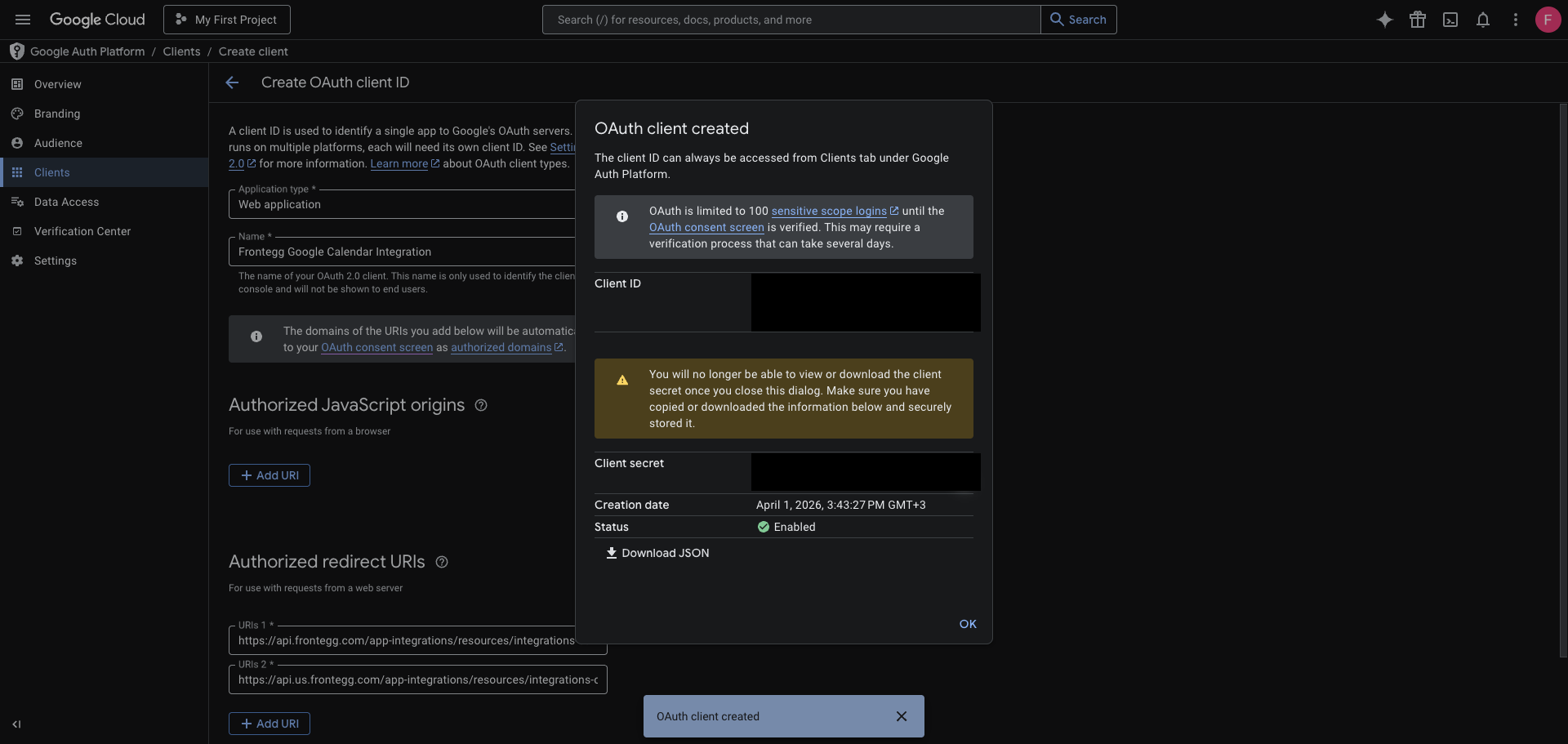
Click Create to save the OAuth client. A dialog will display your Client ID and Client Secret — copy both values and store them securely.
Save your Client Secret now
Save your Client Secret now
The Client Secret is only shown once in this dialog. After you close it, you cannot retrieve it again — you can only create a new secret.
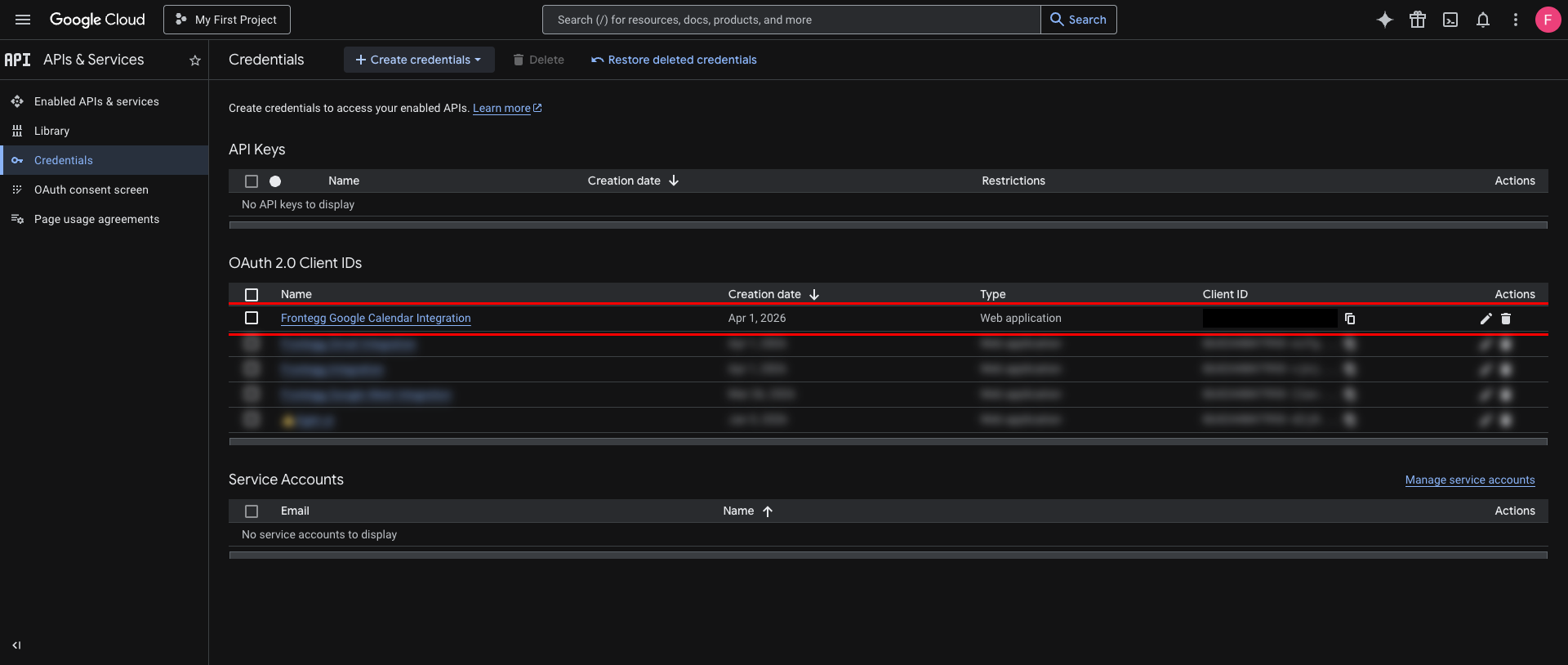
After closing the dialog, your new client appears at the top of the OAuth 2.0 Client IDs list on the Credentials page.
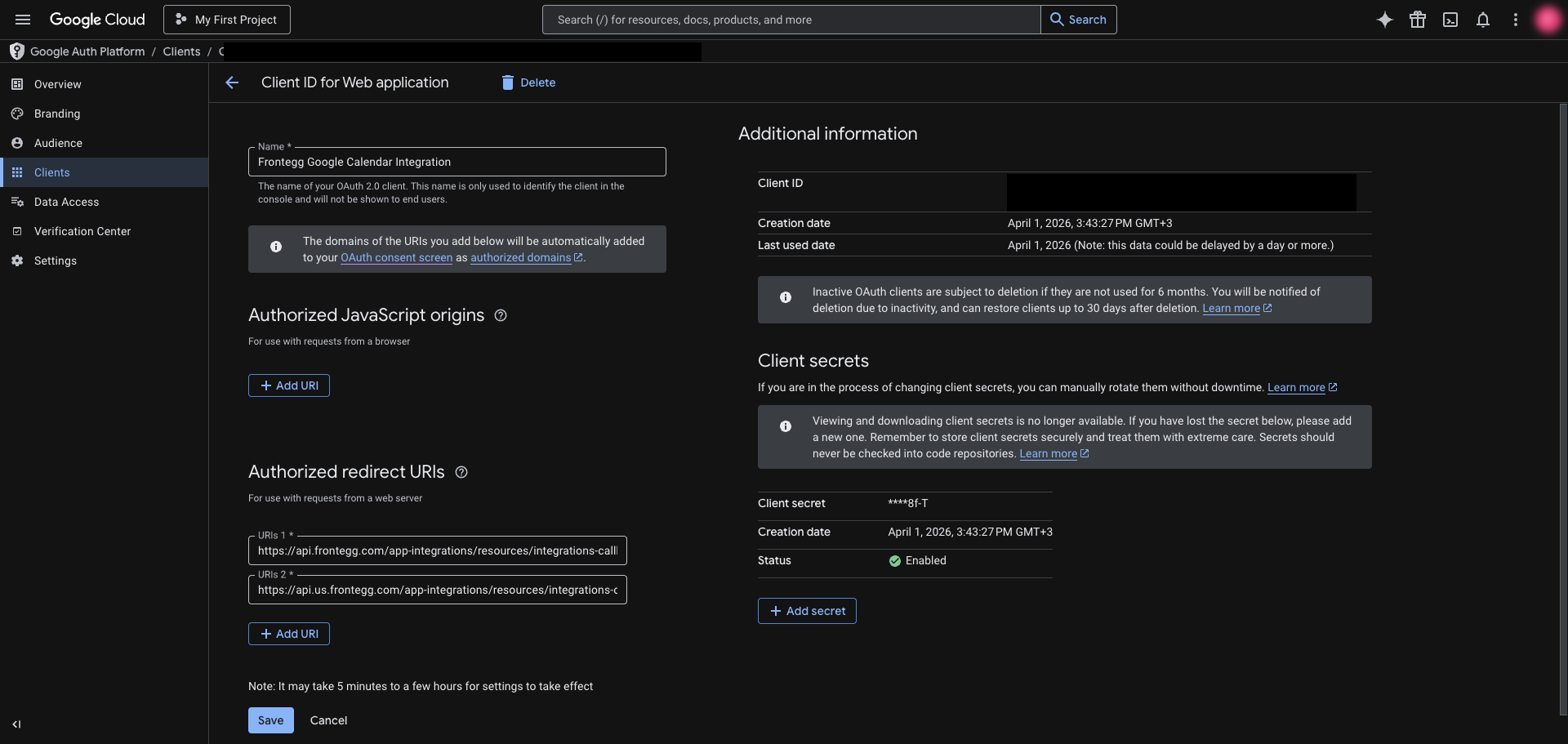
Click the client name to open its detail page. You can view and copy the Client ID at any time from the Additional information section.
Once you have your Client ID and Client Secret, enter them in the Frontegg portal:
- Open the Frontegg portal and navigate to [ENVIRONMENT] → Integrations → Google Calendar.
- Enter the Client ID and Client Secret in the corresponding fields.
- Select the required scopes:
| Scope | Description |
|---|---|
https://www.googleapis.com/auth/calendar.events.readonly | List and read events |
https://www.googleapis.com/auth/calendar.events | Create, update, patch, delete, respond to, and quick-add events |
https://www.googleapis.com/auth/calendar.calendars.readonly | Read a single calendar |
https://www.googleapis.com/auth/calendar.calendarlist.readonly | List the user's calendars |
https://www.googleapis.com/auth/calendar.calendars | Create, update, and delete calendars |
https://www.googleapis.com/auth/calendar.freebusy | Query free/busy information |
https://www.googleapis.com/auth/calendar.settings.readonly | Read calendar settings |
- Click Save.
Keep your credentials secure
Keep your credentials secure
Never share or commit your Client Secret to version control.