Data protection in Agen for Work lets you mask sensitive information in tool responses before they reach AI agents. By creating data protection policies, you ensure that regulated data — such as health records, payment card numbers, and personal identifiers — is automatically redacted at the governance layer, regardless of which AI agent or client is making the request.
This helps your organization meet compliance requirements under GDPR, HIPAA, CCPA, PCI DSS, and other regulatory frameworks without modifying the underlying SaaS tools or the AI agents themselves.
To access the Data protection page, navigate to Governance → Data protection in the left sidebar.
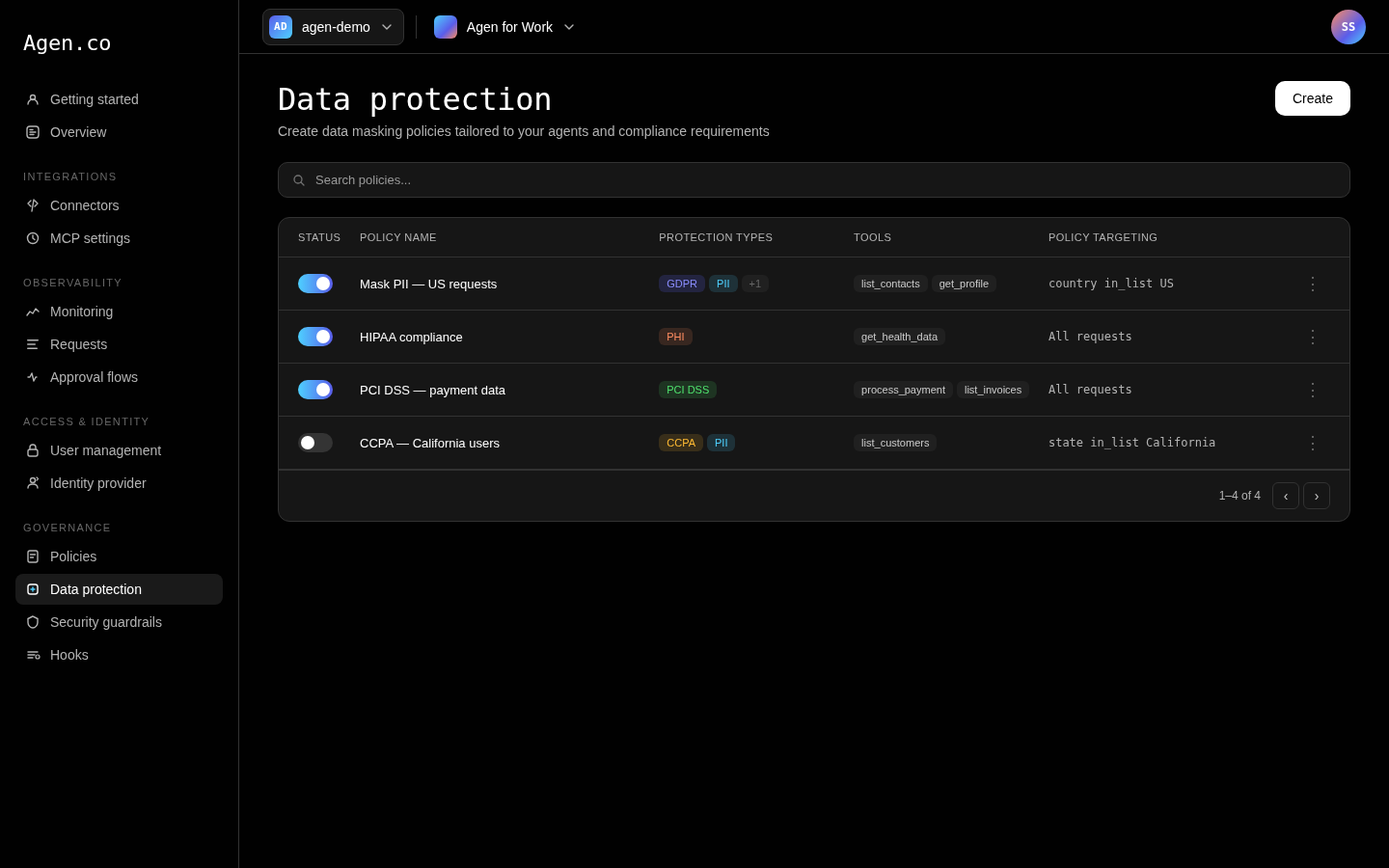
The page displays all configured data protection policies in a table, along with a search bar and a Create button.
| Column | Description |
|---|---|
| Status | A toggle to activate or deactivate the policy without deleting it |
| Policy name | The name of the policy (e.g., "Mask PII") |
| Protection types | Badges showing the compliance categories applied (e.g., GDPR +3) |
| Tools | The connector tools this policy applies to (e.g., List_all_expenses) |
| Policy targeting | The condition that determines when the policy is applied (e.g., country in_list US) |
Each row has a three-dot menu for editing or deleting the policy.
Data protection policies intercept tool responses after the connected SaaS tool returns its data, but before the response reaches the AI agent. The sequence is:
- An AI agent invokes a tool through the MCP Gateway.
- The request passes through authentication, access control, and policies as normal.
- The request is forwarded to the tool's API endpoint.
- The API response is intercepted by the data protection layer.
- If the policy's targeting conditions match the request context, Agen for Work scans the response for the configured data types.
- Any matching sensitive data is masked before the response is returned to the AI agent.
The original unmasked data is never exposed to the AI agent or the AI platform. The agent receives a complete response — with sensitive values replaced by masked equivalents (for example, ***-**-1234 for a Social Security number).
Click Create to open the policy creation dialog. Fill in the following fields:
A descriptive name for the policy (e.g., "Mask PII", "HIPAA compliance"). Choose a name that makes the policy's purpose clear at a glance.
An optional description of what the policy protects. Maximum 180 characters.
A multi-select dropdown where you choose which categories of sensitive data to detect and mask. Data types are organized by regulatory framework, with a Select all option per category:
| Category | Framework | What it covers |
|---|---|---|
| PHI | HIPAA | 39 predefined health-related identifiers: medical record numbers, insurance IDs, health service numbers, and international variants |
| PII | General | Personally identifiable information: social security numbers, passport numbers, driver's license numbers, financial account numbers |
| GDPR | EU regulation | Names, addresses, national IDs, and other personal data relevant to EU data subjects |
| PCI DSS | Payment Card Industry | Credit card numbers, CVV codes, and cardholder names |
| CCPA | California law | Data types specific to California residents' privacy rights |
| COPPA | US federal law | Personal information related to children |
You can select types from multiple categories in a single policy. See Masking types for the complete list of identifiers within each category.
Select which connector tools this policy applies to. Masking is only applied to responses from the tools you select here. Leave this field empty to apply the policy to all tools.
Define a conditional expression that determines when the policy is applied. If no condition is set, the policy applies to all matching tool calls unconditionally.
Targeting uses an attribute-based expression builder:
IF [Attribute] [Operator] [Value]
| Component | Description | Example |
|---|---|---|
| Attribute | The request attribute to evaluate | Country |
| Operator | The comparison operator | In |
| Value | The value(s) to compare against | United States |
Click + and to add additional conditions. All conditions must be true for the policy to apply. Click the minus icon to remove a condition.
Click Create to save the policy.
Each policy has a toggle in the Status column:
- Active (toggle on) — The policy is enforced on all matching tool responses.
- Inactive (toggle off) — The policy is preserved in your configuration but not enforced.
Use the inactive state to temporarily suspend a policy during testing or maintenance without losing its configuration.
Scenario: Mask all PII and GDPR-regulated data in tool responses when the requesting user is based in the United States.
- Click Create.
- Set Policy name to "Mask PII — US".
- Under Data types to protect, select PII and GDPR. Use Select all within each category.
- Under Policy tools, select the tools that handle personal data (e.g.,
List_all_expenses,Get_user_profile). - Under Policy targeting, set: IF
CountryInUnited States. - Click Create.
Result: When a US-based user's AI agent calls any of the selected tools, fields matching PII and GDPR data types are automatically masked in the response before the agent receives it.
- Masking types — Full reference of all predefined data identifiers by compliance category
- Policies — Control who can use which tools and under what conditions
- Monitoring — Audit tool calls and verify masking is applied as expected