Notion is a connected workspace for documents, wikis, databases, and project notes.
It can be connected to Agen.co two ways, matching the Official / In-house filter in the connector picker:
- Official — Agen.co connects through Notion's own hosted MCP server. Each connection acts as the Notion user who authorizes it and reaches everything that user can access in the selected workspace.
- In-house — Agen.co wraps the Notion REST API directly through its own integration layer, using a connection you create in Notion's developer tools. It reaches only the pages and databases that have been connected to it.
Pick Official if you want agents to work across the user's own Notion content without creating a connection in Notion. Fall back to In-house if you need to limit the connector to specific pages or connect a workspace once with an internal integration secret.
Prerequisites
Prerequisites
- A Notion account with access to the workspace you want to connect. No connection needs to be created in Notion's developer tools — the MCP server registers Agen.co as a client automatically, so there is no Client ID or Client Secret to copy.
- On Enterprise workspaces where a workspace owner has set Settings → Connections → Permissions → Restrict AI apps members can connect to Only from approved list, Notion blocks every call from an MCP client that isn't on that list. A workspace owner or admin adds Agen.co to the list by completing the connection below once themselves; members can connect after that.
In the Agen.co portal, go to Connectors → My connectors and click Add connector.
In the Select connector drawer, search for
Notionand select it. The Add Notion panel opens with Official selected at the top.Fill in the field:
Field Required Description Instance Slug Yes Prefixes each imported tool as slug__tool, so several instances of the connector can coexist. Prefilled withnotion. If Notion is already connected, the panel says so — enter a different slug for the new instance. Use lowercase kebab-case. You can change it later from the connector's settings.Click Connect. Notion opens in a new tab, and the panel shows Waiting for authorization — complete it in the opened tab…
On the Connect with Notion MCP page, choose the workspace under Select workspace, select I recognize and trust this URL below the redirect location, and click Continue. Continue stays disabled until the checkbox is selected.
Back in Agen.co, the panel switches to Select the tools to import from Notion. Every tool is toggled on; turn off any you don't want to import, then click Add.
The connector is created and its tools imported only when you click Add. If you close the panel before that, nothing is saved, even though the Notion tab reported success.
Adding the connector doesn't authorize anyone's tool calls yet. The first time each user's agent calls a Notion tool, the call returns an authorization link instead of a result. The user opens the link and completes the Connect with Notion MCP screen again: choose the workspace under Select workspace, select I recognize and trust this URL, and click Continue. This time the redirect location is the MCP gateway's callback (it ends in /external-mcp/callback), not the one used when adding the connector. After that, the user's tool calls run against the workspace they selected, with their own Notion permissions.
Once connected, Notion appears under My connectors with tools spanning:
| Area | What it covers |
|---|---|
| Search | Searching the workspace, and with Notion AI, connected sources such as Slack and Google Drive |
| Pages | Fetching, creating, updating, moving, and duplicating pages and folders |
| Databases | Creating databases, updating data sources, querying rows, and creating or updating views |
| Comments | Reading comments and discussions, and adding comments or replies |
| Files | Uploading files and creating or downloading attachments |
| Skills | Finding, downloading, and uploading Notion Skills, and converting pages to Skills |
| Workspace | Listing teamspaces, members, and guests |
| Notion AI | Querying meeting notes and running Custom Agent sessions |
Tools in the Notion AI area, and AI search, work only in workspaces with Notion AI. The notion-get-tool-access tool reports which tools and filters the connected workspace allows.
Enabling the Notion connector isn't enough on its own. Tool calls remain denied until you create a policy that grants access to the specific tools you want to expose.
Integrating Notion with Frontegg allows your application to interact with Notion workspaces — reading pages, creating content, querying databases, and reading and posting comments on the user's behalf.
The connector supports two authentication methods. Use OAuth 2.0 when several users each connect their own Notion workspace; use an internal integration secret when a single workspace is connected once by an administrator. The steps below cover the OAuth setup; see Alternative: internal integration secret for the simpler path.
Prerequisites
Prerequisites
- A Notion account
- Access to Notion developer tools, and permission to create connections in the workspace
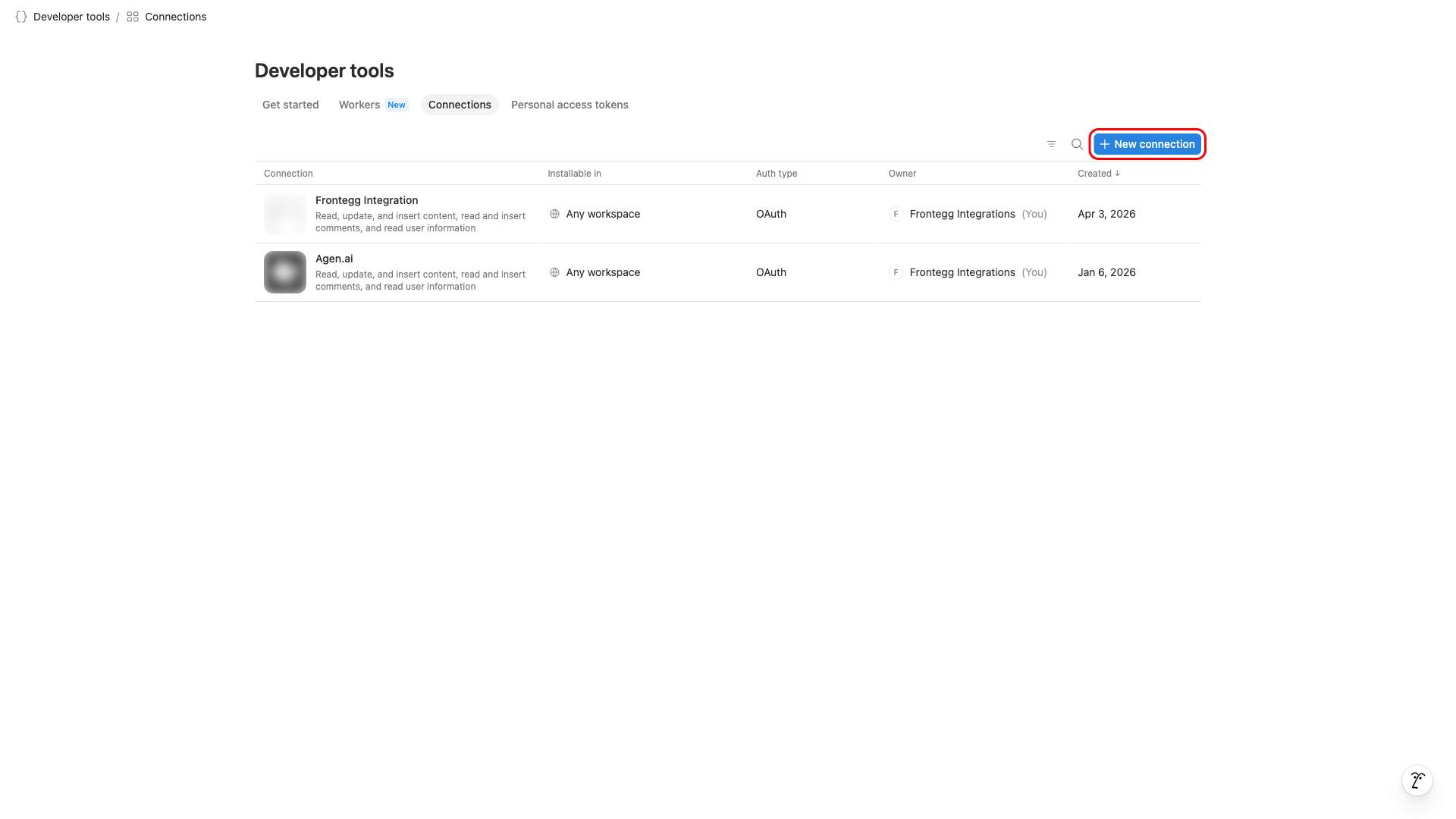
Navigate to notion.so/my-integrations, which opens Developer tools in the Notion app. Sign in if prompted, then open the Connections tab and click New connection.
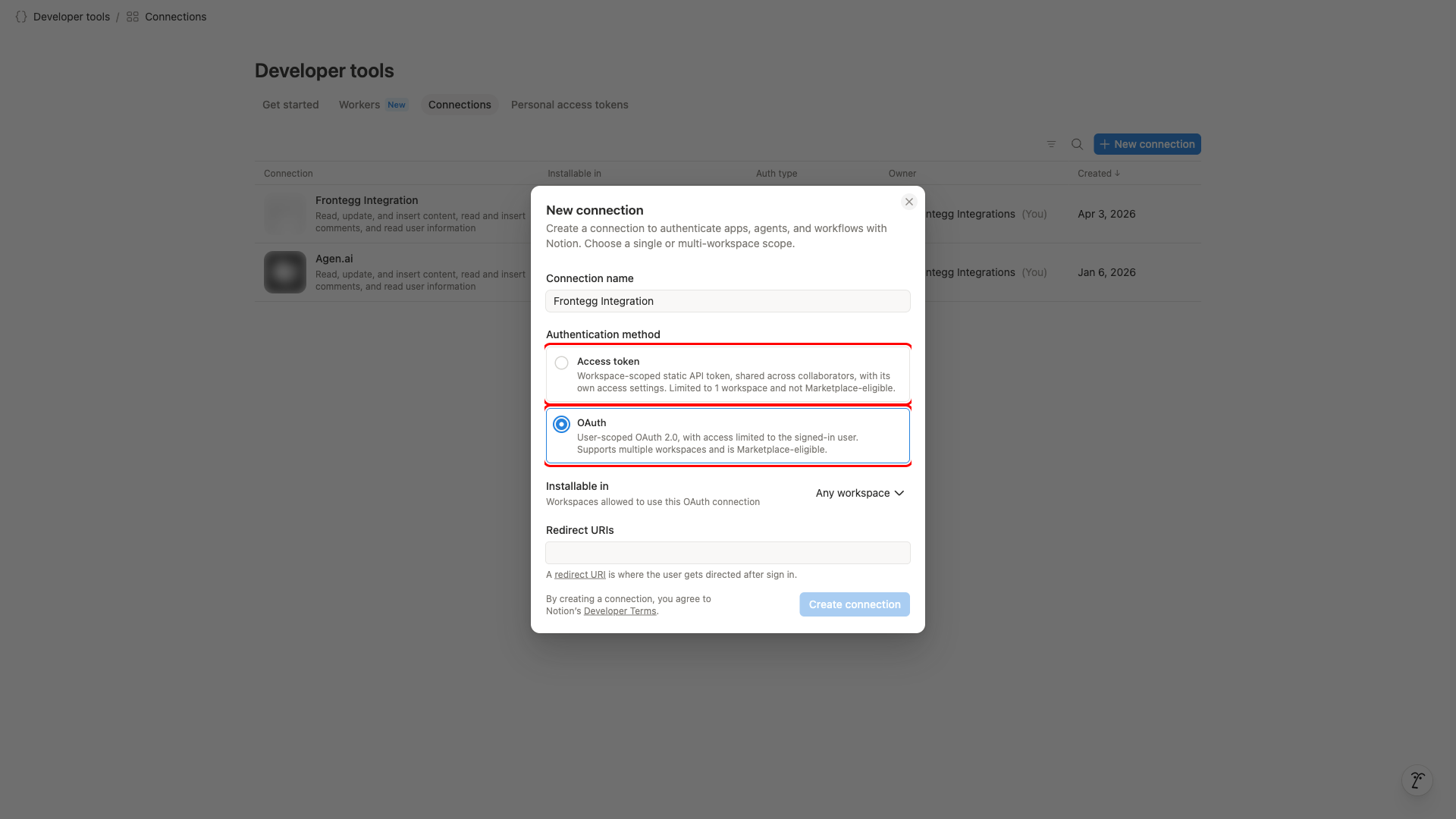
In the New connection dialog:
- Connection name — enter a name such as
Frontegg Integration. - Authentication method — select OAuth. Choosing OAuth reveals the Installable in and Redirect URIs fields.
- Installable in — keep Any workspace so each user can connect their own workspace. The Configuration page shows this same setting as Public.
Workspace permissions
Workspace permissions
Some workspaces restrict who may create connections. If the dialog reports that you do not have permission, ask a workspace owner to create the connection or to grant you the right.
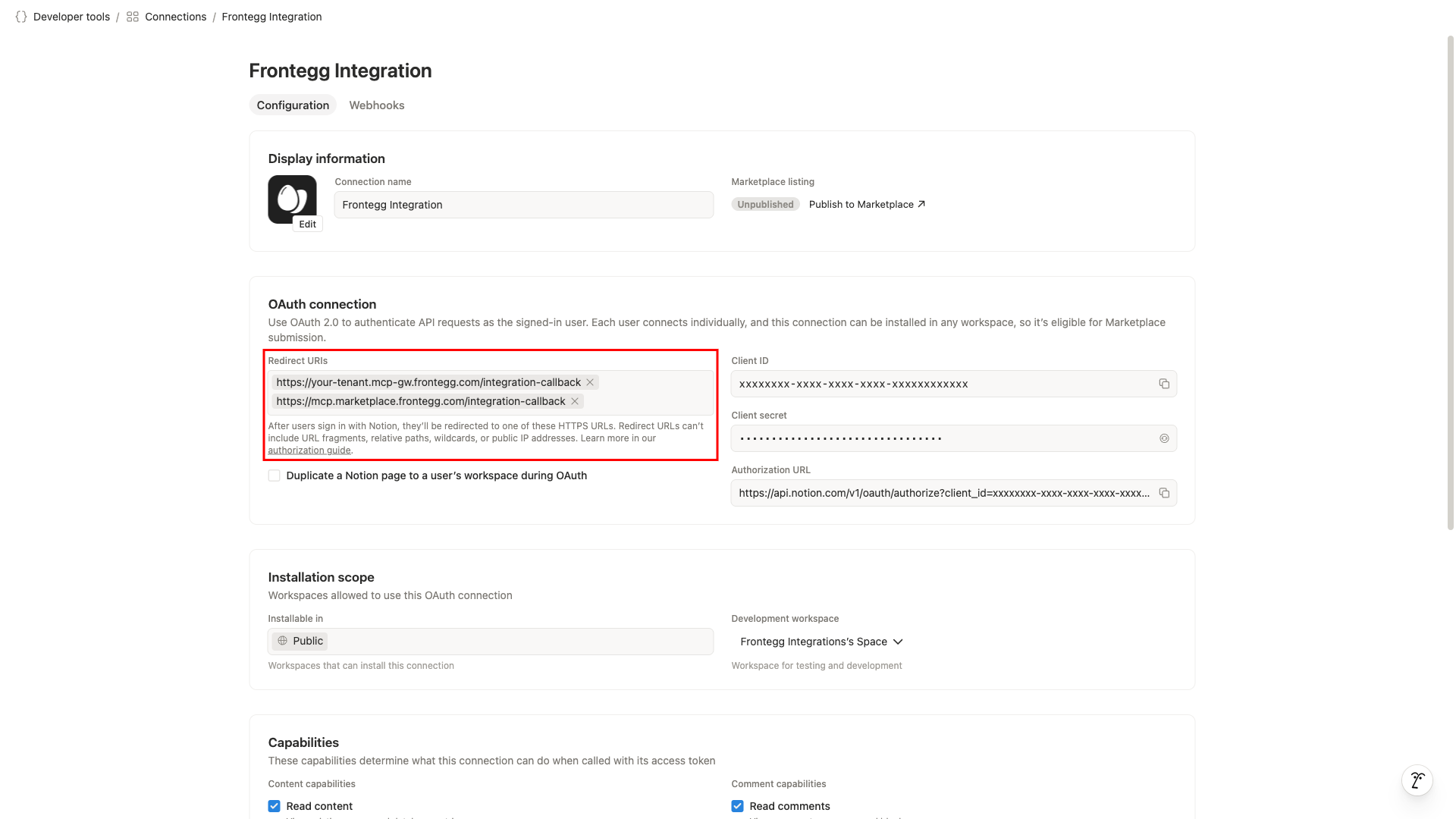
Enter the redirect URL shown in the Frontegg portal for this integration — copy it whole, including the path, and press Enter to add it. See How to get your Redirect URL.
The value has this shape, but take the real one from the portal rather than assembling it:
https://YOUR_MCP_GATEWAY_URL/integration-callback
Click Create connection. The connection opens on its Configuration page, where the redirect URIs can be changed or added to later — that is the page shown below. A connection may hold several redirect URIs; only the one from your Frontegg portal is required.
On the Configuration page, find the OAuth connection section. Copy the Client ID with the copy button next to it.
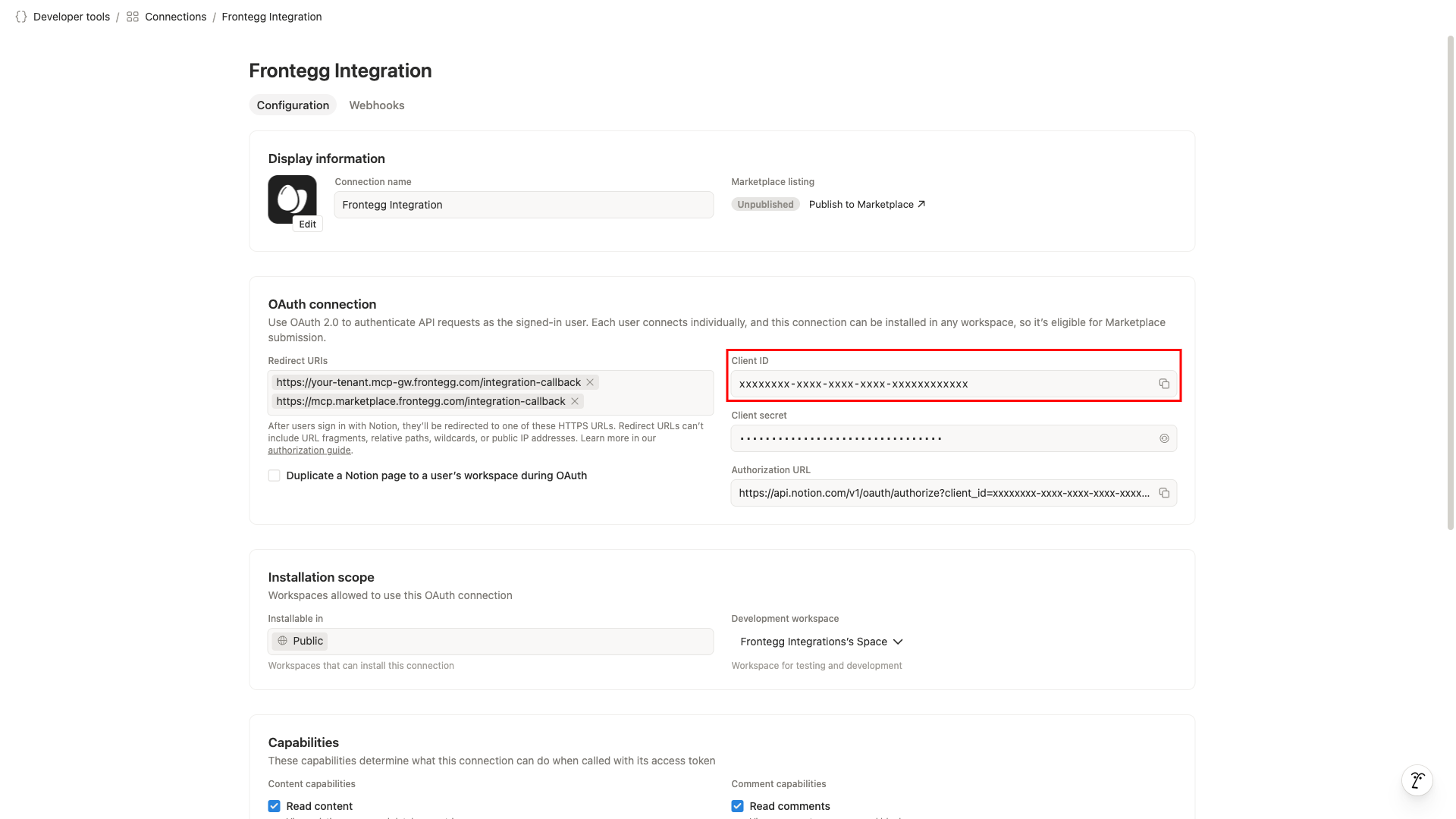
The Client secret sits directly below the Client ID and is masked. Use the reveal control to show it, then copy it.
Keep your credentials secure
Keep your credentials secure
Store the Client secret in a secure location as soon as you copy it. Never share it or commit it to version control.
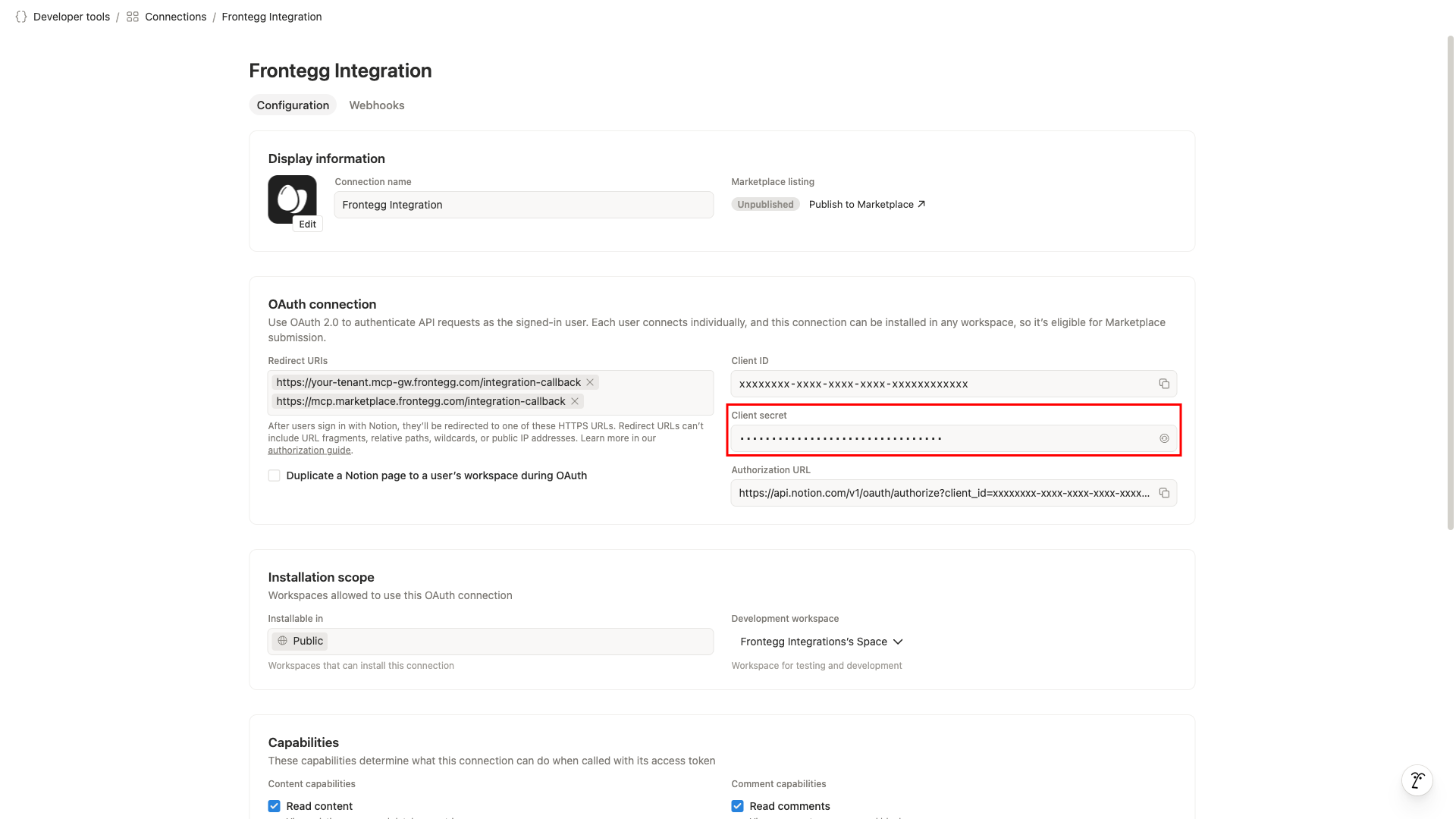
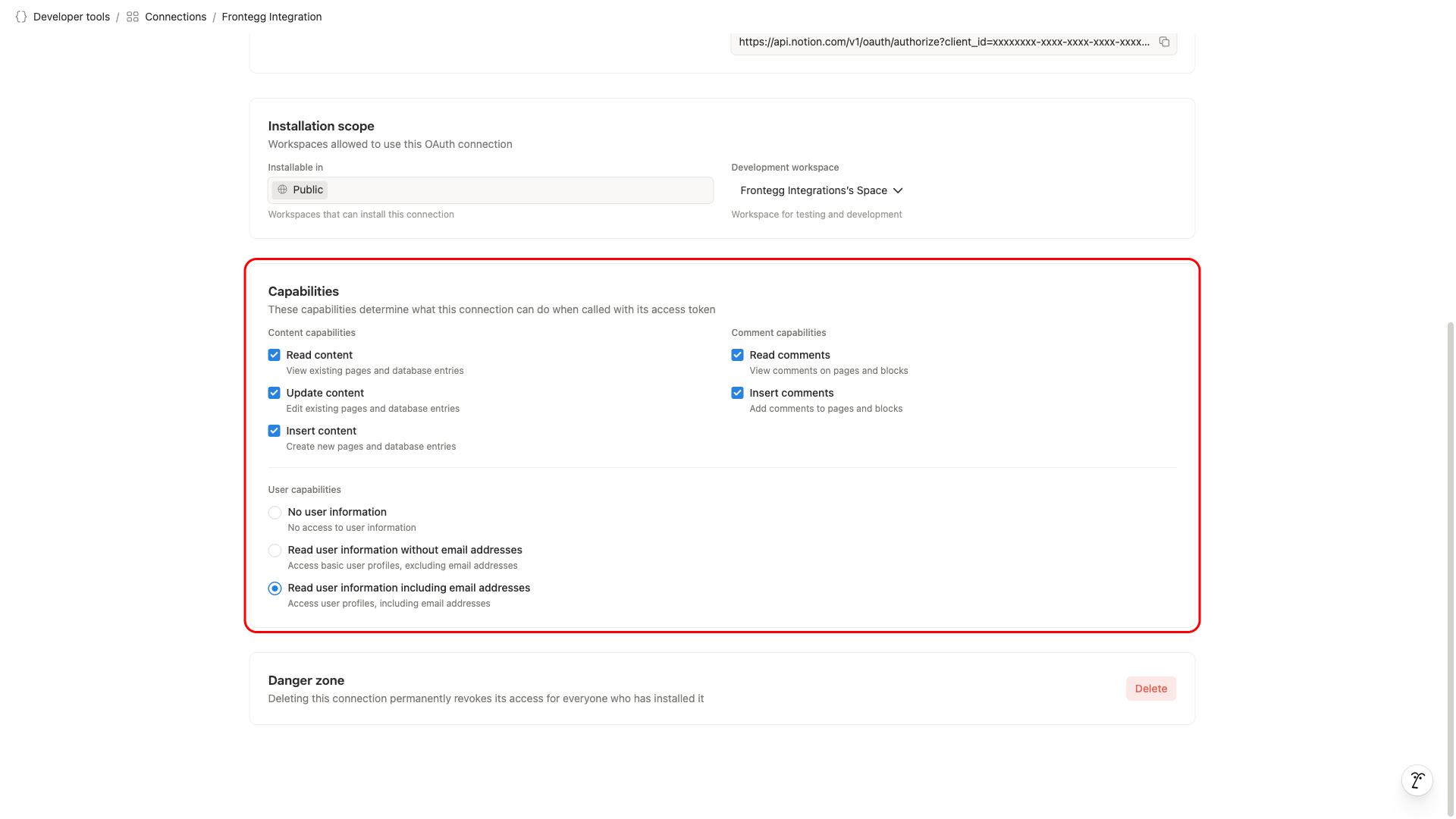
In the Capabilities section, select what the connection may do. Notion uses capability-based permissions instead of traditional OAuth scopes, and the selected capabilities are shown to users when they authorize the connection.
| Capability | Description |
|---|---|
| Read content | View existing pages and database entries |
| Update content | Edit existing pages and database entries |
| Insert content | Create new pages and database entries |
| Read comments | View comments on pages and blocks |
| Insert comments | Add comments to pages and blocks |
User capabilities are a separate three-way choice rather than a checkbox, and one of the options is always in effect: No user information, Read user information without email addresses, or Read user information including email addresses. Select the last one — the connector reads user profiles including email addresses. If you pick a narrower option, expect user lookups to return less than the connector asks for.
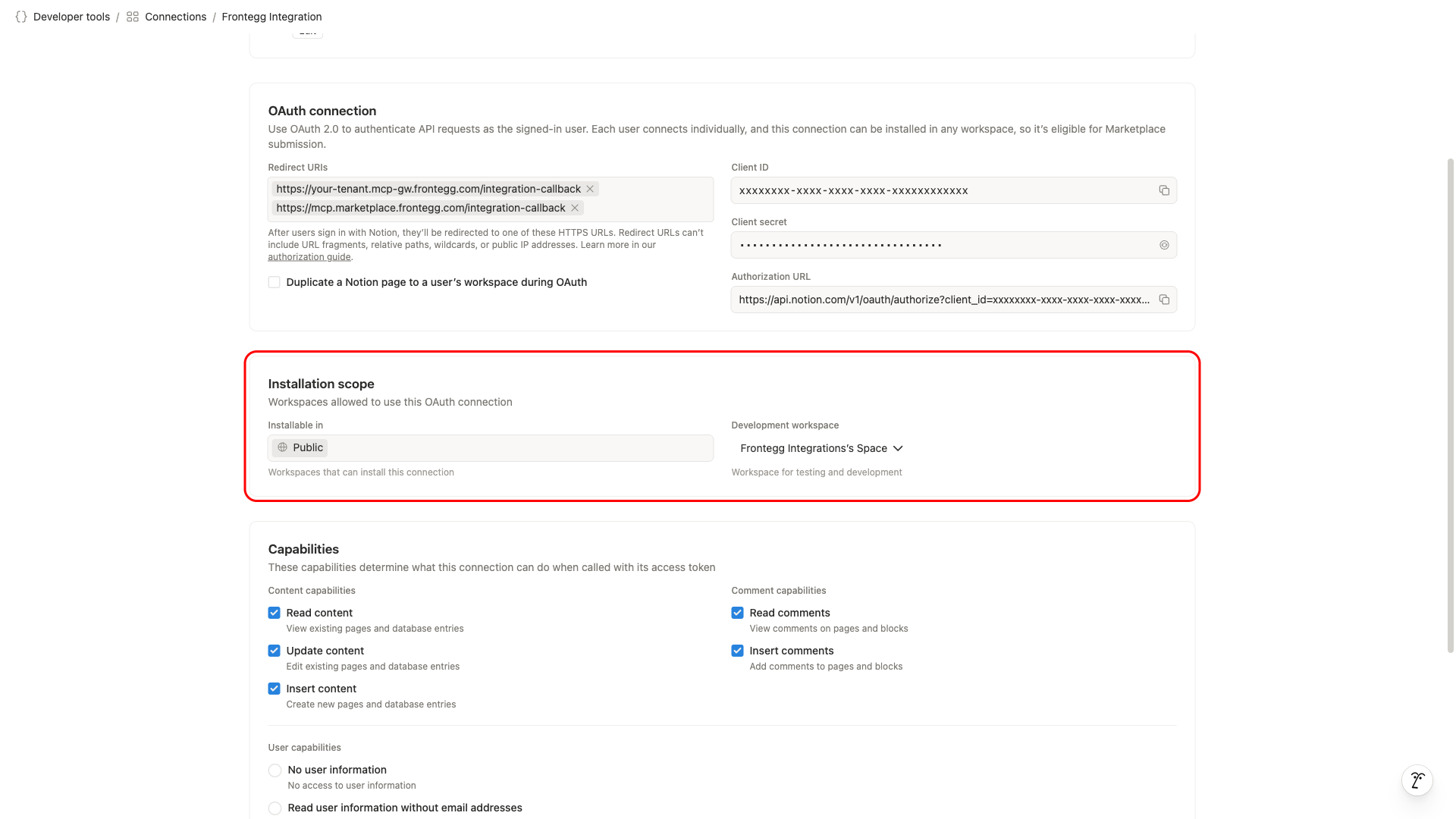
In the Installation scope section, confirm that Installable in is set to Public so users in any workspace can install the connection, and that Development workspace points at the workspace you use for testing.
If only one workspace needs to be connected, you can skip the OAuth steps above and use an internal integration secret instead:
- In Developer tools, open the Personal access tokens tab, or create a connection with Access token as its authentication method instead of OAuth.
- Copy the token — it starts with
ntn_. - In Notion itself, open each page or database the integration should reach, and connect it to the integration from the page's Connections menu. The integration can only see content that has been connected to it this way.
With this method the integration acts as itself rather than on behalf of a signed-in user, and there is no consent screen and no redirect URL to configure.
Open the Frontegg portal, navigate to [ENVIRONMENT] → Integrations → Notion, and fill in the fields for the method you chose:
- OAuth — enter the OAuth Client ID in the Client ID field and the OAuth Client Secret in the Client Secret field.
- Internal integration secret — paste the
ntn_secret into the Internal Integration Secret field.
Then click Save. Capabilities are not selected in the Frontegg portal — they come from the connection's settings in Notion.
- Partial block edits — A block can be changed without resending everything it holds; for example, a to-do can be ticked off while its text is left untouched, and a bookmark's caption can be changed without resupplying its URL.
- Full comment handling — Comments can be read, added, edited, and deleted.
- Trash instead of deletion — Archiving a page moves it to the Notion trash, where it stays recoverable, rather than erasing it. Search can be pointed at the trash to find archived content.
- Content must be connected to the integration first — The integration sees only the pages and databases that a workspace member has explicitly connected to it. Anything else is invisible, and search returns no results for it — this is the most common reason a page that clearly exists cannot be found.
- Databases hold data sources — Under the current Notion API the columns and rows live on a database's data source rather than on the database itself, and one database can contain several data sources. Reading a database gives you its data sources; querying rows and changing columns happens on a data source.
- New pages need properties that match the parent — A page created inside a database must supply values for that data source's schema, and a page needs a title. Creating a database requires the columns of its initial data source up front.
- Search narrows to pages or data sources only — Those are the only two object types the search filter accepts; other object types are rejected.
- Archived parents lock their children — A page or block whose parent is in the trash cannot be edited until the parent is restored.
- Results are paginated — Listings return at most 100 records per request and continue with a cursor.