Google Sheets is Google's online spreadsheet editor for consumer and Google Workspace accounts.
It can be connected to Agen.co two ways, matching the Official / In-house filter in the connector picker:
- Official — Agen.co connects through Google's own hosted Sheets MCP server, so your AI agents use the same spreadsheet read and update tools Google exposes to MCP clients.
- In-house — Agen.co wraps the Google Sheets API directly through its own integration layer, using a dedicated OAuth client you register in Google Cloud Console.
Pick Official if the built-in MCP tools cover what your agents need. Fall back to In-house if your agents need to create spreadsheets.
Prerequisites
Prerequisites
- Membership in the Google Workspace Developer Preview Program. The Google Sheets MCP server is a Developer Preview feature. You apply with your Google Workspace account and the Google Cloud project you use for this connector, and Google registers that project, usually within a couple of days, so apply before you start.
- A Google Cloud project where you can enable APIs, configure the Google Auth Platform, and create OAuth clients.
In Google Cloud Console, select your project and enable both the Google Sheets API and the Google Sheets MCP API. Google requires both for the MCP server.
- Go to Google Auth Platform → Branding. If you see Google Auth Platform not configured yet, click Get Started, enter an app name and a support email, and click Next.
- Under Audience, select Internal. If you can't select it, select External. Finish the wizard and click Create.
- If you selected External, open Audience and, under Test users, click Add users and add every Google account that will connect. Other accounts can't complete sign-in while the app is in testing.
- Open Data Access → Add or Remove Scopes. Under Manually add scopes, paste the four scopes below, click Add to Table, click Update, then click Save.
| Scope | What it allows |
|---|---|
https://www.googleapis.com/auth/spreadsheets.readonly | Read the user's spreadsheets |
https://www.googleapis.com/auth/spreadsheets | Edit the user's spreadsheets |
https://www.googleapis.com/auth/drive.readonly | Read the user's Google Drive files |
https://www.googleapis.com/auth/drive.file | Access Drive files the user opens or creates with the app |
- In the Agen.co portal, go to Connectors → My connectors and click Add connector.
- Search for
Google Sheetsand select it. At the top of the Add Google Sheets panel, keep Official selected. - Copy both read-only URLs at the bottom of the panel:
- Callback URL: completes the initial OAuth handshake between Agen.co and your OAuth client.
- Gateway callback URL: used by the Agen.co MCP gateway for per-user authorization at runtime.
Leave this panel open. You return to it after creating the OAuth client.
- In Google Cloud Console, make sure the same project is selected, then go to Google Auth Platform → Clients → Create client. The client must belong to the project where you enabled the Google Sheets MCP API: Google checks API enablement against the project that owns the credential, so a client from another project, such as one you already use for the In-house connector, fails without a clear error.
- Set Application type to Web application and enter a name (for example,
Agen.co Google Sheets MCP). Leave Use this client for an AI-powered agent cleared. - Under Authorized redirect URIs, click Add URI and add both URLs you copied from Agen.co.
- Click Create, then copy the Client ID and Client Secret. Google shows the secret only at creation, so copy it now. If you lose it, add a new secret from the client's detail page.
- Return to the Add Google Sheets panel you left open and fill in the fields:
| Field | Required | Description |
|---|---|---|
| Instance Slug | Yes | Namespaces this instance. It prefixes each imported tool as slug__tool, so a second instance of the same connector needs its own slug. Use lowercase kebab-case, for example google-sheets. You can change it later from the connector's settings. |
| Client ID | Yes | The Client ID of the OAuth client you created. |
| Client Secret | Yes | The Client Secret of the OAuth client you created. |
- Click Connect. You're redirected to Google to sign in and approve access.
- Back in Agen.co, the panel shows Select the tools to import from Google Sheets. with a toggle for each tool, all on by default. Turn off any tool you don't want, then click Add. The connector is created and its tools imported only when you click Add, even if the Google sign-in page reported success.
- After you create a policy for the tools, the first tool call a user makes returns a one-time authorization link instead of data. The user opens it and approves access with their own Google account. This per-user step uses the Gateway callback URL you registered, and each user does it once.
Once connected, Google Sheets appears under My connectors with tools spanning:
| Area | What it covers |
|---|---|
| Reading | Reading cell values in a range, and reading a spreadsheet's sheets, properties, and optionally its comments |
| Writing | Setting values and formulas in a range |
| Structure | Inserting rows or columns, and applying batches of structural updates to a spreadsheet |
The Official MCP server works only on existing spreadsheets, and it can't search for them. Agents need the spreadsheet's ID, which is the part of its URL between /d/ and /edit. Use the In-house tab if your agents need to create spreadsheets.
Every tool call fails with a Developer Preview error
If every tool call fails with Access to this tool requires that your Google Cloud project (<project number>) is enrolled in the Google Workspace Developer Preview Program, the Google Cloud project that owns your OAuth client isn't registered in the Google Workspace Developer Preview Program. Without registration, sign-in, tool import, policy creation, and per-user authorization all still succeed, and then every tool call fails. Google registers the project you applied with, so make sure your OAuth client belongs to that project. See Prerequisites above.
Enabling the Google Sheets connector isn't enough on its own. Tool calls remain denied until you create a policy that grants access to the specific tools you want to expose.
Integrating Google Sheets with Frontegg allows your application to read, create, and update Google Sheets spreadsheets — all through Frontegg's integration layer using Google OAuth 2.0.
Prerequisites
Prerequisites
- A Google account with access to Google Cloud Console
- A Google Cloud project (you can create one during setup)
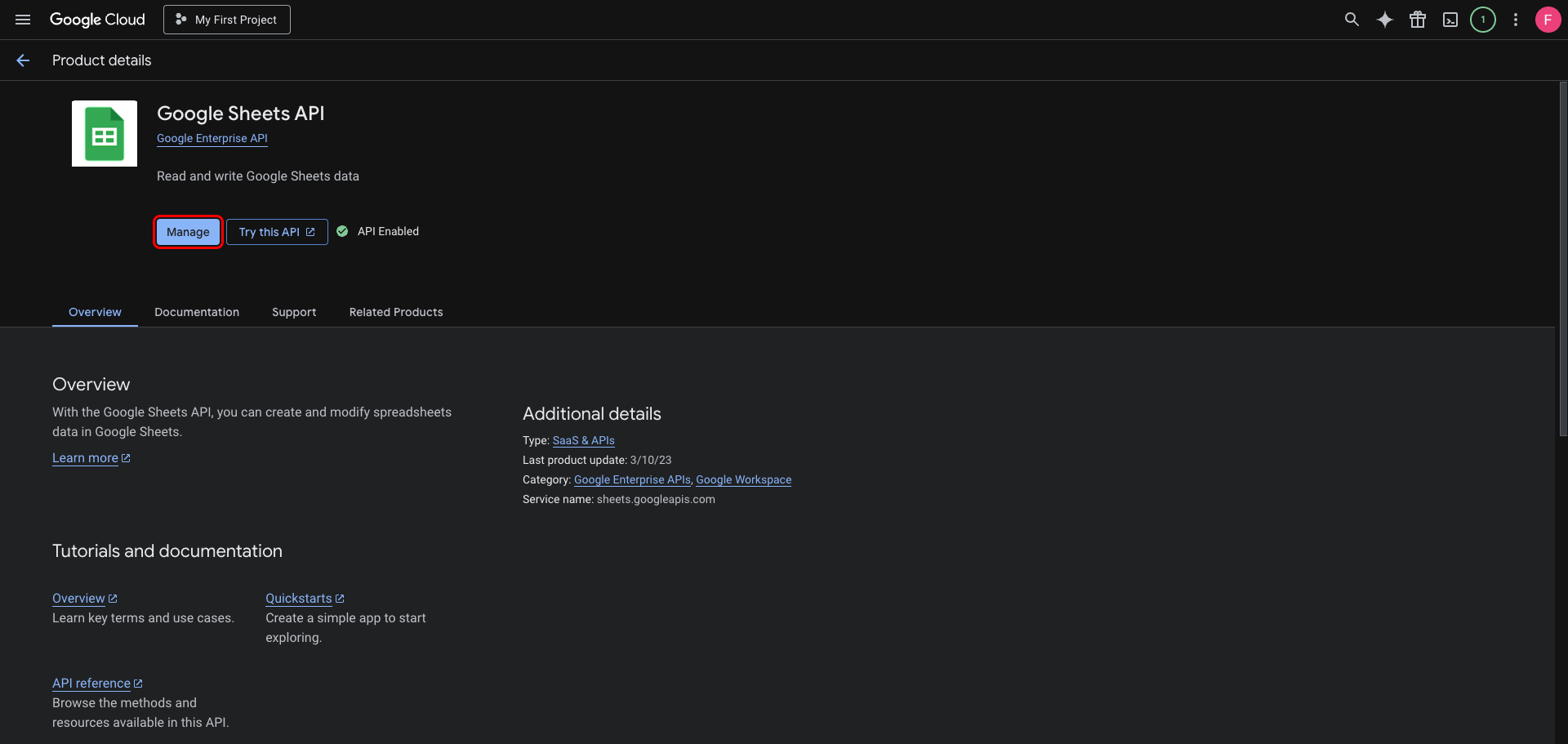
Go to the Google Sheets API page in the Google Cloud Console. Select your project from the top navigation, then click Enable if the API is not yet enabled. If you see Manage and API Enabled, the API is already active.
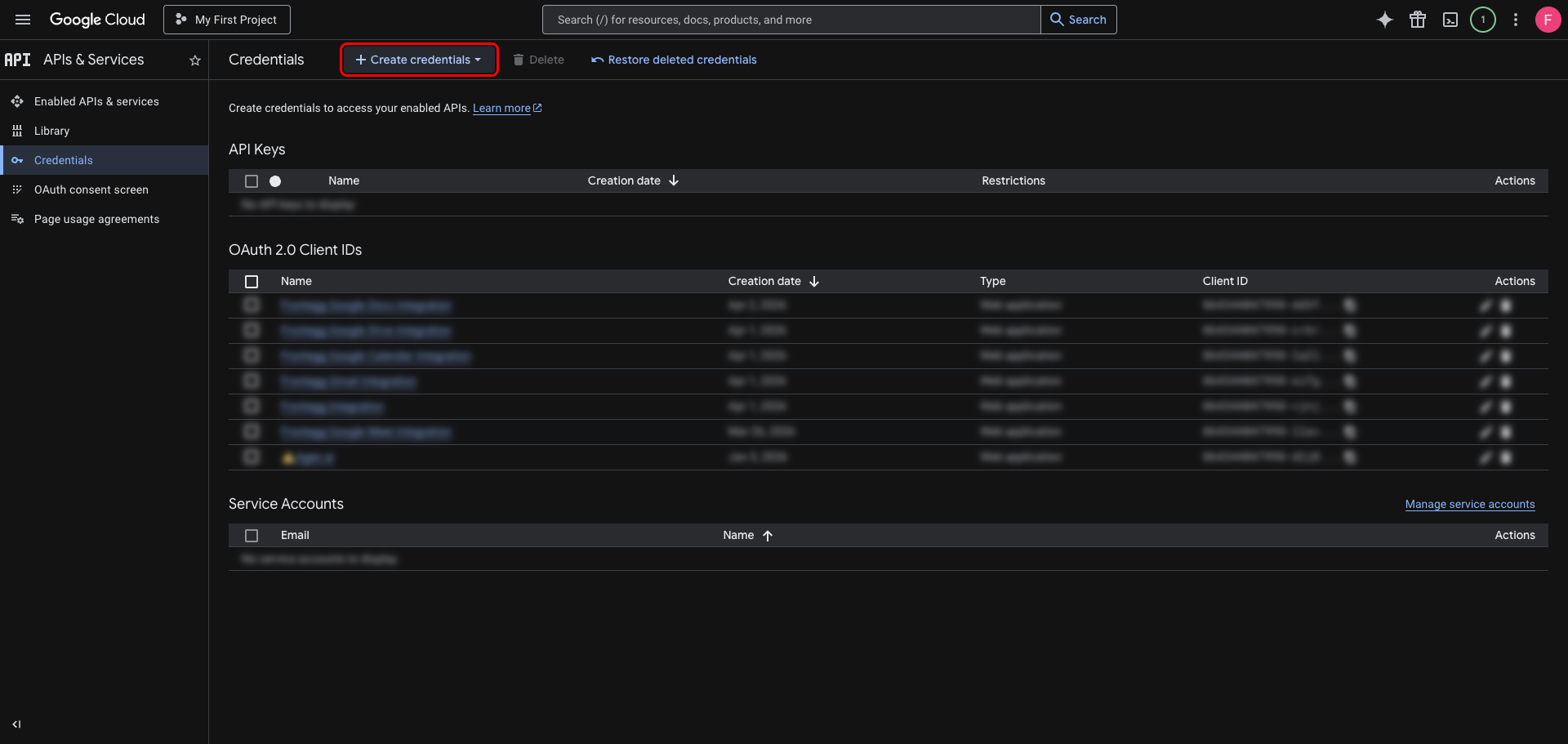
In the left sidebar, navigate to APIs & Services → Credentials. Click Create credentials.
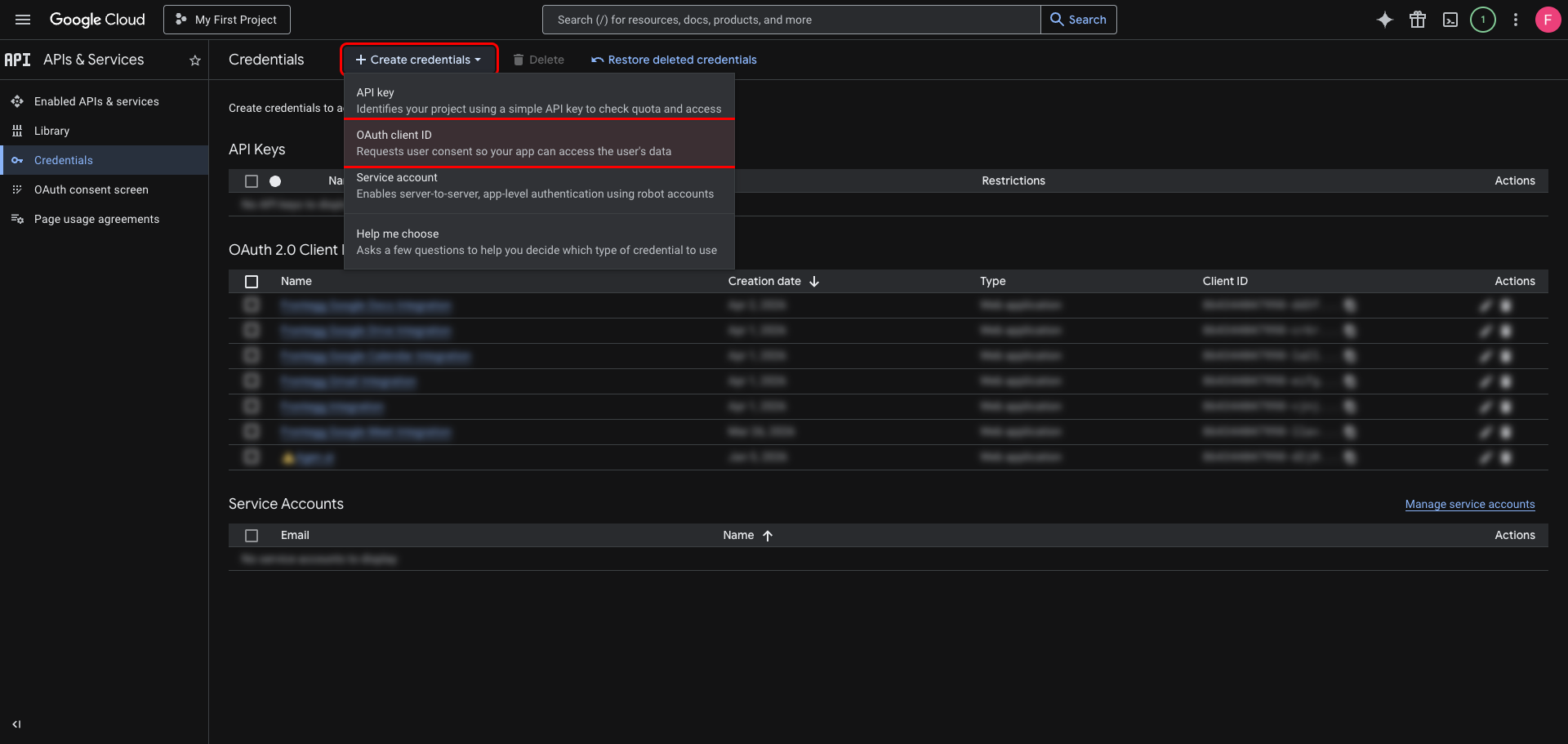
From the dropdown, select OAuth client ID.
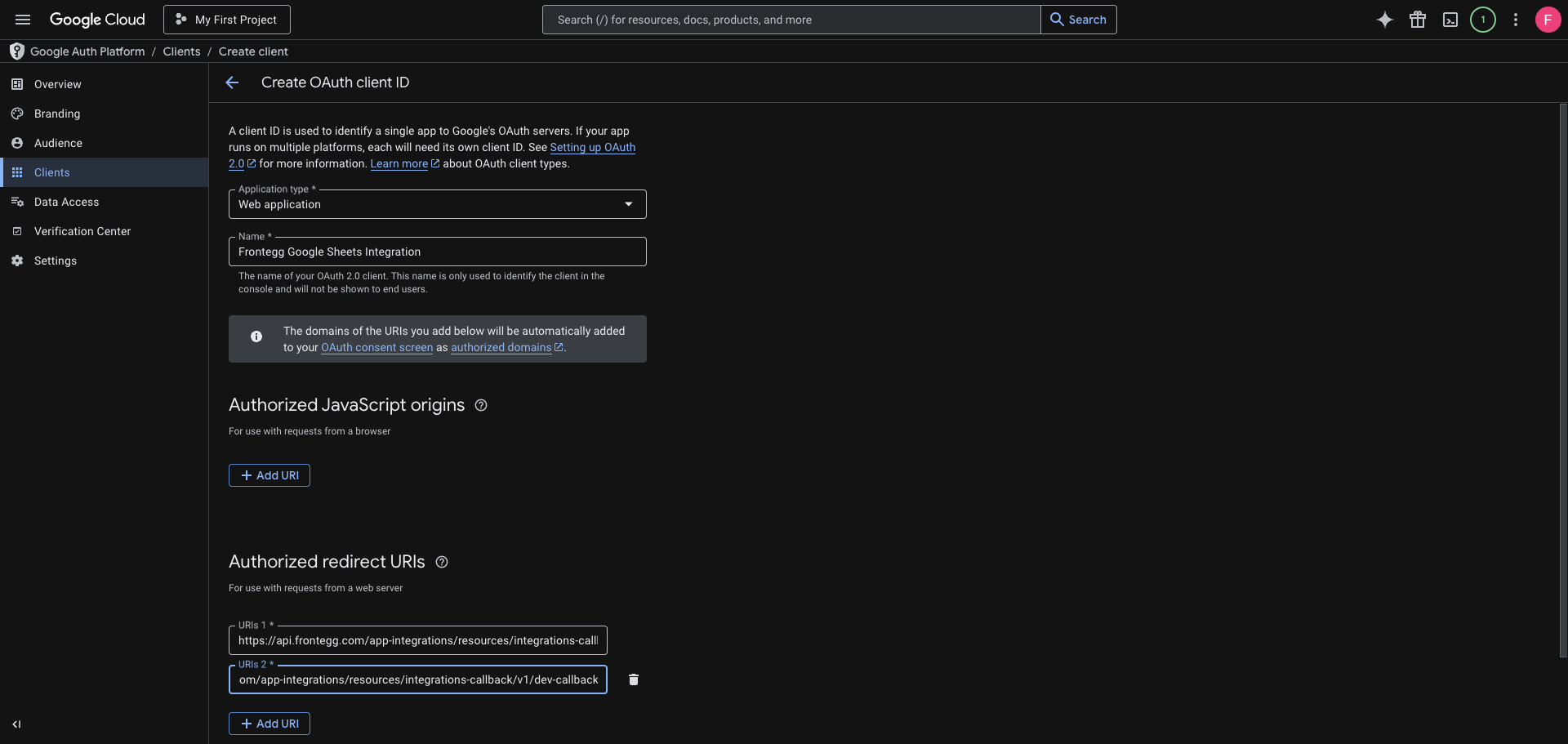
On the Create OAuth client ID page:
- Set Application type to Web application.
- Enter a name for the client (for example,
Frontegg Google Sheets Integration). - Under Authorized redirect URIs, click Add URI and add the redirect URL shown in the Frontegg portal for this integration — copy it whole, including the path. See How to get your Redirect URL.
The value has this shape, but take the real one from the portal rather than assembling it:
https://YOUR_MCP_GATEWAY_URL/integration-callback
Click Create.
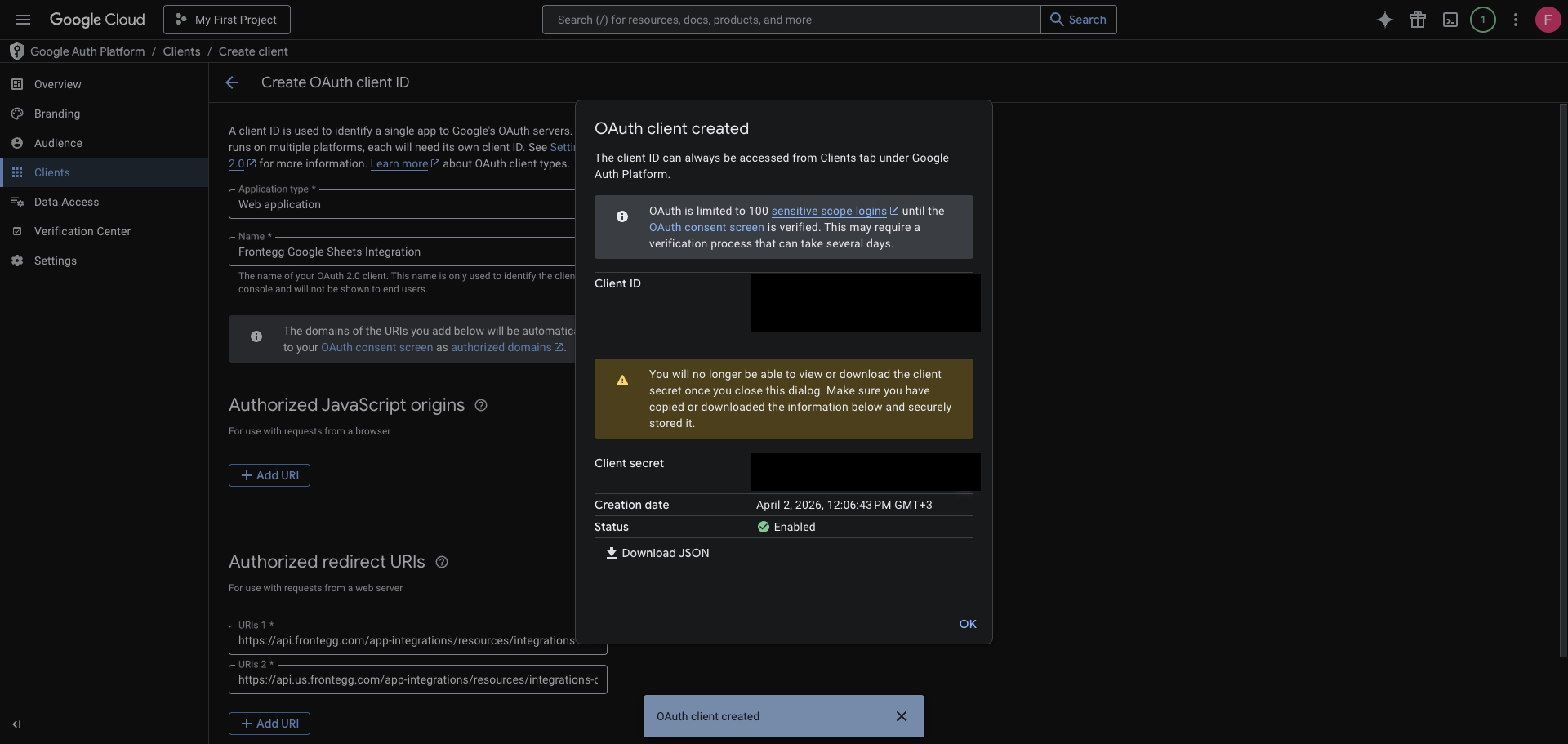
After clicking Create, a dialog displays your Client ID and Client Secret — copy both values and store them securely.
Save your Client Secret now
The Client Secret is only shown once in this dialog. After you close it, you cannot retrieve it again — you can only create a new secret.
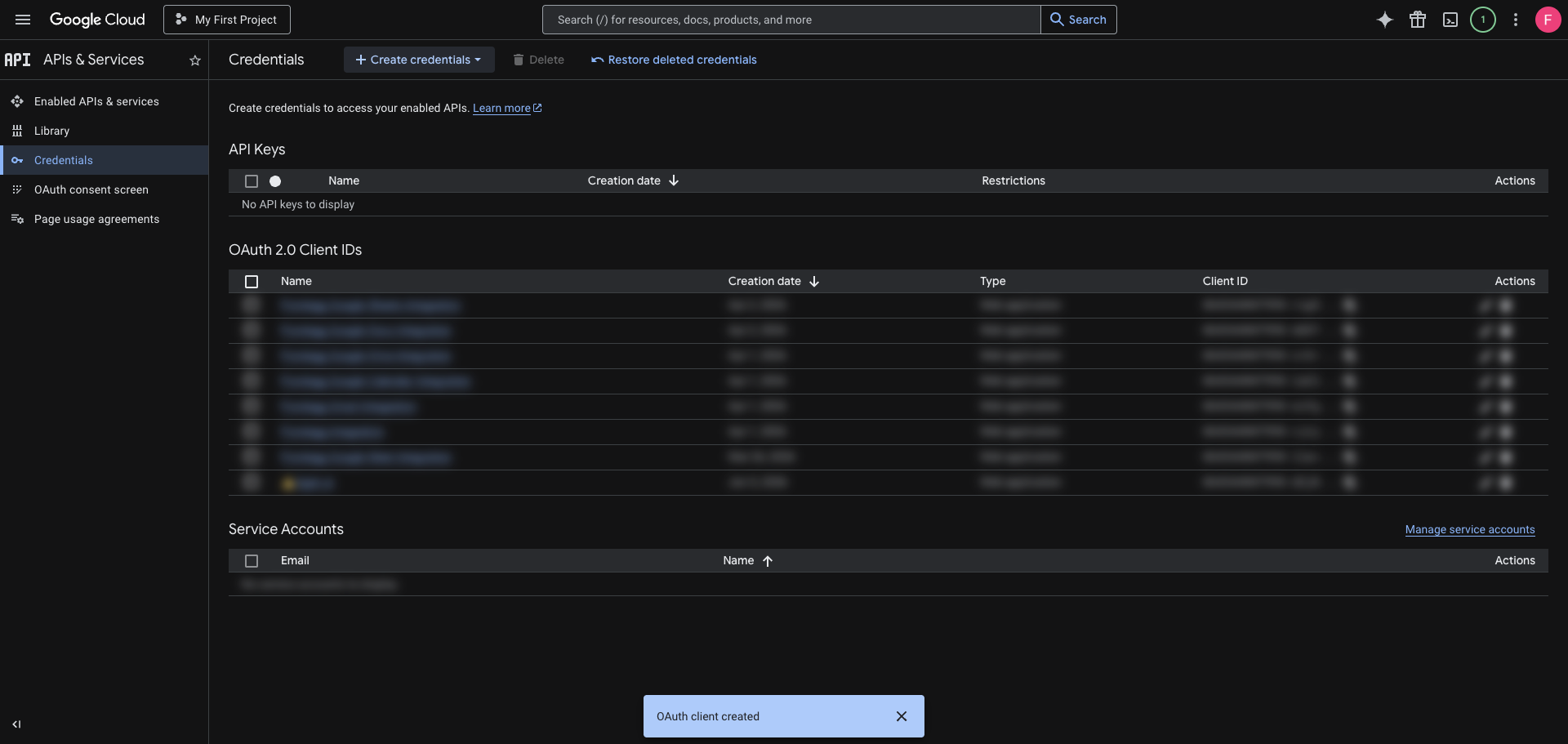
After closing the dialog, your new client appears at the top of the OAuth 2.0 Client IDs list on the Credentials page.
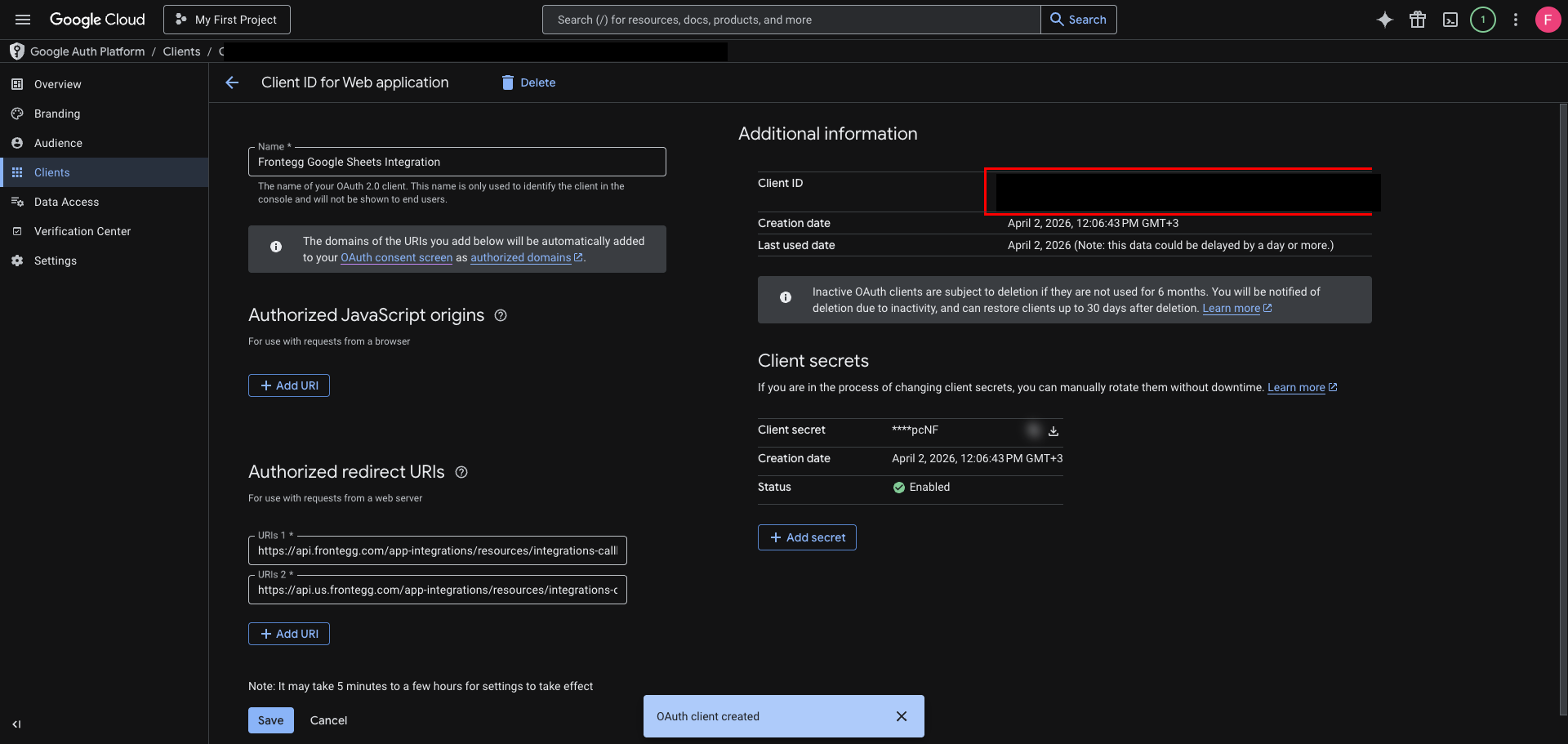
Click the client name to open its detail page. You can view and copy the Client ID at any time from the Additional information section.
Once you have your Client ID and Client Secret, enter them in the Frontegg portal:
- Open the Frontegg portal and navigate to [ENVIRONMENT] → Integrations → Google Sheets.
- Enter the Client ID and Client Secret in the corresponding fields.
- Select the required scopes:
| Scope | Description |
|---|---|
https://www.googleapis.com/auth/spreadsheets.readonly | Read spreadsheets, sheets, and values |
https://www.googleapis.com/auth/spreadsheets | Create spreadsheets, and create, update, and delete sheets and values |
- Click Save.
Keep your credentials secure
Never share or commit your Client Secret to version control.