Airtable is a cloud platform that combines the simplicity of a spreadsheet with the power of a database.
It can be connected to Agen.co two ways, matching the Official / In-house filter in the connector picker:
- Official — Agen.co connects through Airtable's own hosted MCP server. Each user authorizes with their own Airtable account and chooses which bases, interfaces, and workspaces the connection can reach. No OAuth integration needs to be registered in Airtable.
- In-house — Agen.co wraps the Airtable Web API directly through its own integration layer, using an OAuth integration you register in the Airtable Builder Hub.
Pick Official if the built-in MCP tools cover what your agents need. Fall back to In-house if your organization only allows OAuth integrations an admin has allowlisted.
Prerequisites
Prerequisites
- An Airtable account with access to the bases you want to connect. No OAuth integration needs to be registered in the Builder Hub — the MCP server registers Agen.co as a client automatically, so there is no Client ID or Client Secret to copy.
- On Enterprise organizations, admins can restrict MCP clients in the Admin Panel → Integrations & development → Development settings. Block MCP access stops every MCP client, including this connector. Block API access for third-party integrations stops every OAuth client that isn't on the organization's allowlist. Because the Official connector gets a new automatically registered client for each connection, there is no fixed client ID an admin can allowlist in advance. If either block is on, use the In-house tab instead: it calls the Airtable Web API rather than Airtable's MCP server, through a Builder Hub integration with a fixed client ID that an admin can allowlist.
In the Agen.co portal, go to Connectors → My connectors and click Add connector.
In the Select connector drawer, search for
Airtableand select it. The Add Airtable panel opens with Official selected at the top.Fill in the field:
Field Required Description Instance Slug Yes Prefixes each imported tool as slug__tool, so several instances of the connector can coexist. Prefilled withairtable. If Airtable is already connected, the panel says so — enter a different slug for the new instance. Use lowercase kebab-case. You can change it later from the connector's settings.Click Connect. Airtable opens in a new tab, and the panel shows Waiting for authorization — complete it in the opened tab…
On the MCP OAuth Client is requesting Airtable access screen, check the listed permissions, then under Choose what MCP OAuth Client can access select Everything you have access to or Custom access and pick specific bases, interfaces, and workspaces. Click Grant access. The requesting client is shown as MCP OAuth Client, with your Agen.co gateway host underneath, rather than as Agen.co.
Back in Agen.co, the panel switches to Select the tools to import from Airtable. Every tool is toggled on; turn off any you don't want to import, then click Add.
The connector is created and its tools imported only when you click Add. If you close the panel before that, nothing is saved, even though the Airtable tab reported success.
Adding the connector doesn't authorize anyone's tool calls yet. The first time each user's agent calls an Airtable tool, the call returns an authorization link instead of a result. The user opens the link, chooses which bases, interfaces, and workspaces to share, and clicks Grant access. On this screen the requesting client is named mcp-gateway:source:<uuid> is requesting Airtable access, not MCP OAuth Client as when adding the connector — this is expected, so tell users to grant it rather than cancel. After that, the user's tool calls run with their own Airtable permissions, limited to what they shared. Each user can change or revoke that access later from the Integrations item of their Airtable account menu.
Once connected, Airtable appears under My connectors with tools spanning:
| Area | What it covers |
|---|---|
| Records | Listing, searching, creating, updating, and deleting records, finding records to link, and undoing a previous change |
| Tables and fields | Reading table schemas and views, analyzing tables, creating, updating, and deleting tables, and creating or updating fields |
| Comments | Listing record comments and adding new ones |
| Bases and workspaces | Listing and searching bases, creating bases, and listing workspaces |
| Interfaces | Listing, creating, publishing, and deleting interfaces and pages, and reading records shown on a page |
| Forms | Reading a form's layout and submitting forms |
| Automations | Listing, reading, creating, and updating automations, deleting automations that are off, and listing the external accounts and secrets they can use |
Automations created through the Official server stay off until someone turns them on in Airtable.
Enabling the Airtable connector isn't enough on its own. Tool calls remain denied until you create a policy that grants access to the specific tools you want to expose.
Integrating Airtable with Frontegg allows your application to access and manage bases, tables, records, and fields on behalf of your users through OAuth 2.0 authentication.
Prerequisites
Prerequisites
- An Airtable account
- Access to the Airtable Builder Hub
Log in to your Airtable account. Click your profile icon in the top-right corner and select Builder Hub. In the left sidebar, under Integrations, click OAuth integrations.
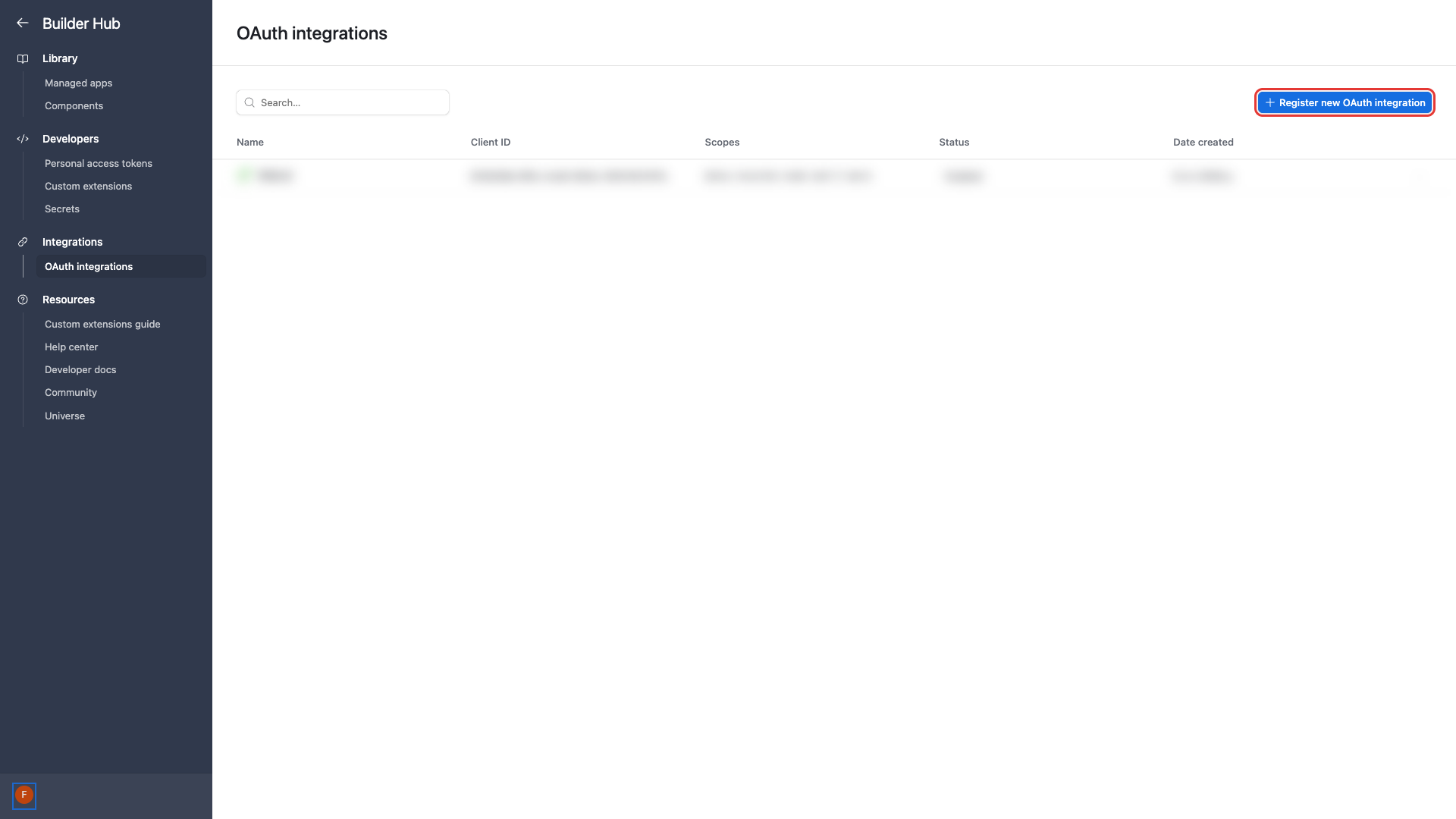
On the OAuth integrations page, click the Register new OAuth integration button.
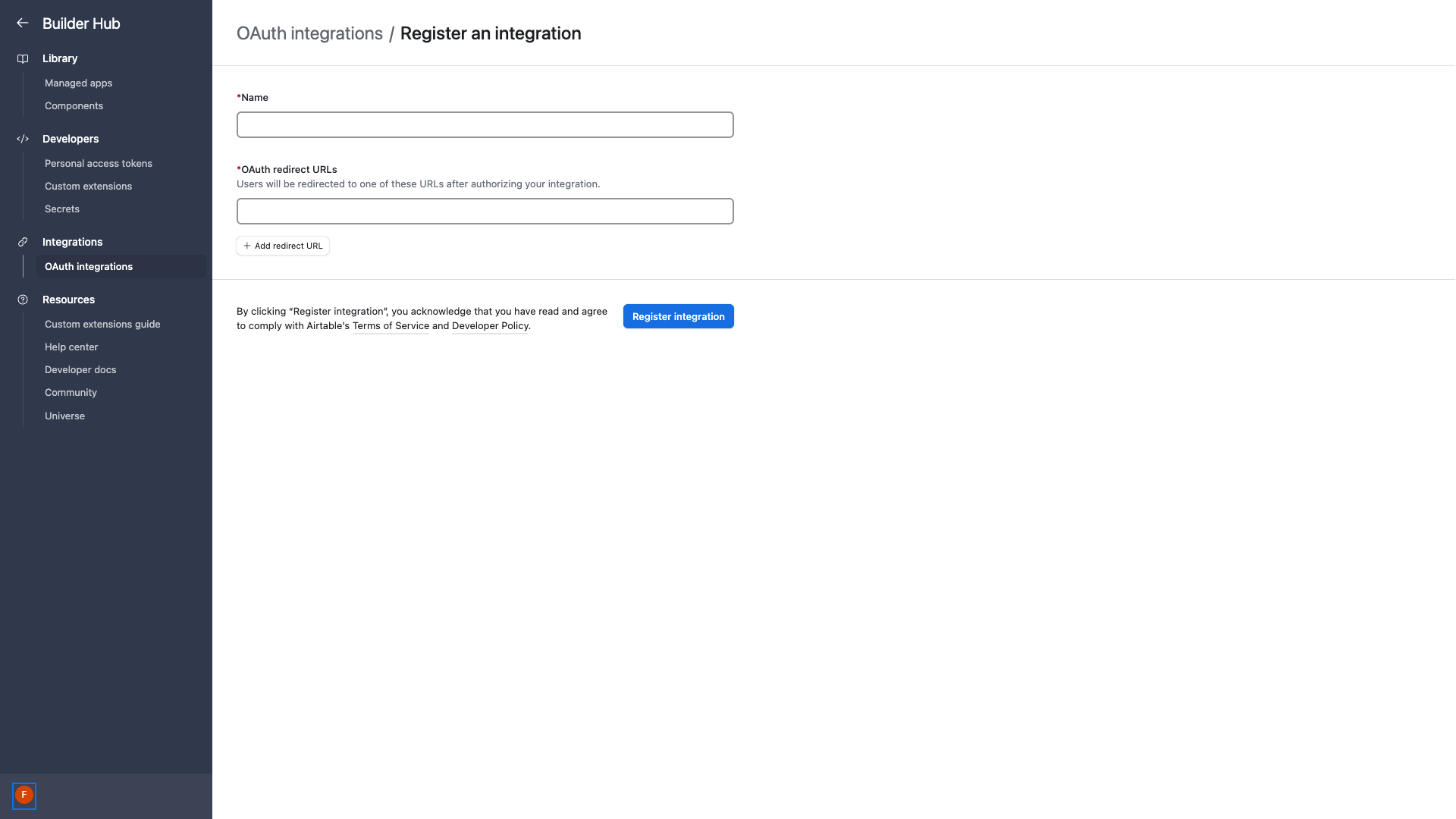
In the registration form, fill in the following fields:
- Name -- Enter a descriptive name (e.g., "Frontegg Integration")
- OAuth redirect URLs -- Enter the redirect URI listed below
Add the following redirect URI:
https://YOUR_MCP_GATEWAY_URL/integration-callback
Click Register integration to create the application.
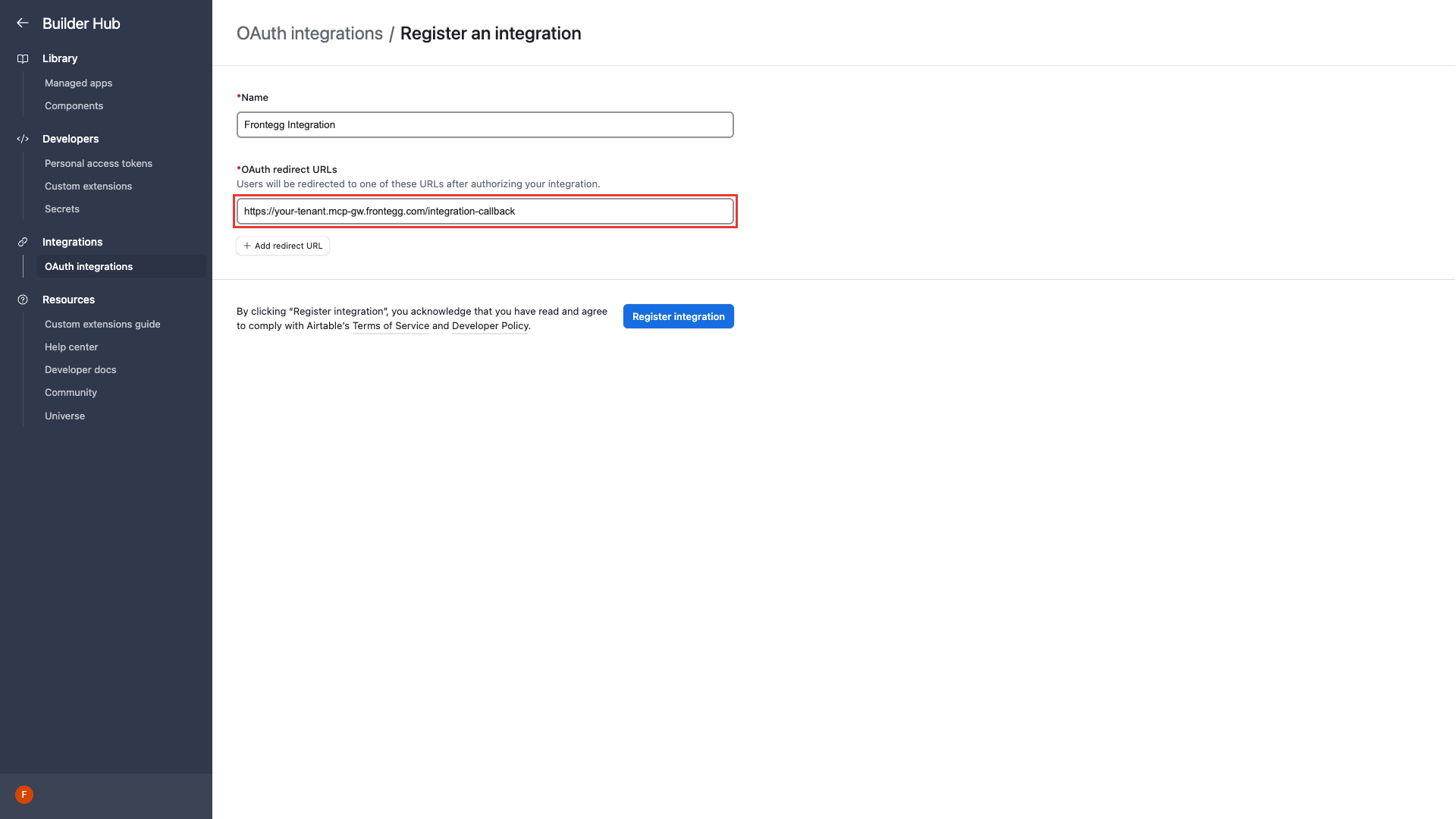
After registration, you are redirected to the application settings page. Here you can configure additional details such as a tagline, homepage URL, and logo.
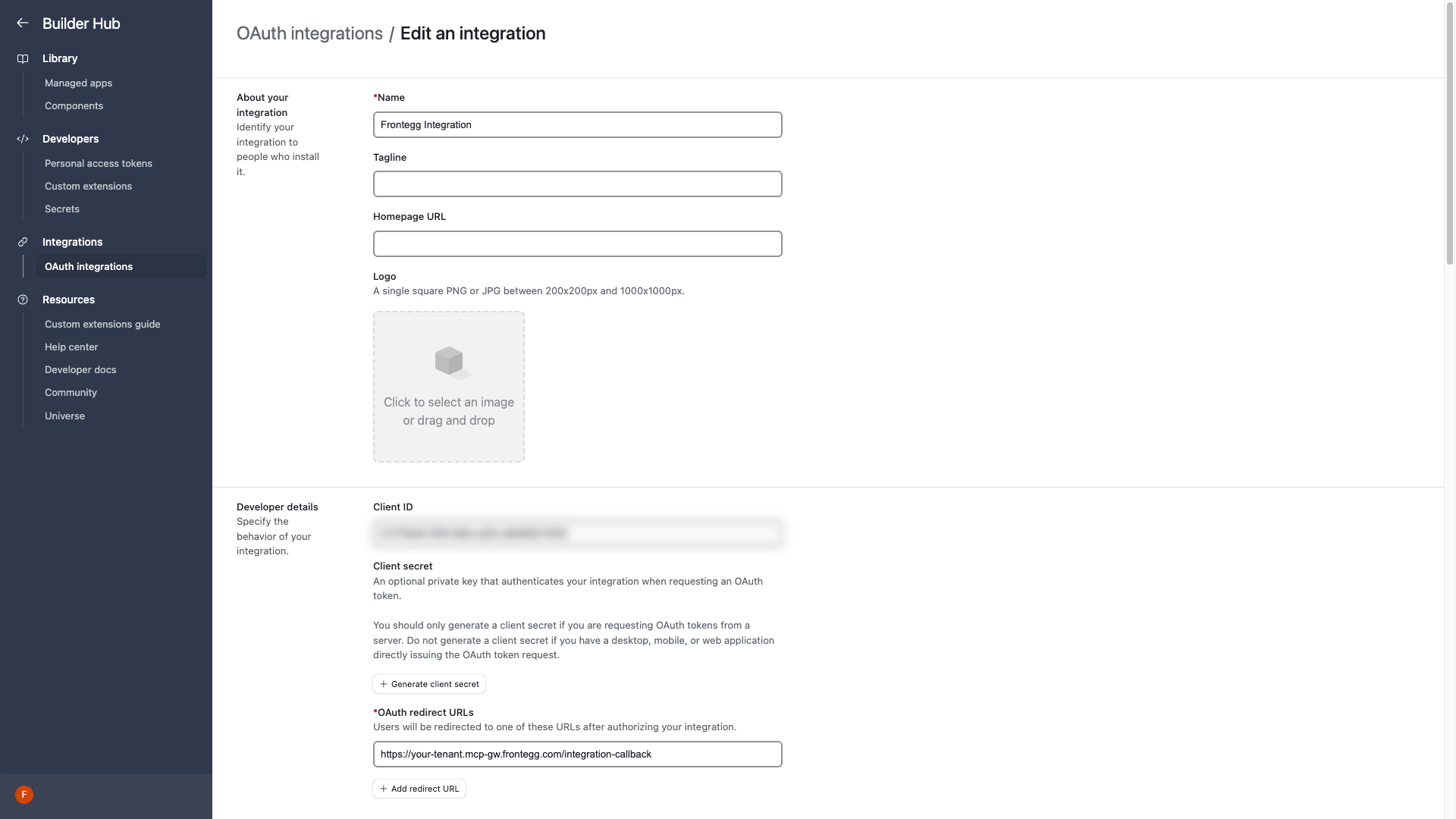
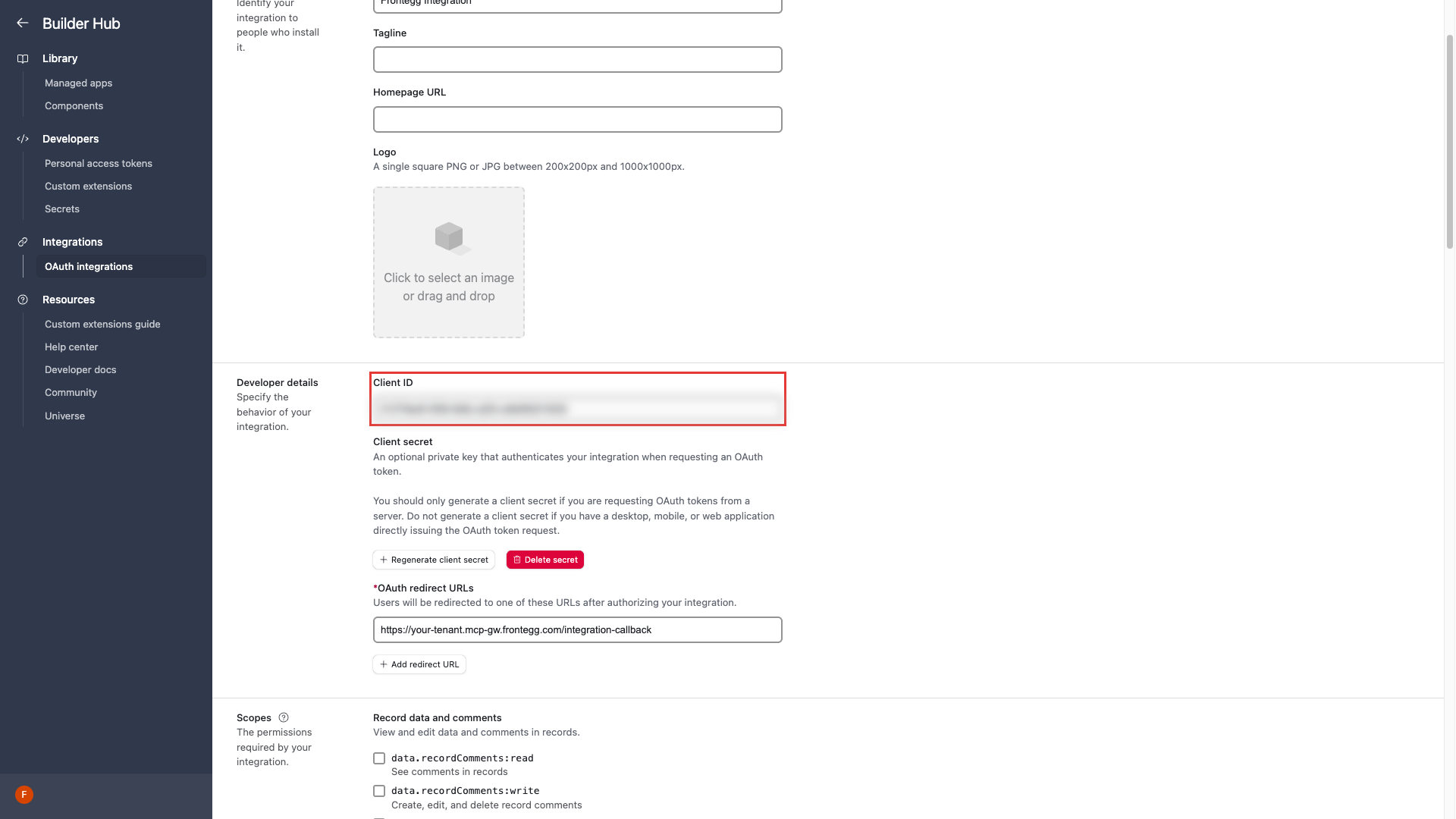
Scroll down to the Developer details section. You can see the Client ID value displayed in a read-only field.
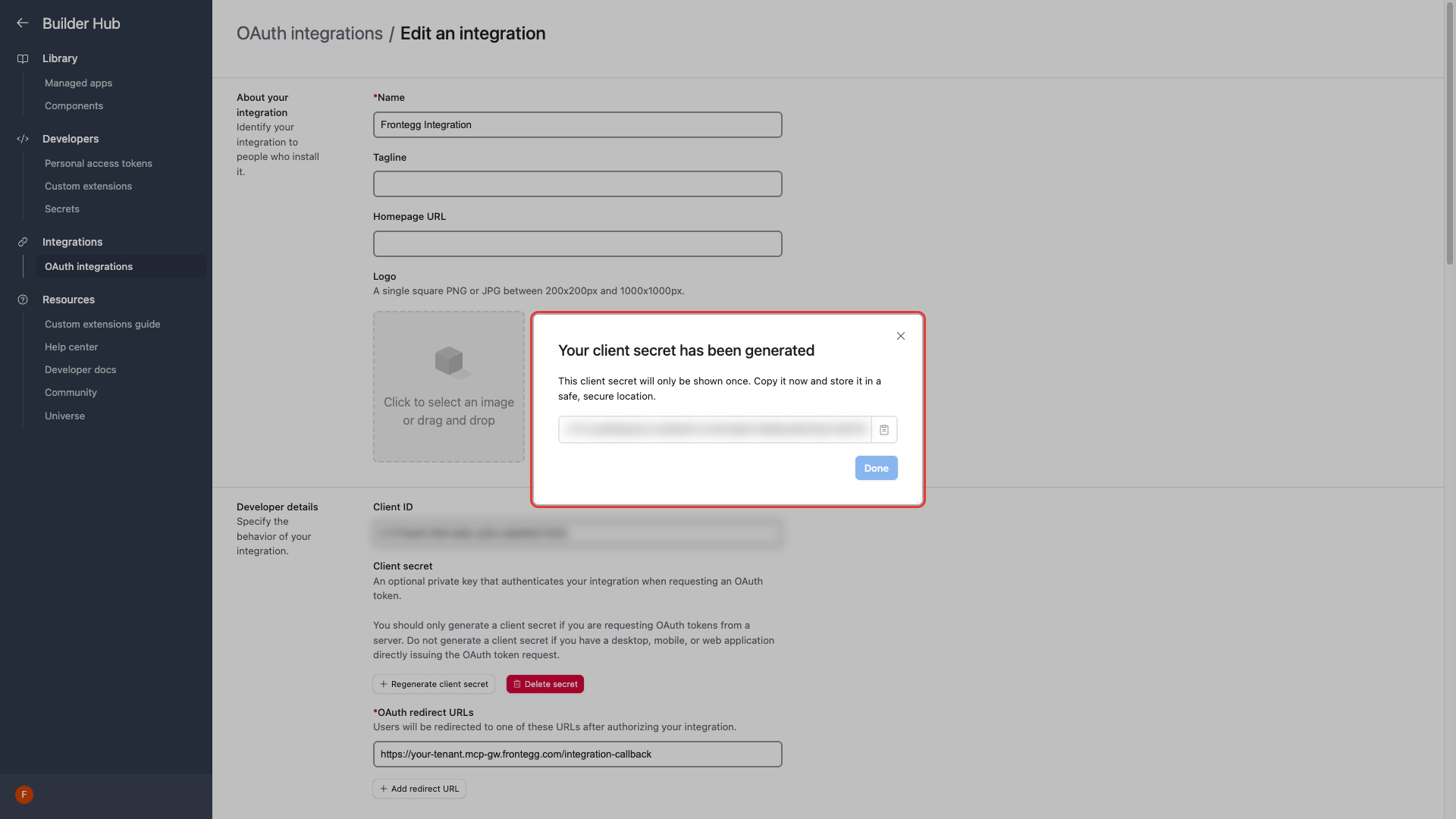
To generate a Client Secret, click the Generate client secret button. A confirmation dialog appears -- click Generate to proceed. Copy the secret immediately and store it in a safe location, as it will only be shown once.
Keep your credentials secure
Keep your credentials secure
Never share or commit your Client Secret to version control. The secret is only displayed once after generation.
In the Developer details section, copy the Client ID value. You will need both the Client ID and Client Secret to configure the integration in the Frontegg portal.
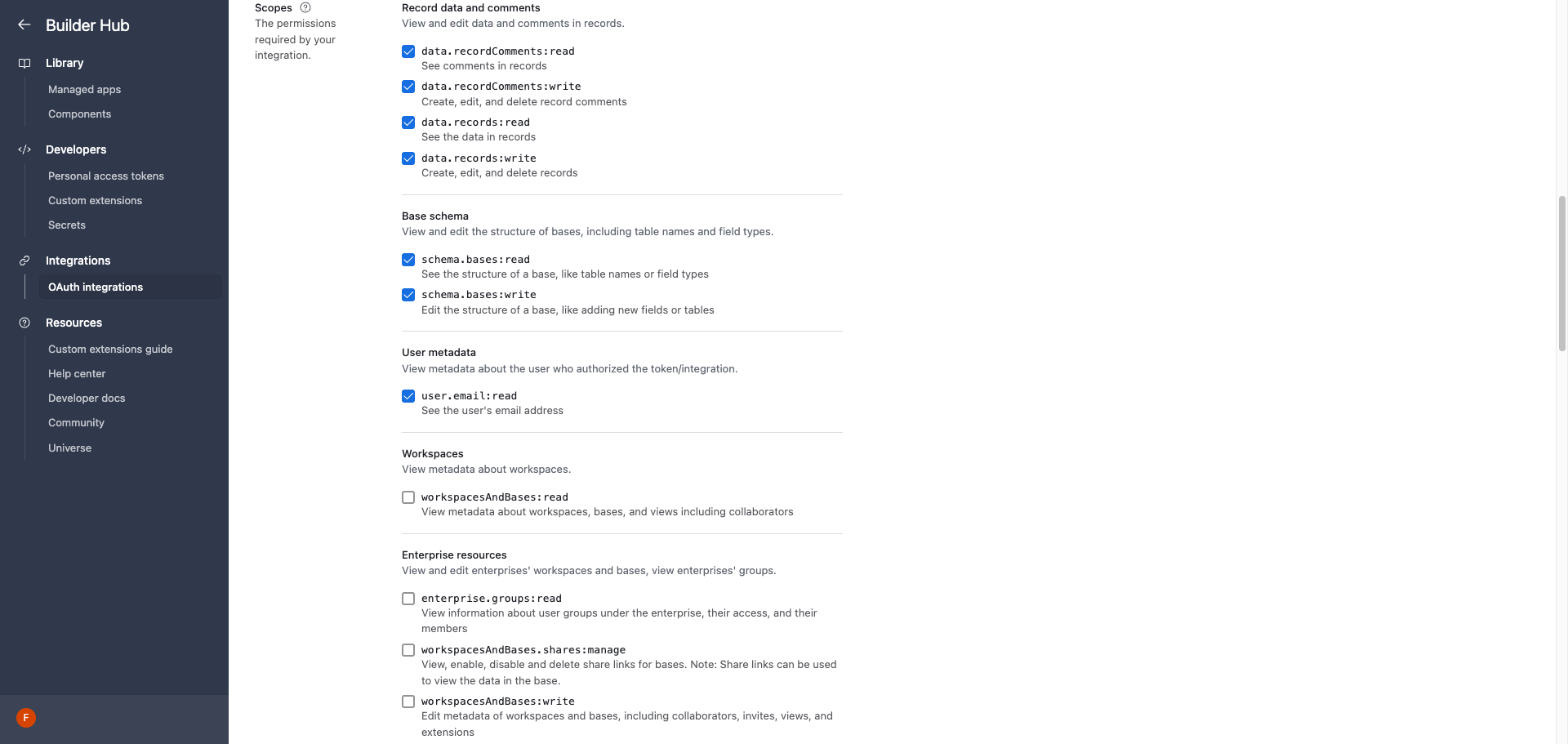
Scroll down to the Scopes section. Select the following scopes required for the integration:
| Scope | Description |
|---|---|
data.records:read | See the data in records |
data.records:write | Create, edit, and delete records |
data.recordComments:read | See comments in records |
data.recordComments:write | Create, edit, and delete record comments |
schema.bases:read | See the structure of a base, like table names or field types |
schema.bases:write | Edit the structure of a base, like adding new fields or tables |
user.email:read | See the user's email address |
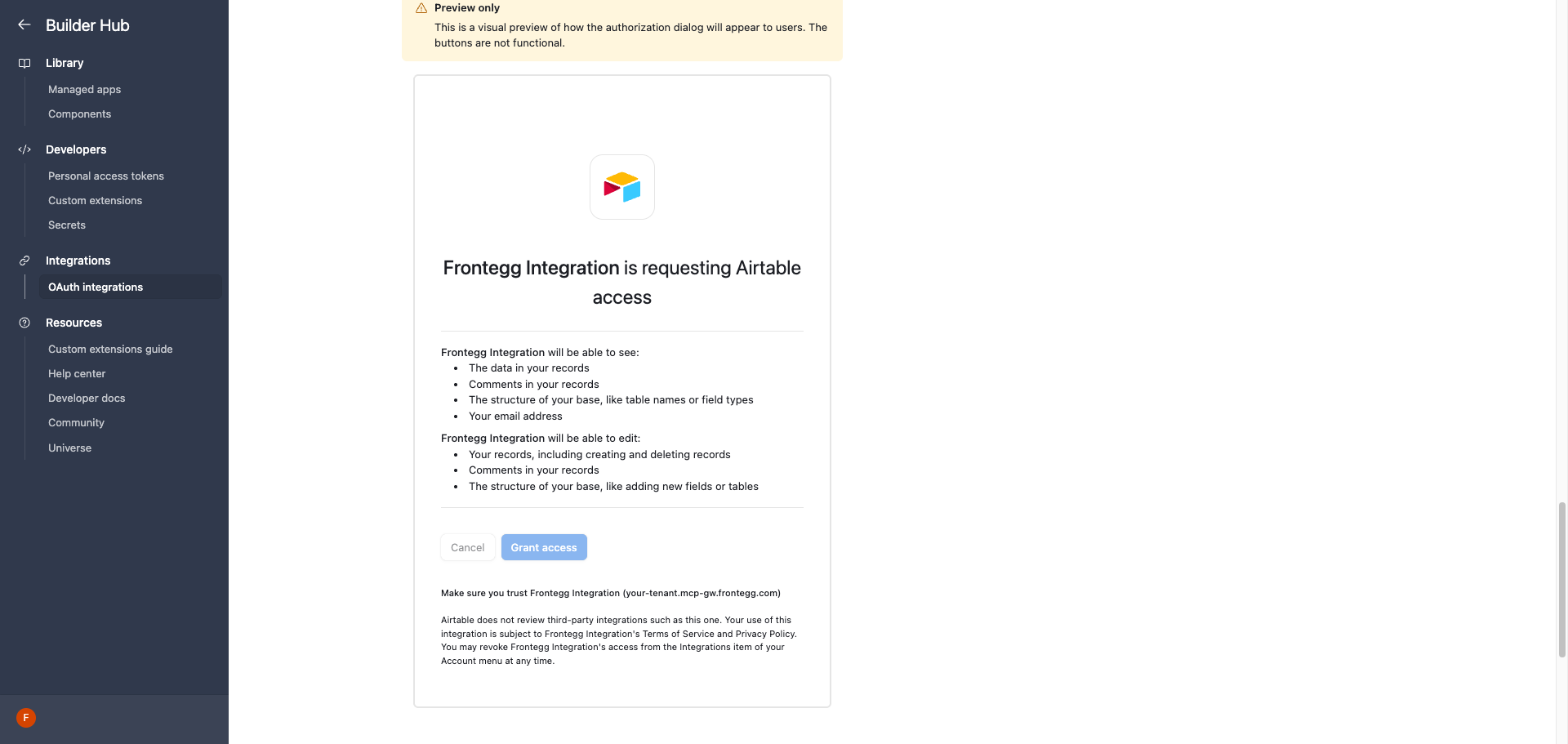
Scroll further down to the Preview only section. Airtable renders a visual preview of the consent screen users will see when they authorize your integration, listing the permissions derived from the scopes you selected. Use it to confirm the integration will request exactly the access you intended.
Scroll back up to the OAuth redirect URLs section and verify that your Frontegg Redirect URL is configured correctly:
https://YOUR_MCP_GATEWAY_URL/integration-callback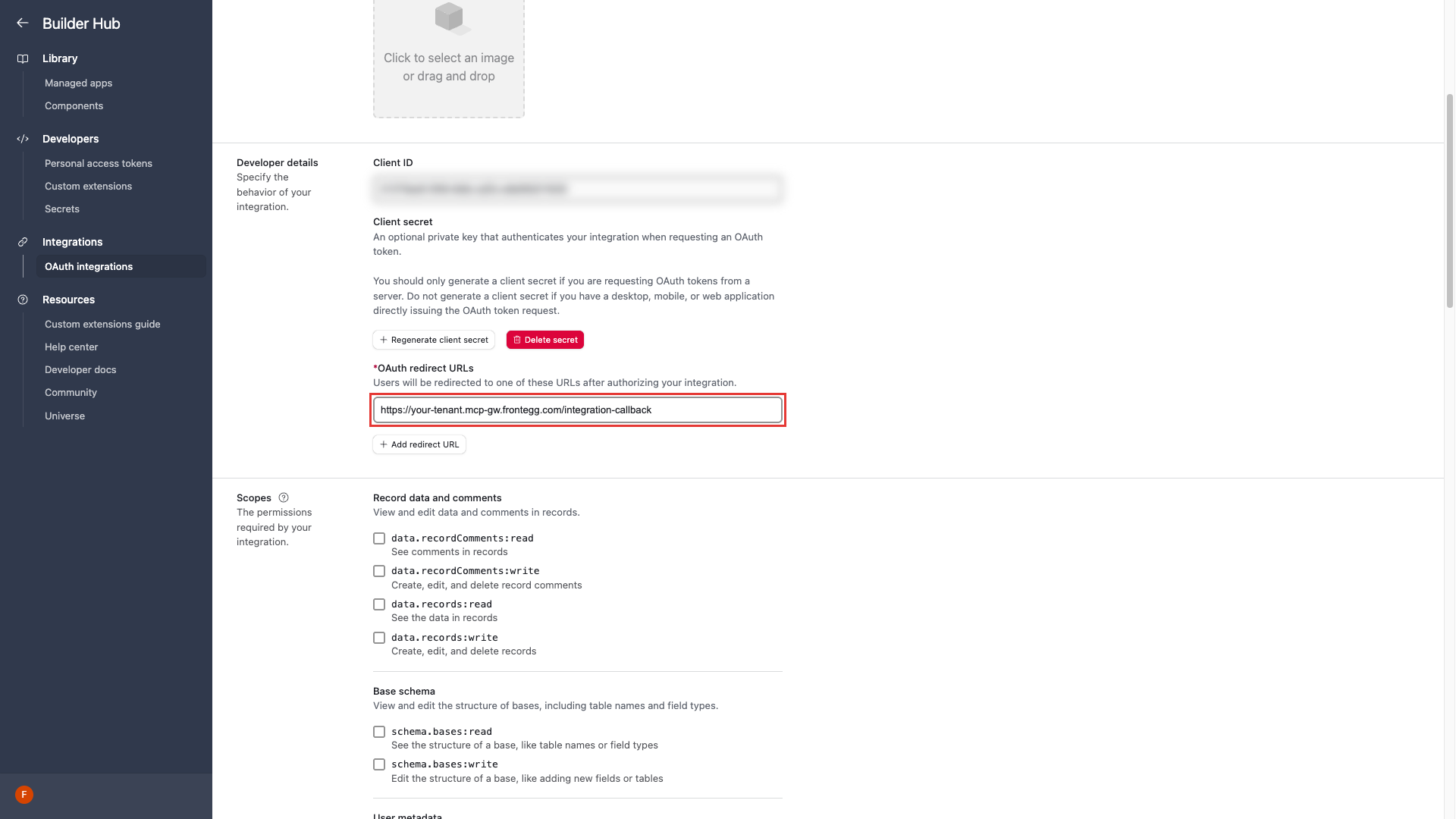
Click Save changes at the bottom of the page to persist your configuration.
Once you have obtained your Client ID and Client Secret from the steps above, enter them in the integration configuration page of the Frontegg portal:
- Open the Frontegg portal and navigate to [ENVIRONMENT] → Integrations → Airtable.
- Enter the Client ID and Client Secret in the corresponding fields.
- Select the required scopes.
- Click Save.