Fastly is an edge cloud platform that delivers content, applications, and APIs through a global CDN with real-time caching, purging, and security controls. The Fastly integration allows your application to connect to Fastly through Frontegg, enabling users to list and inspect services, read account information, and purge cached content — all through a secure API token connection.
Prerequisites
Prerequisites
- A Fastly account with access to the services you want to manage
- Permission to create personal API tokens (required for the account you are signed in with)
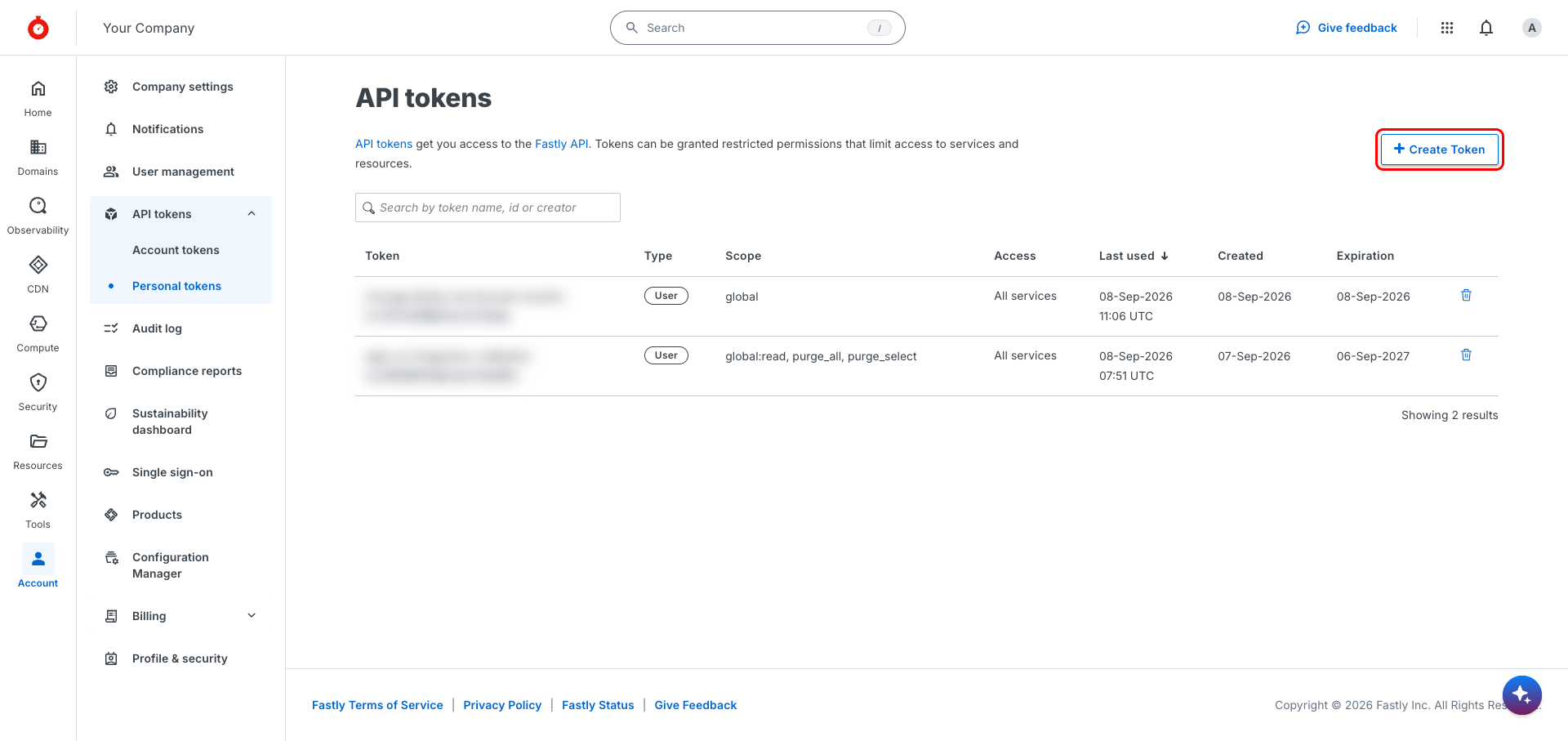
Sign in to the Fastly control panel at manage.fastly.com and navigate to Account → API tokens → Personal tokens, or go directly to manage.fastly.com/account/personal/tokens.
Click Create Token to begin creating a new personal API token.
Re-authentication required
Re-authentication required
Fastly asks you to re-enter your password (sudo mode) before you can create a token. Complete the prompt with the same account you used to sign in.
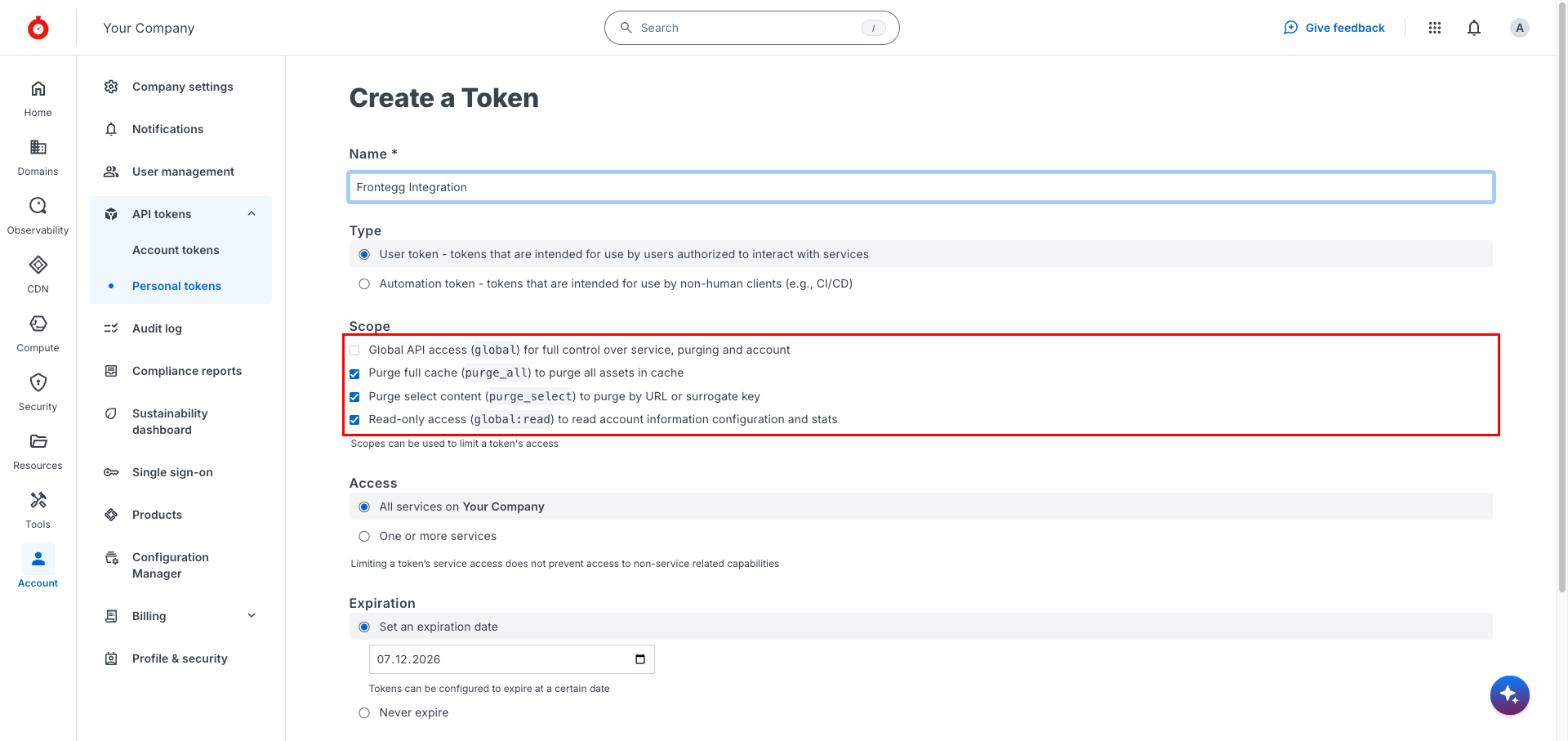
Fill in the Create a Token form with the following values:
- Name — enter a descriptive name such as
Frontegg Integration. - Type — keep User token selected.
- Scope — end up with exactly the scopes in the table below.
global:readis already selected by default, so addpurge_allandpurge_select, and leave Global API access (global) unchecked. - Access — keep All services on your customer account selected, or restrict to specific services if needed.
- Expiration — set an expiration date (recommended) or choose Never expire.
The token needs these scopes:
| Scope | Description |
|---|---|
global:read | Read-only access to account information, services, and token details |
purge_all | Purge all cached content for a service |
purge_select | Purge cached content by URL or surrogate key |
Minimum required scopes
Minimum required scopes
global:read covers every read operation. Add purge_all and purge_select only if the integration should purge cached content. The read/write global scope is not required — do not grant it.
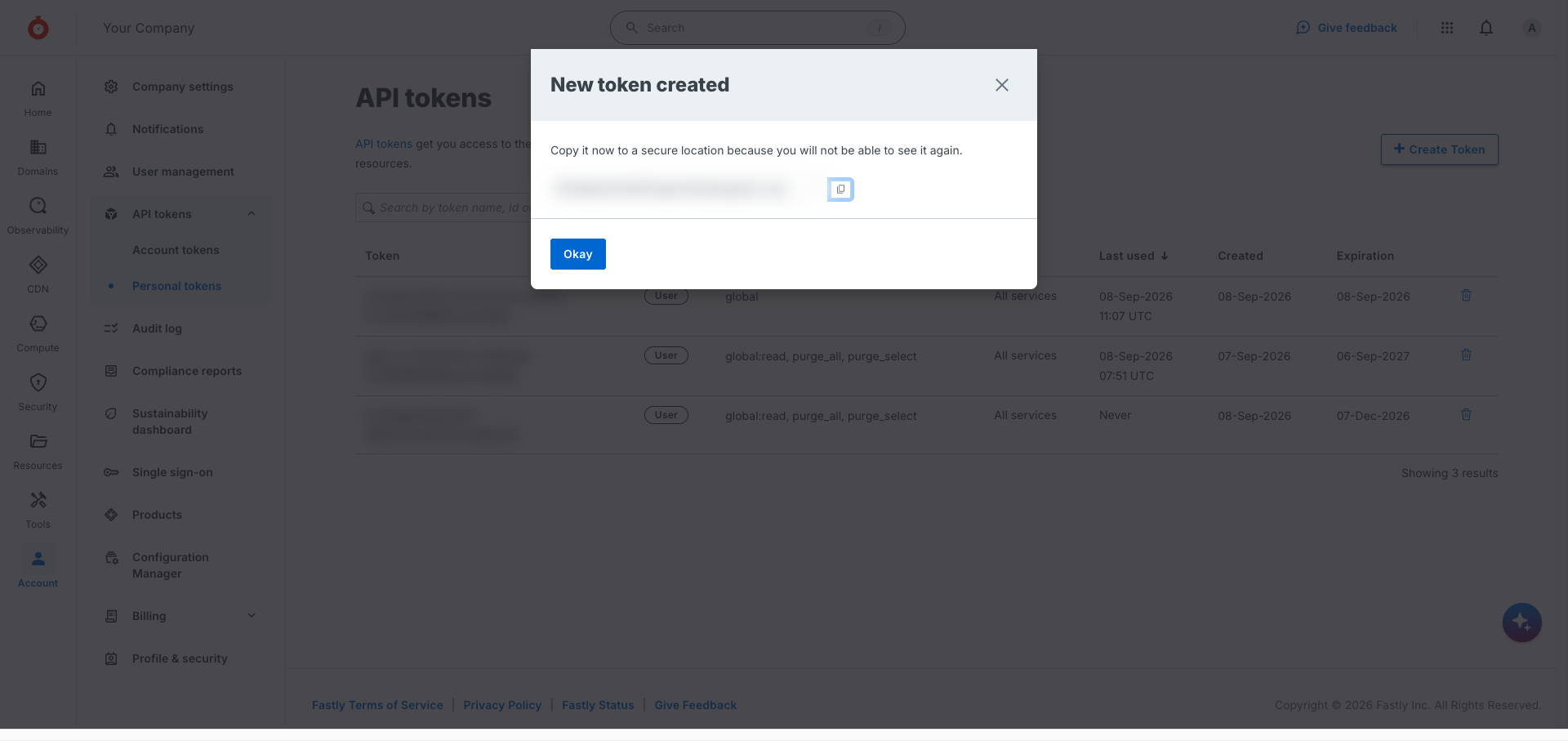
Click Create Token. Fastly displays the token value in a modal only once — copy it immediately and store it securely.
Save your token now
Save your token now
The raw token value is shown only once. If you close the dialog without copying it, you will have to delete the token and create a new one.
Once you have your Fastly API token from the steps above, enter it in the integration configuration page of the Frontegg portal:
- Open the Frontegg portal and navigate to your environment's Integrations section.
- Find Fastly and open its configuration page.
- Paste the token into the API Key field — this is the only field Fastly requires.
- Click Save.
Keep your token secure
Keep your token secure
Never share or commit your Fastly API token to version control. Tokens inherit the permissions of the user who created them and cannot be programmatically refreshed.
- Soft purge — When purging by surrogate key, you can mark the cached content as stale instead of removing it, so Fastly keeps serving it while it revalidates against your origin. This avoids the traffic spike a hard purge sends to the origin.
- Paging and sorting — Service listings are returned page by page (100 records per page by default) and can be sorted by name, creation time, update time, ID, customer, or type, ascending or descending.
- Purging by surrogate key needs an activated service — If the service has no deployed active version, Fastly reports that the service cannot be found rather than that there is nothing to purge. Activate a version of the service configuration first.
- A full purge is immediate and irreversible — Purging all content for a service takes effect across the whole Fastly network at once and cannot be undone; the next requests go to your origin.
- The token inherits its creator's permissions — Anything the signed-in user cannot do in the Fastly control panel is also refused through the integration, regardless of the scopes selected on the token.
- Tokens cannot be refreshed — The expiration is fixed when the token is created. Once it lapses, create a new token in Fastly and re-enter it in the Frontegg portal; there is no automatic renewal.
- Sort fields are restricted — Only the fields listed above are accepted when sorting services; any other field is rejected.