BigQuery is Google Cloud's fully managed, serverless data warehouse that enables scalable analysis over large datasets. The BigQuery integration allows your application to connect to BigQuery through Frontegg, enabling users to run queries, manage datasets and tables, and stream data — all through a secure OAuth 2.0 connection.
Prerequisites
Prerequisites
- A Google Cloud account with an active project
- Admin or editor permissions on the Google Cloud project
- BigQuery API enabled in your Google Cloud project
Navigate to Google Cloud Console and select your project from the project selector at the top of the page. If you do not have a project yet, create a new one.
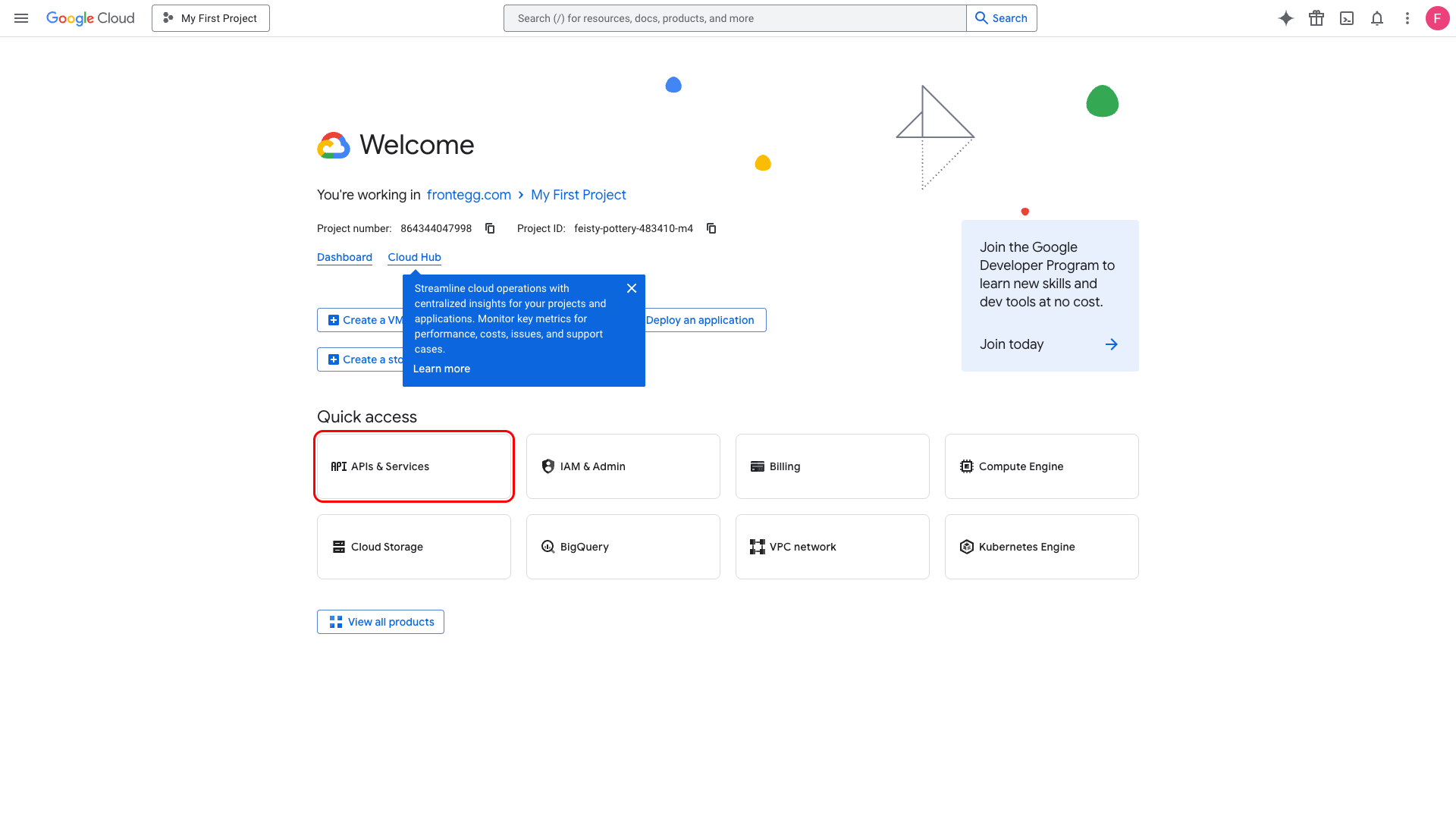
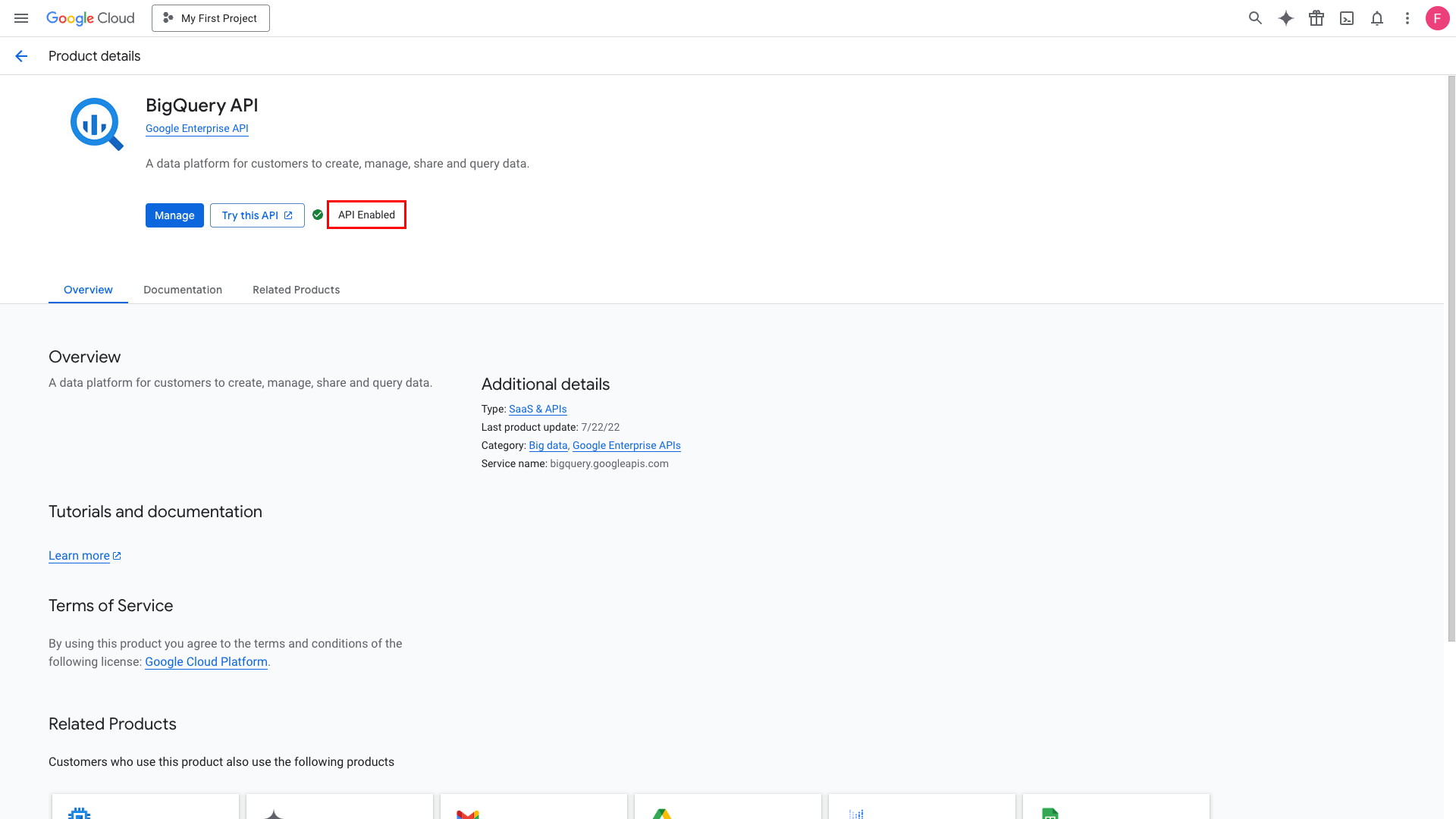
Go to APIs & Services → Library and search for BigQuery API. If it is not already enabled, click Enable.
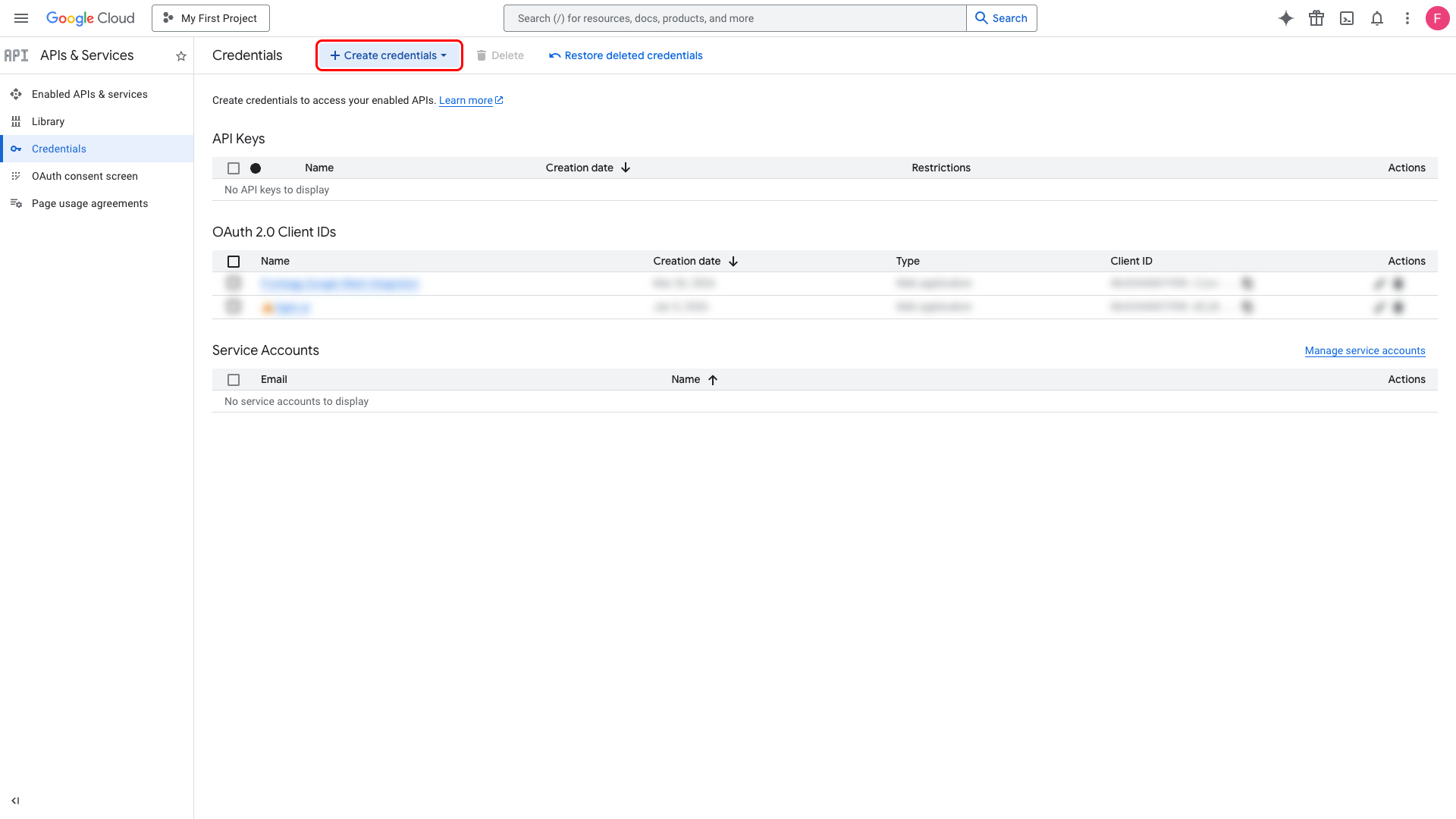
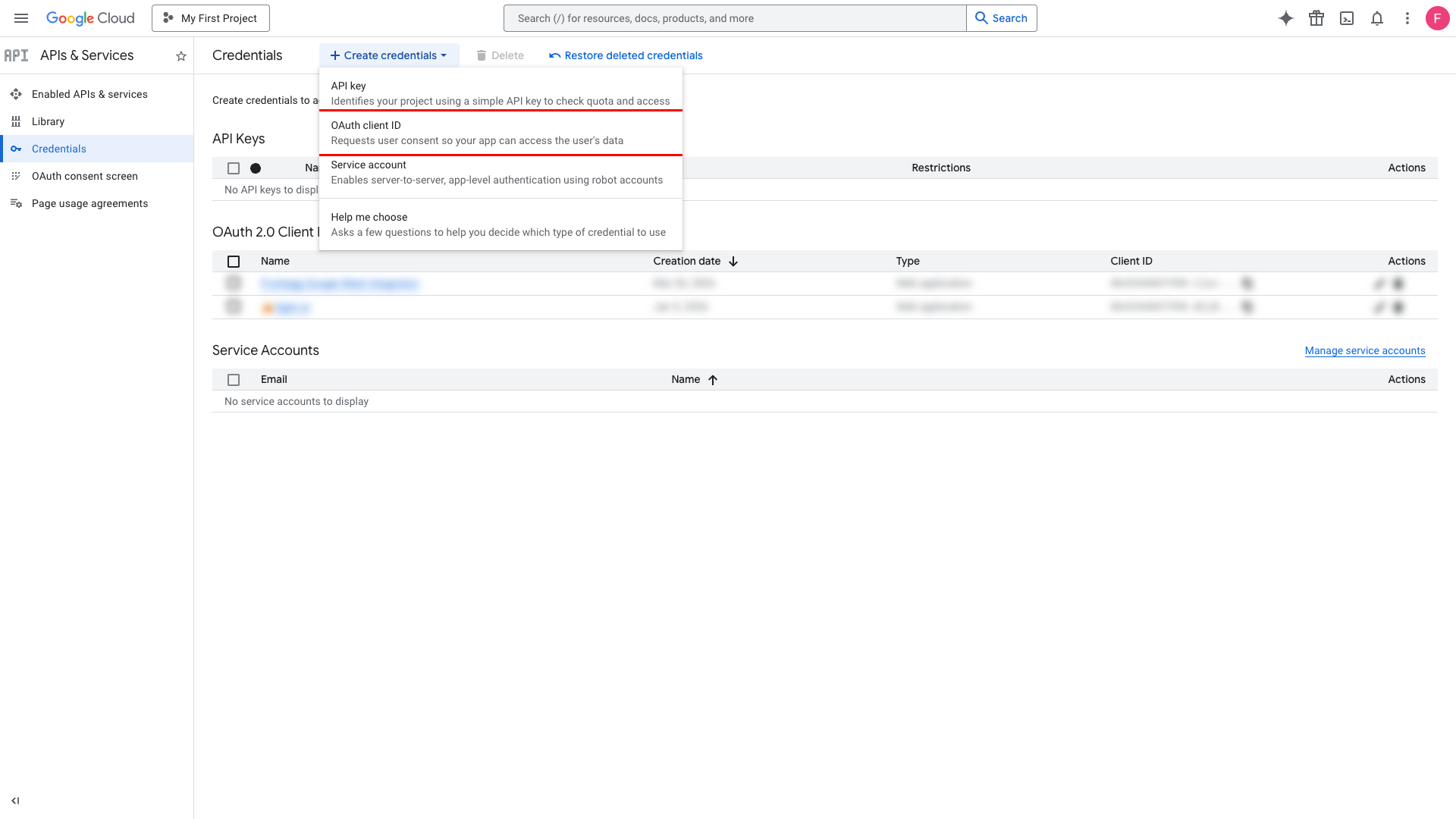
Go to APIs & Services → Credentials. This page lists all your existing API keys, OAuth 2.0 Client IDs, and service accounts. Click Create credentials and select OAuth client ID.
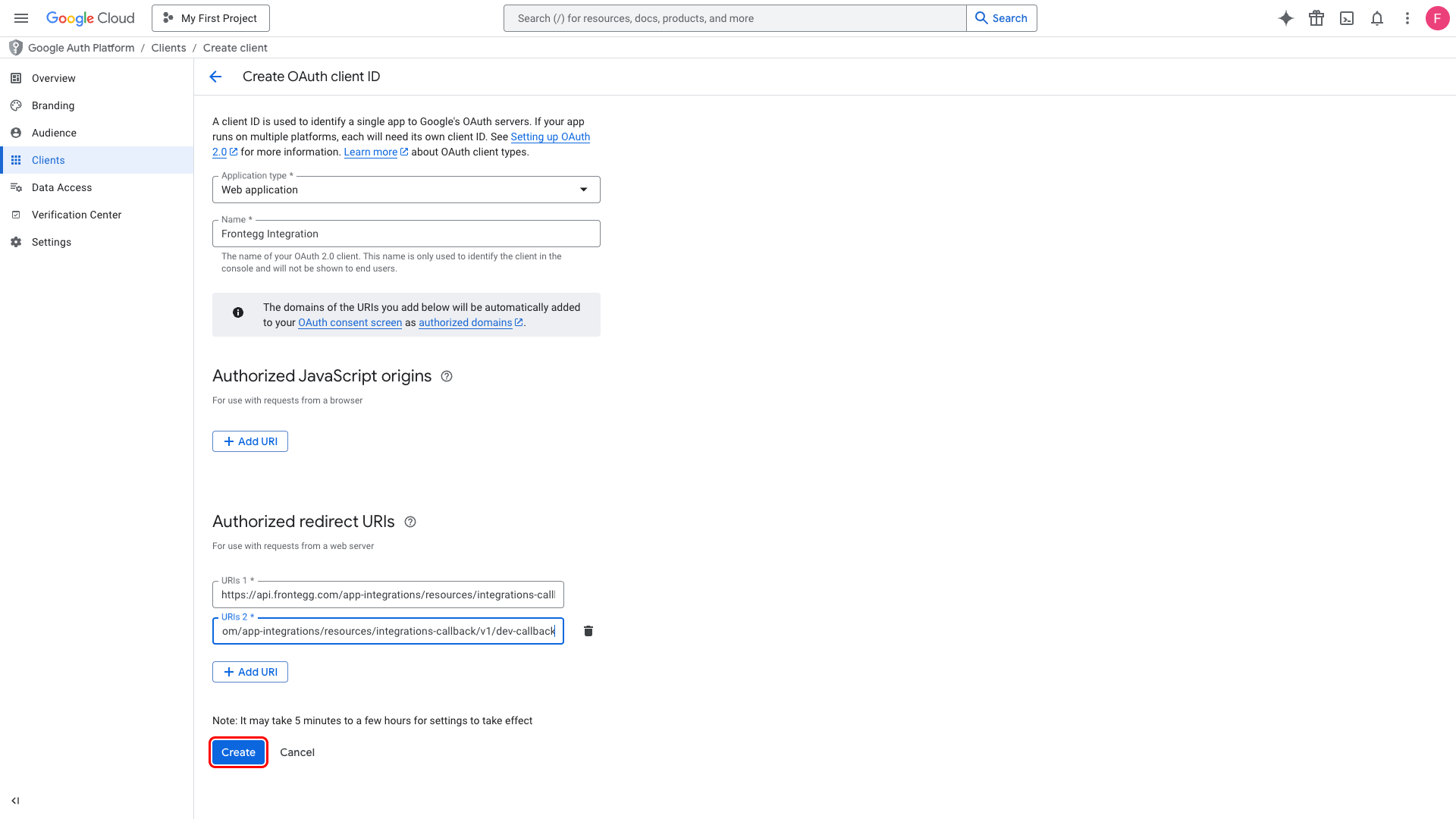
On the Create OAuth client ID page, configure the following:
- Set Application type to Web application.
- Set Name to a descriptive name (e.g.,
Frontegg Integration). - Under Authorized redirect URIs, click Add URI and enter the following redirect URIs:
https://YOUR_MCP_GATEWAY_URL/integration-callback
- Click Create.
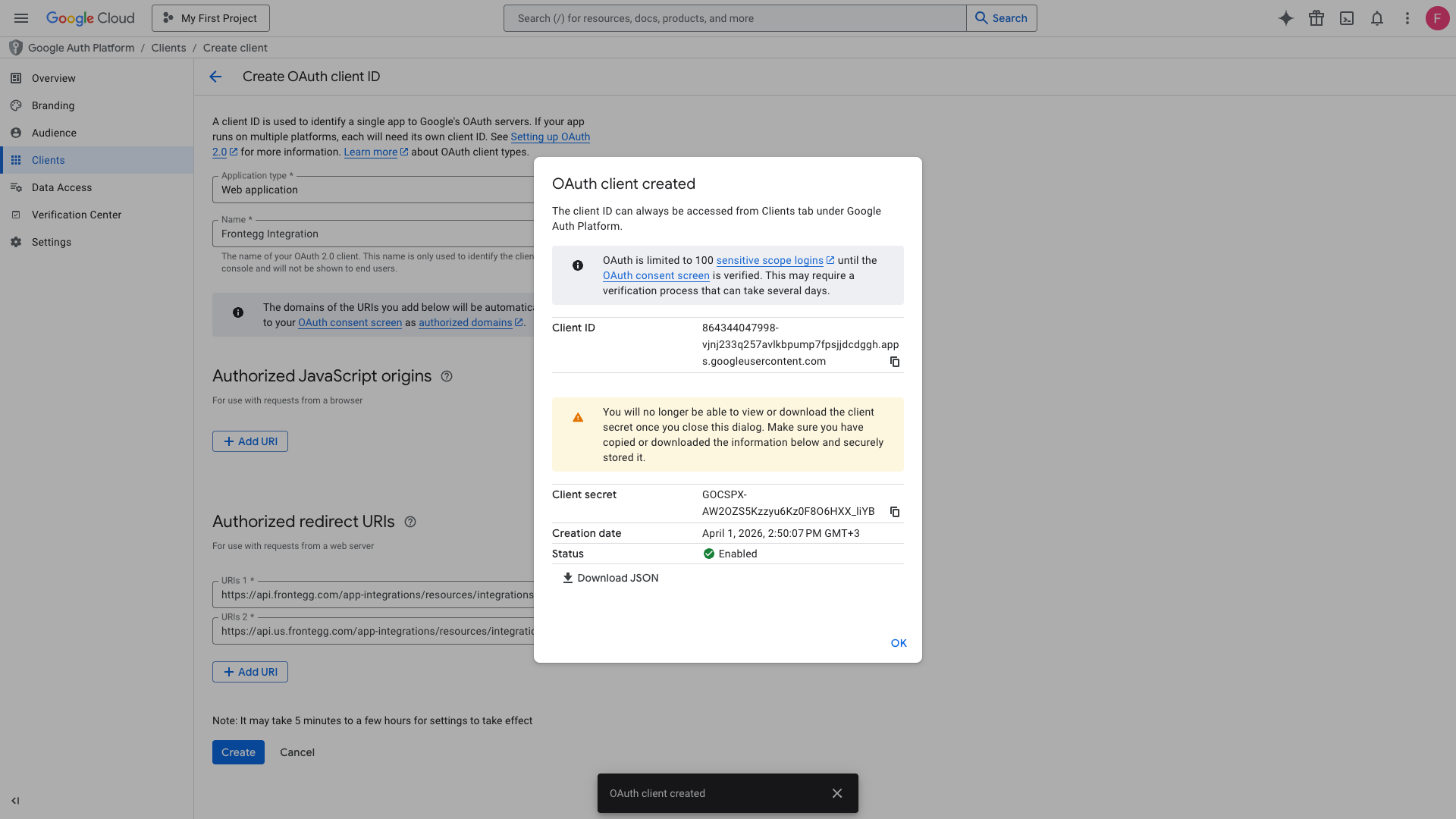
After creating the OAuth client, a dialog appears with your Client ID and Client Secret. Copy both values and store them securely — the Client Secret will not be shown again after you close this dialog.
The BigQuery integration requires the following OAuth scopes:
| Scope | Description |
|---|---|
https://www.googleapis.com/auth/bigquery | Full access to BigQuery resources |
https://www.googleapis.com/auth/bigquery.readonly | Read-only access to BigQuery data |
https://www.googleapis.com/auth/bigquery.insertdata | Insert data into BigQuery tables |
https://www.googleapis.com/auth/cloud-platform | Full access to Google Cloud Platform resources |
openid | OpenID Connect authentication |
https://www.googleapis.com/auth/userinfo.email | Access to user email address |
https://www.googleapis.com/auth/userinfo.profile | Access to user profile information |
Minimum required scopes
Minimum required scopes
For basic read-only functionality, you need: https://www.googleapis.com/auth/bigquery.readonly, openid, and https://www.googleapis.com/auth/userinfo.email.
Once you have obtained your Client ID and Client Secret from the steps above, enter them in the integration configuration page of the Frontegg portal:
- Open the Frontegg portal and navigate to [Environment] → Integrations → BigQuery.
- Enter the Client ID and Client Secret in the corresponding fields.
- Select the required scopes.
- Click Save.
Keep your credentials secure
Keep your credentials secure
Never share or commit your Client Secret to version control.