Box is a cloud content management platform for storing, sharing, and collaborating on files and folders.
It can be connected to Agen.co two ways, matching the Official / In-house filter in the connector picker:
- Official — Agen.co connects through Box's own hosted MCP server (
https://mcp.box.com/), so your AI agents use the same file, folder, search, collaboration, Box AI, Hubs, and Doc Gen tools Box exposes to MCP clients like Claude. Access is authorized with an MCP app that a Box admin creates in the Box Admin Console. - In-house — Agen.co wraps the Box REST API directly through its own integration layer, using an OAuth 2.0 app you register in the Box Developer Console.
Pick Official if the built-in MCP tools cover what your agents need. Fall back to In-house if your Box admin cannot create an MCP app, or you want a Box Developer Console OAuth app instead.
Prerequisites
Prerequisites
- A Box administrator — the MCP app is created in the Box Admin Console under Integrations, which regular users cannot open.
- To use Doc Gen tools, the
docgen.readwritescope requires an Enterprise Advanced license. The connector works without it.
Box does not support dynamic client registration, so you create the MCP app yourself and give Agen.co its Client ID and Client Secret. The app needs Agen.co's callback URLs, so start in Agen.co.
- In the Agen.co portal, go to Connectors → My connectors and click Add connector.
- Find Box and select it.
- In the Add Box panel, keep the Official tab selected. The panel shows two read-only URLs at the bottom — copy both:
- Callback URL — completes the initial OAuth handshake between Agen.co and your Box app.
- Gateway callback URL — used by the Agen.co MCP gateway for per-user authorization at runtime.
Leave this panel open — you return to it after creating the app in Box.
- Sign in to the Box Admin Console and open Integrations.
- Search for Box MCP, open Custom Box MCP Server, and select the Configuration tab.
- In Additional Configuration, click + Add Integration Credentials, enter an integration name (for example,
Agen.co), and save. - Expand the new entry and copy the Client ID and Client Secret. If the Client Secret field is empty or Copy puts nothing on the clipboard, click Reset and copy the new secret. Reset invalidates the previous secret.
- Add both callback URLs from Agen.co as redirect URIs. Replace the prefilled
https://app.box.comwith the first URL, then click + Add URI and replace the prefilled value for each additional URL. - Select the Access Scopes the app should grant:
| Scope | Option in Box | Description |
|---|---|---|
root_readwrite | Read and write all files and folders stored in Box | Read and write files and folders |
ai.readwrite | Manage AI Requests | Use Box AI tools |
docgen.readwrite | Not shown on every account | Use Doc Gen tools. Requires an Enterprise Advanced license |
- Click Save.
Agen.co does not request scopes itself. Box applies whatever scopes the app was configured with, and users can still only reach content they already have permission to see in Box.
Some write tools are off by default
Some write tools are off by default
Box keeps some tools in the Files & Folders, Collaboration, and Box Hubs categories disabled until an admin turns them on. To enable them, open Integrations → Box MCP Server in the Box Admin Console. If an agent cannot find a tool after connecting, check it there.
Return to the open Add Box panel and fill in the fields:
| Field | Required | Description |
|---|---|---|
| Instance Slug | Yes | Namespaces this instance — it prefixes each imported tool as slug__tool, so several instances of the same MCP can coexist. Use lowercase kebab-case. You can change it later from the connector's settings. |
| Client ID | Yes | The OAuth client ID from your Box app. |
| Client Secret | Yes | The OAuth client secret from your Box app. |
| Callback URL | — | Read-only. Add it as a redirect URL in your Box app. |
| Gateway callback URL | — | Read-only. Also add it as a redirect URL — the MCP gateway uses it for per-user authorization at runtime. |
- Click Connect. You are redirected to Box to sign in and approve access.
- After you approve, the panel switches to Select the tools to import from Box. Every tool is on by default; turn off any you do not want your agents to see.
- Click Add. The connector is created and the selected tools are imported only when you click Add — if you close the panel first, nothing is saved, even if the Box callback page reported success.
| Area | What it covers |
|---|---|
| Authentication & Users | Current user and authentication details |
| Files & Folders | Read, create, move, and update files and folders, file versions, and metadata |
| Search | Find content by keyword or metadata |
| Collaboration | Shared links, collaborators, and comments |
| Box AI & Agents | AI-powered analysis and extraction on your content |
| Box Hubs | Read and update Box Hubs |
Tool availability follows Box's own list and admin settings, and can change. See Box's available tools reference.
Enabling the Box connector isn't enough on its own. Tool calls remain denied until you create a policy that grants access to the specific tools you want to expose.
Prerequisites
Prerequisites
- A Box developer account
- Access to the Box developer console
Log in to Box and navigate to the Box Developer Console. The console lists all your platform apps.
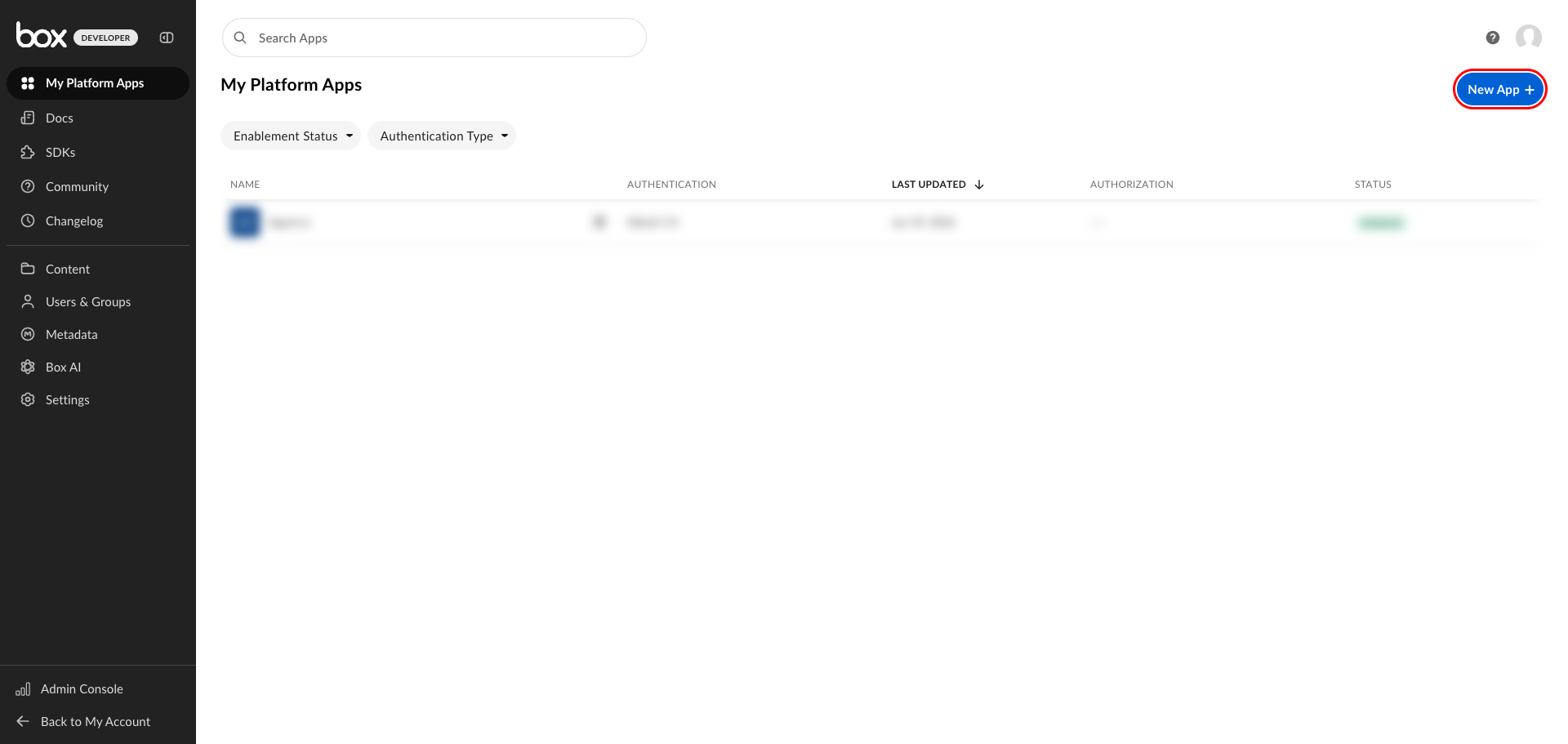
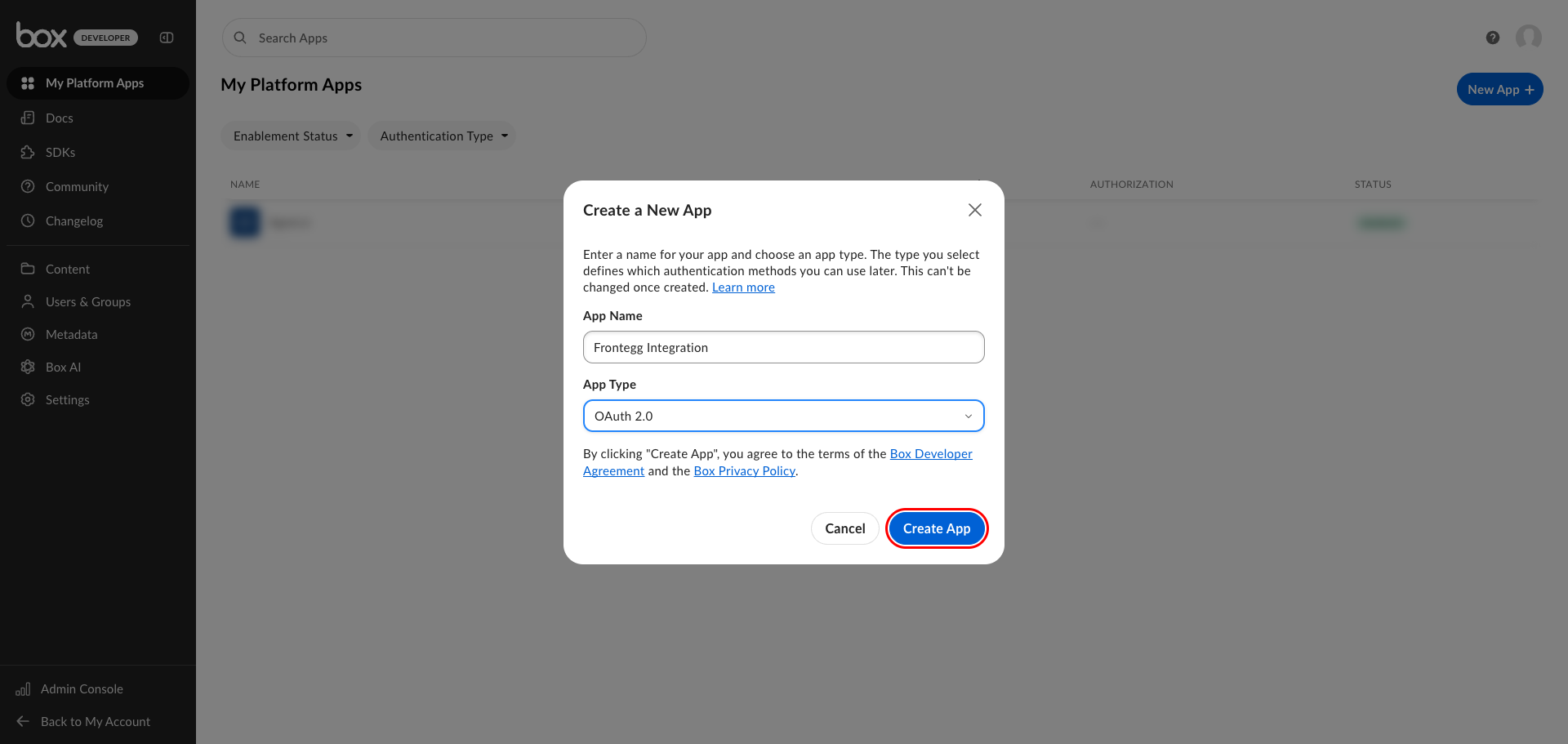
Click New App. In the dialog that appears:
- App Name — Enter a descriptive name, for example
Frontegg Integration. - App Type — Select OAuth 2.0 (User or Client Authentication).
Click Create App.
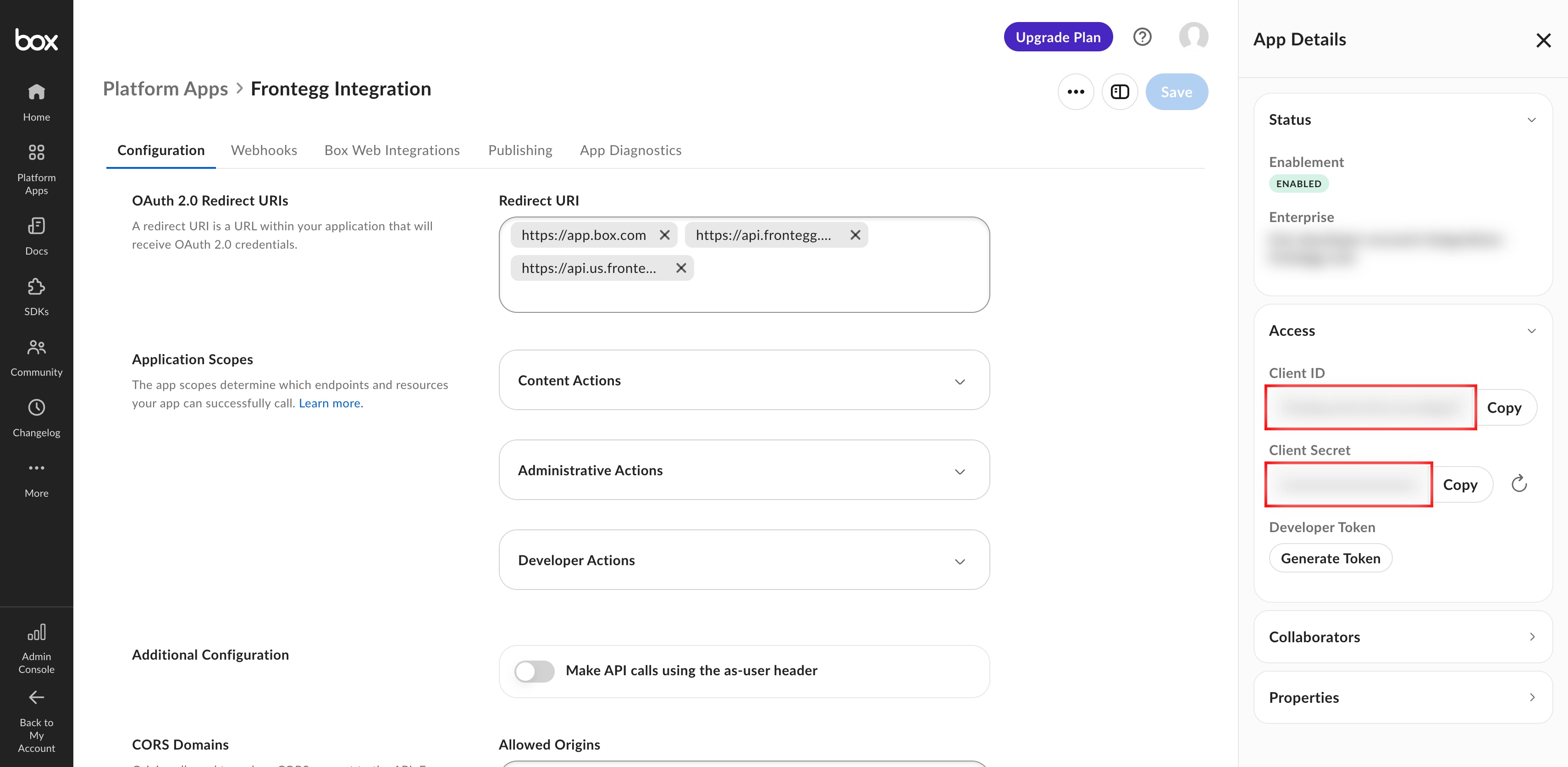
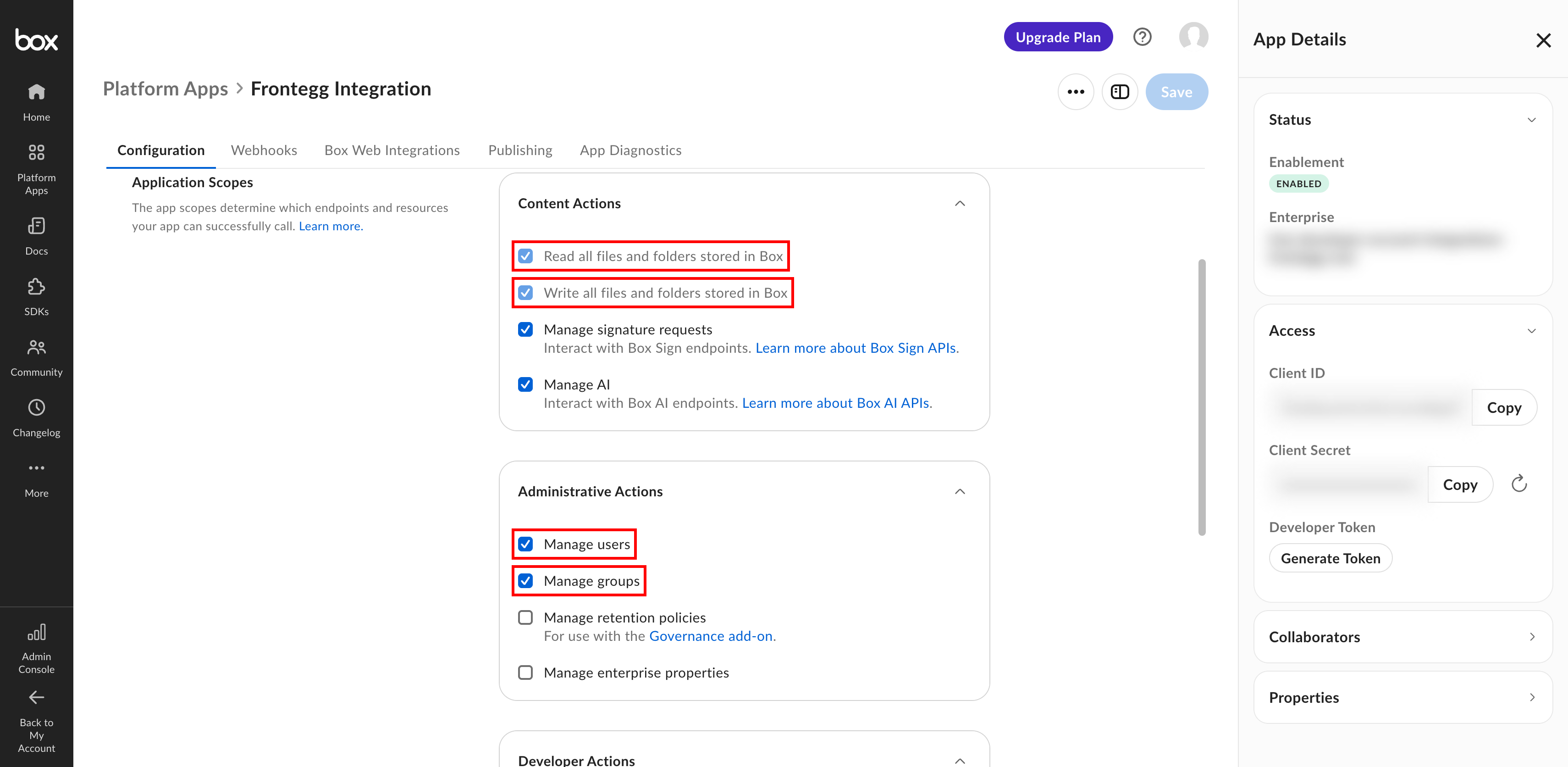
After the app is created, you land on the Configuration tab. The App Details panel on the right has an Access section with your Client ID and Client Secret. Use the Copy button next to each value — you need both when configuring the Frontegg portal.
Client Secret visibility
Client Secret visibility
The Client Secret is masked on screen. Use the Copy button to copy it without revealing it.
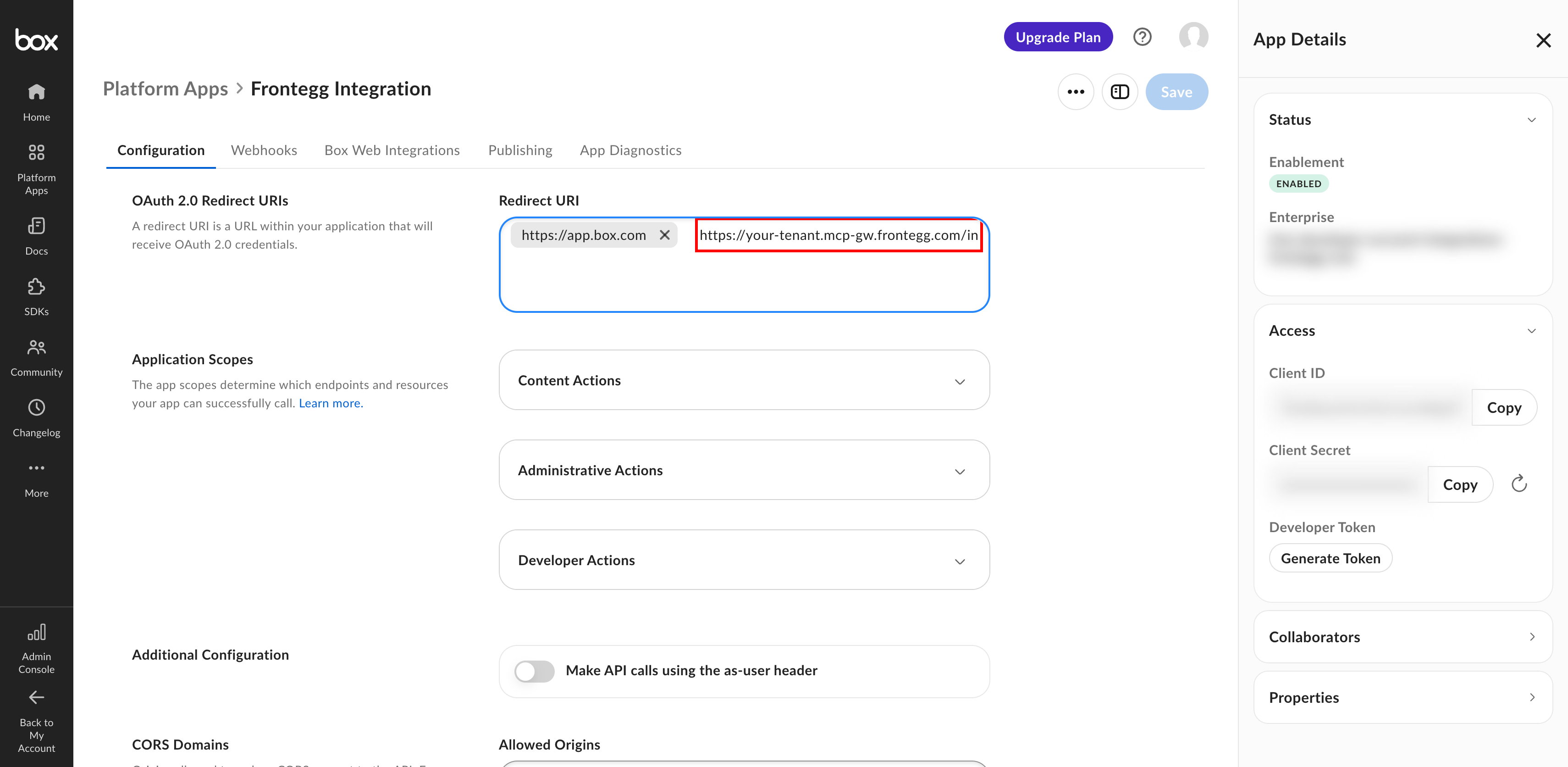
In the OAuth 2.0 Redirect URIs section, paste the redirect URL shown in the Frontegg portal for this connector into the Redirect URI field and press Enter to add it. Copy the whole URL, path included, from the portal rather than assembling it by hand — see How to get your Redirect URL.
The value has this shape:
https://YOUR_MCP_GATEWAY_URL/integration-callback
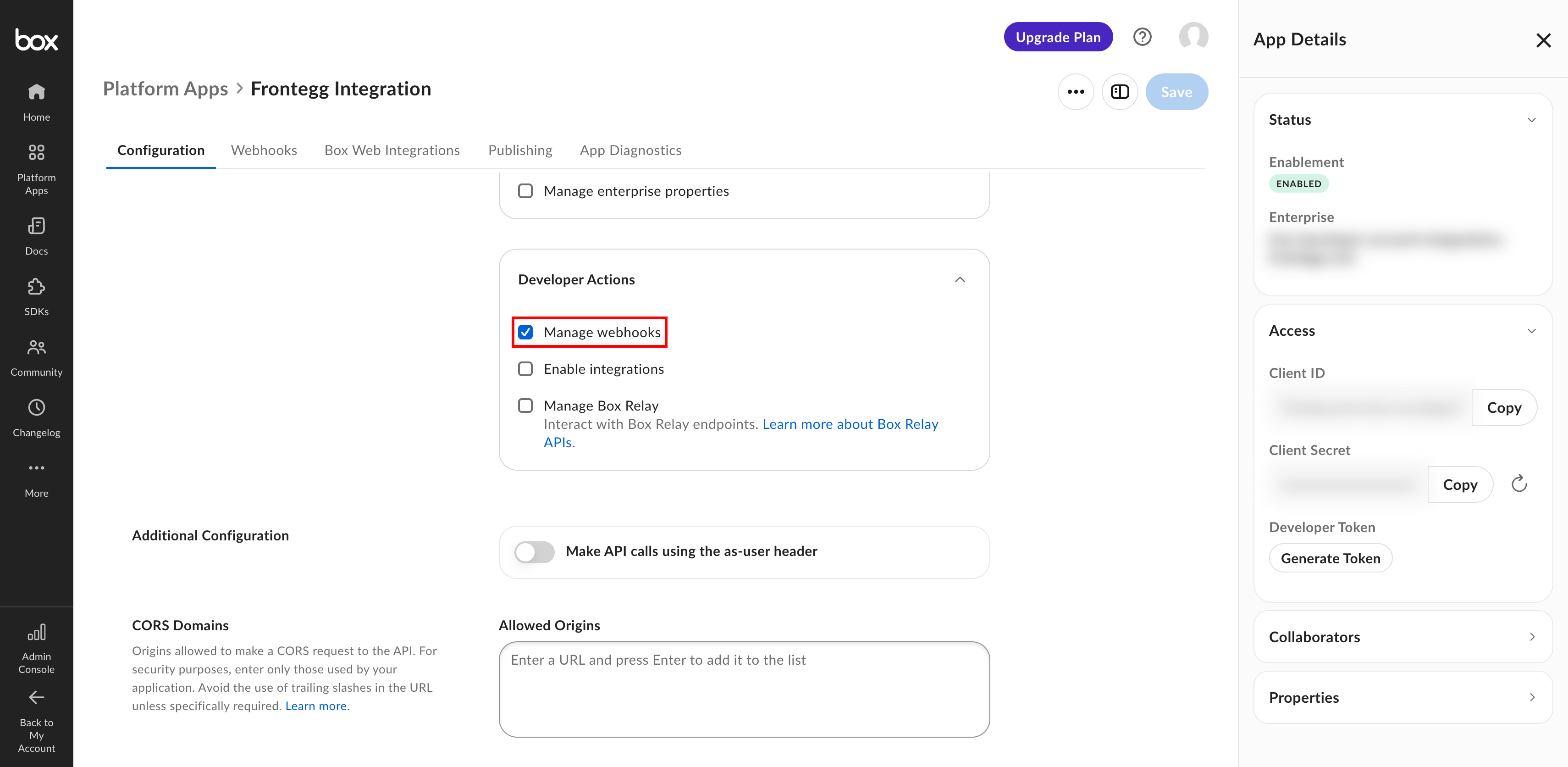
In the Application Scopes section, expand Content Actions, Administrative Actions, and Developer Actions, then select the following scopes:
| Scope | Description |
|---|---|
| Read all files and folders stored in Box | Required to read, list, and download files and folders |
| Write all files and folders stored in Box | Required to rename, move, create, and delete files and folders, and to share them |
| Manage users | Enterprise scope for user management |
| Manage groups | Enterprise scope for group management |
| Manage webhooks | Enterprise scope for webhook management |
Minimum required scopes
Minimum required scopes
Every operation the connector currently offers needs only the Read and Write scopes, which are enabled by default for OAuth 2.0 apps. Select the other scopes only if your Box administrator expects to use them.
Click Save at the top right of the configuration page to apply all settings.
Once you have obtained your Client ID and Client Secret from the steps above, enter them in the integration configuration page of the Frontegg portal:
- Open the Frontegg portal and navigate to [ENVIRONMENT] → Integrations → Box.
- Enter the Client ID and Client Secret in the corresponding fields.
- Select the required scopes.
- Click Save.
Keep your credentials secure
Keep your credentials secure
Never share or commit your Client Secret to version control.
- Deleting a file or folder moves it to the Box trash rather than removing it permanently.
- A folder that is not empty can be deleted only when recursive deletion is requested explicitly.
- Folder listings return at most 1,000 items per request, so large folders must be read in pages.
- Sharing a file or folder works for a single user or group at a time, using one of the Box collaboration roles: editor, viewer, previewer, uploader, previewer uploader, viewer uploader, or co-owner.
- Access is always limited by what the connected Box user is permitted to see, even with the broad Read and Write scopes.
- The connector covers files, folders, collaborations, and the current user. File upload, search, and user, group, or webhook management are not available, even though the matching scopes can be selected.