Google Drive is Google's cloud file storage and sharing service for consumer and Google Workspace accounts.
It can be connected to Agen.co two ways, matching the Official / In-house filter in the connector picker:
- Official — Agen.co connects through Google's own hosted Drive MCP server, so your AI agents use the same file search, read, and creation tools Google exposes to MCP clients like Claude and Antigravity.
- In-house — Agen.co wraps the Google Drive API directly through its own integration layer, using a dedicated OAuth client you register in Google Cloud Console.
Pick Official if the built-in MCP tools cover what your agents need. Fall back to In-house if you need broader access — for example, deleting or editing files, managing sharing, or reading revisions.
Prerequisites
Prerequisites
- Membership in the Google Workspace Developer Preview Program. The Google Drive MCP server is a Developer Preview feature. A Workspace admin enrolls the whole domain, and membership isn't granted instantly, so apply before you start.
- A Google Cloud project where you can enable APIs, configure the Google Auth Platform, and create OAuth clients.
In Google Cloud Console, select your project and enable both the Google Drive API and the Google Drive MCP API. Google requires both for the MCP server.
- Go to Google Auth Platform → Branding. If you see Google Auth Platform not configured yet, click Get Started, enter an app name and a support email, and click Next.
- Under Audience, select Internal. If you can't select it, select External. Finish the wizard and click Create.
- If you selected External, open Audience and, under Test users, click Add users and add every Google account that will connect. Other accounts can't complete sign-in while the app is in testing.
- Open Data Access → Add or Remove Scopes. Under Manually add scopes, paste the two scopes below, click Add to Table, click Update, then click Save.
| Scope | Why the connector needs it |
|---|---|
https://www.googleapis.com/auth/drive.readonly | Search, read, download, and inspect the permissions of the user's files |
https://www.googleapis.com/auth/drive.file | Create files and copies |
- In the Agen.co portal, go to Connectors → My connectors and click Add connector.
- Search for
Google Driveand select it. At the top of the Add Google Drive panel, keep Official selected. - Copy both read-only URLs at the bottom of the panel:
- Callback URL: completes the initial OAuth handshake between Agen.co and your OAuth client.
- Gateway callback URL: used by the Agen.co MCP gateway for per-user authorization at runtime.
Leave this panel open. You return to it after creating the OAuth client.
- In Google Cloud Console, make sure the same project is selected, then go to Google Auth Platform → Clients → Create client. The client must belong to the project where you enabled the Google Drive MCP API: Google checks API enablement against the project that owns the credential, so a client from another project, such as one you already use for the In-house connector, fails without a clear error.
- Set Application type to Web application and enter a name (for example,
Agen.co Google Drive MCP). - Under Authorized redirect URIs, click Add URI and add both URLs you copied from Agen.co.
- Click Create, then copy the Client ID and Client Secret. Google shows the secret only at creation, so copy it now. If you lose it, add a new secret from the client's detail page.
- Return to the Add Google Drive panel you left open and fill in the fields:
| Field | Required | Description |
|---|---|---|
| Instance Slug | Yes | Namespaces this instance. It prefixes each imported tool as slug__tool, so a second instance of the same connector needs its own slug. Use lowercase kebab-case, for example google-drive. You can change it later from the connector's settings. |
| Client ID | Yes | The Client ID of the OAuth client you created. |
| Client Secret | Yes | The Client Secret of the OAuth client you created. |
- Click Connect. You're redirected to Google to sign in and approve access.
- Back in Agen.co, the panel shows Select the tools to import from Google Drive. with a toggle for each tool, all on by default. Turn off any tool you don't want, then click Add. The connector is created and its tools imported only when you click Add, even if the Google sign-in page reported success.
- After you create a policy for the tools, the first tool call a user makes returns a one-time authorization link instead of data. The user opens it and approves access with their own Google account. This per-user step uses the Gateway callback URL you registered, and each user does it once.
Once connected, Google Drive appears under My connectors with tools spanning:
| Area | What it covers |
|---|---|
| Search & metadata | Searching files, listing recent files, and reading file metadata |
| Reading content | Reading a file's content, optionally with its comments, and downloading it |
| Creating & copying | Creating or uploading files and copying existing ones |
| Permissions | Reading who a file is shared with |
The Official MCP server can't delete files, edit existing files, or change sharing. Use the In-house tab if your agents need those.
Every tool call fails with a permission error
Every tool call fails with a permission error
If every tool call returns The caller does not have permission, your Workspace domain isn't enrolled in the Google Workspace Developer Preview Program. Without enrollment, sign-in, tool import, policy creation, and per-user authorization all still succeed, and then every tool call fails with this message. Enrollment covers the whole domain and is done by a Workspace admin, not per Google Cloud project. See Prerequisites above.
Enabling the Google Drive connector isn't enough on its own. Tool calls remain denied until you create a policy that grants access to the specific tools you want to expose.
Integrating Google Drive with Frontegg allows your application to list, create, update, copy, and delete files and folders, move them between folders, upload and replace file content, export and download files, manage sharing permissions, read and write comments, and work with file revisions and Drive metadata.
Google Drive supports two authentication methods. OAuth 2.0 asks each user to grant access to their own Drive and is described first. A service account with domain-wide delegation acts on behalf of a chosen Workspace user without an interactive consent screen — see Connect with a service account below.
Prerequisites
Prerequisites
- A Google account with access to Google Cloud Console
- A Google Cloud project (you can create one during setup)
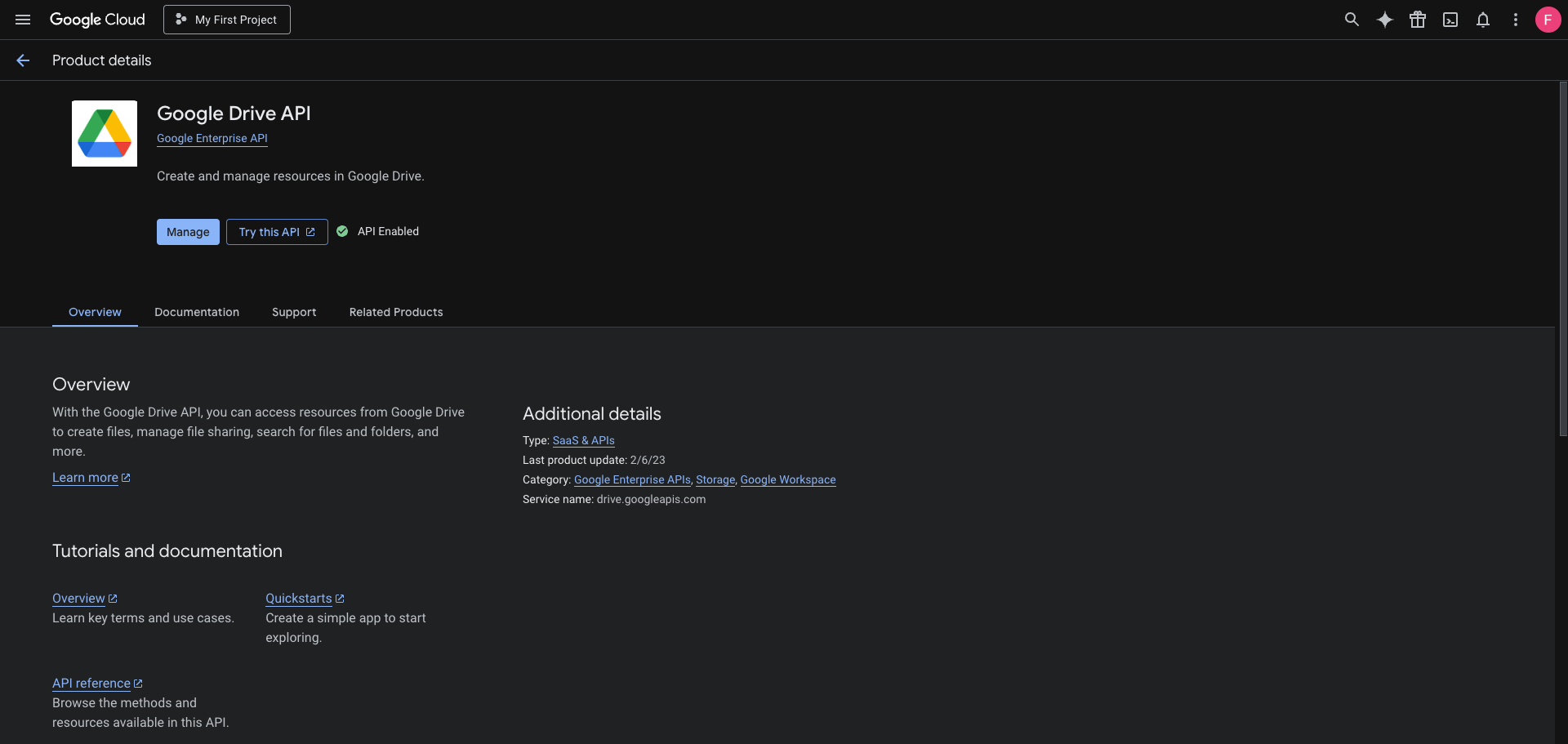
Go to the Google Drive API page in the Google Cloud Console. Select your project from the top navigation, then click Enable if the API is not yet enabled. If you see Manage and API Enabled, the API is already active.
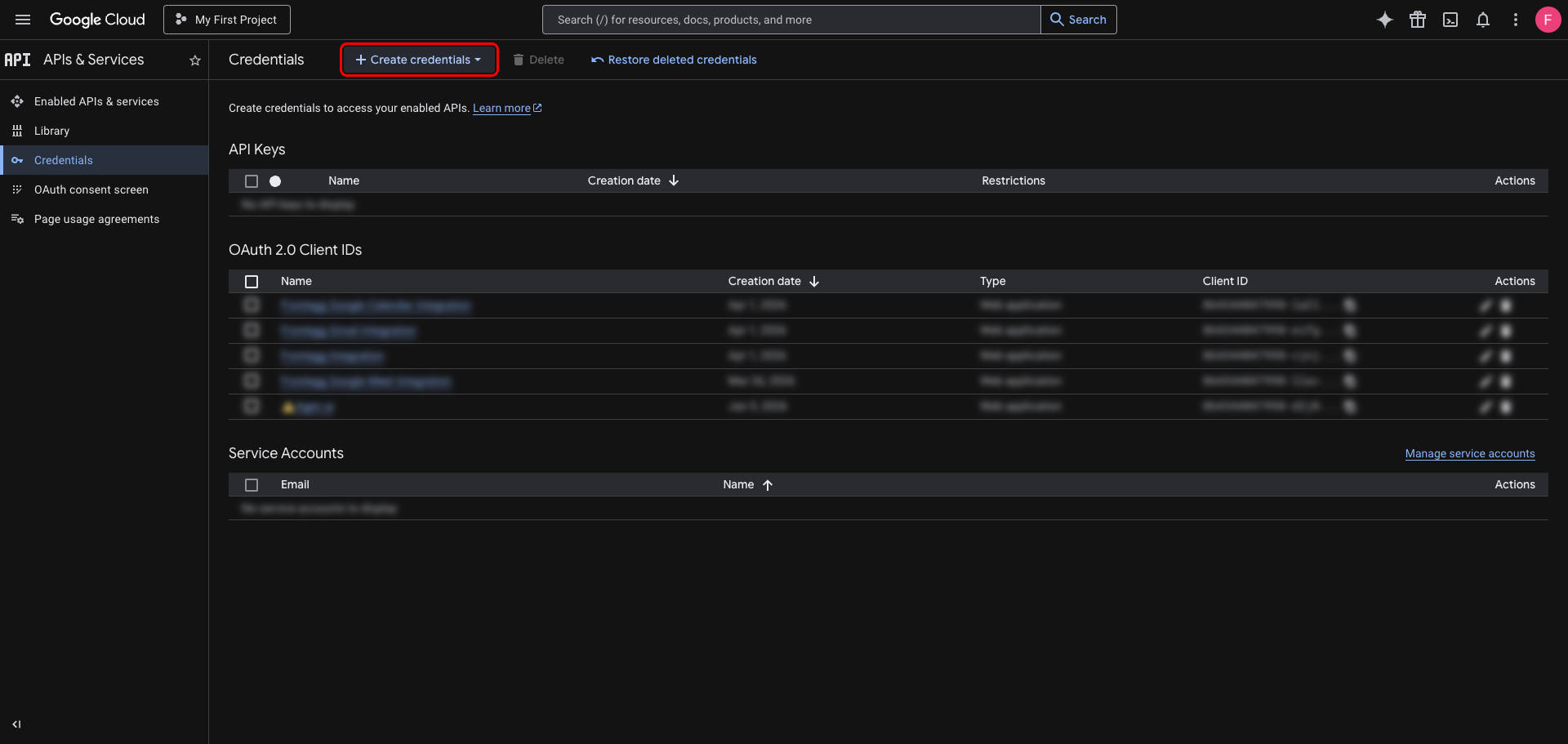
In the left sidebar, navigate to APIs & Services → Credentials. Click Create credentials.
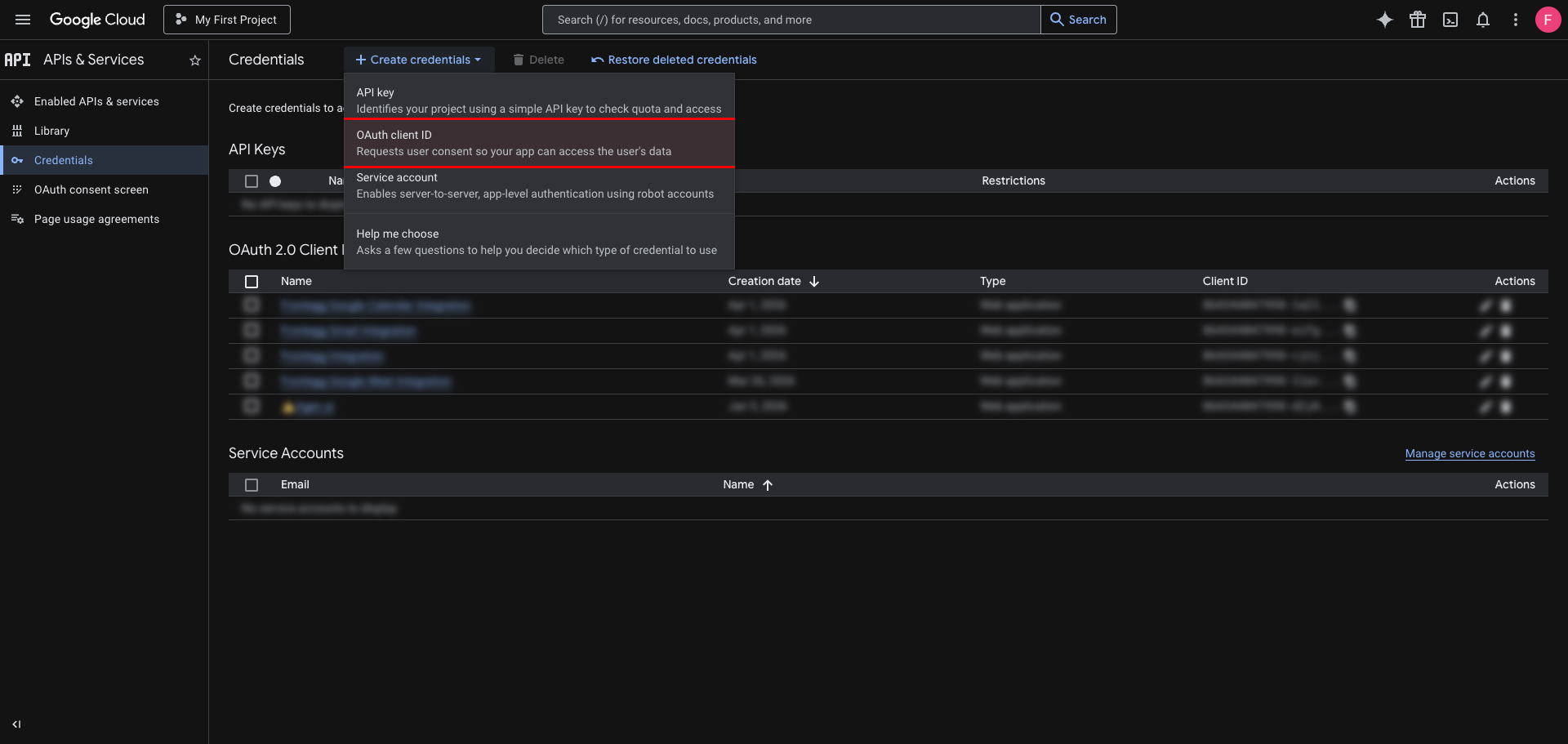
From the dropdown, select OAuth client ID.
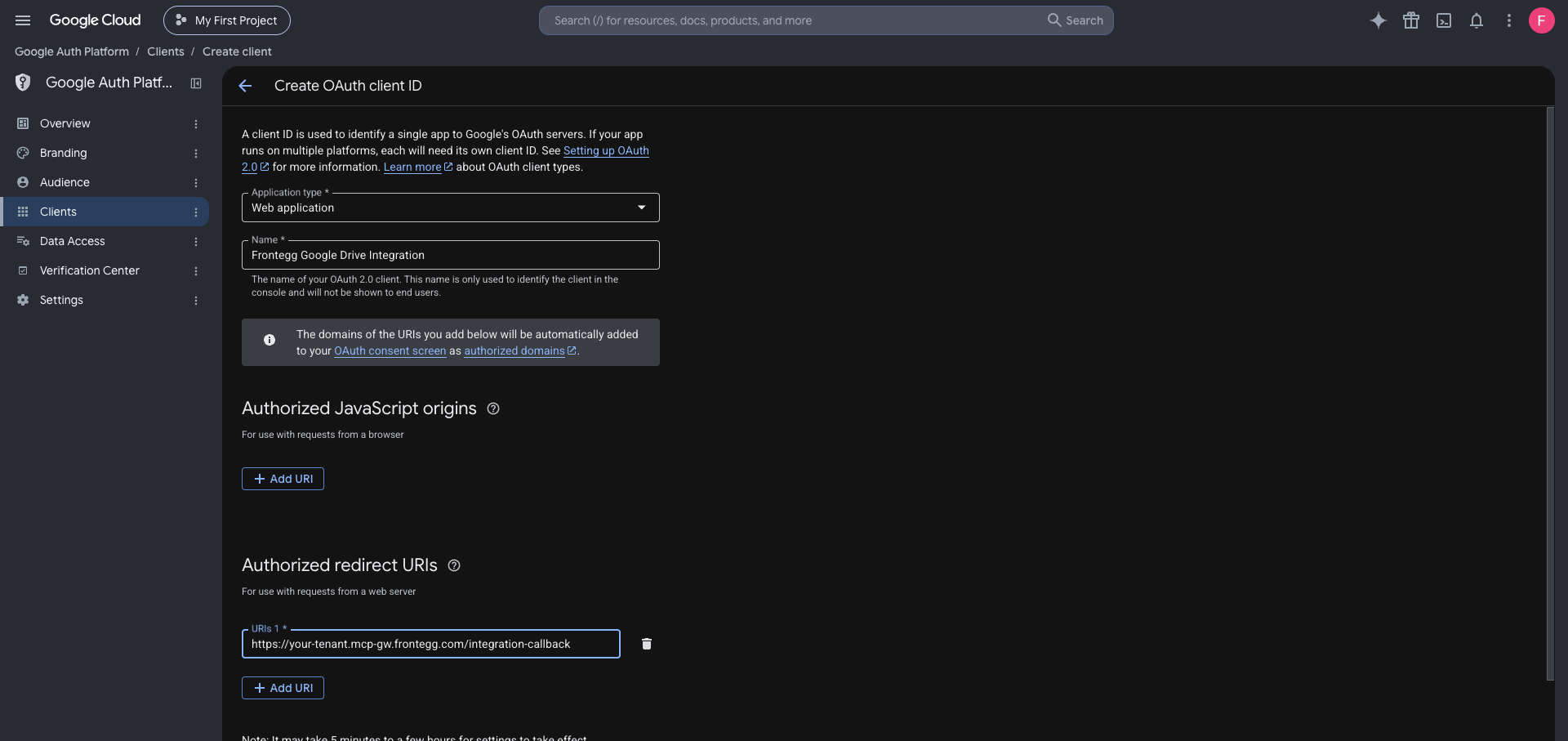
On the Create OAuth client ID page:
- Set Application type to Web application.
- Enter a name for the client (for example,
Frontegg Google Drive Integration). - Under Authorized redirect URIs, click Add URI and add the redirect URL shown in the Frontegg portal for this integration — copy it whole, including the path. See How to get your Redirect URL.
The value has this shape, but take the real one from the portal rather than assembling it:
https://YOUR_MCP_GATEWAY_URL/integration-callback
Click Create to save the OAuth client. A dialog will display your Client ID and Client Secret — copy both values and store them securely.
Save your Client Secret now
Save your Client Secret now
The Client Secret is only shown once in this dialog. After you close it, you cannot retrieve it again — you can only create a new secret.
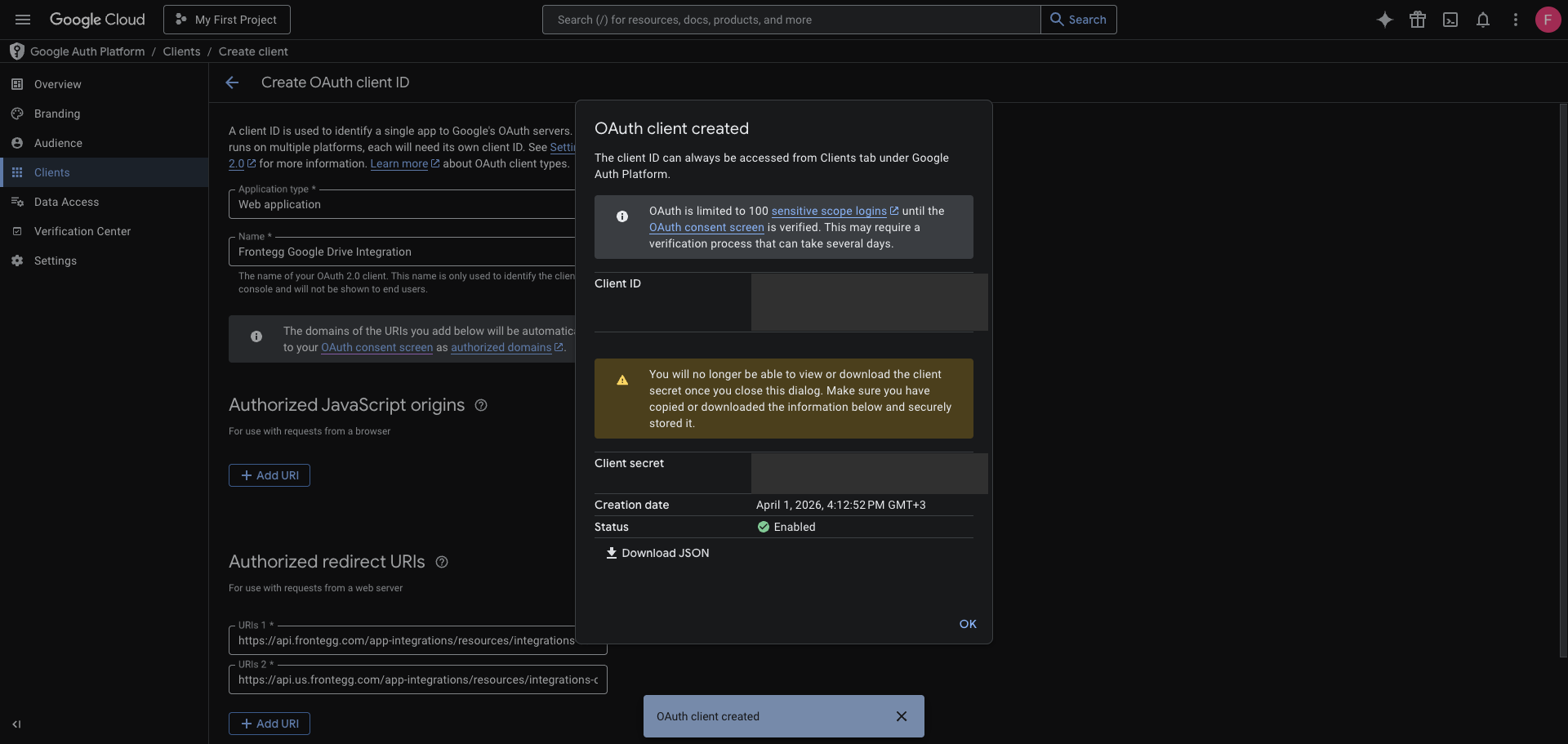
After closing the dialog, your new client appears at the top of the OAuth 2.0 Client IDs list on the Credentials page.
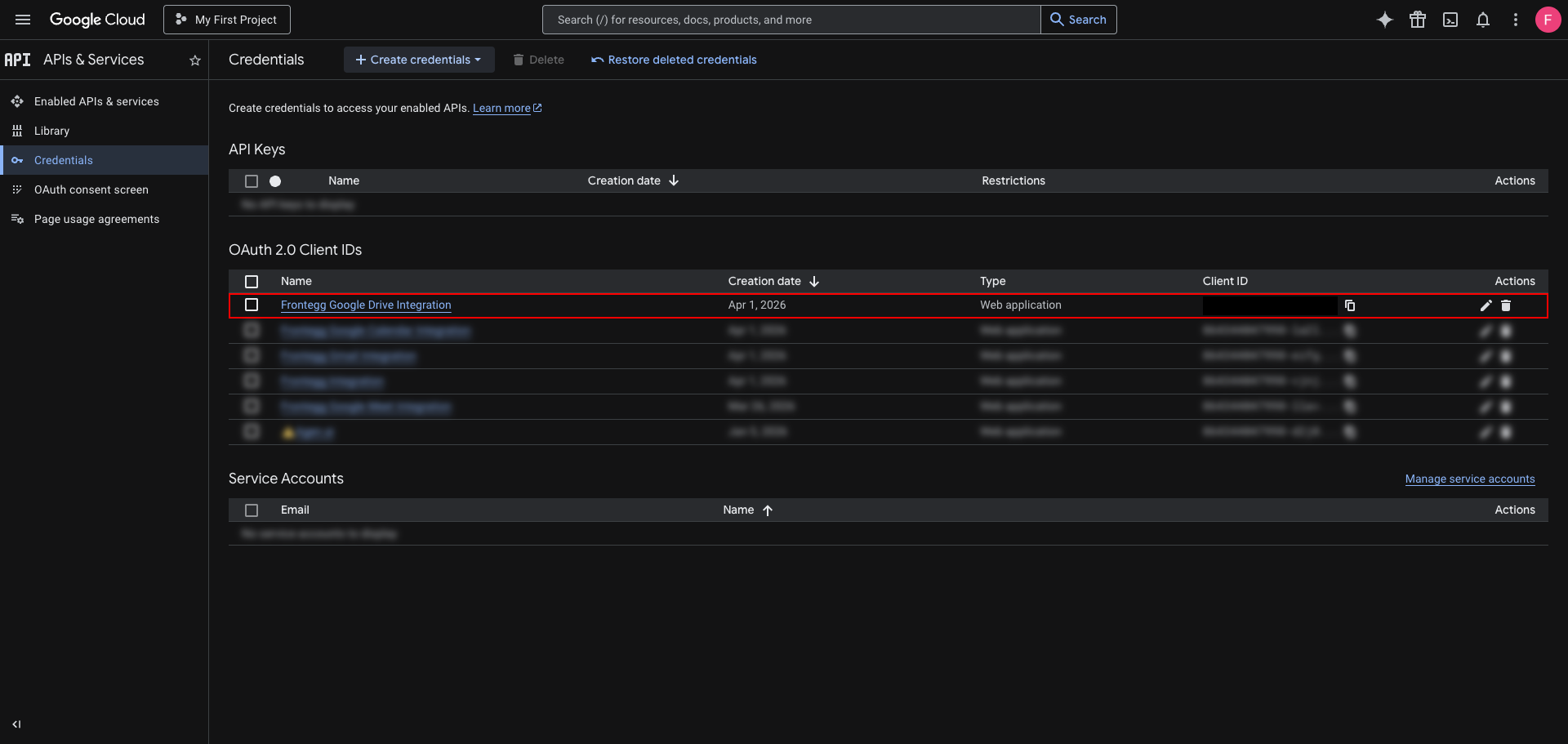
Click the client name to open its detail page. You can view and copy the Client ID at any time from the Additional information section.
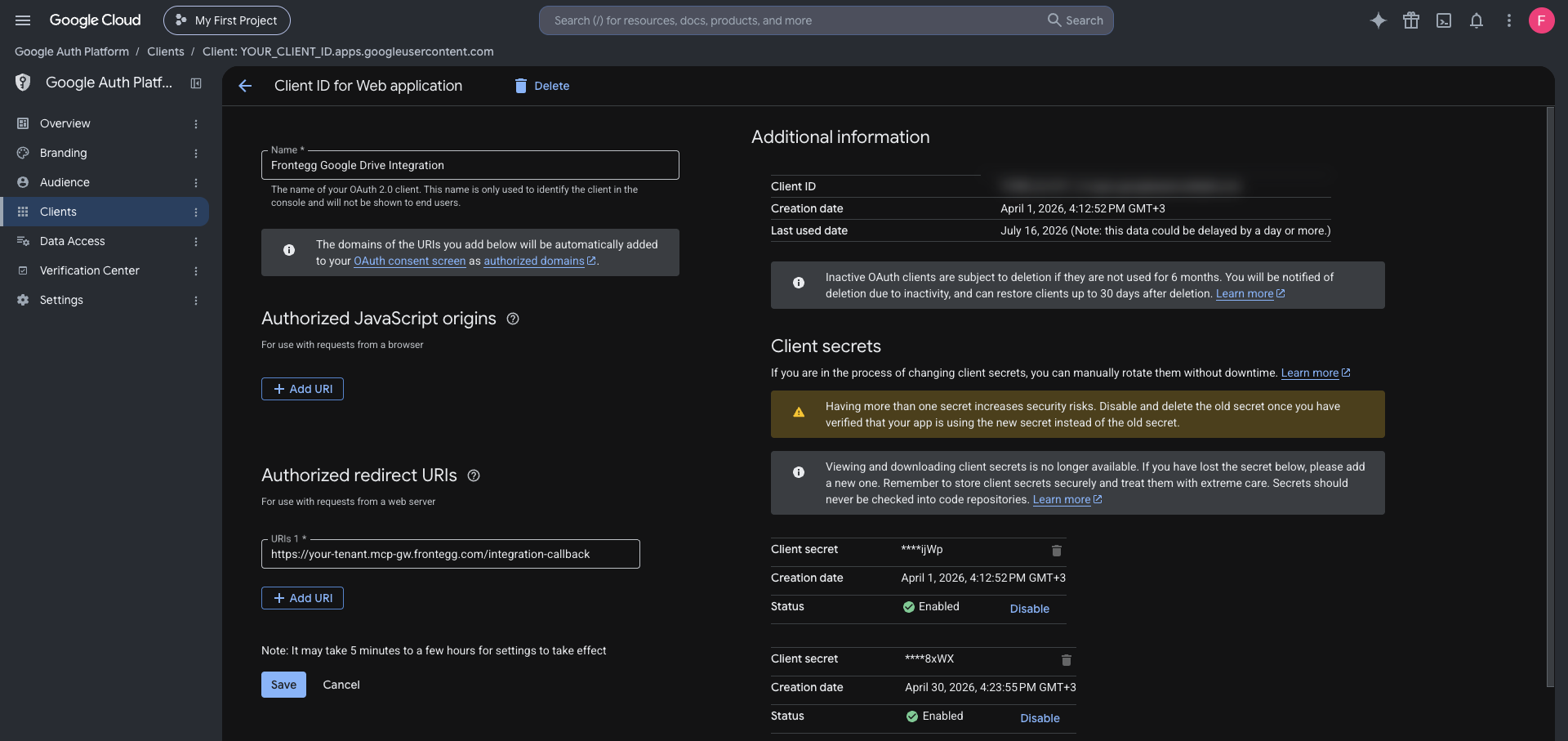
Once you have your Client ID and Client Secret, enter them in the Frontegg portal:
- Open the Frontegg portal and navigate to [ENVIRONMENT] → Integrations → Google Drive.
- Enter the Client ID and Client Secret in the corresponding fields.
- Select the required scopes:
| Scope | Description |
|---|---|
https://www.googleapis.com/auth/drive.readonly | Search, list, and read files, and read their permissions, comments, and revisions |
https://www.googleapis.com/auth/drive.file | Create, update, copy, and delete files, upload or replace their content, and create, update, or delete their permissions, comments, and revisions |
drive.file only reaches files this integration created, or files the user separately opened with or shared with it — calling a write operation on another existing file by ID fails, even though the tool accepts any file ID.
- Click Save.
Keep your credentials secure
Keep your credentials secure
Never share or commit your Client Secret to version control.
Use this method instead of OAuth when the integration should act on behalf of a fixed Google Workspace user without an interactive consent screen. It requires a Workspace domain you administer — it does not work with personal Google accounts.
In the Google Cloud Console, go to IAM & Admin → Service Accounts and click Create service account. Give it a name, then open the new account, select the Keys tab, and choose Add key → Create new key → JSON. The key file downloads once — store it securely, as Google does not keep a copy.
Copy the service account's Client ID (the numeric OAuth 2.0 client ID shown on its details page). In the Google Workspace Admin console, go to Security → Access and data control → API controls → Domain-wide delegation, click Add new, paste the Client ID, and enter the Drive scopes the integration needs, for example https://www.googleapis.com/auth/drive.
- Open the Frontegg portal and navigate to [ENVIRONMENT] → Integrations → Google Drive.
- Select the Service account authentication method.
- Paste the full contents of the JSON key file into Service Account JSON.
- In User to impersonate, enter the email of the Workspace user the service account acts on behalf of, for example
jane@acme.com. - Click Save.
Delegation grants broad access
Delegation grants broad access
A service account with domain-wide delegation can act as any user in the domain for the scopes you authorize. Grant only the scopes the integration needs, and treat the JSON key file like a password — never commit it to version control.
- Files can be moved between folders, and the response can be narrowed to just the properties you care about instead of the full file record.
- Sharing can be adjusted in place: an existing grantee's role can be changed directly, without removing and re-granting their access, which avoids sending them a fresh notification email.
- A specific revision can be marked to keep forever, exempting it from Drive's automatic revision cleanup.
- File content cannot be sent directly through the integration. Uploading a new file's content, or replacing an existing file's content, starts an upload session and returns a one-time URL that the content must then be uploaded to separately. Replacing content this way keeps the file's identifier, location, and sharing, and the previous content stays available as an earlier revision.
- Google Docs, Sheets, and Slides files have no stored bytes, so they cannot be downloaded directly — they must be exported to a chosen format instead. Exported content never carries comments, which have to be read separately, and exporting a spreadsheet to CSV or TSV returns only its first sheet.
- Moving a file requires naming both the destination folder and the folder it currently sits in. Naming only the destination adds a second location rather than moving the file.
- Permissions are returned in pages of at most 100 at a time.
- Emptying the trash, subscribing to file change notifications, and reading or modifying Workspace labels are not available.