AppDynamics is an application performance monitoring and observability platform. Integrating AppDynamics with Frontegg allows your application to monitor applications, query metrics, and access performance data on behalf of your users using OAuth 2.0 Client Credentials.
Prerequisites
Prerequisites
- An AppDynamics SaaS or on-premises controller
- Account Owner or Administrator role in your AppDynamics controller
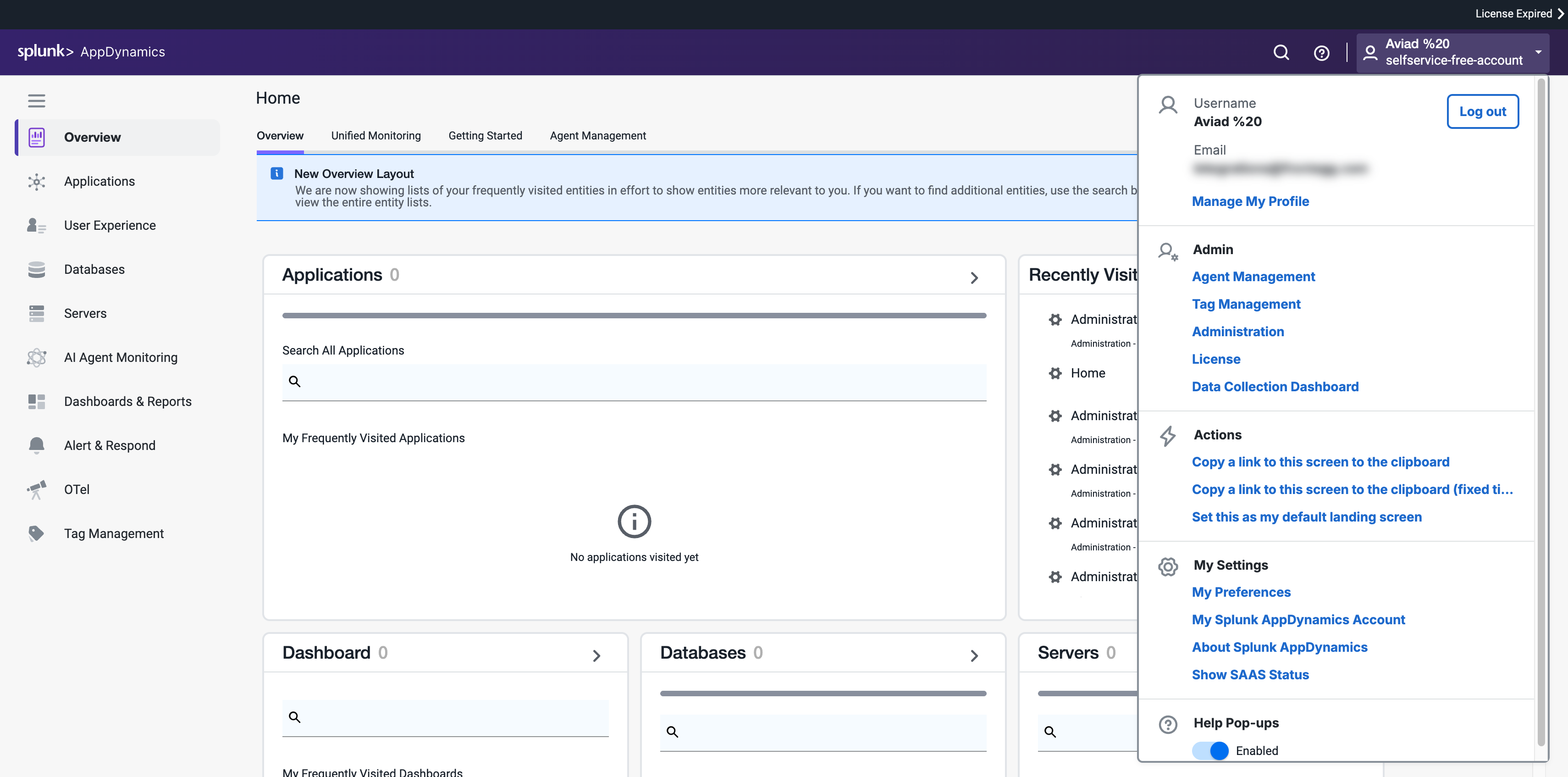
Navigate to your AppDynamics controller URL (for example, https://your-account.saas.appdynamics.com/controller) and sign in. In the top-right corner, click your user avatar to open the account menu, then click Administration.
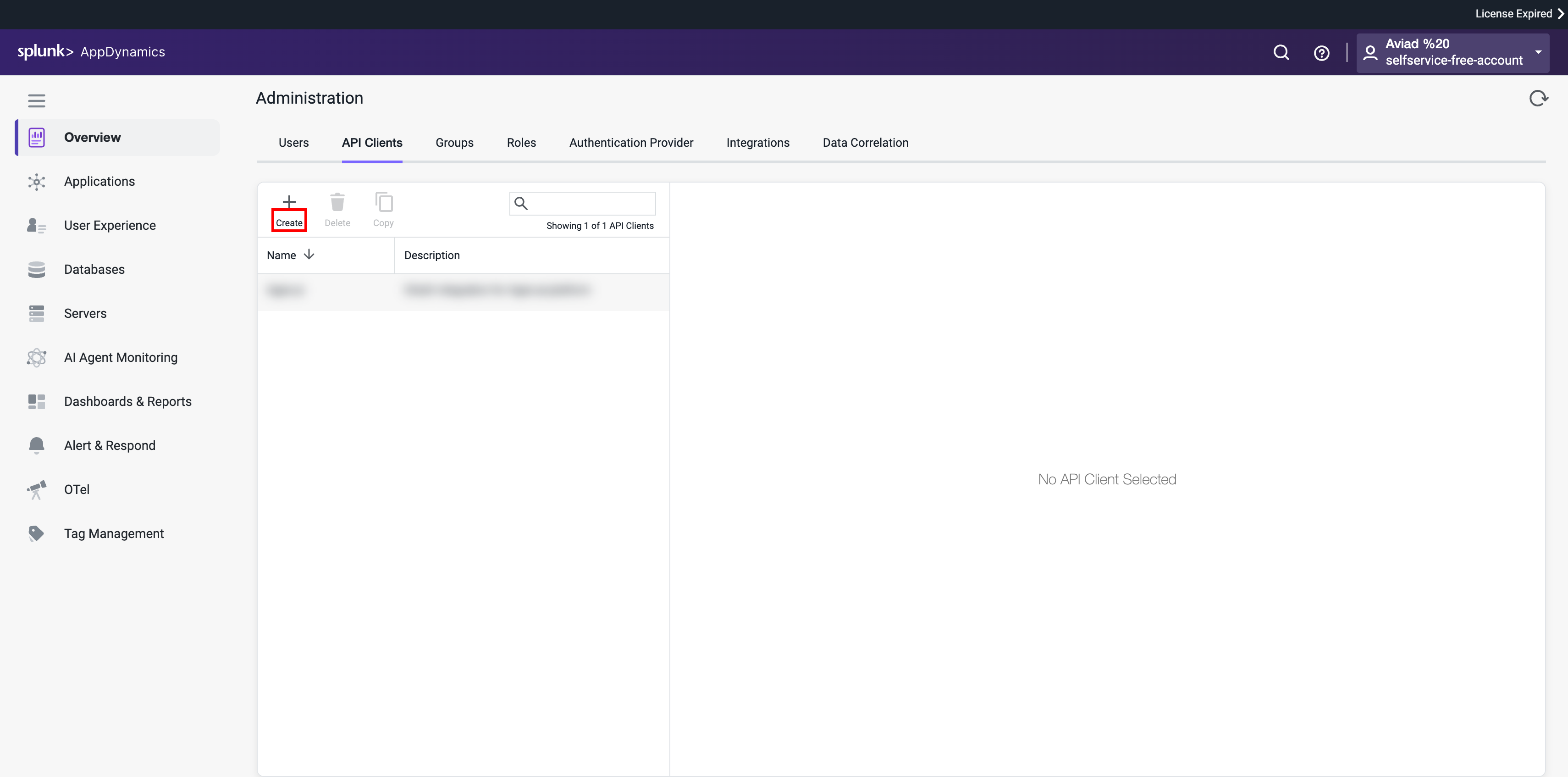
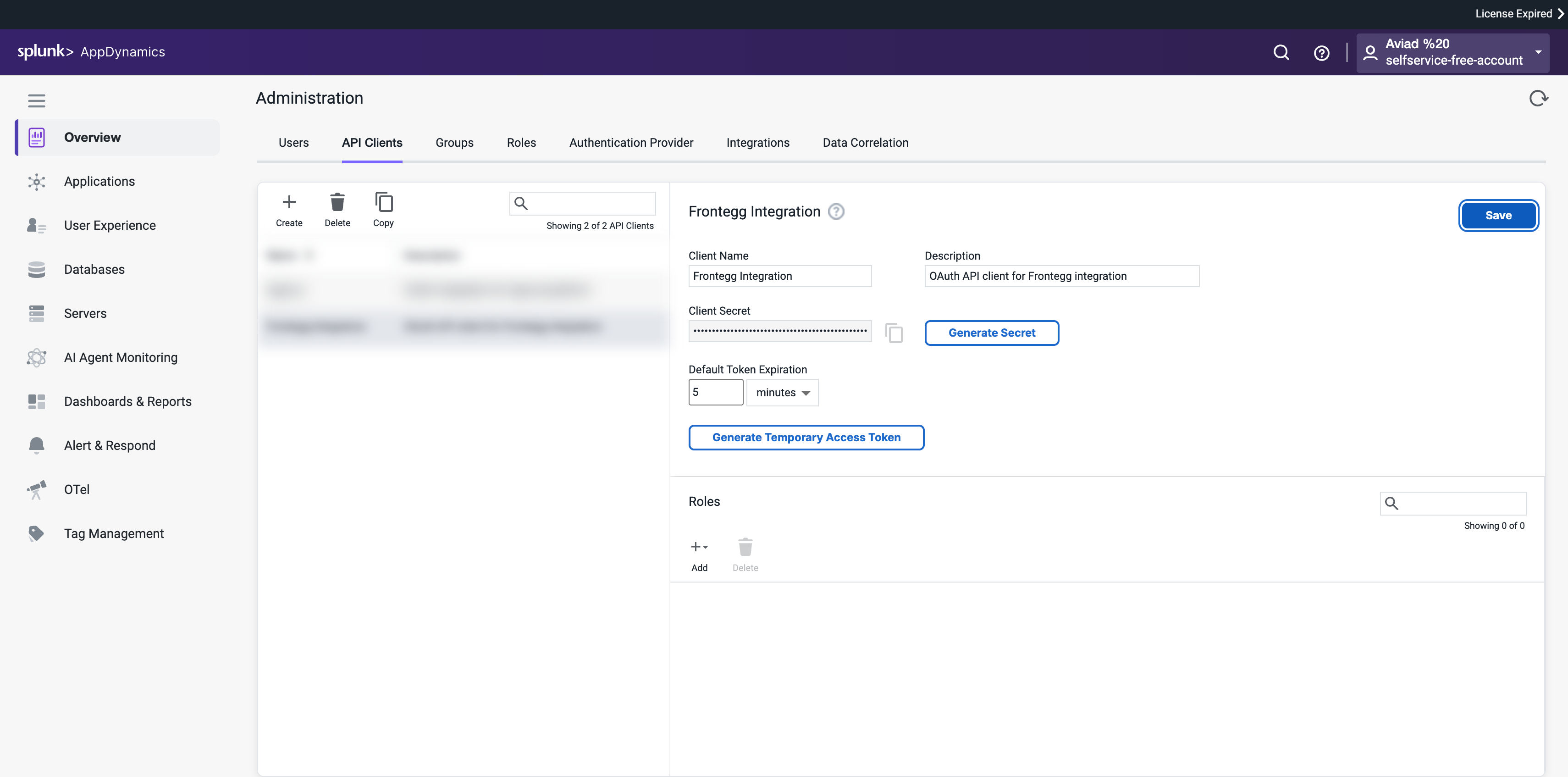
On the Administration page, click the API Clients tab. This lists all existing API clients for your controller. Click Create to add a new one.
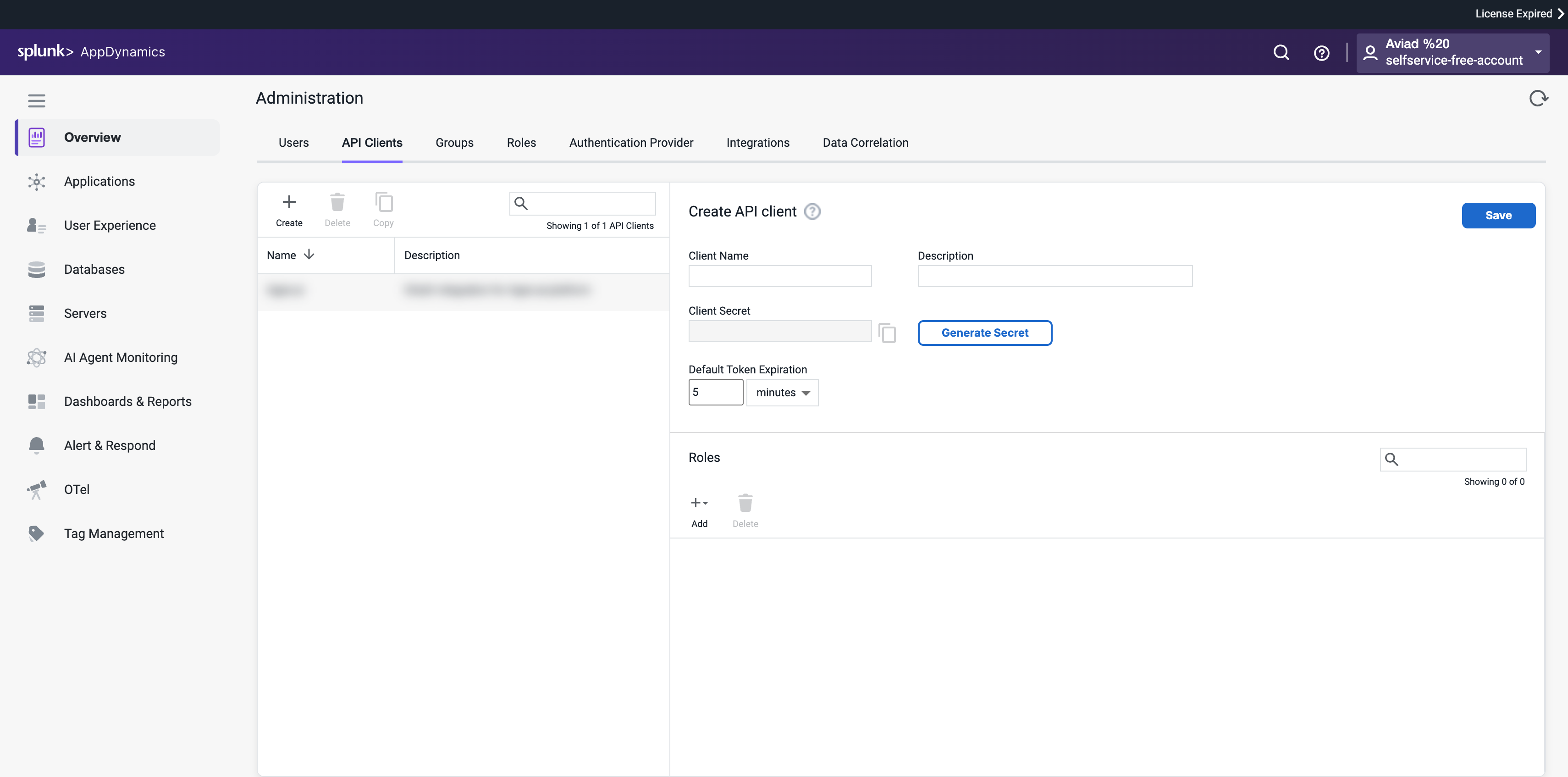
The Create API client form appears on the right. It lets you configure the client name, description, secret, token expiration, and roles.
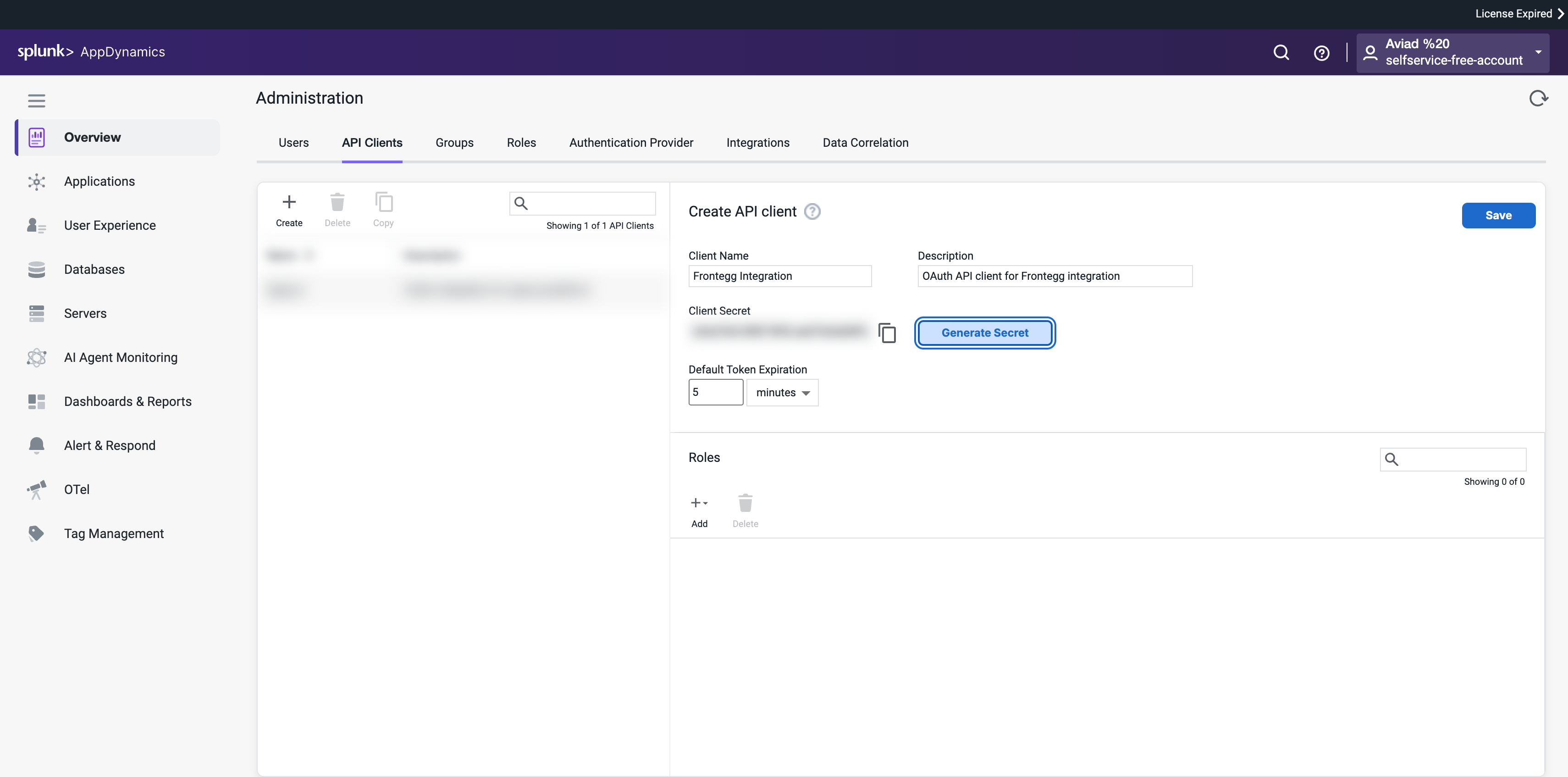
Complete the form with the following values:
- Client Name — Enter a descriptive name, for example
Frontegg Integration. - Description — Optionally enter a description such as
OAuth API client for Frontegg integration. - Client Secret — Click Generate Secret. AppDynamics generates a UUID as the client secret.
Click Save to create the client.
Copy your Client Secret now
Copy your Client Secret now
The Client Secret is only visible immediately after generation. Copy it before navigating away. If you lose it, click Generate Secret again to create a new one — this invalidates the previous secret.
After saving, the Frontegg Integration client appears in the API Clients list. Your credentials are:
- Client ID — Constructed as
{clientName}@{accountName}. The account name is the subdomain of your controller URL. For example, if your controller URL ishttps://mycompany.saas.appdynamics.com, your Client ID isFrontegg Integration@mycompany. - Client Secret — The UUID generated in the previous step.
Once you have your Client ID, Client Secret, and controller host, configure the integration in the Frontegg portal:
- Open the Frontegg portal and navigate to [ENVIRONMENT] → Integrations → AppDynamics.
- Enter the Client ID in the format
{clientName}@{accountName}(for example,Frontegg Integration@mycompany). - Enter the Client Secret.
- Enter your AppDynamics controller host — the hostname only (for example,
mycompany.saas.appdynamics.com). Do not includehttps://or a trailing slash. - Click Save.
Keep your credentials secure
Keep your credentials secure
Never share or commit your Client Secret to version control.