Dynatrace is a software intelligence platform that provides application performance monitoring, infrastructure monitoring, and digital experience management. Integrating Dynatrace with Frontegg lets your application read metrics, monitored entities, detected problems, and settings objects from the Dynatrace Environment API.
The integration uses the OAuth 2.0 Client Credentials flow — there is no user consent screen and no redirect URL. You provide the Client ID, Client Secret, and your Dynatrace environment ID directly in the Frontegg portal.
Prerequisites
Prerequisites
- A Dynatrace account with access to the Account Management portal
- An active user with the
account-user-managementpermission to be set as the OAuth client subject
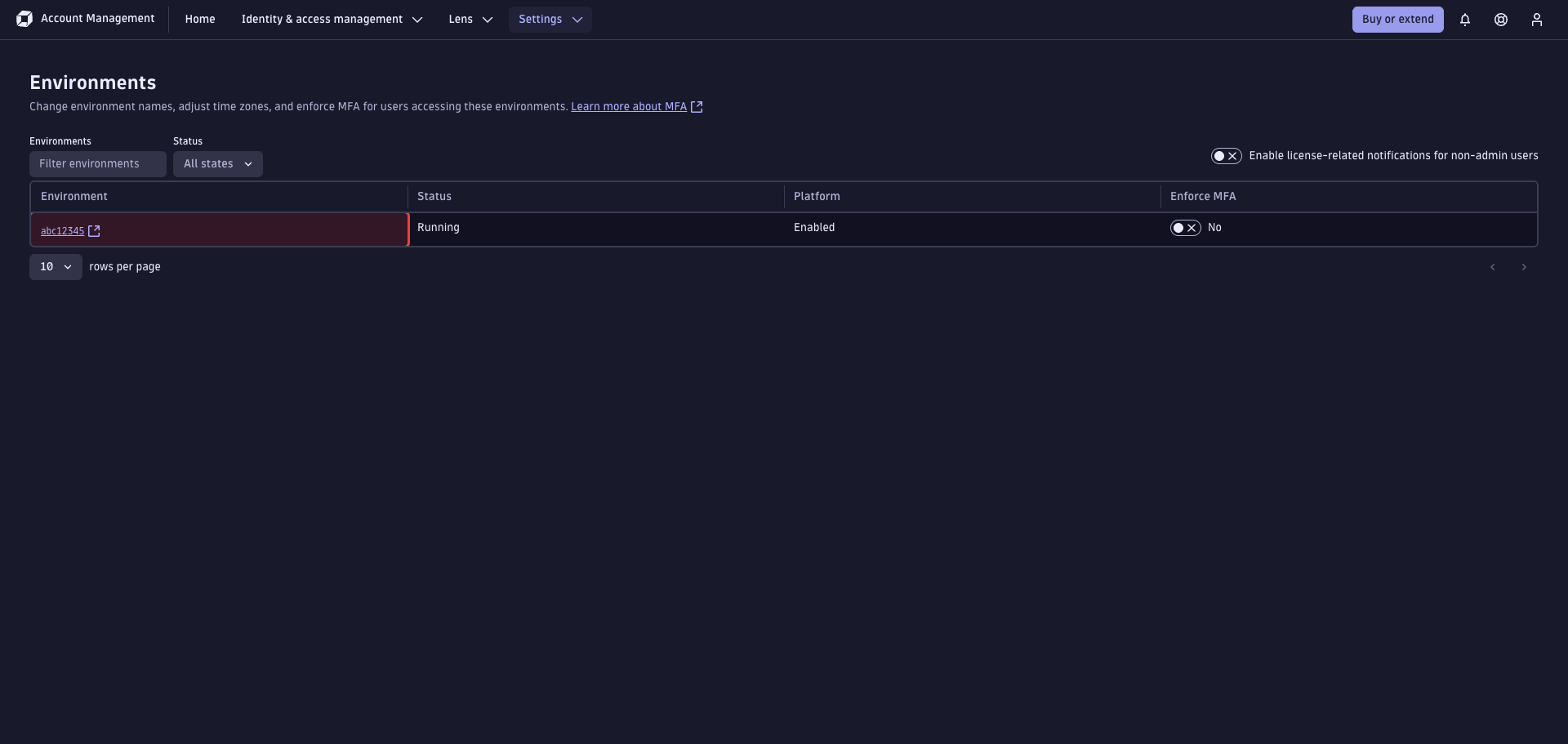
Sign in to the Dynatrace Account Management portal. Open Settings → Environments and copy the environment identifier from the Environment column — this is the subdomain of your Dynatrace tenant URL (for example, abc12345 from https://abc12345.live.dynatrace.com).
You will paste this value into the Dynatrace environment ID field in the Frontegg portal.
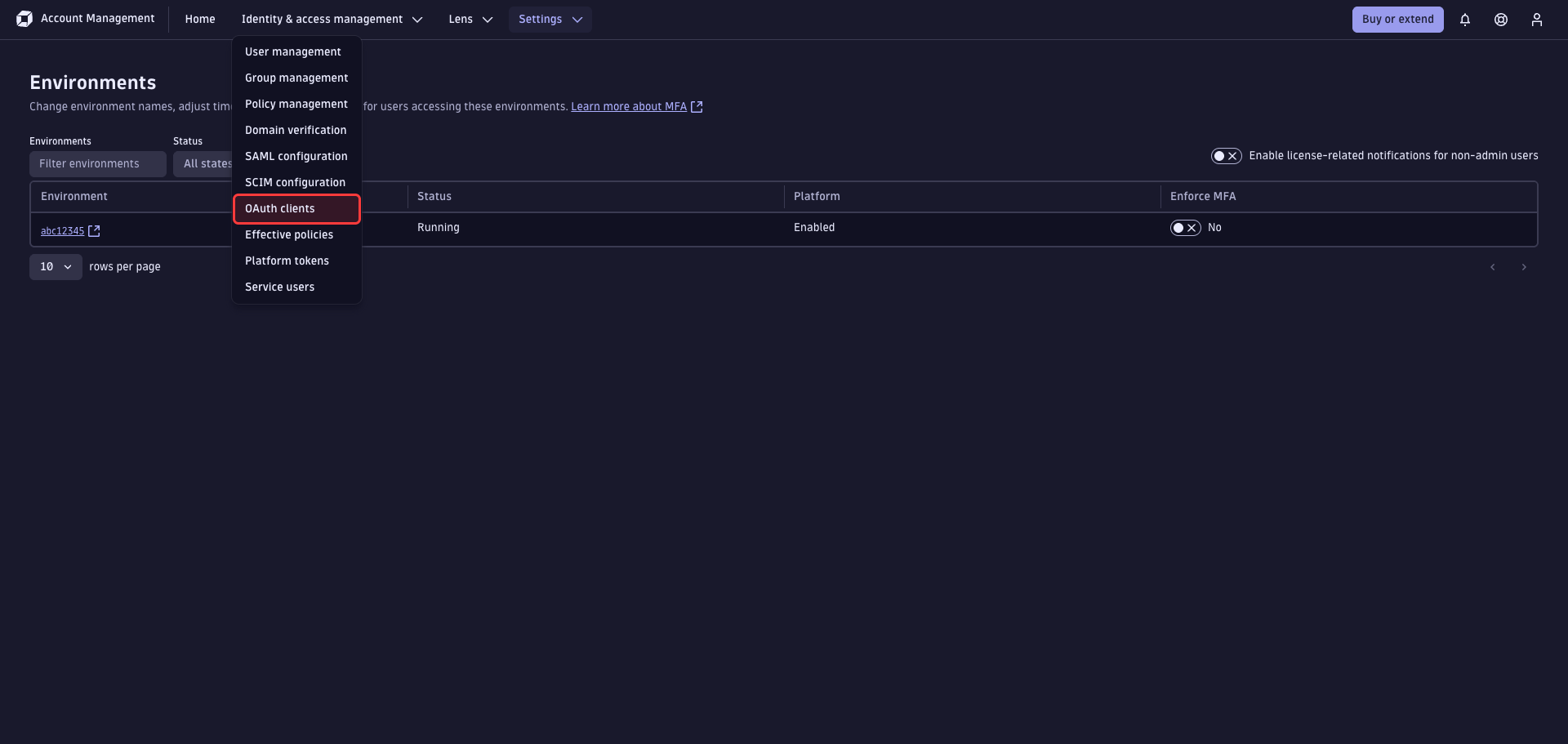
In the top navigation, click Identity & access management and select OAuth clients from the dropdown.
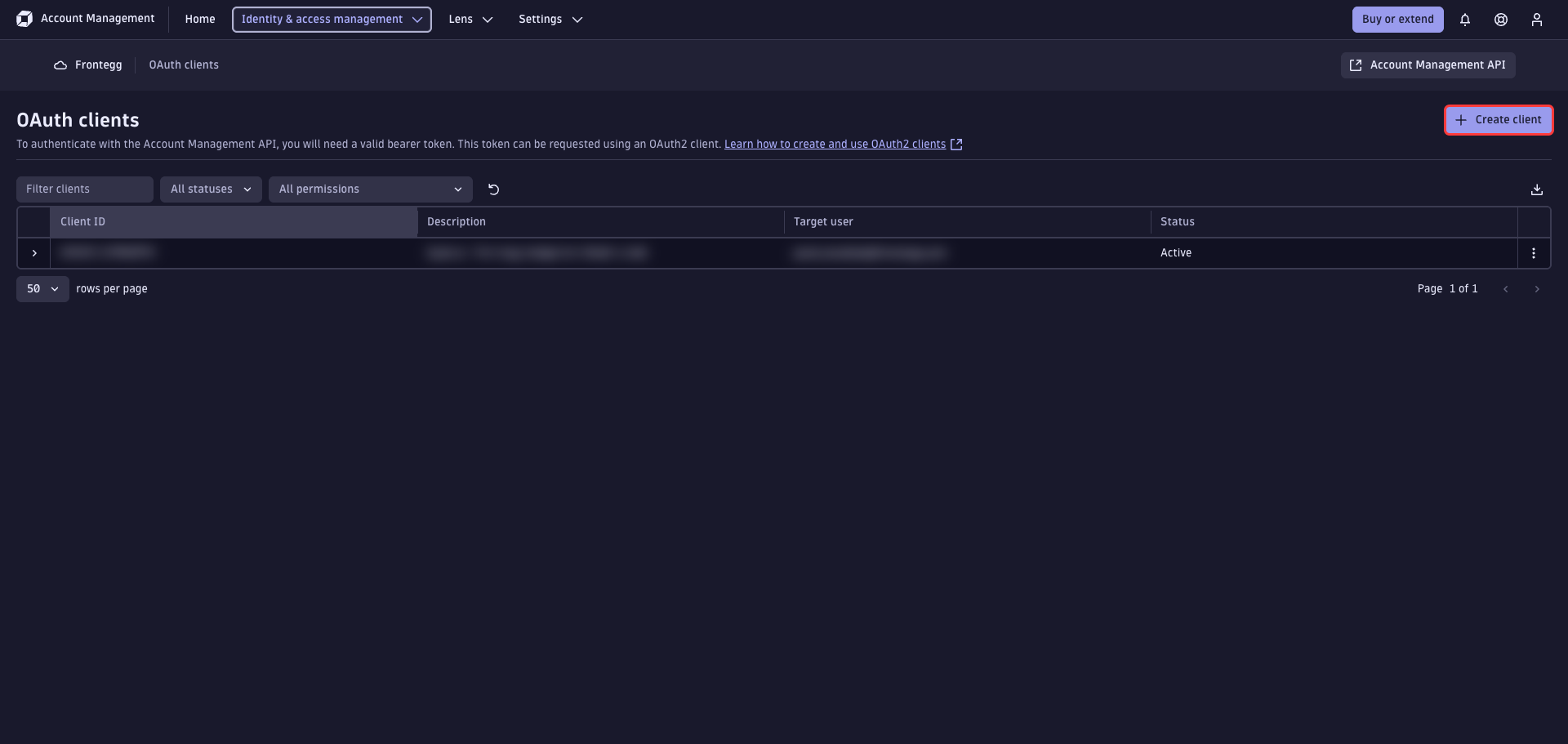
Click Create client in the top-right corner of the OAuth clients page.
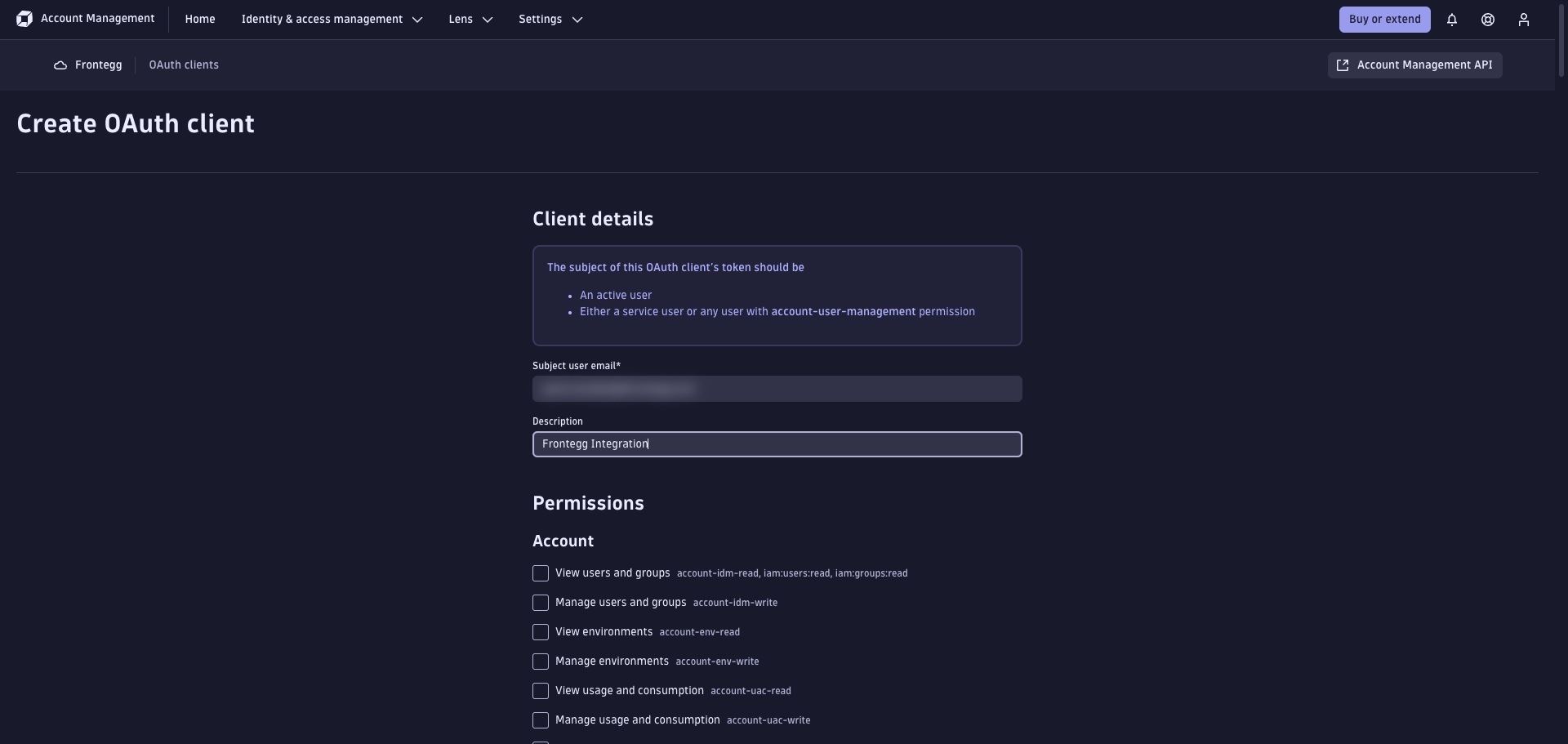
Enter the following values:
- Subject user email — Email of an active user (or service user) with the
account-user-managementpermission. Tokens issued for this client will act on behalf of this user. - Description — A descriptive name, for example
Frontegg Integration.
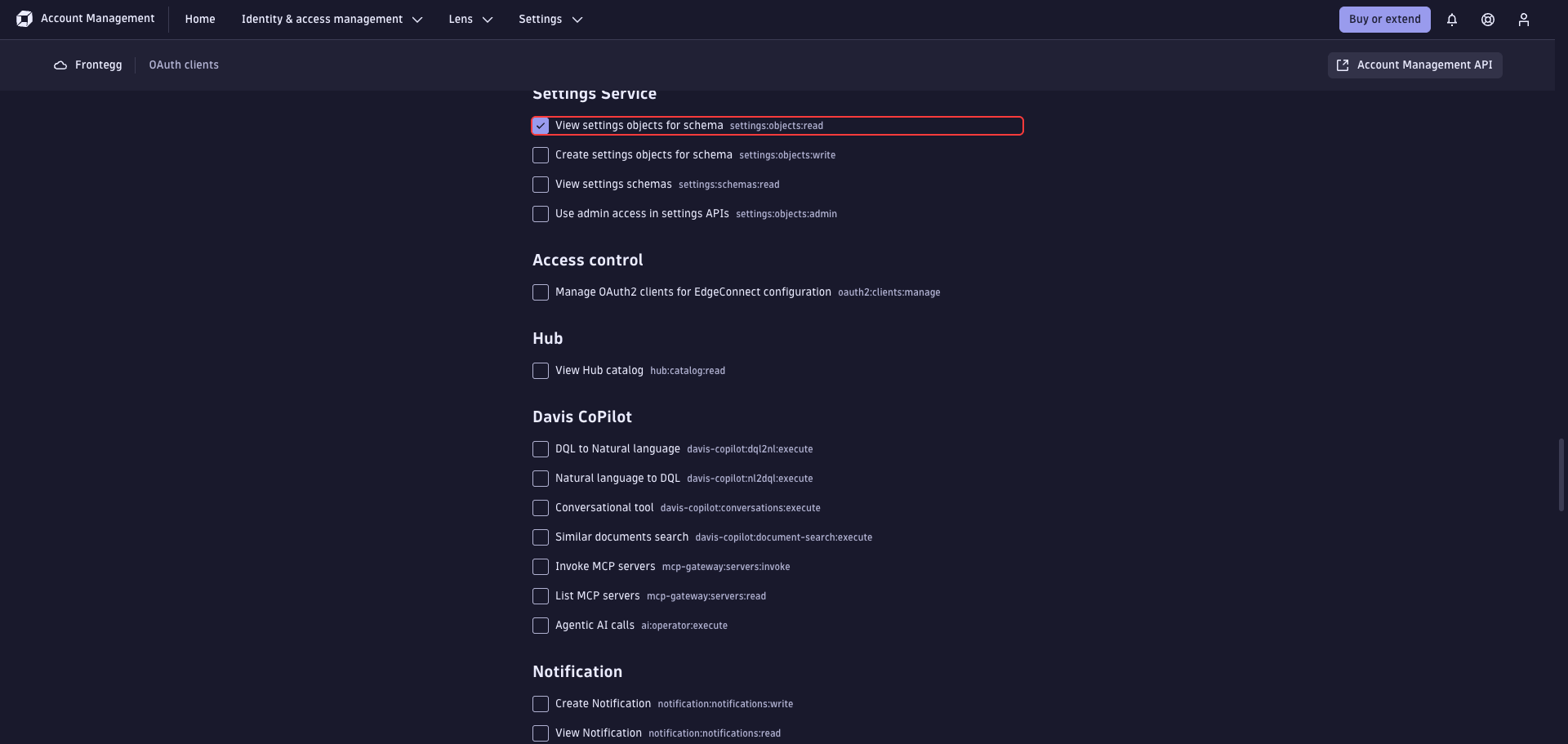
Scroll down to the Permissions section and check the four scopes used by the integration.
Under Settings Service, check:
| Scope | Description |
|---|---|
settings:objects:read | Read settings objects for a schema |
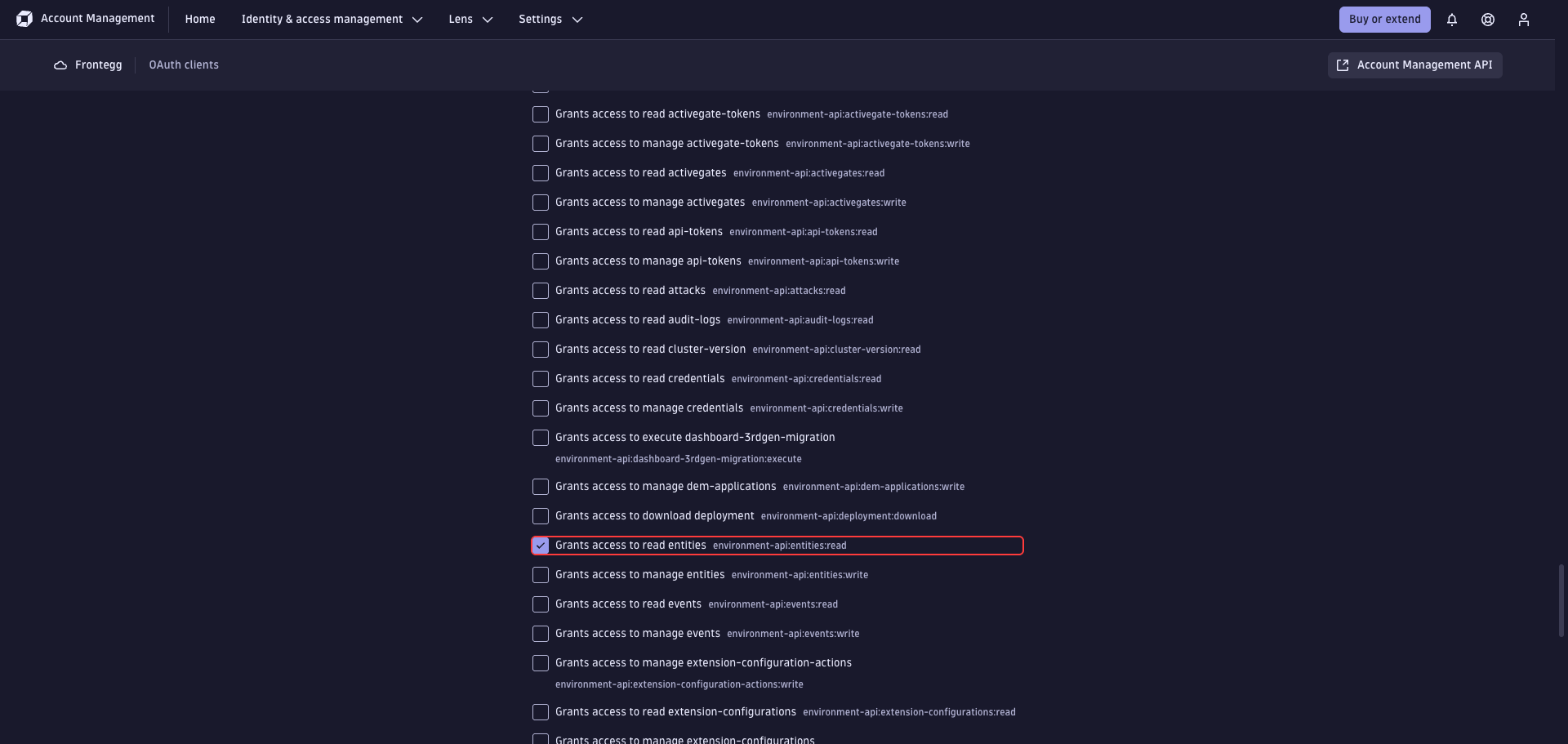
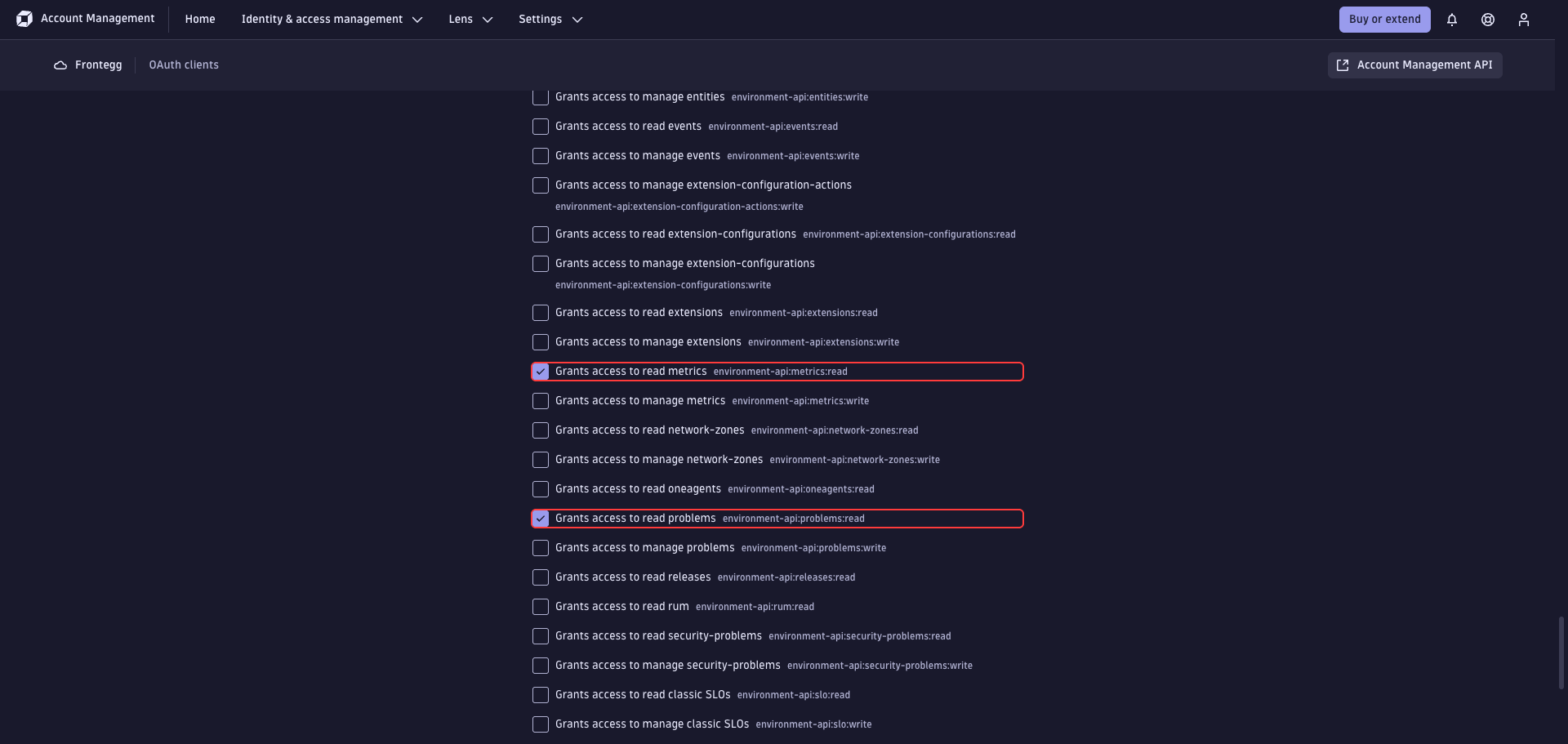
Under [DEPRECATED] Environment Api, check:
| Scope | Description |
|---|---|
environment-api:entities:read | Read monitored entities and entity types |
environment-api:metrics:read | Read metrics and metric data points |
environment-api:problems:read | Read detected problems and anomalies |
Despite the [DEPRECATED] label
Despite the [DEPRECATED] label
Dynatrace marks the Environment Api group as deprecated in the new platform UI, but these scopes are still required for the v2 Environment API endpoints used by this integration.
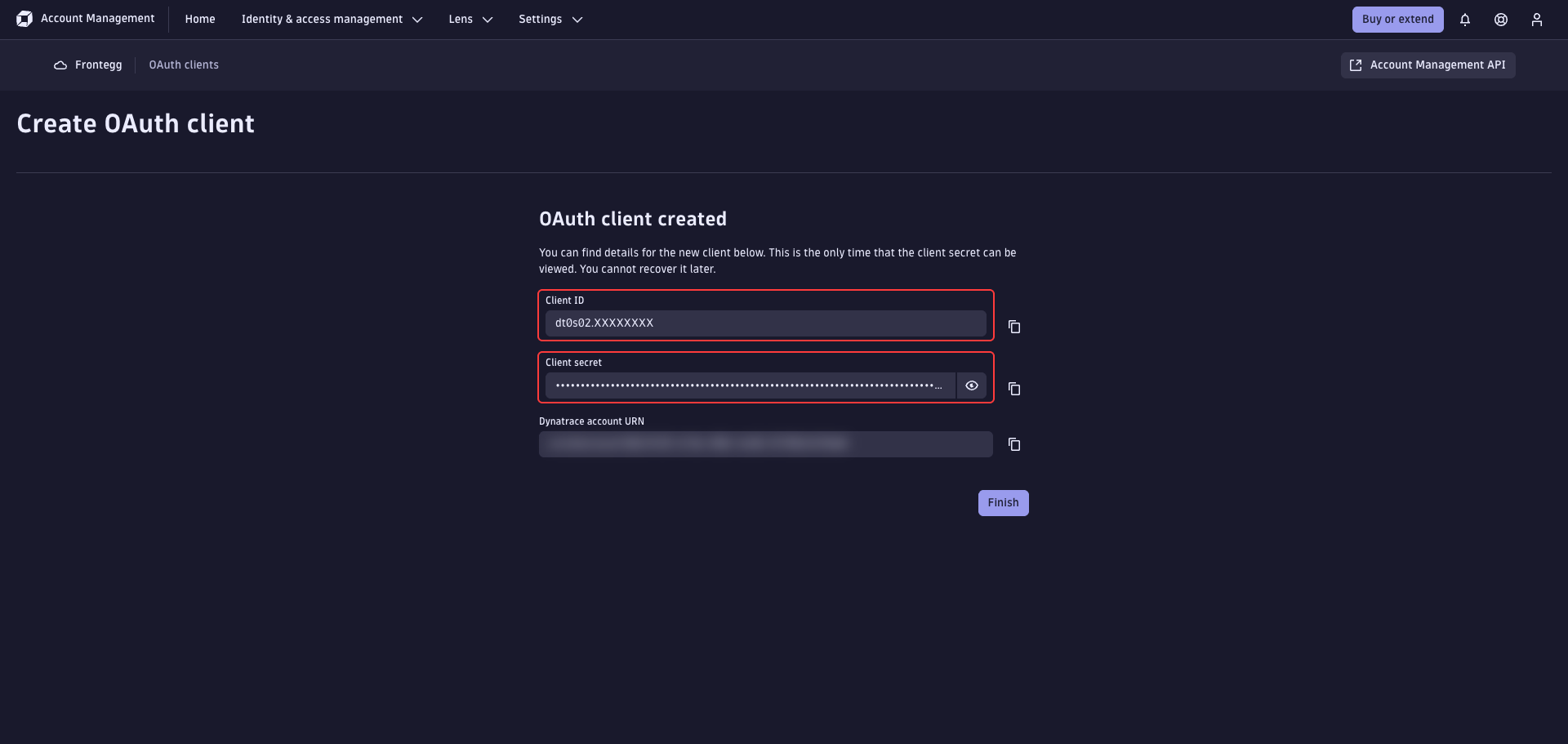
Click Create client at the bottom of the form. Dynatrace generates the OAuth client and displays the Client ID and Client secret.
Save the Client secret immediately
Save the Client secret immediately
The Client secret is shown only once. Copy it before clicking Finish — Dynatrace cannot recover it later, and you would have to create a new client.
Open the Frontegg portal and navigate to [ENVIRONMENT] → Integrations → Dynatrace, then enter:
- Client ID — the
dt0s02.*identifier from the previous step. - Client Secret — the value shown on the OAuth client created screen.
- Dynatrace environment ID — the environment subdomain you copied in Step 1 (for example,
abc12345). - Select the required scopes.
- Click Save.
Keep your credentials secure
Keep your credentials secure
Never share or commit your Client Secret to version control.