Integrating LinkedIn with Frontegg allows your application to authenticate users via OpenID Connect, post content on their behalf, and access profile information using LinkedIn's OAuth 2.0 API.
Prerequisites
Prerequisites
- A LinkedIn account
- Access to the LinkedIn Developer Portal
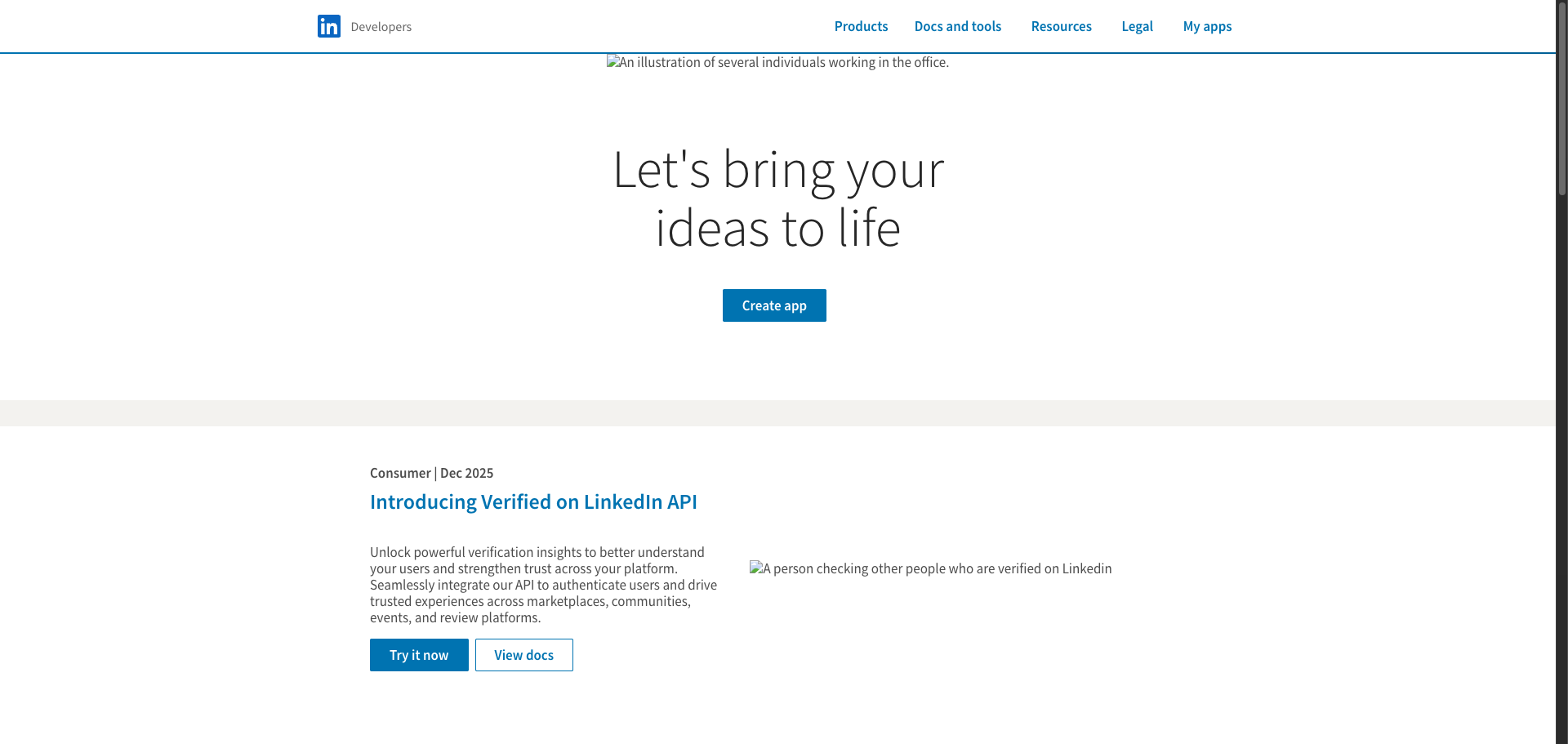
Navigate to developer.linkedin.com.
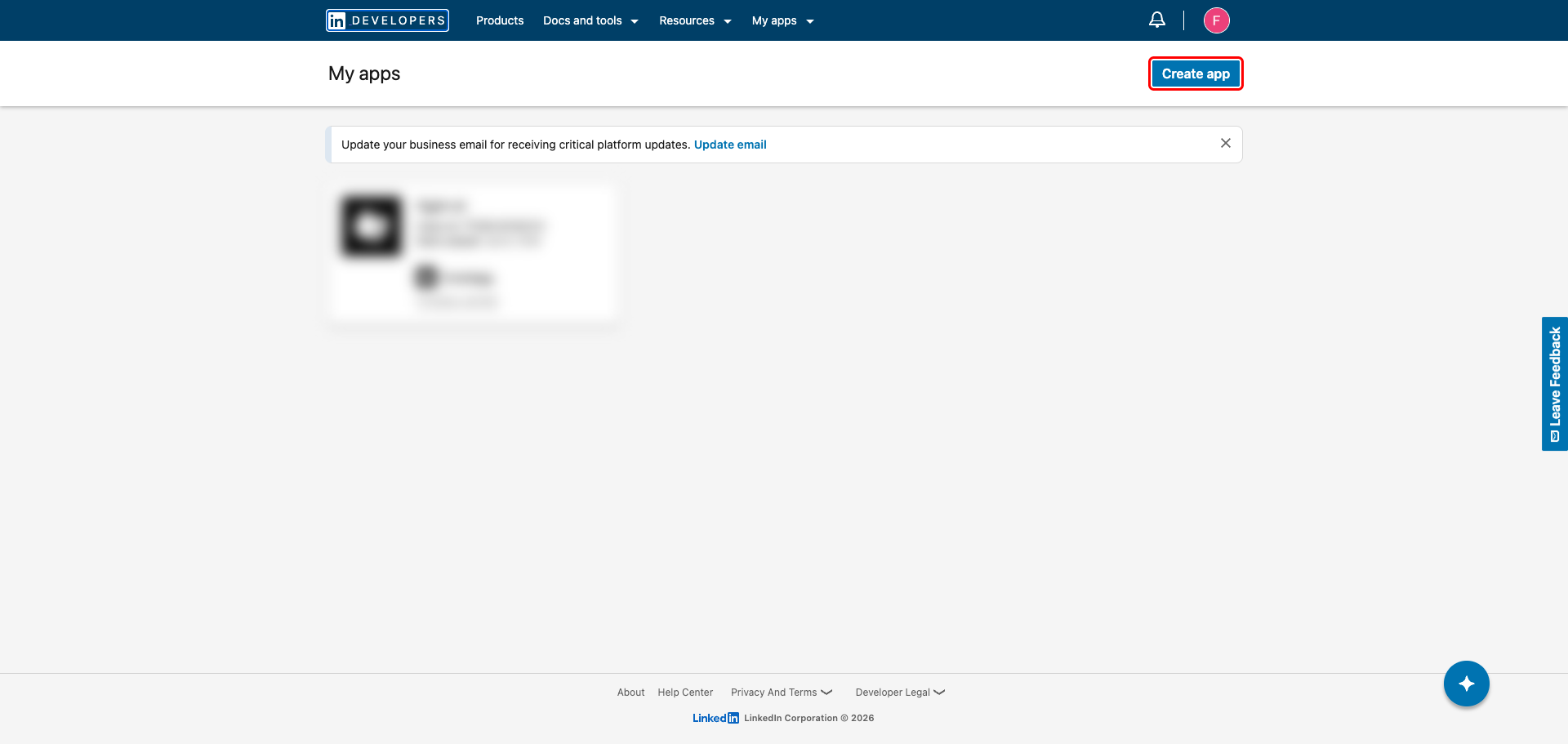
Click My apps in the top navigation bar, then click Create app.
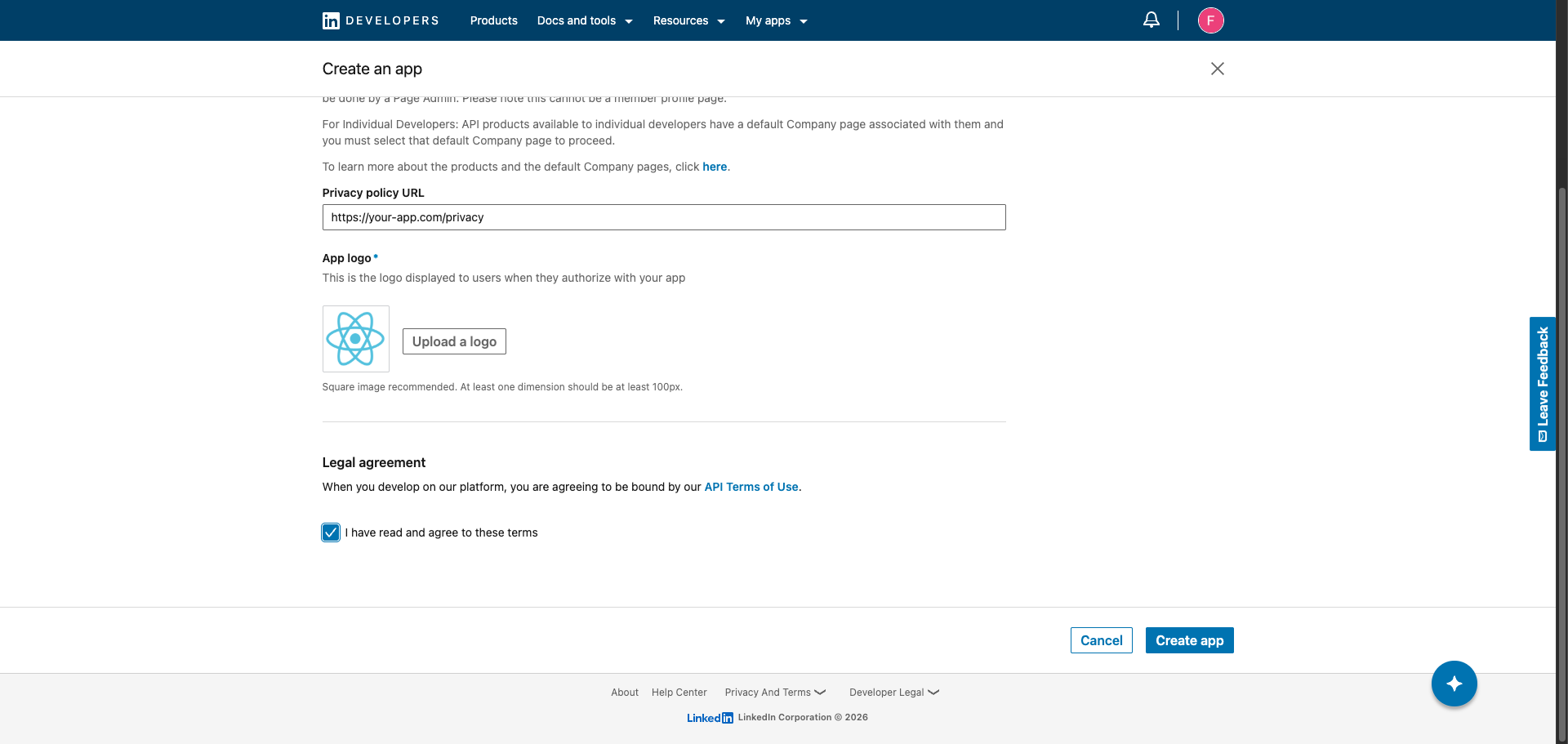
Fill in the following fields:
- App name: Enter a name for your app (for example,
Frontegg Integration). - LinkedIn Page: Search for and select your company's LinkedIn Page.
- Privacy policy URL: Enter your app's privacy policy URL.
- App logo: Upload a square logo image (at least 100×100 px).
Check the I have read and agree to these terms checkbox, then click Create app.
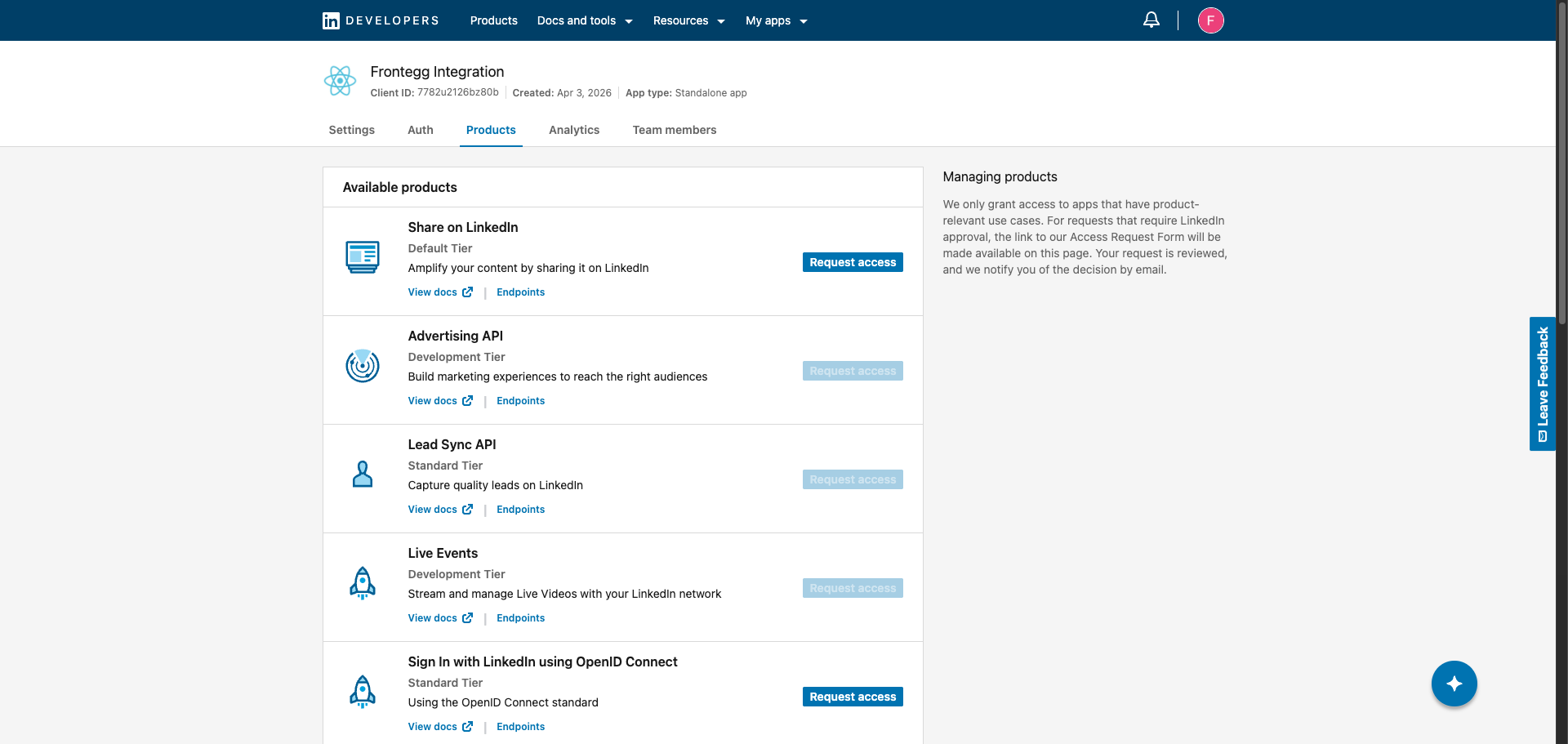
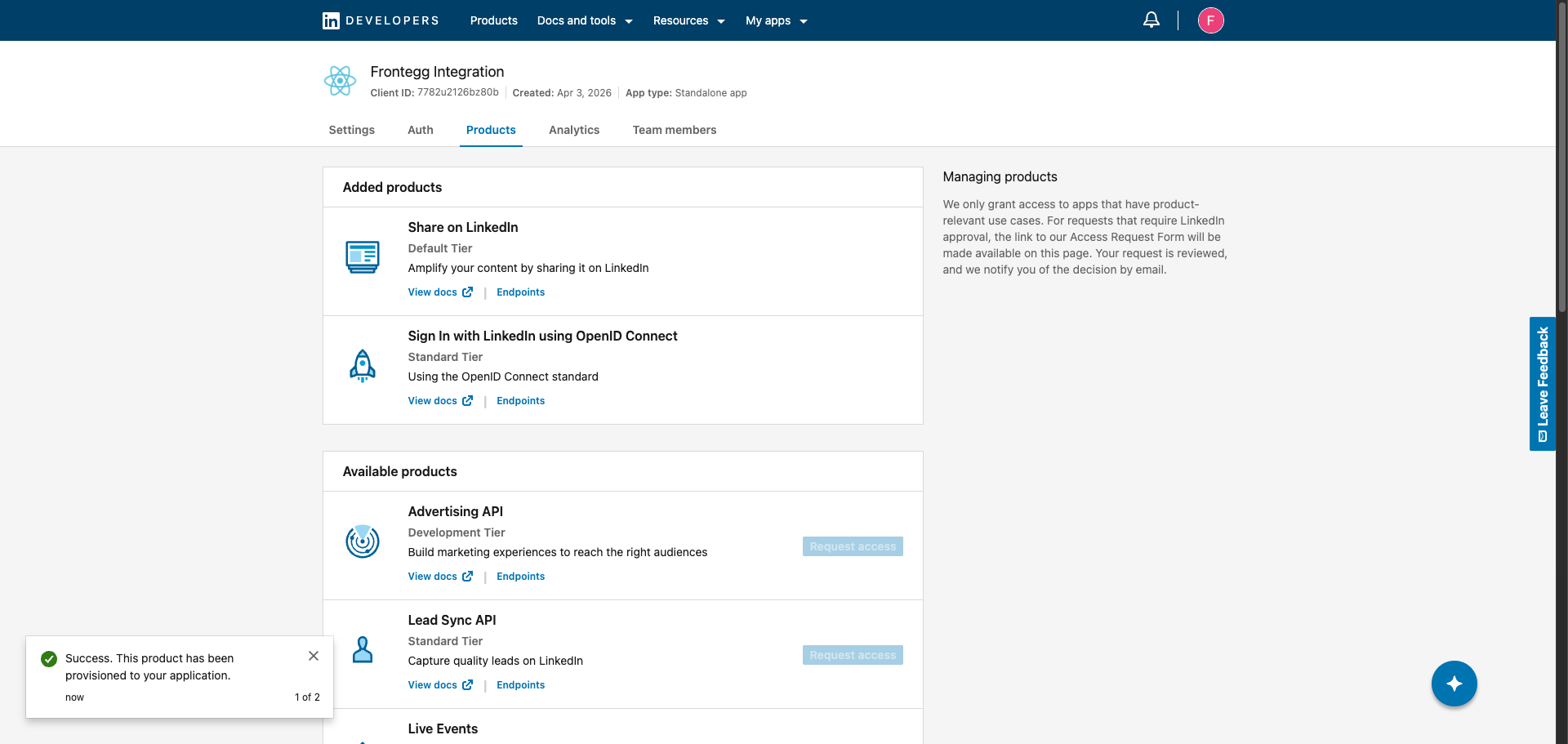
After the app is created, open the Products tab. You need to enable two products:
- Sign In with LinkedIn using OpenID Connect — grants the
openid,profile, andemailscopes - Share on LinkedIn — grants the
w_member_socialscope
Click Request access next to each product and accept the terms when prompted.
After requesting access, both products appear in the Added products section at the top of the Products tab.
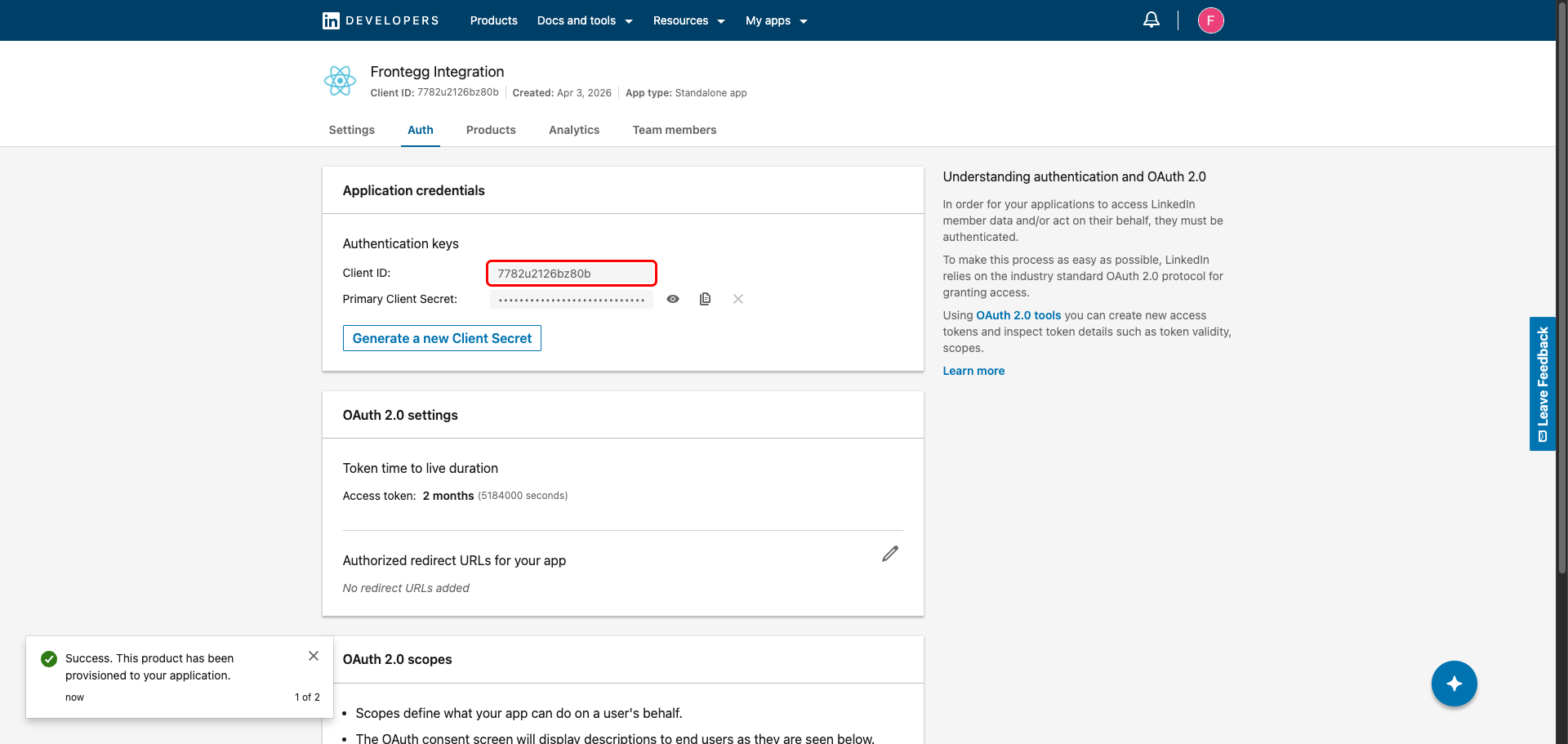
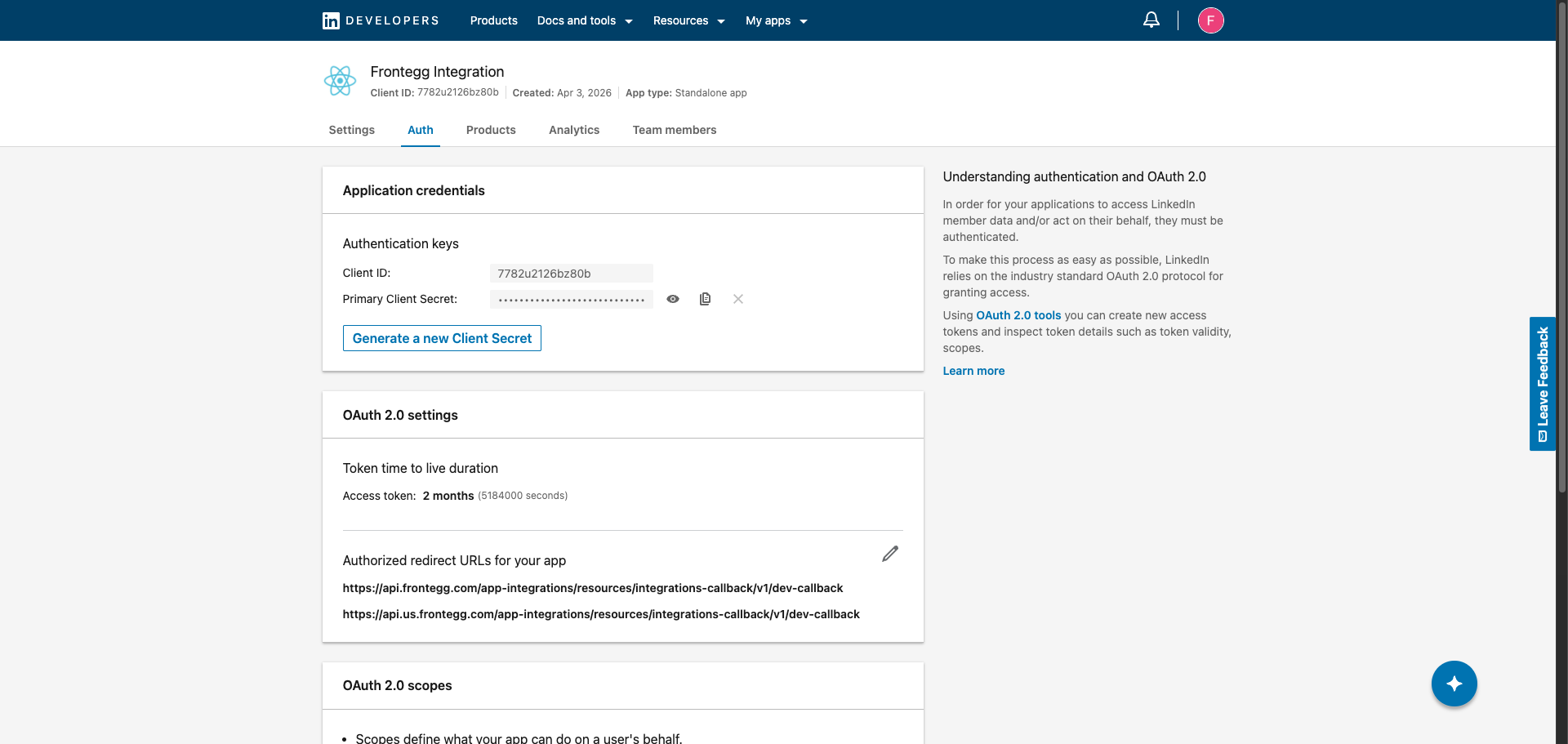
Open the Auth tab. Your Client ID is displayed in the Application credentials section. Copy it for use in the Frontegg portal.
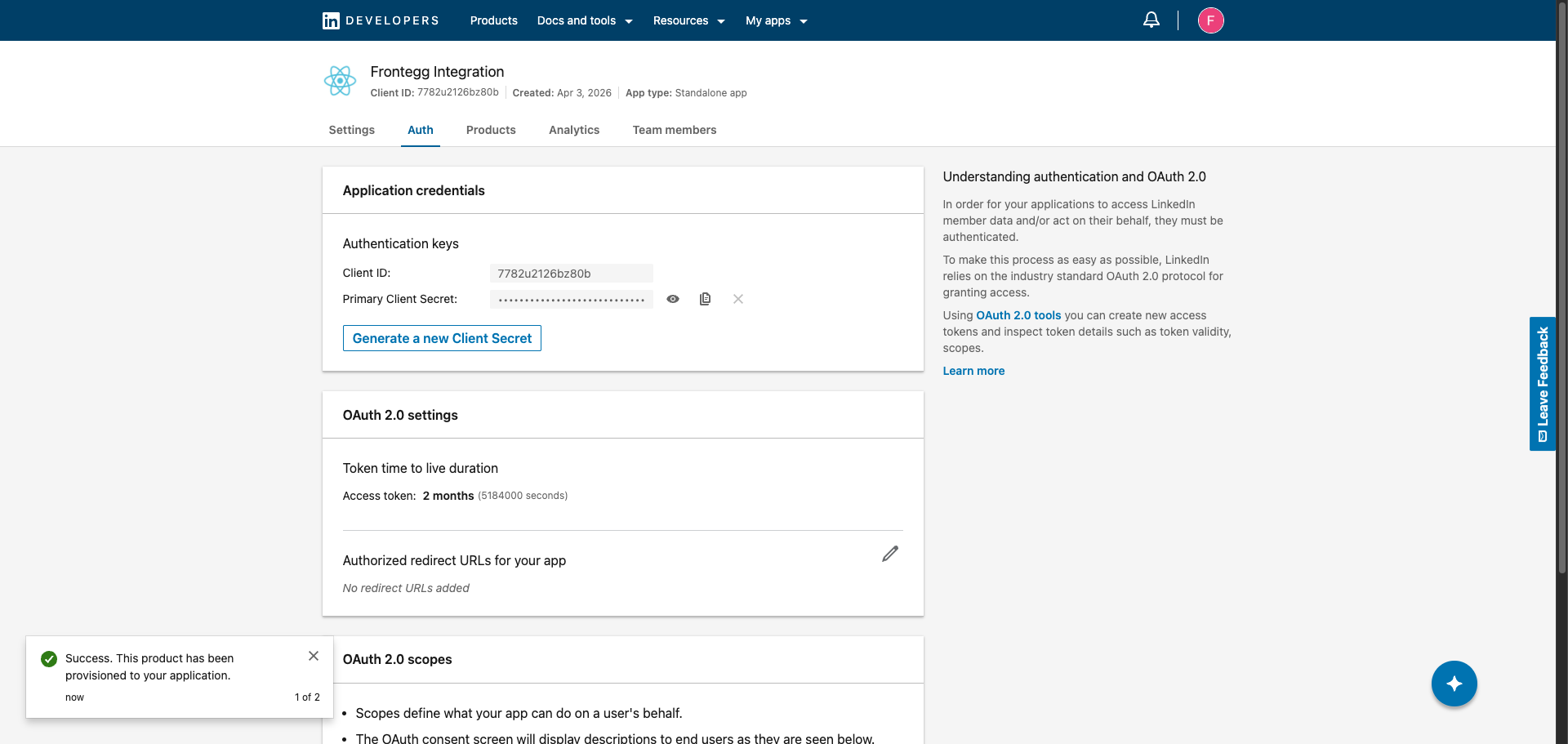
Click Show to reveal the Primary Client Secret, then click Copy to copy it.
Keep your credentials secure
Keep your credentials secure
Store the Client Secret immediately after copying it. Never share or commit it to version control.
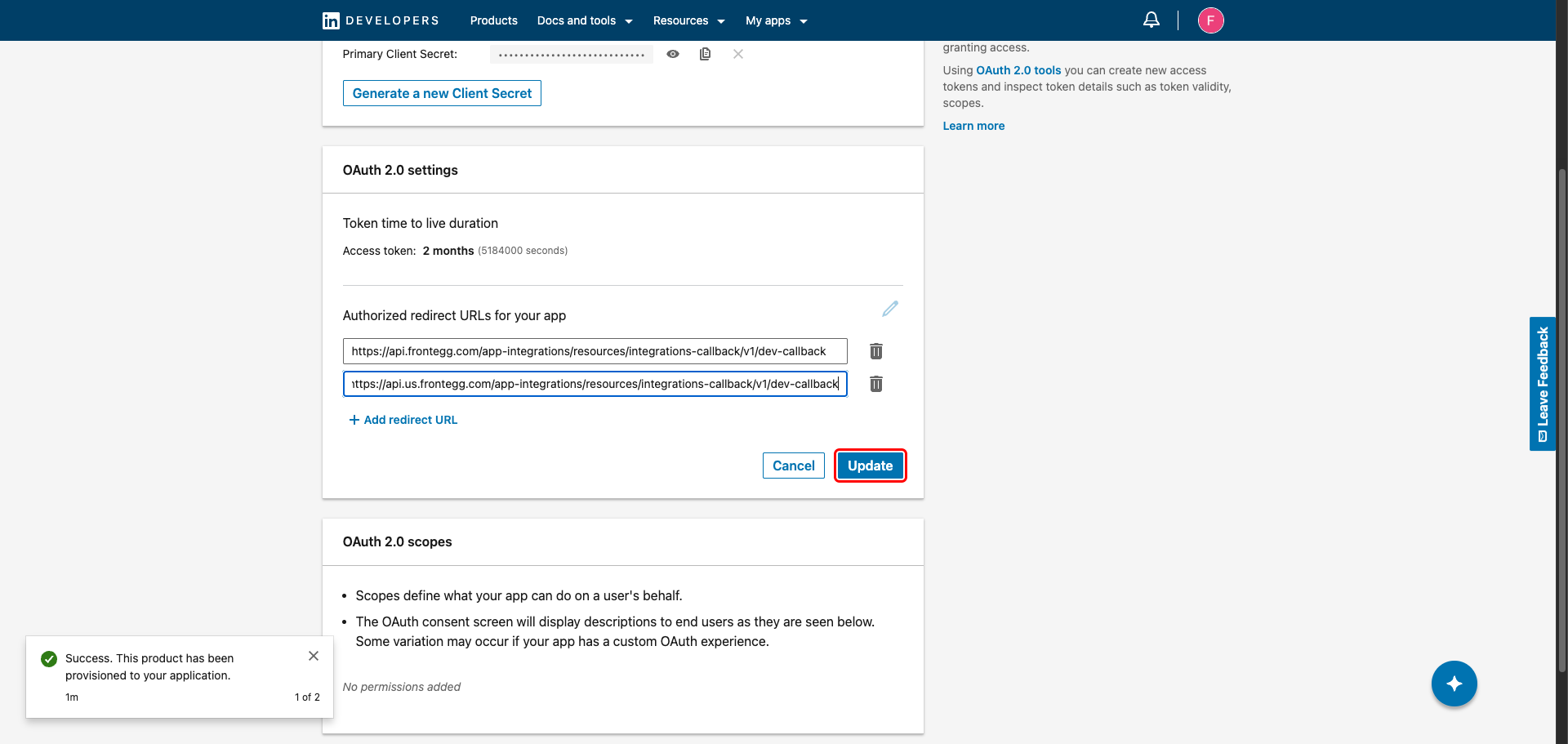
In the OAuth 2.0 settings section, click the pencil icon next to Authorized redirect URLs for your app. Click Add redirect URL and enter the following URIs one at a time:
https://YOUR_MCP_GATEWAY_URL/integration-callback
Click Update to save.
The Auth tab now shows the redirect URI saved along with the active OAuth 2.0 scopes for your app:
| Scope | Description |
|---|---|
openid | Sign in with LinkedIn |
profile | Access the user's name and photo |
email | Access the user's primary email address |
w_member_social | Create, modify, and delete posts and comments on behalf of the user |
Once you have your Client ID and Client Secret, configure the integration in the Frontegg portal:
- Open the Frontegg portal and navigate to [ENVIRONMENT] → Integrations → LinkedIn.
- Enter the Client ID and Client Secret in the corresponding fields.
- Select the required scopes.
- Click Save.