TikTok is a short-form video platform with a global community of creators. Integrating TikTok with Frontegg lets your application read user profile and statistics data, list creator videos, and publish content to TikTok on behalf of your users through OAuth 2.0 authentication backed by the Login Kit and Content Posting API products.
Prerequisites
Prerequisites
- A TikTok developer account at developers.tiktok.com
- A TikTok account that owns or has admin access to the app
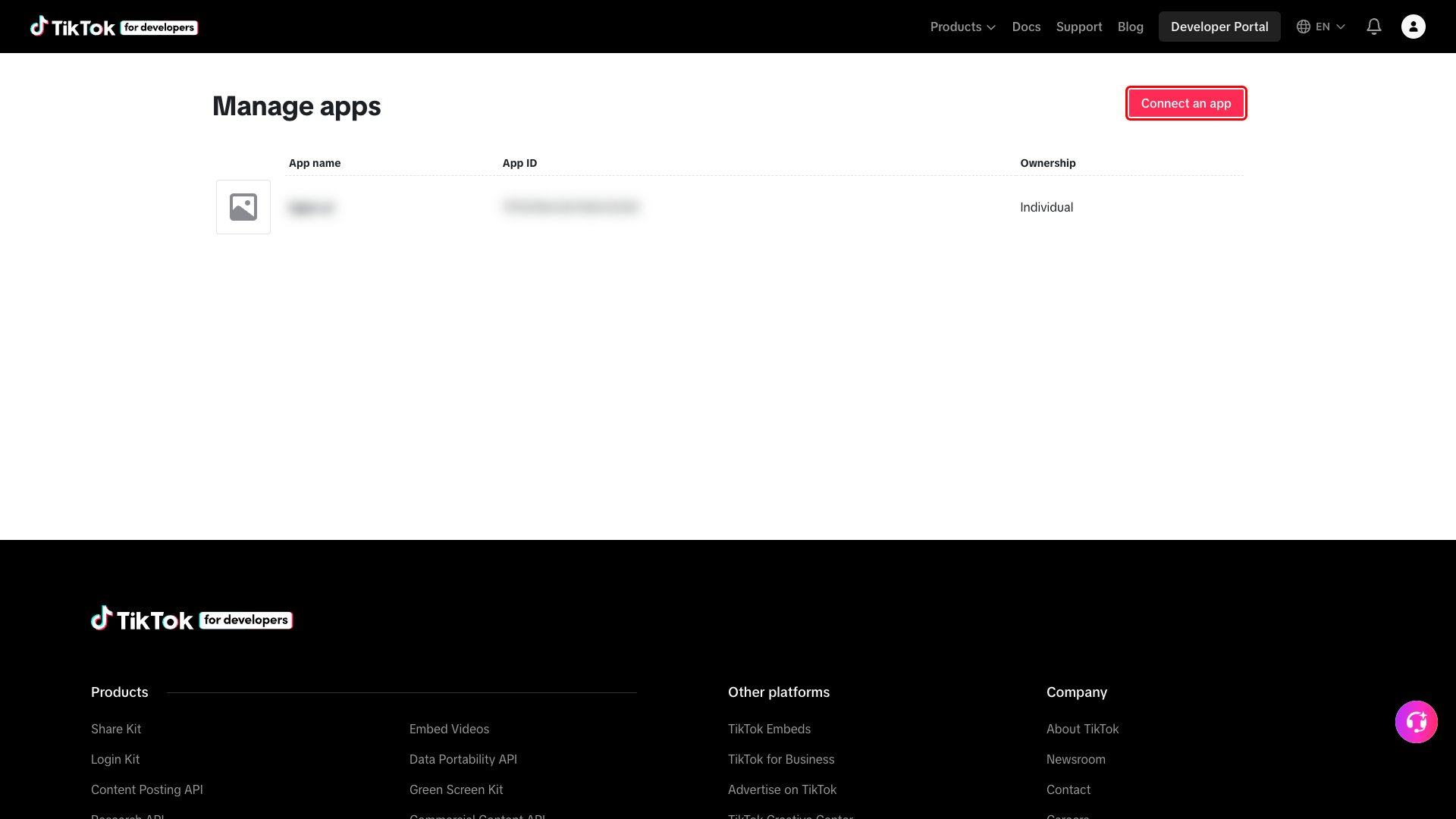
Navigate to developers.tiktok.com/apps and log in with your TikTok developer account. The Manage apps page lists all applications connected to your account.
Click Connect an app to register a new application.
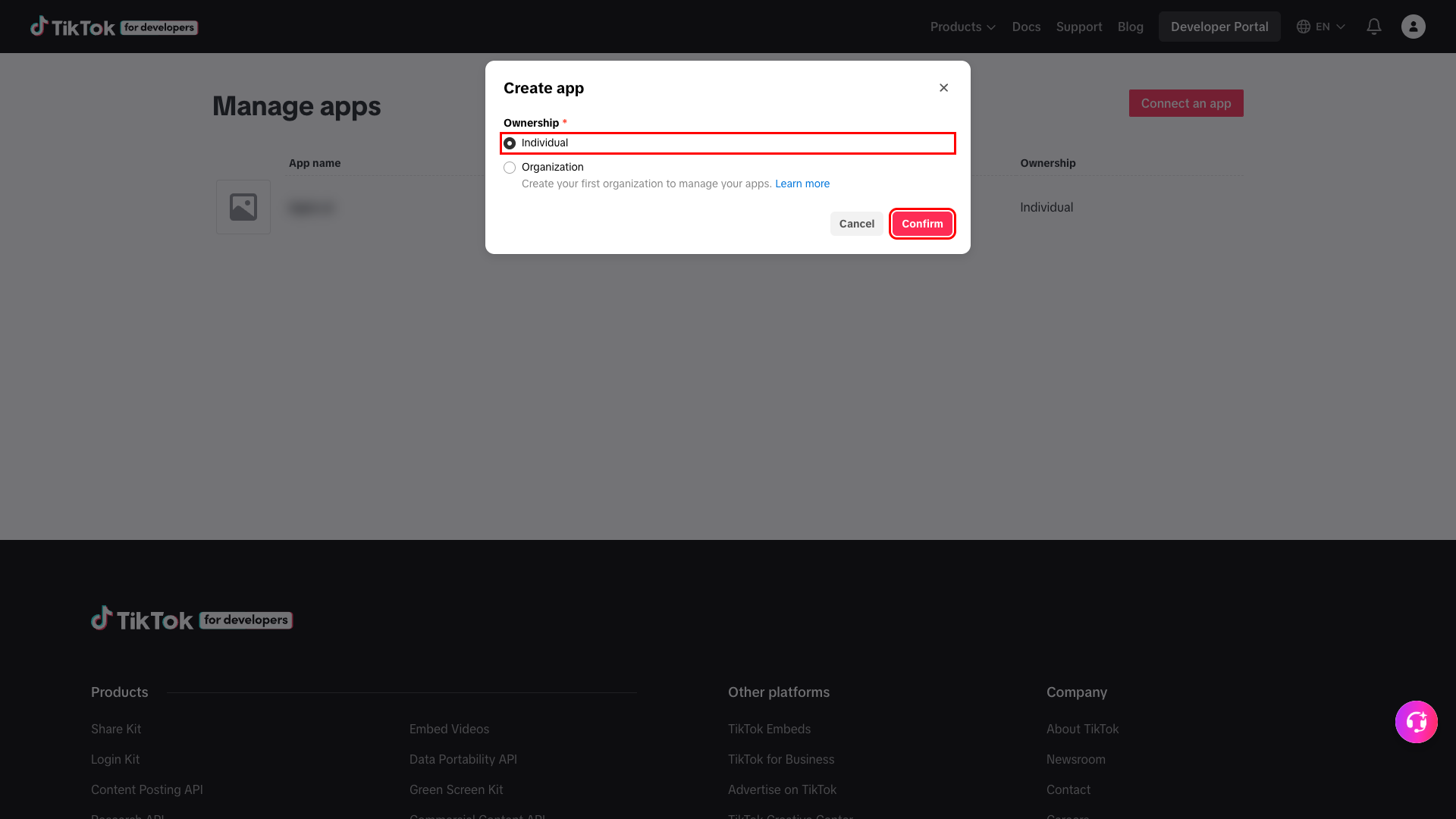
Select Individual for personal apps, or Organization if you have already created one. Click Confirm to continue.
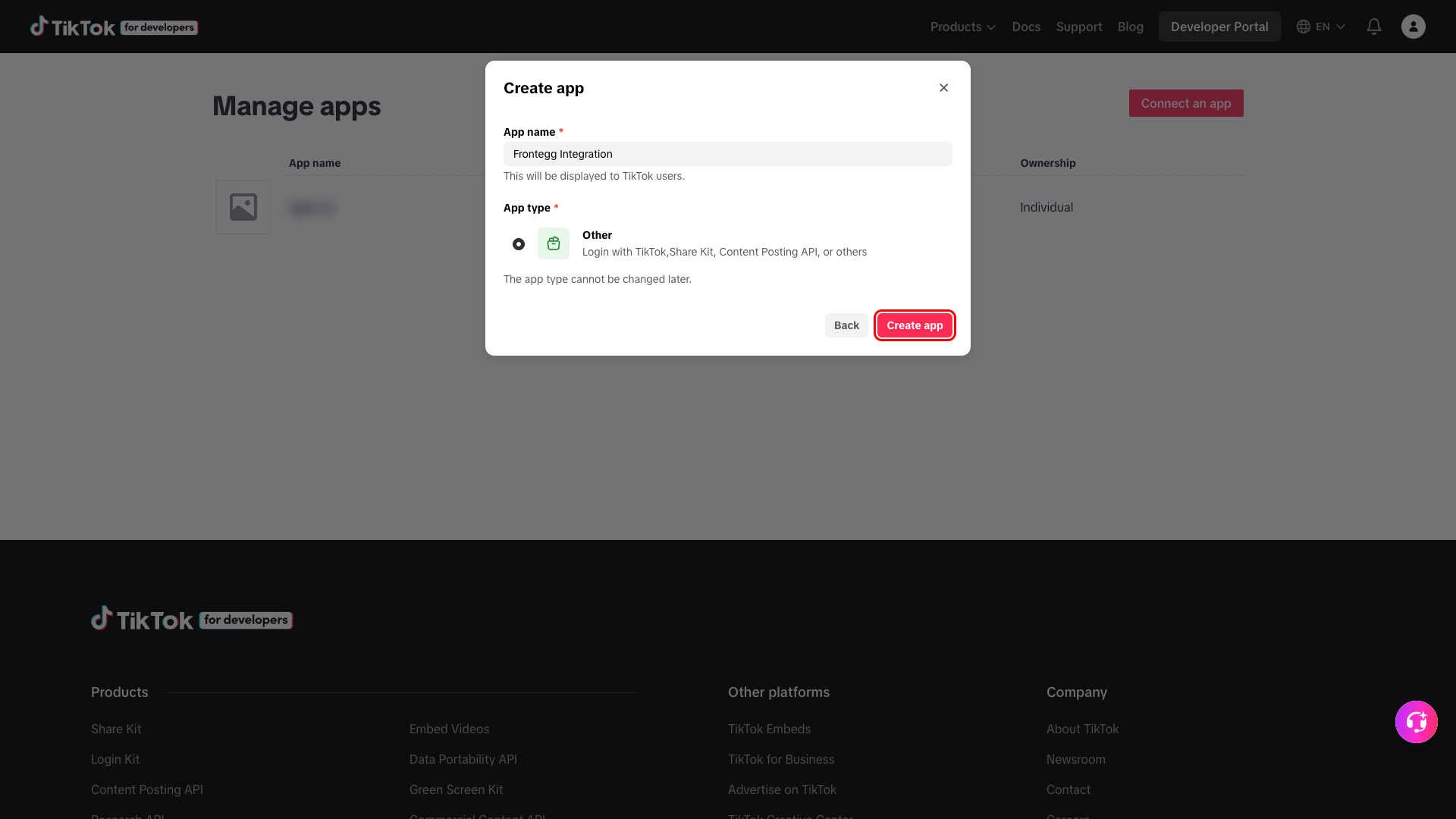
Fill in the App name (for example, Frontegg Integration) -- this is shown to TikTok users on the consent screen. Select Other as the App type, since you will be combining Login Kit and Content Posting API.
App type cannot be changed later
App type cannot be changed later
TikTok locks the app type after creation, so make sure Other is selected before continuing.
Click Create app to provision the application.
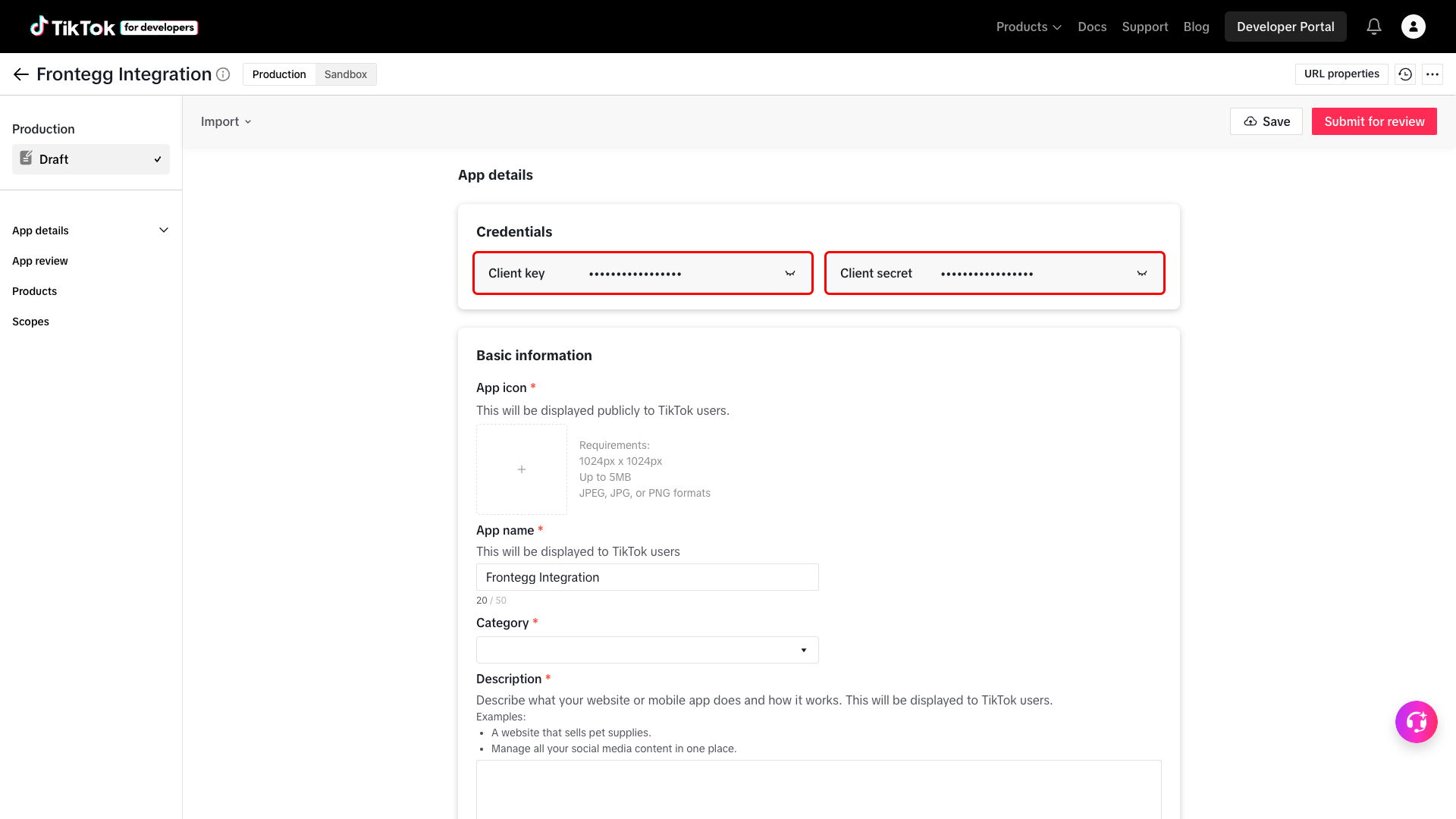
After the app is created you are redirected to its App details page. Scroll to the Credentials section to find:
- Client key -- TikTok's name for the OAuth Client ID. Click the eye icon to reveal it.
- Client secret -- the OAuth Client Secret. Click Show and treat this value like a password.
Copy both values and store them securely -- you will paste them into the Frontegg portal in the final step.
Keep your credentials secure
Keep your credentials secure
Never share or commit your Client secret to version control. If it leaks, regenerate it from this page.
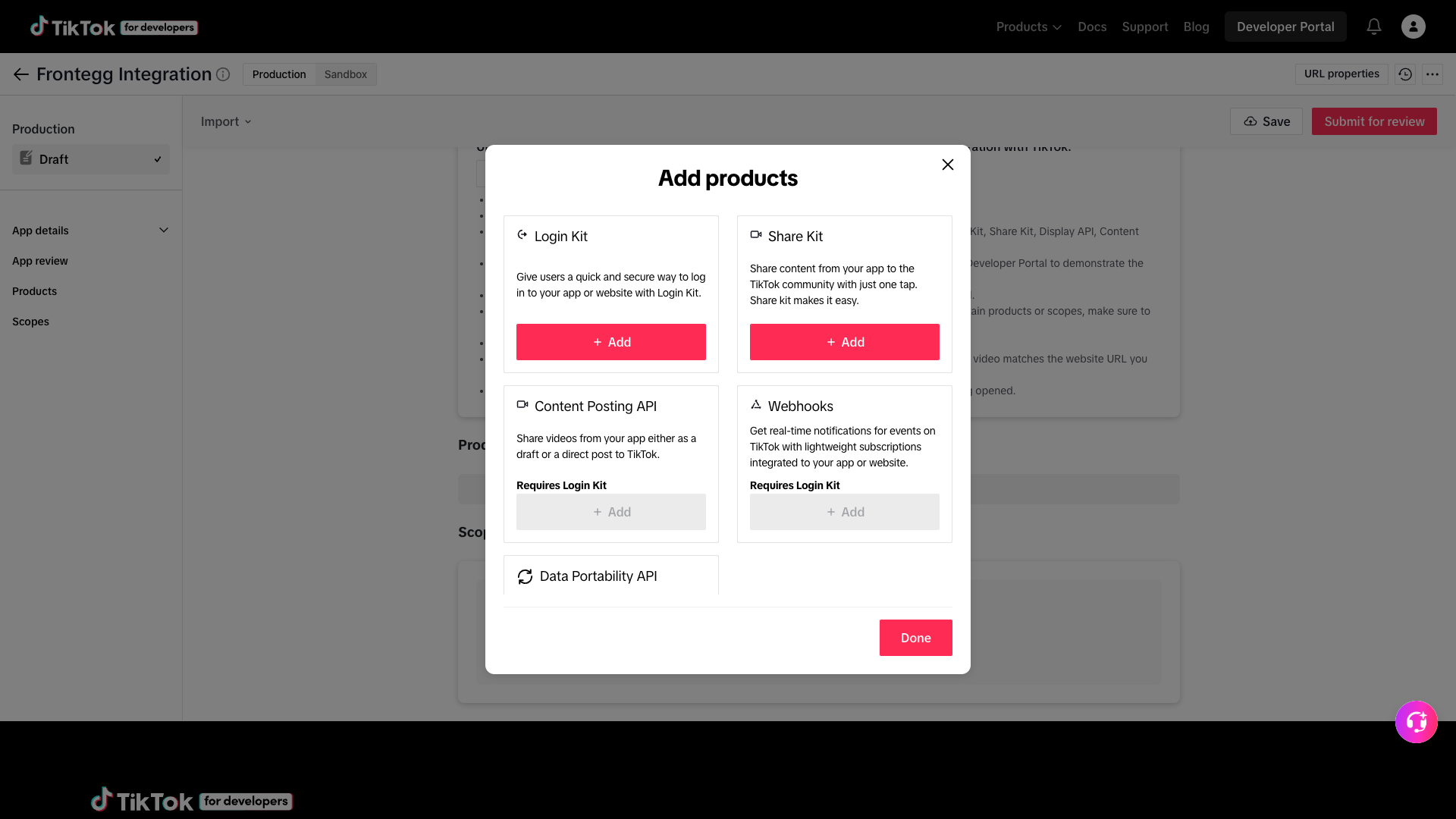
Scroll to the Products section and click Add products. The Frontegg integration requires:
- Login Kit -- grants the
user.info.*andvideo.listscopes. - Content Posting API -- grants the
video.uploadscope.
Click Add next to each product, then Done. Content Posting API requires Login Kit, so add Login Kit first.
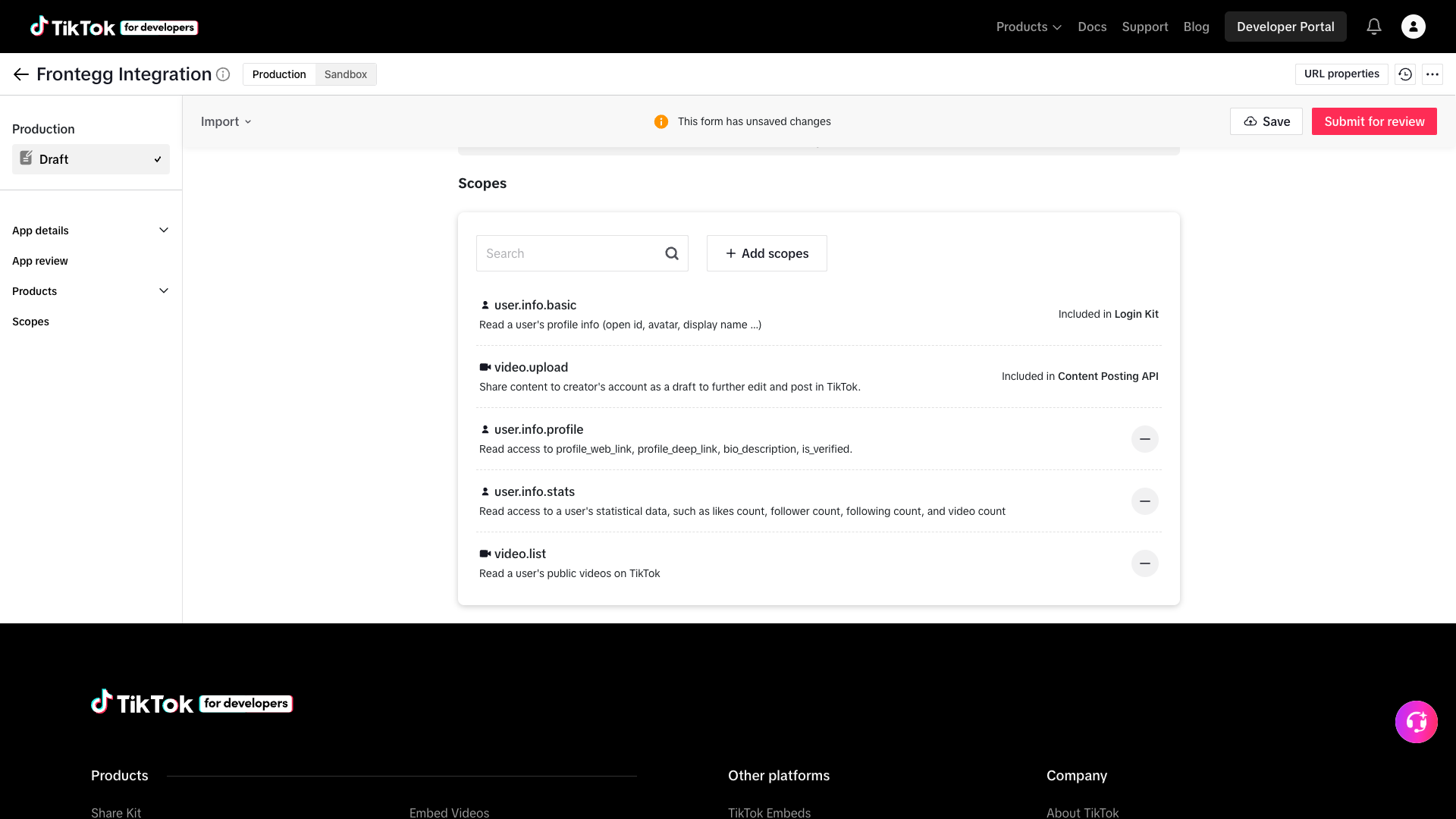
In the Scopes section, click Add scopes and add the following scopes used by the integration:
| Scope | Description |
|---|---|
user.info.basic | Read a user's profile info (open id, avatar, display name, ...) |
user.info.profile | Read access to profile_web_link, profile_deep_link, bio_description, is_verified |
user.info.stats | Read a user's statistical data (likes count, follower count, following count, video count) |
video.list | Read a user's public videos on TikTok |
video.upload | Share content to a creator's account as a draft to further edit and post in TikTok |
user.info.basic and video.upload are added automatically when you enable Login Kit and Content Posting API. Use Add scopes to add the remaining three.
Minimum required scopes
Minimum required scopes
For basic functionality, you need: user.info.basic.
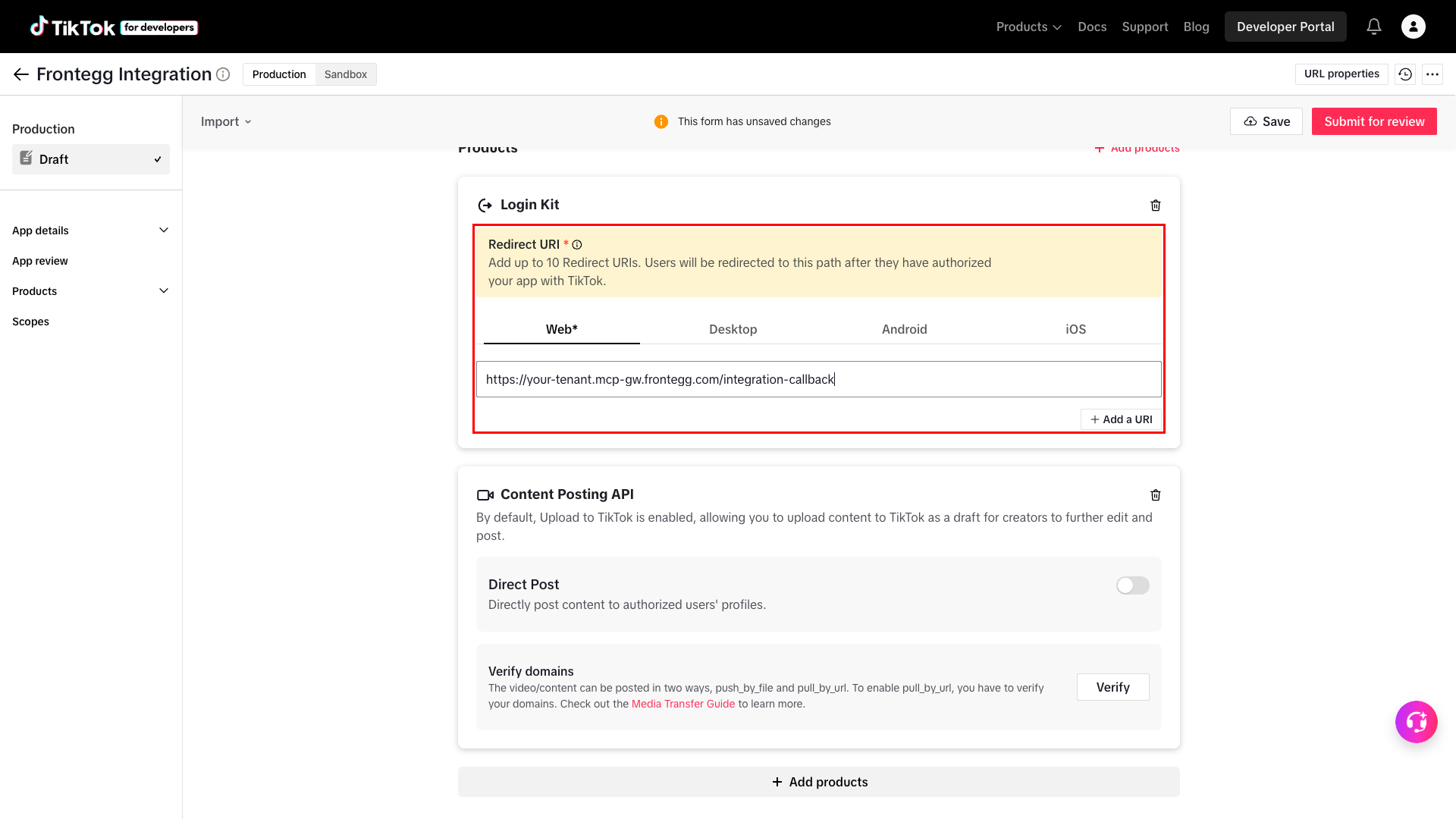
In the Basic information section, check Web under Platforms to expose the Login Kit's web configuration. Then scroll to the Login Kit → Web → Redirect URI field and enter your Frontegg Redirect URL:
https://YOUR_MCP_GATEWAY_URL/integration-callback
Click Add a URI to save it. Then click Save at the top of the page to persist the app configuration.
App review for production traffic
App review for production traffic
New TikTok apps start in Draft status with sandbox-only access. To grant tokens to end users outside your developer account, complete the App review section (description, demo video, terms and privacy URLs) and click Submit for review. Approval is required before the app can serve production users.
Once you have obtained your Client key and Client secret from the steps above, enter them in the integration configuration page of the Frontegg portal:
- Open the Frontegg portal and navigate to [ENVIRONMENT] → Integrations → TikTok.
- Enter the Client key as the Client ID and the Client secret as the Client Secret.
- Select the required scopes.
- Click Save.