Miro is a collaborative online whiteboard platform for brainstorming, planning, and visualizing ideas in real time.
It can be connected to Agen.co two ways, matching the Official / In-house filter in the connector picker:
- Official — Agen.co connects through Miro's own hosted MCP server, so your AI agents work within the Miro team and permissions of the person who authorizes the connection.
- In-house — Agen.co wraps the Miro REST API directly through its own integration layer, using a dedicated OAuth app you register in your Miro developer team.
Pick Official if the built-in MCP tools cover what your agents need. Fall back to In-house if you need broader API coverage or finer-grained scope control.
Prerequisites
Prerequisites
- A Miro account. The MCP server is enabled automatically — no signup or admin approval needed. On Enterprise plans, your Miro admin must allow Agen.co as an MCP client before you can connect.
- In the Agen.co portal, go to Connectors → My connectors and click Add connector.
- In the search bar, type
Miroand select it from the results. - In the Instance Slug field, enter a slug for this connector instance — it prefixes each imported tool as
slug__tool, so a second instance of the same connector needs a slug of its own. Use lowercase kebab-case. You can change it later from the connector's settings. - Click Connect.
- You're redirected to Miro to sign in, select the team whose boards you want your agents to use, and approve access. No Client ID or Client Secret needs to be entered manually.
- Return to Agen.co and click Add below the list of tools that were added.
Miro's MCP server is team-specific — the connection only reaches boards in the team you select during authorization. To work across more than one team, add the Miro connector again with a different Instance Slug and authorize it against another team.
Once connected, Miro appears under My connectors with tools spanning:
| Area | What it covers |
|---|---|
| Search | Summarizing and searching board content |
| Boards | Creating and modifying boards and their items |
| Diagrams | Generating diagrams and visual layouts from context |
| Comments | Reading and acting on board comments |
Enabling the Miro connector isn't enough on its own. Tool calls remain denied until you create a policy that grants access to the specific tools you want to expose.
Miro is a collaborative online whiteboard platform that enables teams to brainstorm, plan, and visualize ideas in real time. The Miro integration with Frontegg allows your application to access and manage Miro boards and items on behalf of your users.
Prerequisites
Prerequisites
- A Miro account with access to the developer settings
- Permissions to create apps in your Miro team
Sign in to Miro and navigate to Profile settings → Your apps. You can access this page directly at miro.com/app/settings/user-profile/apps.
Click Create new app.
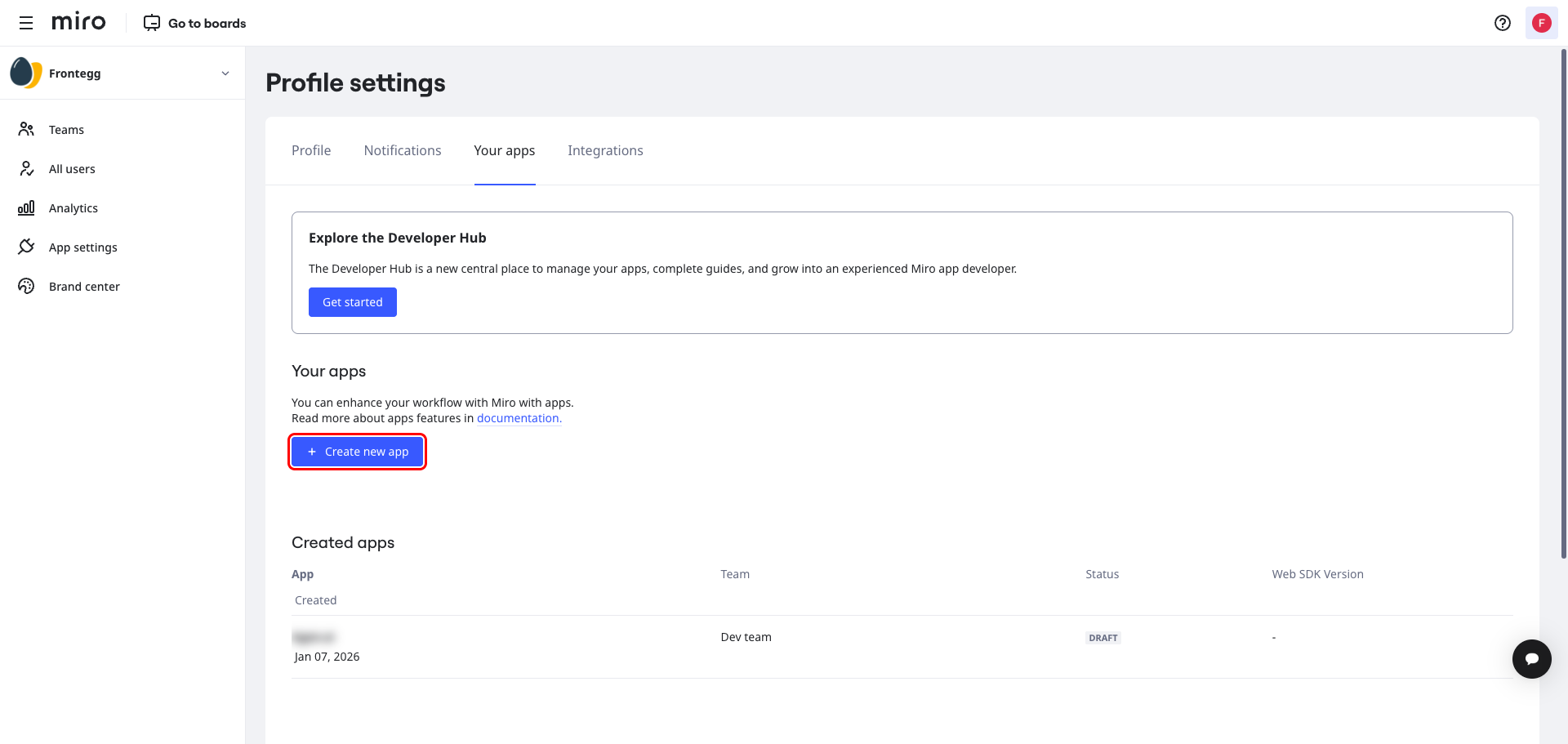
In the Create new app dialog, enter a name for your app and select a developer team.
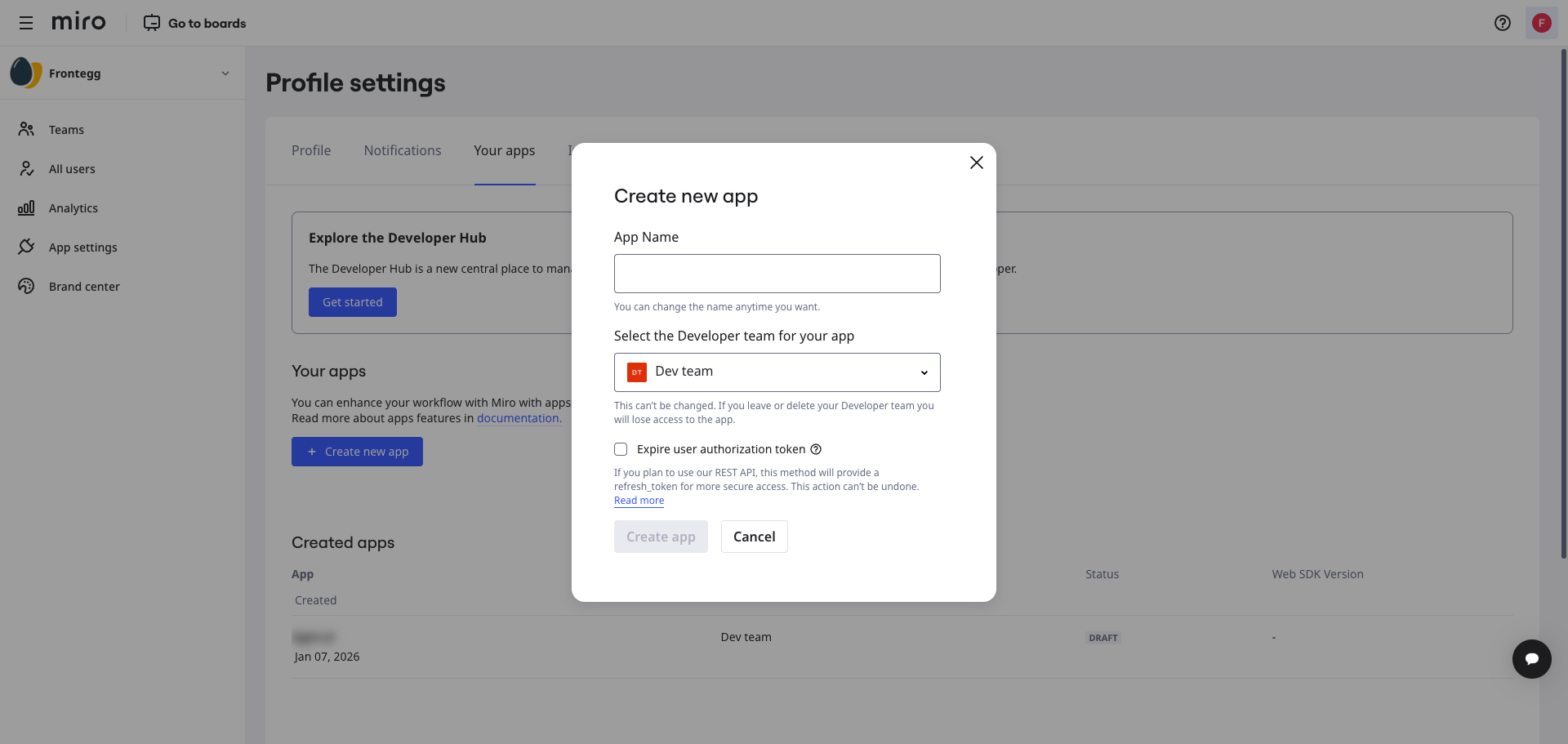
Enter Frontegg Integration as the app name, select your developer team from the dropdown, and click Create app.
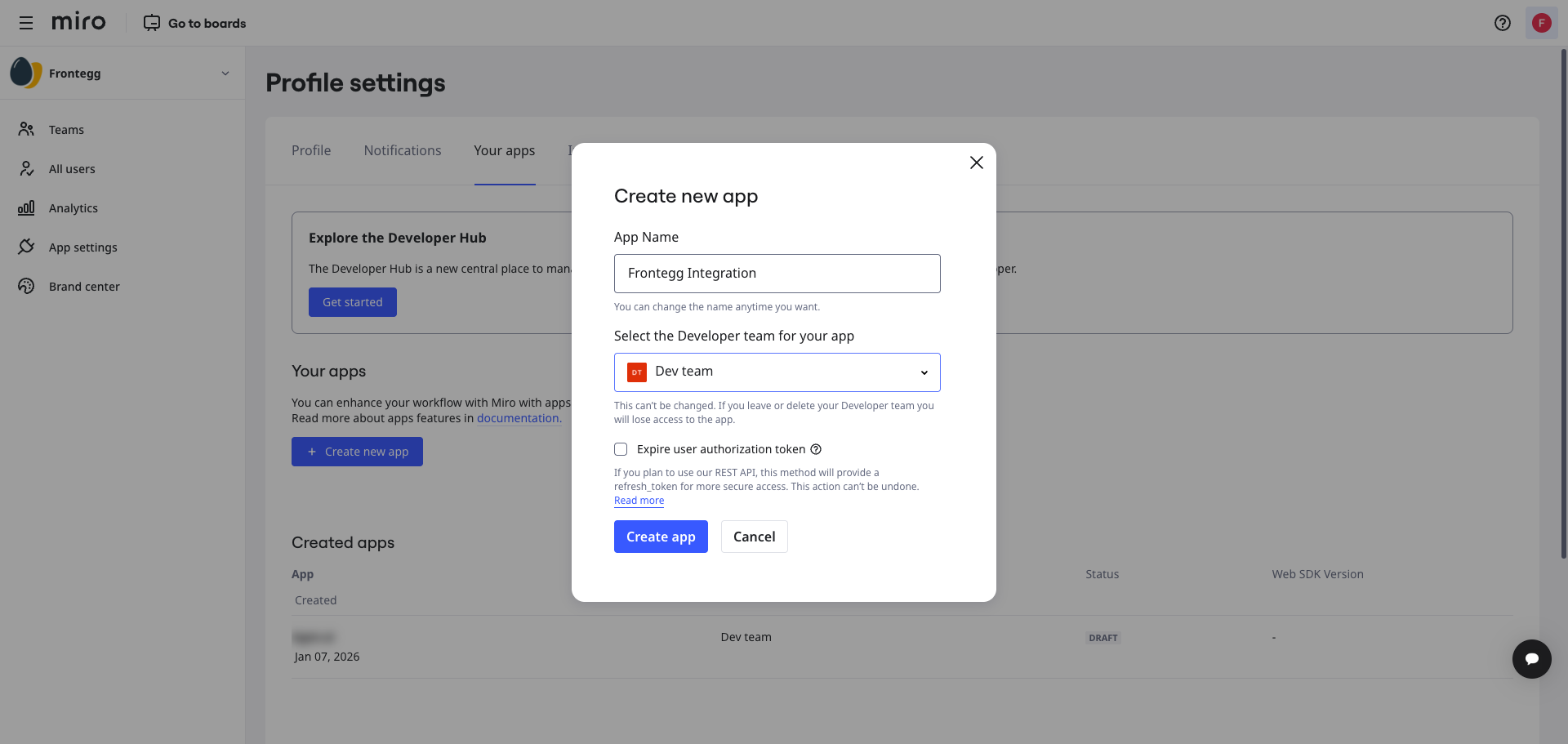
After the app is created, you are taken to the app settings page. In the App Credentials section, copy the Client ID and Client secret. You will need these when configuring the integration in the Frontegg portal.
Keep your credentials secure
Keep your credentials secure
Never share your Client secret or commit it to version control.
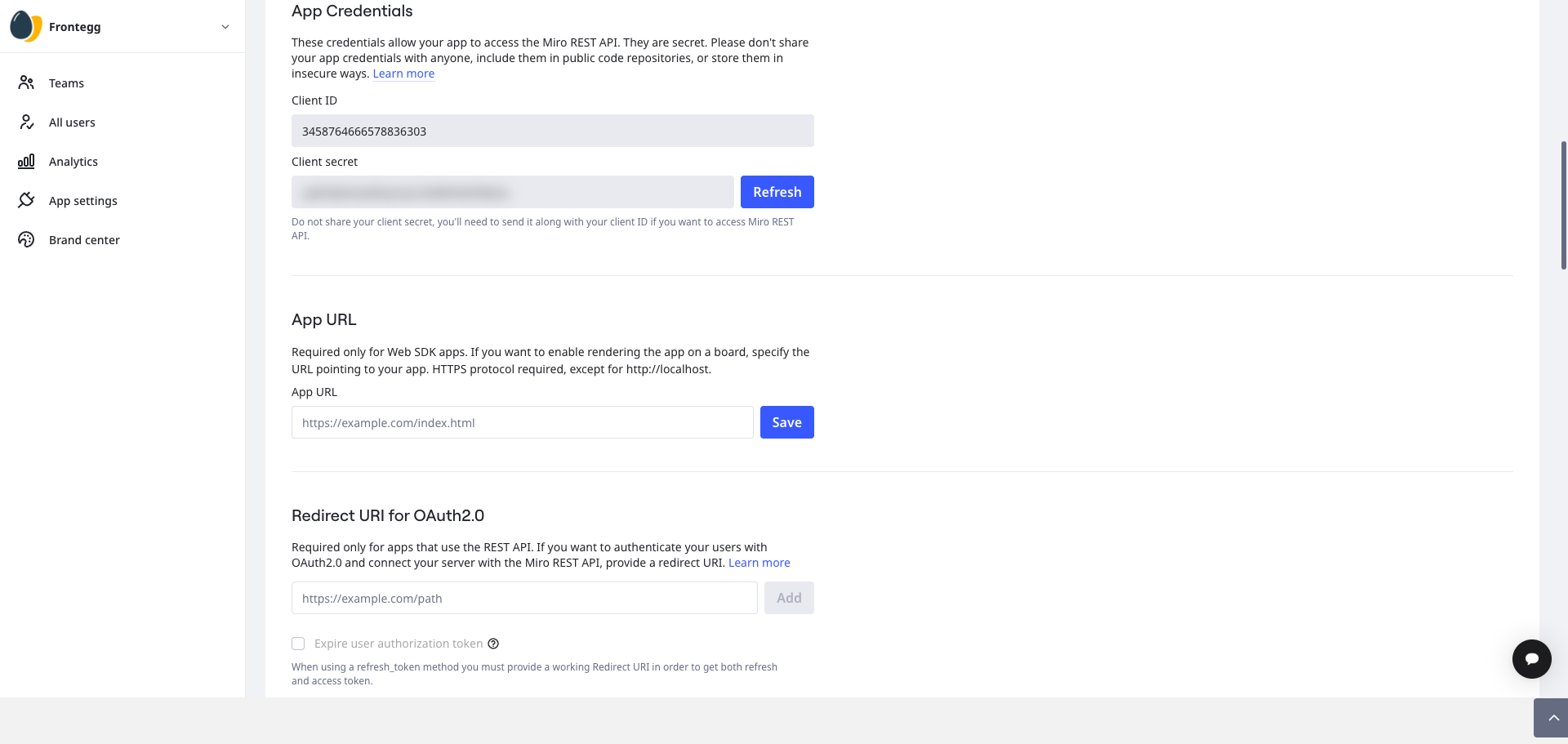
Scroll down to the Redirect URI for OAuth2.0 section.
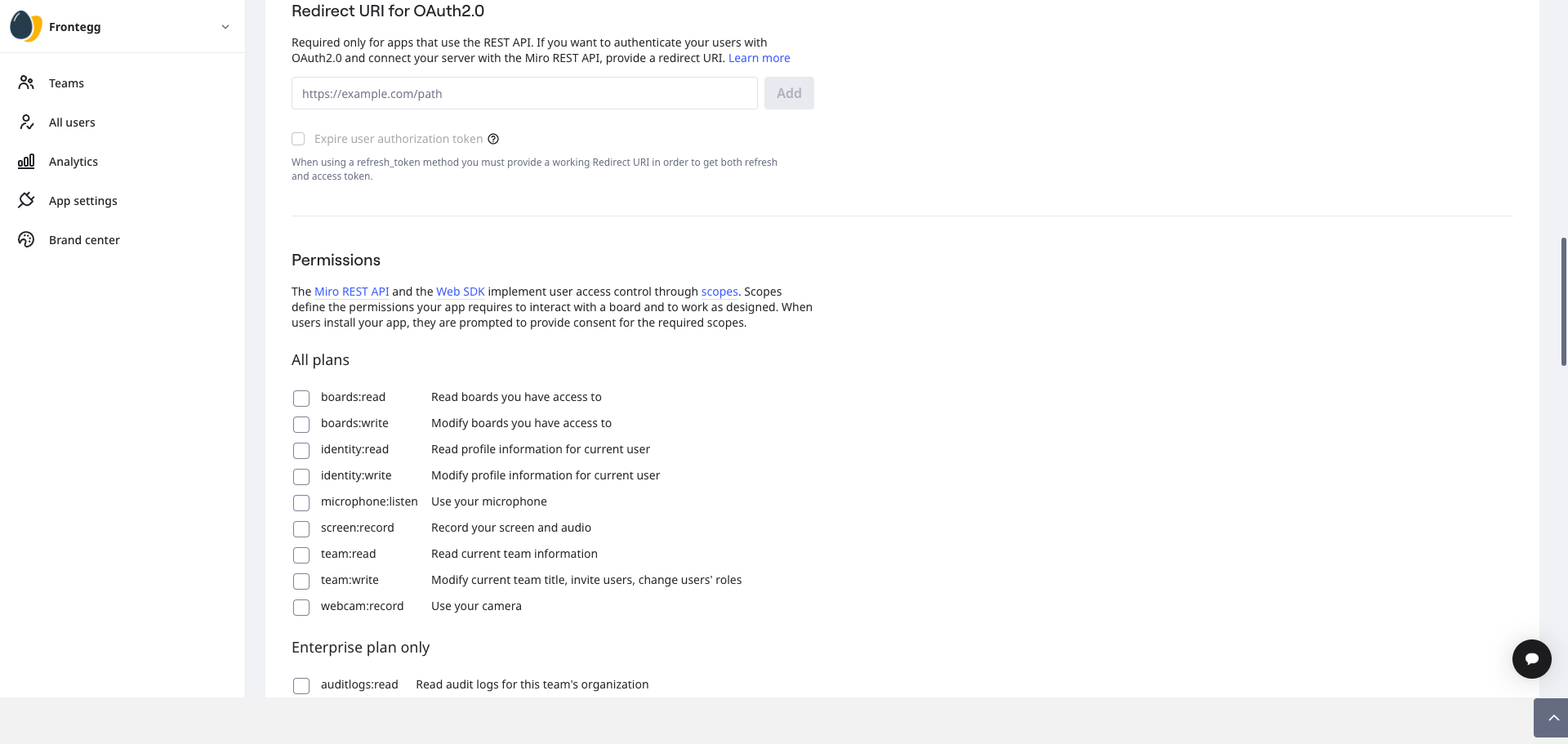
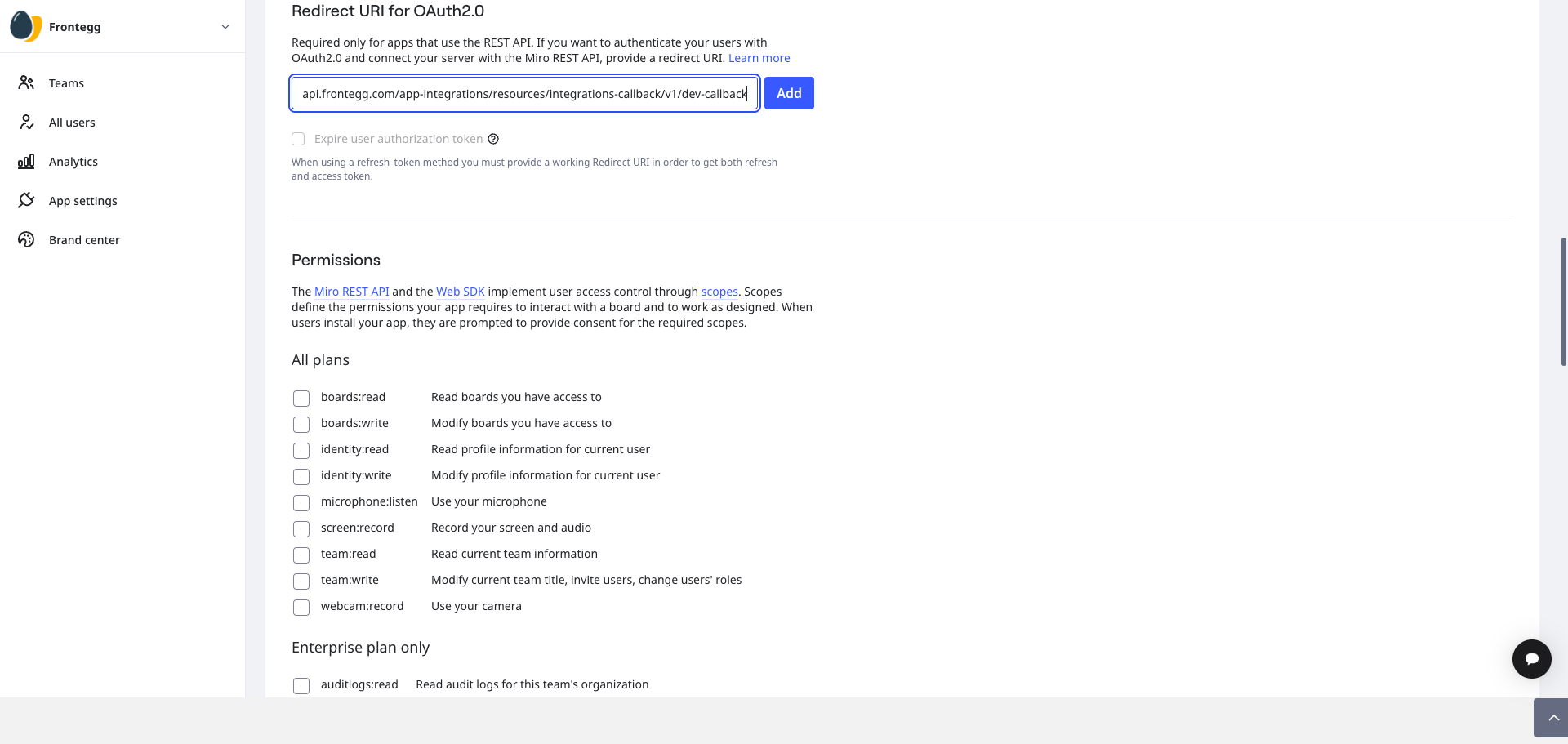
Enter the following redirect URIs one at a time and click Add after each:
https://YOUR_MCP_GATEWAY_URL/integration-callback
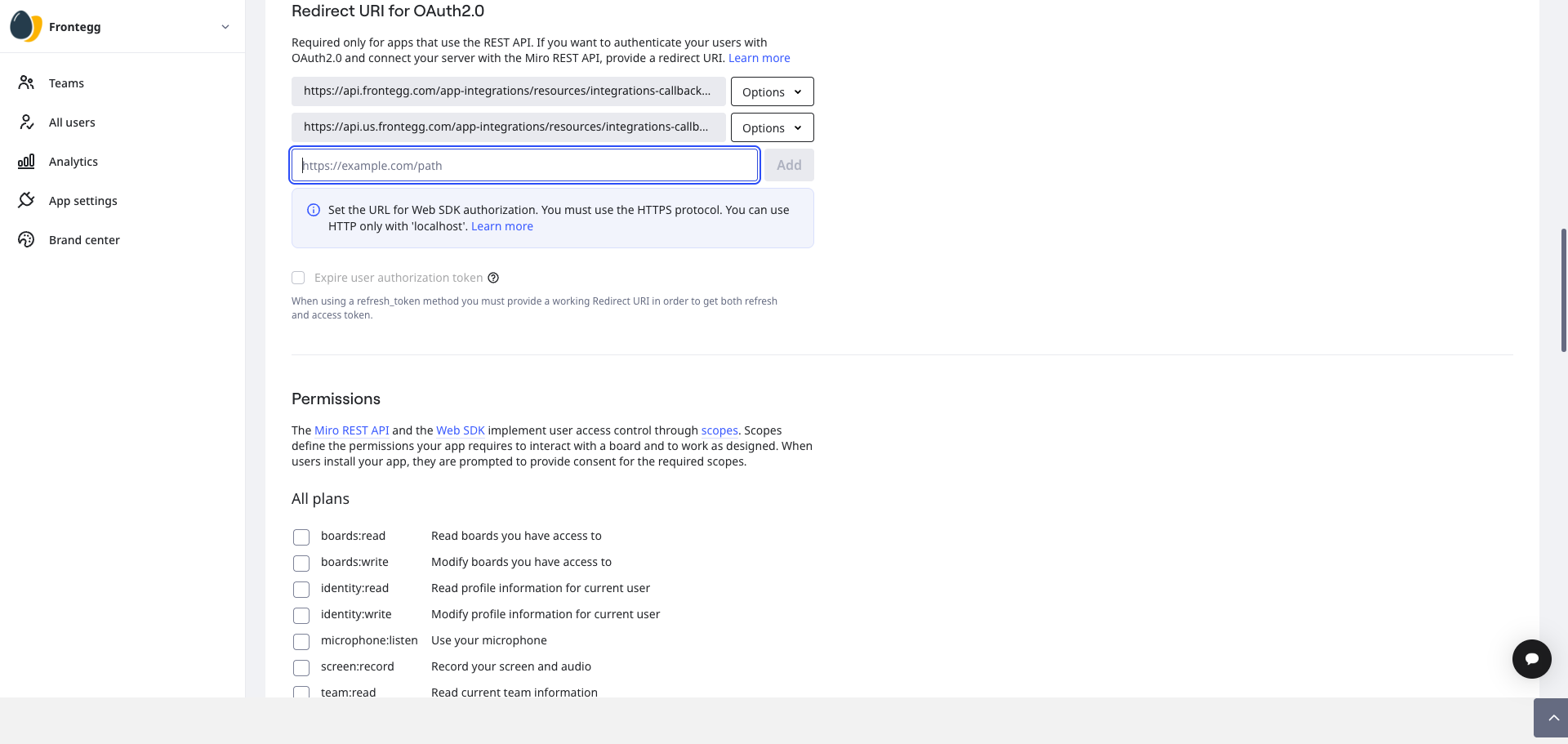
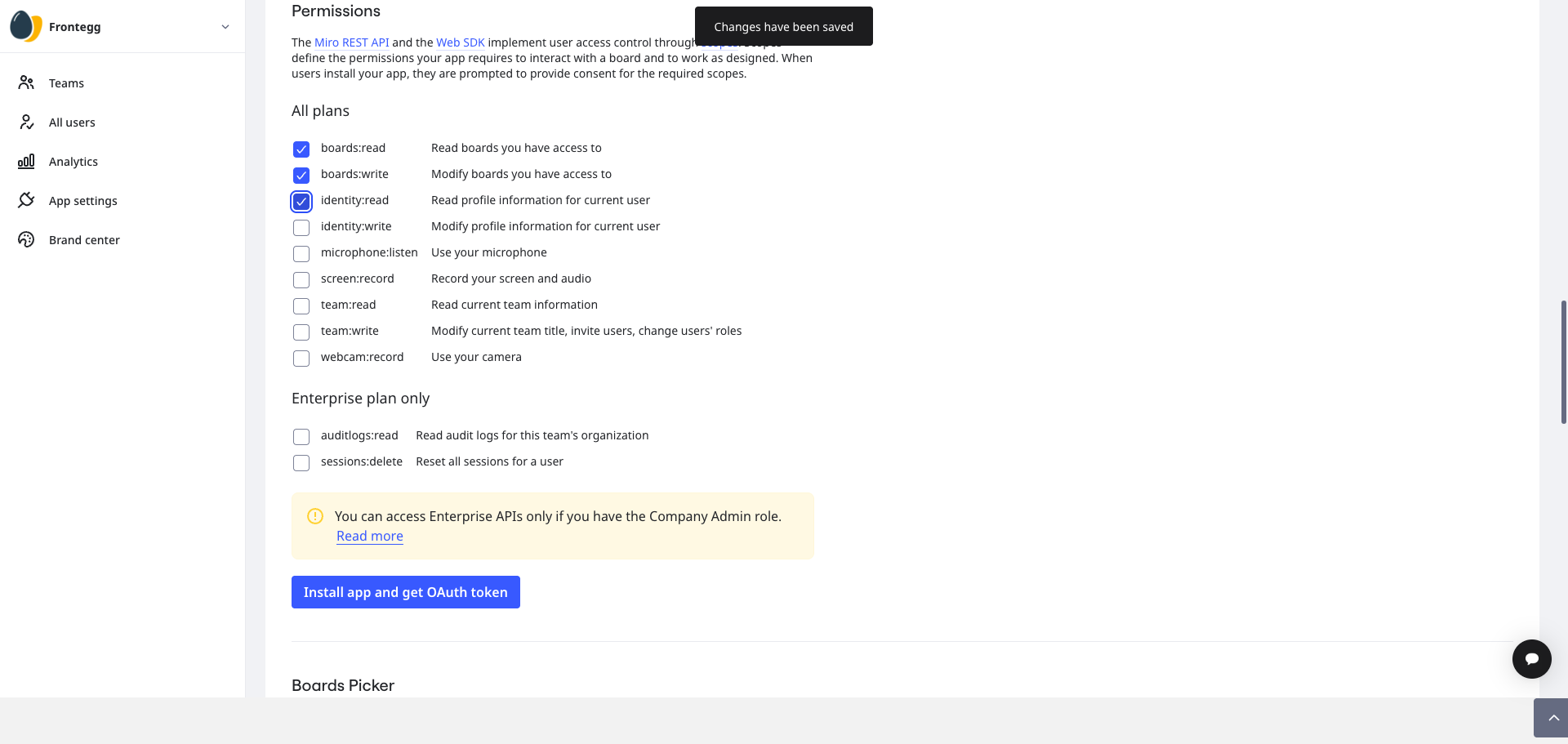
Scroll down to the Permissions section and select the following scopes:
| Scope | Description |
|---|---|
boards:read | Read access to boards |
boards:write | Write access to boards |
identity:read | Read user identity information |
Minimum required scopes
Minimum required scopes
For basic functionality, you need boards:read and identity:read. Add boards:write to allow creating and modifying boards.
Scopes are saved automatically when you check them.
Once you have obtained your Client ID and Client secret from the steps above, enter them in the integration configuration page of the Frontegg portal:
- Open the Frontegg portal and navigate to [ENVIRONMENT] → Integrations → Miro.
- Enter the Client ID and Client secret in the corresponding fields.
- Select the required scopes.
- Click Save.