Monday.com is a cloud-based work operating system for managing projects, workflows, and everyday tasks.
It can be connected to Agen.co two ways, matching the Official / In-house filter in the connector picker:
- Official — Agen.co connects through Monday.com's own hosted MCP server, so your AI agents get access to boards, items, docs, updates, and more through Monday.com's native OAuth flow.
- In-house — Agen.co wraps the Monday.com API directly through its own integration layer, using an OAuth app you register in the Monday.com Developer Center.
Pick Official if the built-in MCP tools cover what your agents need. Fall back to In-house if you need access to endpoints or scopes not exposed by the Official MCP server.
Prerequisites
Prerequisites
- A Monday.com account
- In Agen.co, go to Connectors → My connectors, click Add connector, and in the search bar type
Monday.comand select it. - In the Instance Slug field, enter a slug for this connector instance — it prefixes each imported tool as
slug__tool, so a second instance of the same connector needs a slug of its own. Use lowercase kebab-case. You can change it later from the connector's settings. - Click Connect.
- You're redirected to Monday.com to sign in and approve access.
- Return to Agen.co and click Add below the list of tools that were added.
Once connected, Monday.com appears under My connectors with tools spanning:
| Area | What it covers |
|---|---|
| Boards | Reading, creating, and updating boards, groups, columns, and views |
| Items | Creating, reading, and updating items and subitems, including bulk updates |
| Updates | Reading and posting updates on items, and sending notifications |
| Docs | Reading, creating, and updating monday docs |
| Users & teams | Reading user and team information |
| Workspaces | Listing, creating, and updating workspaces and folders, and searching across the account |
| Dashboards & forms | Creating dashboards and widgets, and creating and managing forms |
| Automations | Creating, listing, and managing automations and workflows |
| monday dev | Reading sprints and sprint summaries |
| GraphQL | Running any GraphQL query or mutation against the monday.com API |
Enabling the Monday.com connector isn't enough on its own. Tool calls remain denied until you create a policy that grants access to the specific tools you want to expose.
Monday.com is a cloud-based work operating system that enables teams to manage projects, workflows, and everyday tasks. Integrating Monday.com with Frontegg allows your application to access and manage boards, items, users, and updates on behalf of your users through OAuth 2.0 authentication.
Prerequisites
Prerequisites
- A Monday.com account with admin access
- Access to the Monday.com Developer Center
Log in to your Monday.com account, then click your profile avatar in the top-right corner and select Developers. This opens the Monday.com Developer Center in a new tab.
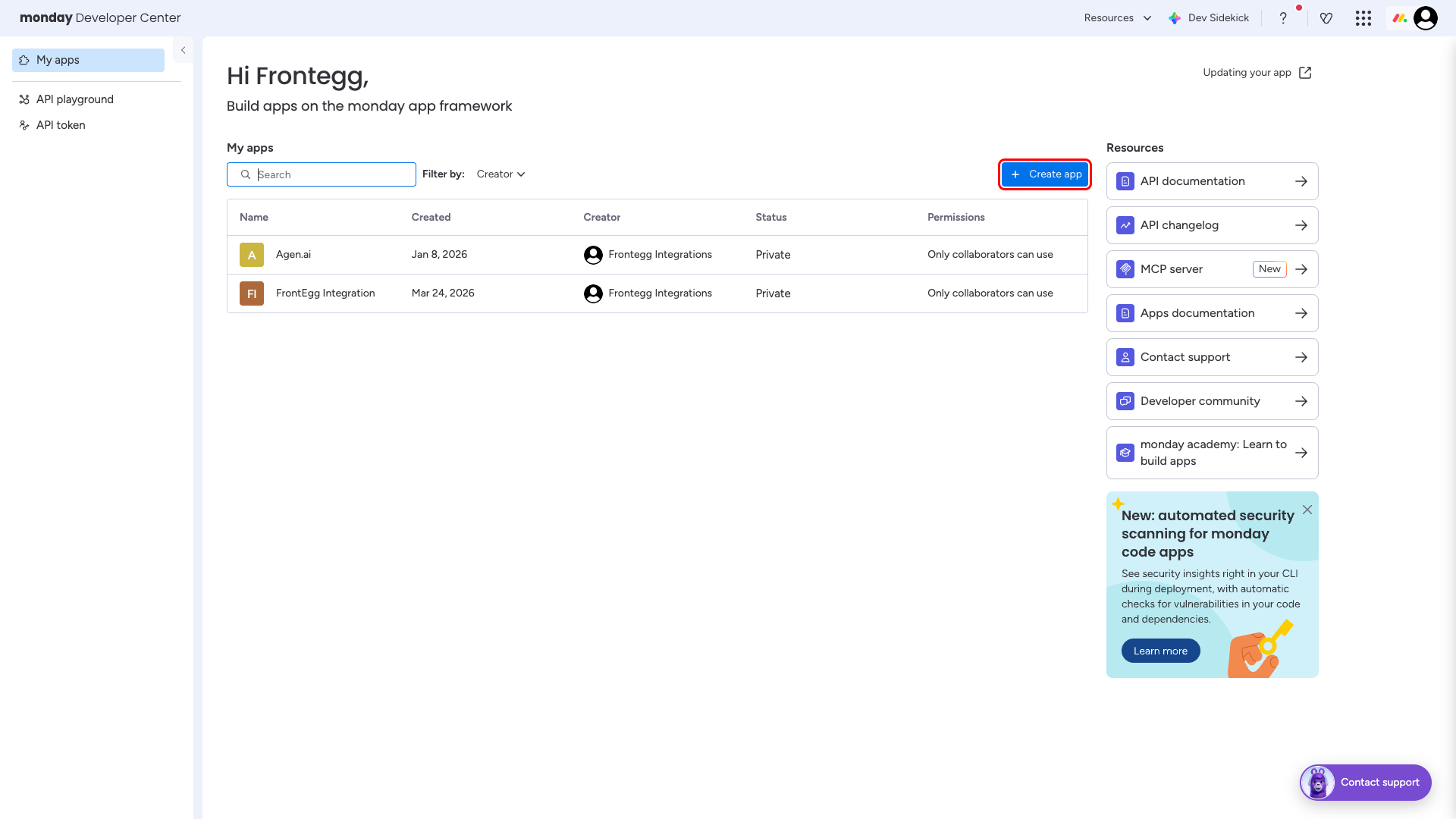
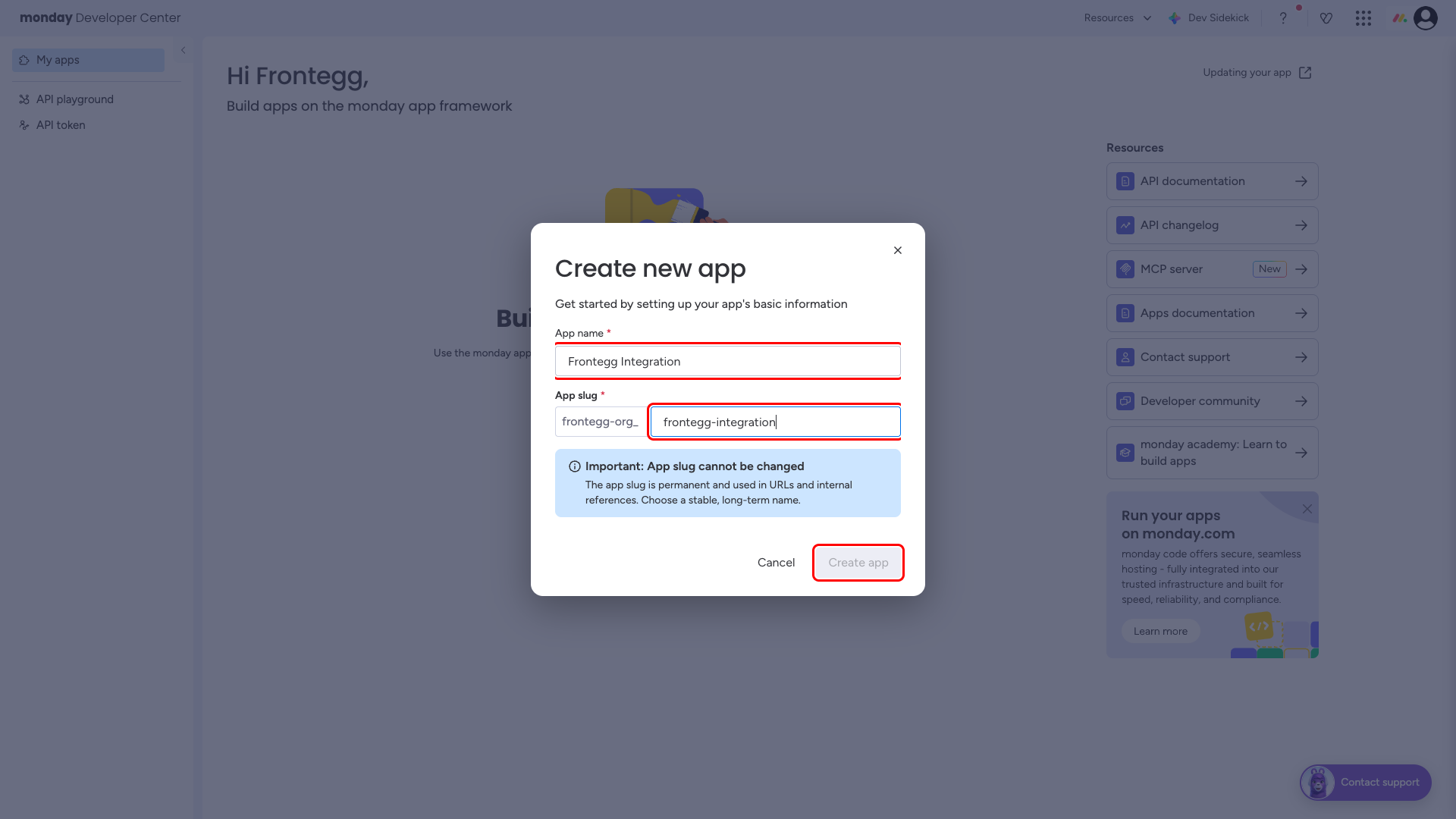
Click the Create app button. In the dialog that appears, enter a name for your application (e.g., "Frontegg Integration") and an app slug. Click Create app.
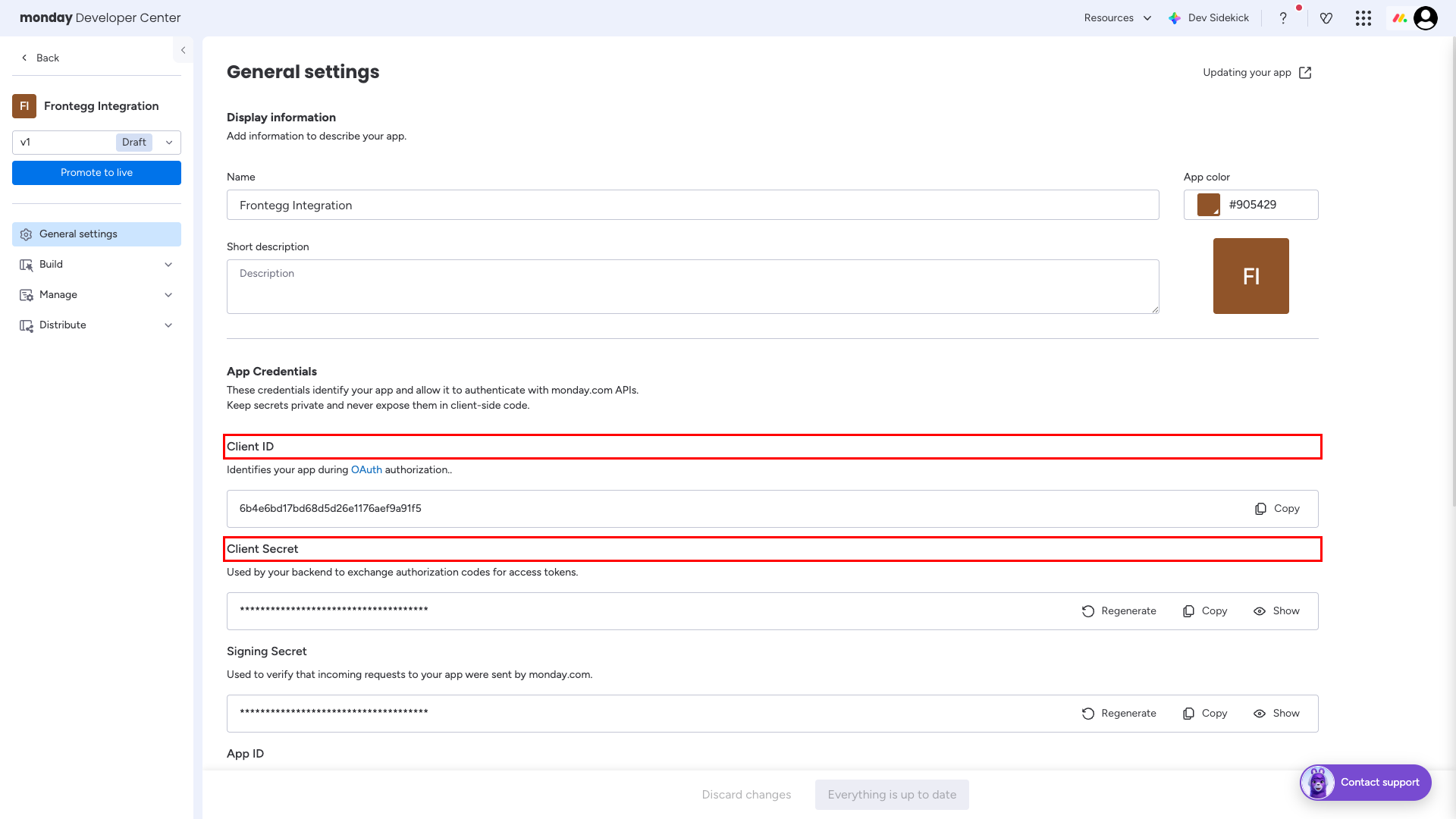
After creating the app, you are redirected to the General settings page. Here you can find your Client ID and Client Secret under the App Credentials section.
Copy the Client ID and Client Secret values. You will need them to configure the integration in the Frontegg portal.
Keep your credentials secure
Keep your credentials secure
Never share or commit your Client Secret to version control.
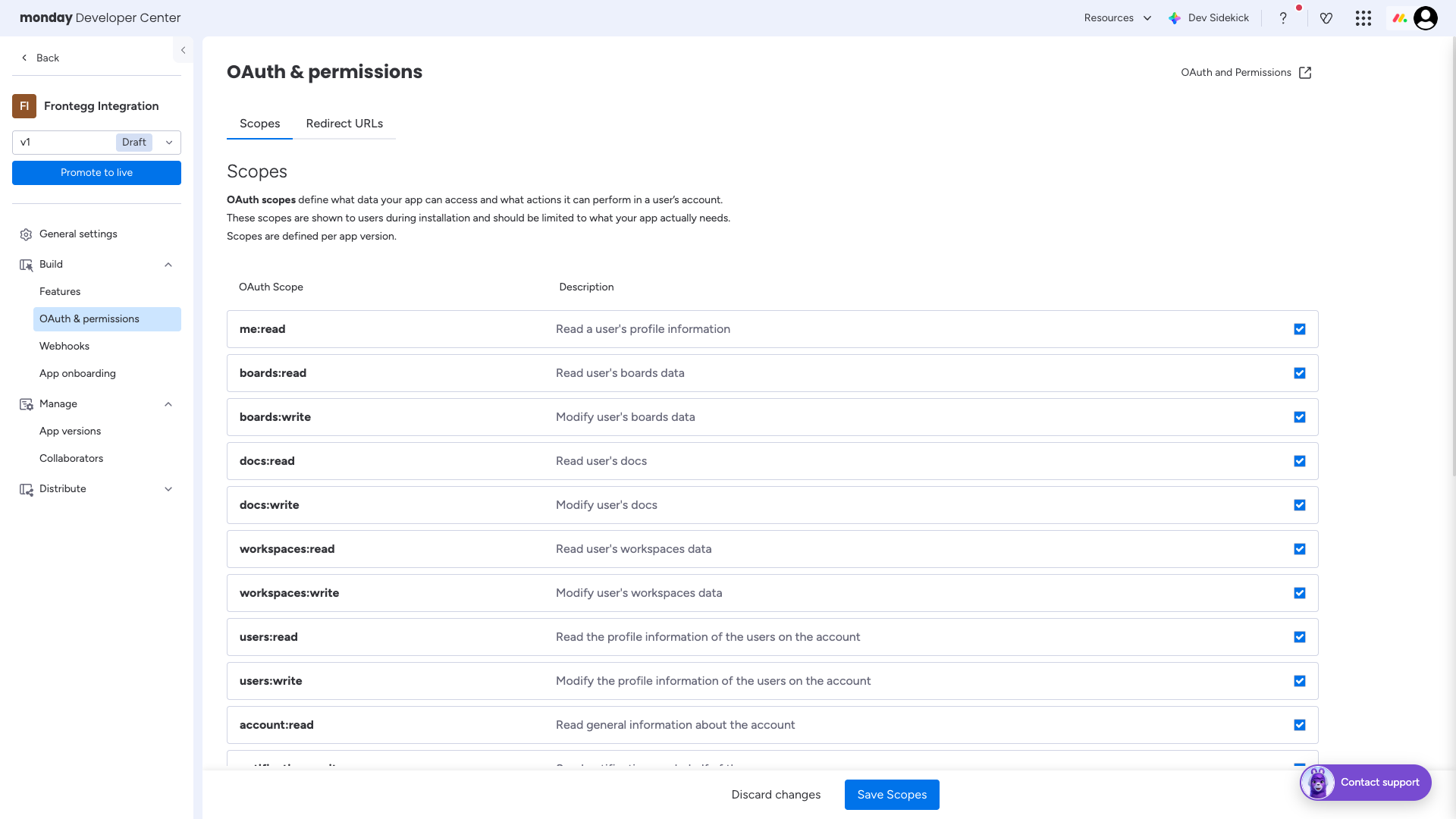
In the left sidebar, navigate to Build → OAuth & permissions. On the Scopes tab, select the scopes your integration requires.
The following scopes are available:
| Scope | Description |
|---|---|
me:read | Read a user's profile information |
boards:read | Read user's boards data |
boards:write | Modify user's boards data |
docs:read | Read user's docs |
docs:write | Modify user's docs |
workspaces:read | Read user's workspaces data |
workspaces:write | Modify user's workspaces data |
users:read | Read the profile information of the users on the account |
users:write | Modify the profile information of the users on the account |
account:read | Read general information about the account |
notifications:write | Send notifications on behalf of the user |
updates:read | Read updates and replies the user can see |
updates:write | Post or edit updates on behalf of the user |
assets:read | Read information of assets that the user has access to |
tags:read | Read the tags of the account |
teams:read | Read information about teams in the account |
webhooks:read | Read existing webhooks configuration |
webhooks:write | Create and modify webhooks |
Minimum required scopes
Minimum required scopes
For basic functionality, you need: me:read, boards:read, users:read.
After selecting the required scopes, click Save Scopes.
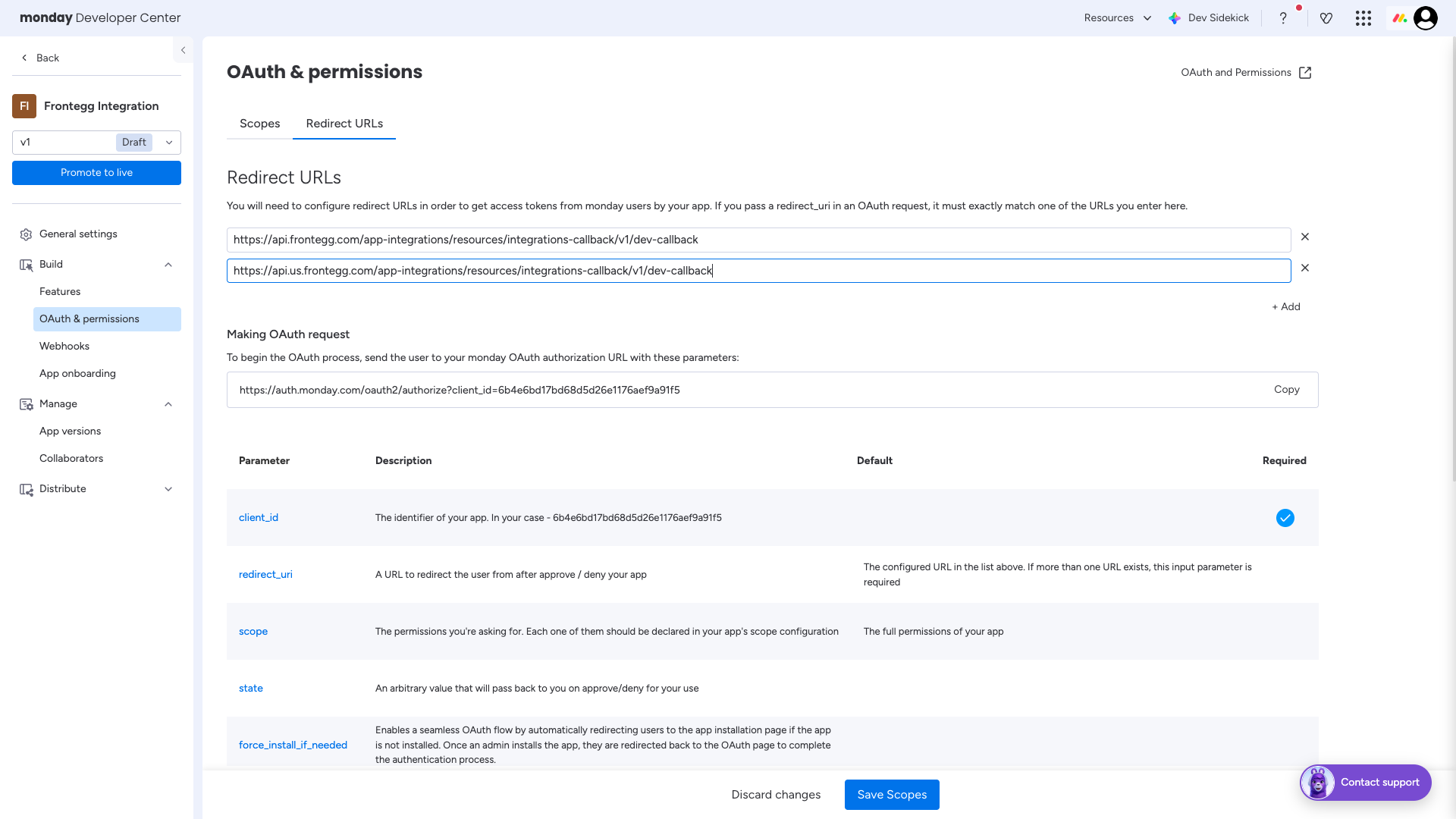
Switch to the Redirect URLs tab and enter the following redirect URI:
https://YOUR_MCP_GATEWAY_URL/integration-callback
Click Save Scopes to save your changes.
Once you have obtained your Client ID and Client Secret from the steps above, enter them in the integration configuration page of the Frontegg portal:
- Open the Frontegg portal and navigate to [ENVIRONMENT] → Integrations → Monday.com.
- Enter the Client ID and Client Secret in the corresponding fields.
- Select the required scopes.
- Click Save.