Mixpanel is a product analytics platform for tracking user events, building funnels, and running cohort queries.
It can be connected to Agen.co two ways, matching the Official / In-house filter in the connector picker:
- Official — Agen.co connects through Mixpanel's own hosted MCP server, so your AI agents get access to analytics queries, dashboards, cohorts, experiments, and more through Mixpanel's native OAuth flow.
- In-house — Agen.co wraps the Mixpanel API directly through its own integration layer, using a Service Account and Project Token you configure in your Mixpanel organization settings.
Pick Official if the built-in MCP tools cover what your agents need. Fall back to In-house for direct API access with a Service Account.
Prerequisites
Prerequisites
- A Mixpanel account
- MCP enabled for your Mixpanel organization — an organization admin turns it on under Settings → Org → Overview. It is off by default for organizations created before 1 August 2026, and the change can take up to 15 minutes to apply.
- Your data residency region (US, EU, or India) — this determines which regional MCP endpoint Agen.co connects to
- In Agen.co, go to Connectors → My connectors, click Add connector, and in the search bar type
Mixpaneland select it. Keep this panel open. - In the Instance Slug field, enter a slug for this connector instance — it prefixes each imported tool as
slug__tool, so a second instance of the same connector needs a slug of its own. Use lowercase kebab-case. You can change it later from the connector's settings. - Select your Data residency region —
US,EU, orIndia. This determines which Mixpanel MCP endpoint (mcp.mixpanel.com,mcp-eu.mixpanel.com, ormcp-in.mixpanel.com) Agen.co connects to. - Click Connect.
- You're redirected to Mixpanel to sign in and approve access.
- Return to Agen.co and click Add below the list of tools that were added.
Once connected, Mixpanel appears under My connectors with tools spanning:
| Area | What it covers |
|---|---|
| Analytics | Querying insights, funnels, flows, retention, and saved reports |
| Dashboards | Creating, reading, updating, and deleting dashboards |
| Data discovery | Browsing events, properties, projects, and data quality |
| Data management | Editing events and properties, managing tags, merging duplicates |
| Cohorts | Creating and managing cohorts and custom properties |
| Experiments & feature flags | Designing, launching, and monitoring A/B tests |
Enabling the Mixpanel connector isn't enough on its own. Tool calls remain denied until you create a policy that grants access to the specific tools you want to expose.
Mixpanel is a product analytics platform for tracking user events, building funnels, and running cohort queries. The Mixpanel integration with Frontegg lets your application ingest events, update user and group profiles, run queries and reports, and export raw data on behalf of your users.
Prerequisites
Prerequisites
- A Mixpanel account with Organization Owner or Organization Admin permissions — required to create a Service Account
- At least one Mixpanel project in your organization
- Knowledge of your project's data residency region (US, EU, or India) — this determines which regional hosts the connector targets
Service Accounts only
Service Accounts only
Mixpanel does not expose OAuth 2.0 for third-party applications. The Frontegg connector authenticates with a Service Account using HTTP Basic auth — username and secret generated from your Mixpanel organization. The Project Token is also required because Mixpanel's legacy ingestion endpoints (/track, /engage, /groups) embed the token inside each payload object.
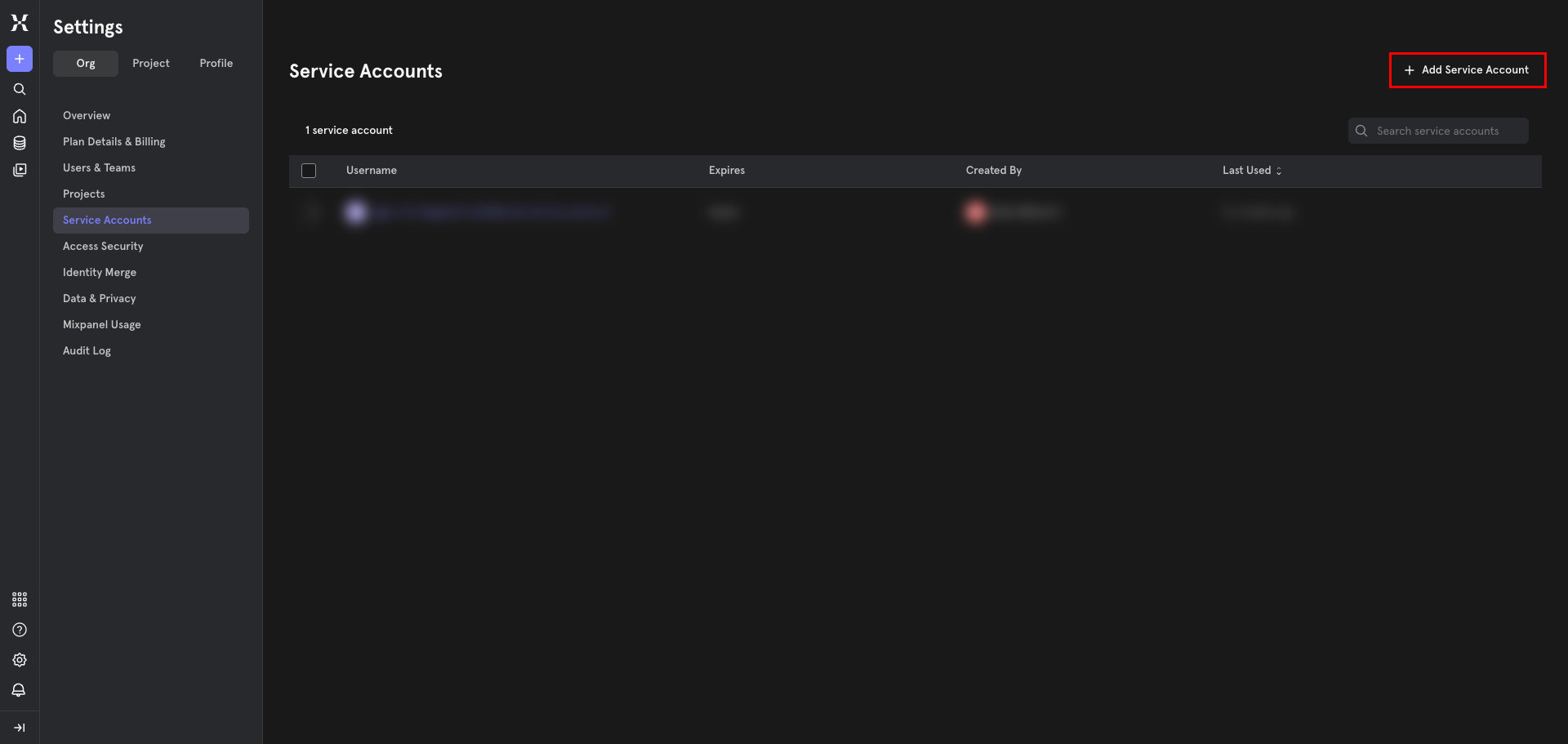
In Mixpanel, open the settings gear in the left sidebar and go to Organization Settings → Service Accounts, or navigate directly to mixpanel.com/settings/org/service-accounts. Click + Add Service Account in the top-right corner.
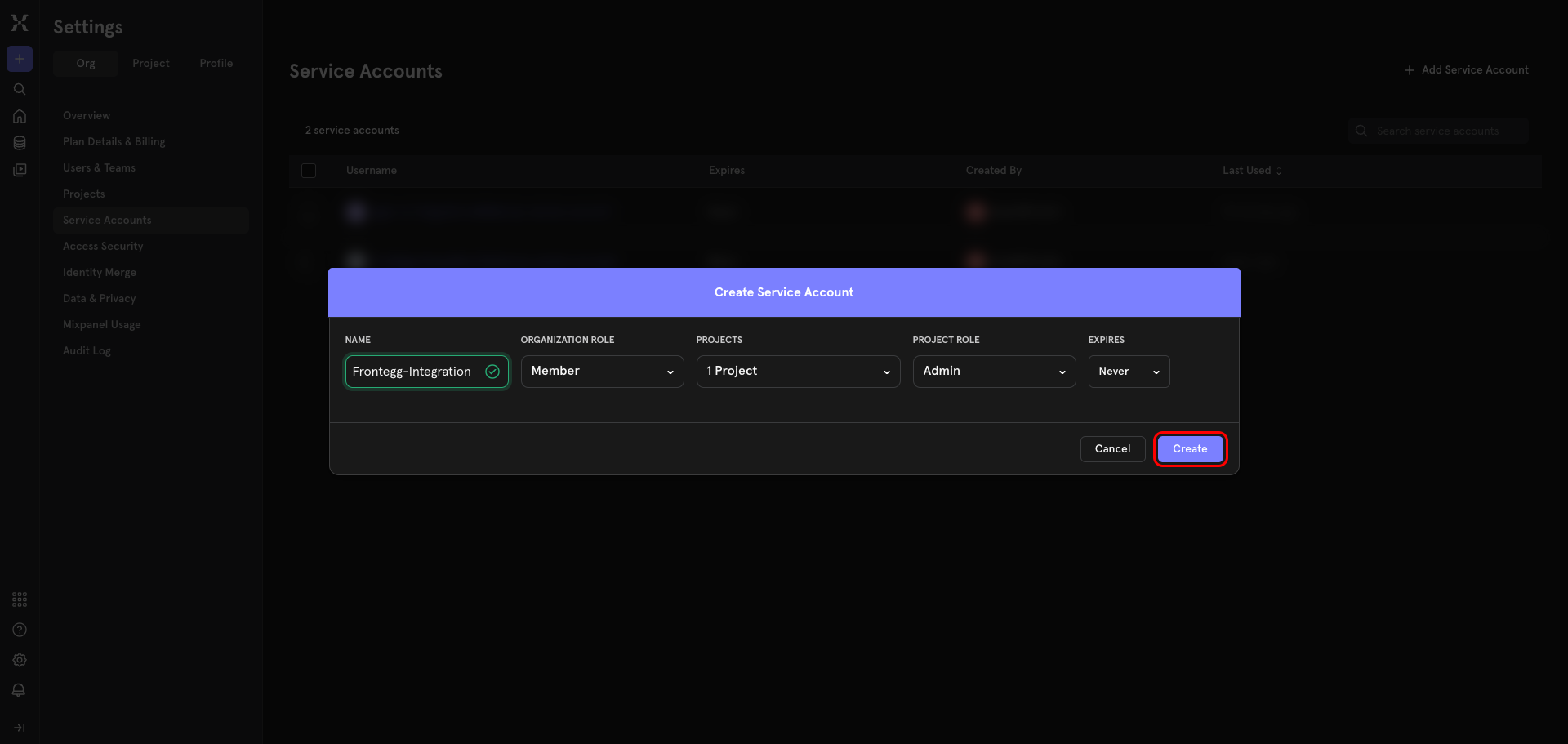
In the Create Service Account dialog:
- Name:
Frontegg-Integration(the name must contain only letters, numbers, dashes, and underscores — no spaces) - Organization Role: Member — scopes the account to the projects you grant below
- Projects: open the dropdown and select the project(s) you want the connector to access
- Project Role: Admin — required if the connector needs to both query and ingest events. Pick Analyst for read-only access, or Consumer for the narrowest permissions. See Mixpanel roles and permissions for the full matrix.
- Expires: Never — or set an expiration if required by your security policy
Click Create.
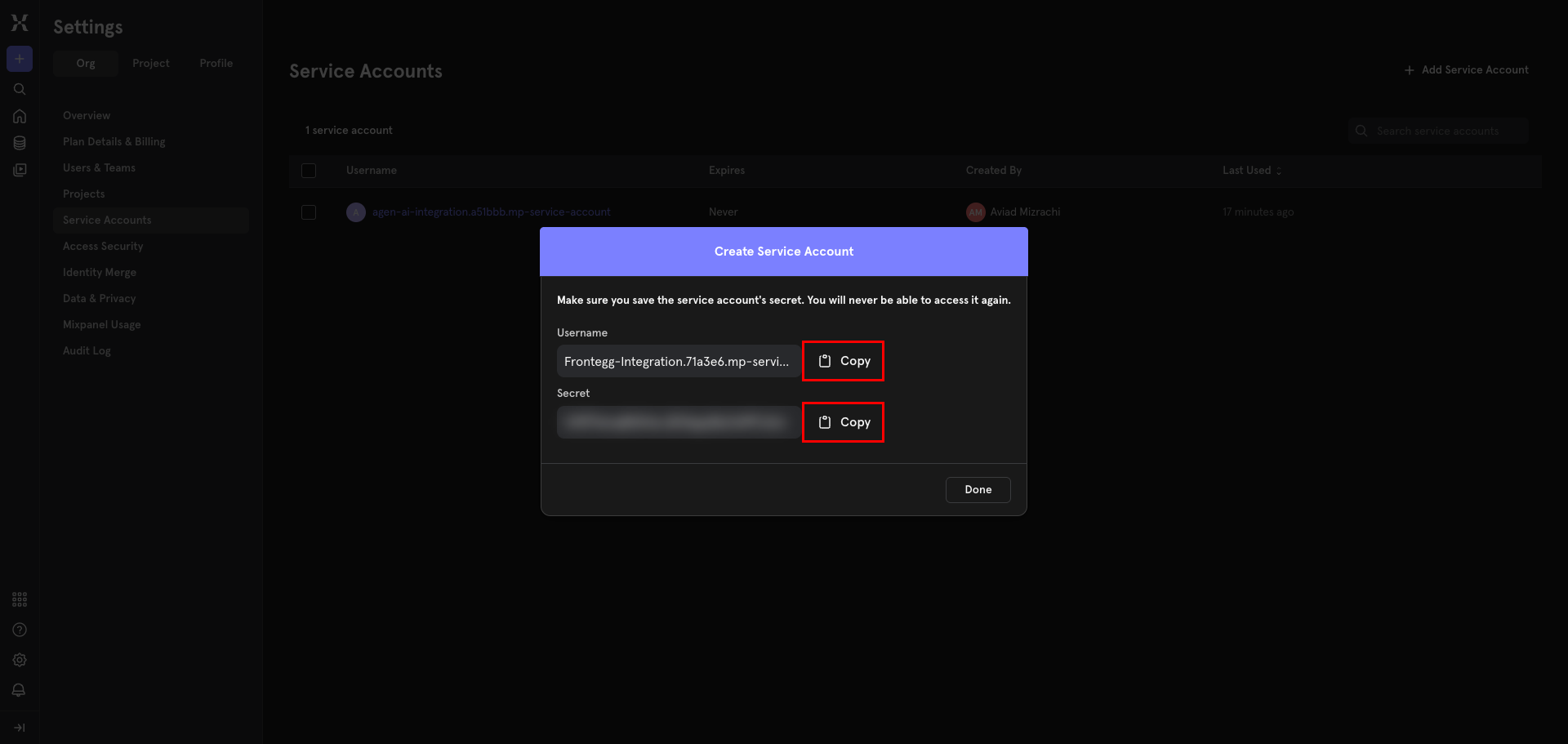
After clicking Create, Mixpanel displays the Service Account Username and Secret once. Copy both values immediately — the secret will never be shown again.
- Username → paste into the Frontegg Service Account Username field
- Secret → paste into the Frontegg API Key field
Save the secret now
Save the secret now
Mixpanel does not let you retrieve the secret after closing this dialog. If you lose it, delete the Service Account and create a new one.
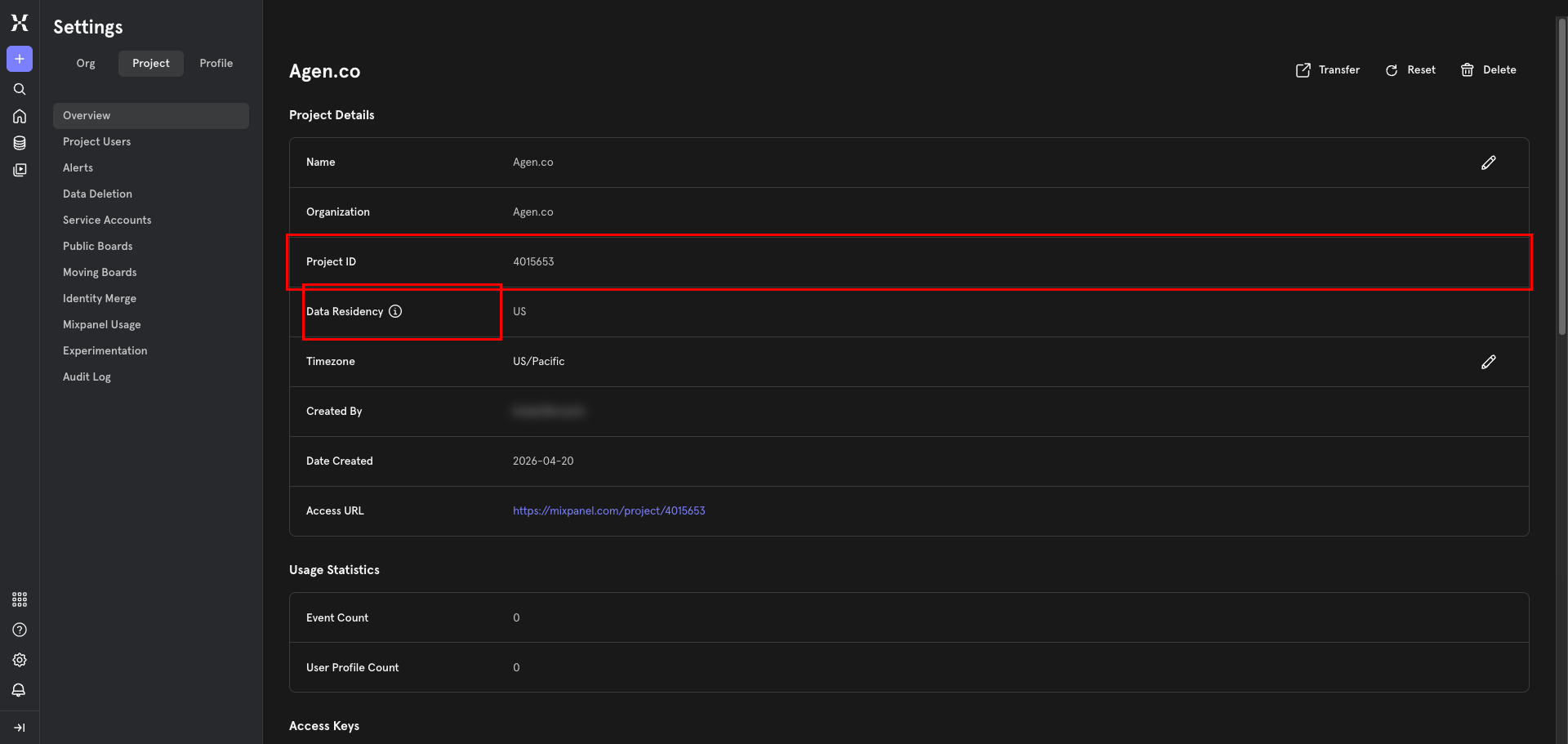
Click the settings gear in the left sidebar and go to Project Settings → Overview. Under Project Details you will see the Project ID (a numeric value) and the Data Residency (US, EU, or India).
- Project ID → paste into the Frontegg Project ID field
- Data Residency → map to the Frontegg Data residency region field:
us,eu, orin(lowercase). If omitted, the connector defaults tous.
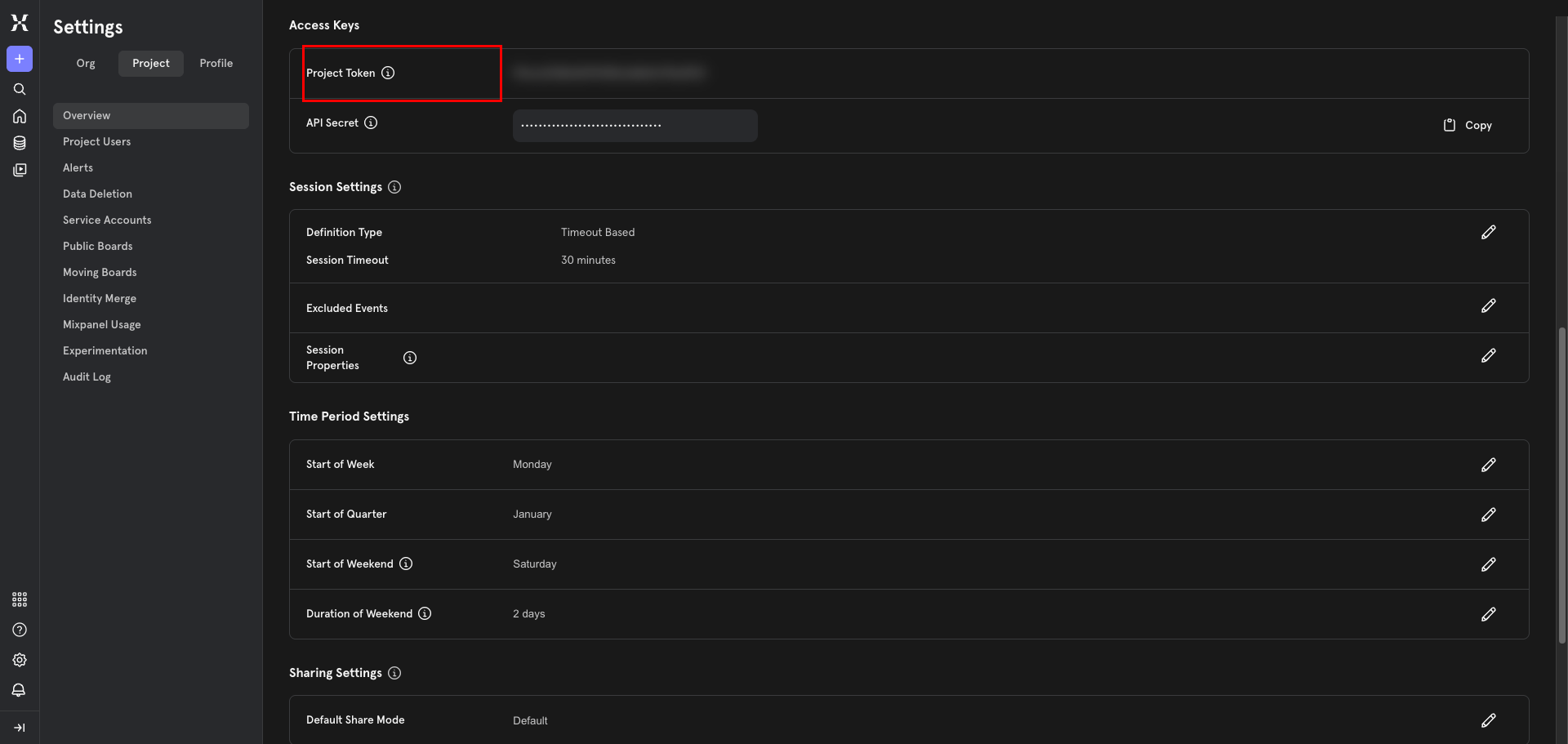
Scroll down to the Access Keys section on the same page. Copy the Project Token — a 32-character hex string.
- Project Token → paste into the Frontegg Project Token field
The Project Token is required for the legacy /track, /engage, and /groups ingestion endpoints, which embed the token inside each request payload.
Once you have collected all five values from the steps above, enter them in the integration configuration page of the Frontegg portal:
- Open the Frontegg portal and navigate to [ENVIRONMENT] → Integrations → Mixpanel.
- Paste the Service Account Secret into the API Key field.
- Paste the Service Account Username into the Service Account Username field.
- Paste your Project ID into the Project ID field.
- Paste your Project Token into the Project Token field.
- Enter the Data residency region (
us,eu, orin). Leave empty to default tous. - Click Save.
Keep your credentials secure
Keep your credentials secure
Never share or commit your Service Account secret or Project Token to version control. Rotate the Service Account from Organization Settings → Service Accounts if you suspect it has been leaked.