Tableau is an analytics and business intelligence platform for visualising data and building dashboards. Integrating Tableau with Frontegg allows your application to manage workbooks, data sources, views, projects, and site users through Tableau's REST API.
The integration authenticates to Tableau Cloud or Tableau Server using a Personal Access Token (PAT) — a long-lived credential that signs in to the REST API on behalf of a Tableau user without storing their password or relying on MFA.
Prerequisites
Prerequisites
- A Tableau Cloud or Tableau Server account on the site you want to integrate
- Personal access tokens must be enabled on the site. A site administrator can enable them under Settings → General → Personal Access Tokens (
Enable personal access tokens)
Sign in to your Tableau site, click your profile avatar (top right) and choose My Account Settings. Scroll down to the Personal Access Tokens section.
Enter a descriptive token name (for example, Frontegg Integration) in the Token Name field, then click Create Token.
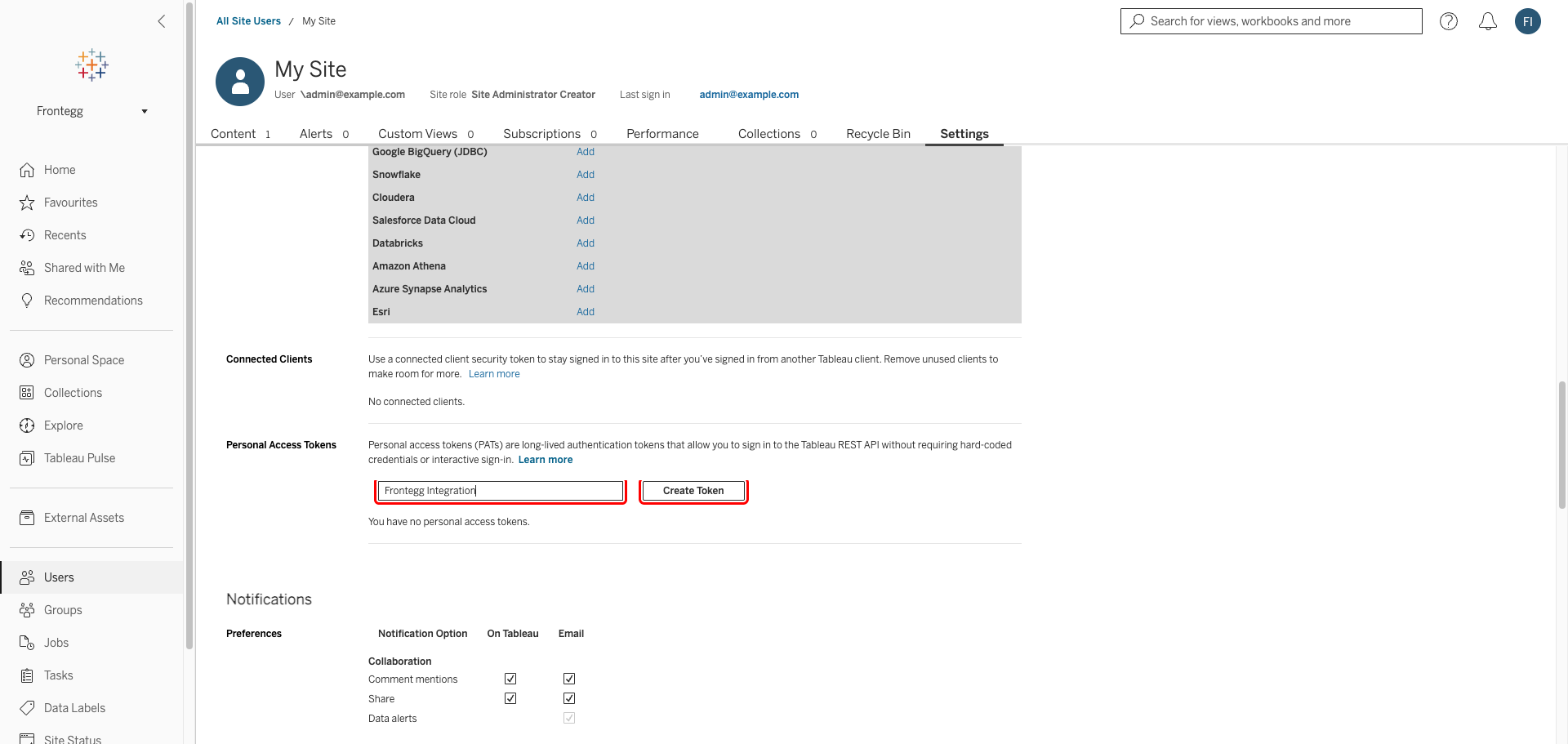
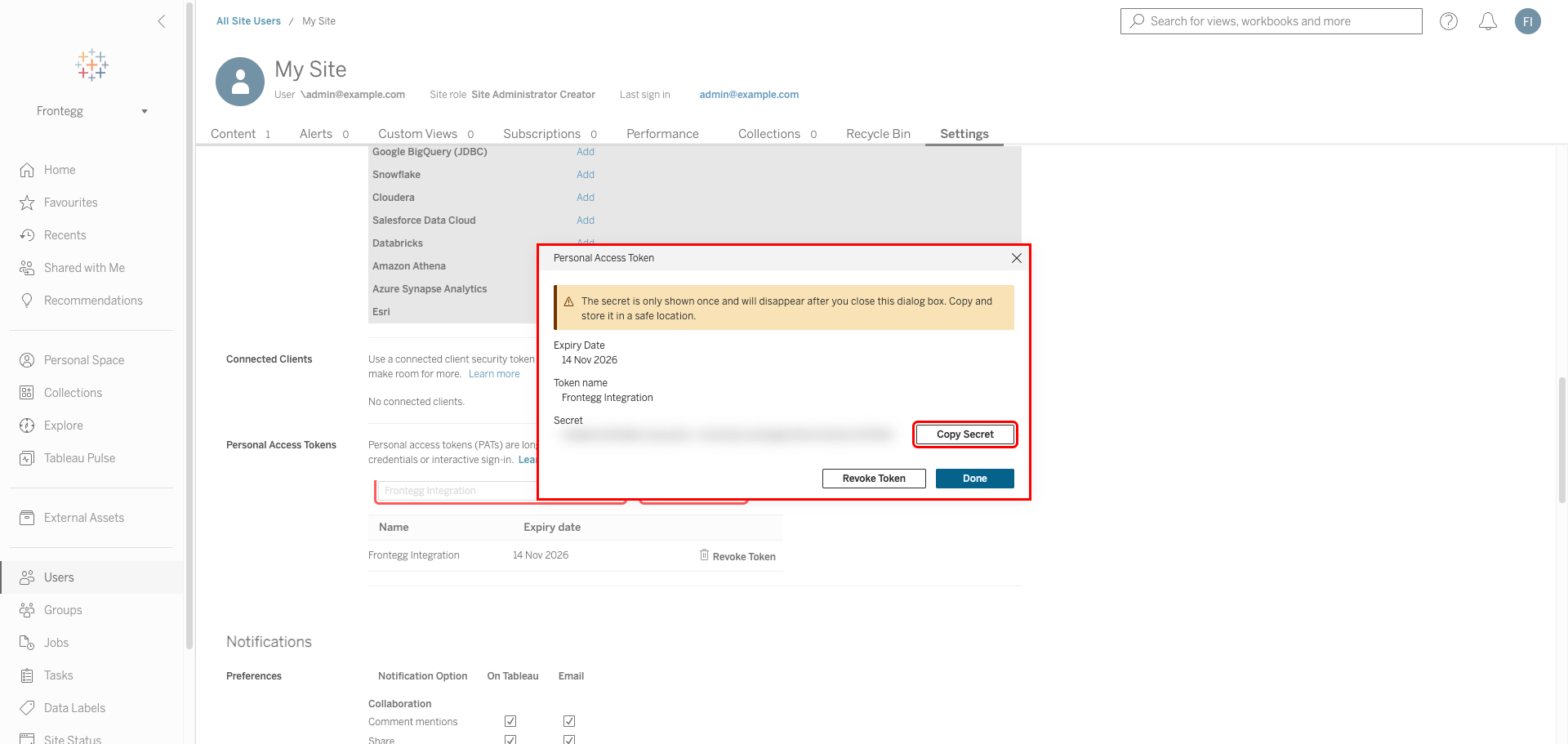
Tableau immediately displays the new token in a dialog with its Token name and Secret. Click Copy Secret to copy the value to your clipboard.
Copy the secret immediately
Copy the secret immediately
The secret is shown only once and cannot be retrieved later. If you lose it, you must revoke the token and create a new one.
Frontegg also needs two values that come from your Tableau site URL.
After signing in, your browser address bar shows a URL like:
https://10ax.online.tableau.com/#/site/mysite/homeFrom that URL, extract:
| Value | Where it comes from | Example |
|---|---|---|
| Base URL | The pod hostname followed by /api/3.24 | https://10ax.online.tableau.com/api/3.24 |
| Site Content URL | The site identifier (after /site/, before the next /) | mysite |
Tableau Server
Tableau Server
On a self-hosted Tableau Server, the Base URL is your server hostname followed by /api/3.24 (for example, https://tableau.mycompany.com/api/3.24). The Site Content URL follows the same pattern.
Once you have collected the values from the steps above, enter them in the integration configuration page of the Frontegg portal:
- Open the Frontegg portal and navigate to [ENVIRONMENT] → Integrations → Tableau.
- Fill in the Connector credentials form:
- API Key — paste the Secret you copied in Step 2
- Base URL — your Tableau server URL with the
/api/3.24suffix (Step 3) - Site Content URL — your Tableau site identifier (Step 3)
- Click Save.
Keep your token secret safe
Keep your token secret safe
The PAT secret grants API access on behalf of your Tableau user. Never share or commit it to version control. Revoke tokens you no longer use from My Account Settings → Personal Access Tokens.