Calendly is a scheduling platform that lets people book meetings from shared availability, event types, and scheduling links.
It can be connected to Agen.co two ways, matching the Official / In-house filter in the connector picker:
- Official — Agen.co connects through Calendly's own hosted MCP server. Each user authorizes with their own Calendly account, and no app needs to be created in the Calendly Developer Console.
- In-house — Agen.co wraps the Calendly REST API directly through its own integration layer, using an OAuth app you create in the Calendly Developer Console, with the scopes you choose.
Pick Official for the broader tool set, including availability, scheduling links, and routing forms. Fall back to In-house if your agents need webhook subscriptions, or if you want your own OAuth app.
Prerequisites
Prerequisites
- A Calendly account. No app needs to be created in the Calendly Developer Console — the MCP server registers Agen.co as a client automatically, so there is no Client ID or Client Secret to copy.
In the Agen.co portal, go to Connectors → My connectors and click Add connector.
In the Select connector drawer, search for
Calendlyand select it. The Add Calendly panel opens with Official selected at the top.Fill in the field:
Field Required Description Instance Slug Yes Prefixes each imported tool as slug__tool, so several instances of the connector can coexist. Prefilled withcalendly. Use lowercase kebab-case, at most 11 characters: each tool name, including theslug__prefix, is limited to 64 characters, and the longest Calendly tool name is 51. A longer slug makes Add fail withTool name ... exceeds 64 characters. Use a shorter instance id (slug).You can change it later from the connector's settings.Click Connect. Calendly opens in a new tab, and the panel shows Waiting for authorization — complete it in the opened tab…
In the Calendly tab, on the Connect MCP OAuth Client to Calendly screen, click Approve. Agen.co requests the
mcp:scheduling:readandmcp:scheduling:writescopes. If you weren't logged in to Calendly, it asks you to log in first and may then open the Calendly app instead of the consent screen. In that case, close the tab, click Cancel in the waiting panel, and click Connect again.Back in Agen.co, the panel switches to Select the tools to import from Calendly. Every tool is toggled on; turn off any you don't want to import, then click Add.
The connector is created and its tools imported only when you click Add. If you close the panel before that, nothing is saved, even though the Calendly tab reported success.
Adding the connector doesn't authorize anyone's tool calls yet. The first time each user's agent calls a Calendly tool, the call returns an authorization link instead of a result. The user opens the link and clicks Approve on Calendly's consent screen. If Calendly opens its app after the login instead, the user opens the link again. After that, the user's tool calls run with their own Calendly account.
Once connected, Calendly appears under My connectors with tools spanning:
| Area | What it covers |
|---|---|
| Event types | Listing, reading, creating, and updating event types, their available times, and their availability schedules |
| Availability | Reading the user's availability schedules and busy times, and listing meeting locations |
| Meetings | Listing, reading, and canceling scheduled events, reading invitees, creating bookings, and managing no-shows |
| Scheduling links | Creating single-use scheduling links and customized shares |
| Routing forms | Listing and reading routing forms and their submissions |
| Users and organization | Reading users, the organization, and its memberships, and creating or revoking invitations |
| Skills | Listing and loading Calendly skills |
Some tools, such as routing forms and creating bookings, return an error if the Calendly account doesn't include that feature. The Official server has no webhook tools — use the In-house tab if your agents need to manage webhook subscriptions.
Enabling the Calendly connector isn't enough on its own. Tool calls remain denied until you create a policy that grants access to the specific tools you want to expose.
Integrating Calendly with Frontegg allows your application to authenticate users via OAuth 2.0 and interact with their Calendly accounts — reading event types, listing scheduled events, managing invitees, and creating webhook subscriptions on their behalf.
Prerequisites
Prerequisites
- A Calendly account
- Access to the Calendly Developer Console
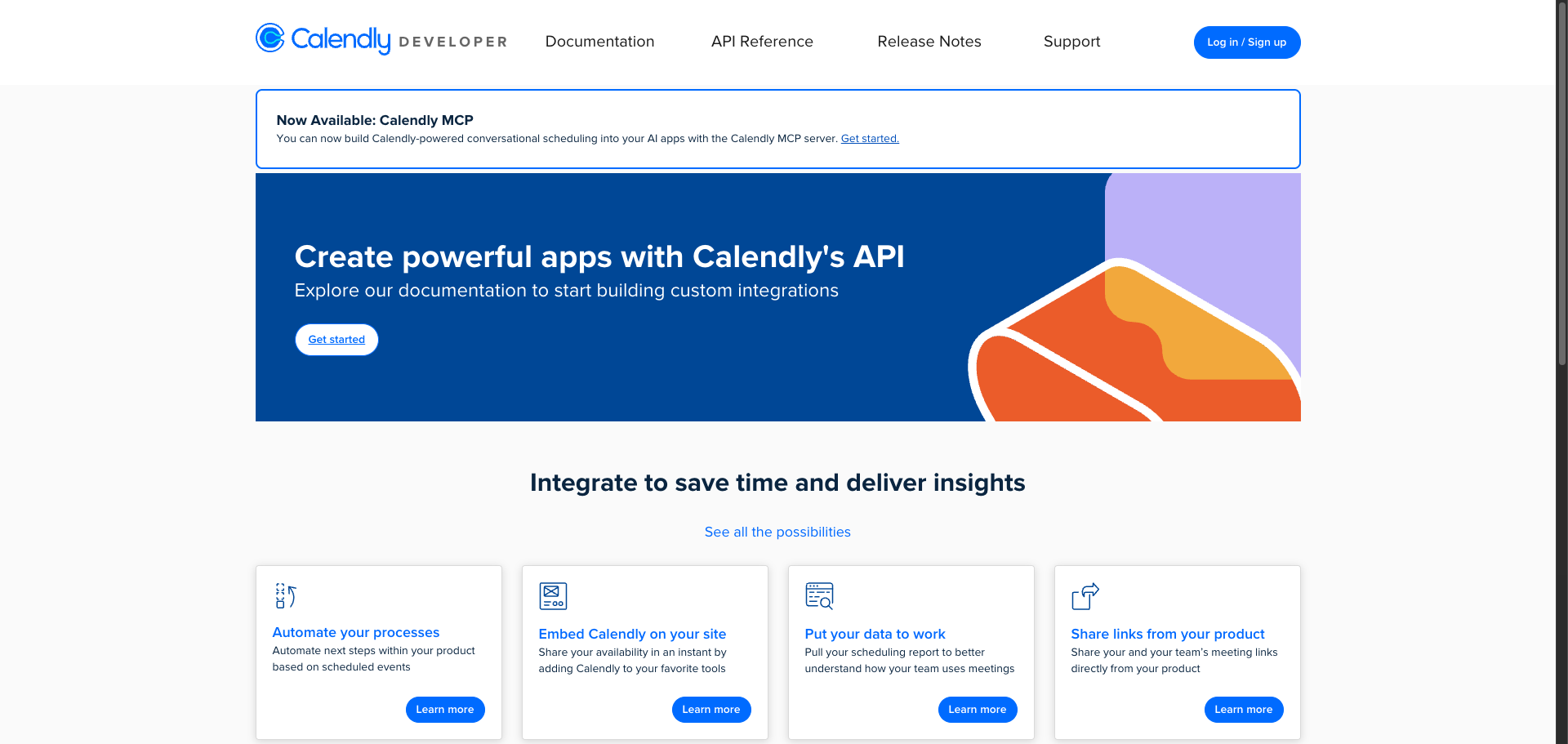
Navigate to developer.calendly.com. Click Log in / Sign up in the top navigation bar.
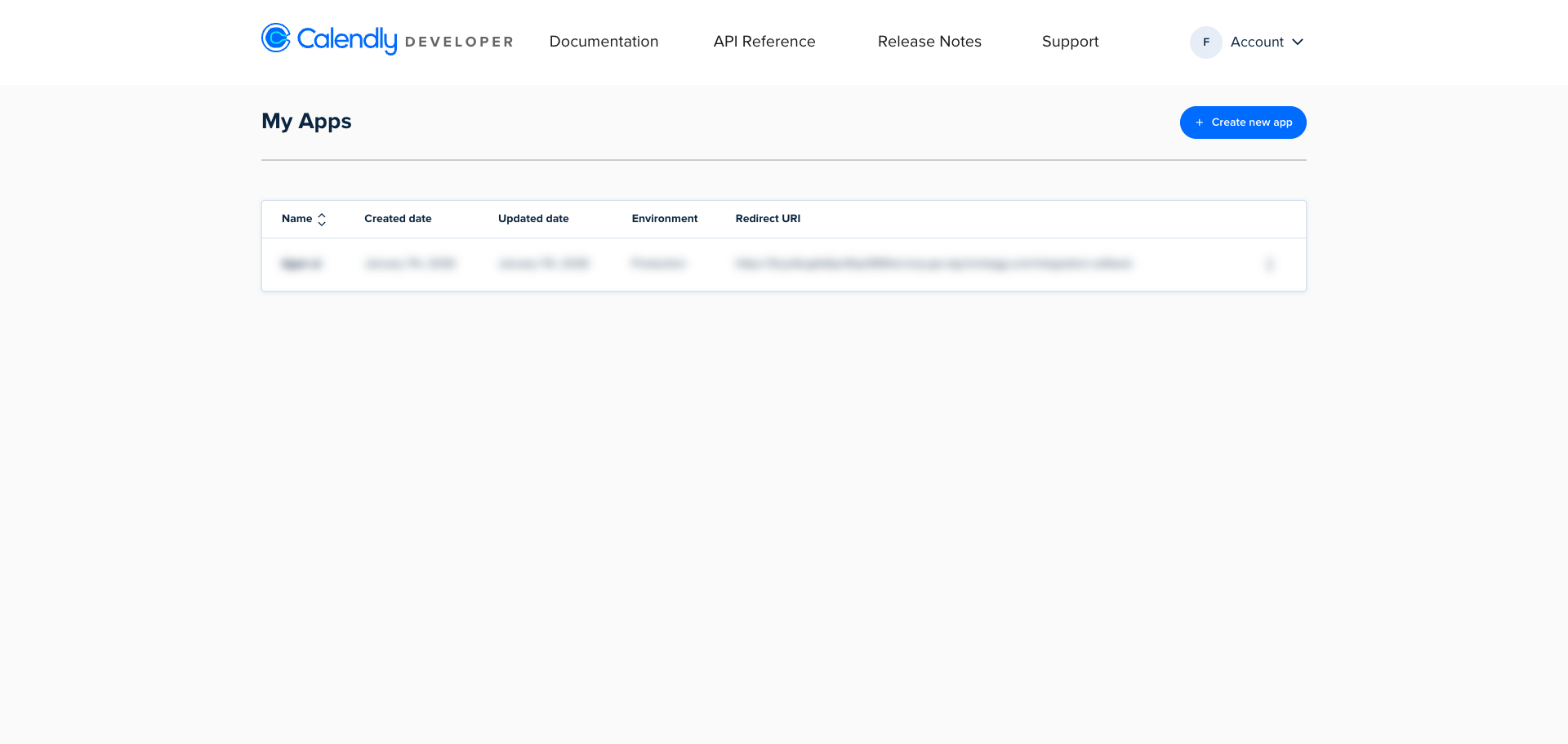
After signing in, you are redirected to the My Apps page at developer.calendly.com/console/apps. This page lists all your existing OAuth applications.
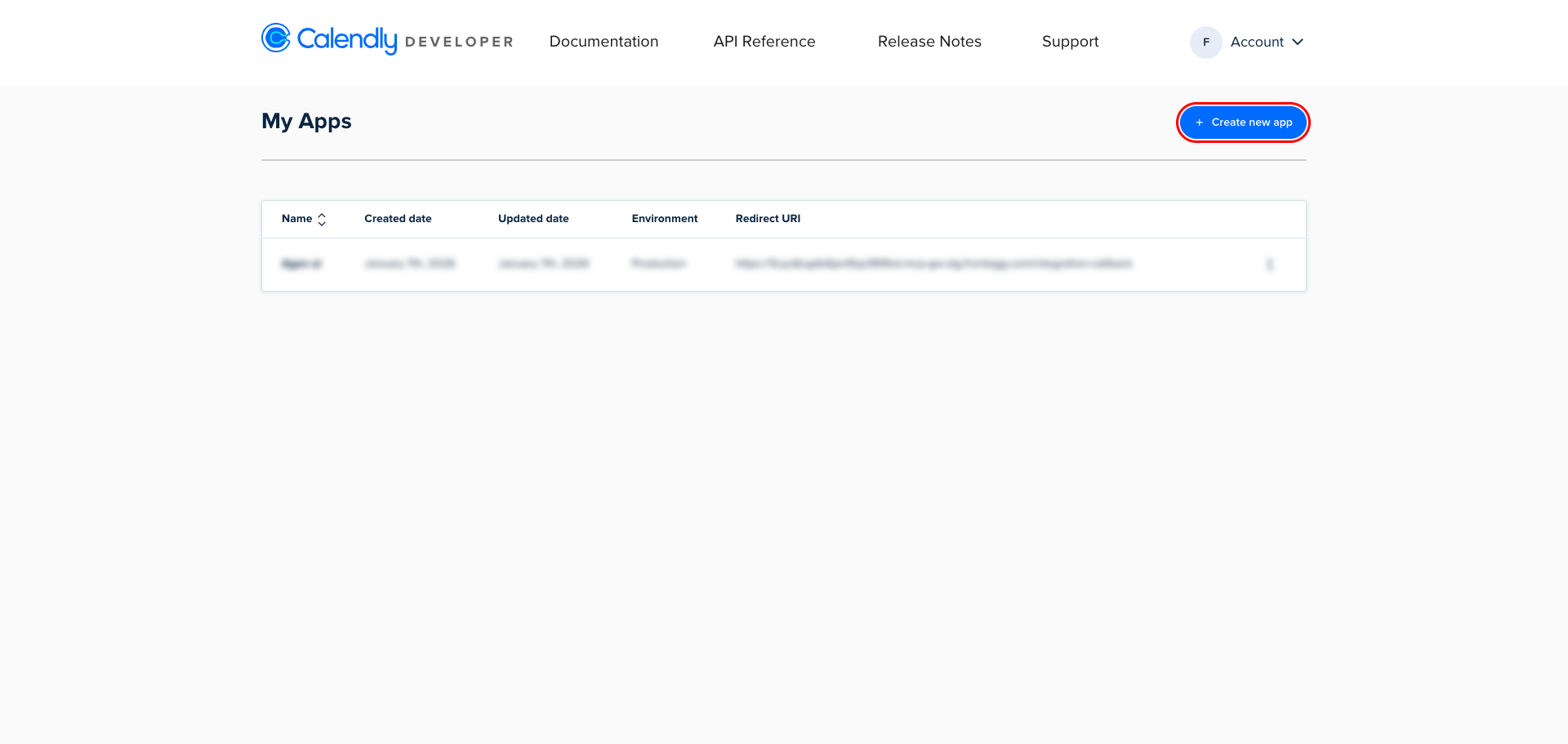
Click Create new app.
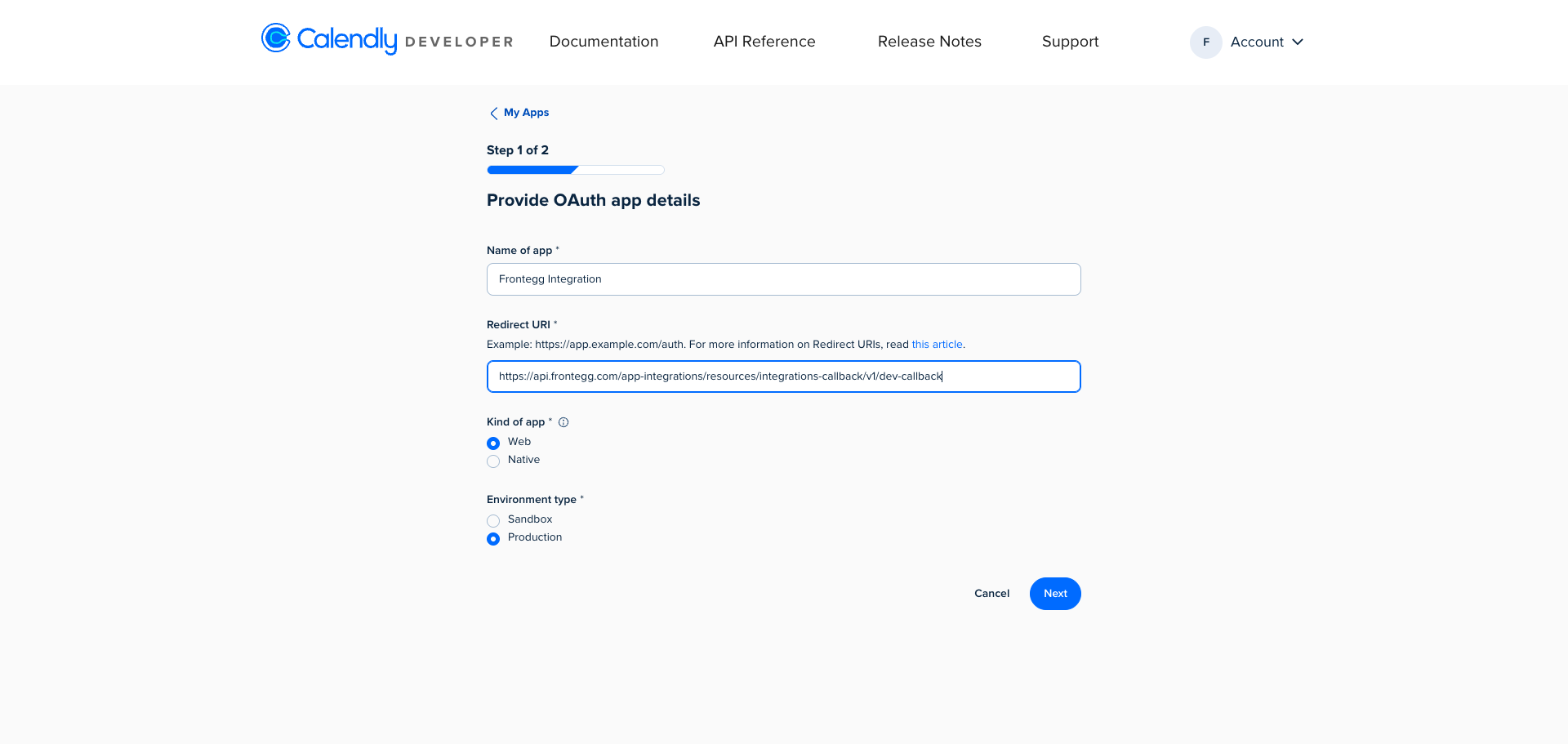
On the Provide OAuth app details form (Step 1 of 2), fill in the following fields:
- Name of app: Enter a name (for example,
Frontegg Integration). - Redirect URI: Enter the following URI:
https://YOUR_MCP_GATEWAY_URL/integration-callback - Kind of app: Select Web.
- Environment type: Select Production.
Click Next.
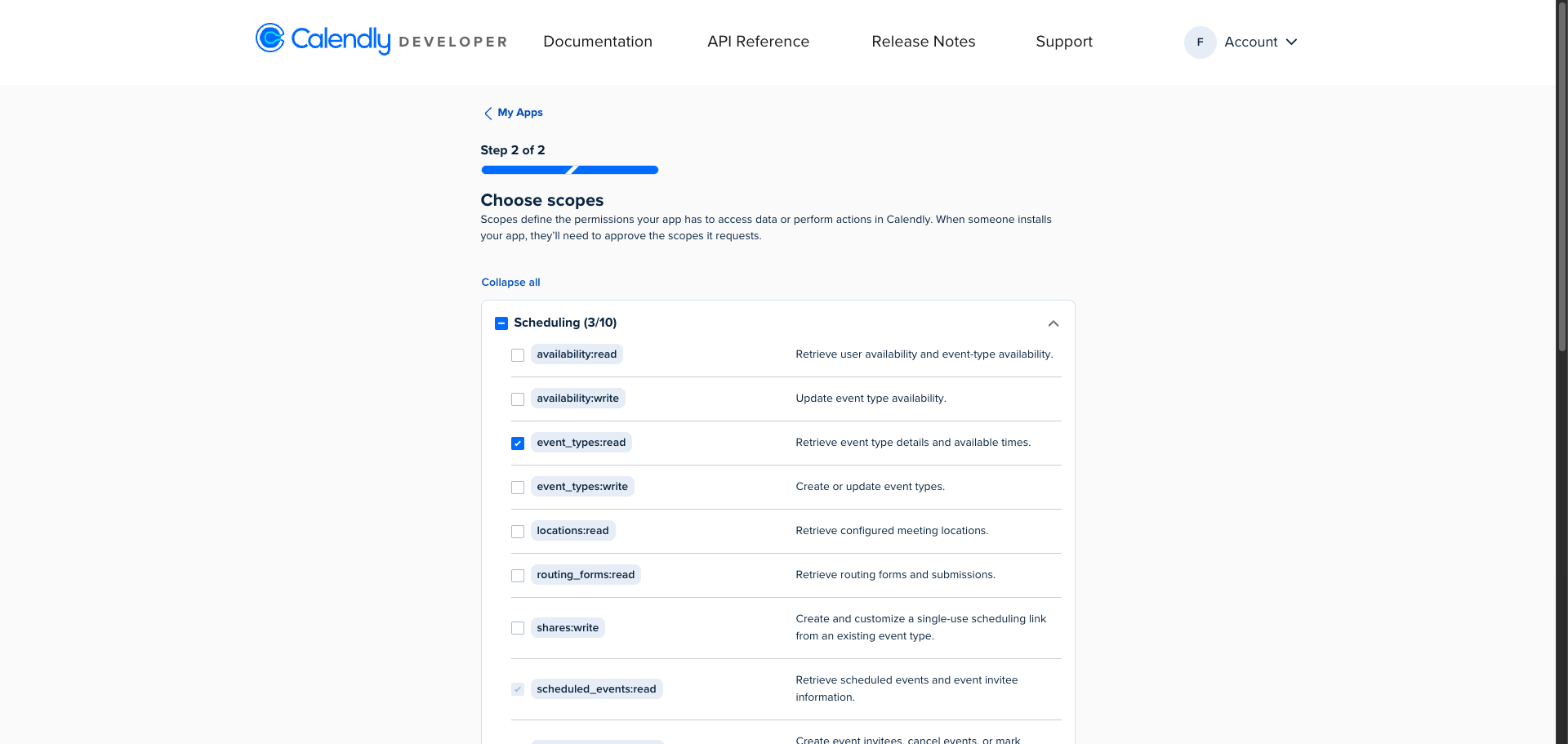
On the Choose scopes step (Step 2 of 2), you see scopes grouped by category. Each scope controls what your app can access in the user's Calendly account.
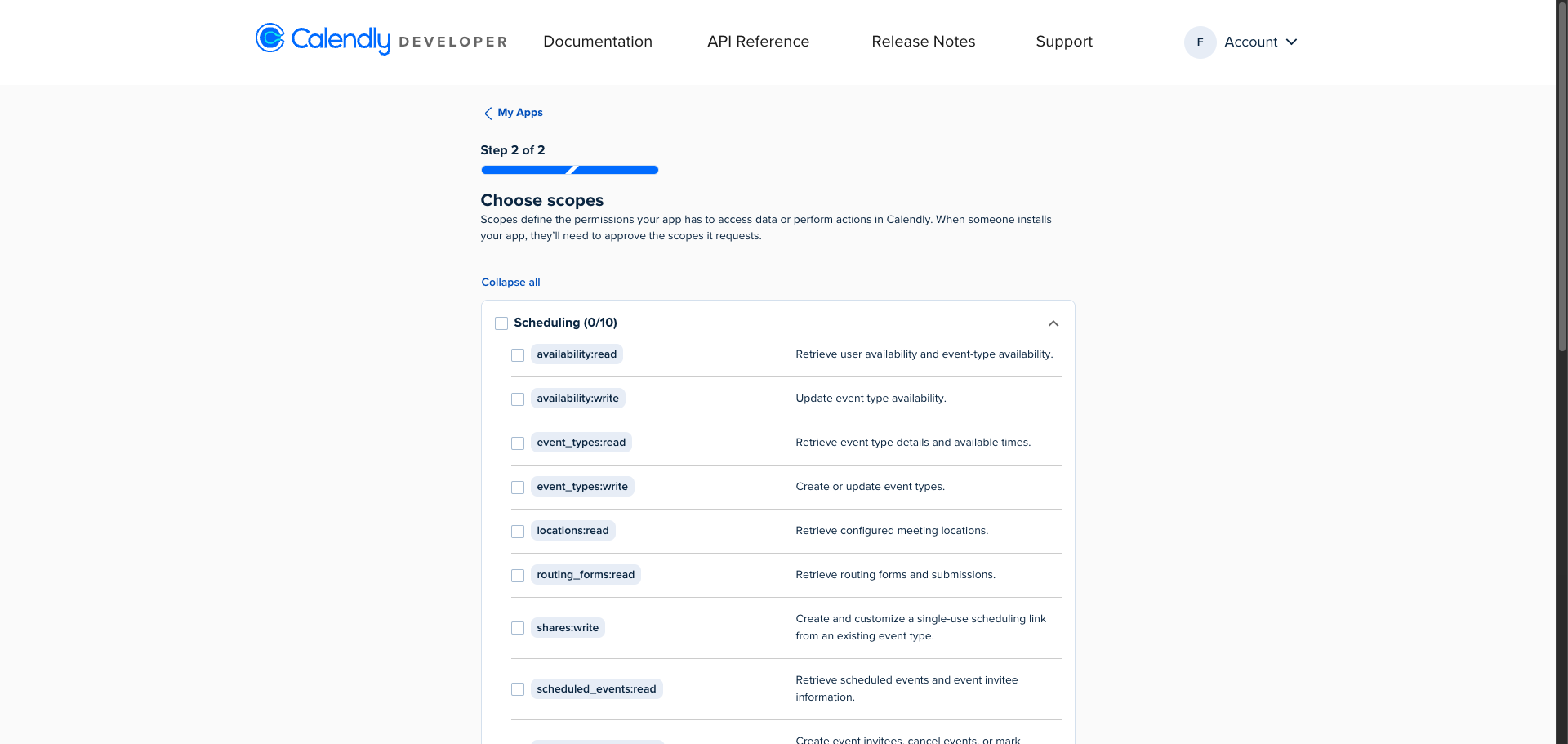
Enable the following scopes for the Frontegg integration:
| Scope | Description |
|---|---|
event_types:read | Retrieve event type details and available times |
scheduled_events:read | Retrieve scheduled events and event invitee information |
scheduled_events:write | Create event invitees, cancel events, or mark invitees as no-show |
users:read | Retrieve user information |
webhooks:read | Retrieve webhook subscriptions and sample payloads |
webhooks:write | Create or delete webhook subscriptions |
Click Create.
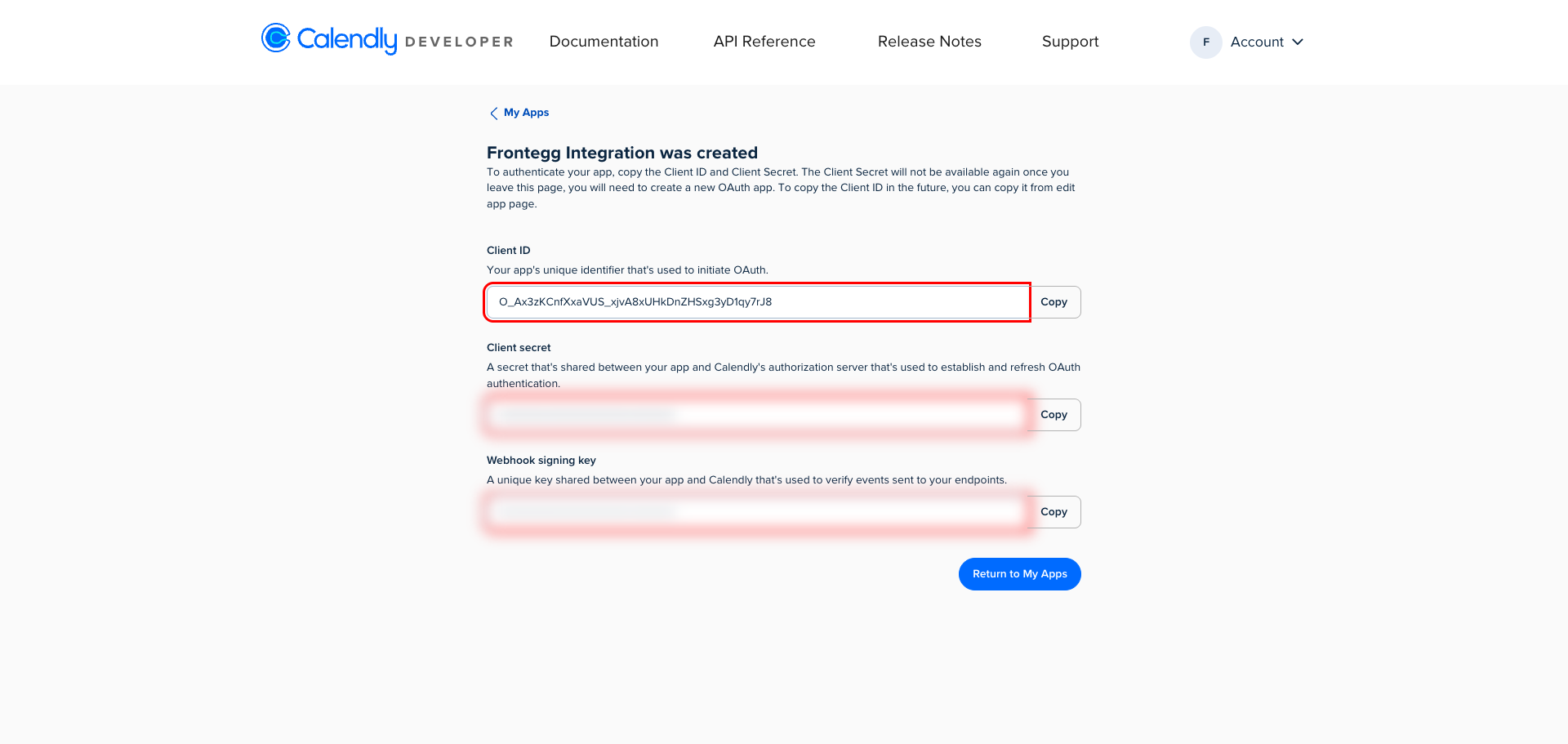
After the app is created, you land on the credentials page. Copy the Client ID and Client Secret for use in the Frontegg portal.
Keep your credentials secure
Keep your credentials secure
The Client Secret is shown only once. Store it immediately in a secure location. Never share or commit it to version control.
Once you have your Client ID and Client Secret, configure the integration in the Frontegg portal:
- Open the Frontegg portal and navigate to [ENVIRONMENT] → Integrations → Calendly.
- Enter the Client ID and Client Secret in the corresponding fields.
- Select the required scopes.
- Click Save.