Pipedrive is a sales-focused CRM platform that helps teams manage deals, contacts, activities, and pipelines. Integrating Pipedrive with Frontegg allows your application to read and write CRM data — including deals, contacts, organizations, and activities — on behalf of your users through OAuth 2.0 authentication.
Prerequisites
Prerequisites
- A Pipedrive account with admin access
- Access to the Pipedrive Developer Hub
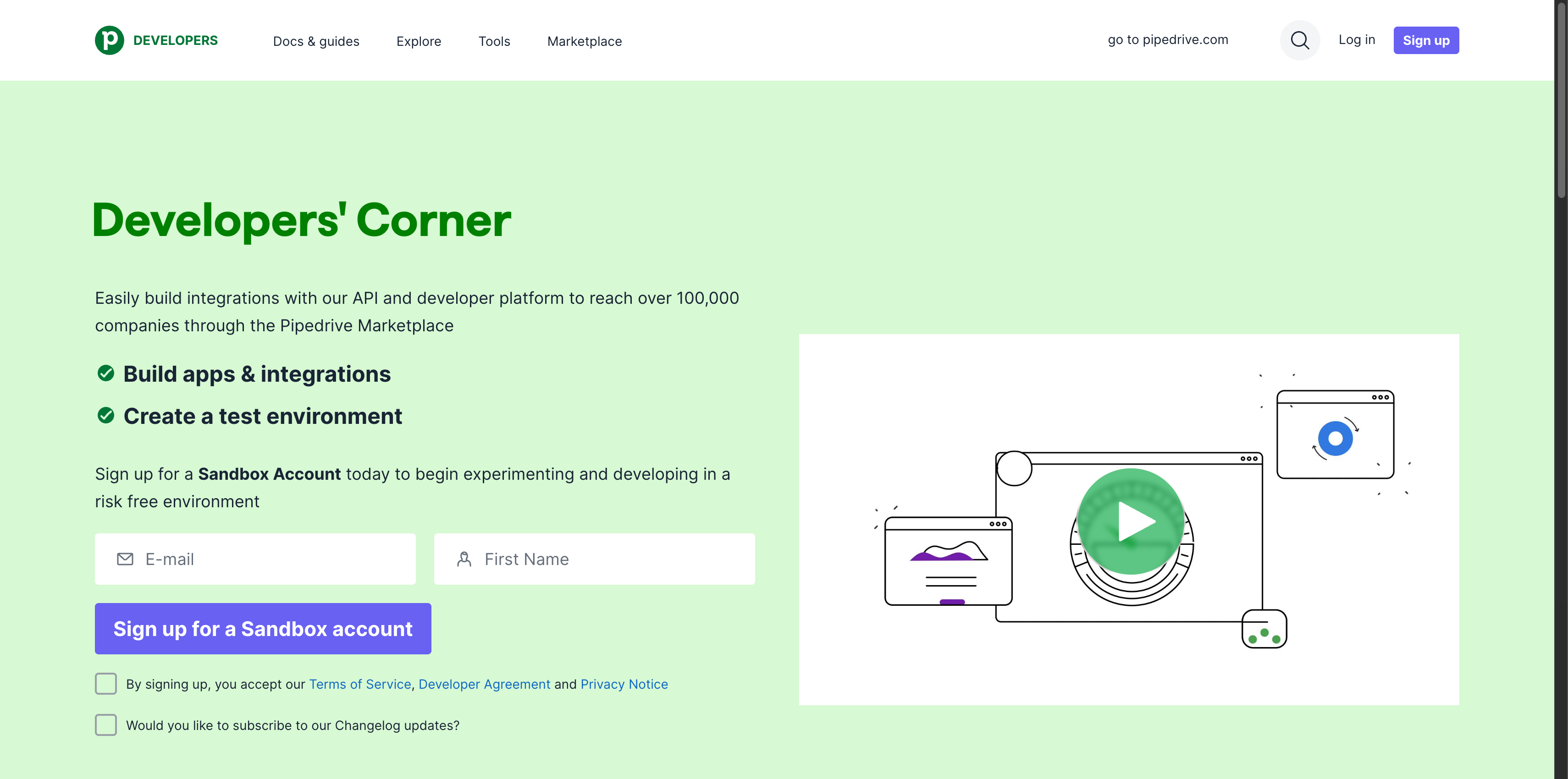
Navigate to developers.pipedrive.com to access Pipedrive's developer resources.
Log in to your Pipedrive account at app.pipedrive.com, then navigate to Developer Hub in your account settings. You can also access it directly at app.pipedrive.com/developer-hub. This page lists all your existing apps and provides tools to create new ones.
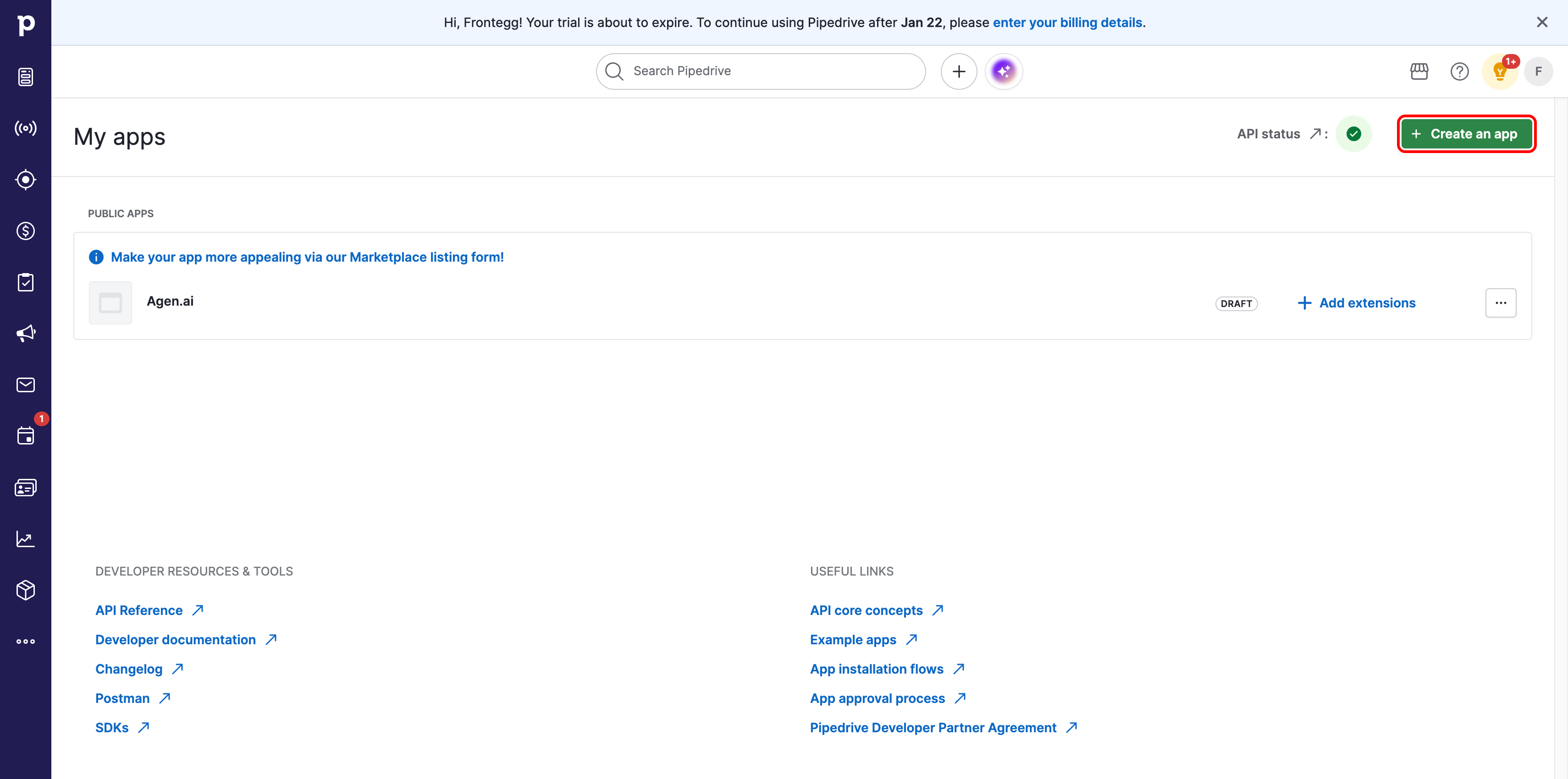
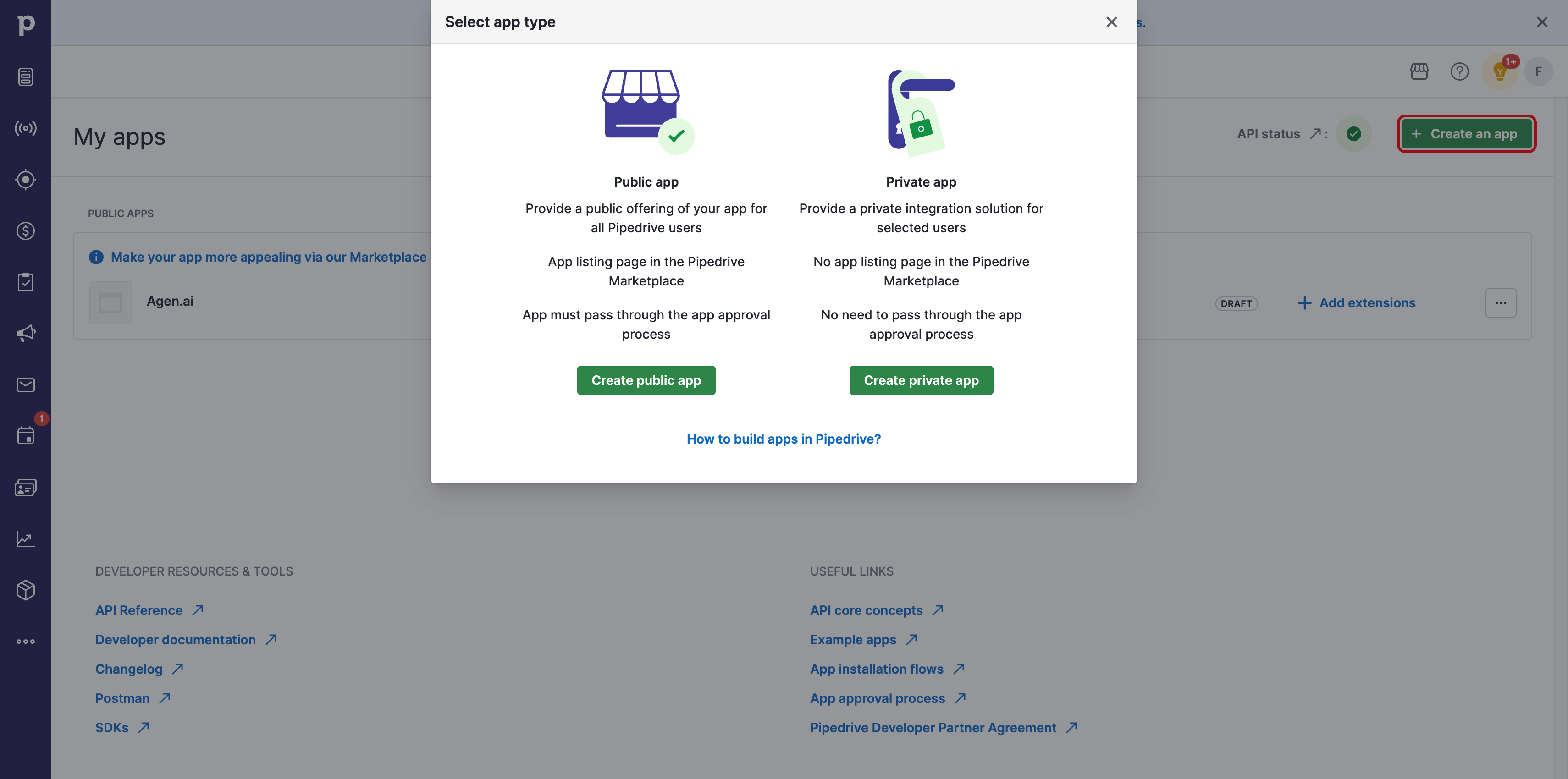
Click Create an app. In the dialog that appears, select Create public app to create an OAuth app that can be installed by any Pipedrive user.
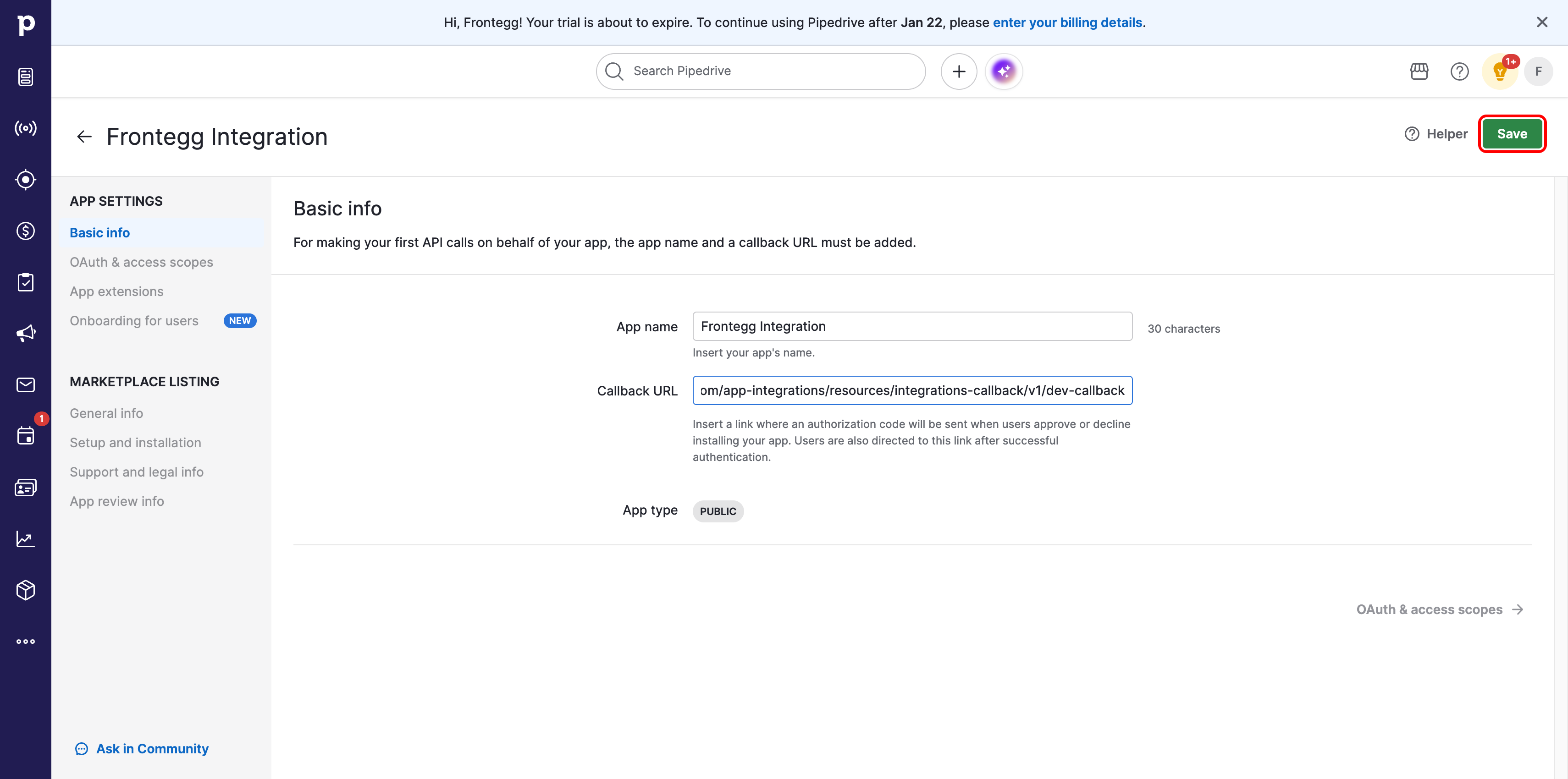
On the Basic info page, enter the following details:
- App name — Enter a name for your application, for example
Frontegg Integration. - Callback URL — Enter the Frontegg redirect URI:
https://YOUR_MCP_GATEWAY_URL/integration-callbackClick Save to proceed to the OAuth & access scopes configuration.
After saving, Pipedrive automatically navigates to the OAuth & access scopes section. Enable the scopes your integration requires by toggling them on and selecting the appropriate access level (Read only or Full access):
| Scope | Description |
|---|---|
base | Basic access to Pipedrive (enabled by default) |
deals:full | Full access to deals |
contacts:full | Full access to contacts (persons and organizations) |
activities:full | Full access to activities |
mail:full | Full access to mail |
products:full | Full access to products |
users:read | Read access to users |
Minimum required scopes
Minimum required scopes
For basic CRM functionality, you need: base, deals:read, contacts:read, activities:read.
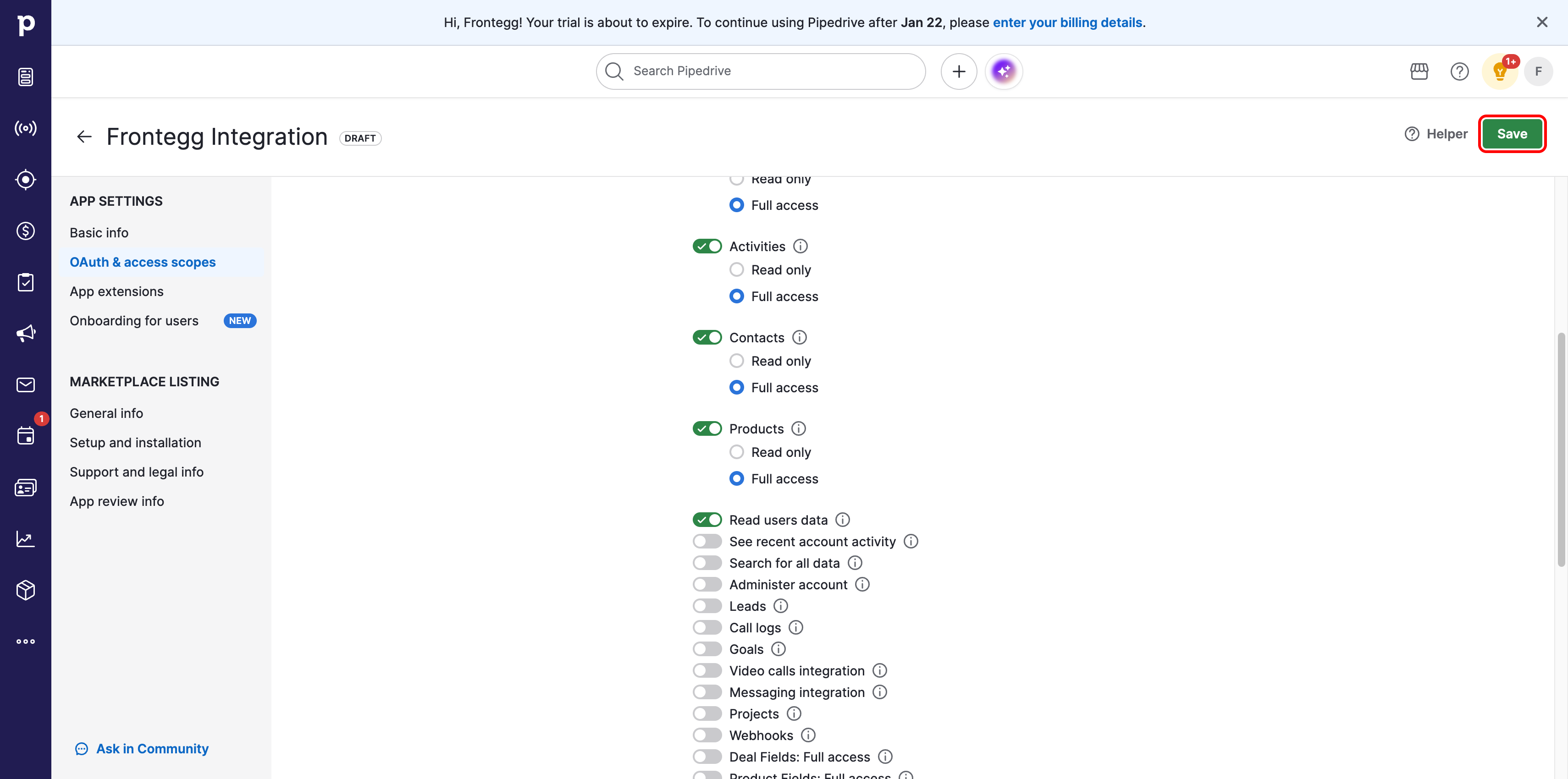
After configuring the scopes, click Save. Scroll down to the Client ID and Client secret fields:
- Client ID — Your app's unique identifier used to initiate OAuth flows.
- Client secret — Click Show to reveal the secret. Used to exchange authorization codes for access tokens.
Copy both values and store them securely.
Keep your credentials secure
Keep your credentials secure
Never share or commit your Client secret to version control.
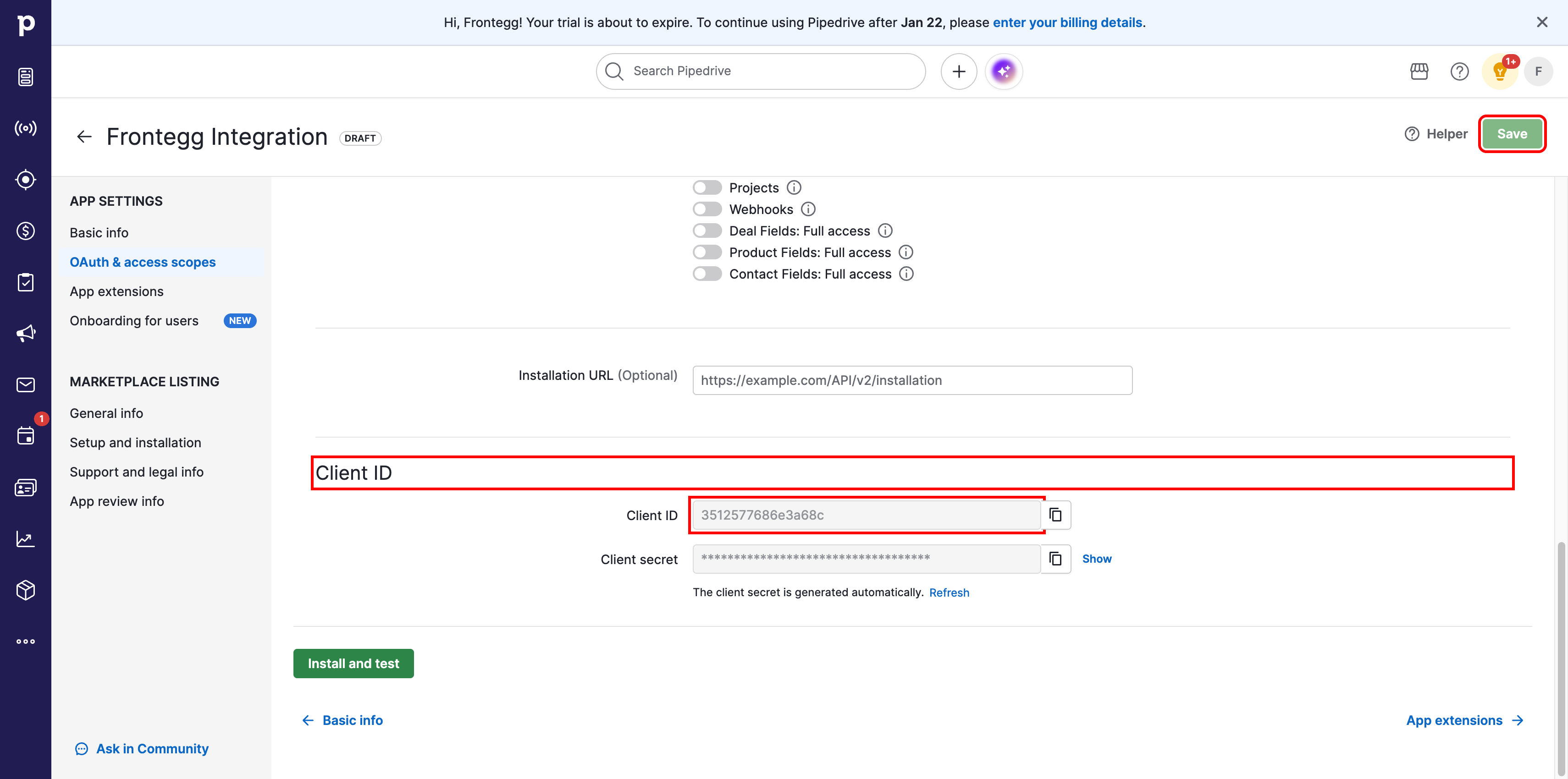
Once you have obtained your Client ID and Client secret from the steps above, enter them in the integration configuration page of the Frontegg portal:
- Open the Frontegg portal and navigate to [ENVIRONMENT] → Integrations → Pipedrive.
- Enter the Client ID and Client secret in the corresponding fields.
- Select the required scopes.
- Click Save.