Zoho CRM is a cloud-based sales and customer relationship management platform that helps teams manage leads, contacts, accounts, and deals. Integrating Zoho CRM with Frontegg allows your application to read and write CRM data — including leads, contacts, and deals — on behalf of your users through OAuth 2.0 authentication.
Prerequisites
Prerequisites
- A Zoho CRM account with admin access
- Access to the Zoho API Console
Navigate to api-console.zoho.eu and sign in with your Zoho account.
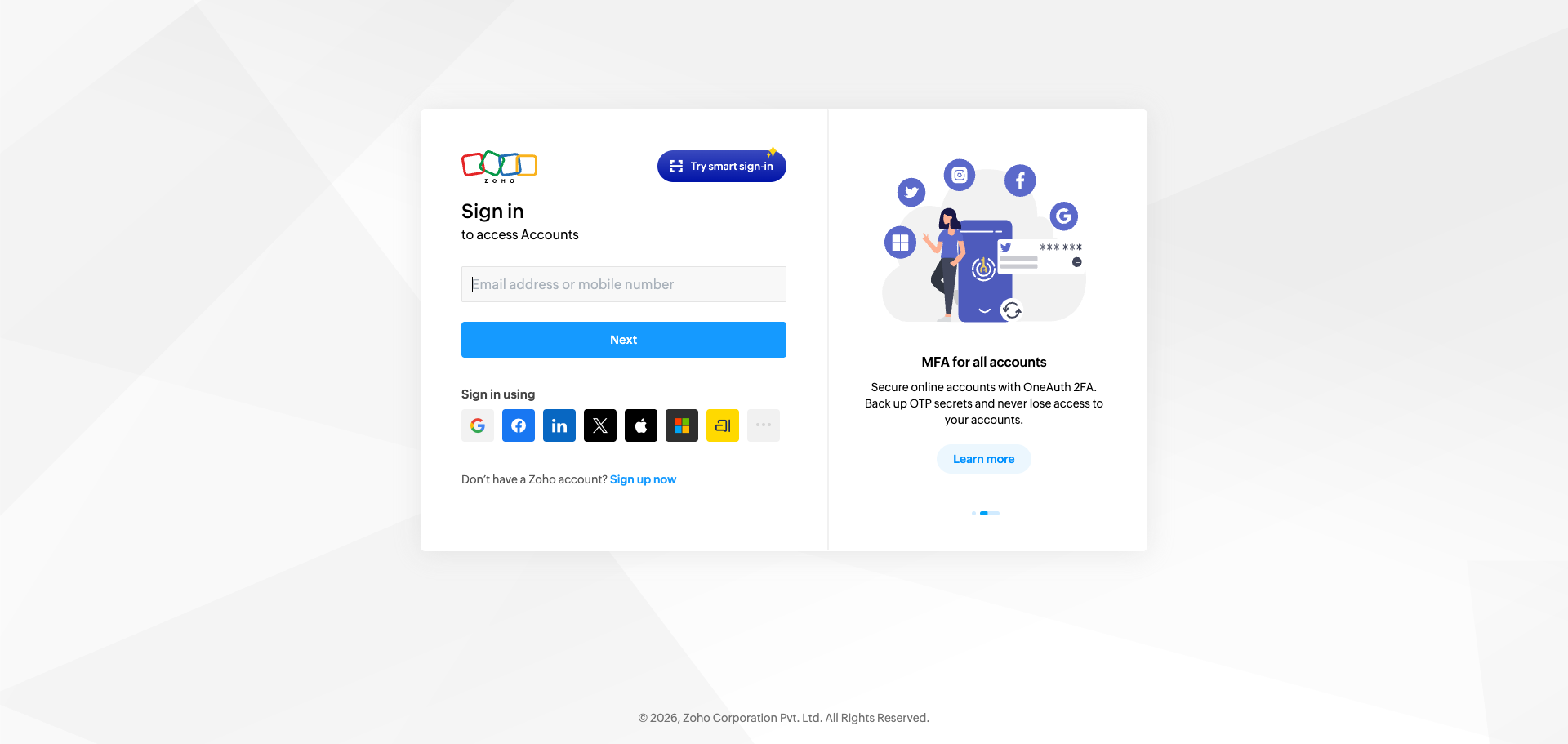
After signing in, you will land on the API Console page, which lists all your existing OAuth applications. Click ADD CLIENT in the top-right corner to create a new application.
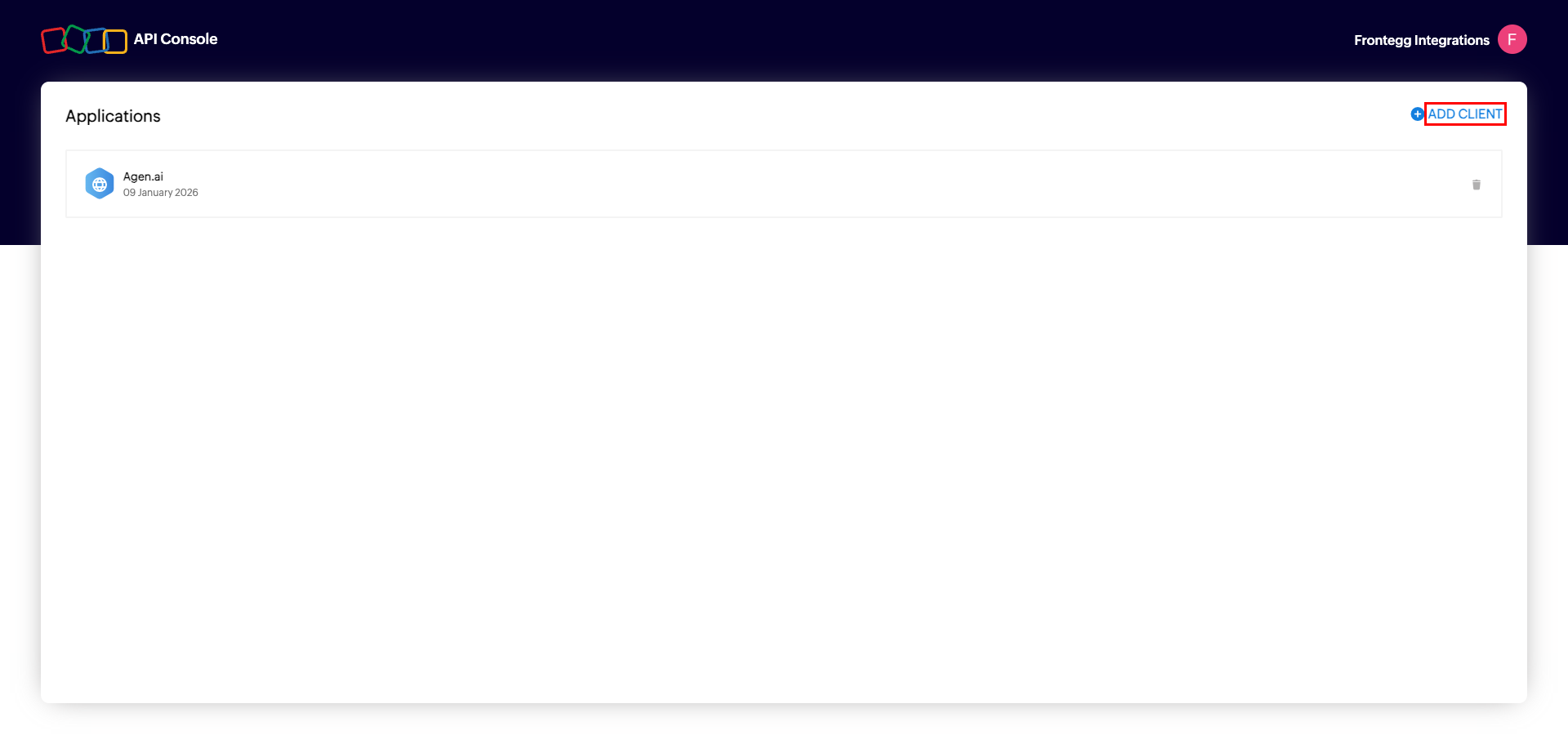
In the Choose a Client Type dialog, select Server-based Applications. This type is required for server-side OAuth flows used by the Frontegg integration.
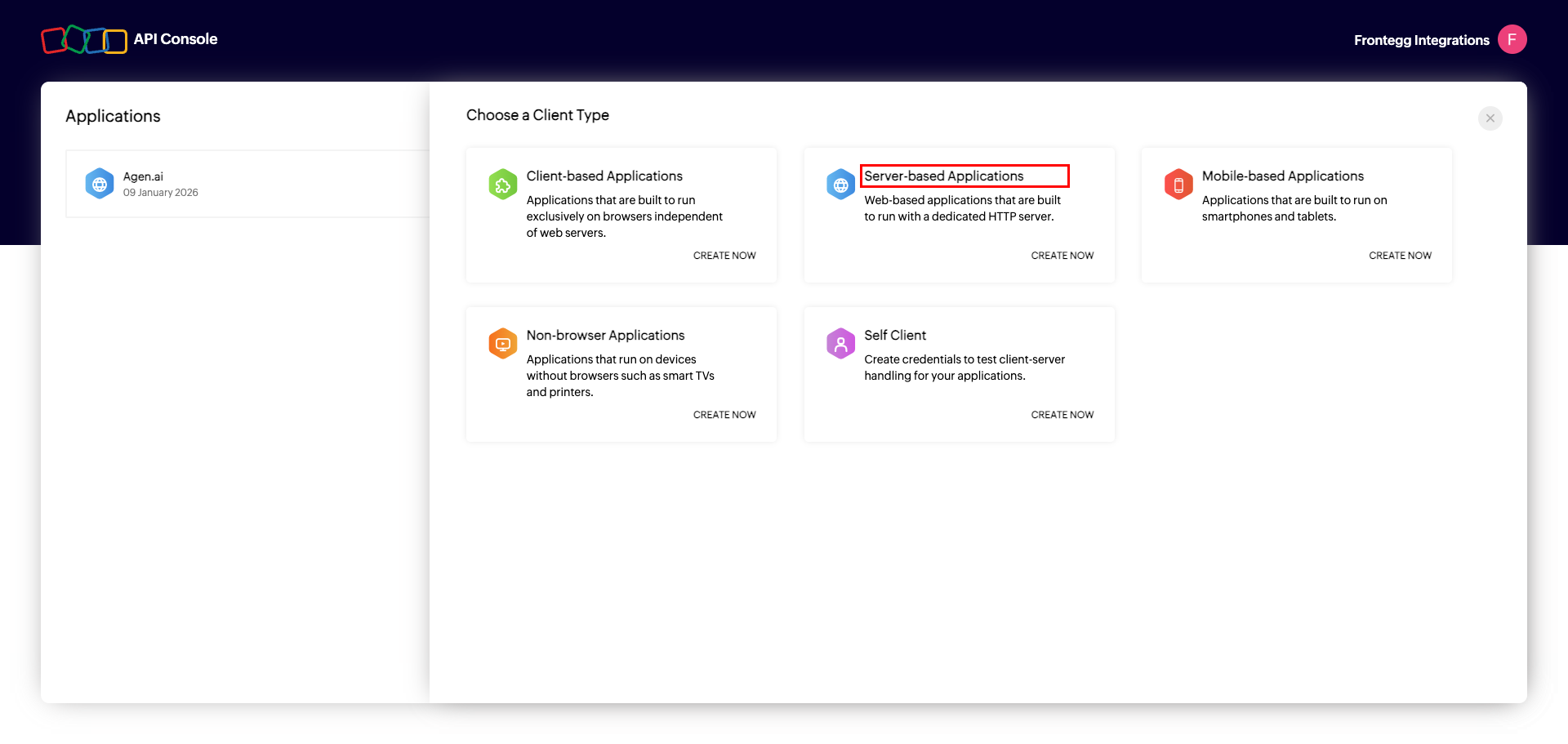
On the Create New Client form, enter the following:
- Client Name — Enter a name for your application, for example
Frontegg Integration. - Homepage URL — Enter your application's homepage URL.
- Authorized Redirect URIs — Enter the Frontegg redirect URI:
https://YOUR_MCP_GATEWAY_URL/integration-callbackClick CREATE to continue.
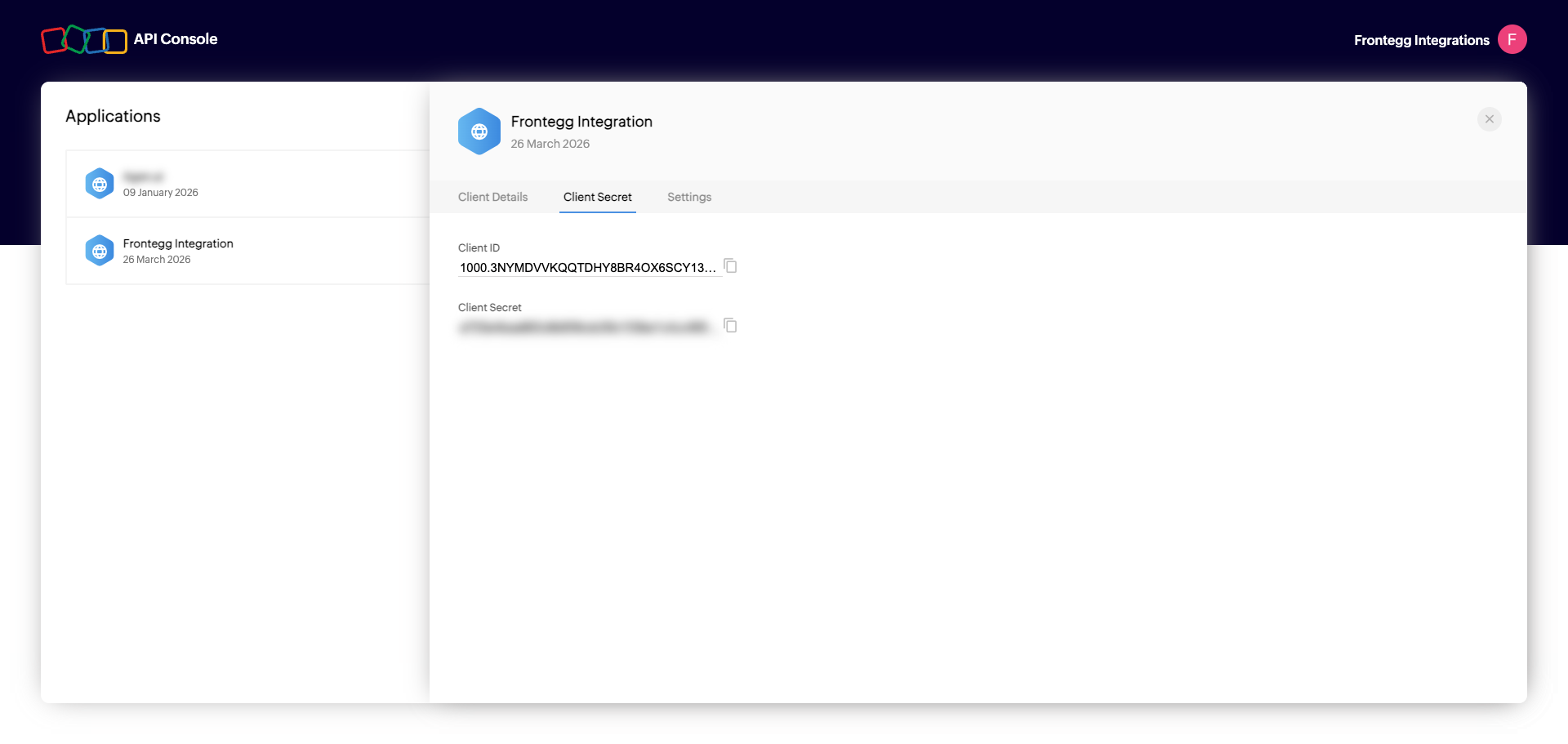
After the app is created, Zoho opens the Client Secret tab showing your credentials:
- Client ID — Your app's unique identifier used to initiate OAuth flows.
- Client Secret — Used to exchange authorization codes for access tokens. Keep this value secure.
Copy both values and store them securely.
Keep your credentials secure
Keep your credentials secure
Never share or commit your Client Secret to version control.
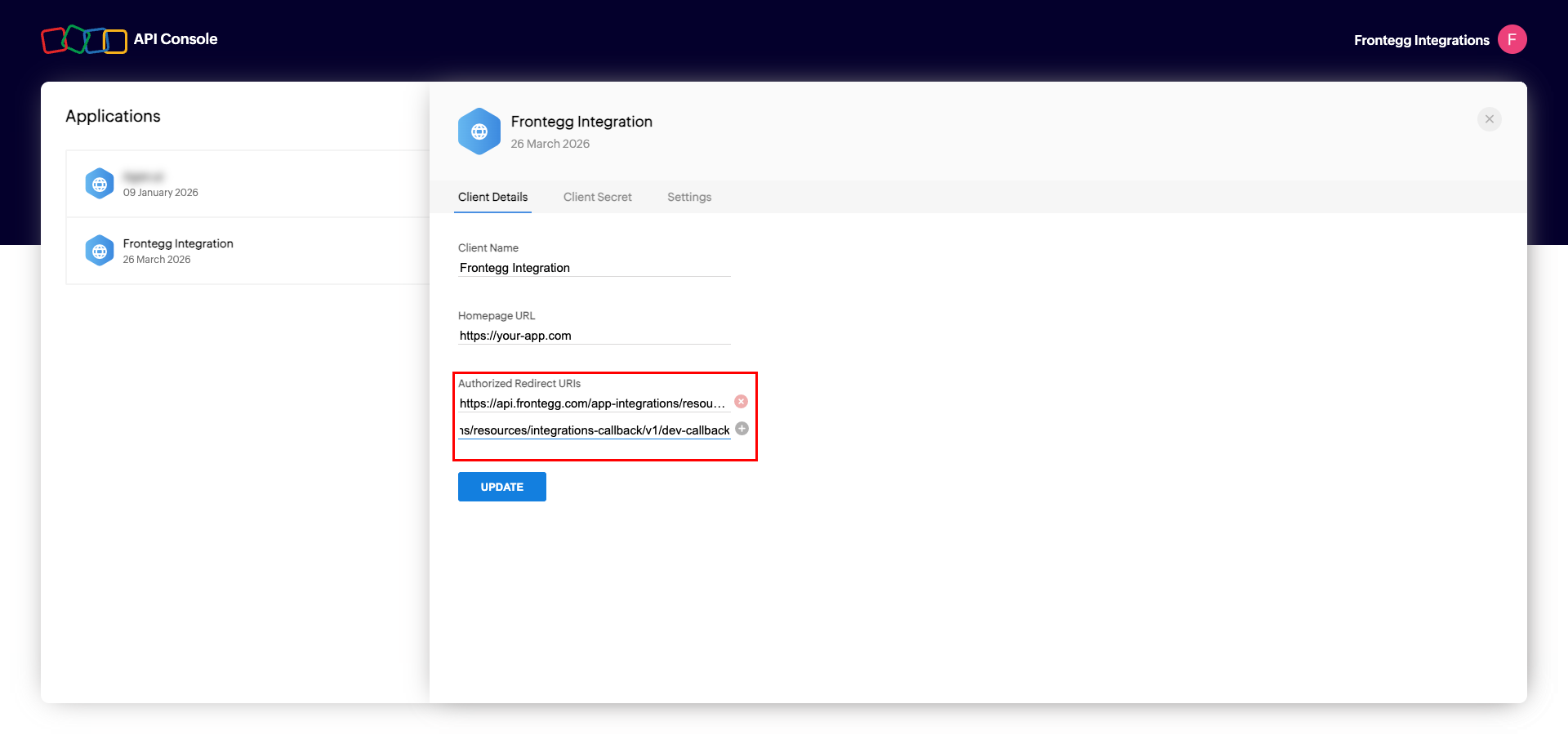
Click the Client Details tab. Under Authorized Redirect URIs, confirm the Frontegg callback URL is present:
https://YOUR_MCP_GATEWAY_URL/integration-callback
Click UPDATE to save.
Zoho CRM scopes are requested at authorization time rather than configured in the API Console. When configuring the Frontegg integration, select the scopes your application requires:
| Scope | Description |
|---|---|
ZohoCRM.modules.ALL | Full access to all CRM modules |
ZohoCRM.modules.READ | Read access to CRM modules |
ZohoCRM.users.READ | Read user information |
ZohoCRM.settings.ALL | Full access to CRM settings |
ZohoCRM.org.READ | Read organization information |
Minimum required scopes
Minimum required scopes
For basic CRM functionality, you need: ZohoCRM.modules.READ and ZohoCRM.users.READ.
Once you have obtained your Client ID and Client Secret from the steps above, enter them in the integration configuration page of the Frontegg portal:
- Open the Frontegg portal and navigate to [ENVIRONMENT] → Integrations → Zoho CRM.
- Enter the Client ID and Client Secret in the corresponding fields.
- Select the required scopes.
- Click Save.