Integrating Google Meet with Frontegg allows your application to create and manage meeting spaces, access conference records, retrieve participant data, and work with recordings and transcripts — all through Frontegg's integration layer using OAuth 2.0.
Prerequisites
Prerequisites
- A Google account with access to Google Cloud Console
- A Google Cloud project (you can create one during setup)
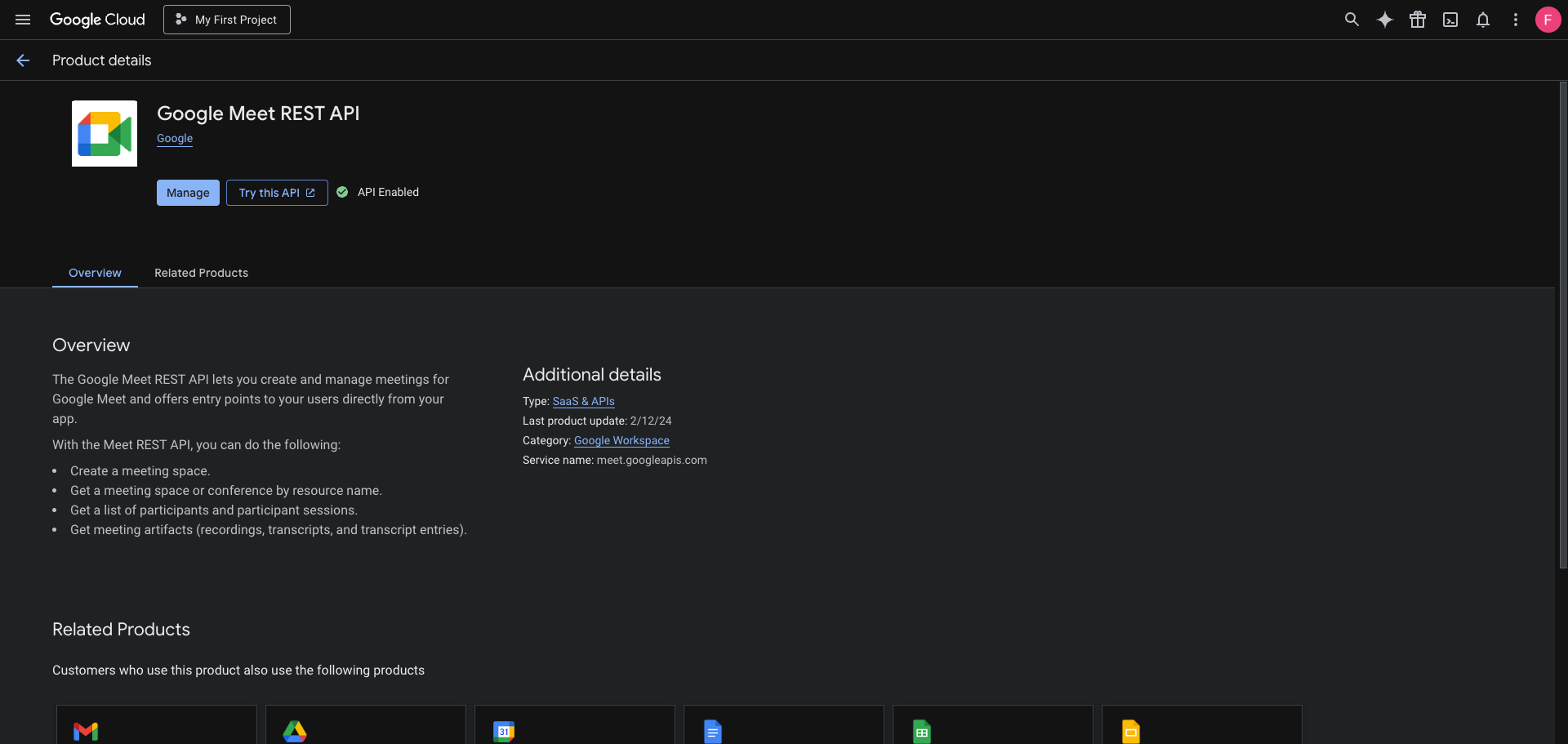
Go to the Google Meet REST API page in the Google Cloud Console. Select your project from the top navigation, then click Enable if the API is not yet enabled. If you see Manage and API Enabled, the API is already active.
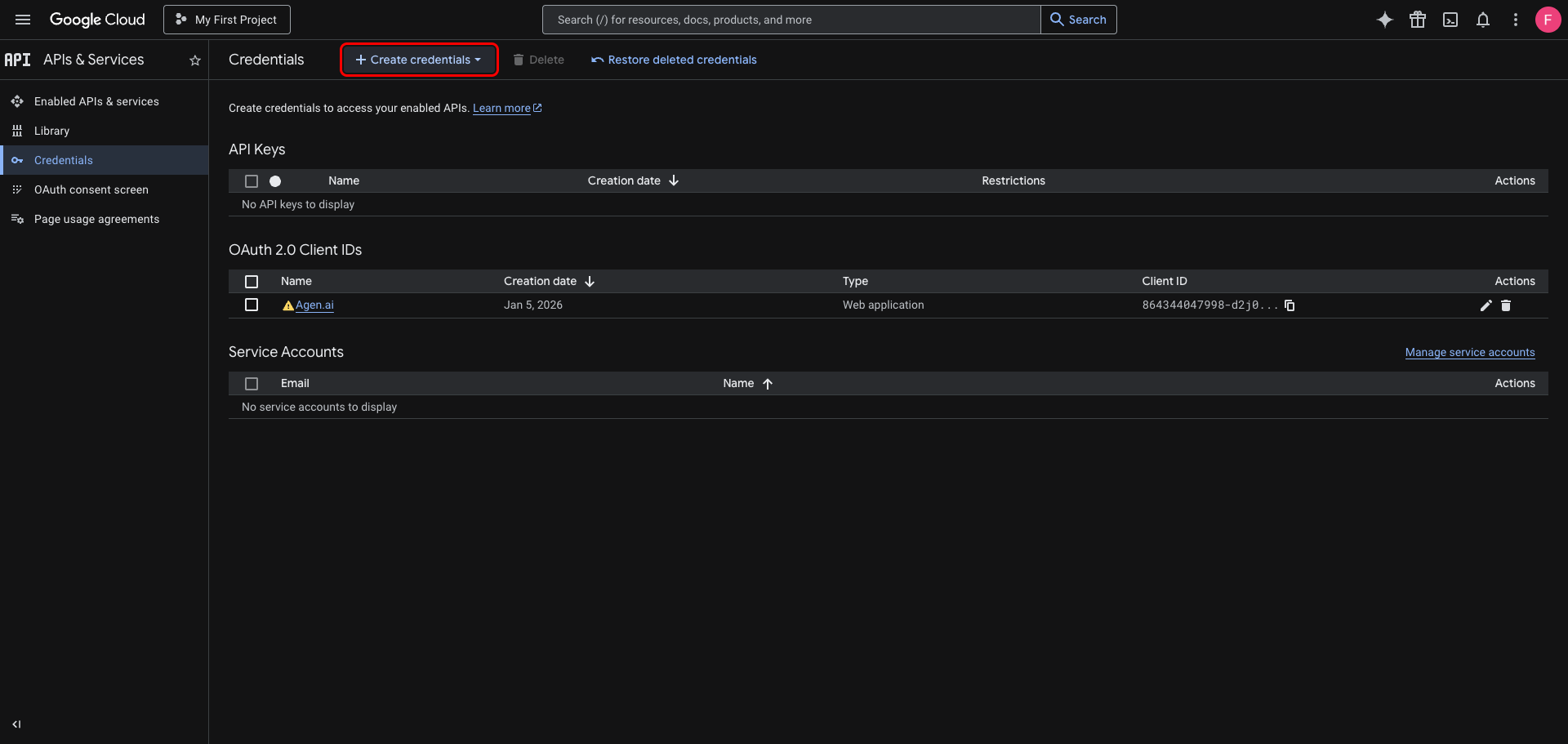
In the left sidebar, navigate to APIs & Services → Credentials. Click Create credentials.
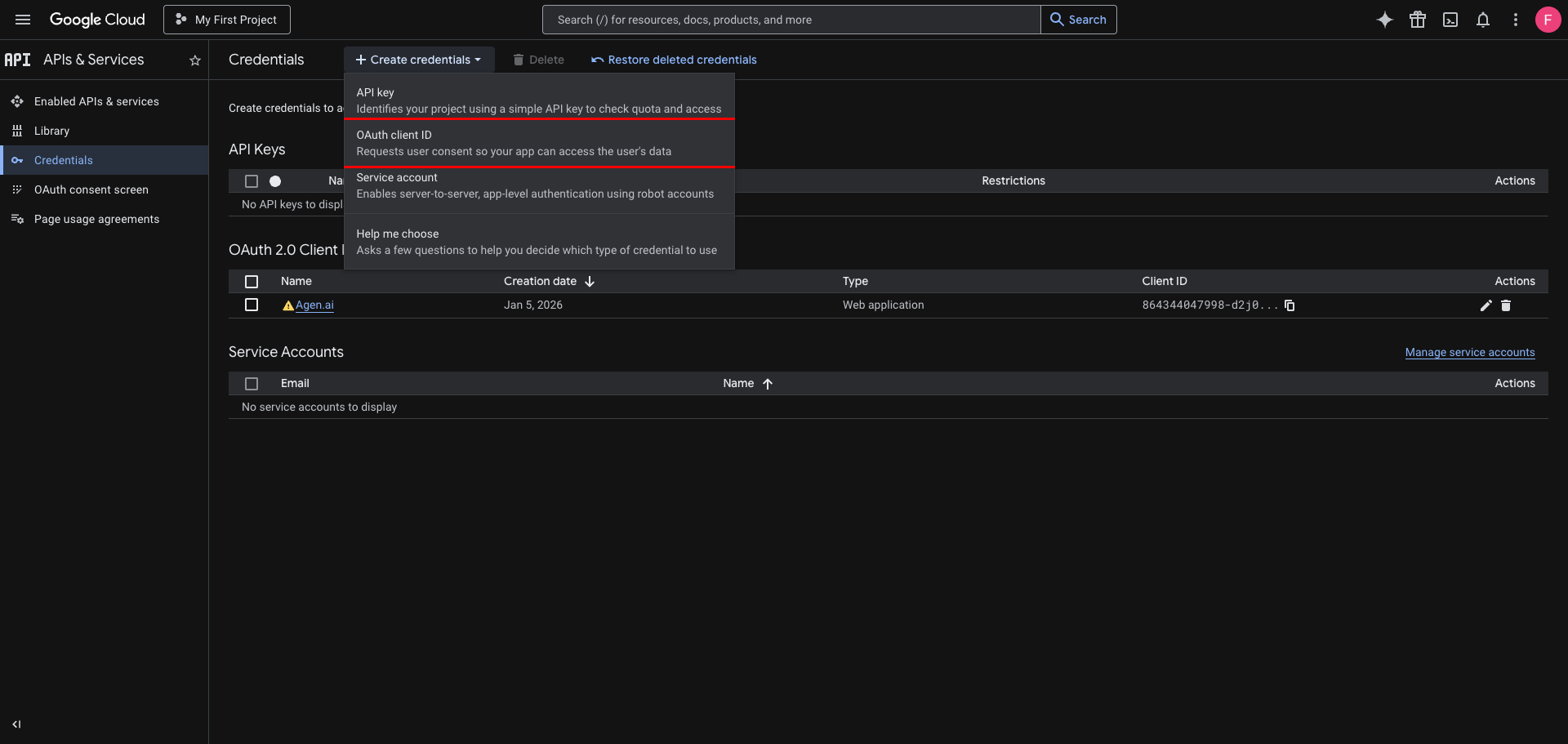
From the dropdown, select OAuth client ID.
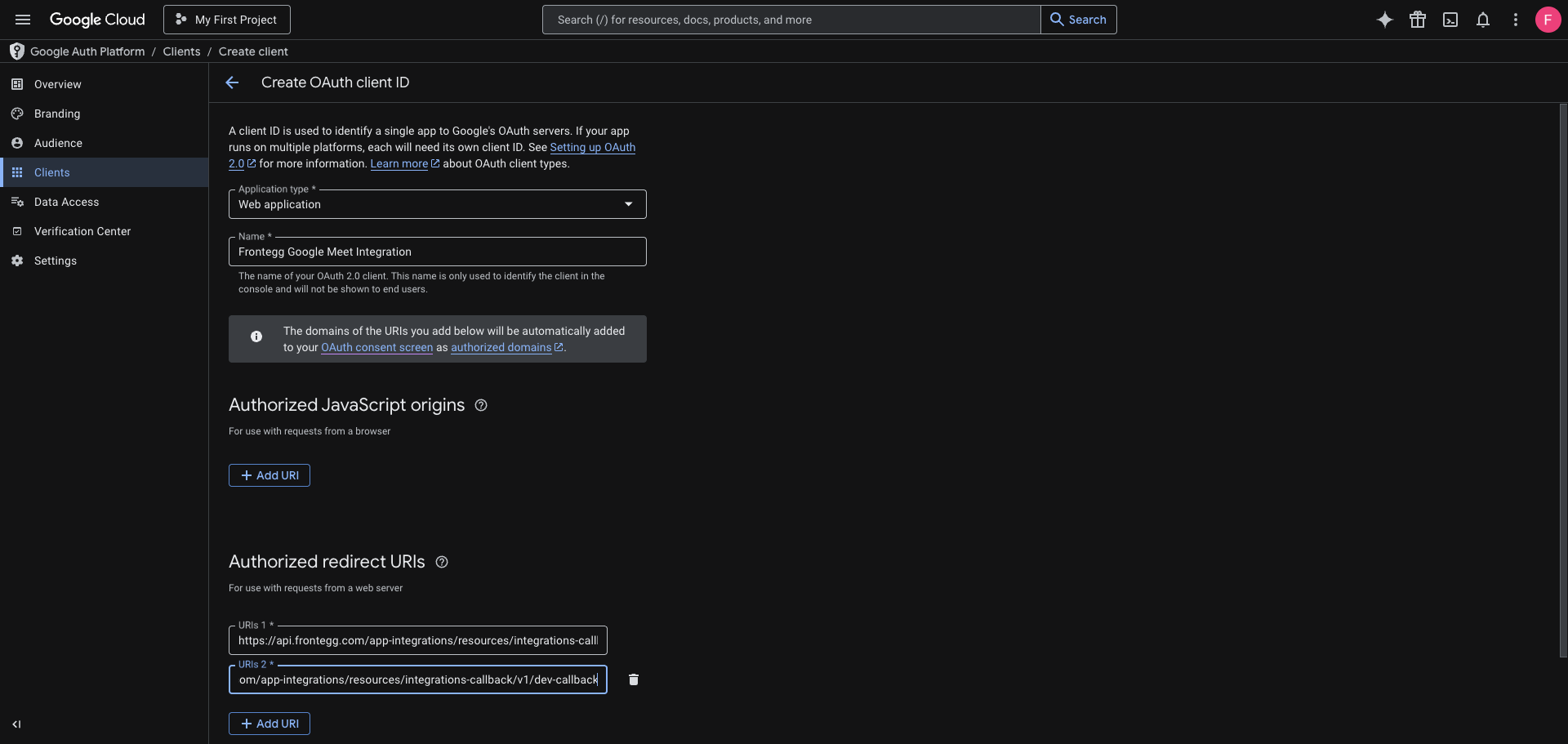
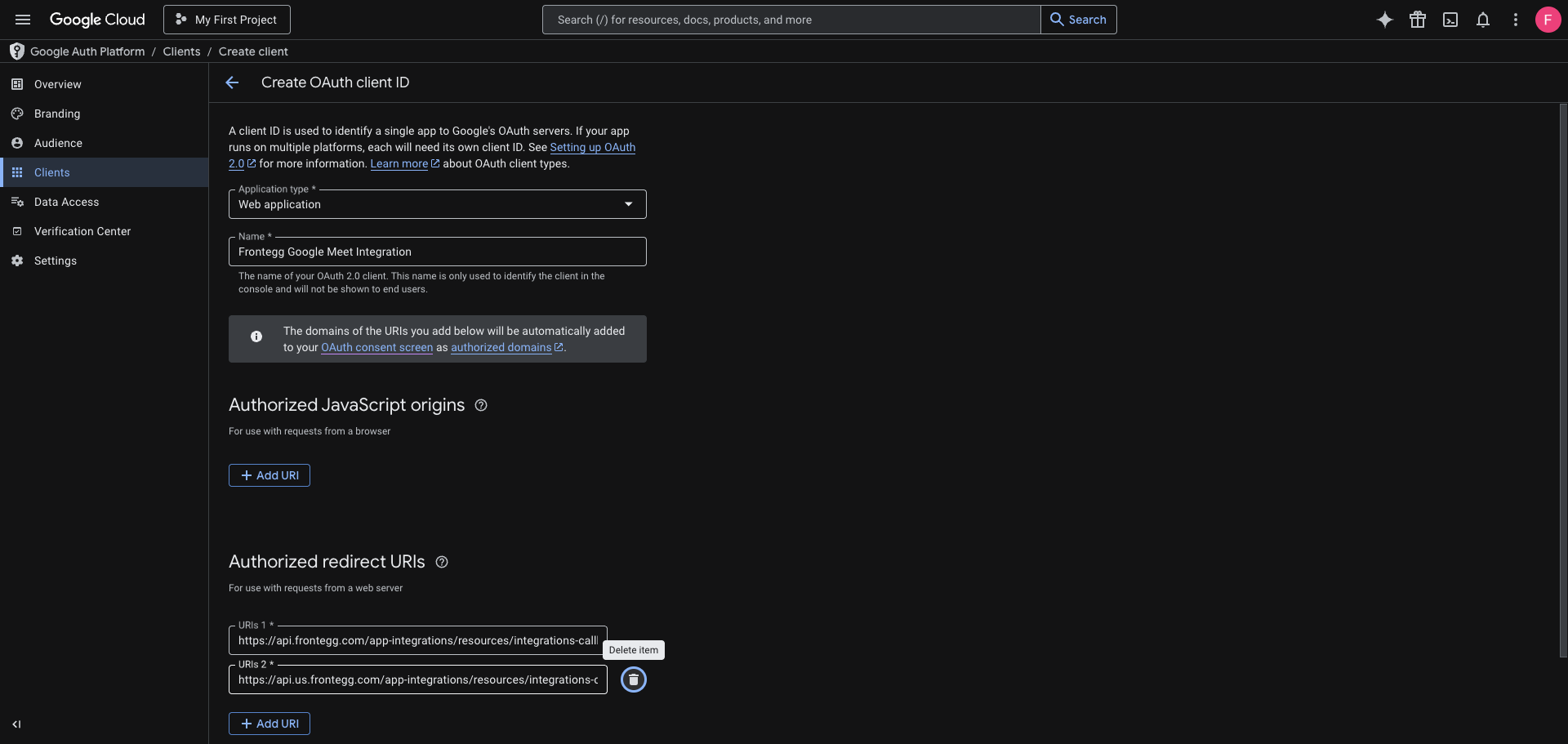
On the Create OAuth client ID page:
- Set Application type to Web application.
- Enter a name for the client (for example,
Frontegg Google Meet Integration). - Under Authorized redirect URIs, click Add URI and add both of the following:
https://YOUR_MCP_GATEWAY_URL/integration-callback
Click Create to save the OAuth client.
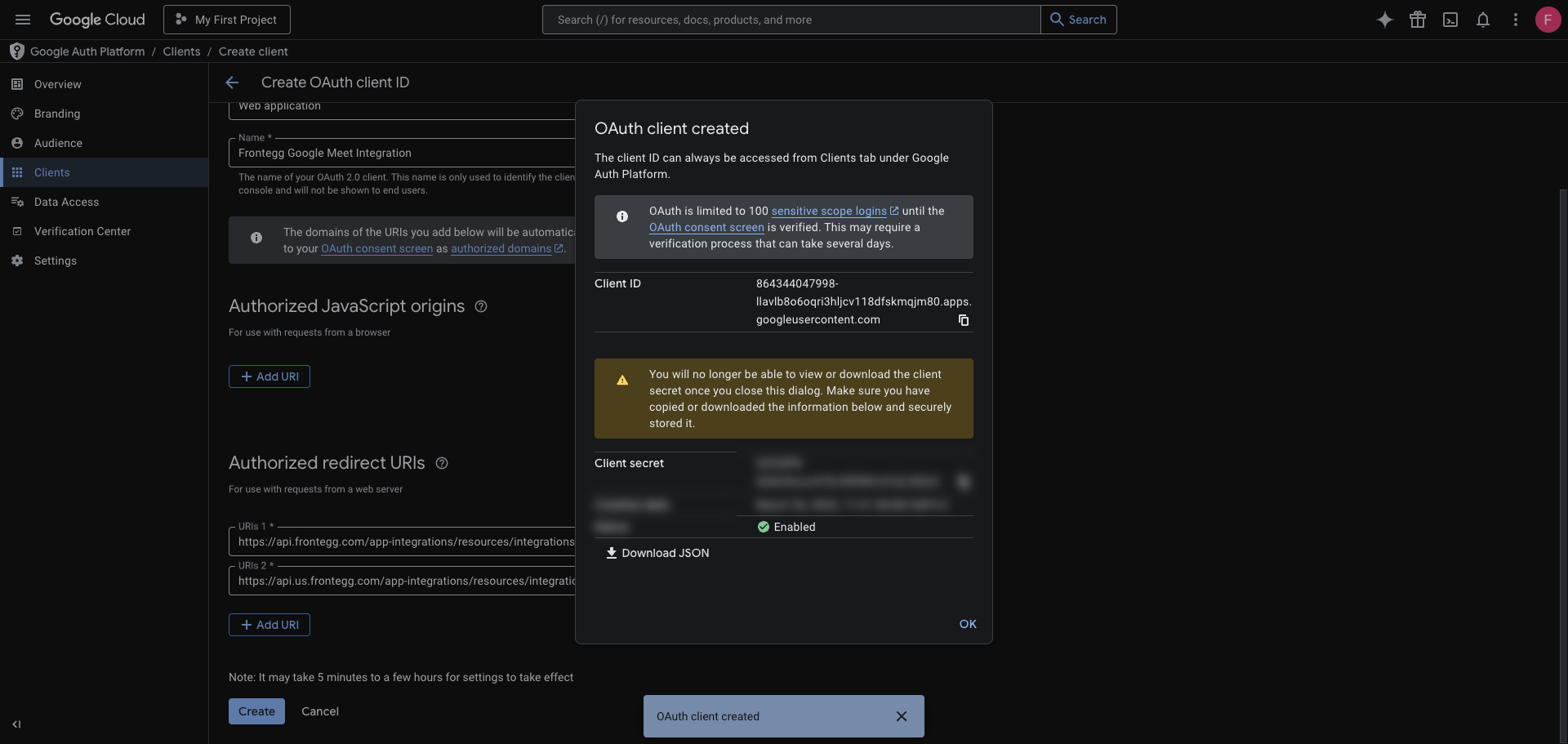
After clicking Create, a dialog displays your Client ID and Client Secret. Copy both values and store them securely.
Save your Client Secret now
Save your Client Secret now
The Client Secret is only shown once in this dialog. After you close it, you cannot retrieve it again — you can only create a new secret.
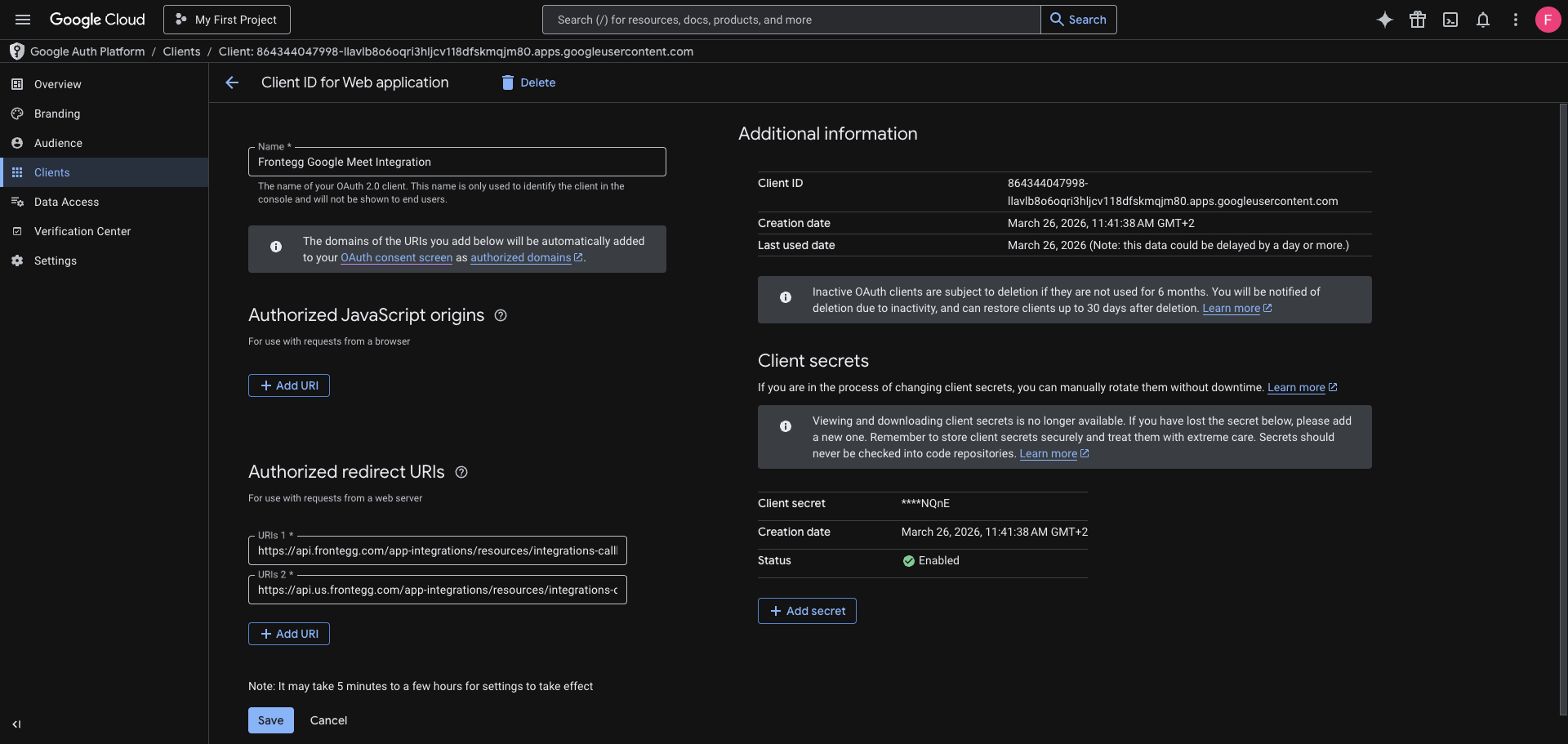
You can also view your Client ID at any time by clicking the client name in the Clients list.
Once you have your Client ID and Client Secret, enter them in the Frontegg portal:
- Open the Frontegg portal and navigate to [ENVIRONMENT] → Integrations → Google Meet.
- Enter the Client ID and Client Secret in the corresponding fields.
- Select the required scopes:
| Scope | Description |
|---|---|
https://www.googleapis.com/auth/meetings.space.readonly | Read access to meeting spaces and conference records |
https://www.googleapis.com/auth/meetings.space.created | Create and manage app-created meeting spaces |
- Click Save.
Keep your credentials secure
Keep your credentials secure
Never share or commit your Client Secret to version control.