Zoom can be connected to Agen.co two ways, matching the Official / In-house filter in the connector picker:
- Official — Agen.co connects through Zoom's own hosted MCP server (
https://mcp.zoom.us/mcp/zoom/streamable), so your AI agents use the same meeting search, recording, and Zoom Docs tools Zoom exposes to MCP clients like Claude and ChatGPT. - In-house — Agen.co wraps the Zoom REST API directly through its own integration layer, using an OAuth app you register in the Zoom App Marketplace with granular scope options across meetings, webinars, recordings, and user management.
Pick Official if the built-in MCP tools cover what your agents need. Fall back to In-house if you need broader access — for example, creating or updating meetings and webinars, or managing users.
Prerequisites
Prerequisites
- A Zoom account (free or paid) with access to the Zoom App Marketplace
- Go to marketplace.zoom.us and sign in.
- On the page that opens, click the blue + button in the top-left corner and select Build app. Select General App and click Create.
- Switch back to Agen.co and start adding the connector as usual — in the Agen.co portal, go to Connectors → Marketplace, click Add connector, filter Type to Official, and select Zoom.
- Get back to Zoom. Scroll down to App Credentials to find your Client ID and Client Secret — these are only shown once, so copy both values immediately.
- Scroll to OAuth Information. In the OAuth Redirect URL field, and under OAuth Allow Lists, add both URLs Agen.co generates when you open the Add Zoom panel with Official selected:
- Callback URL — completes the initial OAuth handshake between Agen.co and your OAuth app.
- Gateway callback URL — used by the Agen.co MCP gateway for per-user authorization at runtime.
- In the left sidebar, click Scopes, then + Add Scopes, and add the scopes for the Zoom product(s) you plan to use. For the default meeting product, Zoom's MCP setup guidance points to:
| Scope | Description |
|---|---|
ai_companion:read:search | Semantic search over meeting content |
meeting:read:search | Search a user's meetings |
meeting:read:assets | Read meeting-linked documents and resources |
cloud_recording:read:list_user_recordings | List cloud recordings for a user |
cloud_recording:read:content | Access recording content and transcripts |
docs:read:export | Export Zoom Docs content |
docs:write:import | Create Zoom Docs from imported content |
- Click Done to save the selected scopes.
Return to the Agen.co portal — the Add Zoom panel should already be open from the step above. Check that the following fields are filled in:
| Field | Required | Description |
|---|---|---|
| Instance Slug | No | Distinguishes multiple instances of this MCP connector — it prefixes each imported tool as slug__tool. Use lowercase kebab-case; leave empty for a single instance. This value is immutable after creation. |
| Zoom product | Yes | Selects which Zoom MCP surface to connect: meeting (Meetings, the default), chat (Team Chat), docs (Docs), whiteboard (Whiteboard), tasks (Tasks), or revenue_accelerator (Revenue Accelerator). Each connects to a different set of tools. |
| Client ID | Yes | The Client ID from the OAuth app you created above. |
| Client Secret | Yes | The Client Secret from the OAuth app you created above. |
Each connector instance connects to exactly one Zoom product. To expose tools from more than one (for example, both Meetings and Docs), add the Zoom connector again with a different Instance Slug and select the other product each time.
Click Connect. You're redirected to Zoom to sign in and approve access.
For the default meeting product, Zoom appears under My connectors with these tools:
| Tool | What it does |
|---|---|
| search_meetings | Searches a user's meetings (read-only) |
| get_recording_resource | Retrieves detailed content and metadata for a specific recording, including transcript text |
| get_meeting_assets | Retrieves all available assets for a specific meeting (read-only) |
| recordings_list | Lists all cloud recordings for a user |
The number of tools a connected instance exposes depends only on which tools Zoom's MCP server implements for that product — it isn't affected by how many OAuth scopes the app was granted. The tools listed above were confirmed live for the meeting product; the tool sets for chat, docs, whiteboard, tasks, and revenue_accelerator haven't been verified yet.
Enabling the Zoom connector isn't enough on its own. Tool calls remain denied until you create a policy that grants access to the specific tools you want to expose.
Integrating Zoom with Frontegg allows your application to access and manage Zoom meetings, webinars, and recordings on behalf of your users — all through Frontegg's integration layer using Zoom's OAuth 2.0.
Prerequisites
Prerequisites
- A Zoom account (free or paid)
- Access to the Zoom App Marketplace
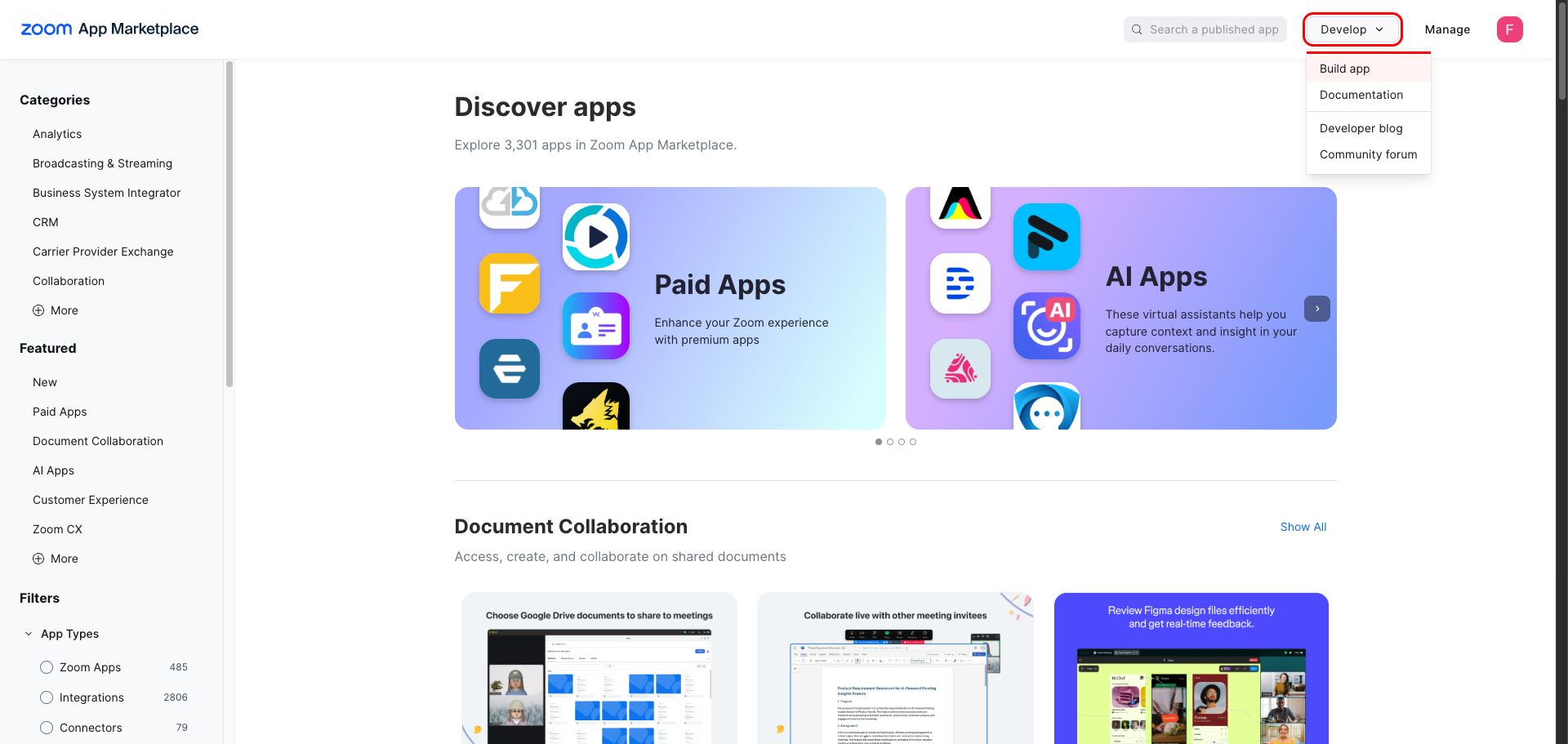
Go to marketplace.zoom.us, sign in, then click Develop in the top navigation bar and select Build app from the dropdown.
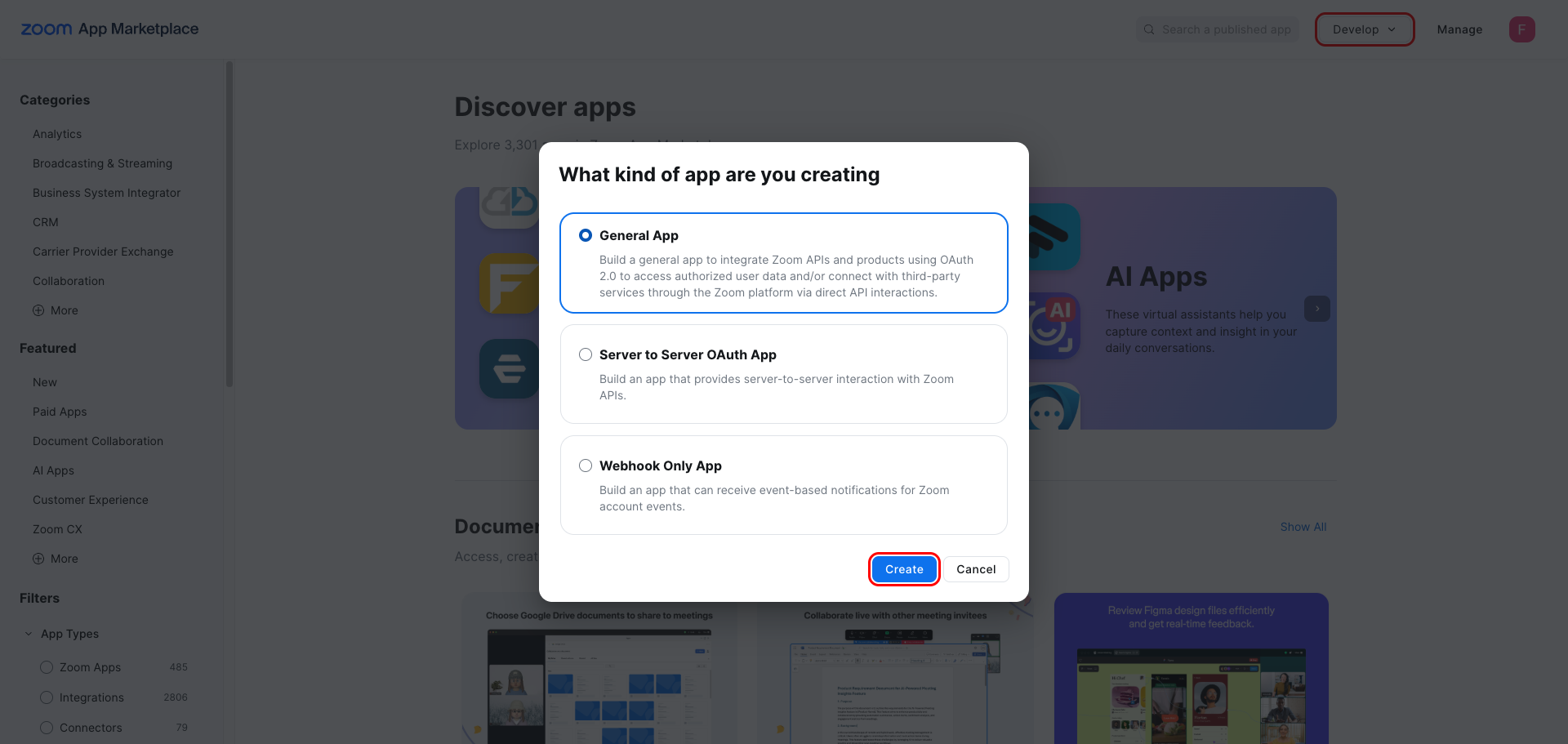
On the What kind of app are you creating dialog, select General App and click Create.
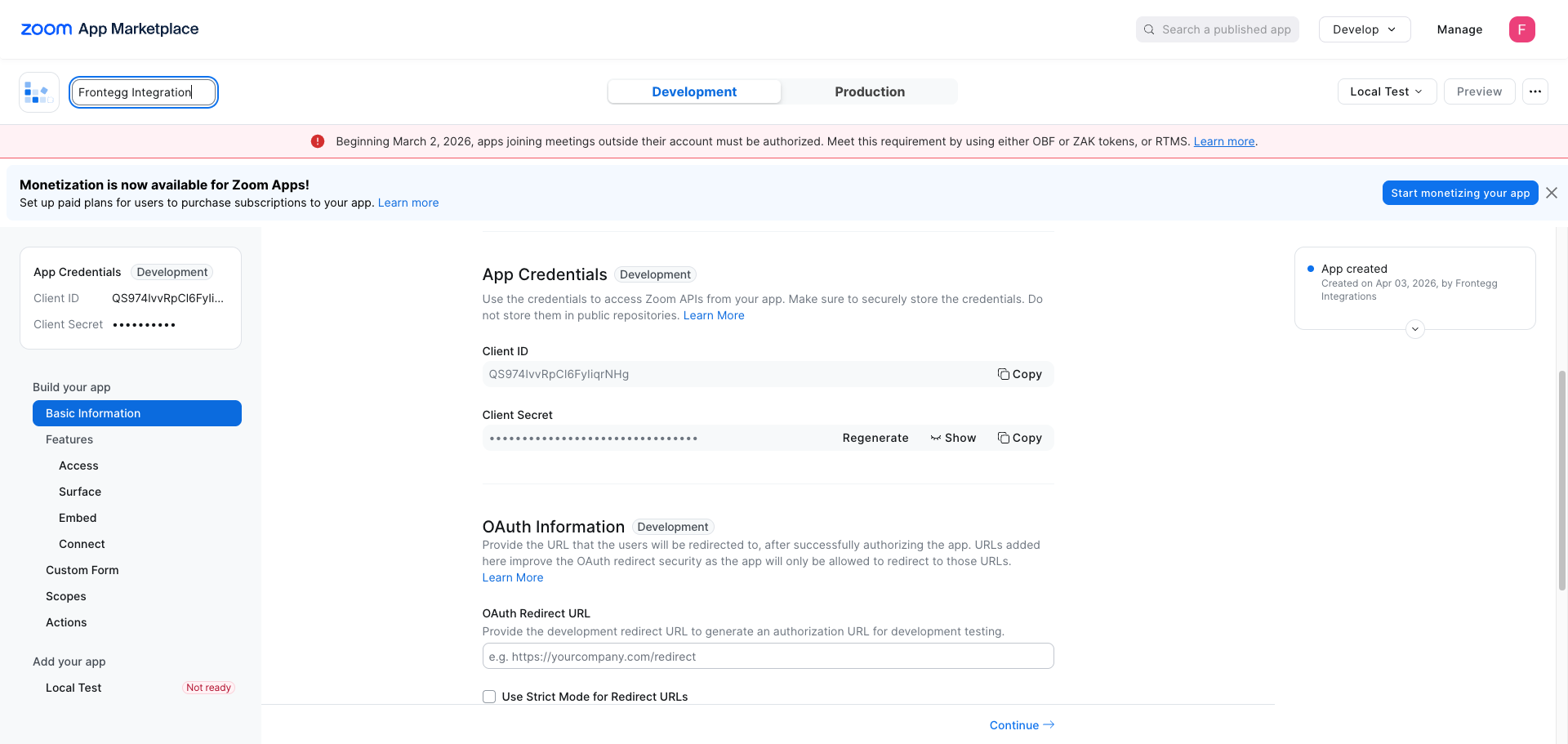
After the app is created, you land on the Basic Information page. Scroll to the App Credentials section to find your Client ID and Client Secret. Copy both values and store them securely.
Save your Client Secret now
Save your Client Secret now
The Client Secret is shown only on this page. Store it securely before navigating away.
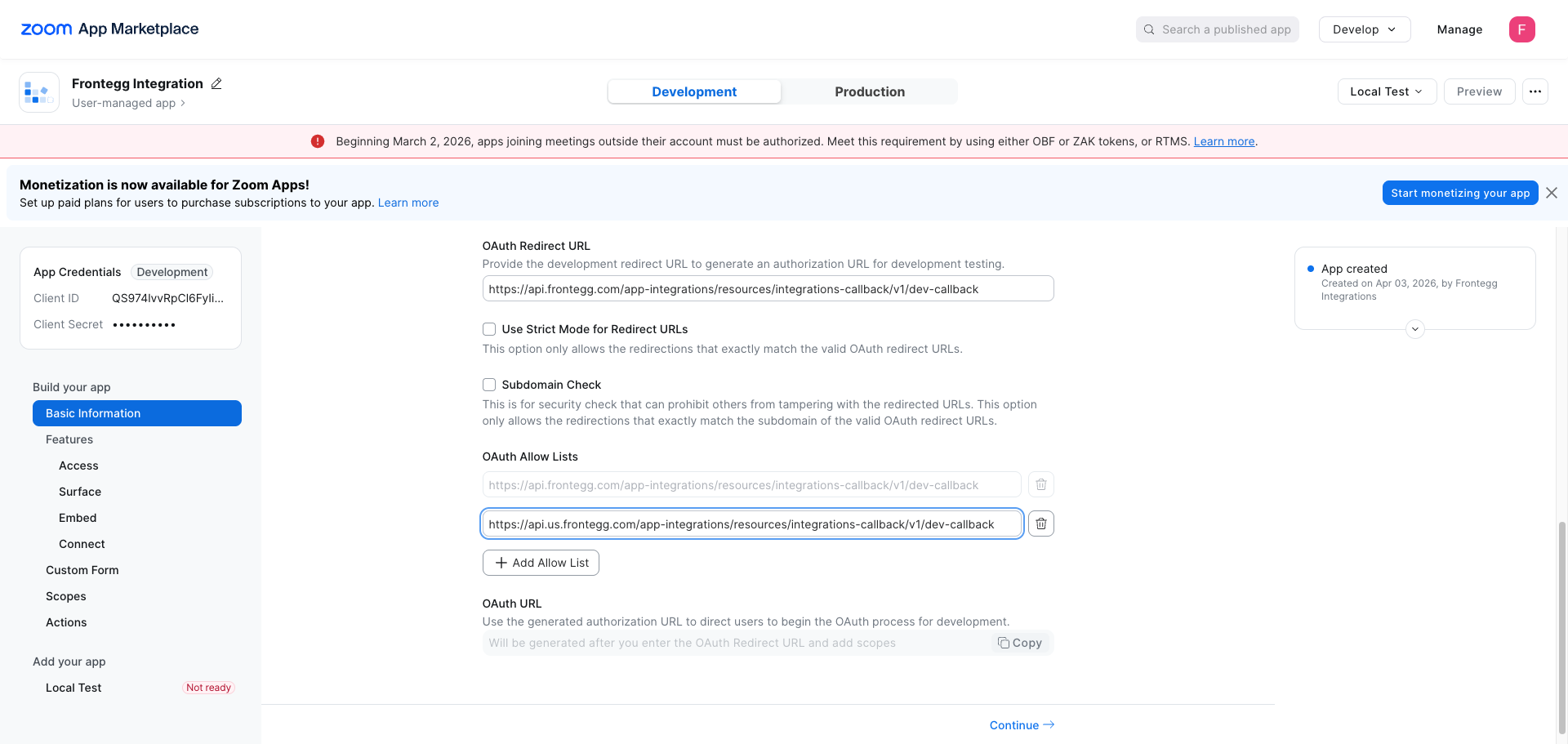
Scroll down to the OAuth Information section on the same page.
- In the OAuth Redirect URL field, enter:
https://YOUR_MCP_GATEWAY_URL/integration-callback - Under OAuth Allow Lists, add the same URI:
https://YOUR_MCP_GATEWAY_URL/integration-callback
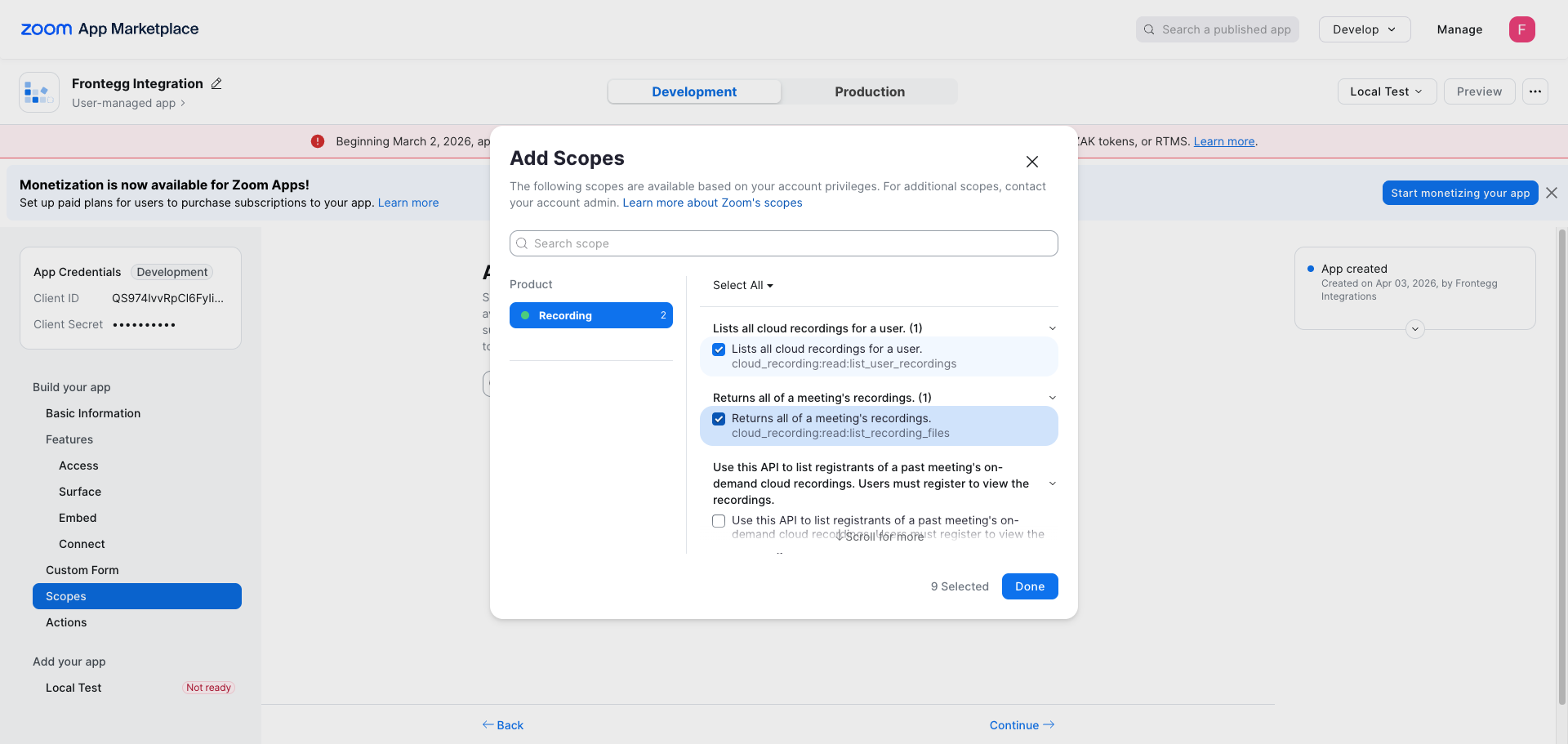
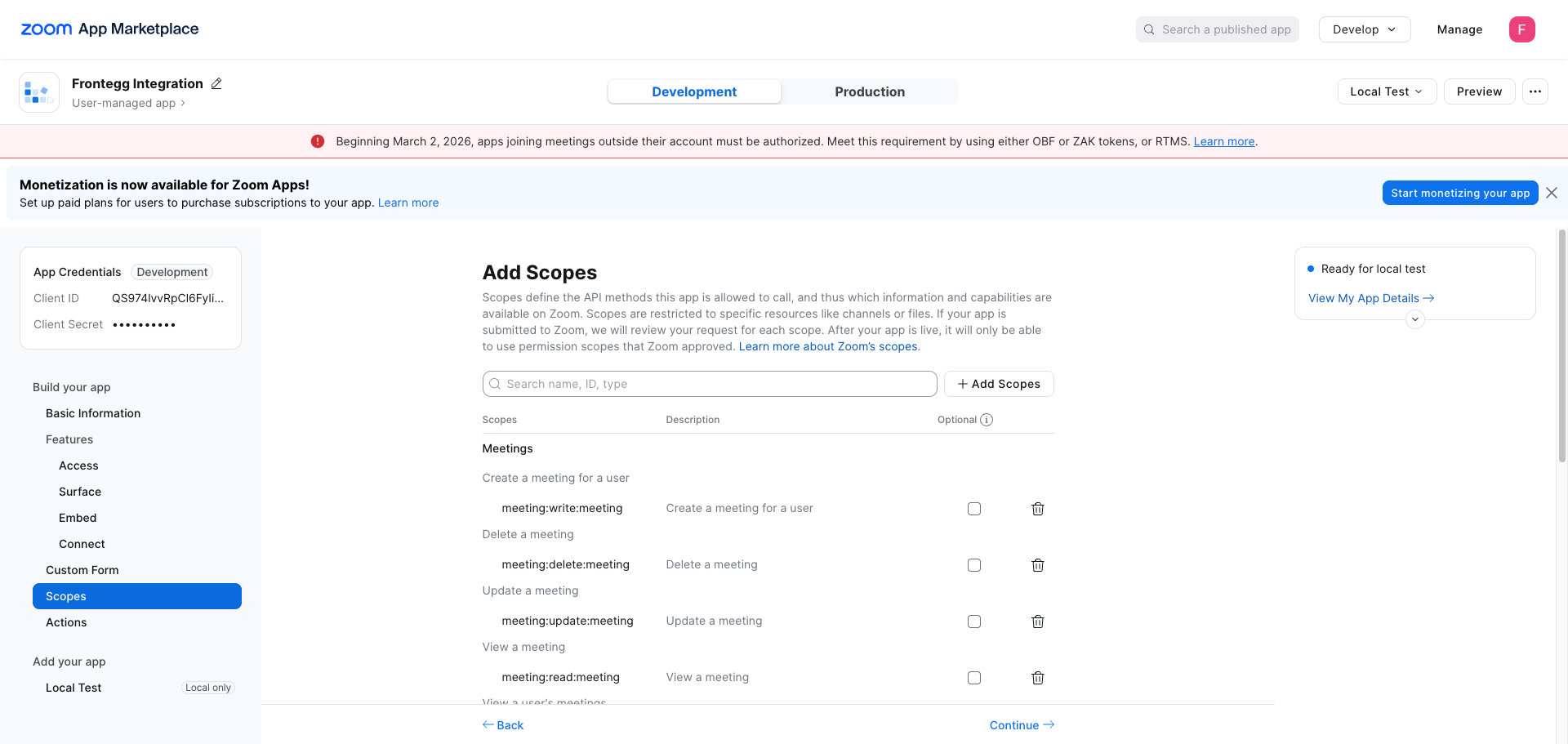
In the left sidebar, click Scopes, then click + Add Scopes. Use the search field or product tabs to find and select the required scopes:
| Scope | Description |
|---|---|
user:read:user | View a user's profile |
user:update:user | Update a user's profile |
user:delete:user | Delete or disassociate a user |
meeting:read:meeting | View a meeting |
meeting:read:list_meetings | View a user's meetings |
meeting:write:meeting | Create a meeting for a user |
meeting:update:meeting | Update a meeting |
meeting:delete:meeting | Delete a meeting |
meeting:read:past_meeting | View a past meeting instance |
meeting:read:list_past_instances | List ended instances of a recurring meeting |
meeting:read:list_past_participants | List participants of a past meeting |
meeting:read:summary | View an AI Companion meeting summary |
meeting:read:list_registrants | List meeting registrants |
meeting:write:registrant | Add a meeting registrant |
webinar:read:webinar | View a webinar |
webinar:read:list_webinars | View a user's webinars |
webinar:write:webinar | Create a webinar for a user |
webinar:update:webinar | Update a webinar |
webinar:delete:webinar | Delete a webinar |
webinar:read:list_registrants | List webinar registrants |
webinar:write:registrant | Add a webinar registrant |
cloud_recording:read:list_user_recordings | List all cloud recordings for a user |
cloud_recording:read:list_recording_files | Return all recordings for a meeting |
cloud_recording:read:meeting_transcript | View an AI Companion meeting transcript |
cloud_recording:delete:meeting_recording | Delete a meeting's cloud recordings |
cloud_recording:update:recover_meeting_recordings | Recover a meeting's recordings from trash |
Click Done to save the selected scopes.
Once you have your Client ID and Client Secret, enter them in the Frontegg portal:
- Open the Frontegg portal and navigate to [ENVIRONMENT] → Integrations → Zoom.
- Enter the Client ID and Client Secret in the corresponding fields.
- Select the required scopes.
- Click Save.
Keep your credentials secure
Keep your credentials secure
Never share or commit your Client Secret to version control.