WordPress.com is a popular content management and website hosting platform. Integrating WordPress with Frontegg allows your application to access and manage WordPress.com sites, posts, pages, media, comments, and taxonomies on behalf of your users through OAuth 2.0 authentication.
Prerequisites
Prerequisites
- A WordPress.com account (free or paid plan)
- Access to the WordPress.com developer portal
Log in to your WordPress.com account. Navigate to the WordPress.com Developer Apps page.
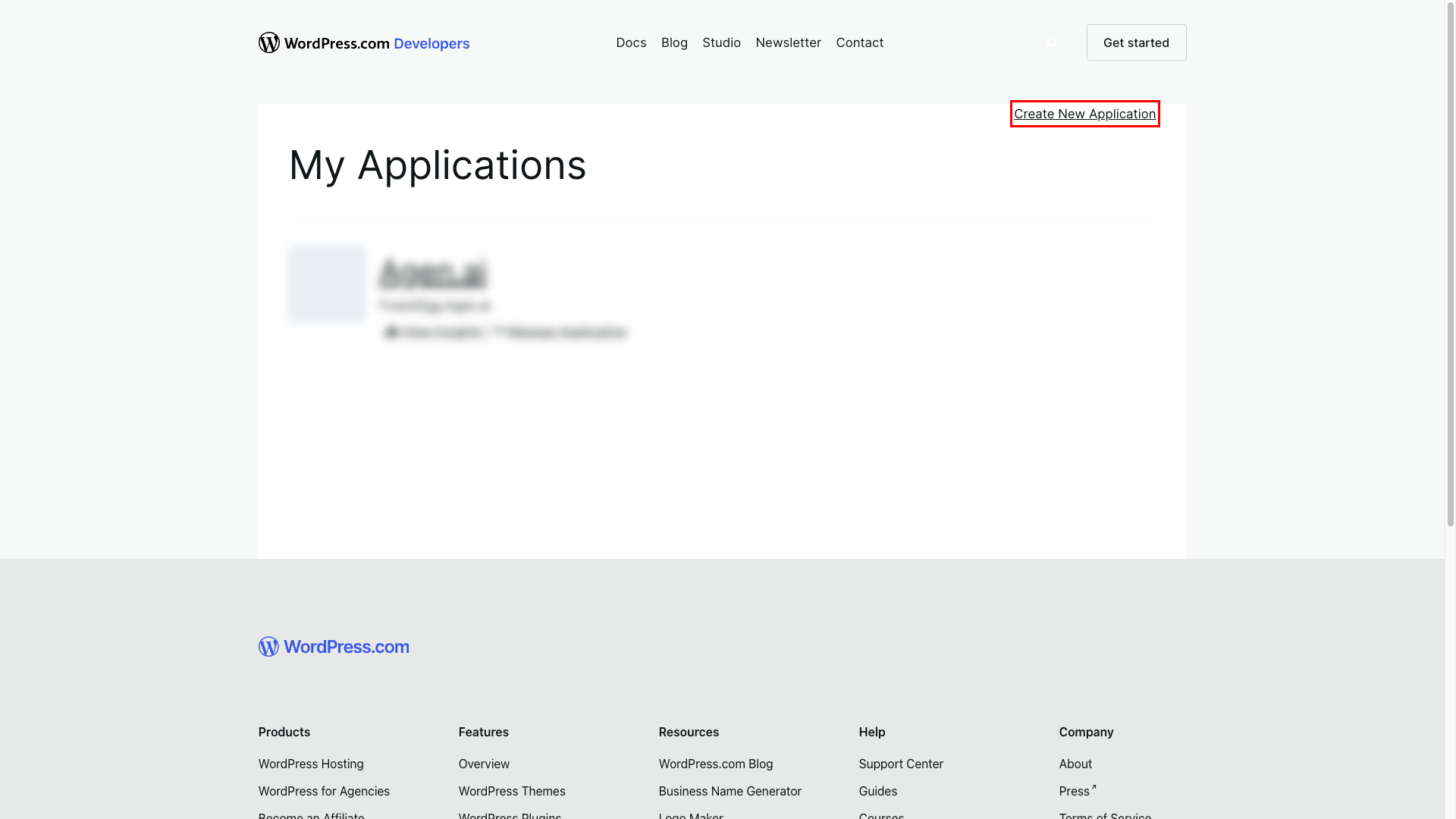
On the My Applications page, click the Create New Application link.
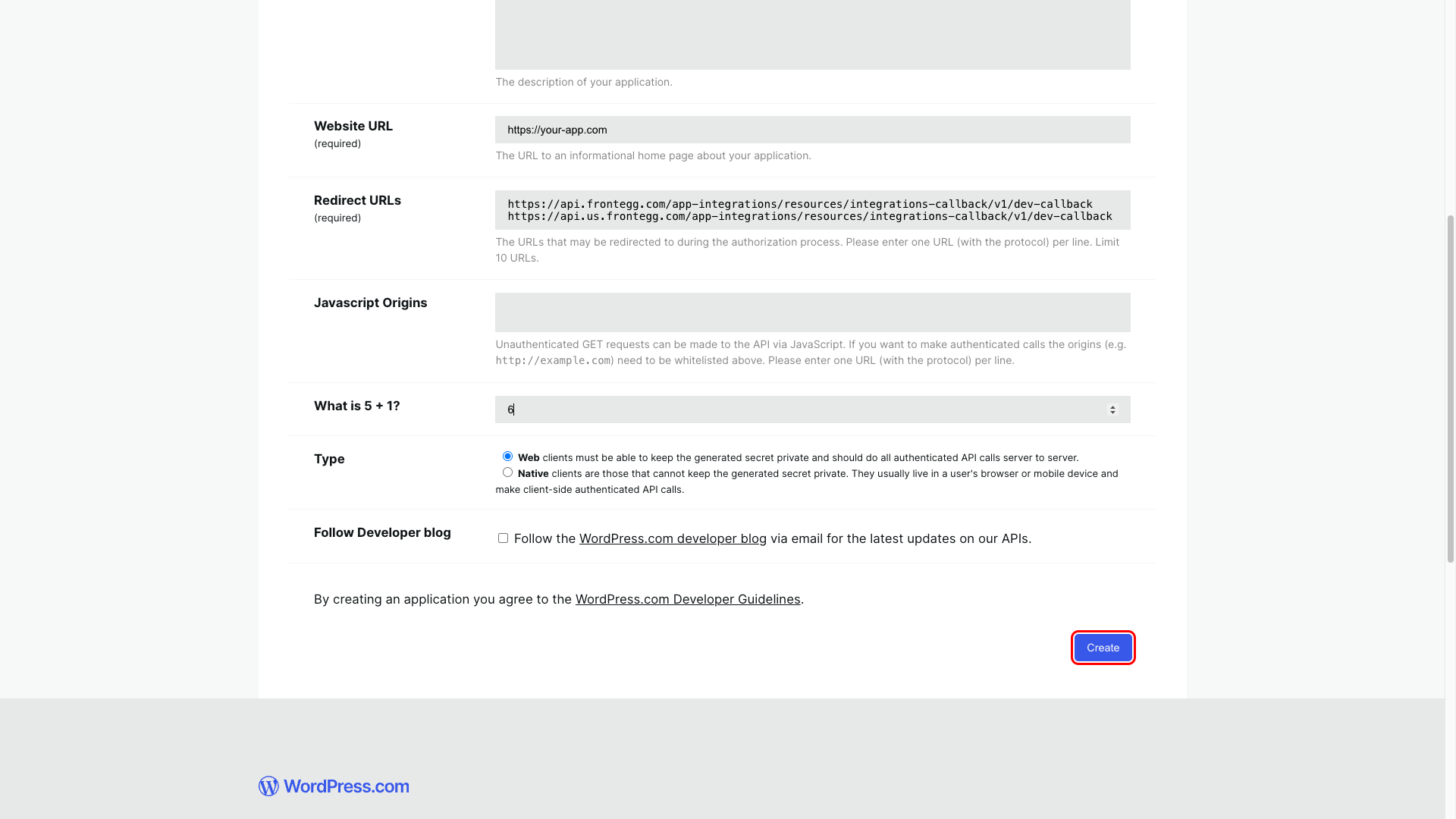
On the Create an application page, fill in the following fields:
- Name -- Enter a descriptive name (e.g., "Frontegg Integration")
- Description -- Enter a brief description of the integration
- Website URL -- Enter your application URL
- Redirect URLs -- Enter the Frontegg callback URL:
https://YOUR_MCP_GATEWAY_URL/integration-callback- Type -- Select Web
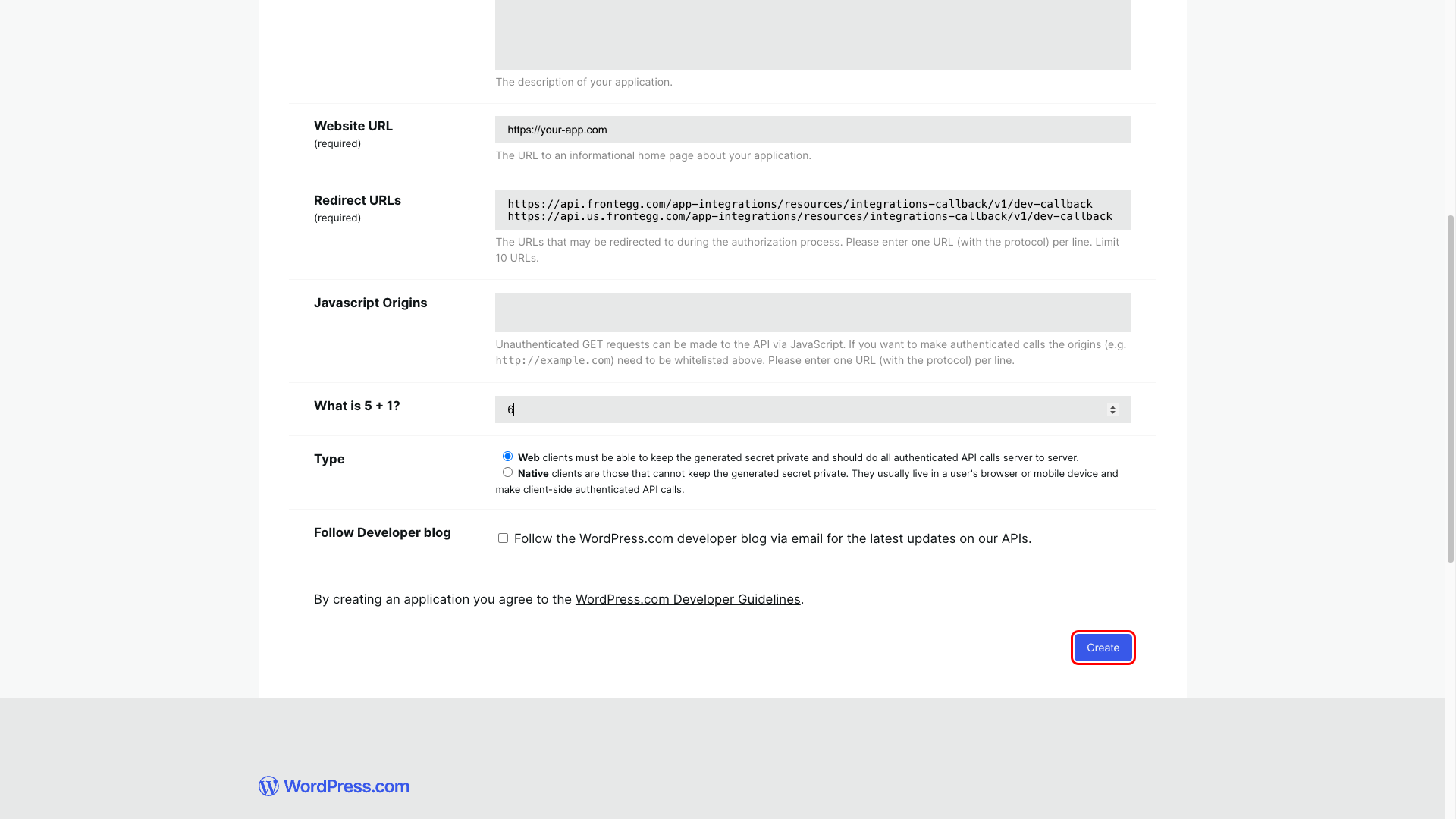
Answer the simple math captcha question, then click Create.
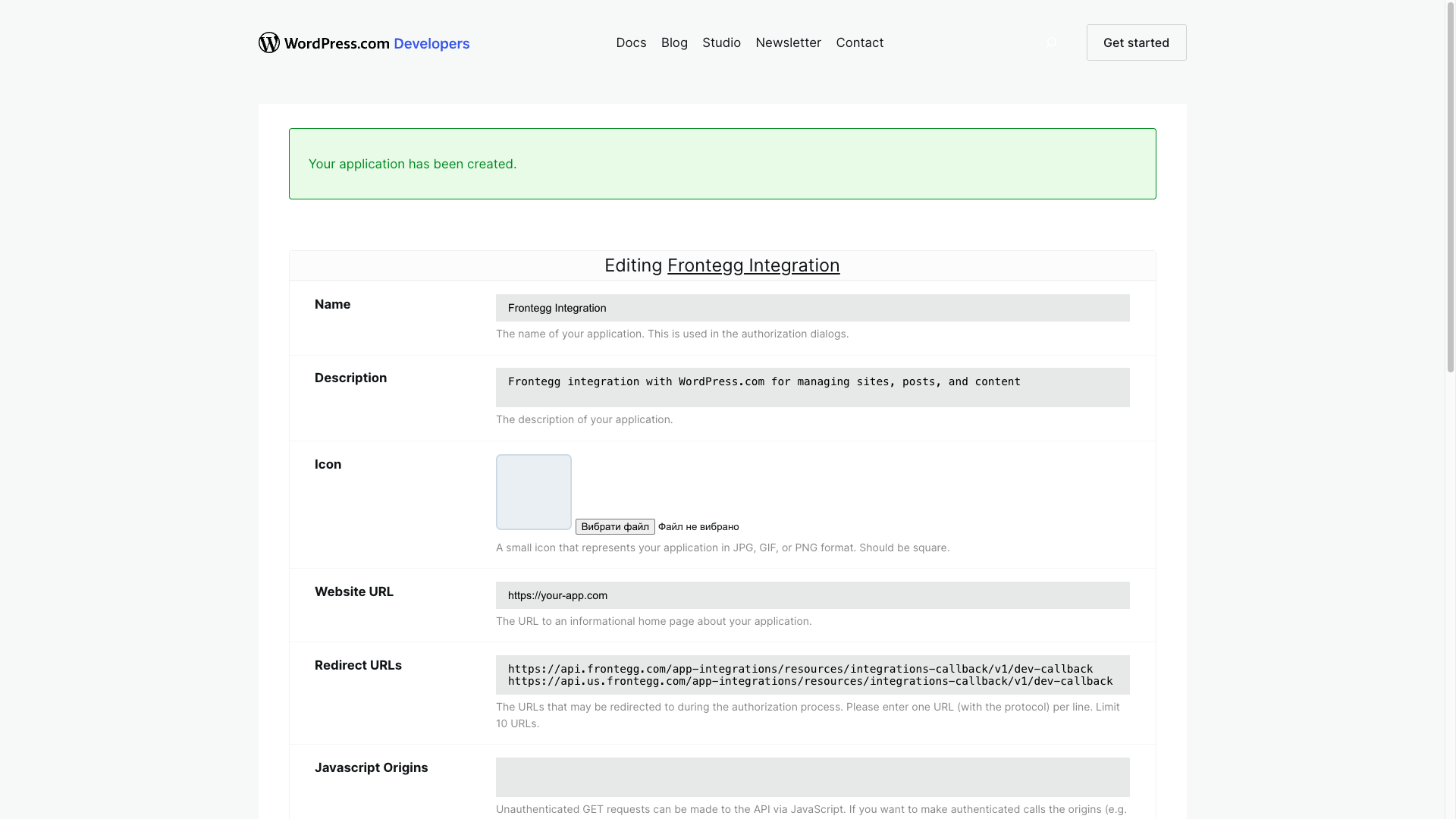
After creating the application, a confirmation message appears. The page displays the application settings where you can review and update the details.
Navigate to the application overview page by clicking the application name link. In the OAuth Information section, you can find:
- Client ID -- Copy this value
- Client Secret -- Copy this value
The page also displays the OAuth endpoint URLs for reference:
- Request token URL --
https://public-api.wordpress.com/oauth2/token - Authorize URL --
https://public-api.wordpress.com/oauth2/authorize
Keep your credentials secure
Keep your credentials secure
Never share or commit your Client Secret to version control. If the secret is compromised, click Reset Key to generate a new one.
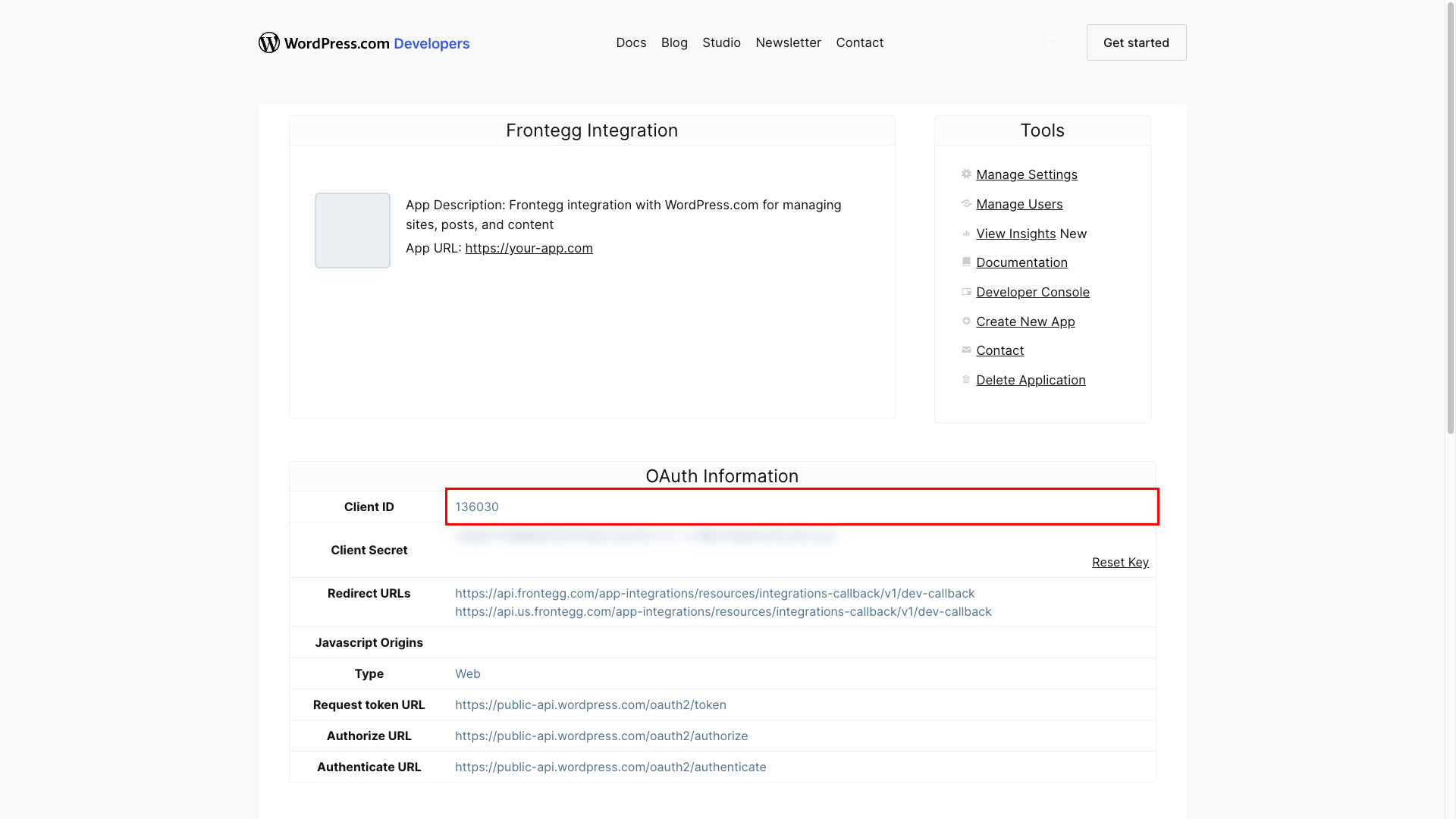
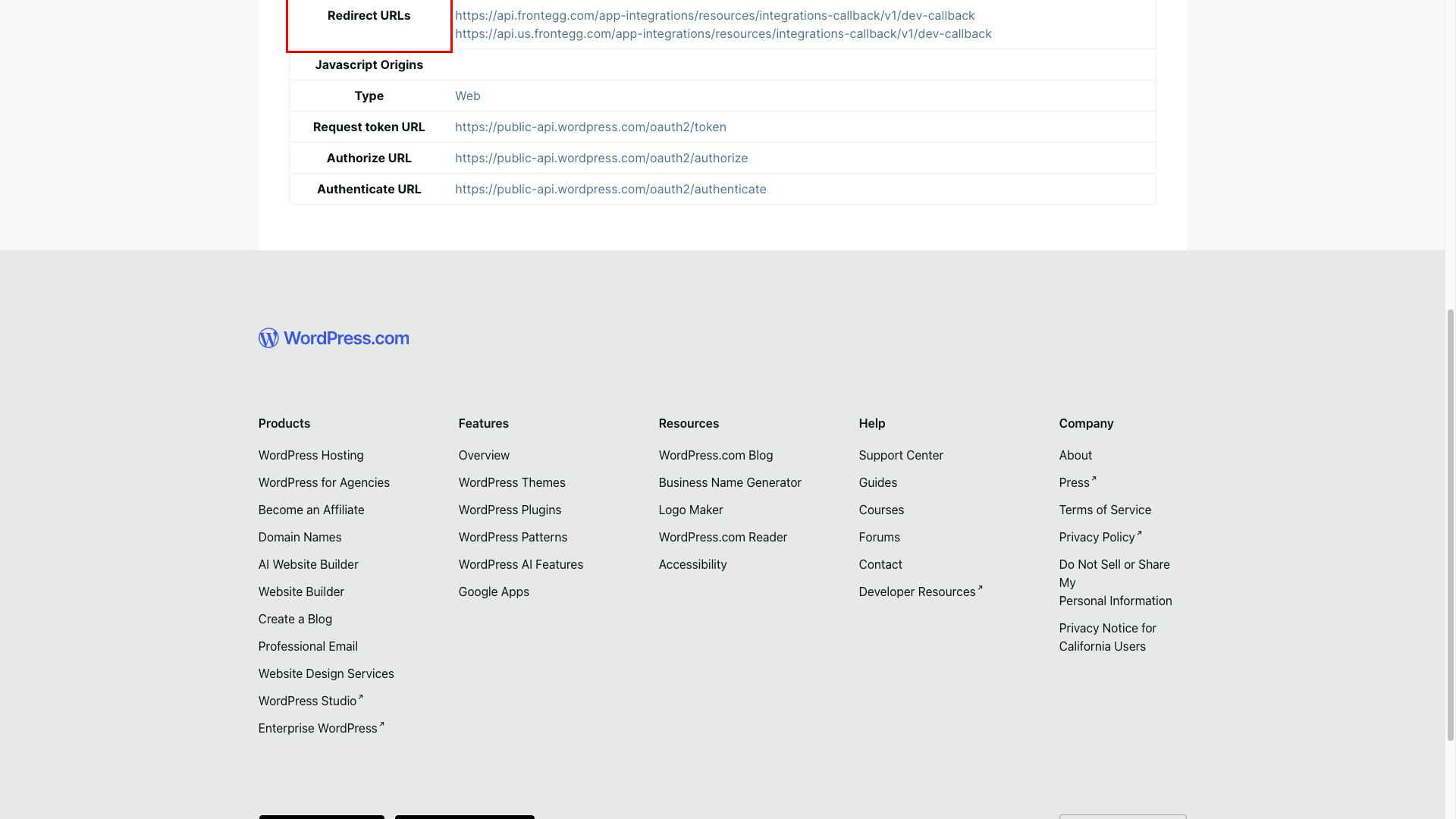
In the same OAuth Information section, verify that the redirect URL is configured correctly:
https://YOUR_MCP_GATEWAY_URL/integration-callback
If you need to update them, click Manage Settings in the Tools section.
Scopes
Scopes
WordPress.com OAuth uses a single global scope that grants access to all user sites and blogs. No additional scope configuration is required.
Once you have obtained your Client ID and Client Secret from the steps above, enter them in the integration configuration page of the Frontegg portal:
- Open the Frontegg portal and navigate to [ENVIRONMENT] → Integrations → WordPress.
- Enter the Client ID and Client Secret in the corresponding fields.
- Select the required scopes.
- Click Save.