Stripe is a payment processing platform that provides APIs for accepting payments, managing subscriptions, and handling invoices.
It can be connected to Agen.co two ways, matching the Official / In-house filter in the connector picker:
- Official — Agen.co connects through Stripe's own hosted MCP server. Each user authorizes with their own Stripe account, and agents reach the live mode account or sandbox that user grants access to.
- In-house — Agen.co wraps the Stripe API directly through its own integration layer, using a restricted API key you create once in the Stripe Dashboard.
Pick Official if you want each user's agent to act with that user's own Stripe permissions, and to reach Stripe's documentation search and analytics tools alongside the API. Fall back to In-house if you need a single shared key with scoped Core and Billing permissions, or your users can't complete an OAuth consent screen themselves.
Prerequisites
Prerequisites
- A Stripe account with access to the live mode account or sandbox you want to connect. No app needs to be registered with Stripe — the MCP server registers Agen.co as a client automatically, so there is no Client ID or Client Secret to copy.
- An administrator can enable or disable MCP access for the entire team, separately for live mode and sandbox environments, under Settings → MCP and CLI access in the Stripe Dashboard. If MCP access is disabled there, the consent screen described below never appears and authorization fails.
- If your organization manages your device or network, an IT administrator may need to allow connections to
mcp.stripe.combefore the OAuth handshake can complete.
In the Agen.co portal, go to Connectors → My connectors and click Add connector.
In the Select connector drawer, search for
Stripeand select it. The Add Stripe panel opens with Official selected at the top.Fill in the field:
Field Required Description Instance Slug Yes Prefixes each imported tool as slug__tool, so several instances of the connector can coexist. Prefilled withstripe. Use lowercase kebab-case. You can change it later from the connector's settings.Click Connect. Stripe opens in a new tab, and the panel shows Waiting for authorization — complete it in the opened tab…
Sign in to Stripe if prompted, then step through Stripe's consent screens: Choose an environment (the live mode account or sandbox to grant), Set permissions for that environment, and Review and authorize — ending with Authorize.
Back in Agen.co, the panel switches to Select the tools to import from Stripe. Every tool is toggled on; turn off any you don't want to import, then click Add.
The connector is created and its tools imported only when you click Add. If you close the panel before that, nothing is saved, even though the Stripe tab reported success.
Adding the connector doesn't authorize anyone's tool calls yet. The first time each user's agent calls a Stripe tool, the call returns an authorization link instead of a result. The user opens the link, signs in to Stripe, and chooses which live mode account or sandbox to grant. On this screen the requesting client is named mcp-gateway-source-<uuid> rather than MCP OAuth Client as when adding the connector — this is expected, so tell users to approve it. After that, the user's tool calls run against the environment and permissions they granted. Users and administrators can review or revoke a connection later from OAuth sessions in Stripe's own account or team settings.
Stripe requires human confirmation in the Stripe Dashboard before certain write actions take effect, such as refunds and outbound payments, regardless of the permissions granted at authorization — the agent gets an approval link back instead of completing the action immediately.
Once connected, Stripe appears under My connectors with these tools:
| Tool | What it does |
|---|---|
stripe_api_search | Searches for Stripe API methods by keyword |
stripe_api_details | Gets detailed parameter information for a specific Stripe API method |
stripe_api_read | Reads data with any Stripe API GET method — customers, charges, invoices, subscriptions, products, prices, payouts, and more |
stripe_api_write | Writes data with any Stripe API POST, PATCH, PUT, or DELETE method |
list_available_accounts_or_orgs | Lists the accounts and sandboxes granted in this session, with their stripe_context and livemode values |
manage_stripe_accounts | Returns a Stripe Dashboard link for adding or removing accounts, or changing permissions, for the session |
stripe_analytics | Queries metrics, analyzes subscriptions and billing, and (with Sigma) builds SQL queries from natural language |
search_stripe_documentation | Searches Stripe's documentation for a given question |
stripe_implementation_planner | Guides the user through Stripe products to help build a Stripe integration |
send_stripe_feedback | Shares feedback about Stripe's products |
stripe_api_read and stripe_api_write cover most of the Stripe API rather than exposing one tool per resource — this keeps the tool list short without limiting what agents can reach. Both require a stripe_context and livemode value, which the agent gets by calling list_available_accounts_or_orgs first.
By default, tool calls only reach the Stripe account tied to the user's OAuth session. The Official server doesn't support acting on behalf of Connect platform connected accounts — use the In-house tab with a restricted API key and the Stripe-Account header for that.
Enabling the Stripe connector isn't enough on its own. Tool calls remain denied until you create a policy that grants access to the specific tools you want to expose.
Stripe is a payment processing platform that provides APIs for accepting payments, managing subscriptions, and handling invoices. Integrating Stripe with Frontegg allows your application to manage customers, charges, payment intents, invoices, products, prices, subscriptions, and refunds on behalf of your users through API key authentication.
Prerequisites
Prerequisites
- A Stripe account
- Access to the Stripe Dashboard
Log in to your Stripe Dashboard. In the bottom toolbar, click Developers, then select the API keys tab. This page displays your existing keys and allows you to create new restricted keys.
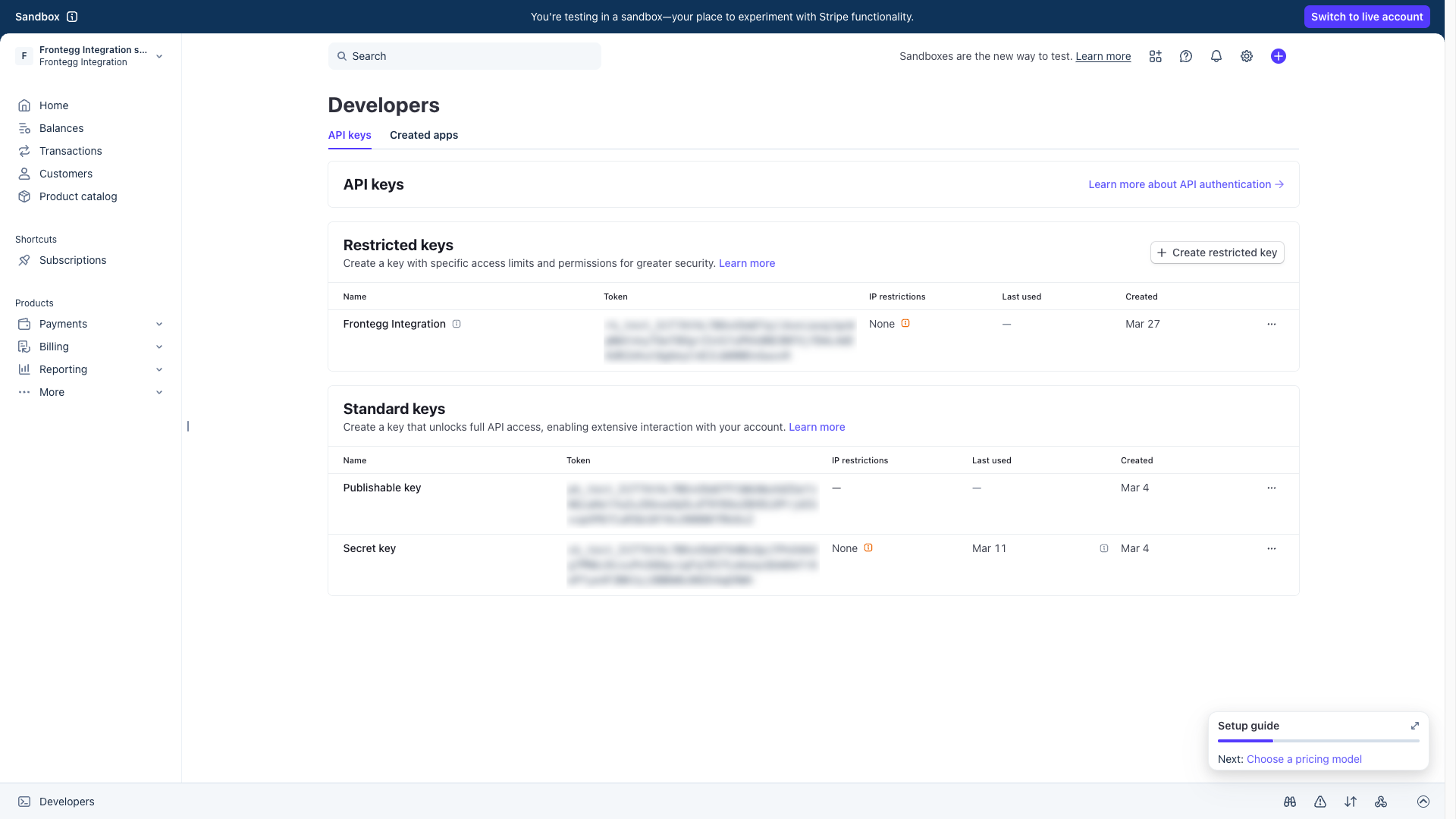
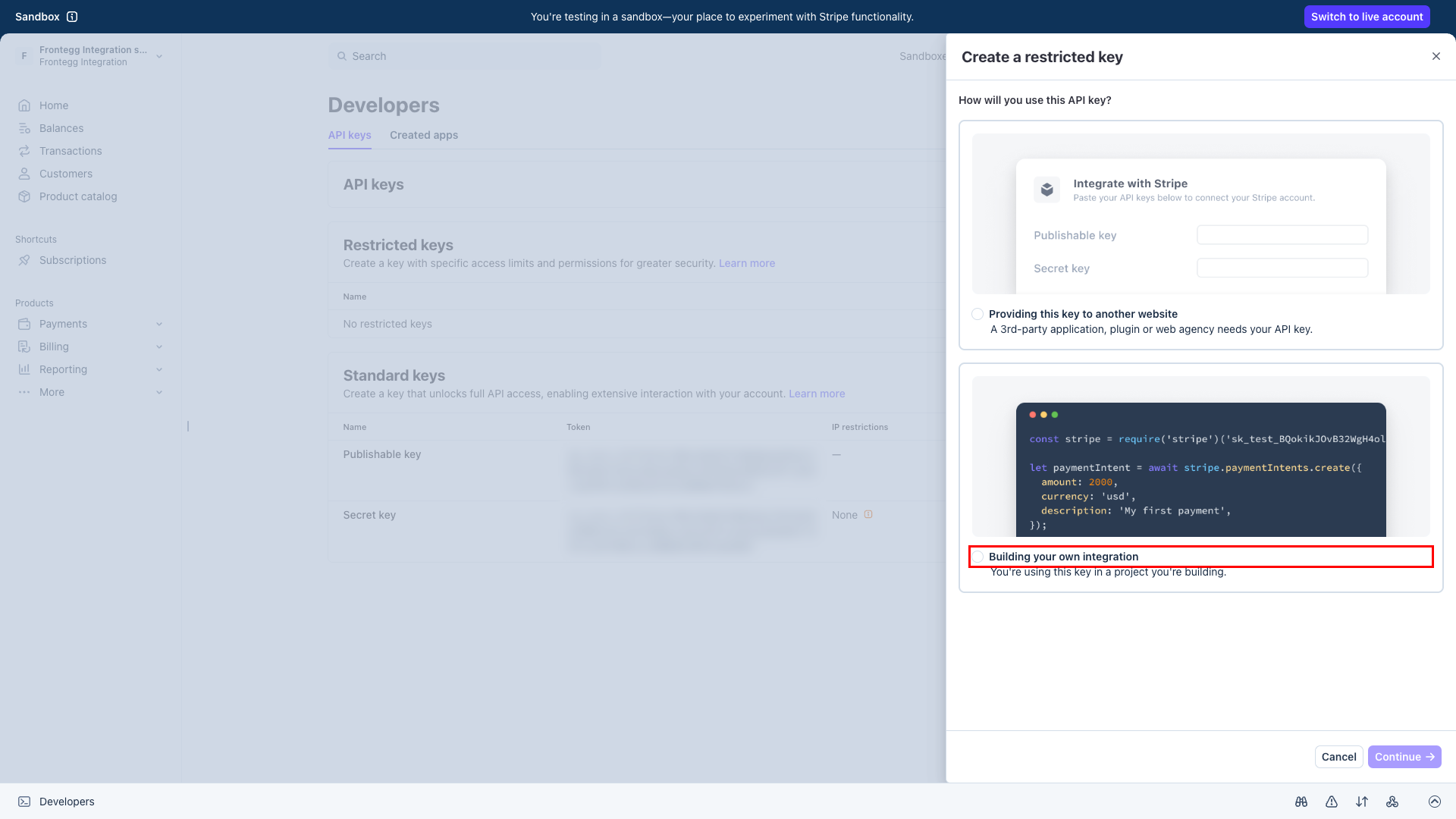
In the Restricted keys section, click the Create restricted key button. A dialog appears asking how you will use this API key. Select Building your own integration and click Continue.
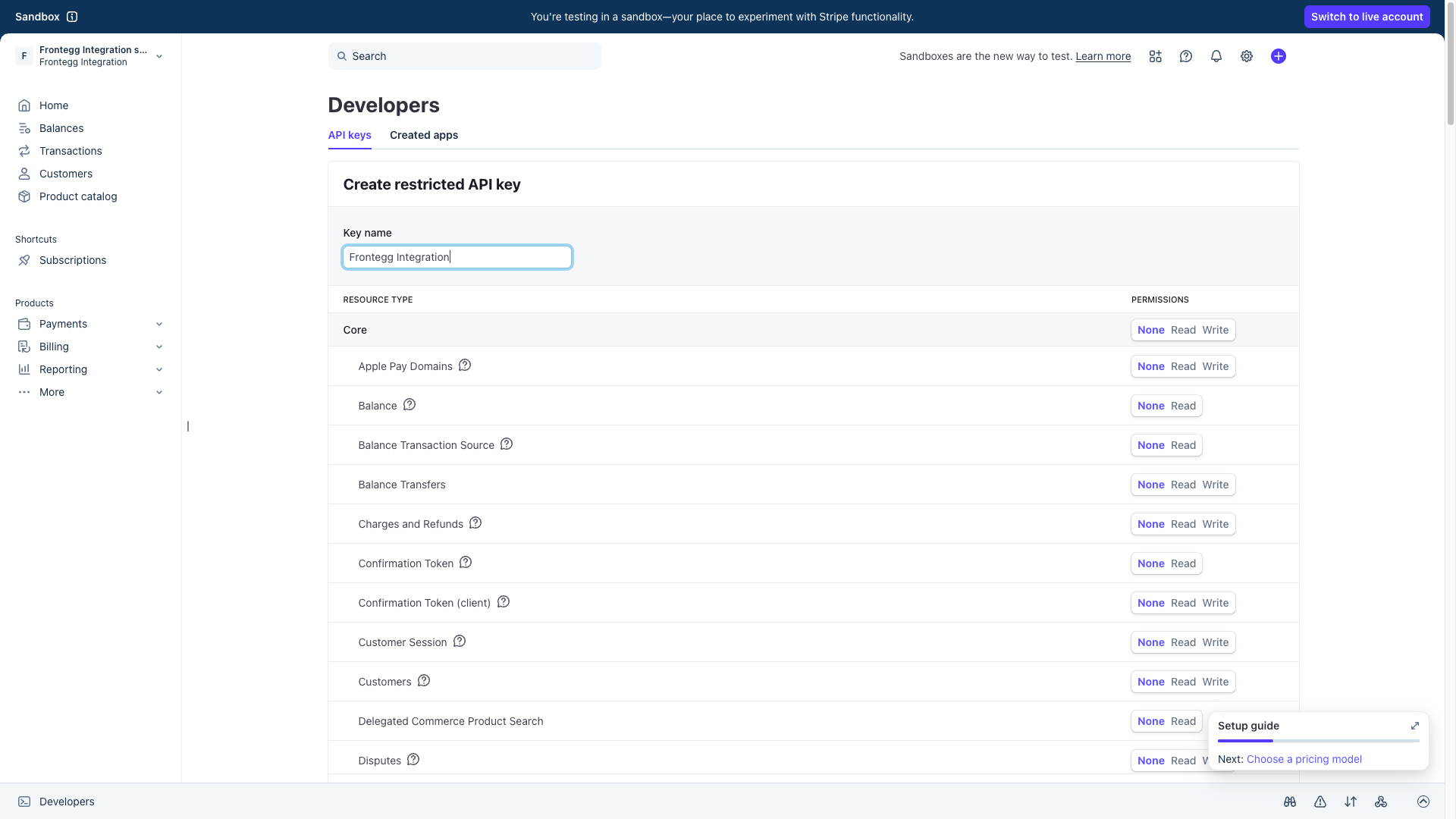
On the Create restricted API key page, enter Frontegg Integration (or any descriptive name) in the Key name field.
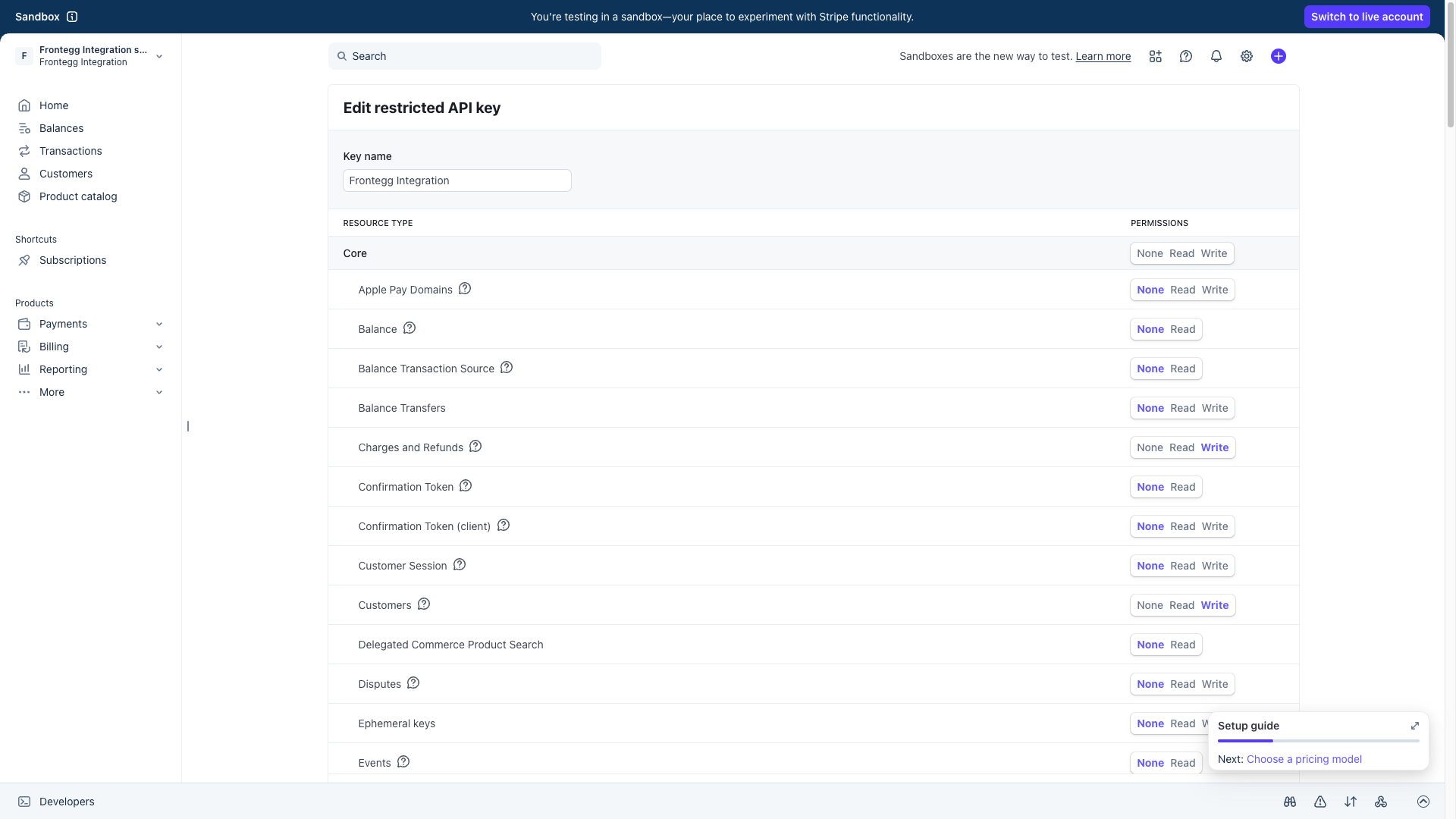
In the Core section of the permissions table, set the following resource types to Write (which also grants Read access):
| Resource type | Permission |
|---|---|
| Customers | Write |
| Charges and Refunds | Write |
| Payment Intents | Write |
| Products | Write |
Leave all other Core resource types set to None.
Scroll down to the Billing section and set the following resource types to Write:
| Resource type | Permission |
|---|---|
| Invoices | Write |
| Prices | Write |
| Subscriptions | Write |
Minimum required permissions
Minimum required permissions
For read-only access, set the resource types above to Read instead of Write. Write permission is required for creating or modifying records.
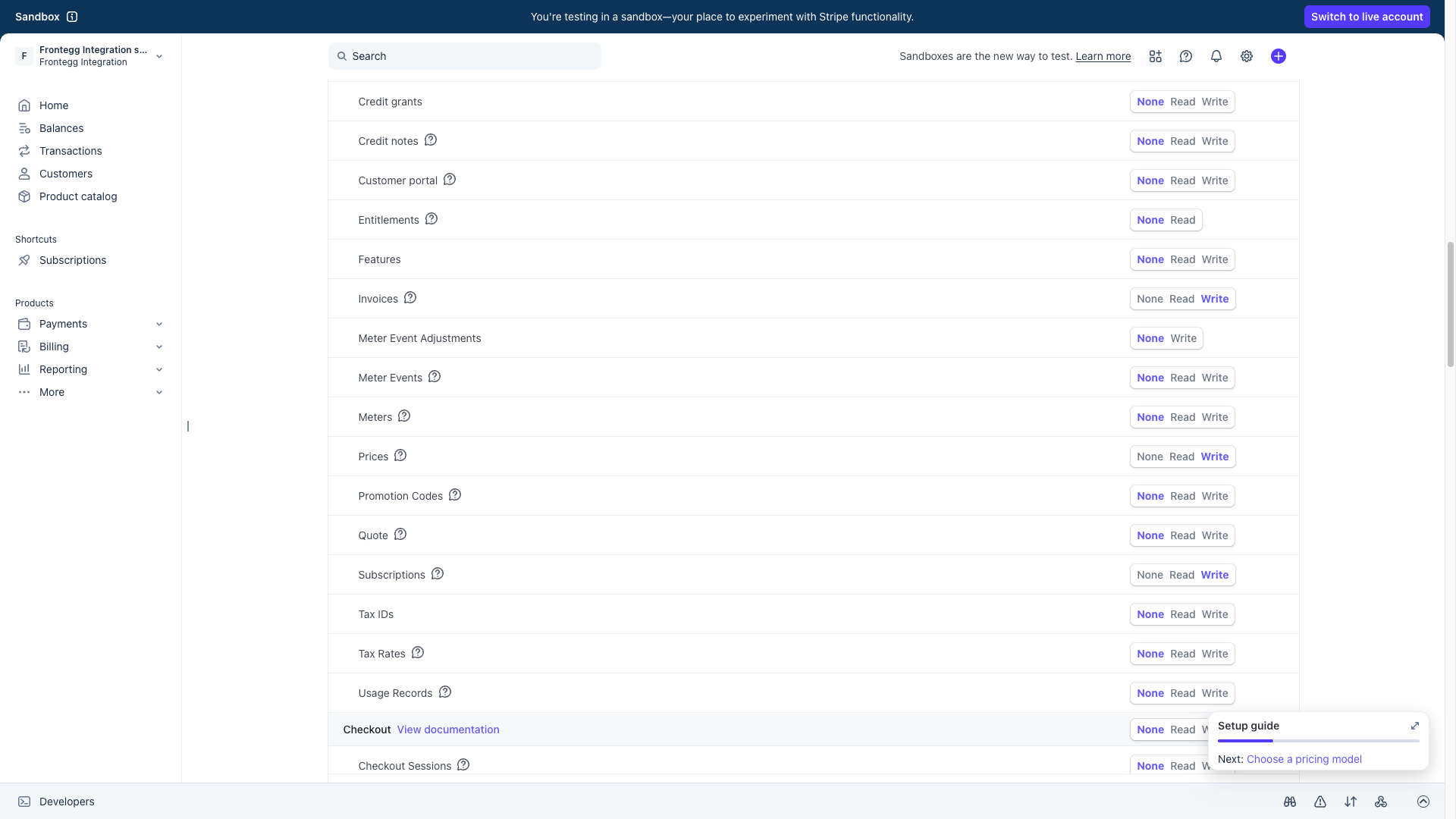
Scroll to the bottom of the page and click Create key. The restricted key is now created and appears in the Restricted keys section of the API keys page.
Keep your credentials secure
Keep your credentials secure
You can only reveal a restricted API key once. Copy it immediately after creation and store it in a safe location. Never share or commit your API key to version control.
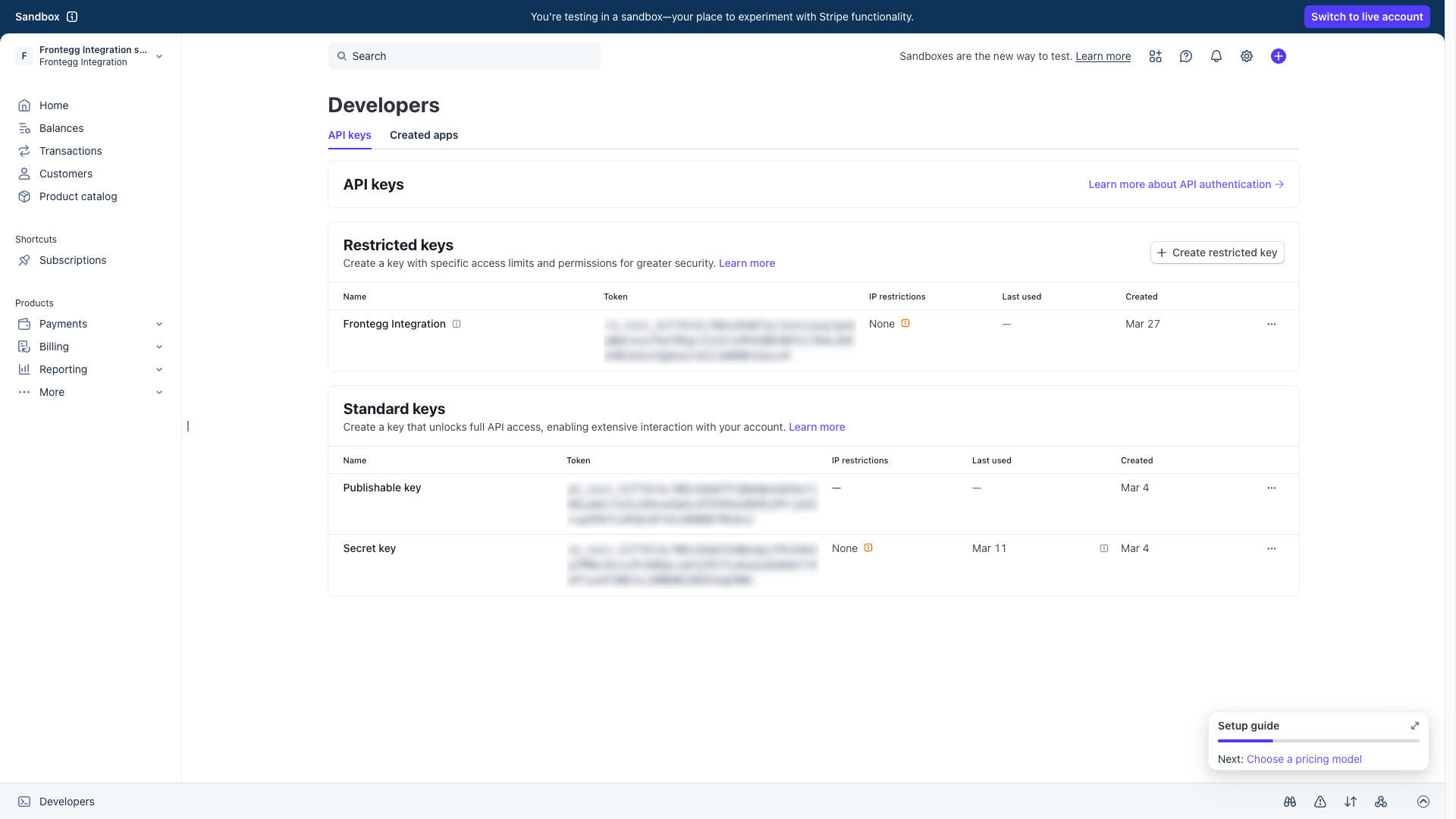
Click the copy icon next to the restricted key token to copy it to your clipboard. You will need this key to configure the integration in the Frontegg portal.
Once you have your restricted API key from the steps above, enter it in the integration configuration page of the Frontegg portal:
- Open the Frontegg portal and navigate to [ENVIRONMENT] → Integrations → Stripe.
- Enter the API key in the corresponding field.
- Select the required scopes.
- Click Save.