Intercom is a customer messaging platform that provides live chat, help desk, and customer data tools.
It can be connected to Agen.co two ways, matching the Official / In-house filter in the connector picker:
- Official — Agen.co connects through Intercom's own hosted MCP server, so your AI agents use the same conversation, contact, company, and Help Center tools Intercom exposes to MCP clients like Claude. Authorization is a standard Intercom OAuth consent, with no app for you to register.
- In-house — Agen.co wraps the Intercom REST API directly through its own integration layer, using an OAuth app you register in the Intercom Developer Hub.
Pick Official if the built-in MCP tools cover what your agents need. Fall back to In-house if you need to create or update contacts and companies, reply to or close conversations, or manage tags.
Prerequisites
Prerequisites
- An Intercom workspace hosted in the US or the EU. AU-hosted workspaces are not supported by the Intercom MCP server. If your workspace URL starts with
app.intercom.comit is US-hosted, and withapp.eu.intercom.comit is EU-hosted. - Intercom must allowlist Agen.co's callback URLs before you can connect. Intercom does not allow arbitrary redirect URIs for its MCP server, and only Intercom Customer Support can add them — see the steps below.
The allowlist request cannot be completed on demand: until Intercom adds both callback URLs, the sign-in is rejected with Redirect URI is not in the allowlist, reach out to Intercom Customer Support if you believe we should support it. The callback URLs are specific to your Agen.co environment, so you request this once per environment.
- In the Agen.co portal, go to Connectors → My connectors and click Add connector.
- Find Intercom and select it.
- In the Add Intercom panel, keep the Official tab selected. The panel shows two read-only URLs at the bottom — copy both:
- Callback URL — completes the initial OAuth handshake between Agen.co and Intercom.
- Gateway callback URL — used by the Agen.co MCP gateway for per-user authorization at runtime.
Contact Intercom Customer Support, send both URLs, and ask them to be allowed as redirect URIs for the Intercom MCP server. Wait for Intercom's confirmation before you continue.
Return to the Add Intercom panel (reopen it if you closed it) and fill in the fields:
| Field | Required | Description |
|---|---|---|
| Instance Slug | Yes | Namespaces this instance — it prefixes each imported tool as slug__tool, so several instances of the same MCP can coexist. Use lowercase kebab-case. You can change it later from the connector's settings. |
| Intercom region | Yes | The Intercom data region hosting your workspace: mcp (US - mcp.intercom.com, the default) or mcp.eu (Europe - mcp.eu.intercom.com). |
| Callback URL | — | Read-only. Intercom must allowlist it. |
| Gateway callback URL | — | Read-only. Intercom must allowlist it too — the MCP gateway uses it for per-user authorization at runtime. |
Each connector instance connects to exactly one Intercom region. To connect workspaces in both regions, add the Intercom connector again with a different Instance Slug and the other region.
- Click Connect. You are redirected to Intercom, where the consent page names the requesting application and lists what it can do. Sign in as a workspace admin and approve access.
- After you approve, the panel switches to Select the tools to import from Intercom. Every tool is on by default; turn off any you do not want your agents to see.
- Click Add. The connector is created and the selected tools are imported only when you click Add — if you close the panel first, nothing is saved, even if the Intercom callback page reported success.
| Area | What it covers |
|---|---|
| Search | Search conversations and contacts, and fetch a record by ID |
| Conversations | Search and read conversations, and add internal notes |
| Contacts | Search and read contacts |
| Companies | List and read companies |
| Help Center | List, search, read, create, and update articles |
The Official server does not create or update contacts and companies, reply to or close conversations, or manage tags. Use the In-house tab if your agents need to. The tool list was taken from Intercom's MCP documentation on 2026-10-05 and can change.
Enabling the Intercom connector isn't enough on its own. Tool calls remain denied until you create a policy that grants access to the specific tools you want to expose.
Prerequisites
Prerequisites
- An Intercom account with admin access
- Access to the Intercom Developer Hub
Log in to your Intercom account and click Developer Hub in the top navigation bar. This opens the Developer Hub where you can manage your apps.
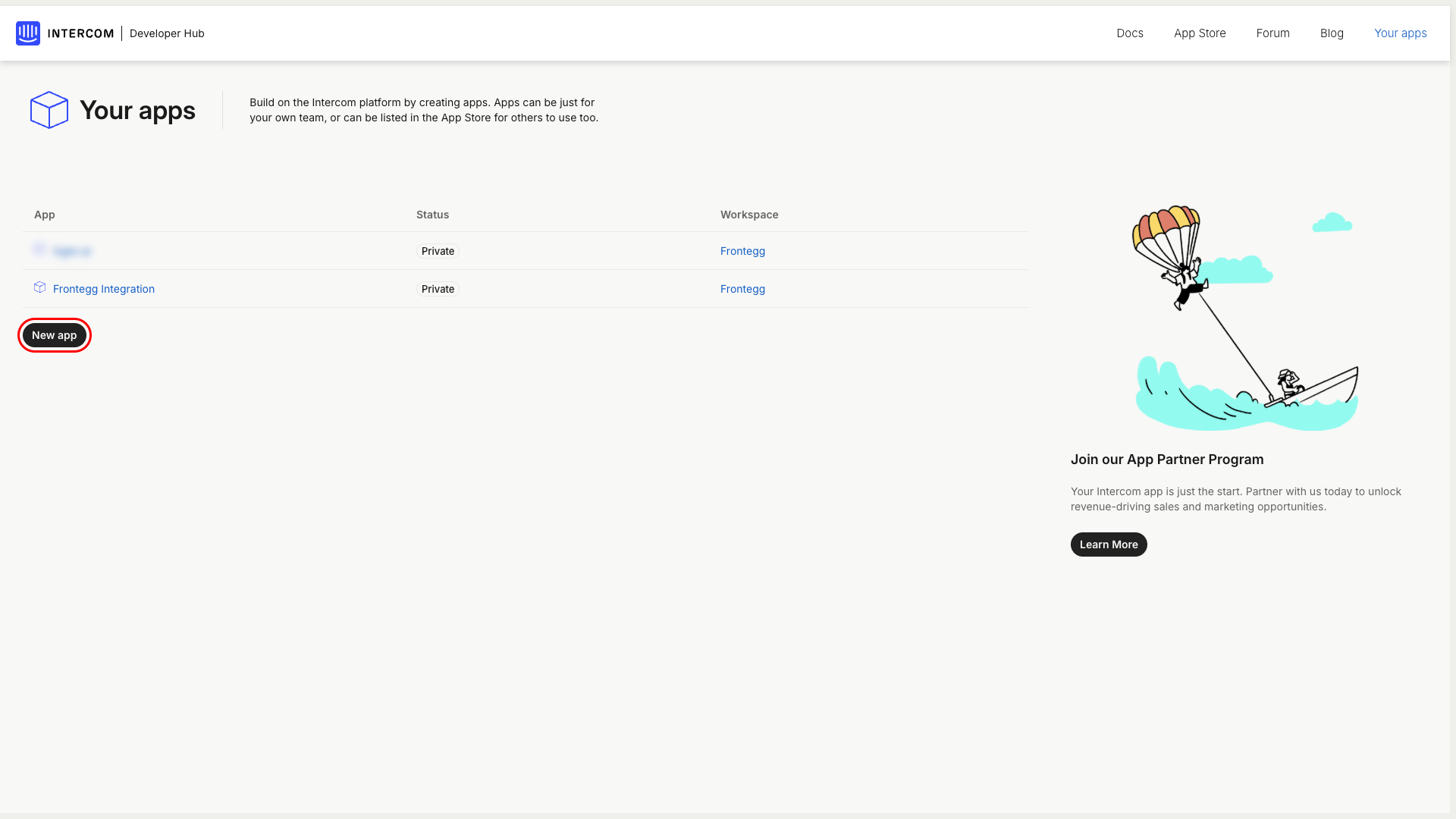
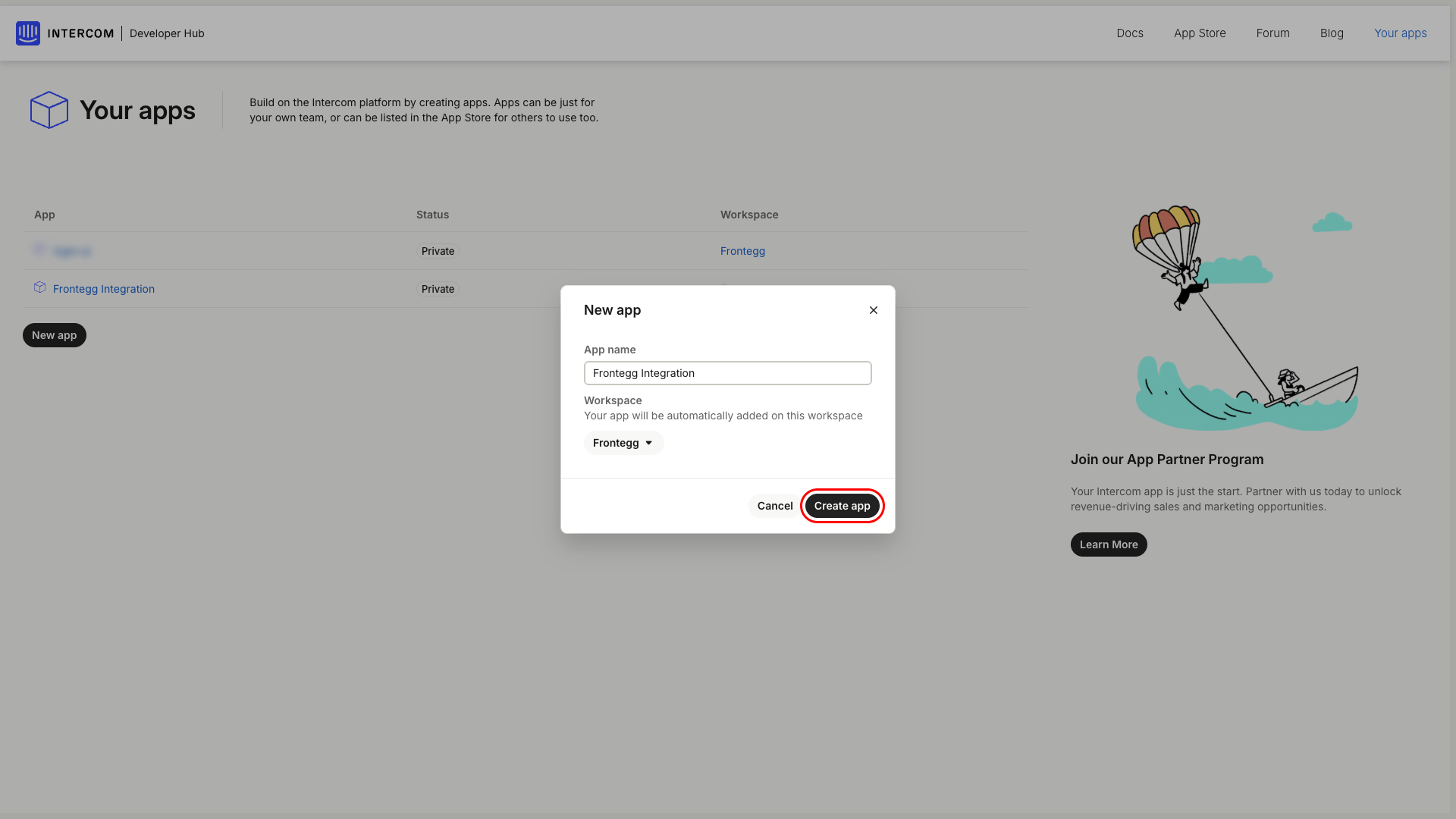
Click the New app button. In the dialog that appears, enter Frontegg Integration as the app name, select your workspace, and click Create app.
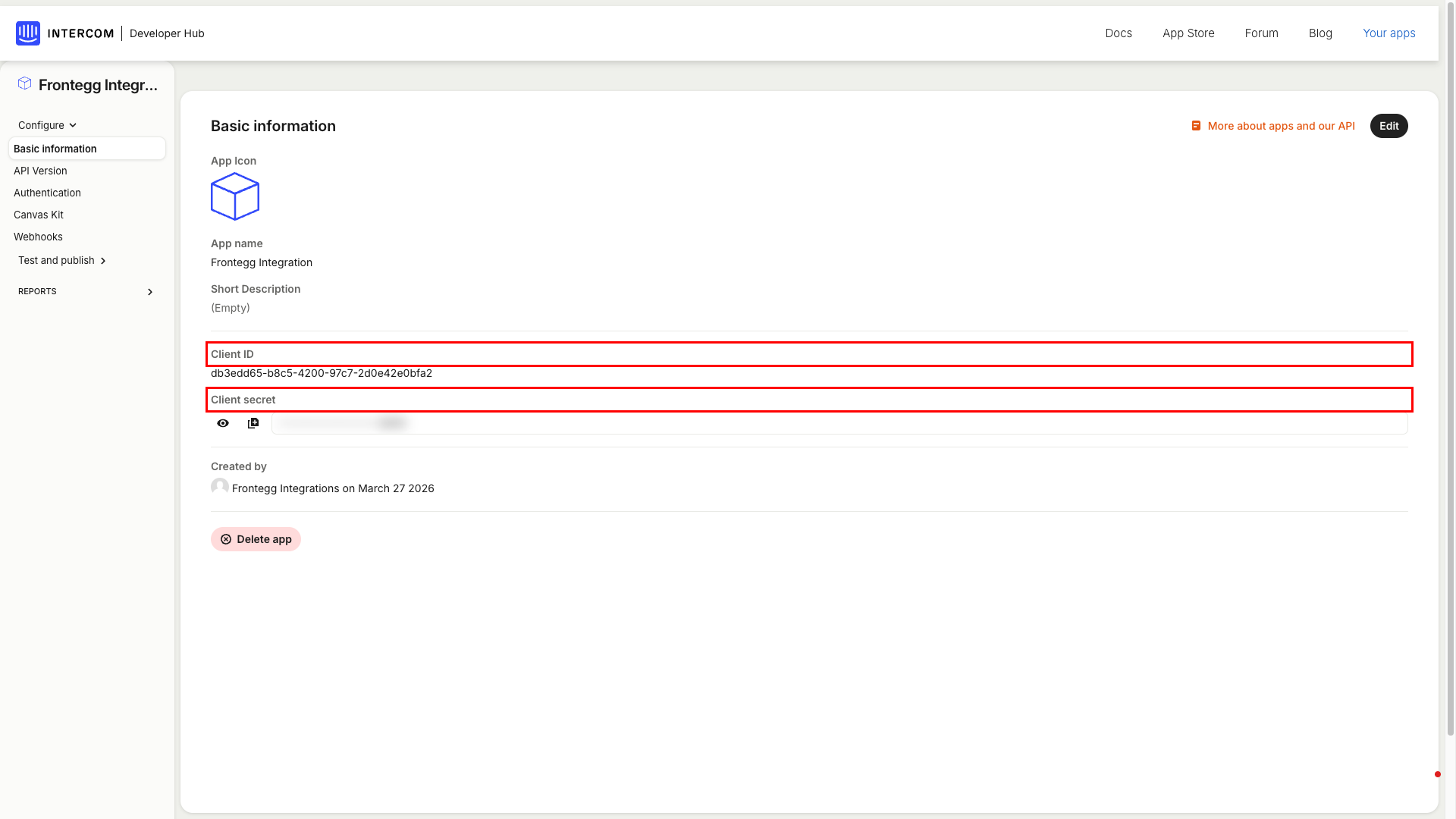
Navigate to Basic information in the left sidebar. On this page you can find your Client ID and Client Secret. Copy both values — you will need them to configure the integration in the Frontegg portal.
Keep your credentials secure
Keep your credentials secure
Never share or commit your Client Secret to version control. You can reveal the secret by clicking the show button next to the masked value.
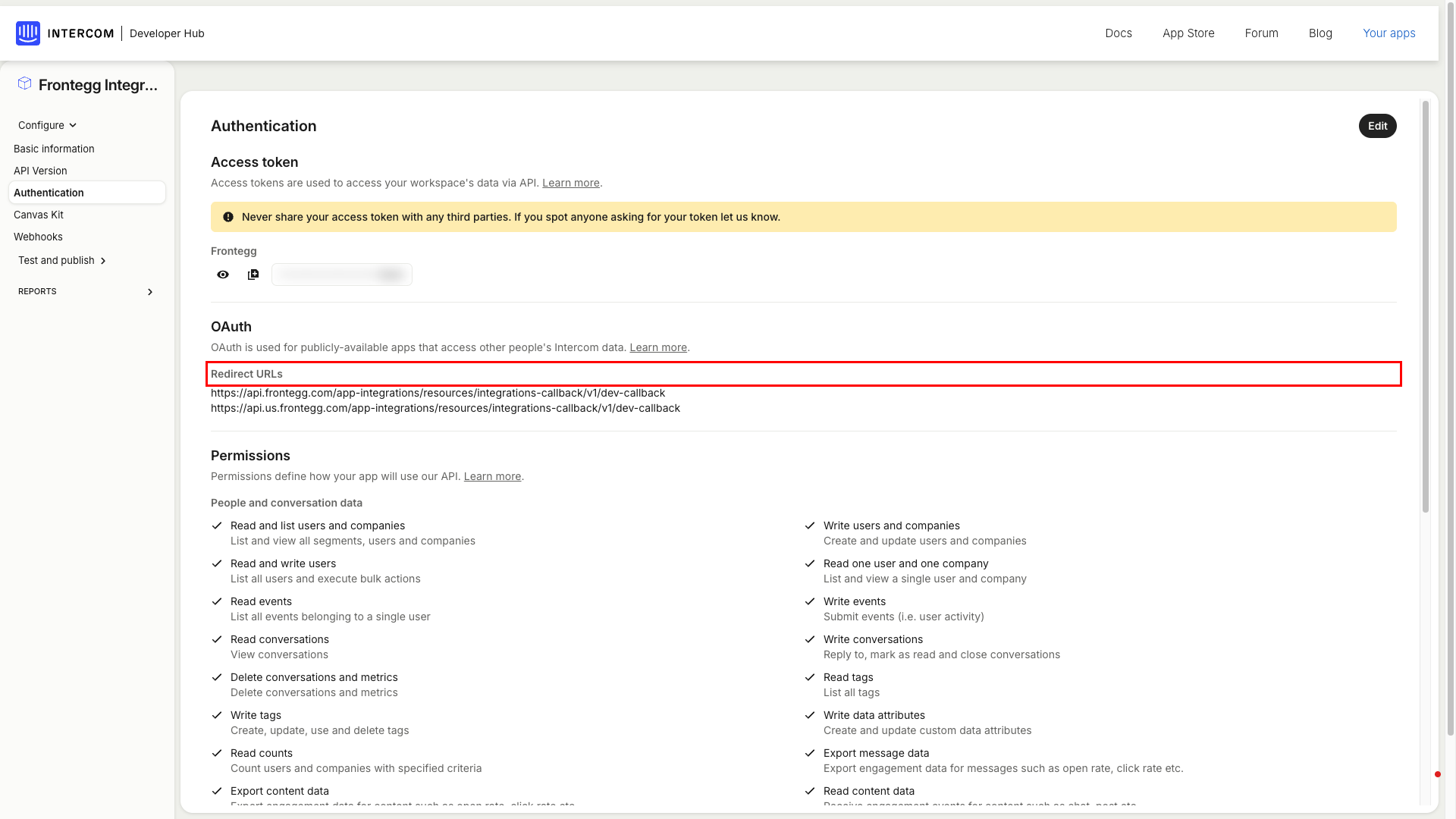
Navigate to Authentication in the left sidebar, then click the Edit button. Check the Use OAuth checkbox to enable OAuth for your application. This reveals the redirect URL configuration fields.
In the Redirect URLs section, add the following callback URI:
https://YOUR_MCP_GATEWAY_URL/integration-callback
Click Add redirect URL to save the URI.
Scroll down to the Permissions section on the same page. Select the permissions your integration requires. The available permissions are grouped into two categories:
People and conversation data
| Permission | Description |
|---|---|
| Read and list users and companies | List and view all segments, users and companies |
| Write users and companies | Create and update users and companies |
| Read conversations | View conversations |
| Write conversations | Reply to, mark as read and close conversations |
| Read tags | List all tags |
| Write tags | Create, update, use and delete tags |
Workspace data
| Permission | Description |
|---|---|
| Read admins | List and view all admins |
Minimum required permissions
Minimum required permissions
For basic contact and conversation management, select at minimum: Read and list users and companies, Write users and companies, Read conversations, and Write conversations.
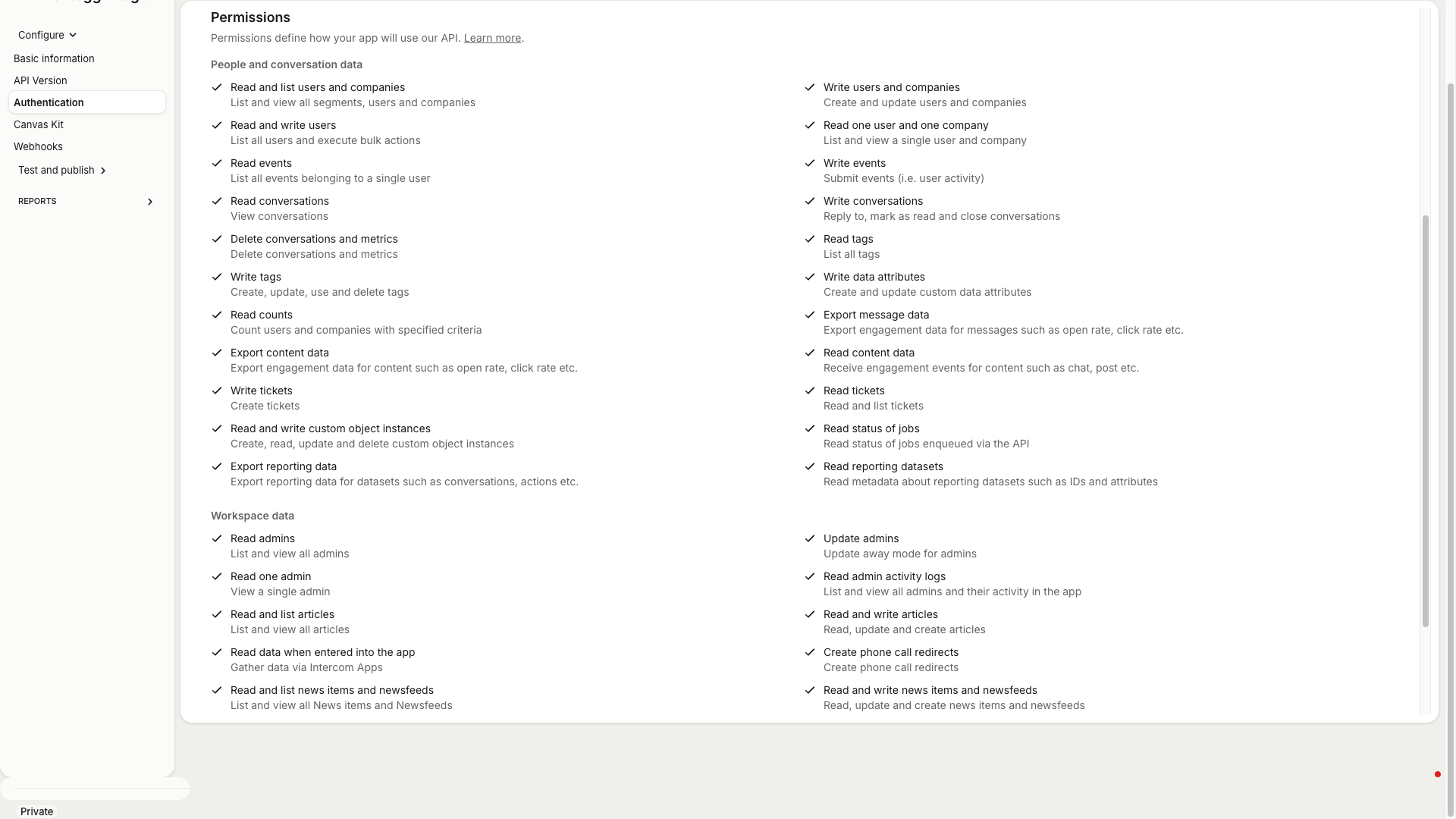
Click Save at the top of the page. After saving, the Authentication page displays your configured redirect URLs and selected permissions.
Once you have your Client ID and Client Secret from the steps above, enter them in the integration configuration page of the Frontegg portal:
- Open the Frontegg portal and navigate to [ENVIRONMENT] → Integrations → Intercom.
- Enter the Client ID and Client Secret in the corresponding fields.
- Select the required scopes.
- Click Save.