Webflow is a visual web design and CMS platform that lets teams build and manage websites without writing code.
It can be connected to Agen.co two ways, matching the Official / In-house filter in the connector picker:
- Official — Agen.co connects through Webflow's own hosted MCP server, so your AI agents work within your existing Webflow permissions and roles across sites, CMS collections, and site design.
- In-house — Agen.co wraps the Webflow API directly through its own integration layer, using a dedicated OAuth app you register in your Webflow workspace.
Pick Official if the built-in MCP tools cover what your agents need. Fall back to In-house if you need to configure exact API scopes yourself.
Prerequisites
Prerequisites
- A Webflow account with access to the site(s) or workspace(s) you want your agents to manage
- To use the redirects and robots.txt tool, a Webflow workspace on an Enterprise plan. Every other tool works without it.
In the Agen.co portal, go to Connectors → My connectors and click Add connector.
In the Select connector drawer, search for
Webflowand select it. The Add Webflow panel opens.Fill in the field:
Field Required Description Instance Slug Yes Prefixes each imported tool as slug__tool, so several instances of the connector can coexist. Prefilled withwebflow, or with the next free slug such aswebflow-2if Webflow is already connected. Use lowercase kebab-case. You can change it later from the connector's settings.Click Connect. Webflow opens in a new tab, and the panel shows Waiting for authorization — complete it in the opened tab…
On the Webflow MCP screen, review what the connection can do, then click Continue. No Client ID or Client Secret needs to be entered manually — Webflow's MCP Bridge App installs automatically as part of authorization.
On the Authorize Webflow MCP Bridge App screen, select which sites or workspaces to authorize, review the requested read and write permissions, and click Authorize App.
Back in Agen.co, the panel switches to Select the tools to import from Webflow. Every tool is toggled on; turn off any you don't want to import, then click Add.
The connector is created and its tools imported only when you click Add. If you close the panel before that, nothing is saved, even though the Webflow tab reported success.
Adding the connector doesn't authorize anyone's tool calls yet. The first time each user's agent calls a Webflow tool, the call returns an authorization link instead of a result. The user opens the link, signs in to Webflow, and picks the sites or workspaces to authorize the same way. After that, the user's tool calls reach only the sites and workspaces that user authorized.
Once connected, Webflow appears under My connectors with 34 tools spanning:
| Area | What it covers |
|---|---|
| AI and guidance | Asking Webflow AI questions about the Webflow API, reading usage guidance before calling other tools, and discovering further tools |
| Sites and pages | Listing, reading, and publishing sites; listing, creating, and updating pages, their branches, and sitemap indexing |
| CMS | Managing collections, collection fields, field groups, and items |
| Design canvas and elements | Querying and editing the element tree, text, styles, links, and attributes on a page; building elements from scratch or from HTML/CSS; reading and controlling the live Designer session, including selection, navigation, and breakpoints |
| Components | Managing component definitions, instances, props, and variants |
| Styles, variables, and interactions | Site styles, design variables, and IX3 interactions (animations) |
| Assets and fonts | Uploading, organizing, and compressing assets; previewing an asset image; managing custom fonts |
| Custom code | Registering and editing site- or page-level scripts and custom code blocks |
| Forms and comments | Reading forms and managing submissions; reading and replying to Designer comments |
| Webhooks | Listing, creating, and deleting site webhooks |
| Localization | Reading and updating page and component content in secondary locales |
| Agent instructions | Managing agent rules and skills stored on a site |
| Analytics and campaigns | Reading Analyze report data; managing Campaign Hub campaigns, page-variation personalization, and their analytics |
| Webflow Cloud apps | Inspecting and managing Cloud apps, GitHub sources, environments, deployments, and logs |
| Enterprise | Managing 301 redirects and robots.txt — requires a Webflow workspace on an Enterprise plan |
Enabling the Webflow connector isn't enough on its own. Tool calls remain denied until you create a policy that grants access to the specific tools you want to expose.
Webflow is a visual web design and CMS platform that lets teams build and manage professional websites without writing code. Integrating Webflow with Frontegg allows your application to access and manage sites, CMS collections, pages, and webhooks on behalf of your users through OAuth 2.0 authentication.
Prerequisites
Prerequisites
- A Webflow account with workspace admin access
- Access to the Webflow workspace dashboard
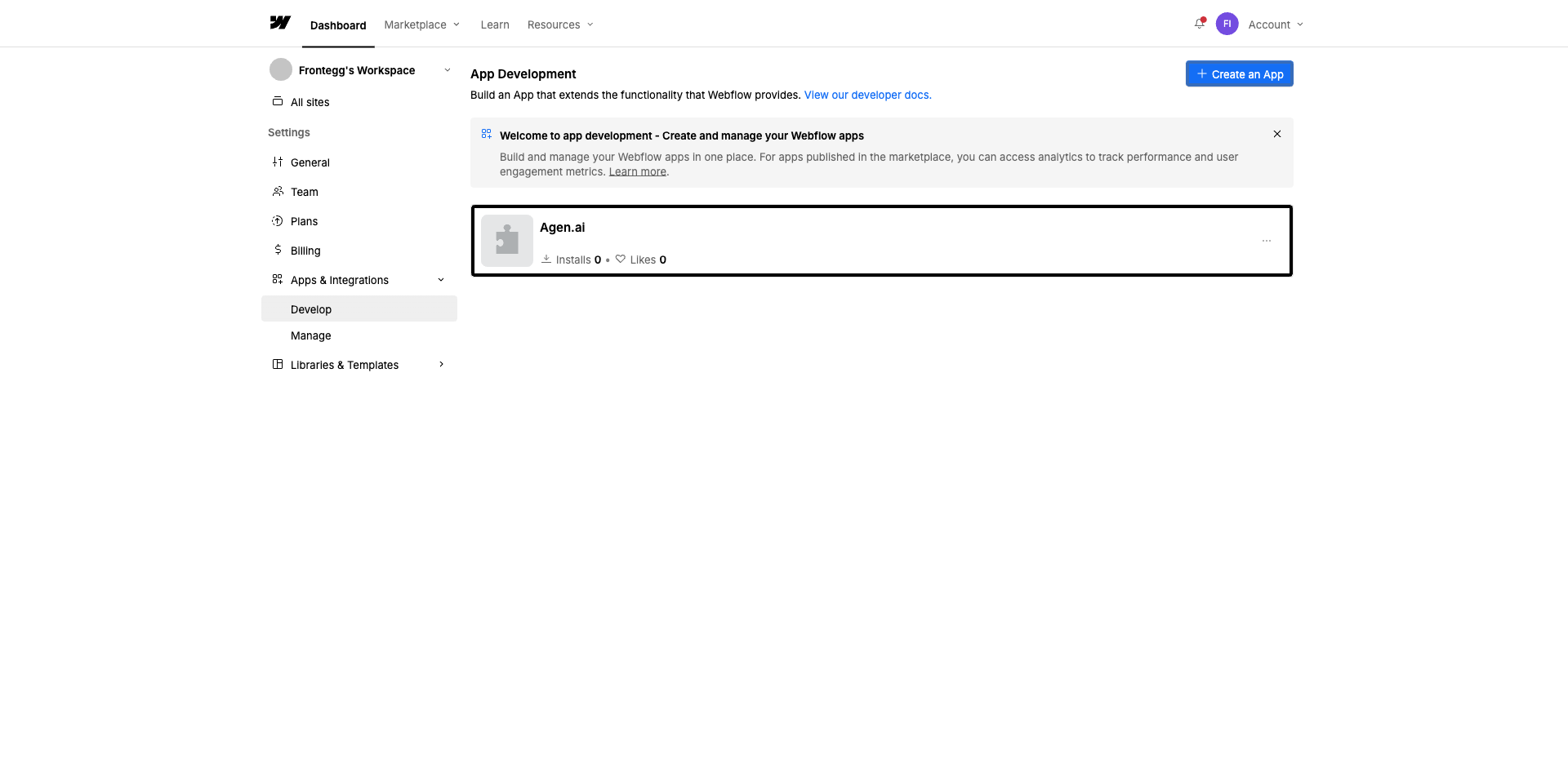
Log in to your Webflow account. In the left sidebar of your workspace dashboard, expand Apps & Integrations and click Develop.
On the App Development page, click the + Create an App button in the top-right corner.
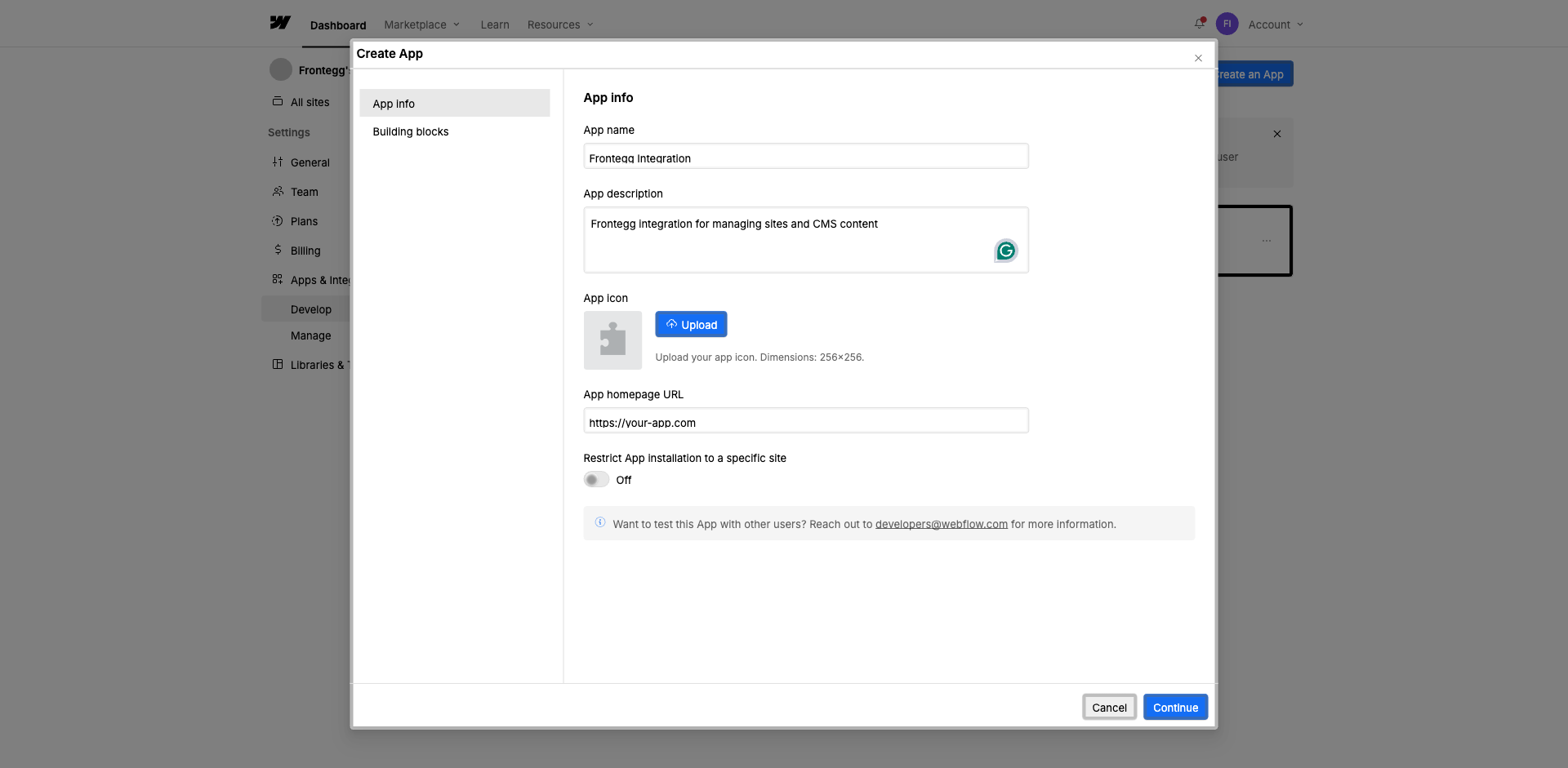
In the Create App dialog, fill in the following fields on the App info tab:
- App name -- Enter a descriptive name (e.g., "Frontegg Integration")
- App description -- Enter a brief description of the integration
- App homepage URL -- Enter your application URL
Click Continue to proceed to the next step.
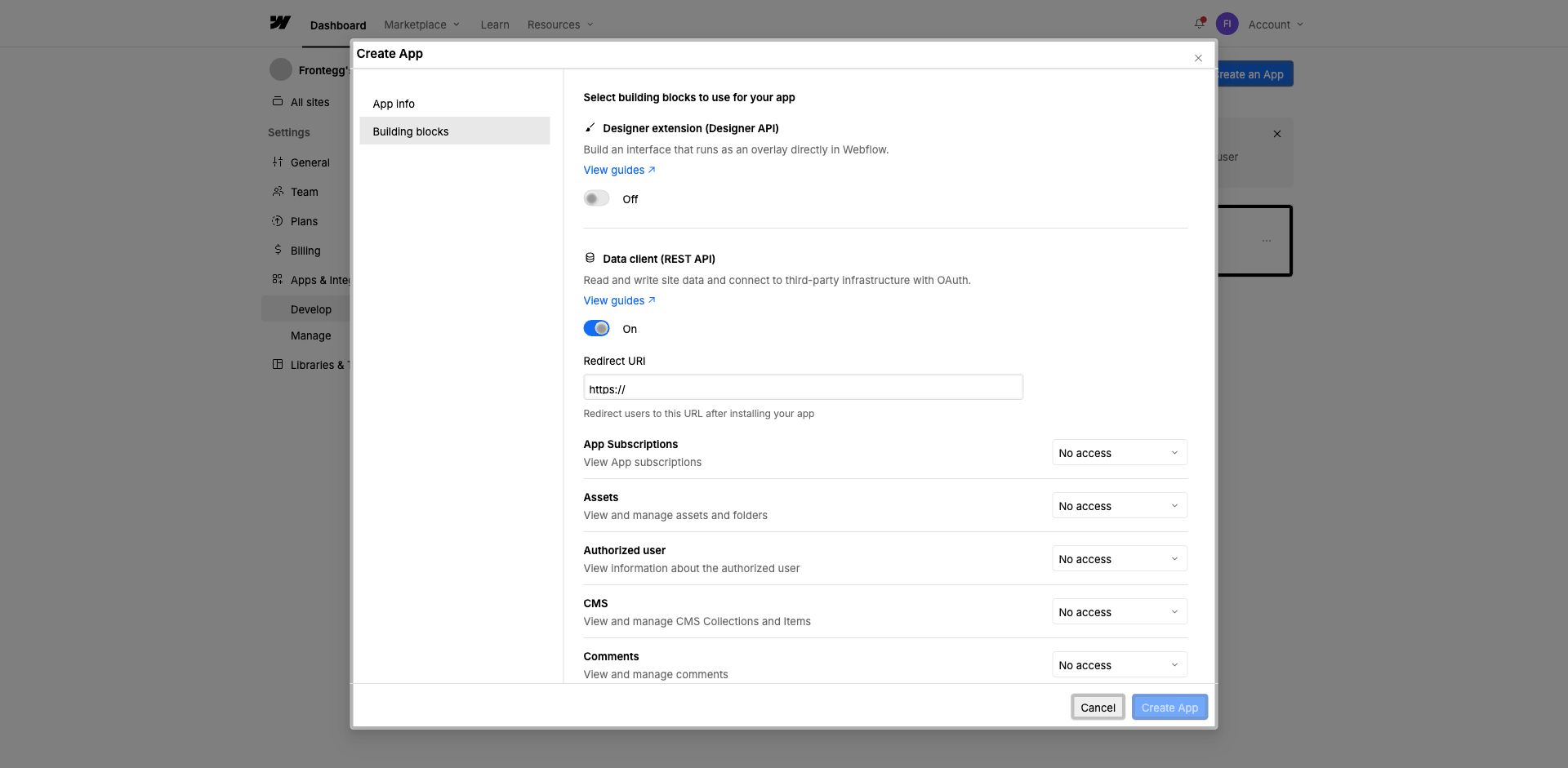
On the Building blocks tab, enable the Data client (REST API) toggle. This enables OAuth-based API access to read and write site data.
After enabling the Data Client, a configuration section appears with the Redirect URI field and scope dropdowns.
Enter the following redirect URI:
https://YOUR_MCP_GATEWAY_URL/integration-callback
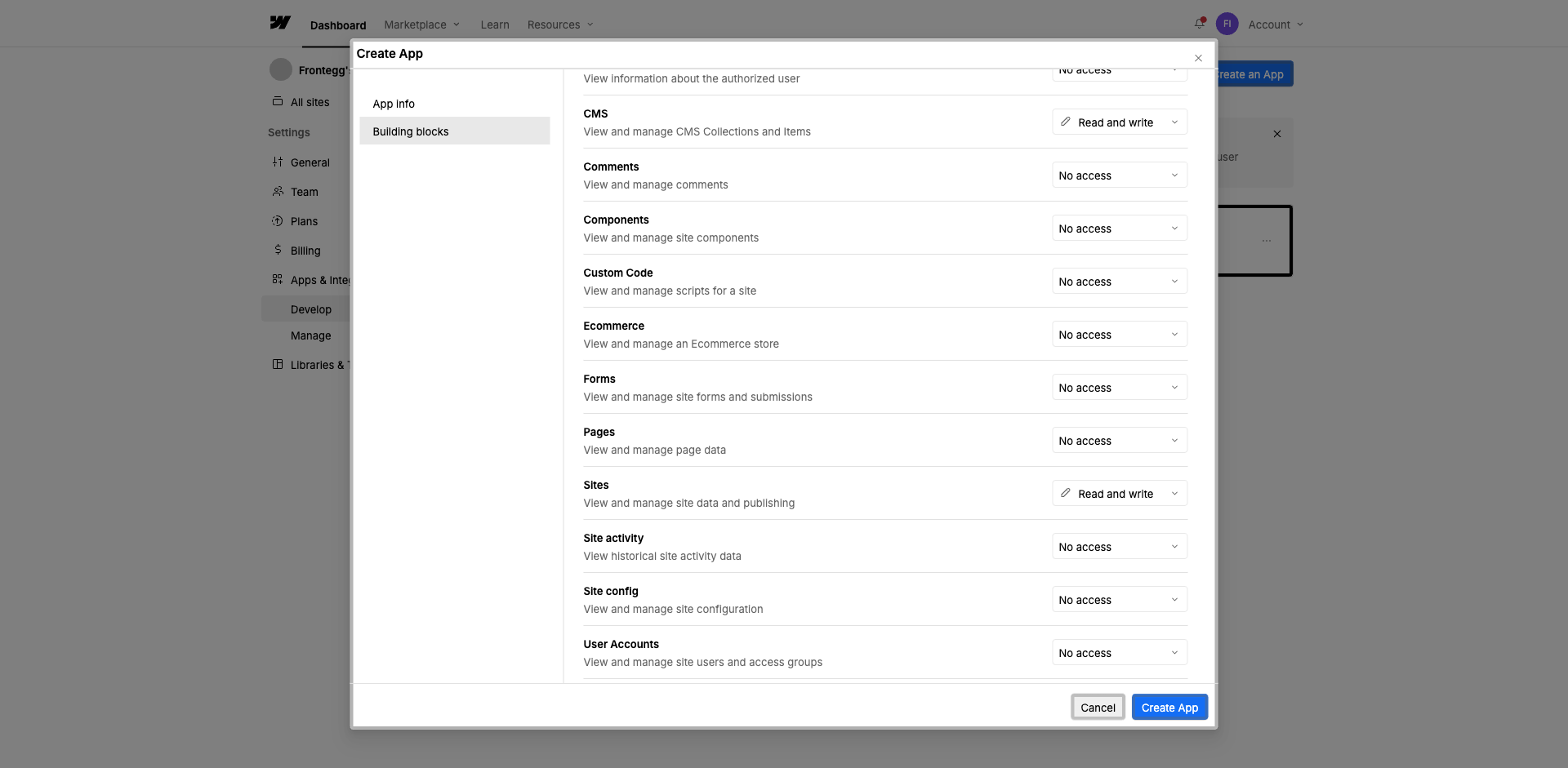
In the scopes section below the Redirect URI, configure the following permissions using the dropdown menus:
| Scope | Access level |
|---|---|
| Sites -- View and manage site data and publishing | Read and write |
| CMS -- View and manage CMS Collections and Items | Read and write |
Set both Sites and CMS to Read and write.
Minimum required scopes
Minimum required scopes
For basic functionality, you need Sites set to at least Read-only and CMS set to at least Read-only. Set both to Read and write for full integration capabilities.
Click Create App to finalize the application.
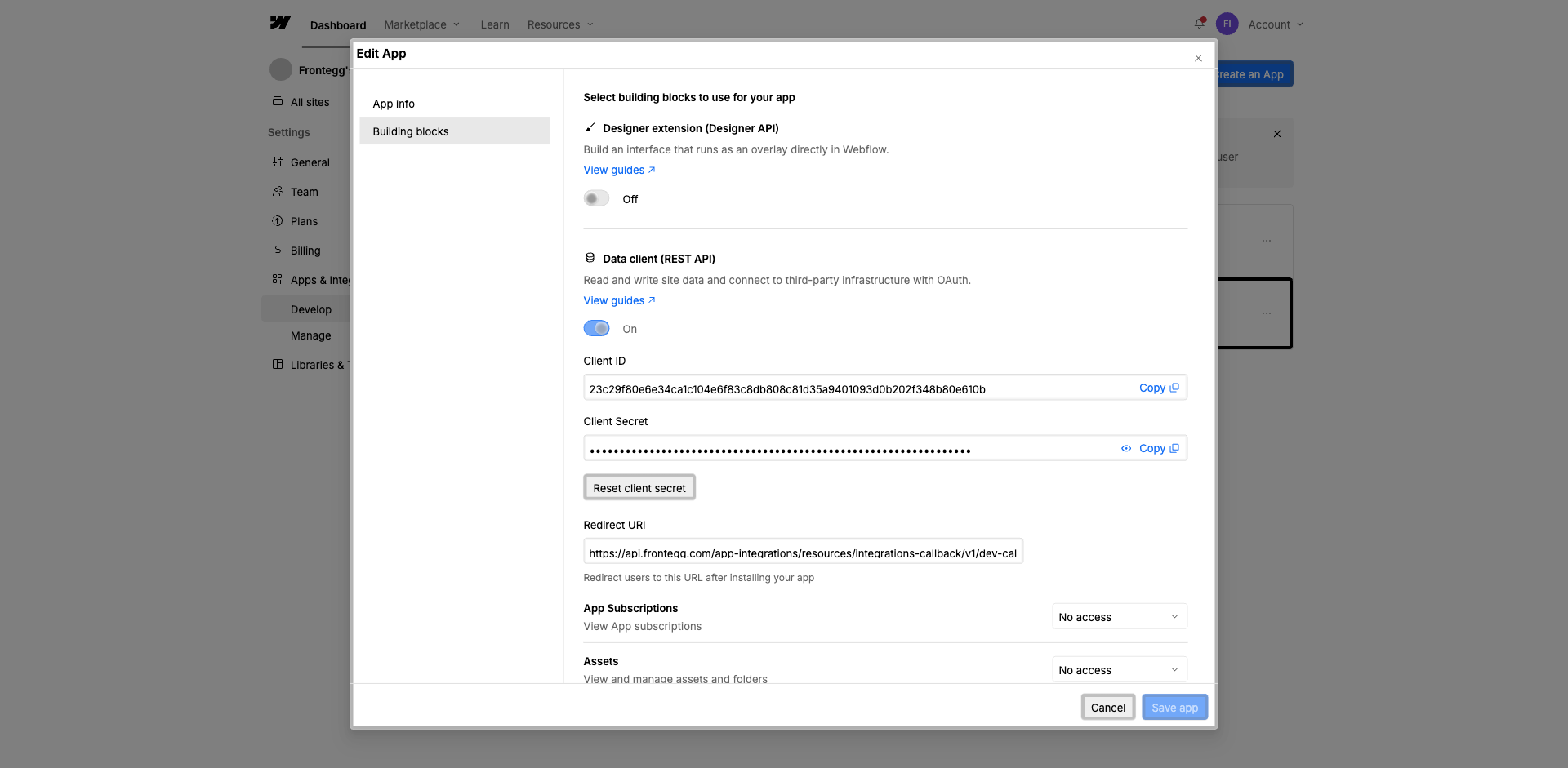
After creating the application, open the app settings by clicking the three-dot menu (...) next to your app and selecting Edit App. Navigate to the Building blocks tab.
In the Data client (REST API) section, you can find:
- Client ID -- Copy this value
- Client Secret -- Click the eye icon to reveal the secret, then copy it
Keep your credentials secure
Keep your credentials secure
Never share or commit your Client Secret to version control. If the secret is compromised, click Reset client secret to generate a new one.
Once you have obtained your Client ID and Client Secret from the steps above, enter them in the integration configuration page of the Frontegg portal:
- Open the Frontegg portal and navigate to [ENVIRONMENT] → Integrations → Webflow.
- Enter the Client ID and Client Secret in the corresponding fields.
- Select the required scopes.
- Click Save.