LinkedIn Ads is a digital advertising platform that enables businesses to reach professionals on LinkedIn. Integrating it with Frontegg gives your application access to advertising account data, campaign performance reporting, and ad management capabilities using LinkedIn's OAuth 2.0 API.
Prerequisites
Prerequisites
- A LinkedIn account
- Admin access to a LinkedIn Company Page (required for app verification)
- Access to the LinkedIn Developer Portal
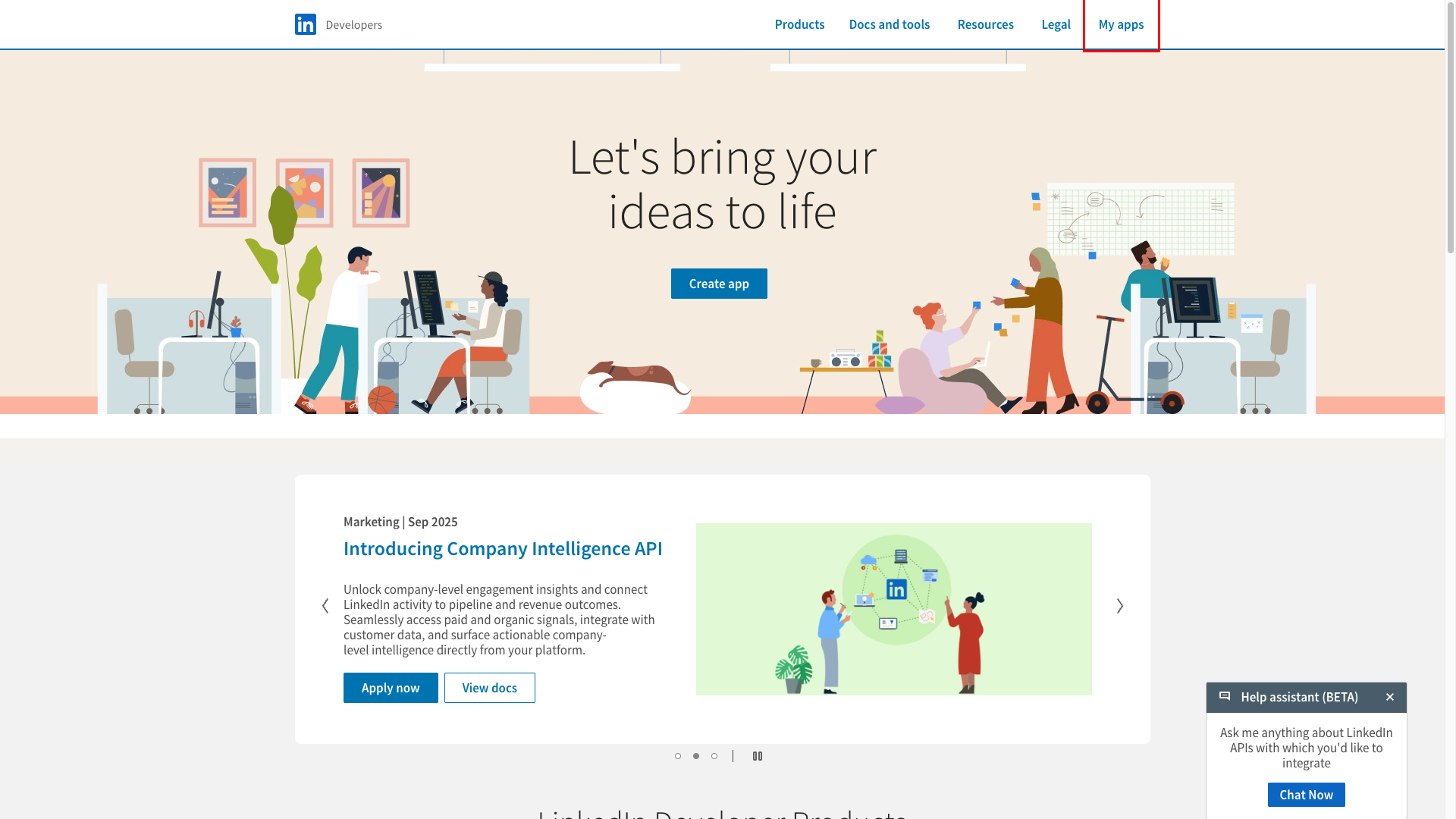
Navigate to developer.linkedin.com and click My apps in the top navigation bar.
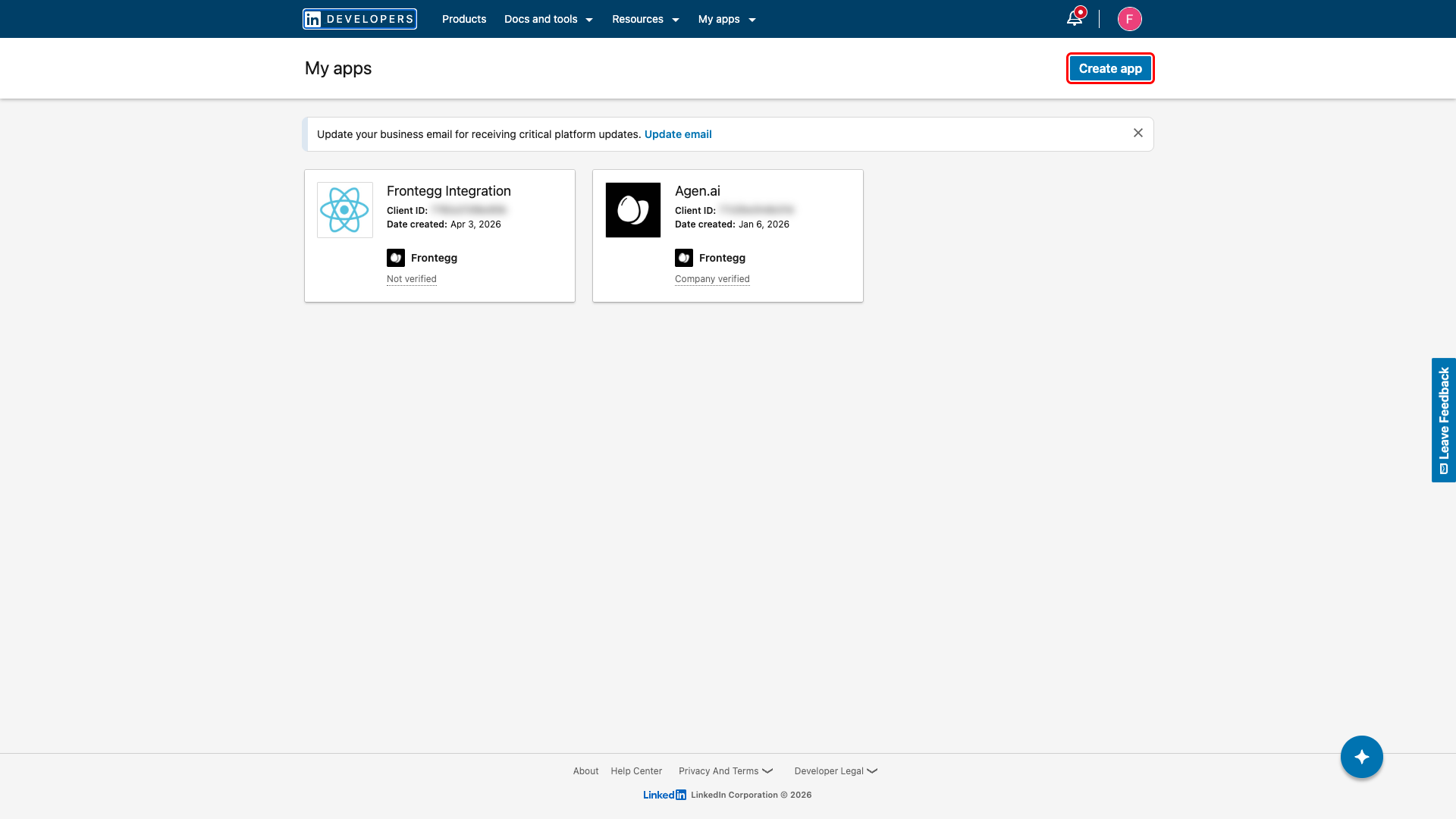
On the My apps page, click Create app.
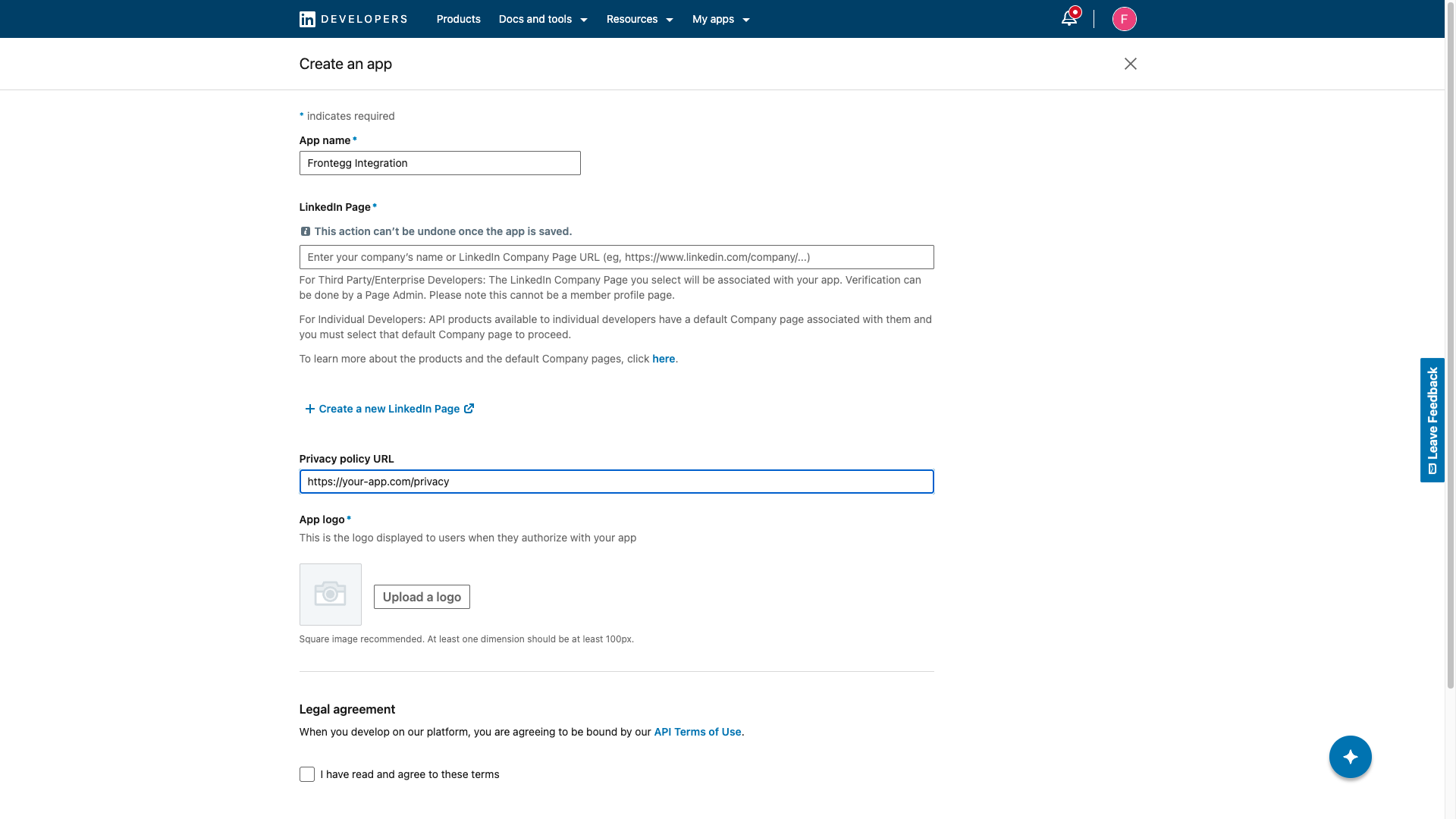
Fill in the following fields:
- App name: Enter a name for your app (for example,
Frontegg Integration). - LinkedIn Page: Search for and select your company's LinkedIn Page.
- Privacy policy URL: Enter your app's privacy policy URL.
- App logo: Upload a square logo image (at least 100×100 px).
Check the I have read and agree to these terms checkbox, then click Create app.
Your Client ID and Client Secret are issued immediately after app creation, before any product approval is required.
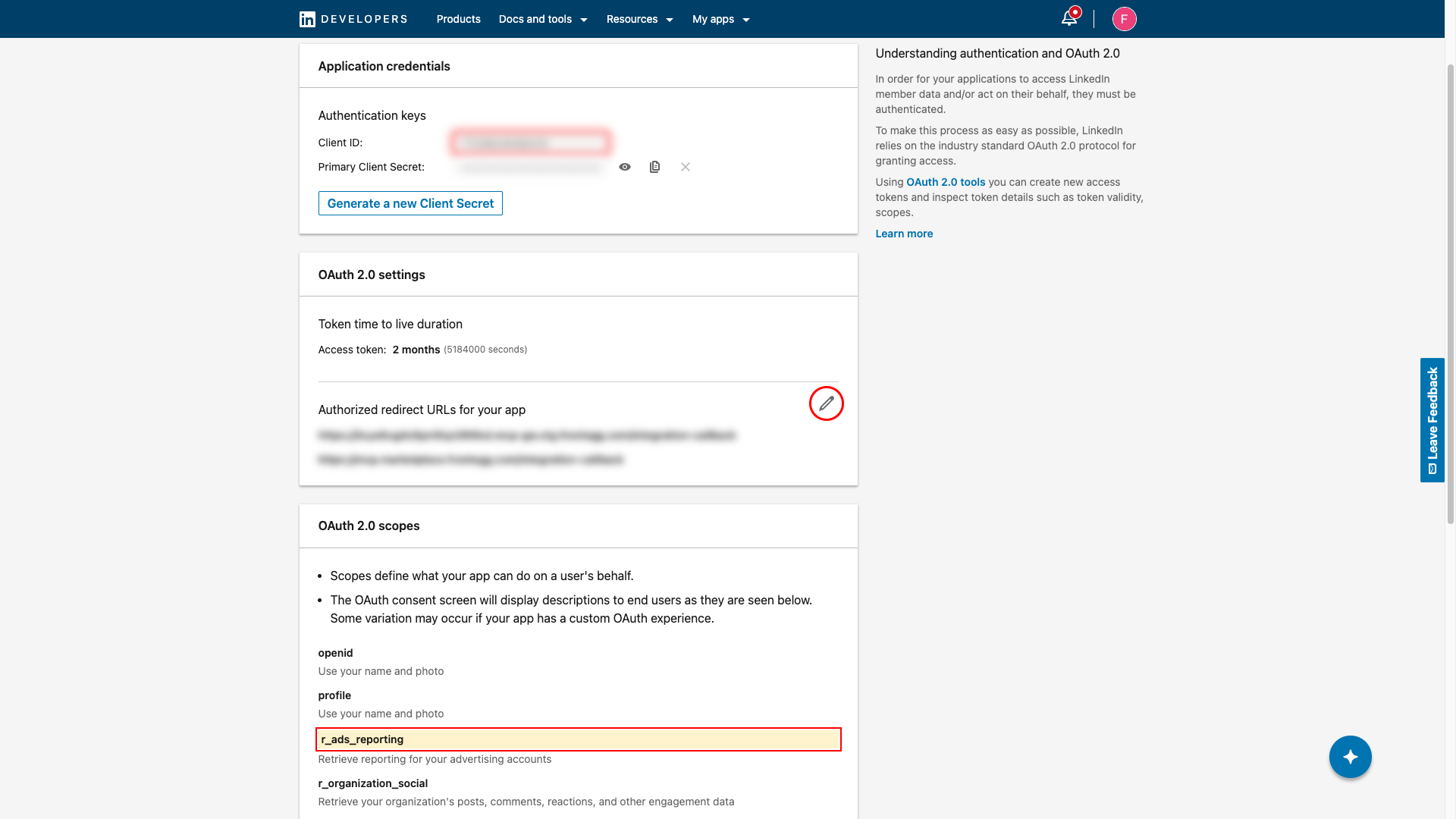
Open the Auth tab. In the Application credentials section:
- Client ID: copy the value from the Client ID field.
- Client Secret: click Show to reveal the Primary Client Secret, then click Copy.
Keep your credentials secure
Keep your credentials secure
Store the Client Secret immediately after copying it. Never share or commit it to version control.
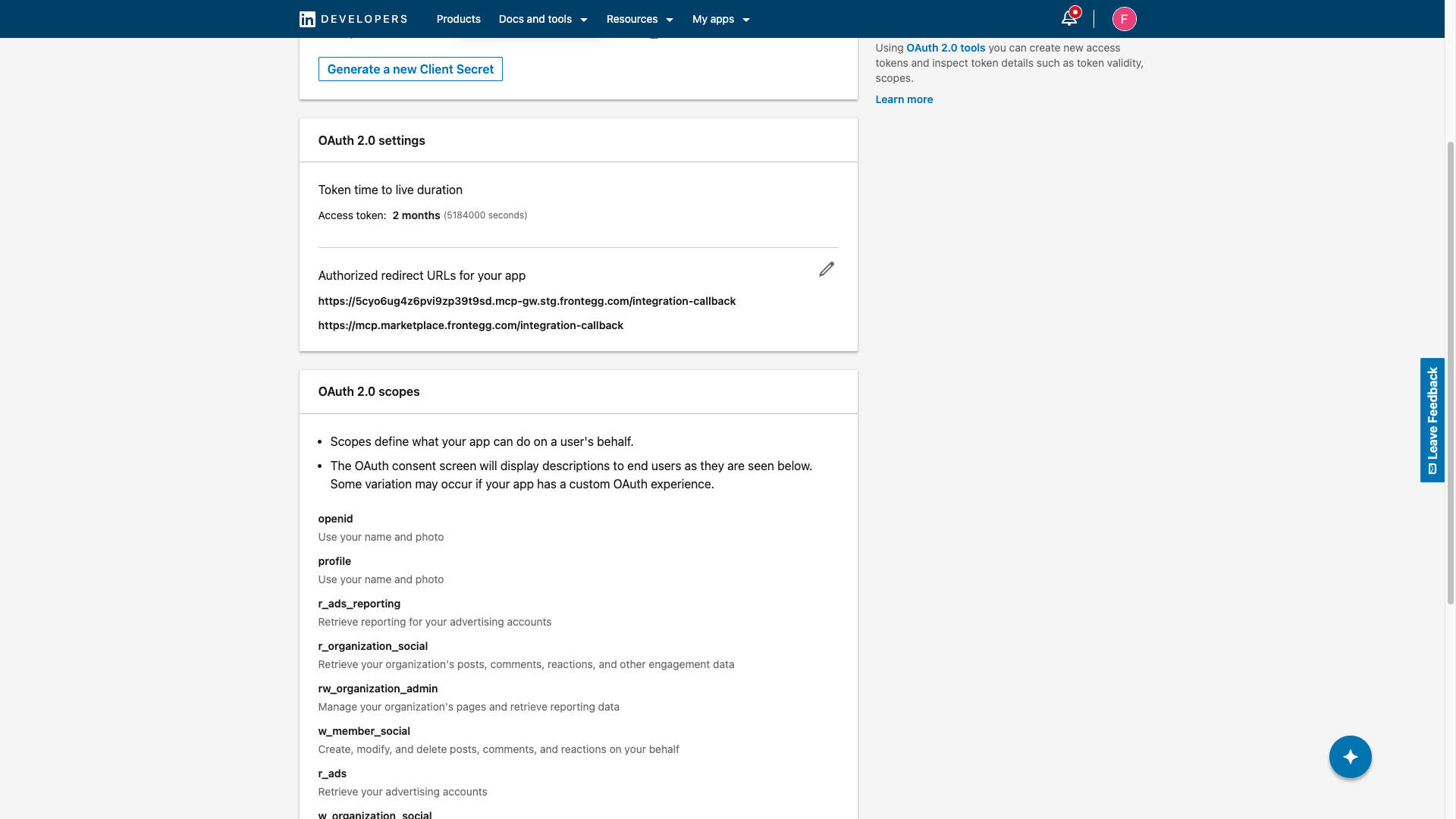
In the Auth tab, scroll to OAuth 2.0 settings and click the pencil icon next to Authorized redirect URLs for your app. Click Add redirect URL and enter:
https://YOUR_MCP_GATEWAY_URL/integration-callback
Click Update to save.
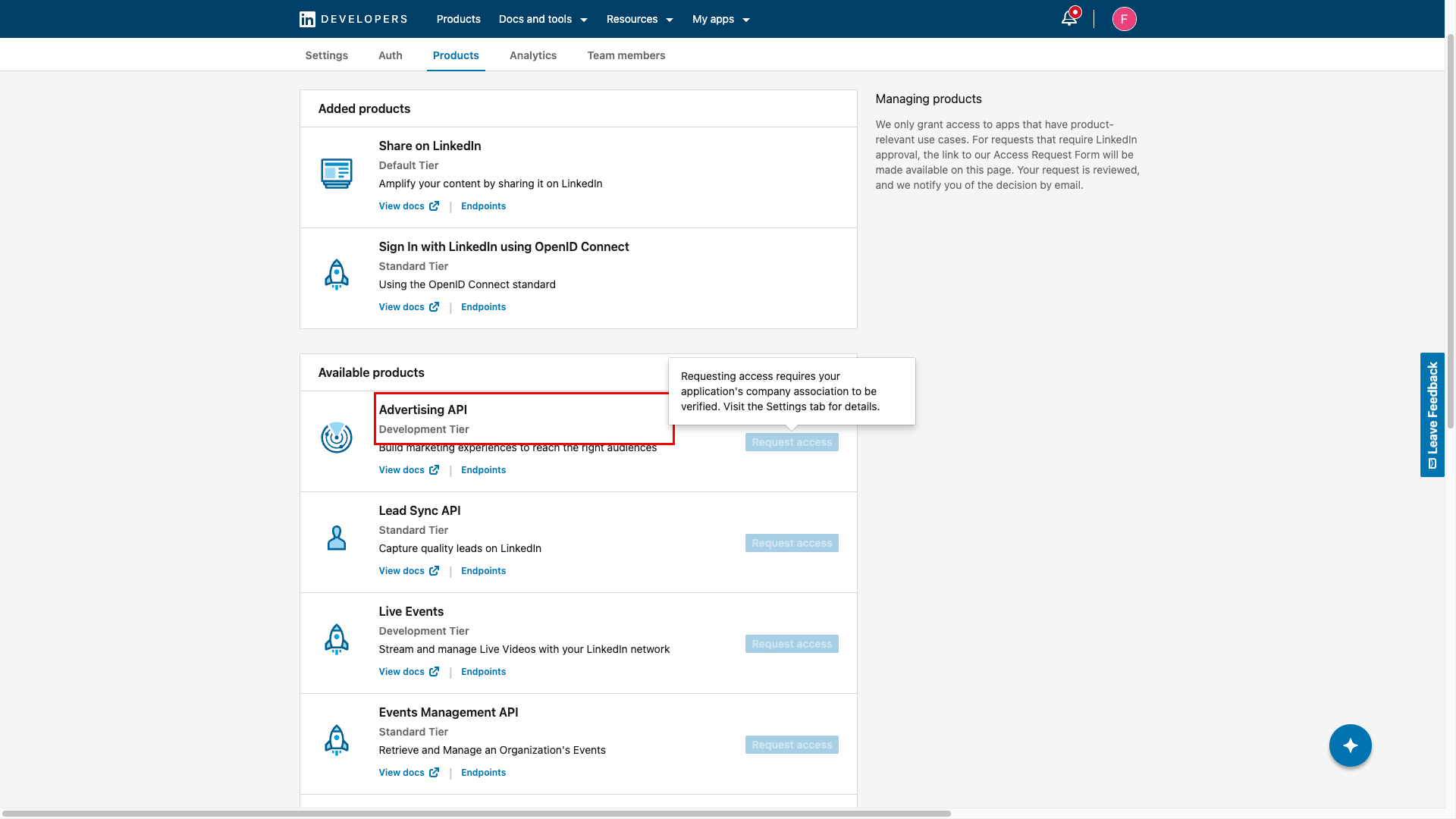
Click the Products tab. Under Available products, locate Advertising API.
The Advertising API requires your app to be verified as associated with your company page before you can request access. Hovering over Request access shows a tooltip confirming this requirement.
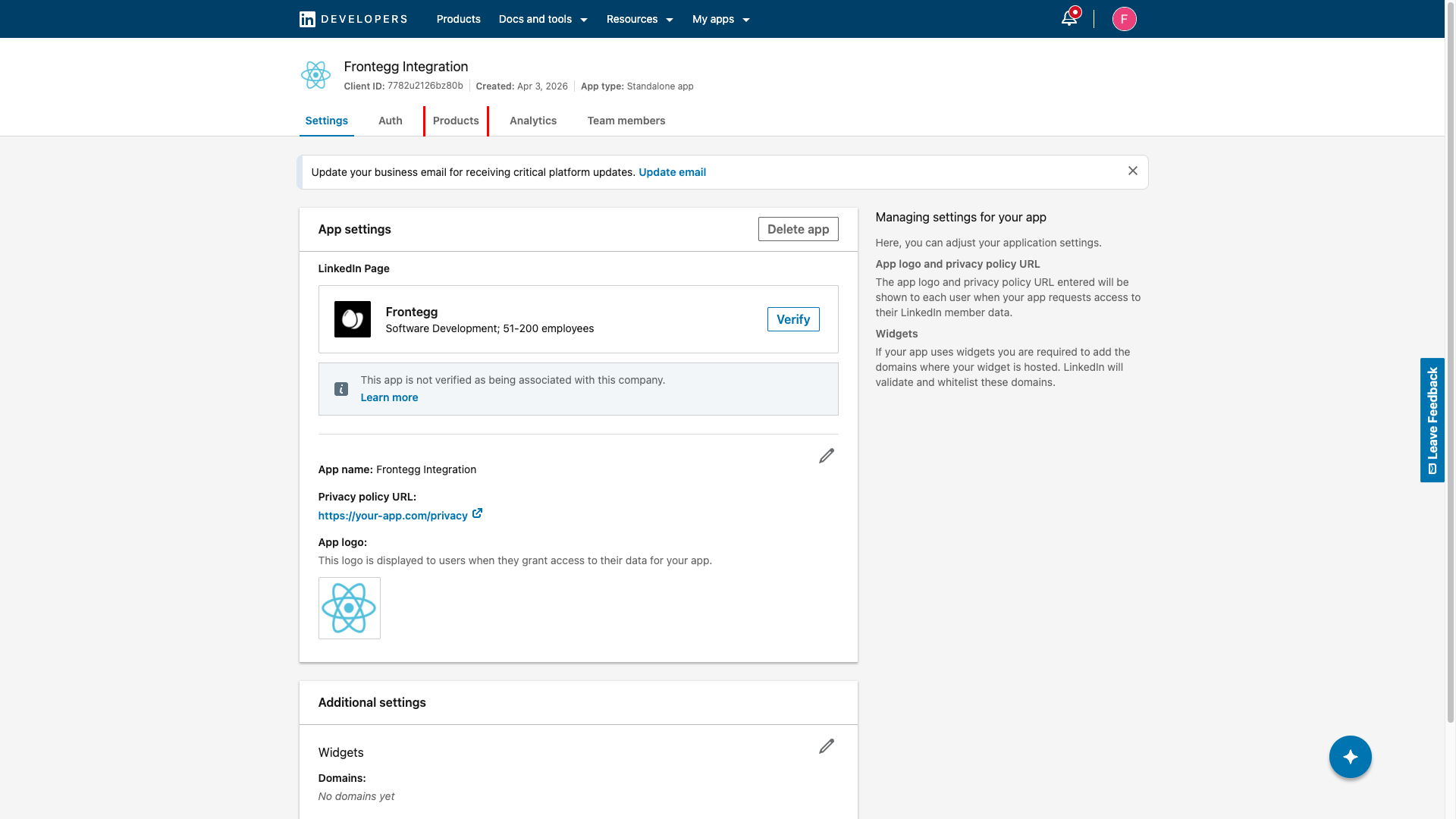
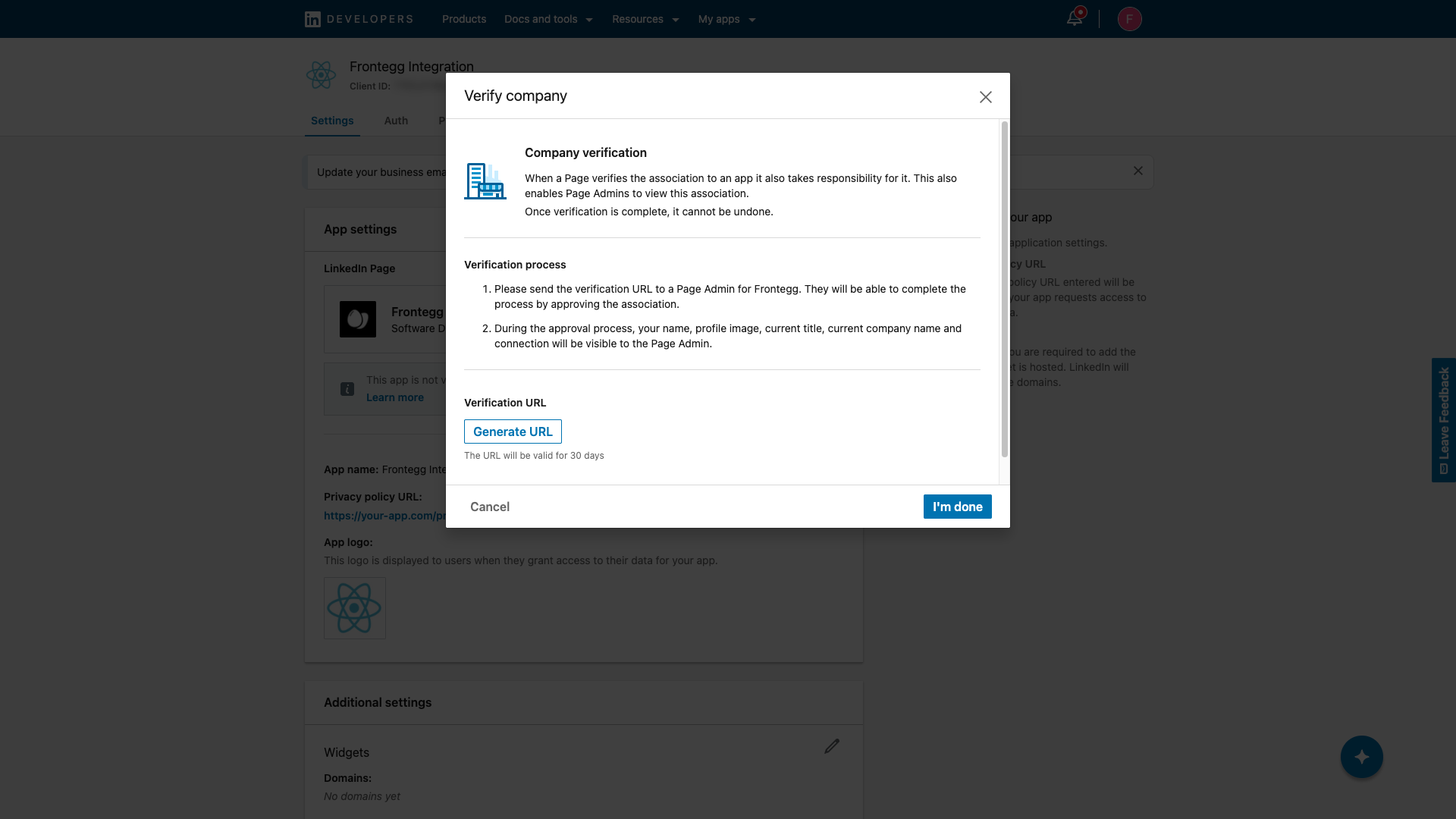
Open the Settings tab. In the LinkedIn Page section, click Verify next to your company page.
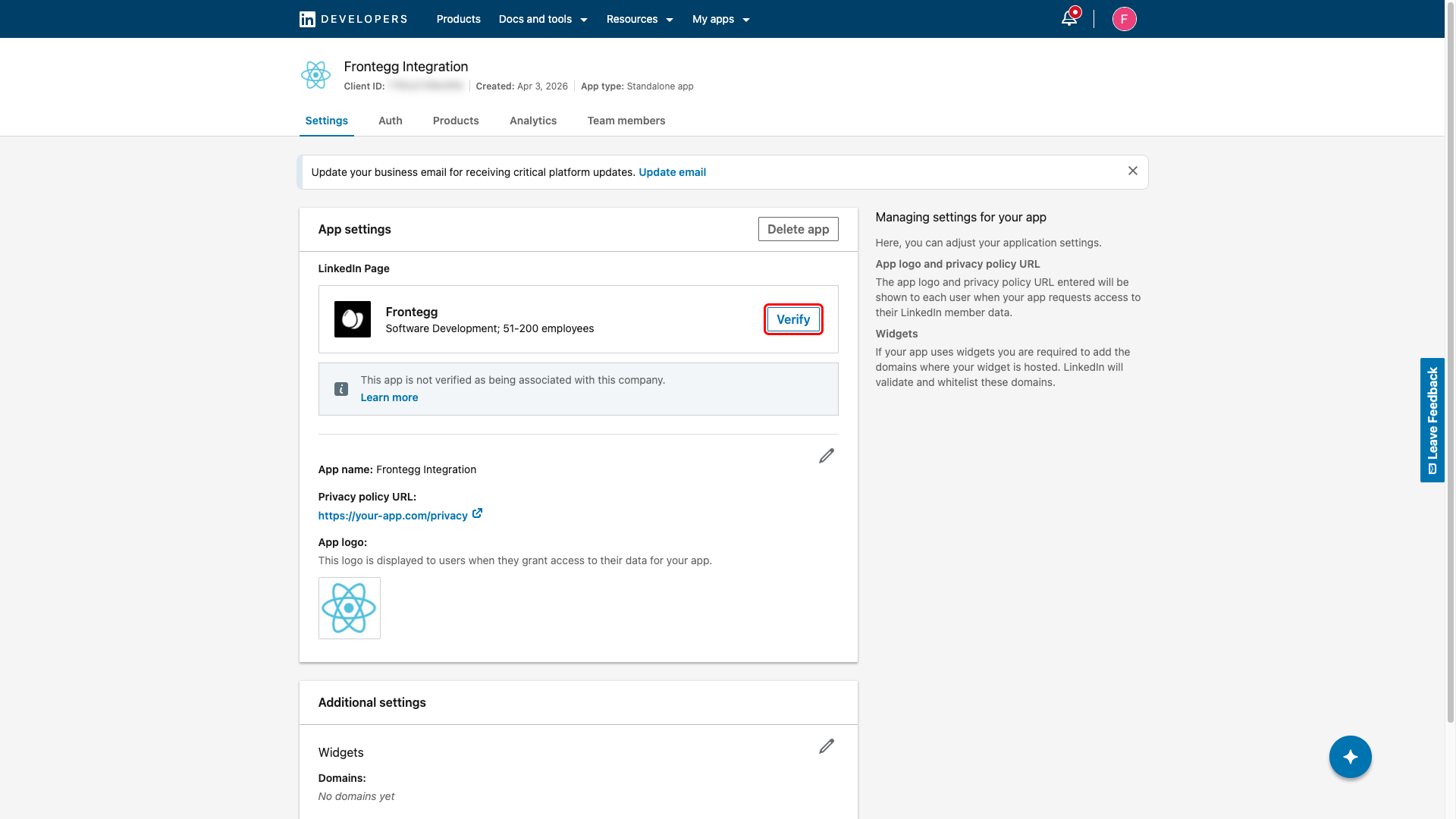
In the Verify company dialog, click Generate URL. Copy the generated URL and send it to a Page Admin of your company. The admin must open the URL and approve the association. The link is valid for 30 days.
Once the Page Admin approves the association, return to the Products tab.
After company verification is complete, return to the Products tab. Under Available products, click Request access next to Advertising API.
LinkedIn opens an application form. Describe your integration use case and submit the form.
Application review
Application review
LinkedIn reviews all Advertising API access requests manually. Review typically takes several business days. LinkedIn sends an email notification when a decision is made. Your credentials are already issued (Step 4), but the ads scopes are only activated after approval.
Once LinkedIn approves your request, the Advertising API moves from Available products to Added products on the Products tab.
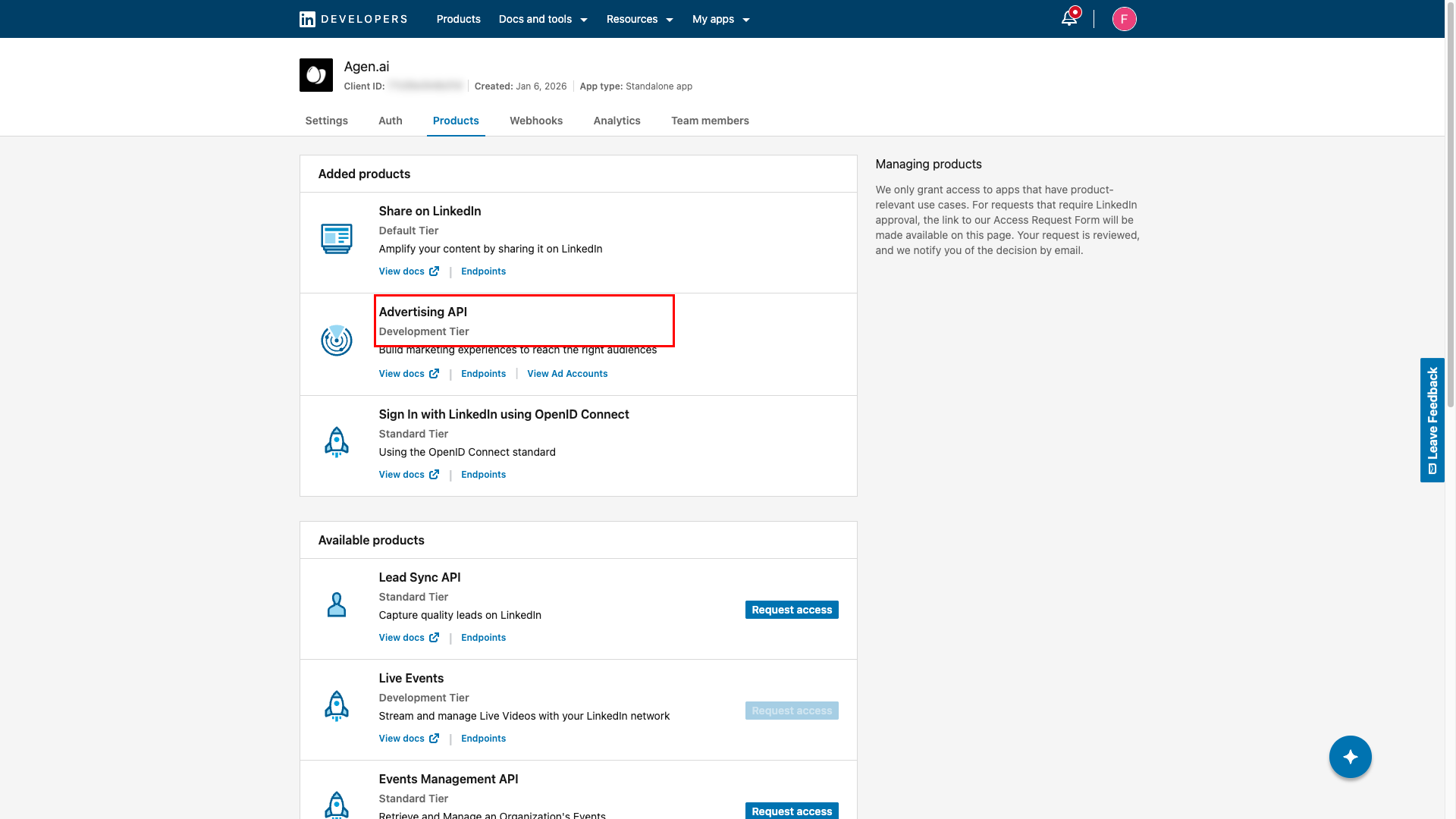
After approval, the following scopes become active in the OAuth 2.0 scopes section of the Auth tab:
| Scope | Description |
|---|---|
r_ads | Retrieve your advertising accounts |
r_ads_reporting | Retrieve reporting for your advertising accounts |
rw_ads | Manage your advertising accounts |
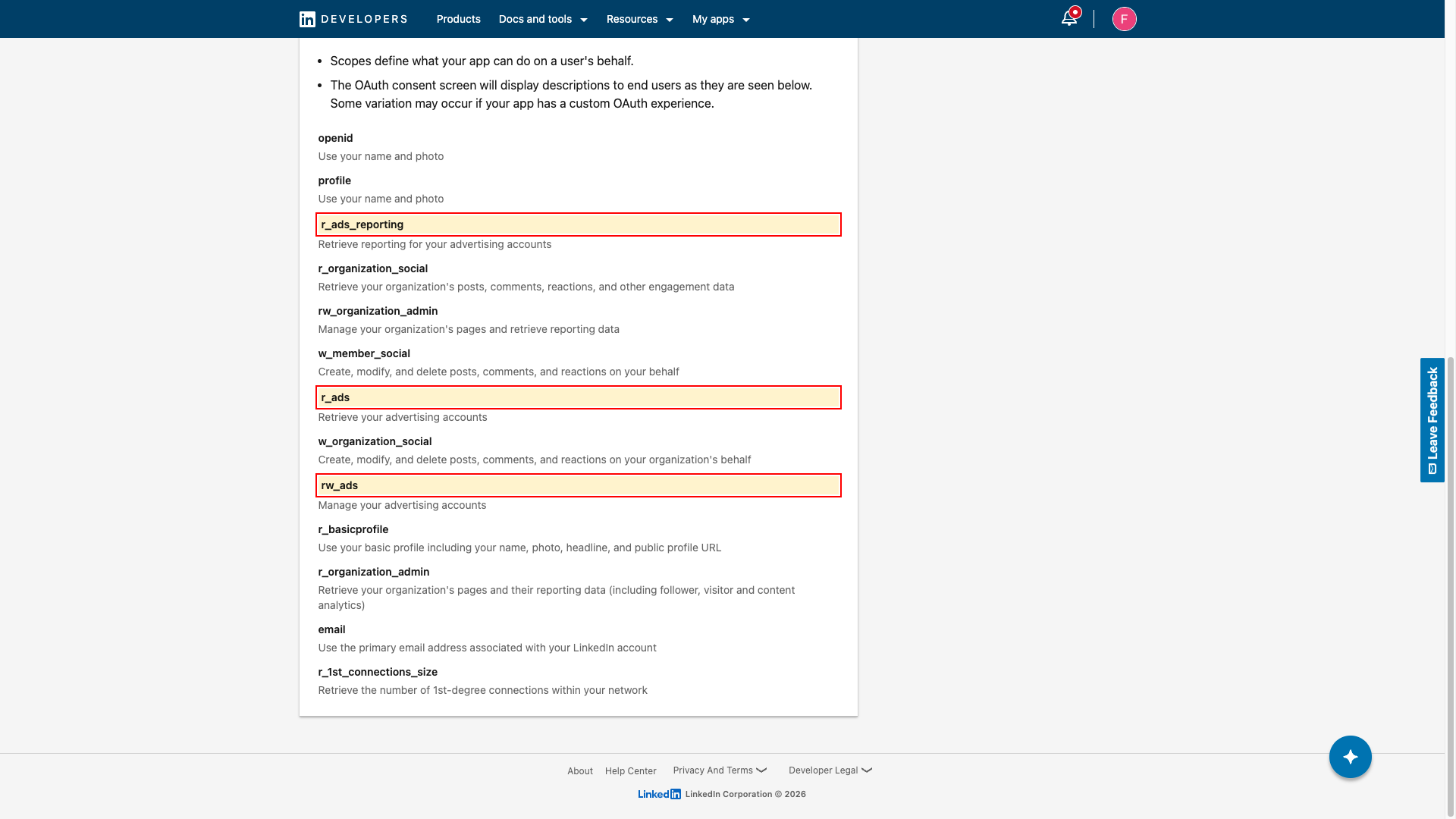
Once you have your Client ID and Client Secret and the Advertising API access has been approved, configure the integration in the Frontegg portal:
- Open the Frontegg portal and navigate to [ENVIRONMENT] → Integrations → LinkedIn Ads.
- Enter the Client ID and Client Secret in the corresponding fields.
- Select the required scopes.
- Click Save.