Peec.ai is an AI search analytics platform that tracks how brands appear in answers generated by ChatGPT, Gemini, AI Overviews, and other LLM-powered search surfaces. Integrating Peec.ai with Frontegg lets your application read brand visibility, share-of-voice, prompts, chats, source citations, agent-bot traffic, and project-profile data on behalf of a connected Peec.ai workspace through the Peec Customer API v1. Authentication is API key with the x-api-key header.
Prerequisites
Prerequisites
- A Peec.ai workspace on the Pro+ (yearly) plan or Enterprise plan. The Customer API is gated to these tiers — Starter, Pro (monthly), and Advanced plans cannot create API keys. Upgrade at the Peec.ai pricing page or via your account's Billing screen.
- Company-level access to your Peec.ai workspace (only company admins can create API keys).
Sign in to your workspace at app.peec.ai and open Company → API Keys in the left sidebar. This page hosts the two credential types Peec.ai issues: API Keys (Customer API, used by this integration) and Personal Access Tokens (used by MCP clients such as Claude Desktop and Cursor — not used here).
If your workspace is not on the Pro+ yearly plan or Enterprise, the Create API Key button is disabled and the page shows an Upgrade to Pro+ yearly or Enterprise to access the API banner. Click Upgrade plan to open the Billing page and switch plans before continuing.
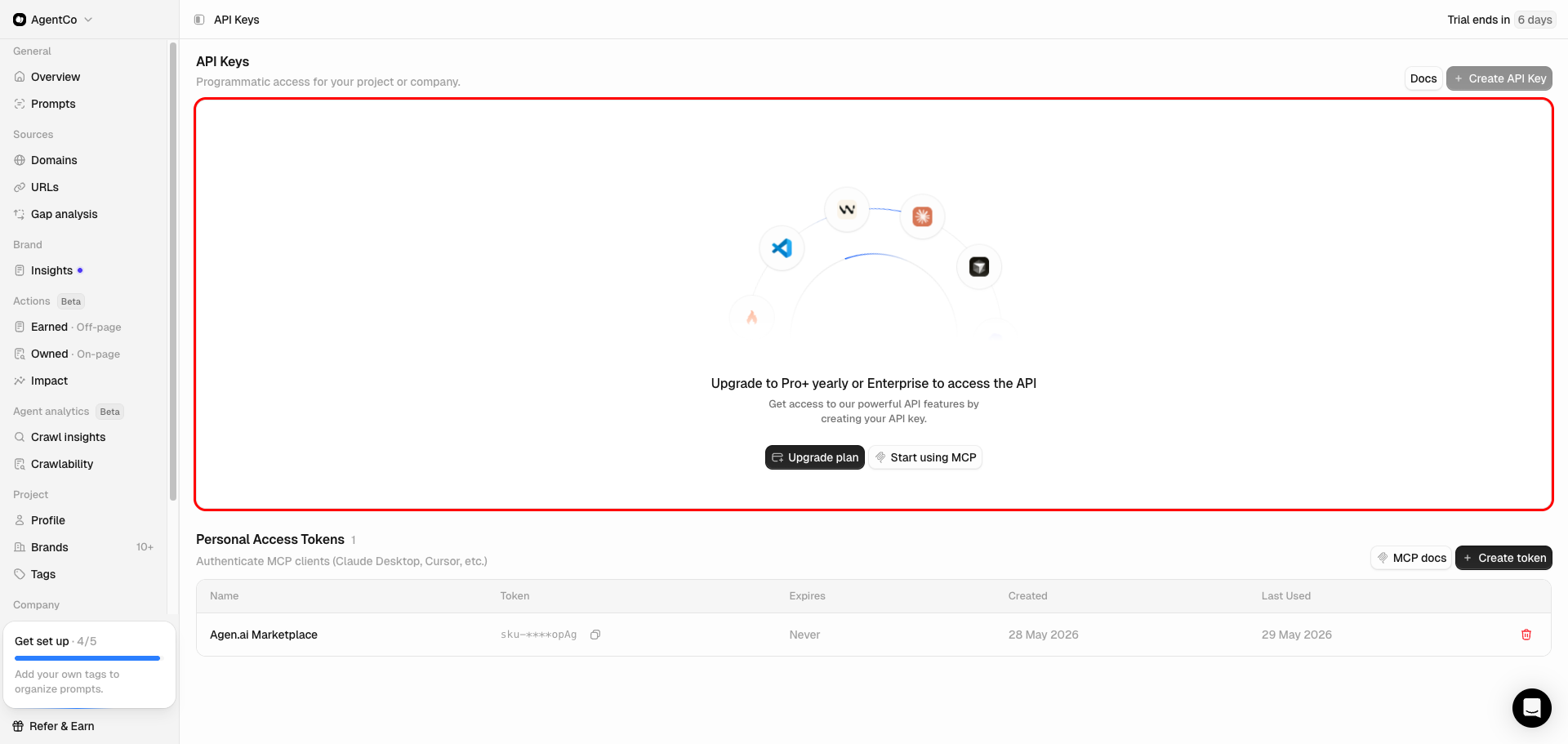
Once your workspace is on a plan that includes the Customer API, return to Company → API Keys and click Create API Key. In the dialog, give the key a recognizable name (for example, Frontegg Integration) and choose a scope:
- Company-scoped — grants access across every project in your workspace. Use this when one integration needs to read or write data for multiple projects.
- Project-scoped — limits the key to a single project. Peec recommends project-scoped keys to minimize risk. Pick the project from the dropdown in the create-key dialog.
Click Create to generate the key. Peec.ai displays the key value only once — copy it immediately and store it somewhere safe. You will paste it into the Frontegg portal in the final step.
Keep your API key secret
Keep your API key secret
Peec.ai shows the key value only at creation time. If you lose it, you must revoke the key on the API Keys page and create a new one. Never commit the key to version control or expose it in client-side code.
This step only applies when you generated a company-scoped key and want every Frontegg request to be limited to a single project (recommended). If you generated a project-scoped key, skip to the next section — the project is already bound to the key.
The project ID is the value Peec assigns to each project and has the form or_xxxxxxxx-xxxx-xxxx-xxxx-xxxxxxxxxxxx (for example, or_915e742b-396d-4a86-ad57-8bc84e8c2232). It is shown in the Create API Key dialog when you switch the scope toggle to Project-scoped — copy the ID for the project you want to target, even if you ultimately create the key as company-scoped. You can also retrieve project IDs programmatically once the key works by calling GET https://api.peec.ai/customer/v1/projects with the new key.
Once you have your API Key (and, optionally, a Project ID), enter them in the Frontegg portal:
- Open the Frontegg portal and navigate to [Environment] → Integrations → Peec.ai.
- Paste the API Key into the corresponding field.
- If you generated a company-scoped key and want every request to be limited to one project, paste the project ID into the Project ID field (format
or_xxxxxxxx-xxxx-xxxx-xxxx-xxxxxxxxxxxx). Leave the field empty for project-scoped keys. - Click Save.
Frontegg sends the key on every request as the x-api-key header. When a Project ID is configured, Frontegg automatically appends ?project_id=<value> to every endpoint that accepts it, so company-scoped keys behave like project-scoped keys without any extra wiring.