Integrating Ahrefs with Frontegg lets your application read backlink, keyword, rank-tracking, site-audit, and brand-radar data on behalf of a connected Ahrefs user through the Ahrefs API v3. Authentication is OAuth 2.0 Authorization Code with PKCE against the Ahrefs Connect program, with credentials issued by Ahrefs after your integration application is approved.
Prerequisites
Prerequisites
- An Ahrefs account that will own the integration.
- An approved Ahrefs Connect application. Production access requires an Ahrefs Enterprise plan; development and testing are free.
- A publicly available product with an existing user base. Ahrefs does not approve integrations that directly compete with or replicate Ahrefs functionality.
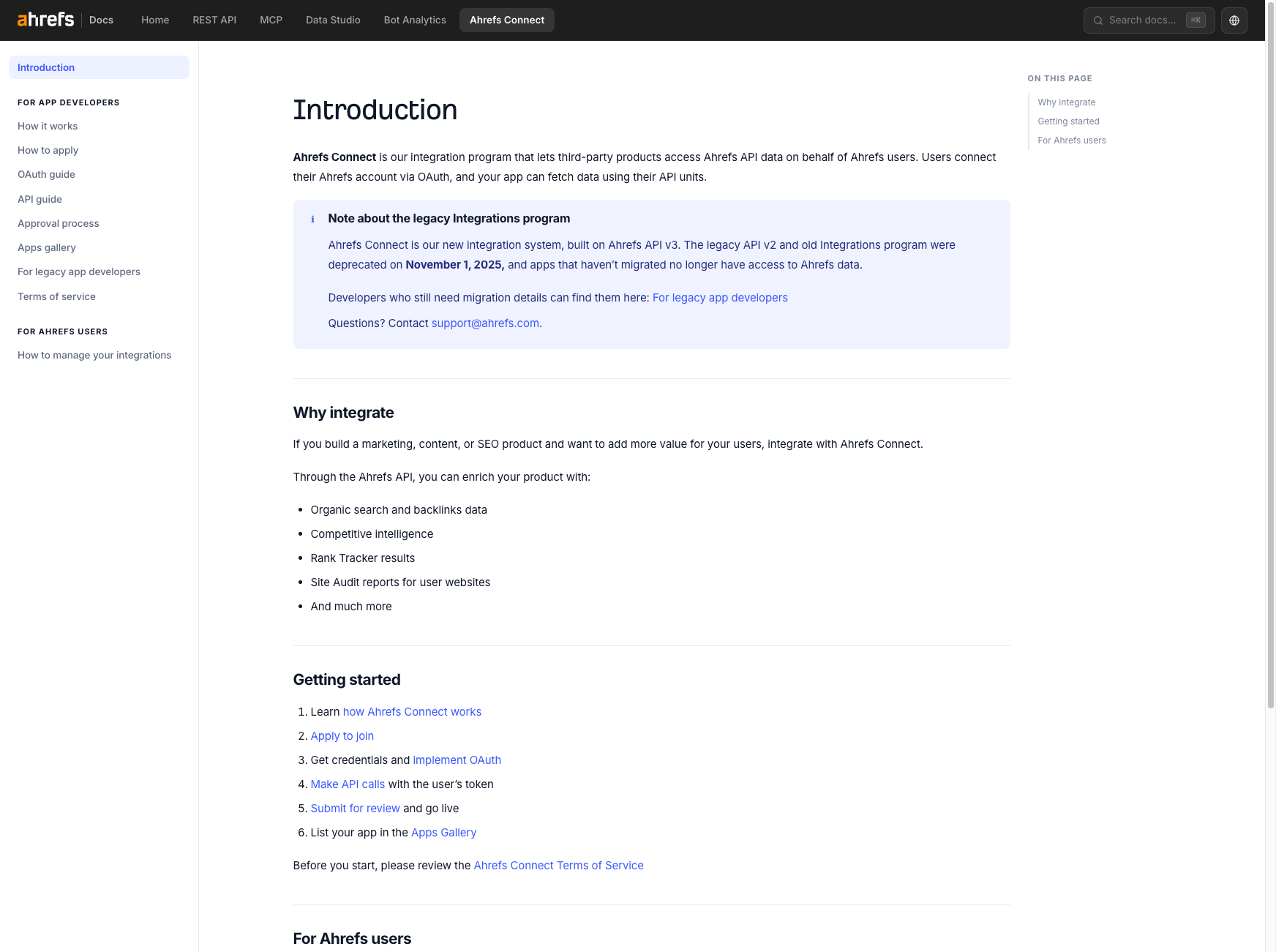
Open the Ahrefs Connect introduction and read the program overview. Ahrefs Connect is the only supported integration path for the Ahrefs API v3 — the legacy API v2 program was retired on November 1, 2025. From the introduction page, follow the How to apply link.
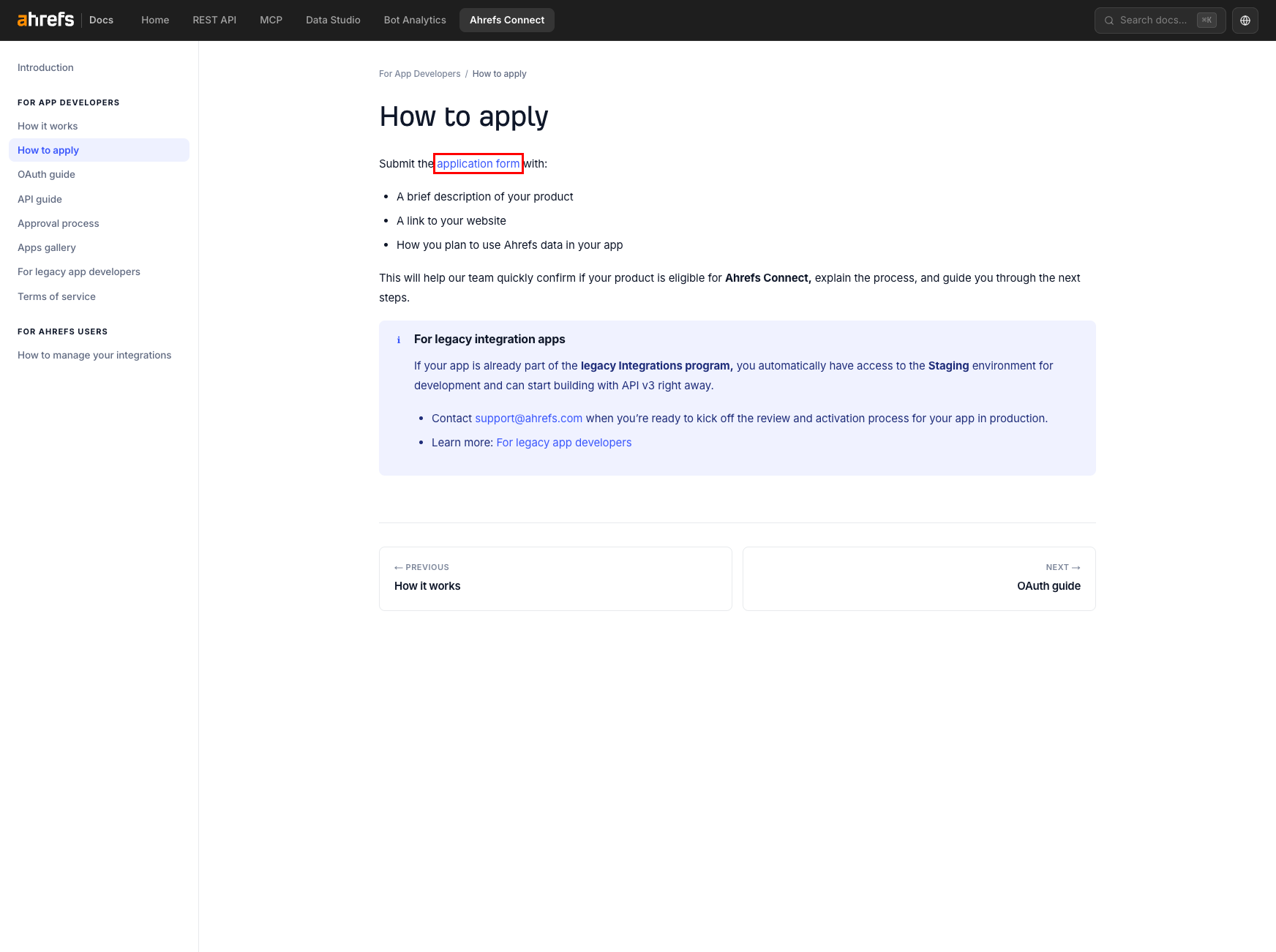
On the How to apply page, click the application form link. Ahrefs hosts the submission form on HubSpot Forms and uses it to qualify integration partners before issuing developer credentials.
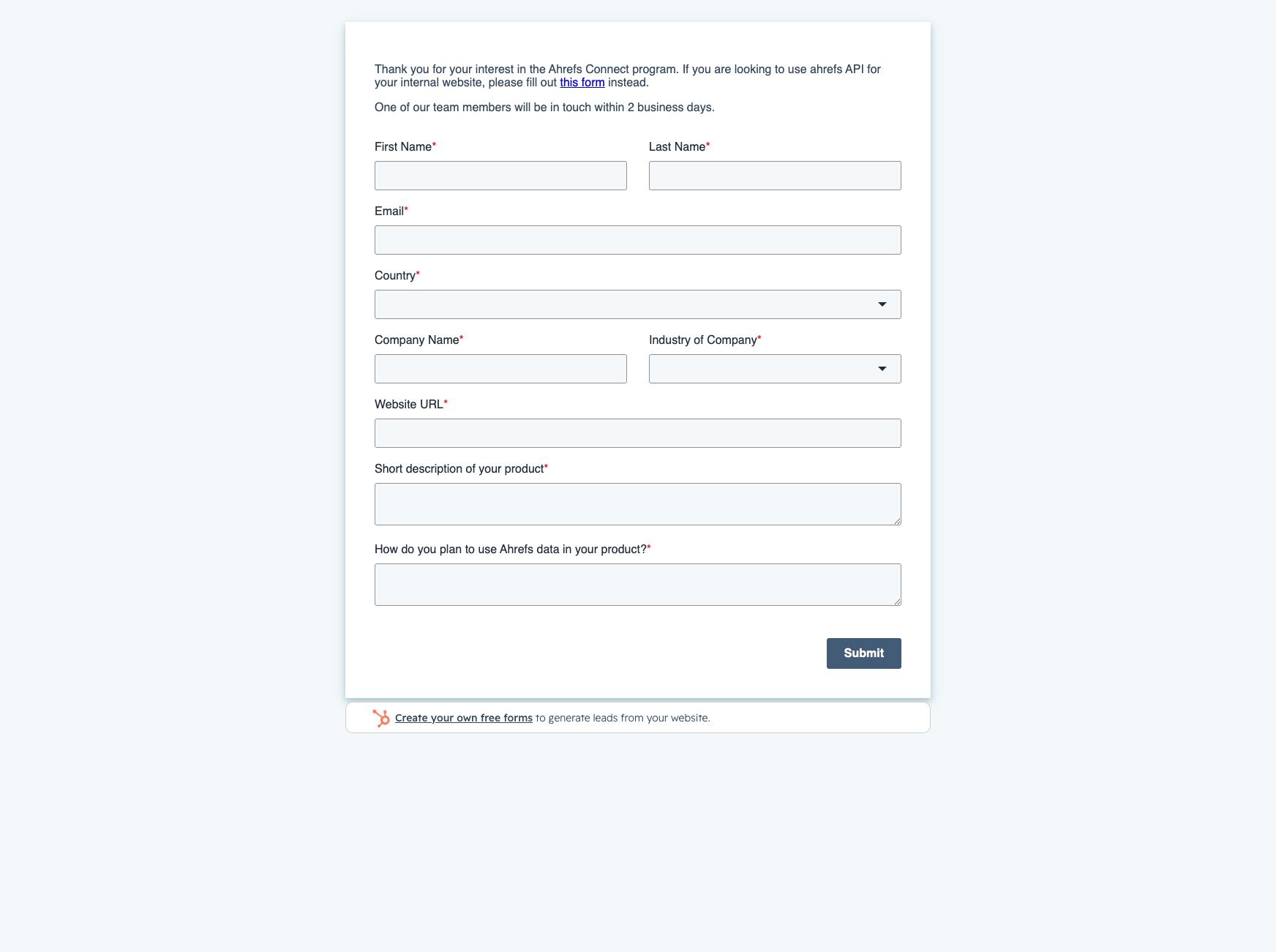
Complete every required field on the form: First name, Last name, Email, Country, Company name, Industry, Website URL, a short description of your product, and how you plan to use Ahrefs data. Ahrefs replies within two business days with next steps. Approval grants access to the Ahrefs Connect developer section in your Ahrefs account.
Development is free, production requires Enterprise
Development is free, production requires Enterprise
Once your application is approved, you can build and test the integration in Inactive status against your account at no cost — test OAuth flows and free API requests do not consume units. Switching the app to Active for production traffic requires an Ahrefs Enterprise subscription.
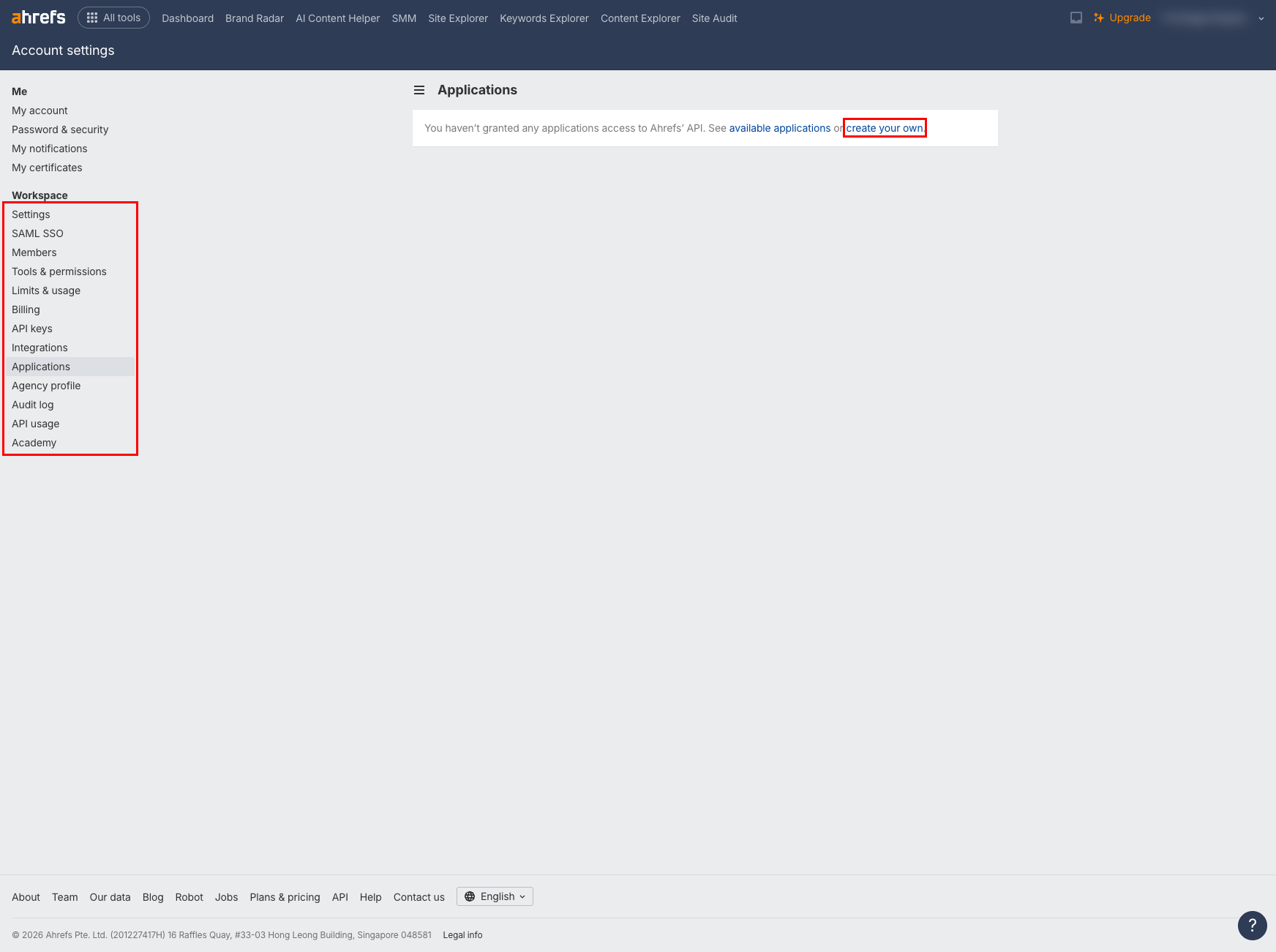
Once Ahrefs has approved your application and enabled the Ahrefs Connect developer section on your account, sign in at app.ahrefs.com and open Account settings → Applications. Approved developer accounts see a create your own action that opens the OAuth app management screen. On a non-approved account, the same page only lists third-party apps the user has authorized.
On the Ahrefs Connect app creation screen, enter an App name (for example, Frontegg Integration), a short description, and your product website. Ahrefs creates the app in Inactive status — this is the state you use throughout development to test the OAuth flow and make free API requests.
In the app settings, locate the Redirect URIs field and enter your Frontegg redirect URL:
https://YOUR_MCP_GATEWAY_URL/integration-callback
Replace YOUR_MCP_GATEWAY_URL with the MCP Gateway URL from the Frontegg portal Settings → Basic configuration page. Ahrefs supports separate staging and production redirect URIs — register the same Frontegg callback in both fields, or only the staging field while your app is Inactive.
The app overview shows the Client ID and Client Secret Ahrefs has issued for your integration. Keep both values handy — you will paste them into the Frontegg portal in the next section. The Client Secret is shown only on this screen, so store it somewhere safe before leaving the page.
Ahrefs Connect issues a single OAuth scope that grants access to every Ahrefs API v3 endpoint your subscription tier supports:
| Scope | Description |
|---|---|
apiv3-integration-apps | Access to all Ahrefs API v3 endpoints — Site Explorer, Keywords Explorer, Site Audit, Rank Tracker, Brand Radar, Social Media, batch analysis, subscription info, and management endpoints. |
Single scope, no refresh token
Single scope, no refresh token
Ahrefs Connect uses one scope (apiv3-integration-apps) and does not issue refresh tokens. Access tokens are valid for one year — after that, the user must re-authorize the integration.
Once you have your Client ID and Client Secret from Ahrefs, enter them in the Frontegg portal:
- Open the Frontegg portal and navigate to [ENVIRONMENT] → Integrations → Ahrefs.
- Enter the Client ID and Client Secret in the corresponding fields.
- Select the
apiv3-integration-appsscope. - Click Save.
When a user authorizes the integration, Ahrefs prompts them to sign in and grant your app access to their Ahrefs data.
Keep your credentials secure
Keep your credentials secure
Never share or commit your Client Secret to version control.