Constant Contact is an email marketing and audience engagement platform. Integrating Constant Contact with Frontegg lets your application read and manage contacts and email campaigns on behalf of your users — all through Frontegg's integration layer. Constant Contact authenticates with OAuth 2.0 (Authorization Code flow), so you register an application in the Constant Contact developer portal to obtain a Client ID and Client Secret.
Prerequisites
Prerequisites
- A Constant Contact account
- Access to the Constant Contact developer portal to register an application
You register an OAuth 2.0 application in the Constant Contact developer portal. The application provides the API Key (your Client ID) and a Client Secret, and defines the Redirect URI that Constant Contact returns users to after they authorize access.
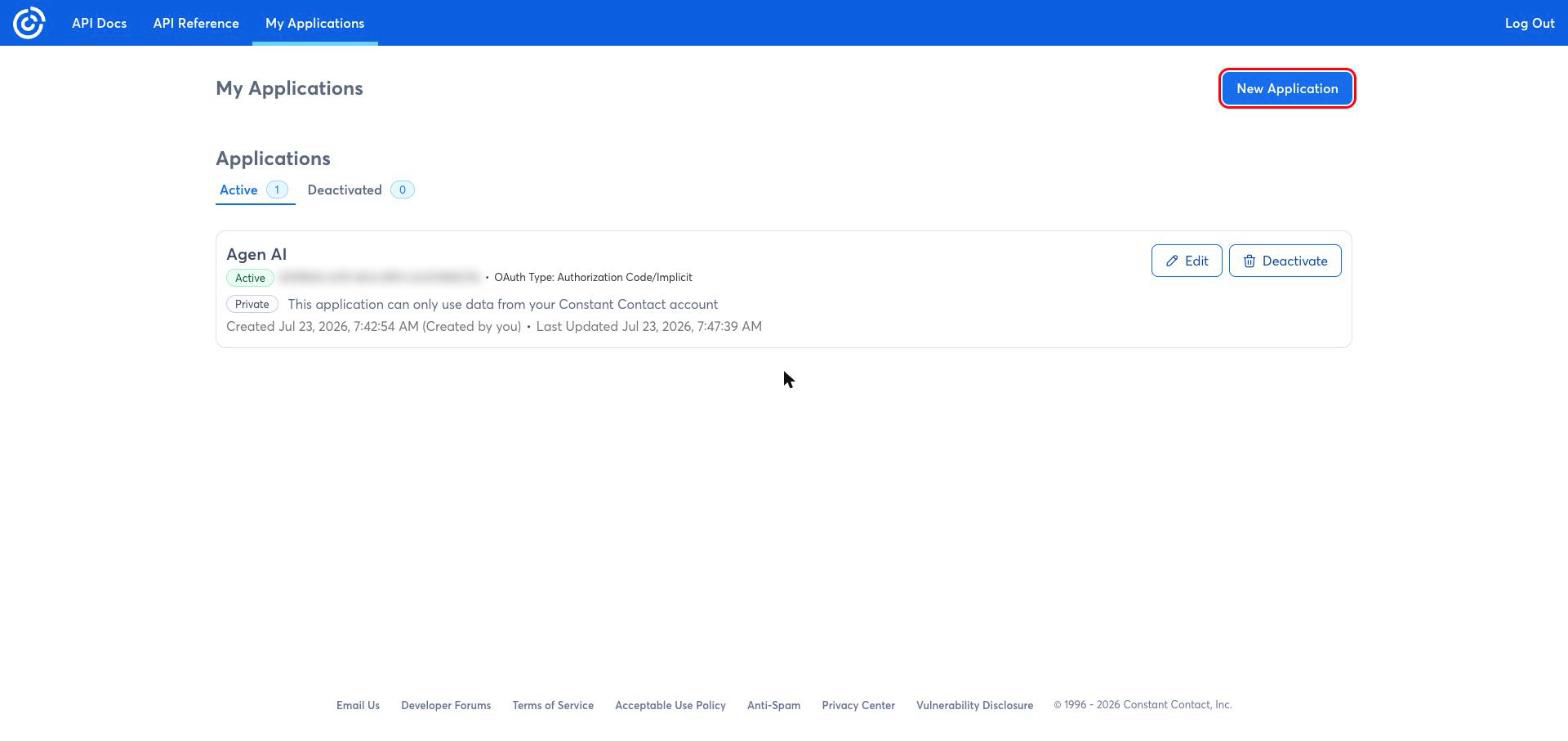
Sign in to the Constant Contact developer portal and open the My Applications page. Click New Application.
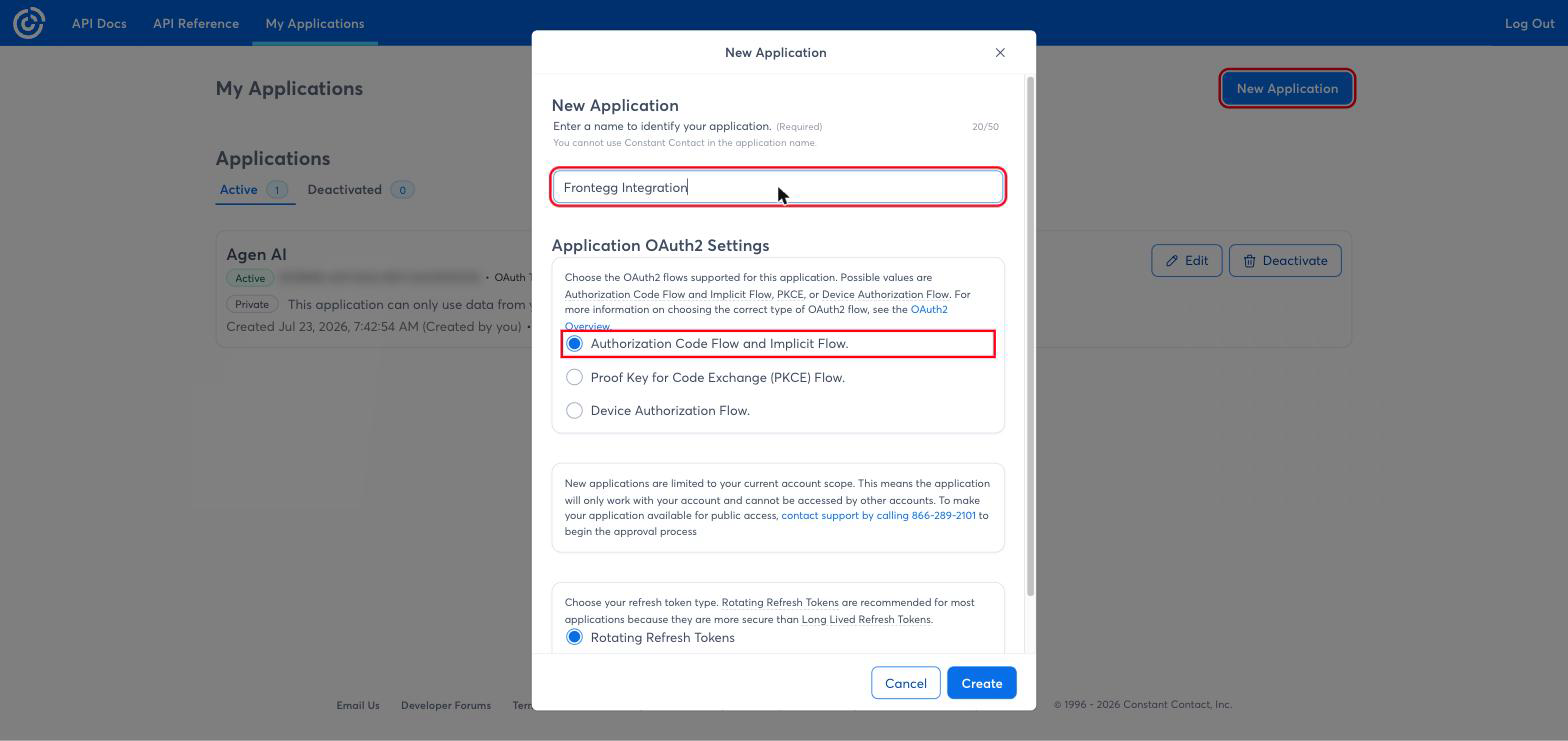
In the New Application dialog:
- Name — Enter a name to identify your application, for example
Frontegg Integration. The name cannot contain "Constant Contact". - Application OAuth2 Settings — Select Authorization Code Flow and Implicit Flow.
Click Create.
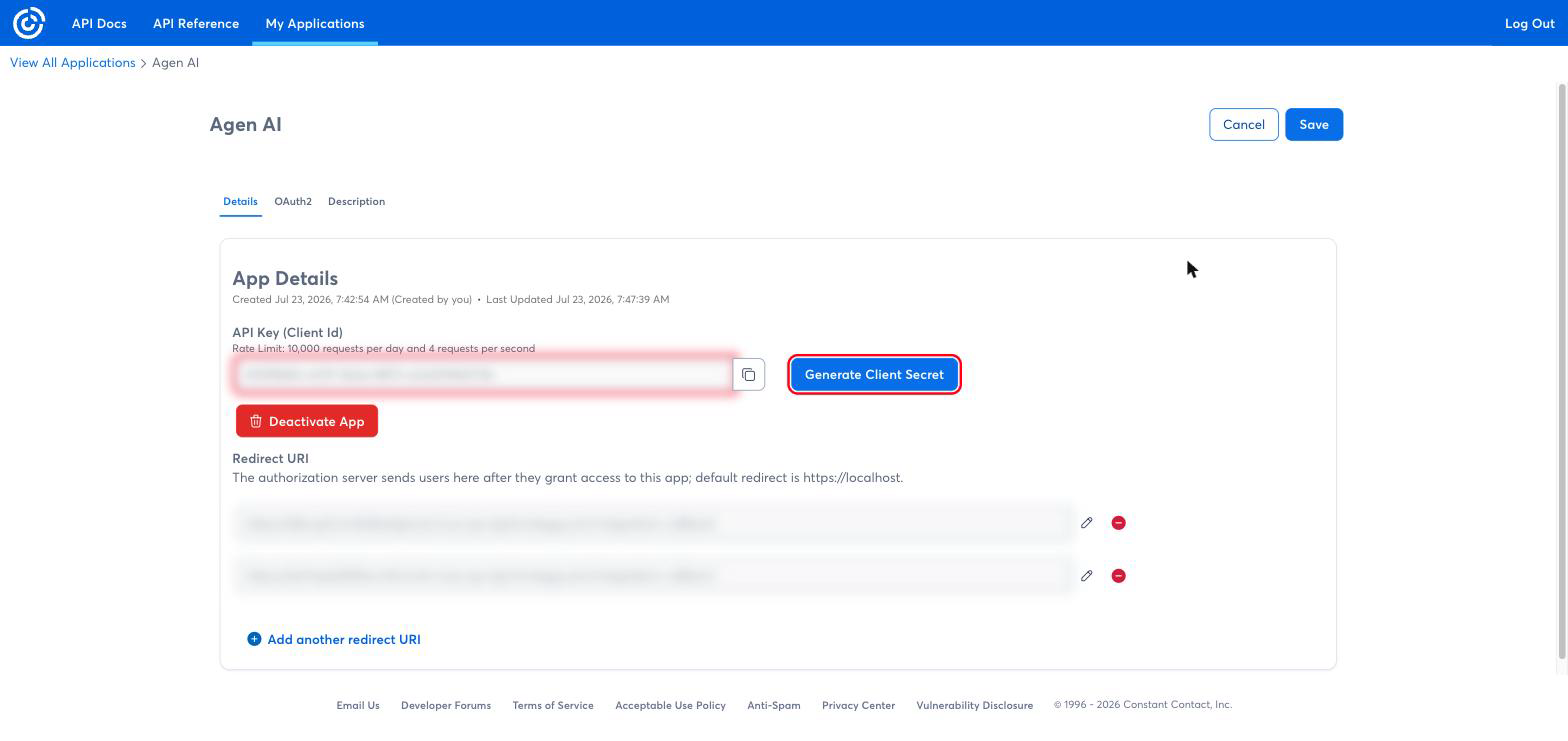
On the application's Details tab:
- API Key (Client Id) — Copy this value. It is your Client ID.
- Click Generate Client Secret and copy the secret. It is shown only once.
- Under Redirect URI, add your Frontegg Redirect URL:
https://YOUR_MCP_GATEWAY_URL/integration-callback
Click Save.
Keep your Client Secret safe
Keep your Client Secret safe
The Client Secret is displayed only once, when you generate it. Copy it immediately and store it securely — treat it like a password. If it is lost or exposed, generate a new one on the same page.
Once you have your Client ID (API Key) and Client Secret, configure the integration in the Frontegg portal:
- Open the Frontegg portal and navigate to [ENVIRONMENT] → Integrations → Constant Contact.
- Enter the Client ID (API Key) and the Client Secret.
- Click Save.
Frontegg requests the following scopes during authorization:
| Scope | Description |
|---|---|
contact_data | Read and write contact data |
campaign_data | Read and write campaign data |
Keep your credentials secure
Keep your credentials secure
Never share or commit your Client Secret to version control.