Heroku is a cloud platform for building, running, and operating applications. Integrating Heroku with Frontegg lets your application manage apps, dynos, config, add-ons, and other platform resources on behalf of your users — all through Frontegg's integration layer. Heroku authenticates with OAuth 2.0 (Authorization Code flow), so you register an API client in your Heroku account to obtain a Client ID and Client Secret.
Prerequisites
Prerequisites
- A Heroku account
- Access to your account's Applications settings
You register an OAuth API client in the Heroku Dashboard. The client provides the Client ID and Client Secret and defines the OAuth callback URL that Heroku returns users to after they authorize access.
Sign in to Heroku and go to Account settings → Applications. Scroll to the API Clients section and click Register new API client.
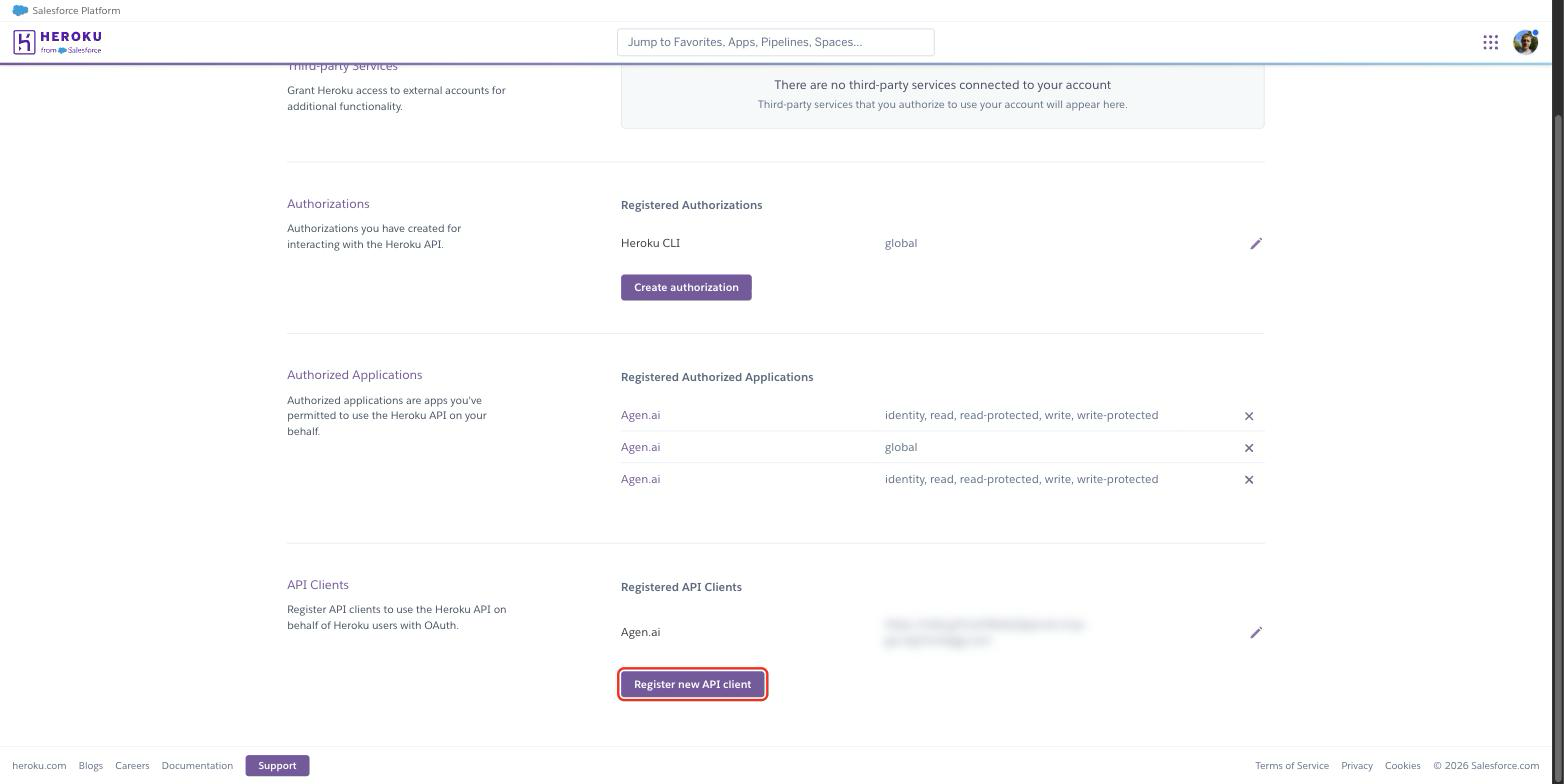
In the Register new API client panel:
- Name — A memorable name, for example
Frontegg Integration. - OAuth callback URL — Your Frontegg Redirect URL:
https://YOUR_MCP_GATEWAY_URL/integration-callback
Click Register.
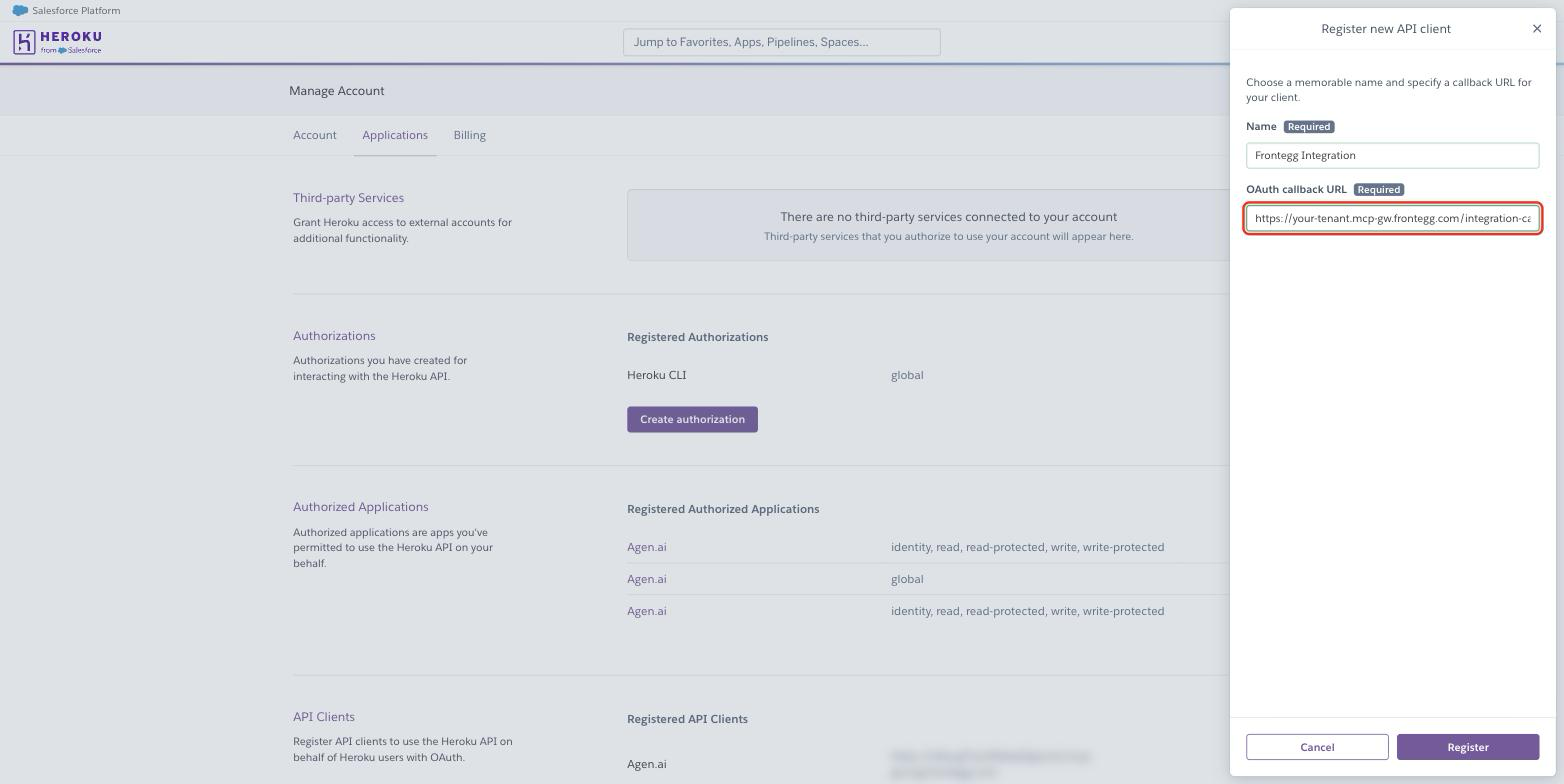
Open the API client. Heroku displays the Client ID and Client Secret. Copy both values.
Keep your Client Secret safe
Keep your Client Secret safe
The Client Secret grants access to your account through the API. Treat it like a password and never expose it in client-side code or commit it to version control. If it is exposed, use Reset API client secret to rotate it.
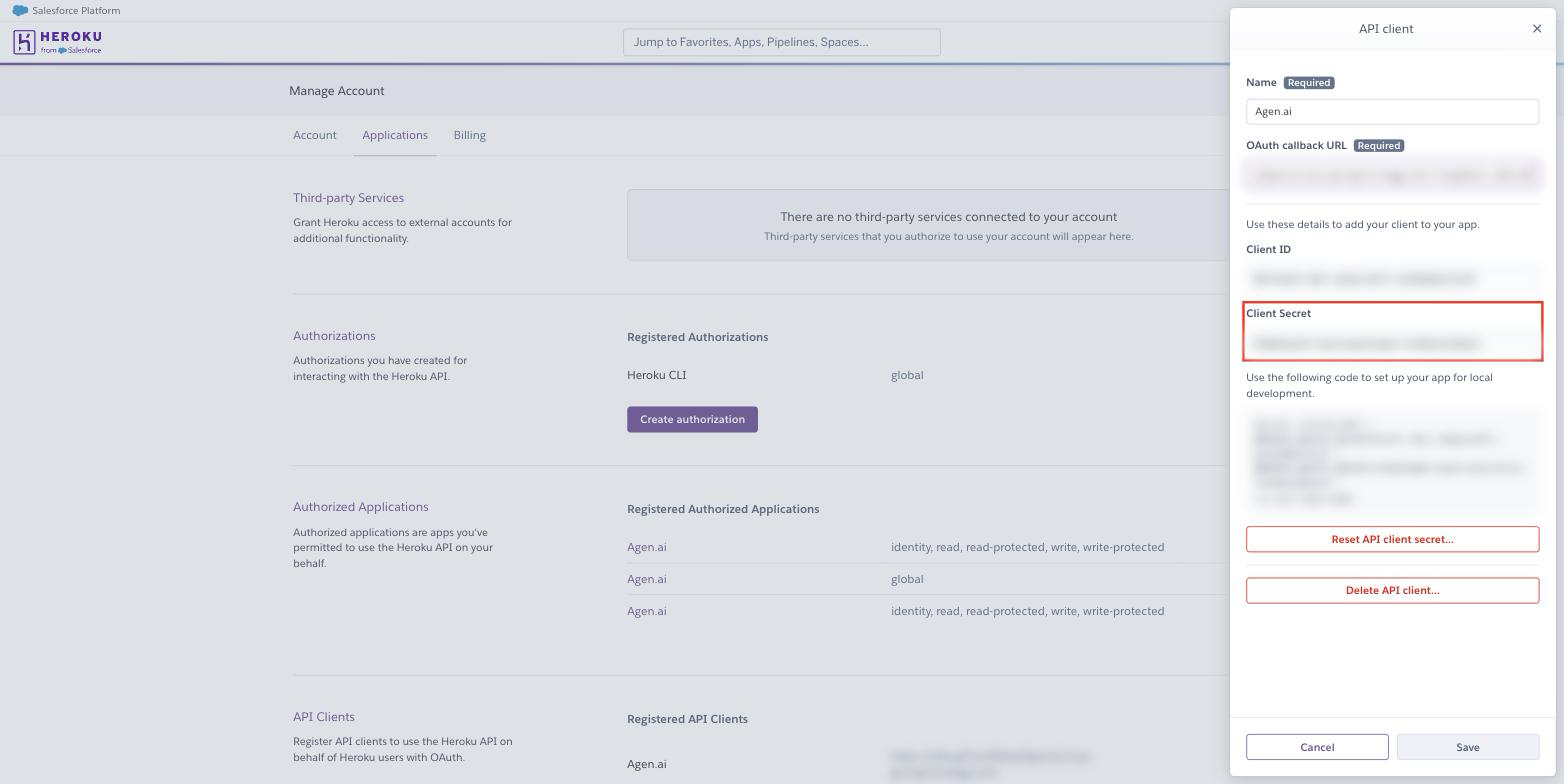
Once you have your Client ID and Client Secret, configure the integration in the Frontegg portal:
- Open the Frontegg portal and navigate to [ENVIRONMENT] → Integrations → Heroku.
- Enter the Client ID and the Client Secret.
- Click Save.
Frontegg requests the following scopes during authorization:
| Scope | Description |
|---|---|
read | Read access to non-protected resources |
write | Write access to non-protected resources |
read-protected | Read access, including protected resources |
write-protected | Write access, including protected resources |
identity | Read the user's account and identity information |
Keep your credentials secure
Keep your credentials secure
Never share or commit your Client Secret to version control.