GitHub can be connected to Agen.co two ways, matching the Official / In-house filter in the connector picker:
- Official — Agen.co connects through GitHub's own hosted MCP server (
https://api.githubcopilot.com/mcp/), so your AI agents use the same repository, issue, pull request, and Actions tools GitHub exposes to MCP clients like VS Code and Claude Desktop. - In-house — Agen.co wraps the GitHub REST API directly through its own integration layer, using a classic GitHub OAuth App.
Pick Official if the built-in MCP toolsets cover what your agents need. Fall back to In-house if you'd rather manage access through GitHub's traditional OAuth scopes.
Prerequisites
Prerequisites
- A GitHub account with permission to create GitHub Apps for the account or organization you want to connect
- In GitHub, click your profile picture → Settings (or, for an organization, Your organizations → Settings), then in the left sidebar go to Developer settings → GitHub Apps. Click New GitHub App.
- Fill in GitHub App name and Homepage URL.
- Switch back to Agen.co and start adding the connector as usual — in the Agen.co portal, go to Connectors → My connectors, click Add connector, and in the search bar type
GitHuband select it from the results. - Get back to GitHub. Under Callback URL, click Add callback URL and add both URLs Agen.co generates when you open the Add GitHub panel with Official selected:
- Callback URL — completes the initial OAuth handshake between Agen.co and your GitHub App.
- Gateway callback URL — used by the Agen.co MCP gateway for per-user authorization at runtime.
- Leave Webhook deselected (Active unchecked) unless you specifically need webhook events.
- Under Permissions, set the repository and organization permissions your agents need (for example, Contents, Issues, Pull requests — each has a Read-only / Read & write / No access dropdown).
- Click Create GitHub App.
On the new app's settings page, copy the Client ID. Under Client secrets, click Generate a new client secret and copy the value immediately — GitHub only displays it once.
Keep your Client Secret safe
Keep your Client Secret safe
The Client Secret is shown only once. If you lose it, return to this page and click Generate a new client secret to create a replacement.
Return to the Agen.co portal — the Add GitHub panel should already be open from the step above. Fill in the fields:
| Field | Required | Description |
|---|---|---|
| Instance Slug | No | Distinguishes multiple instances of this MCP connector — it prefixes each imported tool as slug__tool. Use lowercase kebab-case; leave empty for a single instance. This value is immutable after creation. |
| Client ID | Yes | The Client ID from the GitHub App you created above. |
| Client Secret | Yes | The Client Secret from the GitHub App you created above. |
| Callback URL | — | Generated by Agen.co. Add it to your GitHub App's Callback URLs (see above). |
| Gateway callback URL | — | Generated by Agen.co. Also add it to your GitHub App's Callback URLs (see above). |
Click Connect. You're redirected to GitHub to sign in, approve the app's installation, and grant the permissions you configured.
Once connected, GitHub appears under My connectors with tools spanning:
| Area | What it covers |
|---|---|
| Repos & context | Repository browsing, user/team context, labels, users, and organizations |
| Issues & pull requests | Reading and managing issues and pull requests |
| Actions & code quality | GitHub Actions workflows, code security, secret protection, and Dependabot |
| Collaboration | Discussions, gists, projects, notifications, and stargazers |
Enabling the GitHub connector isn't enough on its own. Tool calls remain denied until you create a policy that grants access to the specific tools you want to expose.
GitHub is a development platform for hosting code, managing repositories, and collaborating on software projects. Integrating GitHub with Frontegg allows your application to read user profiles, manage repositories, issues, pull requests, and workflows on behalf of your users through OAuth 2.0 authentication.
Prerequisites
Prerequisites
- A GitHub account with access to Developer settings → OAuth Apps
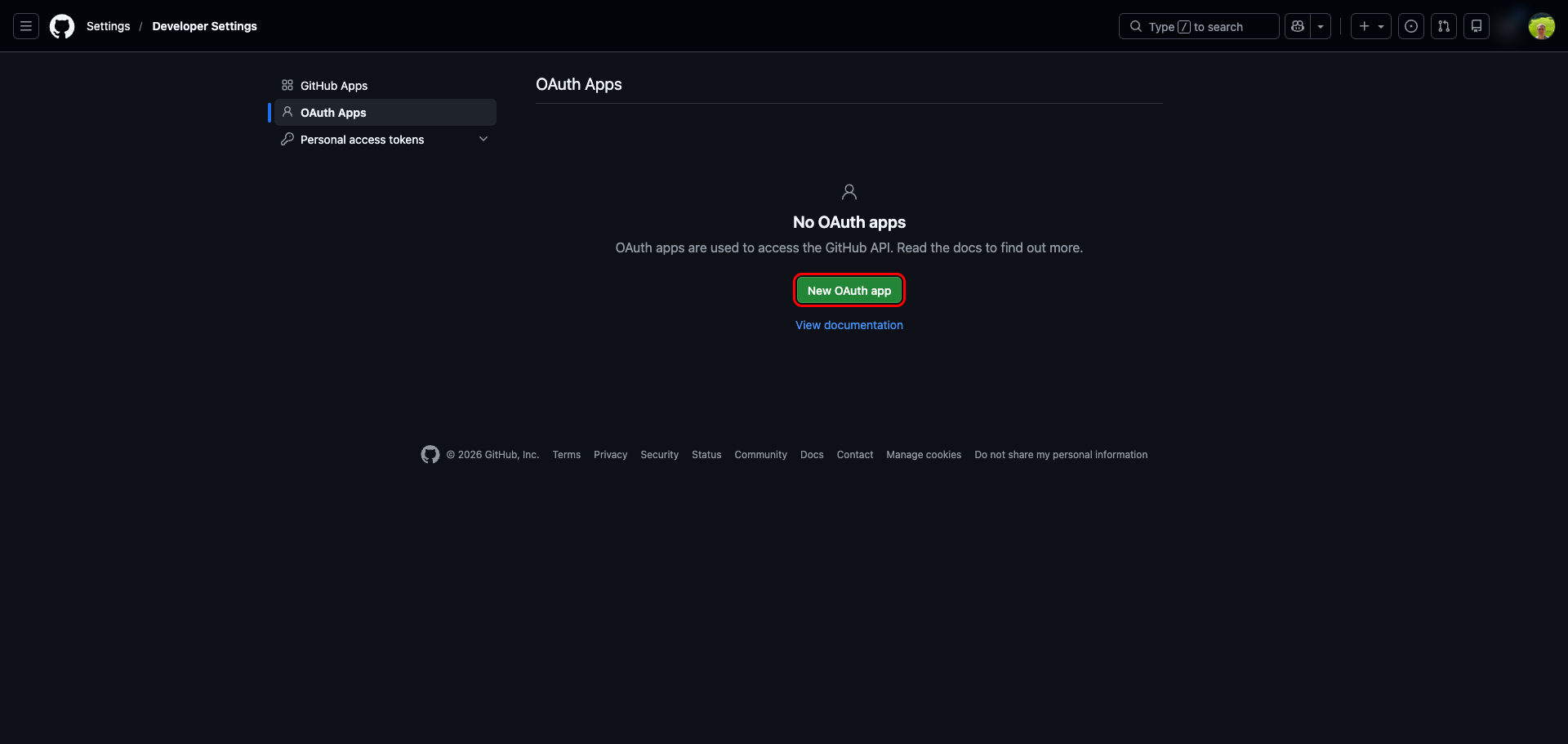
Sign in to GitHub and navigate to Settings → Developer settings → OAuth Apps at https://github.com/settings/developers. Click New OAuth app.
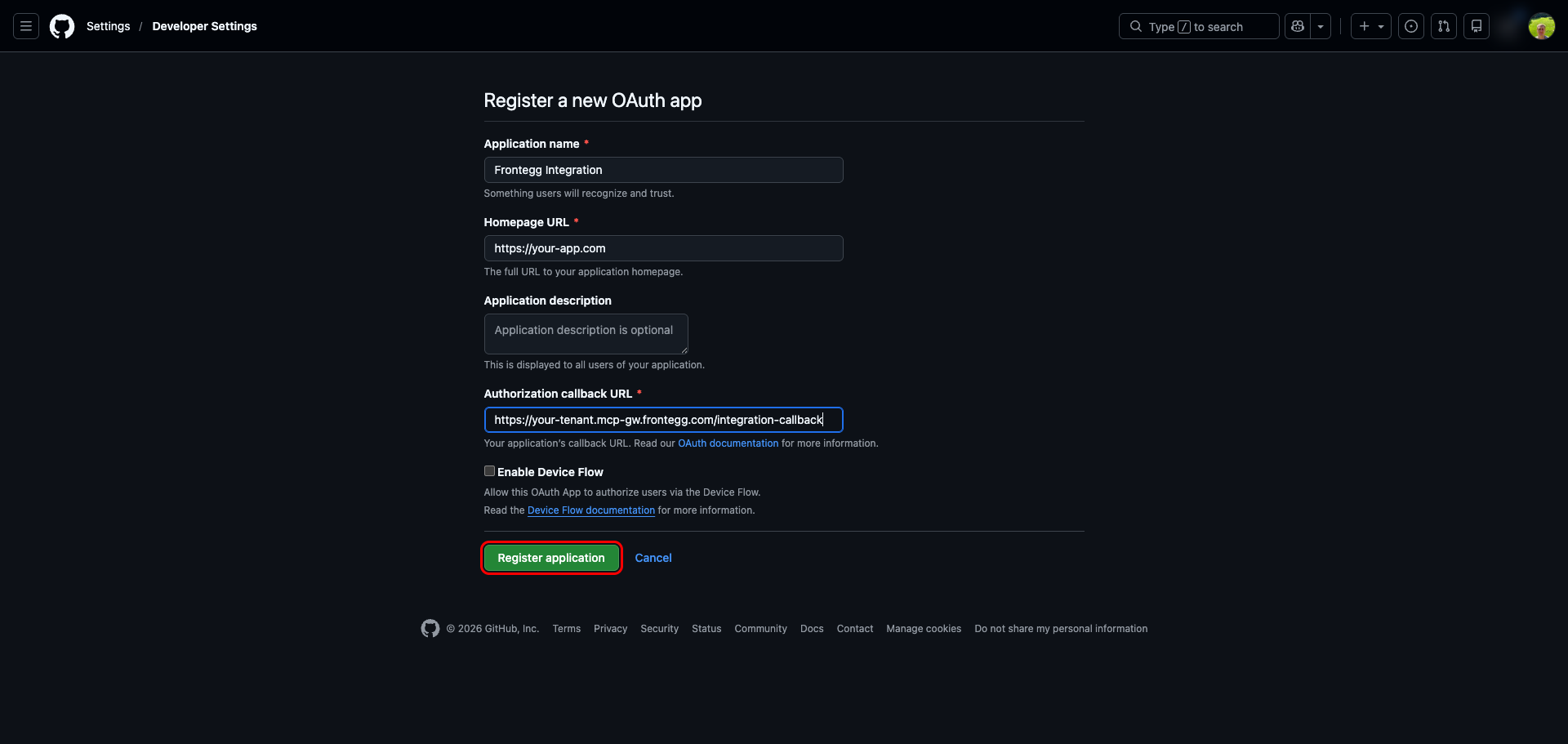
On the Register a new OAuth app form, fill in the following fields:
| Field | Value |
|---|---|
| Application name | A descriptive name, e.g., Frontegg Integration |
| Homepage URL | The URL of your application (e.g., https://your-app.com) |
| Authorization callback URL | https://YOUR_MCP_GATEWAY_URL/integration-callback |
Leave Enable Device Flow unchecked. Click Register application.
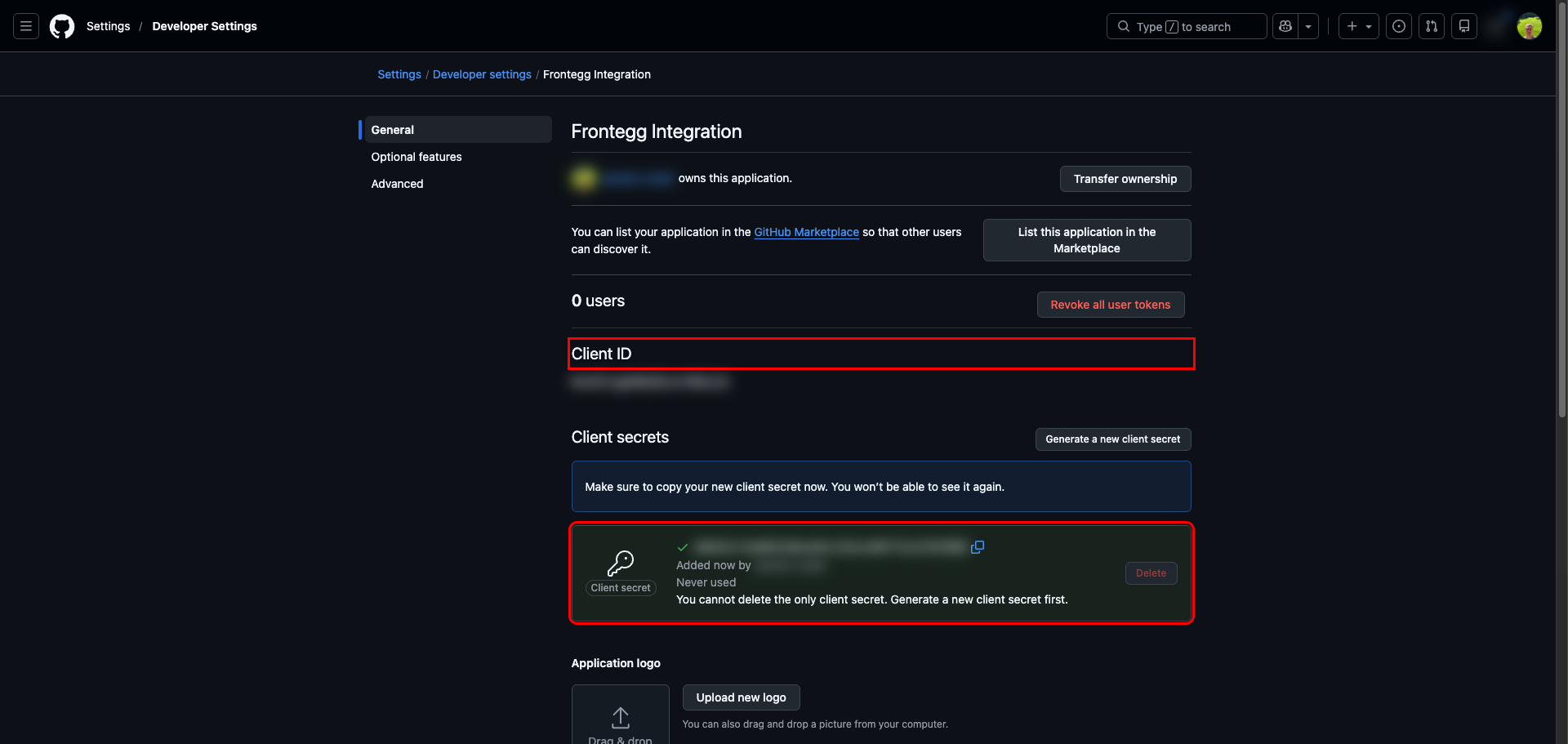
After registration, GitHub takes you to the app's settings page. The Client ID is shown immediately — copy it.
Under Client secrets, click Generate a new client secret. GitHub may prompt you to confirm your account password. Once generated, copy the secret value — GitHub will only display it once.
Keep your Client Secret safe
Keep your Client Secret safe
The Client Secret is shown only once. If you lose it, return to this page and click Generate a new client secret to create a replacement.
Once you have the Client ID and Client Secret from the steps above, enter them in the integration configuration page of the Frontegg portal:
- Open the Frontegg portal and navigate to [ENVIRONMENT] → Integrations → GitHub.
- Enter the Client ID and Client Secret in the corresponding fields.
- Select the required scopes.
- Click Save.
Scopes are configured in Frontegg
Scopes are configured in Frontegg
GitHub OAuth apps do not define scopes at the app level — scopes are requested when a user authorizes the integration. Select the scopes your application needs in the Frontegg portal.
| Scope | Description |
|---|---|
user | Read/write access to profile info (includes read:user and user:email) |
read:user | Read access to the authenticated user's profile |
user:email | Read access to the user's email addresses |
repo | Full control of private and public repositories |
public_repo | Access to public repositories only |
read:org | Read access to organization membership and teams |
workflow | Update GitHub Actions workflow files |
read:packages | Download packages from GitHub Packages |
gist | Create, read, and update gists |
notifications | Access user notifications |
For the full list of available scopes, see the GitHub OAuth scopes reference.