Integrating Google Workspace with Frontegg lets your application manage users, groups, organizational units, roles, and custom user schemas in a Google Workspace domain through the Admin SDK Directory API — all via Frontegg's integration layer using Google OAuth 2.0.
Prerequisites
Prerequisites
- A Google Workspace account with super admin privileges (the Admin SDK Directory API requires admin authorization at runtime)
- Access to Google Cloud Console with permission to create OAuth clients
- A Google Cloud project (you can create one during setup)
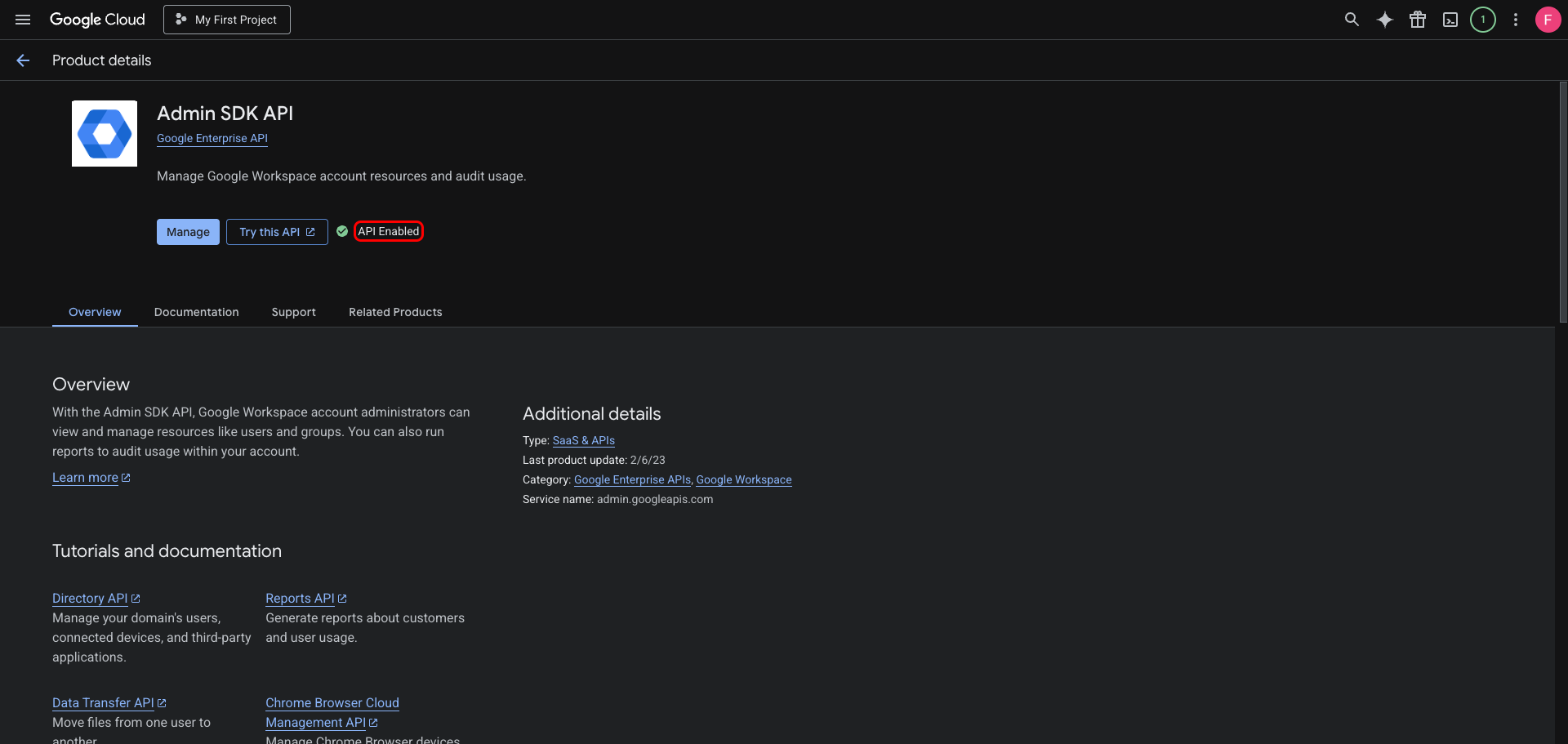
Go to the Admin SDK API page in the Google Cloud Console. Select your project from the top navigation, then click Enable if the API is not yet enabled. If you see Manage and API Enabled, the API is already active.
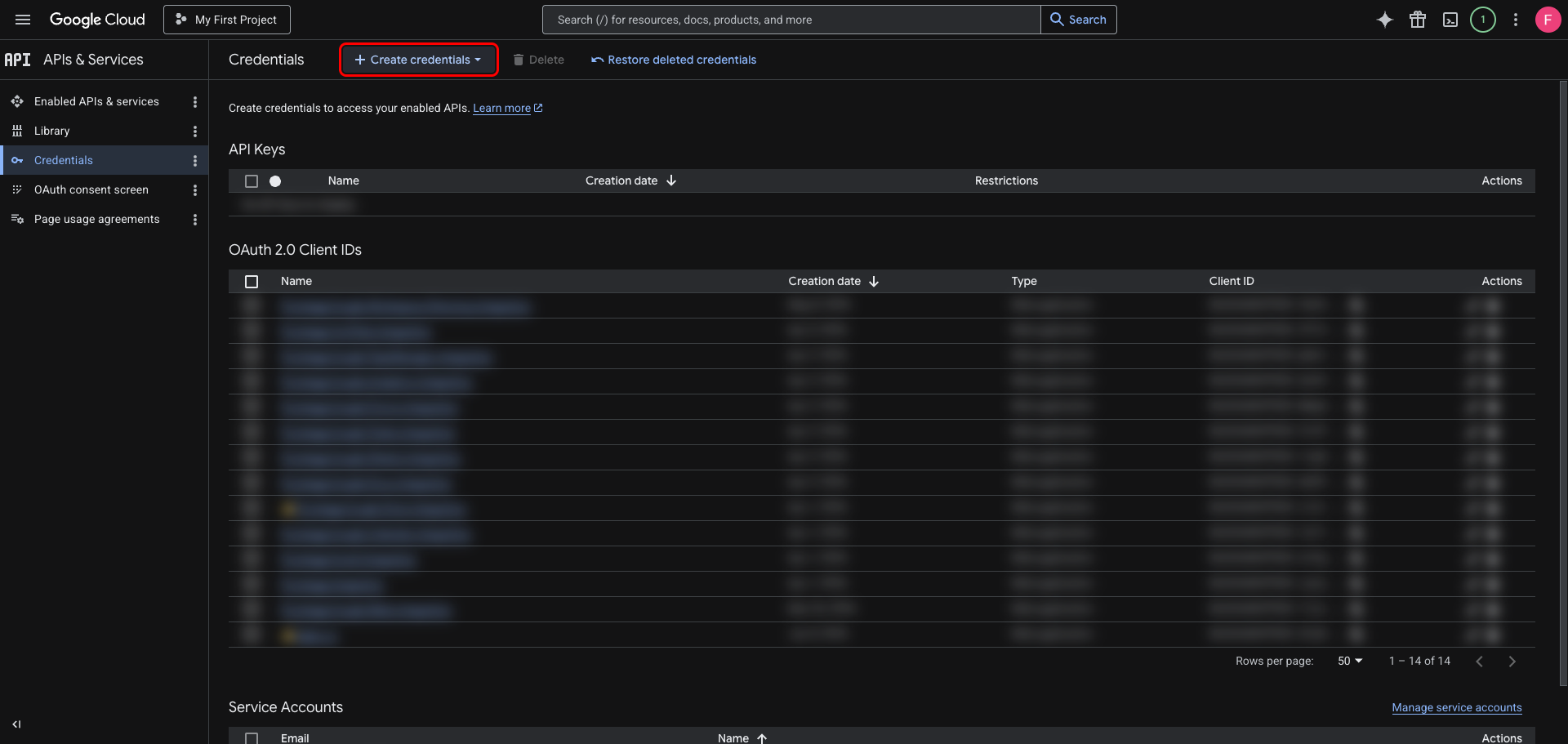
In the left sidebar, navigate to APIs & Services → Credentials. Click Create credentials.
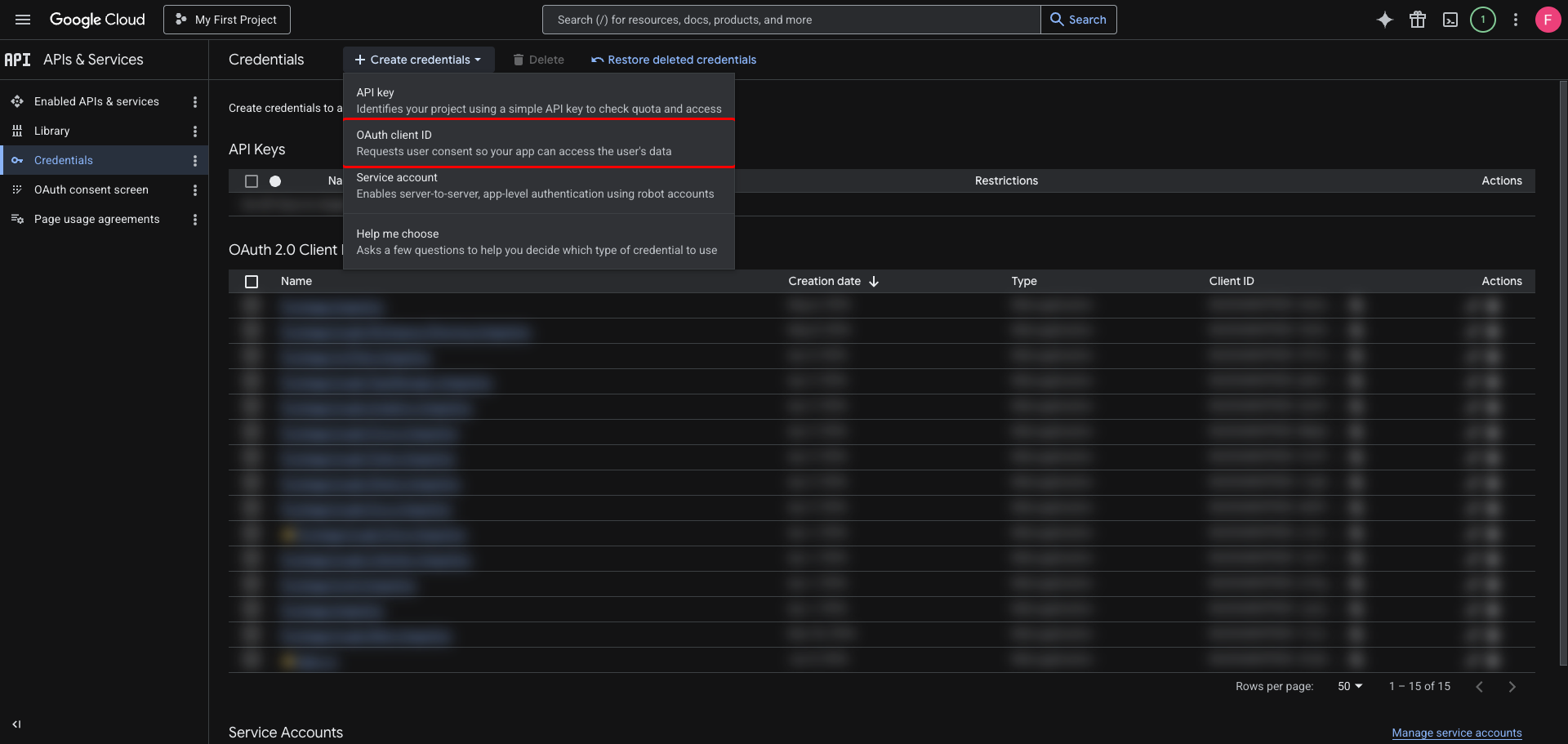
From the dropdown, select OAuth client ID.
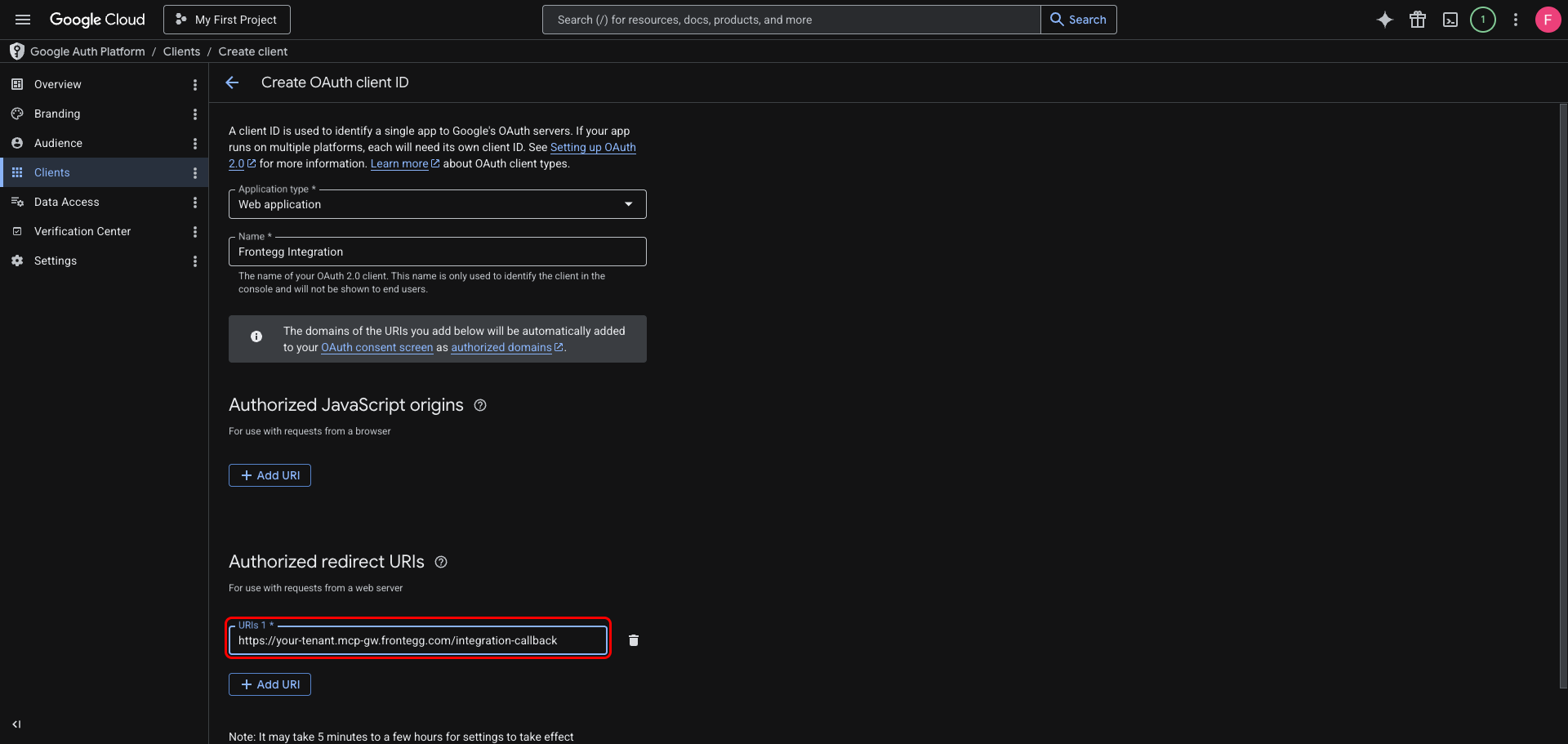
On the Create OAuth client ID page:
- Set Application type to Web application.
- Enter a name for the client (for example,
Frontegg Integration). - Under Authorized redirect URIs, click Add URI and add your Frontegg Redirect URL:
https://YOUR_MCP_GATEWAY_URL/integration-callback
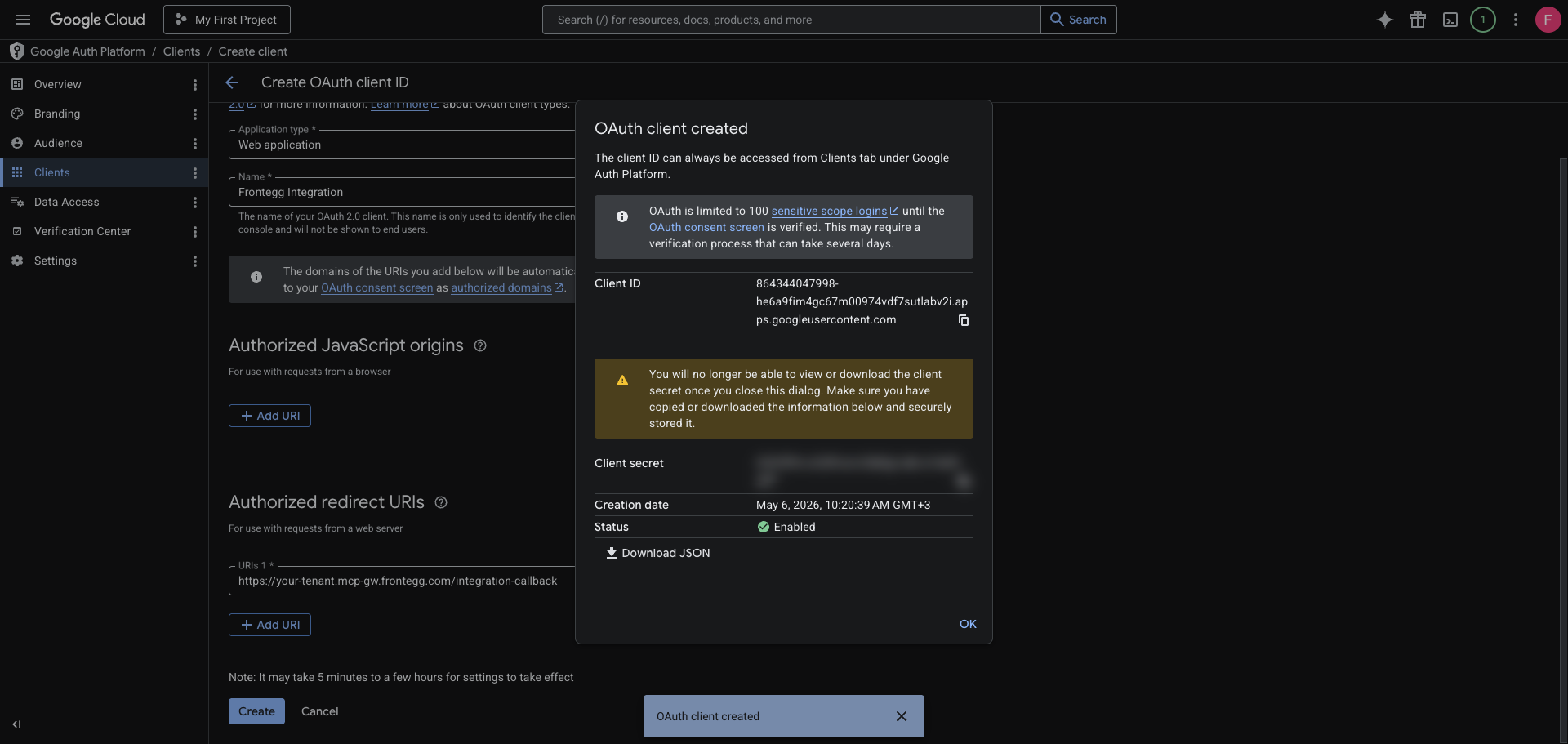
Click Create to save the OAuth client. A dialog will display your Client ID and Client Secret — copy both values and store them securely.
Save your Client Secret now
Save your Client Secret now
The Client Secret is only shown once in this dialog. After you close it, you cannot retrieve it again — you can only create a new secret.
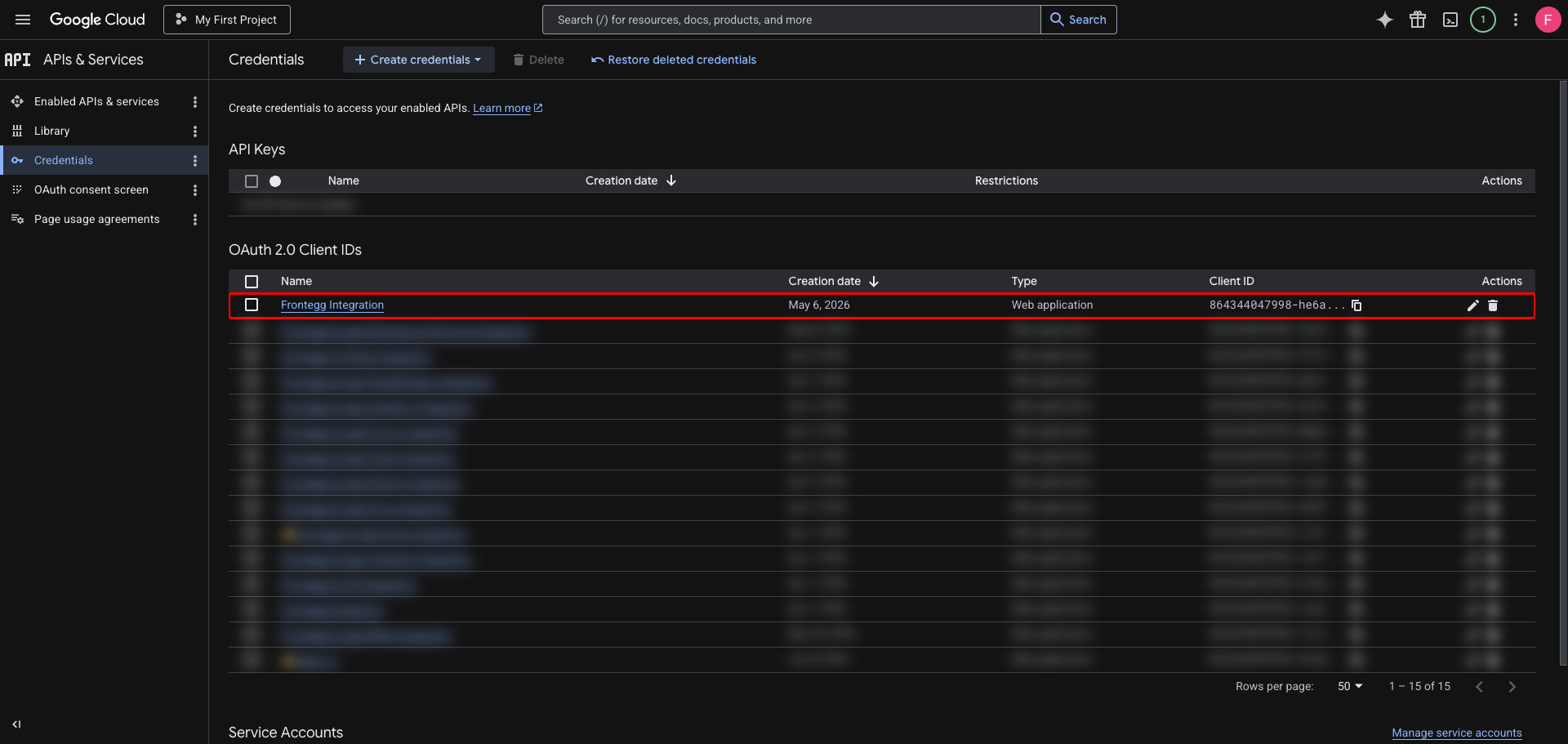
After closing the dialog, your new client appears in the OAuth 2.0 Client IDs list on the Credentials page.
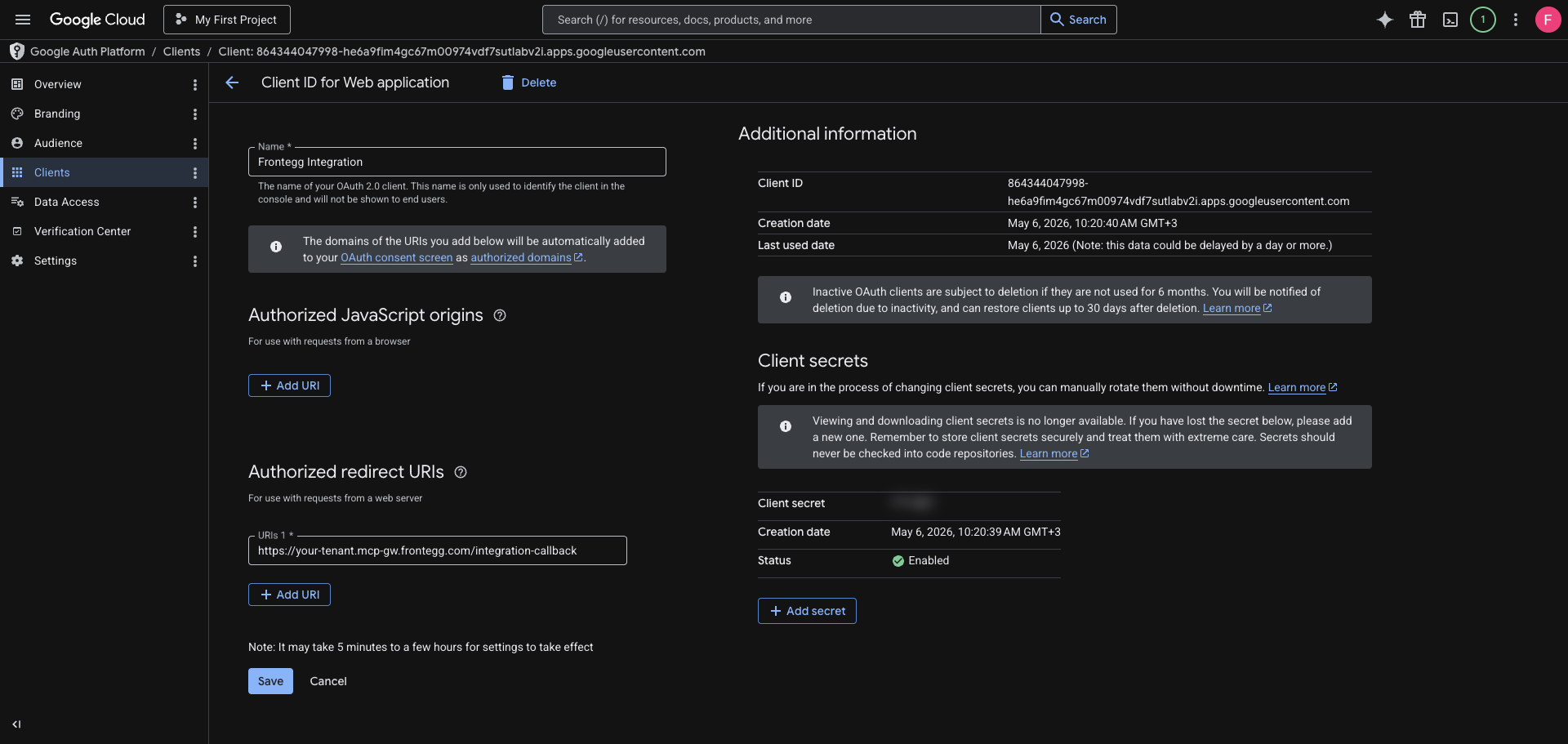
Click the client name to open its detail page. You can view and copy the Client ID at any time from the Additional information section.
Once you have your Client ID and Client Secret, enter them in the Frontegg portal:
- Open the Frontegg portal and navigate to [ENVIRONMENT] → Integrations → Google Workspace.
- Enter the Client ID and Client Secret in the corresponding fields.
- Optionally, enter your Customer ID to scope all calls to a specific Google Workspace customer. Leave it empty to use the authenticated admin's domain (recommended). You can find your Customer ID in the Google Admin Console under Account → Account settings → Customer ID (for example,
C03az79cb). - Select the required scopes:
| Scope | Description |
|---|---|
https://www.googleapis.com/auth/admin.directory.user | Read, create, update, and delete users in the directory |
https://www.googleapis.com/auth/admin.directory.user.readonly | Read-only access to users in the directory |
https://www.googleapis.com/auth/admin.directory.user.security | Manage user security settings (sign-in cookies, application-specific passwords) |
https://www.googleapis.com/auth/admin.directory.group | Read, create, update, and delete groups in the directory |
https://www.googleapis.com/auth/admin.directory.group.readonly | Read-only access to groups in the directory |
https://www.googleapis.com/auth/admin.directory.group.member | Manage group memberships |
https://www.googleapis.com/auth/admin.directory.group.member.readonly | Read-only access to group memberships |
https://www.googleapis.com/auth/admin.directory.orgunit | Manage organizational units |
https://www.googleapis.com/auth/admin.directory.orgunit.readonly | Read-only access to organizational units |
https://www.googleapis.com/auth/admin.directory.rolemanagement | Manage admin roles and role assignments |
https://www.googleapis.com/auth/admin.directory.rolemanagement.readonly | Read-only access to admin roles and role assignments |
https://www.googleapis.com/auth/admin.directory.userschema | Manage custom user schemas |
https://www.googleapis.com/auth/admin.directory.userschema.readonly | Read-only access to custom user schemas |
- Click Save.
Keep your credentials secure
Keep your credentials secure
Never share or commit your Client Secret to version control.