Figma is a collaborative interface design tool for creating, sharing, and reviewing designs and prototypes. The Figma integration with Frontegg connects to the Figma REST API, letting your application read file content, metadata, and version history, read and create comments, render nodes as images, browse published components and styles from file and team libraries, and manage dev resources on behalf of your users.
Prerequisites
Prerequisites
- A Figma account
- A newly created app starts in Draft state, which you and your team admins can use for testing right away. To let other users connect the app, you must submit it for review from the Publish tab.
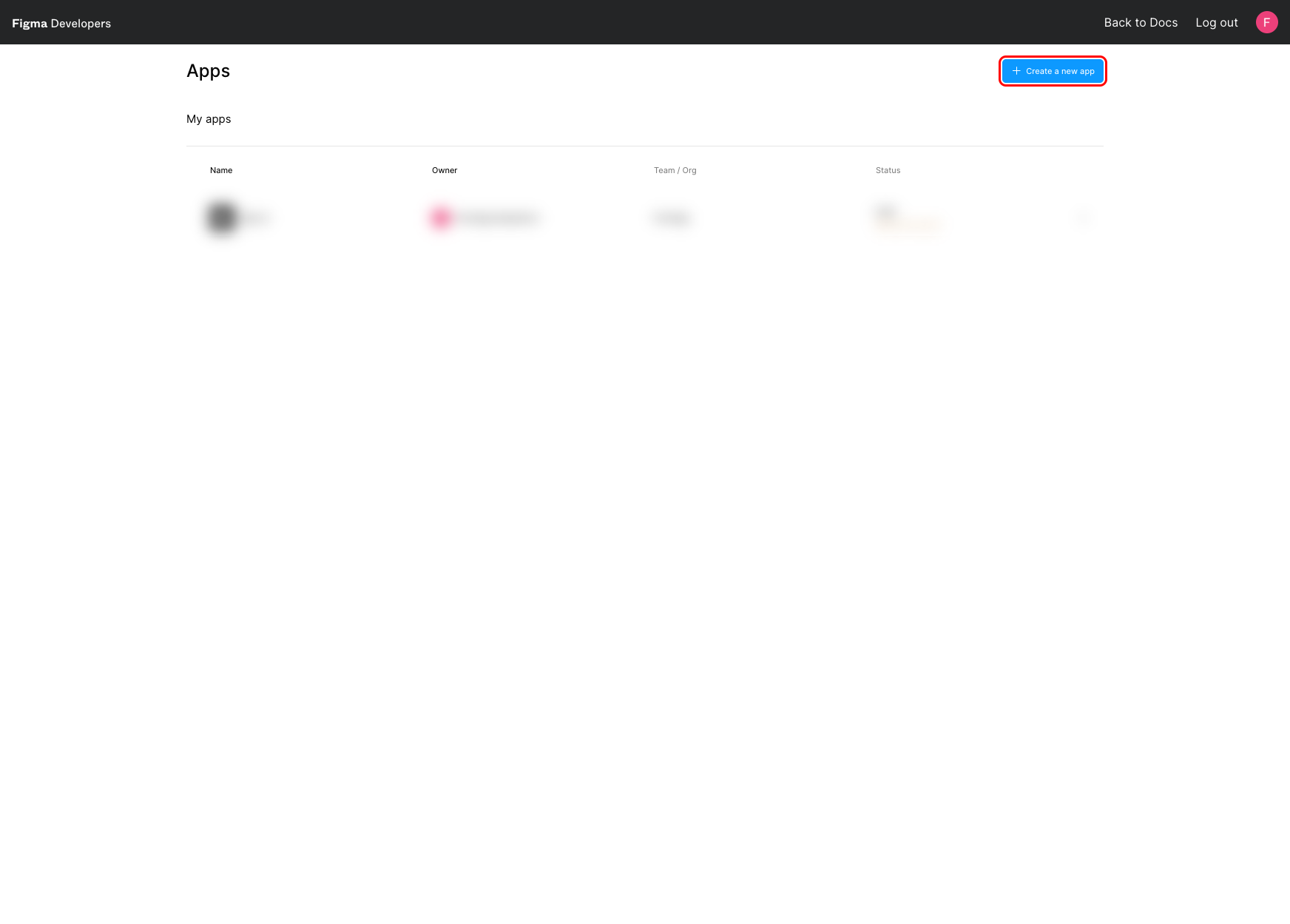
Sign in to Figma and go to the Figma apps page. Click Create a new app in the top-right corner.
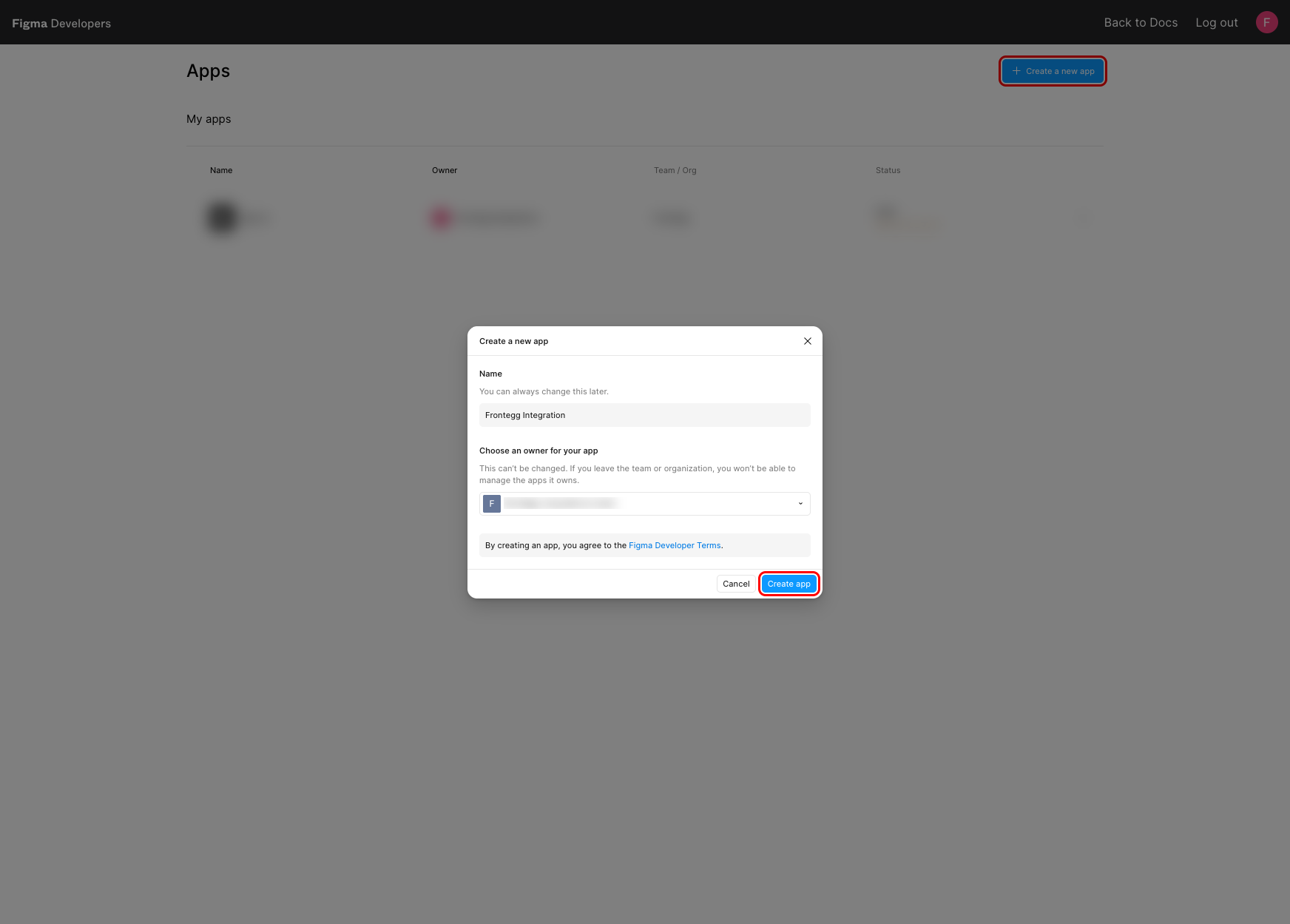
In the Create a new app dialog, enter a Name for your app, for example Frontegg Integration. Choose an owner (a team or organization) — this can't be changed later. Then click Create app.
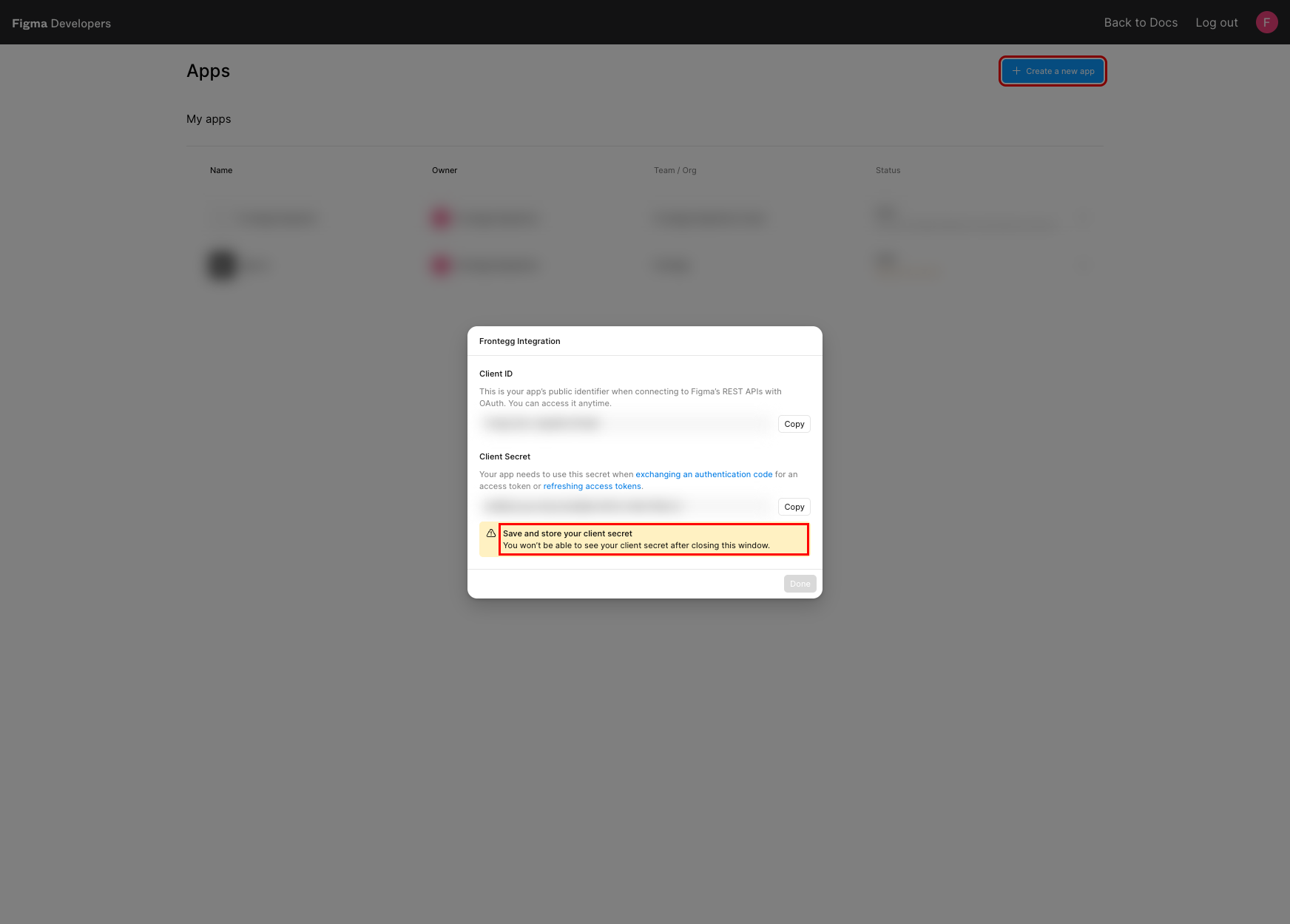
Figma displays your Client ID and Client Secret. Copy both and store them somewhere safe — you will need them when configuring the integration in the Frontegg portal.
Keep your credentials secure
Keep your credentials secure
Figma shows the Client Secret only once. If you close this window without copying it, you will need to generate a new one. Never share your Client Secret or commit it to version control.
After copying the secret, click Done.
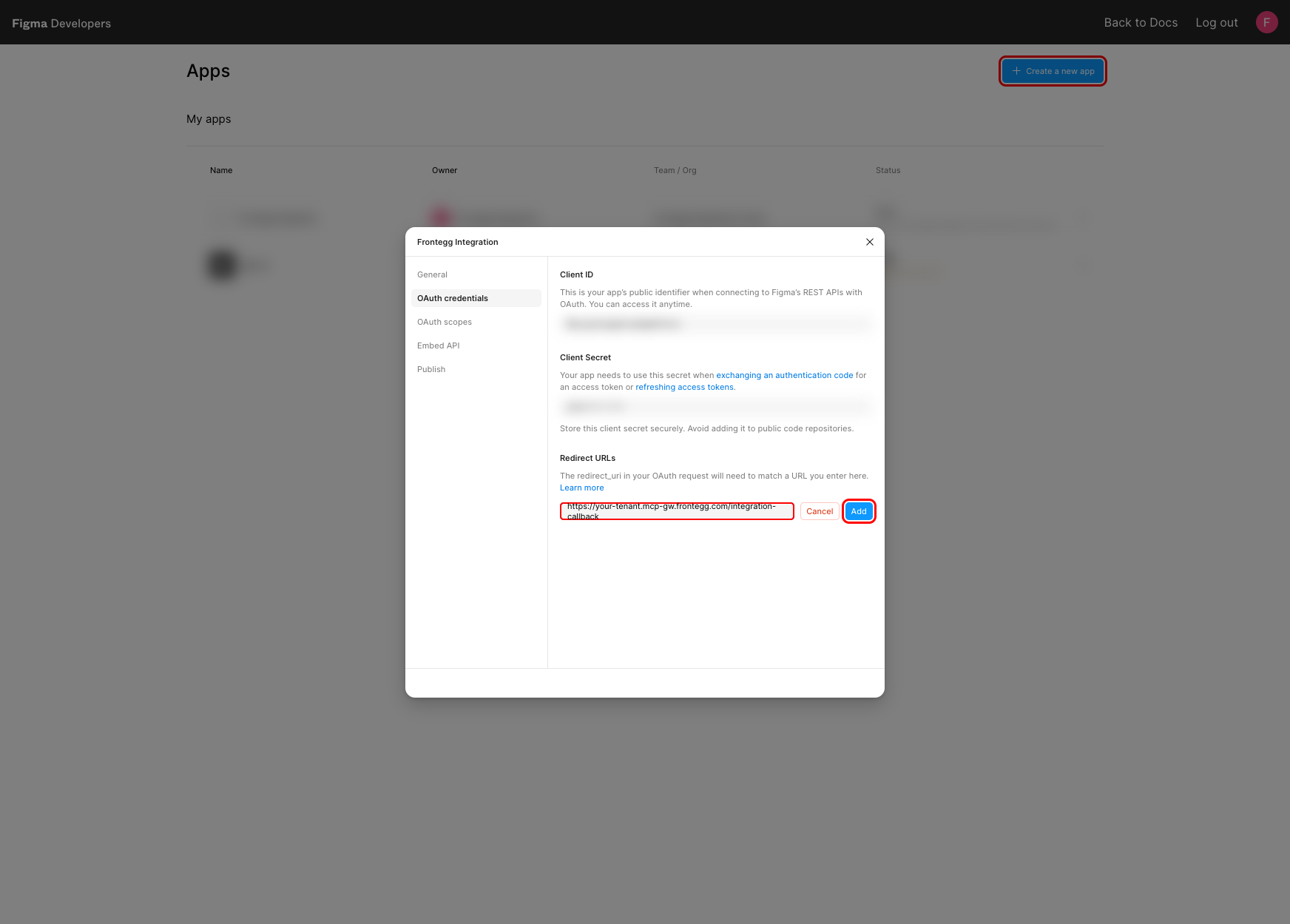
Open your app and select the OAuth credentials tab. Under Redirect URLs, click Add a redirect URL, then enter the redirect URL shown in the Frontegg portal for this integration — copy it whole, including the path. See How to get your Redirect URL. Click Add to save it.
The value has this shape, but take the real one from the portal rather than assembling it:
https://YOUR_MCP_GATEWAY_URL/integration-callback
The redirect URL must match exactly
The redirect URL must match exactly
The redirect_uri in the OAuth request must match a URL entered here exactly, including the protocol, any port, and trailing slashes. Otherwise Figma rejects the login with a redirect_uri mismatch error.
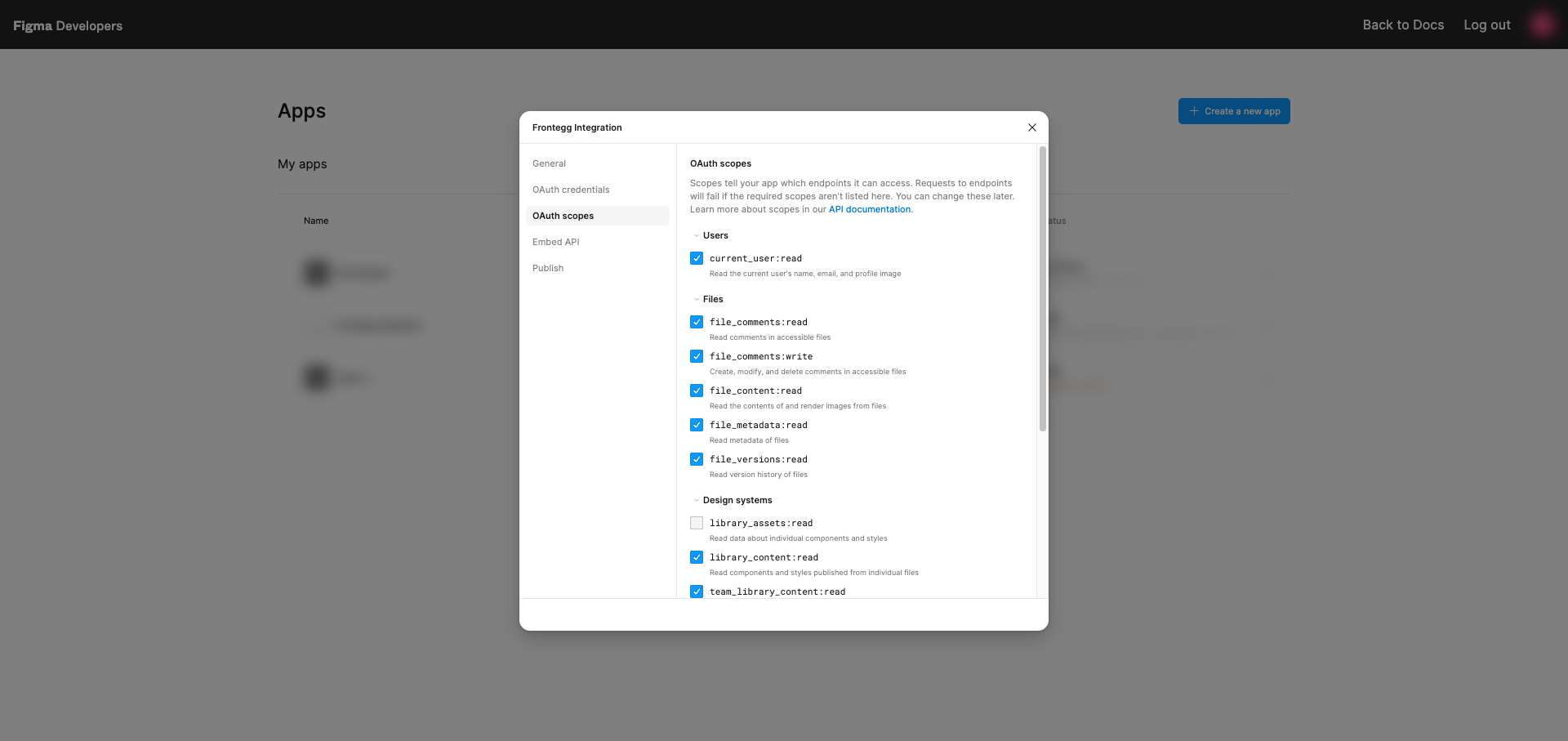
Select the OAuth scopes tab. Expand the Users, Files, Design systems, Development, and Folders categories and enable the scopes below by selecting their checkboxes:
| Scope | Description |
|---|---|
current_user:read | Read the current user's name, email, and profile image |
file_content:read | Read the contents of and render images from files |
file_metadata:read | Read metadata of files |
file_versions:read | Read version history of files |
file_comments:read | Read comments in accessible files |
file_comments:write | Create, modify, and delete comments in accessible files |
library_content:read | Read components and styles published from individual files |
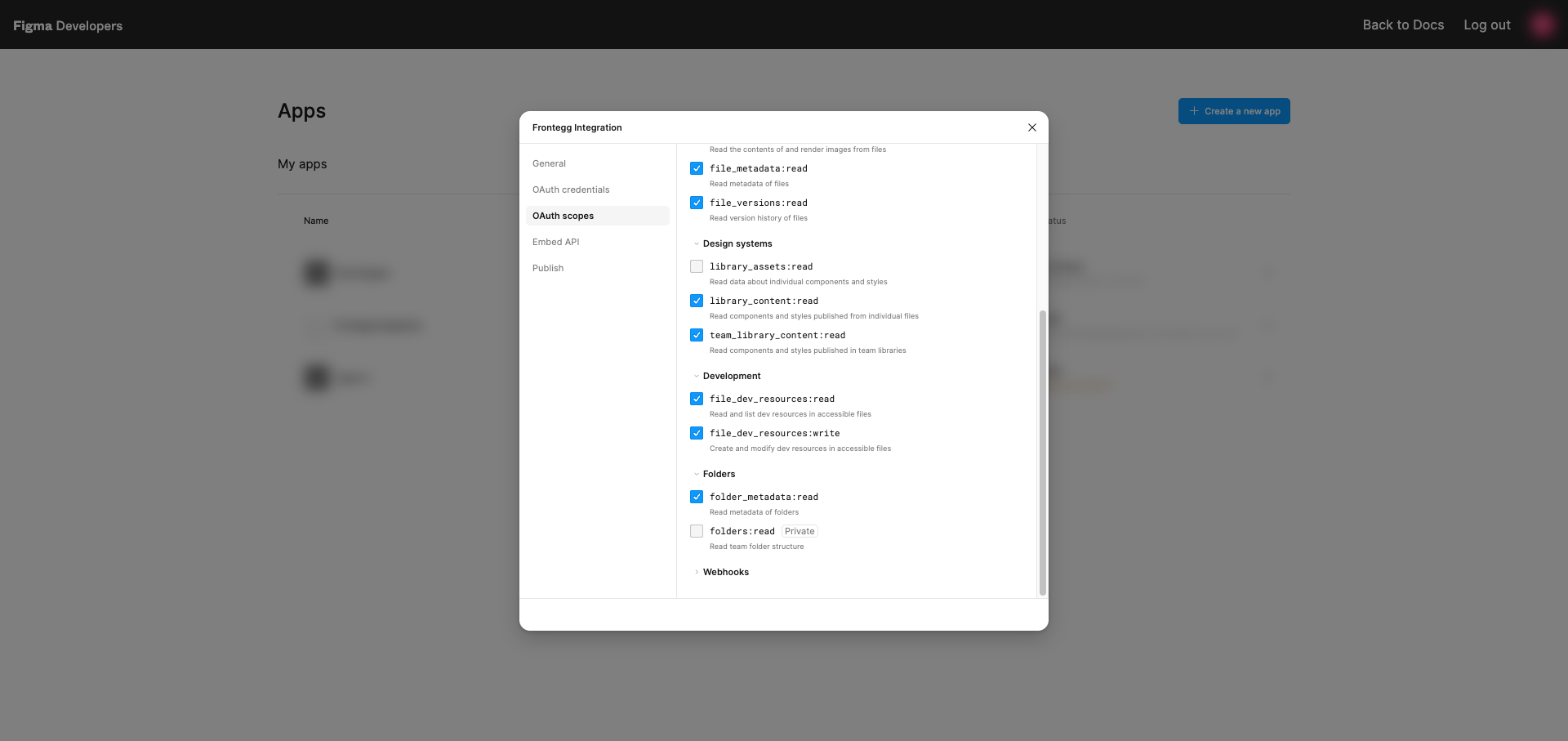
team_library_content:read | Read components and styles published in team libraries |
file_dev_resources:read | Read and list dev resources in accessible files |
file_dev_resources:write | Create and modify dev resources in accessible files |
folder_metadata:read | Read metadata of folders |
Enable every scope in the list
Enable every scope in the list
Figma rejects the entire authorization request if the connection asks for a scope your app does not have enabled, so a missing checkbox breaks the connection completely rather than only the matching operations. Do not enable scopes that carry a Private badge in the Figma console (such as folders:read) — those are not granted to standard apps and cause the same failure.
Scroll down to select the remaining scopes under Design systems, Development, and Folders. Scopes are saved automatically when you select them.
Once you have your Client ID and Client Secret from the steps above, enter them in the integration configuration page of the Frontegg portal:
- Open the Frontegg portal and navigate to [ENVIRONMENT] → Integrations → Figma.
- Enter the Client ID and Client Secret in the corresponding fields.
- Select the required scopes.
- Click Save.
- Large design files can be narrowed before they are returned — by naming specific nodes, by limiting how deep into the document tree to read, or both — so a file that is too big to return whole can still be inspected piece by piece.
- Rendered images can be requested in PNG, JPG, SVG, or PDF, at a scaling factor between 0.01 and 4.
- Folders and projects cannot be listed. Figma only grants folder listing to specially approved apps, so a folder's details can be read only when someone supplies the folder's identifier, which is the last segment of the folder's URL in Figma.
- When a request combines specific nodes with a depth limit, the depth is counted from the top of the document rather than from the requested node. A depth of 1 can therefore come back empty, which looks like the node does not exist — increase the depth until the node appears.
- Component, component set, and style listings only return items that have been published to a library. Unpublished items in a file are not returned, and listing a team's library requires the team identifier, which is taken from the team's URL in Figma.
- Component sets and styles cannot be listed from a branch of a file — only from the main file.
- Links to rendered images expire 30 days after they are generated, and individual nodes that cannot be rendered come back empty rather than failing the whole request.
- Reading plugin data or branch information is accepted but returns nothing for files that have no plugin data or no branches.