Adding LinkedIn social login to your login page enables users to sign in to your website or application using their existing LinkedIn account. This creates a faster, more convenient login process by eliminating the need for a separate username and password.
To enable LinkedIn social login for your login page, follow these steps:
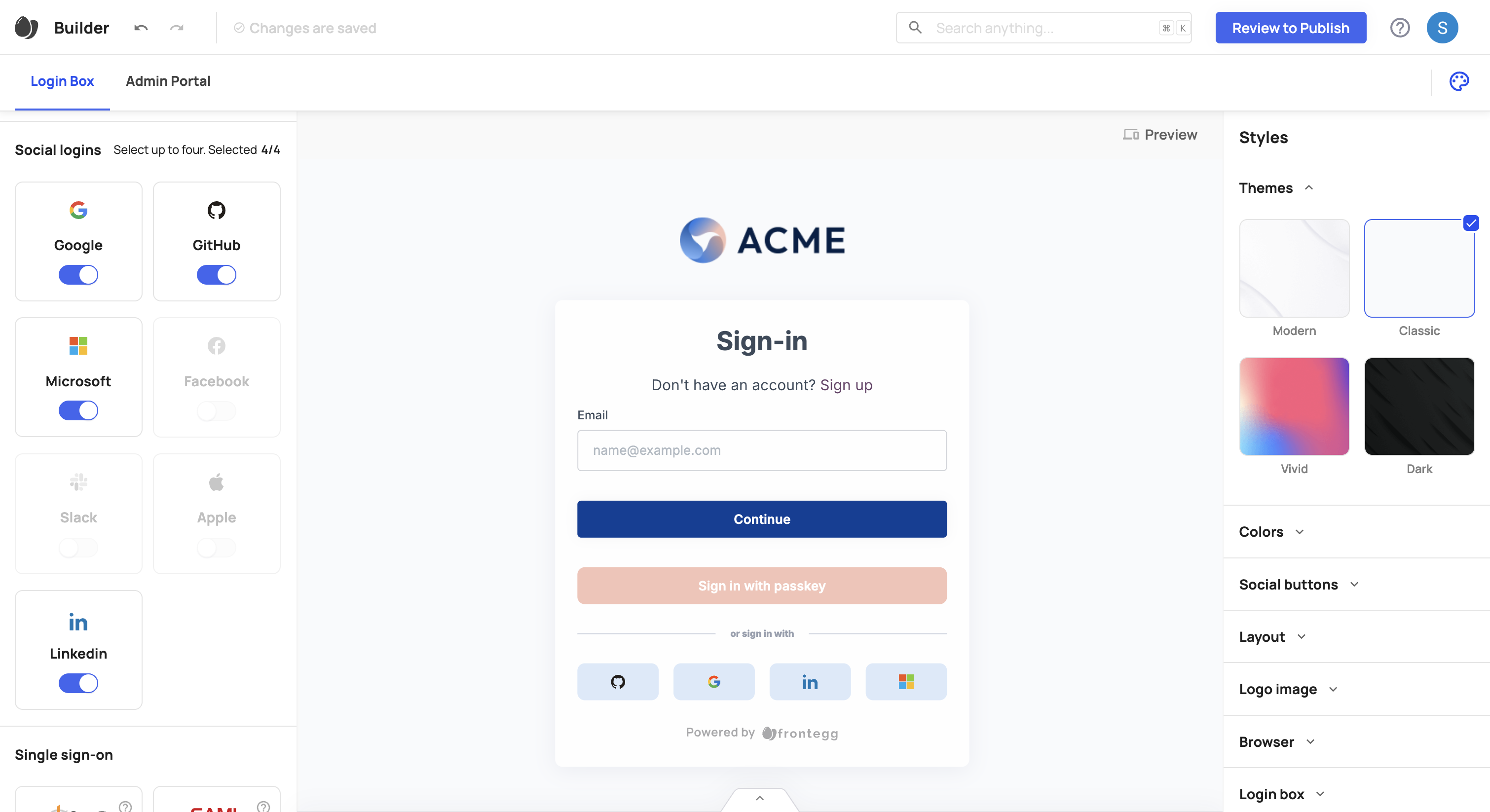
- Enable LinkedIn as a social login in the builder.
- Create a LinkedIn application and set up credentials.
Prerequisites
Prerequisites
Required SDK versions to configure LinkedIn Login:
@frontegg/react@6.0.26
@frontegg/vue@3.0.18
@frontegg/angular@6.18.0
@frontegg/nextjs@8.0.12
- Open the Frontegg portal.
- Click on the Login Box button.
- In the left panel, toggle LinkedIn to on.
- Click Review to Publish, then Publish to Dev.
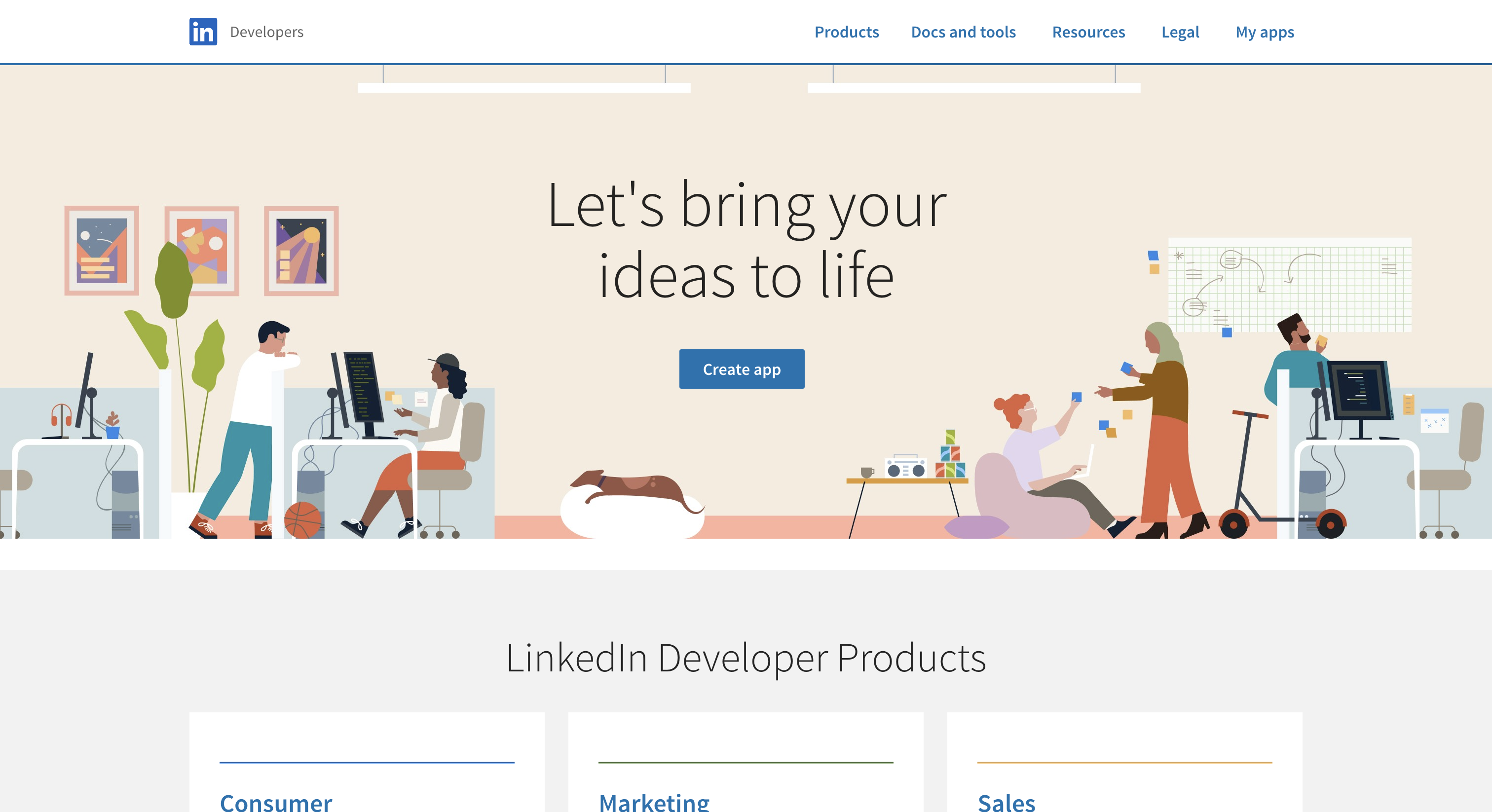
To configure LinkedIn login, you’ll need to create an app in your LinkedIn developer account.
- Log in to LinkedIn Developer.
- Click My Apps at the top right, then select Create app.
- Name your application.
- Select your company’s LinkedIn page (required).
- Optionally, set a link to your privacy policy.
- Upload your company’s logo.
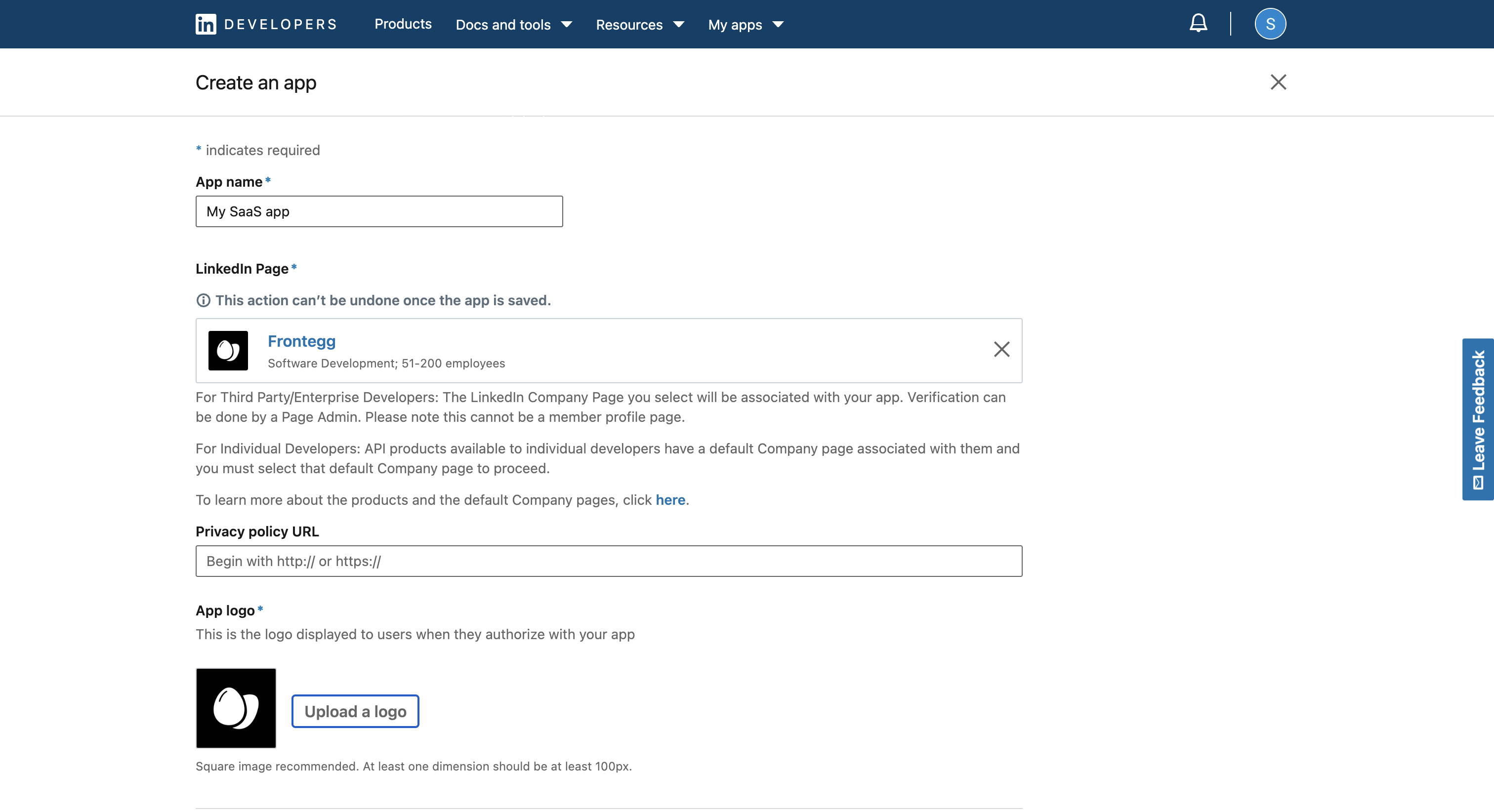
- Accept the terms of service, then click Create app.
Your application is now created.
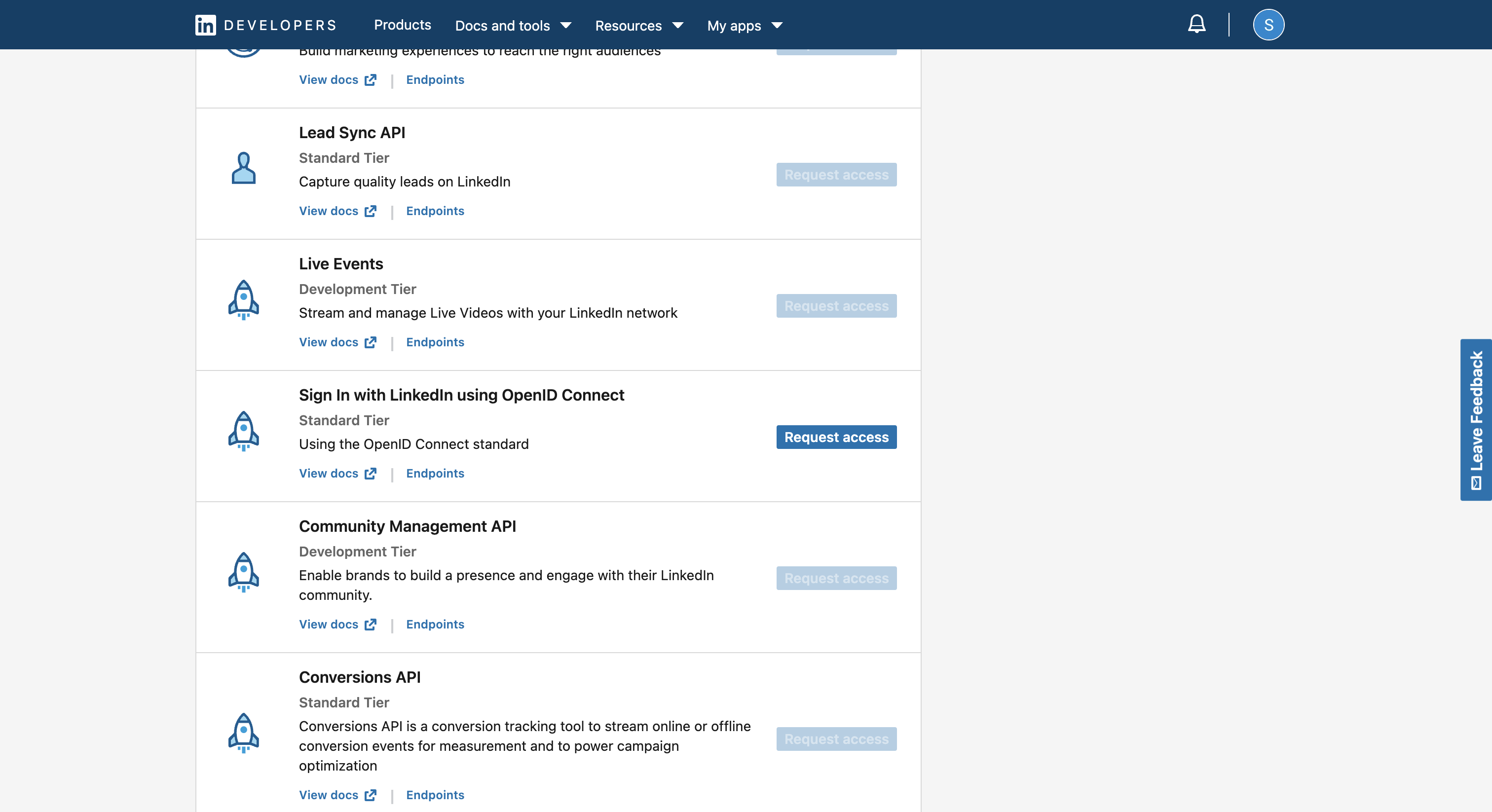
- Under the Products tab, enable Sign in with LinkedIn Using OpenID Connect to allow login with LinkedIn.
- Go to the Auth tab, then under OAuth 2.0, add your environment login redirect URL to Allowed Redirect URLs:
- For hosted login, use
https://{{YOUR-FRONTEGG-DOMAIN}}/oauth/account/social/success. - For embedded login, use
https://{{YOUR-APPLICATION-URL}}/account/social/success.
- For hosted login, use
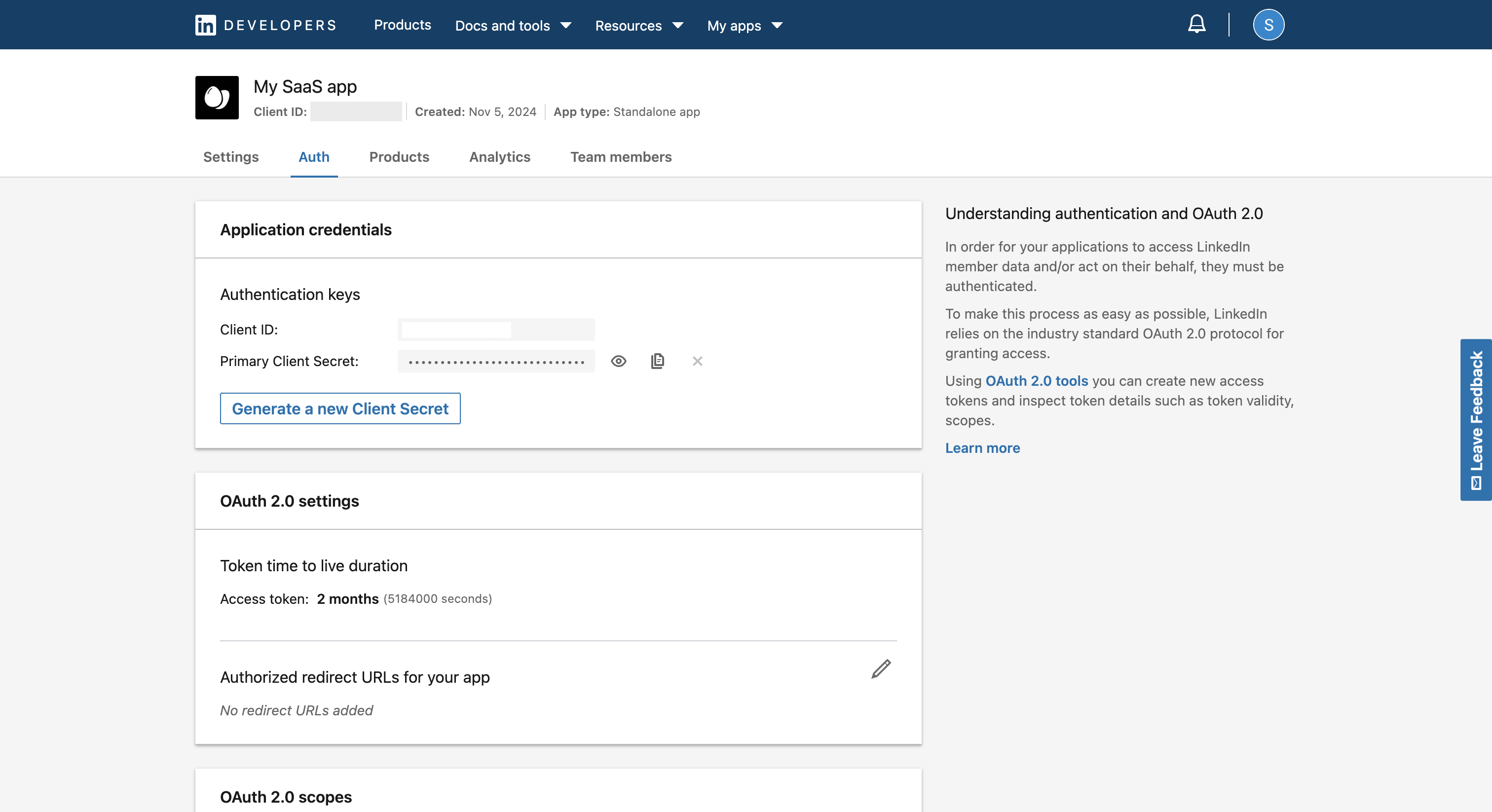
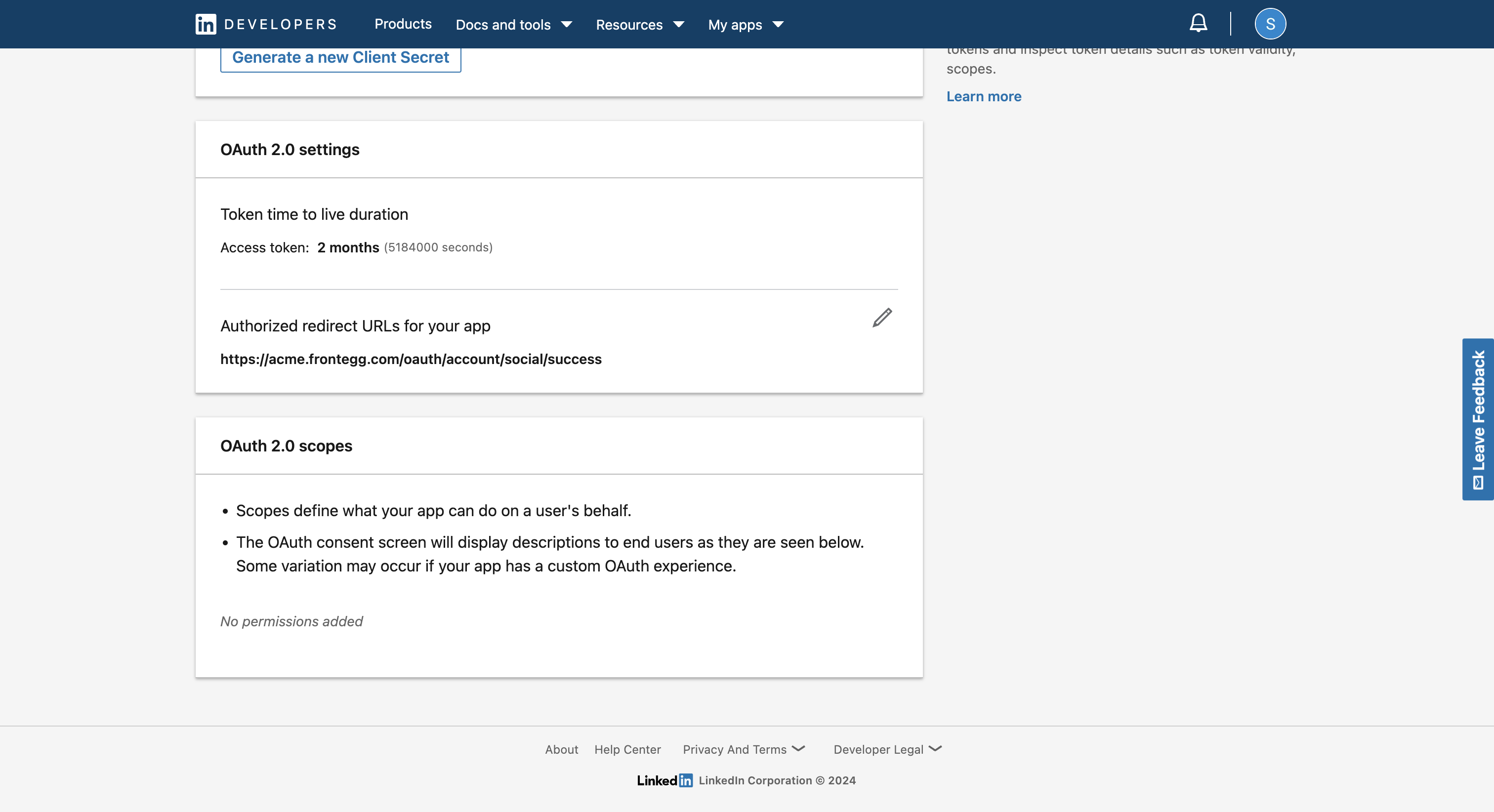
- Save your Client ID and Client Secret from the Application Credentials section. You’ll need them for the next step.
- Open the Frontegg portal.
- Navigate to [ENVIRONMENT] ➜ Configurations ➜ Authentication ➜ Social logins and select Manage on the LinkedIn card.
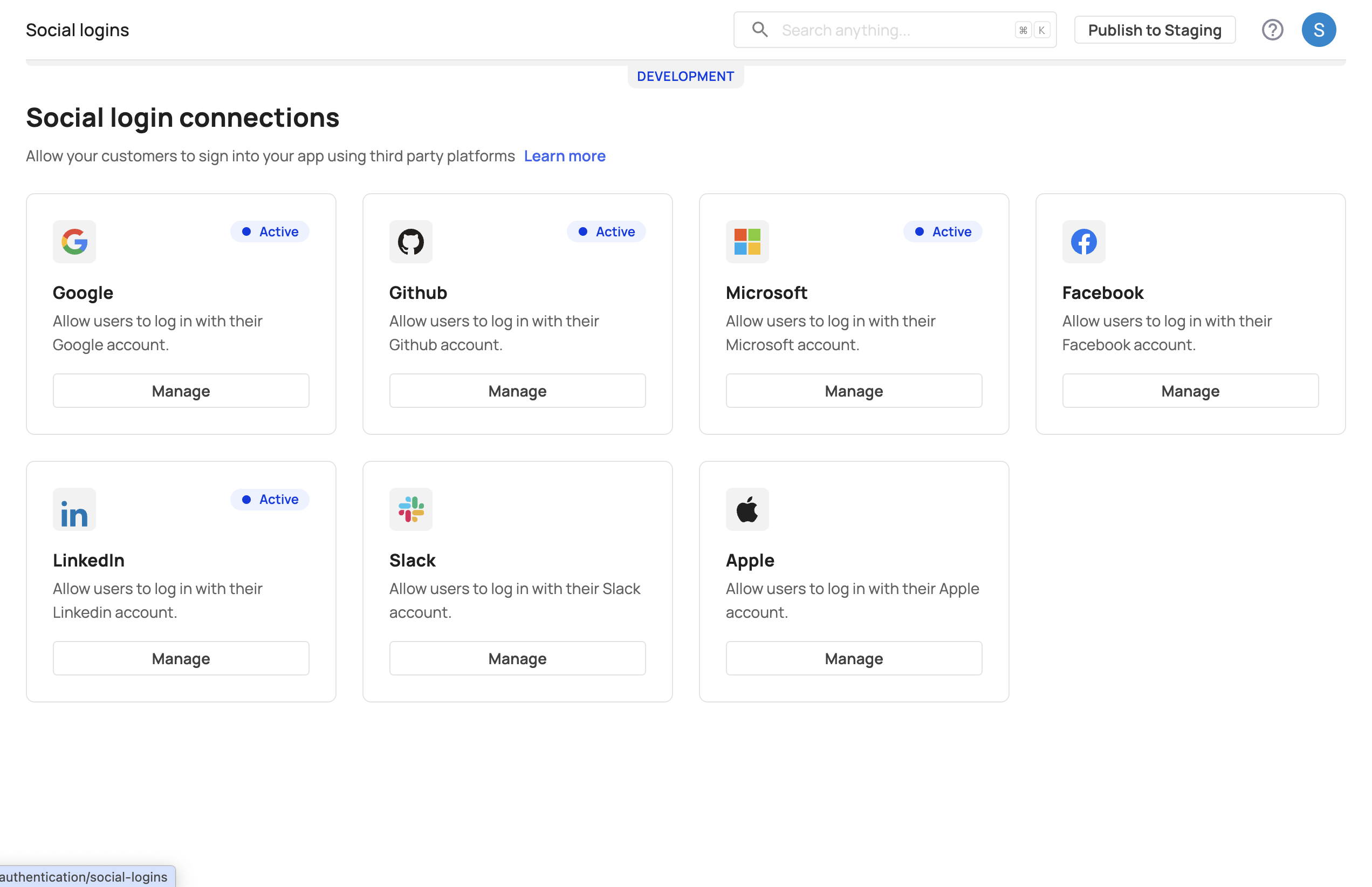
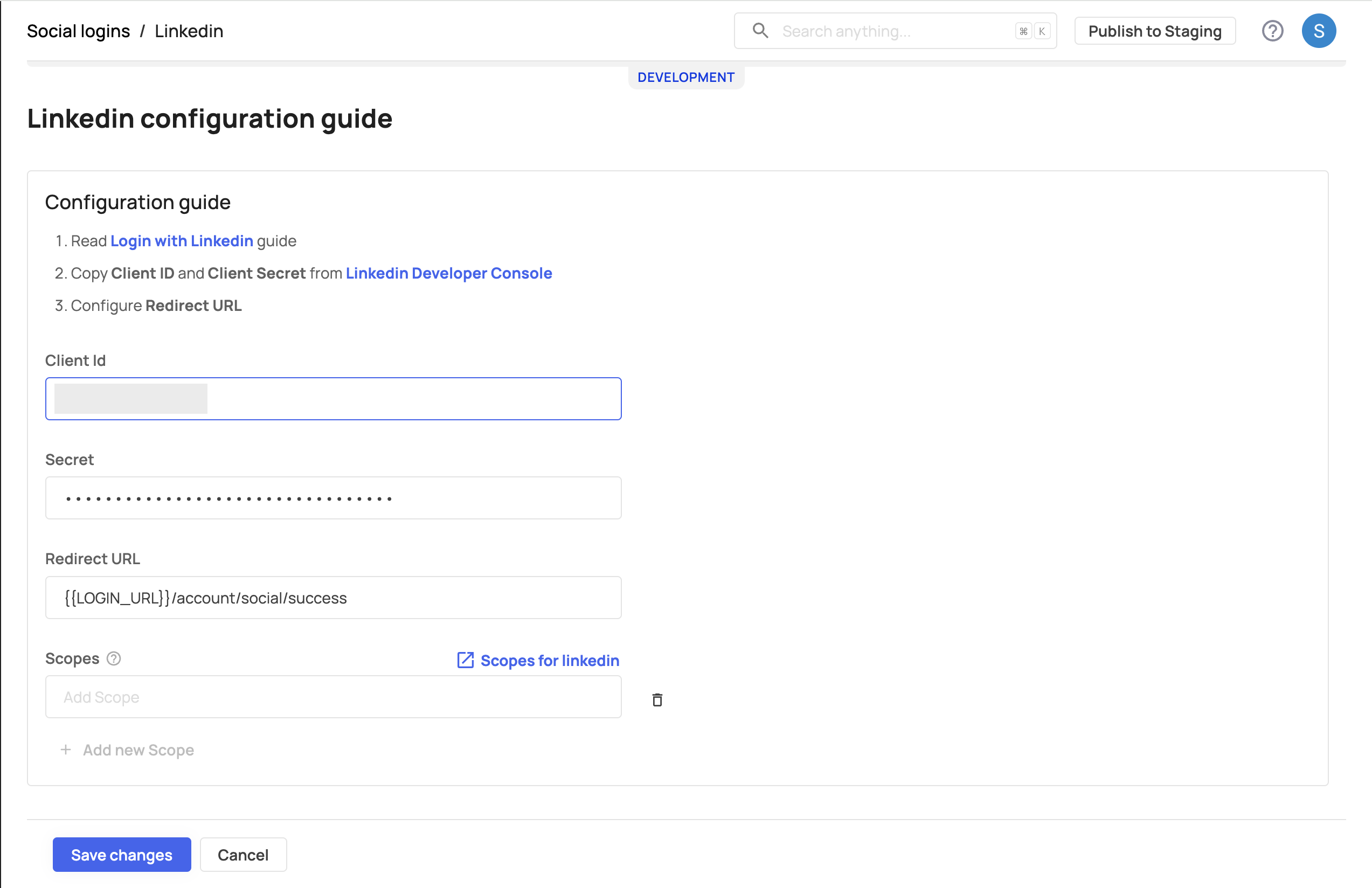
- Choose Custom and enter your LinkedIn Client ID and Client Secret.
- Add your Redirect URL to specify where users should be directed after login.
- Save your changes.
Scopes let you specify the type of information your application can access from users once granted permission. LinkedIn requires these OAuth 2.0 scopes for a successful login:
- openid
- profile
To add additional custom scopes, navigate to [ENVIRONMENT] → Configurations ➜ Authentication → Social logins → Custom → Scopes on the Frontegg portal.
- Go to your application.
- Try signing in or signing up using LinkedIn.
Your LinkedIn social login should now be active, allowing users to log in with their LinkedIn credentials.