The Tools screen is the centralized interface for viewing and managing all tools available to AI agents through your Agen for SaaS MCP Gateway.
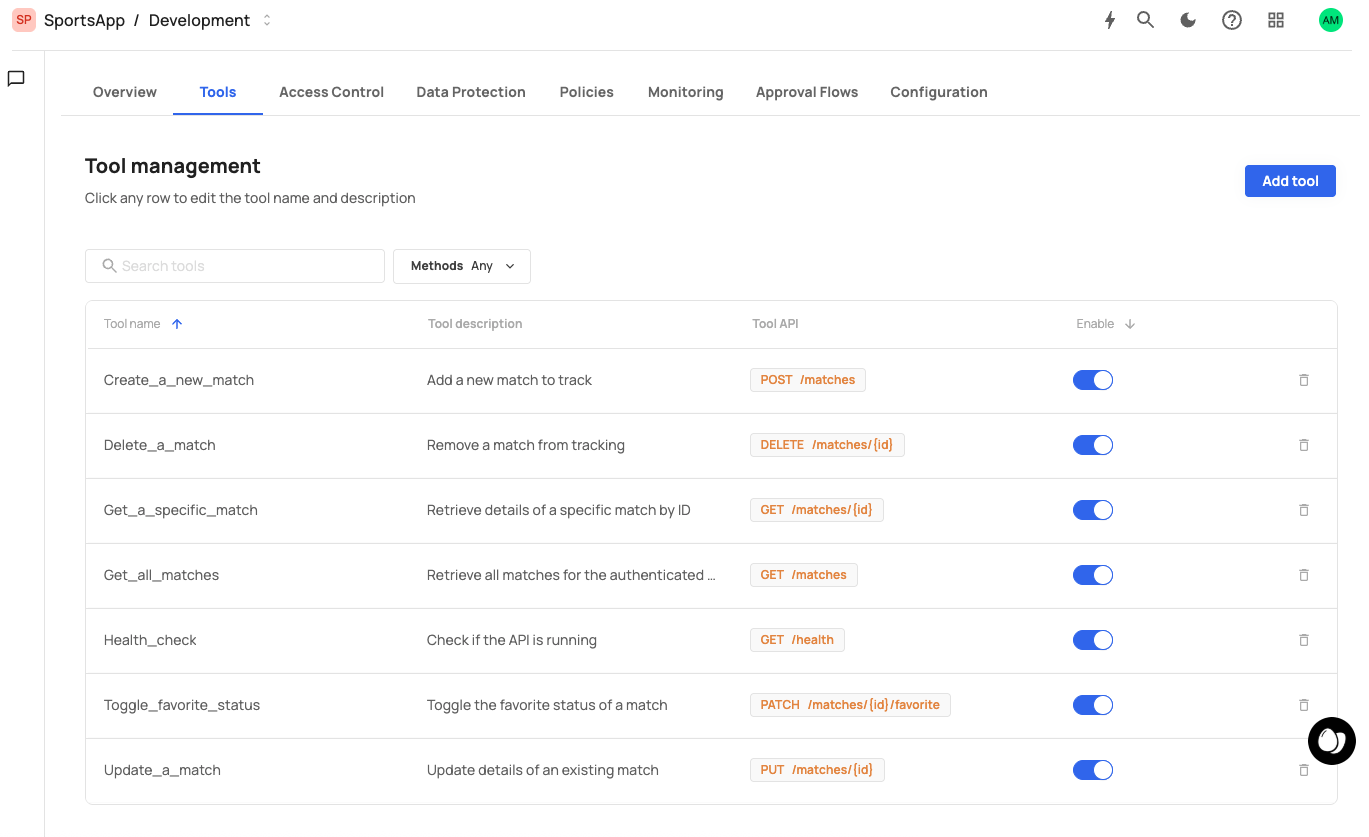
The Tools screen displays the following header:
Tools — Power your agents with built-in Frontegg capabilities and connect external tools via seamless OAuth
The list includes a search bar and a Methods filter dropdown (default: "Any") that lets you filter tools by HTTP method (GET, POST, PUT, DELETE).
Each tool is displayed as a row in a table with the following columns:
| Column | Description |
|---|---|
| Tool name | The unique identifier for the tool (e.g., ApprovalFlowsController_approverA..., Get_expense_by_ID). |
| Tool description | A truncated preview of the tool's description (e.g., "Make a POST request to /identity/re...", "Retrieve a specific expense by its ID"). |
| Source name | The source this tool belongs to (e.g., Frontegg, default). |
| Tool API | A badge showing the HTTP method and path (e.g., POST /identity/resources/approval-..., GET /api/receipts/{id}). Method badges are color-coded. |
| Enable | A toggle switch to enable or disable the tool. |
| Delete | A trash icon to permanently delete the tool. |
Click any tool row to open the Edit tool side panel. The panel contains the following editable fields:
| Field | Description | Limit |
|---|---|---|
| Tool name | The unique identifier for the tool. | — |
| Tool description | A detailed description of what the tool does. AI agents use this to understand the tool's purpose. | 2,000 characters |
| Tool API | Two fields: an HTTP method dropdown (GET, POST, PUT, DELETE) and a path text field (e.g., /api/receipts/{id}). | — |
Click Save to apply changes, or Cancel to discard. The side panel can be closed with the X button.
Each tool has a toggle switch in the Enable column:
- Enabled — The tool is active and discoverable by AI agents through the MCP
list_toolsendpoint. - Disabled — The tool is hidden from AI agents. The tool definition is preserved and can be re-enabled at any time.
Toggling a tool's state takes effect immediately. Disabled tools do not appear in tool discovery responses and cannot be invoked.
Click the trash icon next to a tool to permanently delete it. Deletion is irreversible — the tool and all its configuration (including any access control rules or policy references that include it) are removed.
Use the controls at the top of the Tools screen to find specific tools:
- Search — Type in the search bar to filter tools by name or description.
- Methods filter — Select a specific HTTP method (GET, POST, PUT, DELETE) from the dropdown to show only tools with that method. Set to "Any" to show all tools.
- Review descriptions after import — Auto-generated descriptions from OpenAPI specs may be generic (e.g., "Make a POST request to..."). Rewrite them to clearly explain the business action the tool performs.
- Disable rather than delete — If you are unsure whether a tool is still needed, disable it first. You can re-enable it later without recreating it.
- Use the Methods filter — When reviewing tools, filter by method to quickly find all write operations (POST, PUT, DELETE) that may need stricter access control or policies.