The Configuration tab in the Agen for SaaS control plane manages the core settings for your MCP server. It is divided into two collapsible sections: Basic configuration and Allowed origins.
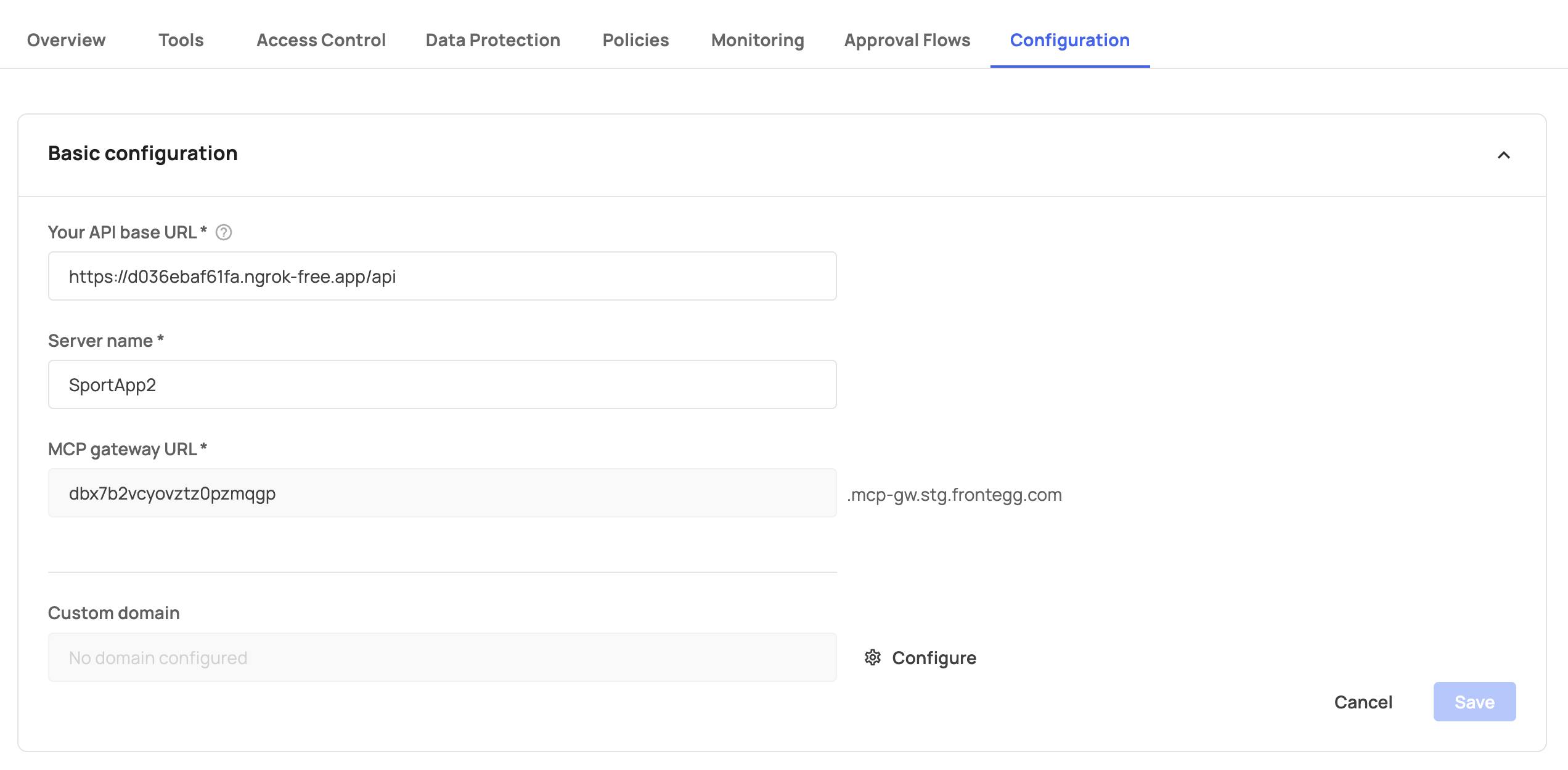
The basic configuration section contains the following settings:
| Field | Description | Editable |
|---|---|---|
| Server name | The display name for your MCP server (e.g., "Expense Management App"). This is a required field. | Yes |
| MCP Gateway URL | The auto-generated endpoint where AI agents connect to your MCP server (e.g., your-id.mcp-gw.frontegg.com). Includes a copy button for easy sharing. | No (read-only) |
| Custom domain | An optional custom domain mapped to your MCP Gateway. Displays "No domain configured" when not set. | Yes (via Configure button) |
Click Save to apply changes to the server name, or Cancel to discard.
To configure a custom domain for your MCP Gateway:
- Click the Configure button below the Custom domain field.
- In the Configure custom domain dialog, a two-step wizard guides you through the process:
Step 1: Add domain
- Enter your desired domain in the Domain field.
- Click Next to proceed.
Step 2: DNS records
- The wizard displays the DNS records (CNAME entries) you need to add to your domain's DNS configuration.
- Add these records through your DNS provider.
- Once DNS propagation completes, Agen for SaaS verifies the domain automatically.
Click Cancel at any point to exit the wizard without changes.
The Allowed origins section controls which web origins can access your Agen for SaaS application. Access is enforced by the Origin HTTP header.
By default, two origins are pre-configured:
{{APP_URL}}— Your application's URL.{{LOGIN_URL}}— Your login page URL.
Each origin entry has a delete button (trash icon) to remove it.
To add an origin:
- Click + Add new origin.
- Enter the origin URL.
- Click Save.
Changes to allowed origins take up to 5 minutes to take effect.