Access control in Agen for SaaS defines who can invoke which tools by mapping tools to JWT attributes. It provides attribute-based access control (ABAC) using two mapping strategies: role-based (RBAC) and permission-based (PBAC).
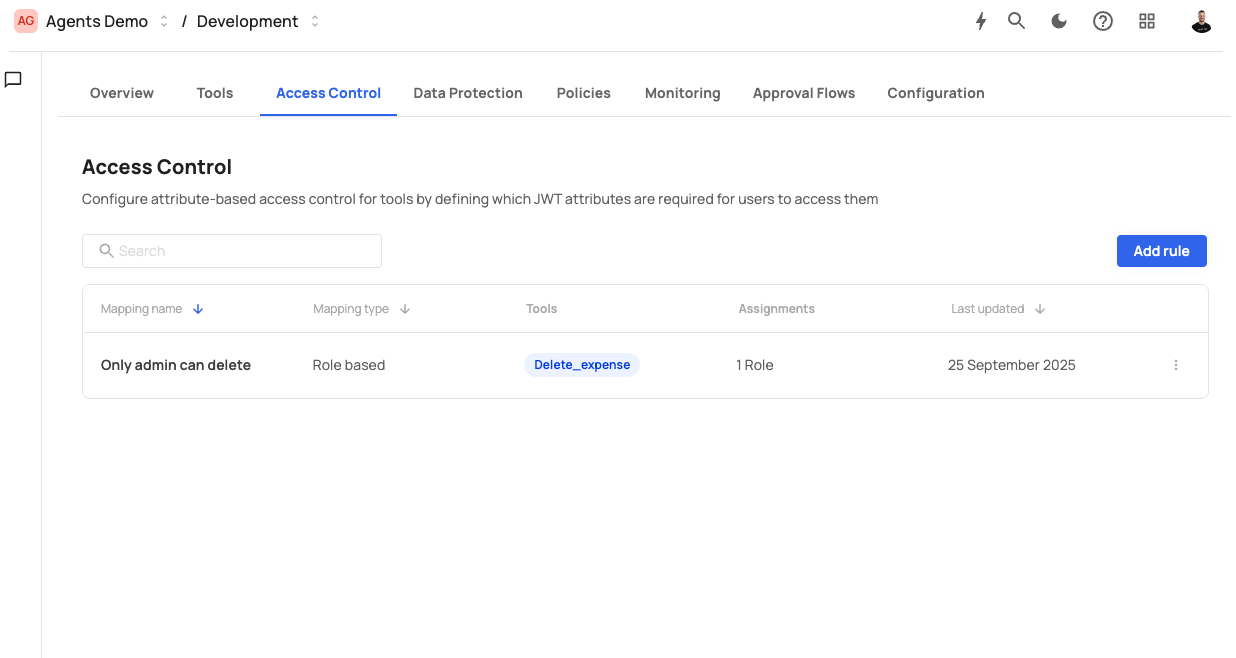
The Access Control screen displays the following header:
Access Control — Configure attribute-based access control for tools by defining which JWT attributes are required for users to access them
The screen includes a search bar and an Add rule button. Existing rules are displayed in a table with the following columns:
| Column | Description |
|---|---|
| Mapping name | The descriptive name for the rule (e.g., "Admin only: Delete_expense"). |
| Mapping type | Either "Role based" or "Permission based". |
| Tools | The tools this rule applies to, shown as badges (e.g., Delete_expense). |
| Assignments | The number of roles or permissions assigned (e.g., "1 Role"). |
| Last updated | The date the rule was last modified. |
Each row has a three-dot menu for editing or deleting the rule.
Click Add rule to open the rule creation dialog.
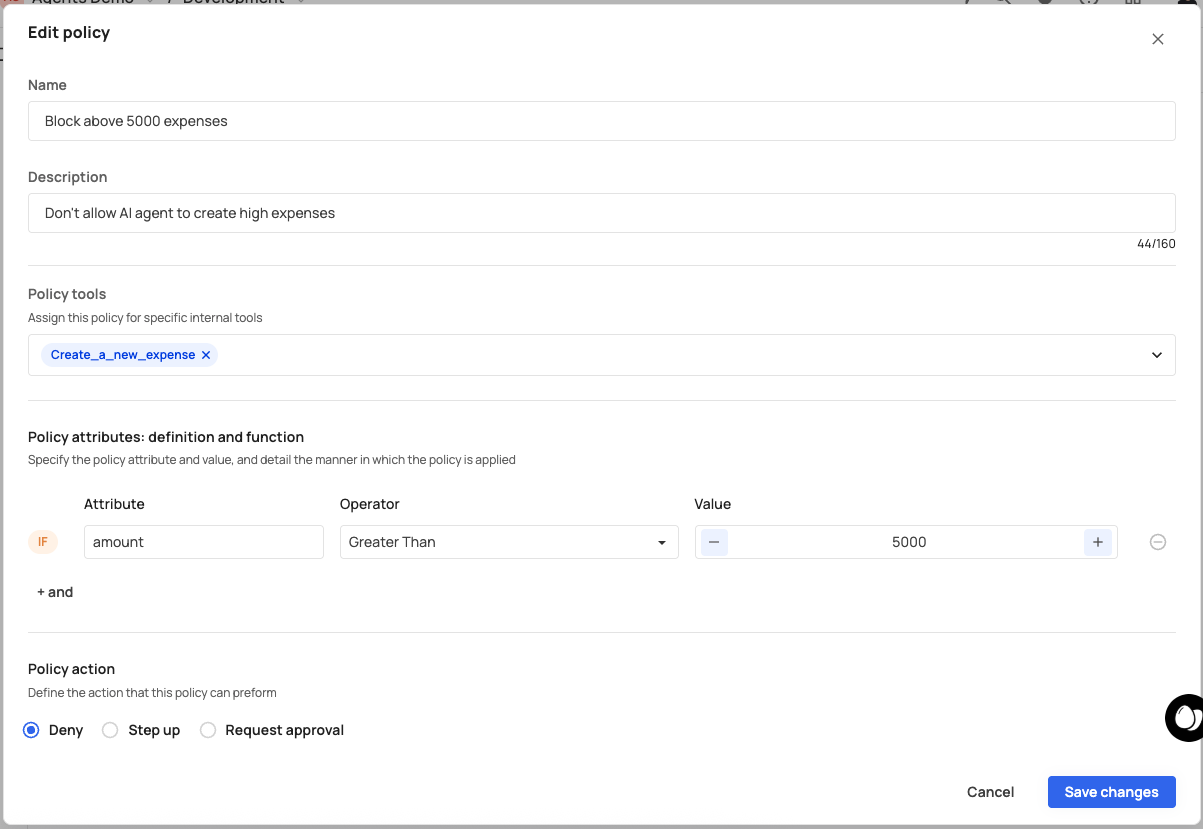
The dialog contains the following fields:
A descriptive name for the rule. Use a clear naming convention that indicates the restriction and affected tools (e.g., "Admin only: Delete_expense", "Finance team access").
Placeholder: "E.g., finance team access"
A brief description of what the rule controls. Maximum 160 characters.
Placeholder: "Describe which tools and roles/permissions this policy manages"
A multi-select dropdown to choose which tools this rule applies to. Selected tools appear as chips with an X button to remove them (e.g., List_all_expenses).
You can assign multiple tools to a single rule.
Choose how access is controlled. This choice cannot be changed after creation.
| Mapping type | Description | Assignment field |
|---|---|---|
| Map to roles | Control access based on user roles from the JWT. Only users whose JWT contains at least one of the specified roles can invoke the mapped tools. | A dropdown to select roles (e.g., "Read Only"). Selected roles appear as chips. |
| Map to permission | Control access based on specific permissions from the JWT. Only users whose JWT contains at least one of the specified permissions can invoke the mapped tools. | A dropdown to select permissions (e.g., "Read event categories"). |
Click Create to save the rule, or Cancel to discard.
Access control is evaluated on every tool interaction:
Tool discovery (
list_tools) — When an AI agent requests the list of available tools, Agen for SaaS filters out any tools that the user's JWT does not satisfy. Tools with access control rules are only returned if the user has at least one matching role or permission.Tool invocation (
call_tool) — When an AI agent invokes a tool, Agen for SaaS verifies the user's JWT against all access control rules that include that tool. If the user does not have the required role or permission, the call is rejected.
Tools without any access control rules are accessible to all authenticated users.
Scenario: Only users with the "Admin" role should be able to delete expenses.
- Click Add rule.
- Set Mapping name to "Admin only: Delete_expense".
- Select
Delete_expensein the Tools field. - Choose Map to roles as the mapping type.
- Select "Admin" from the roles dropdown.
- Click Create.
Result: Only users whose JWT contains the "Admin" role can invoke the Delete_expense tool. All other users will not see this tool in discovery responses and cannot call it.
Scenario: Only users with the "Read event categories" permission should be able to list expenses.
- Click Add rule.
- Set Mapping name to "Read access: List_all_expenses".
- Select
List_all_expensesin the Tools field. - Choose Map to permission as the mapping type.
- Select "Read event categories" from the permissions dropdown.
- Click Create.
- Edit — Click the three-dot menu on a rule row and select edit. You can modify the name, description, tools, and role/permission assignments. The mapping type cannot be changed.
- Delete — Click the three-dot menu and select delete to permanently remove the rule. This removes the access restriction — affected tools become accessible to all authenticated users.
- Use least privilege — Only grant access to the tools each role or permission genuinely needs. Start restrictive and expand access as needed.
- Name rules clearly — Include the restriction type and affected tools in the rule name for quick identification.
- Choose mapping type carefully — The mapping type is permanent. If you need to switch between roles and permissions, you must delete the rule and create a new one.
- Review regularly — As your tool catalog grows, review access control rules to ensure they still reflect your security requirements.
- Combine with policies — Access control determines who can call a tool. Policies determine under what conditions a tool call is allowed. Use both layers together for comprehensive governance.