Sources are the connections between your external APIs and services and your Agen for SaaS MCP server. Each source provides the API definitions from which tools are automatically generated, allowing AI agents to discover and invoke your product's capabilities.
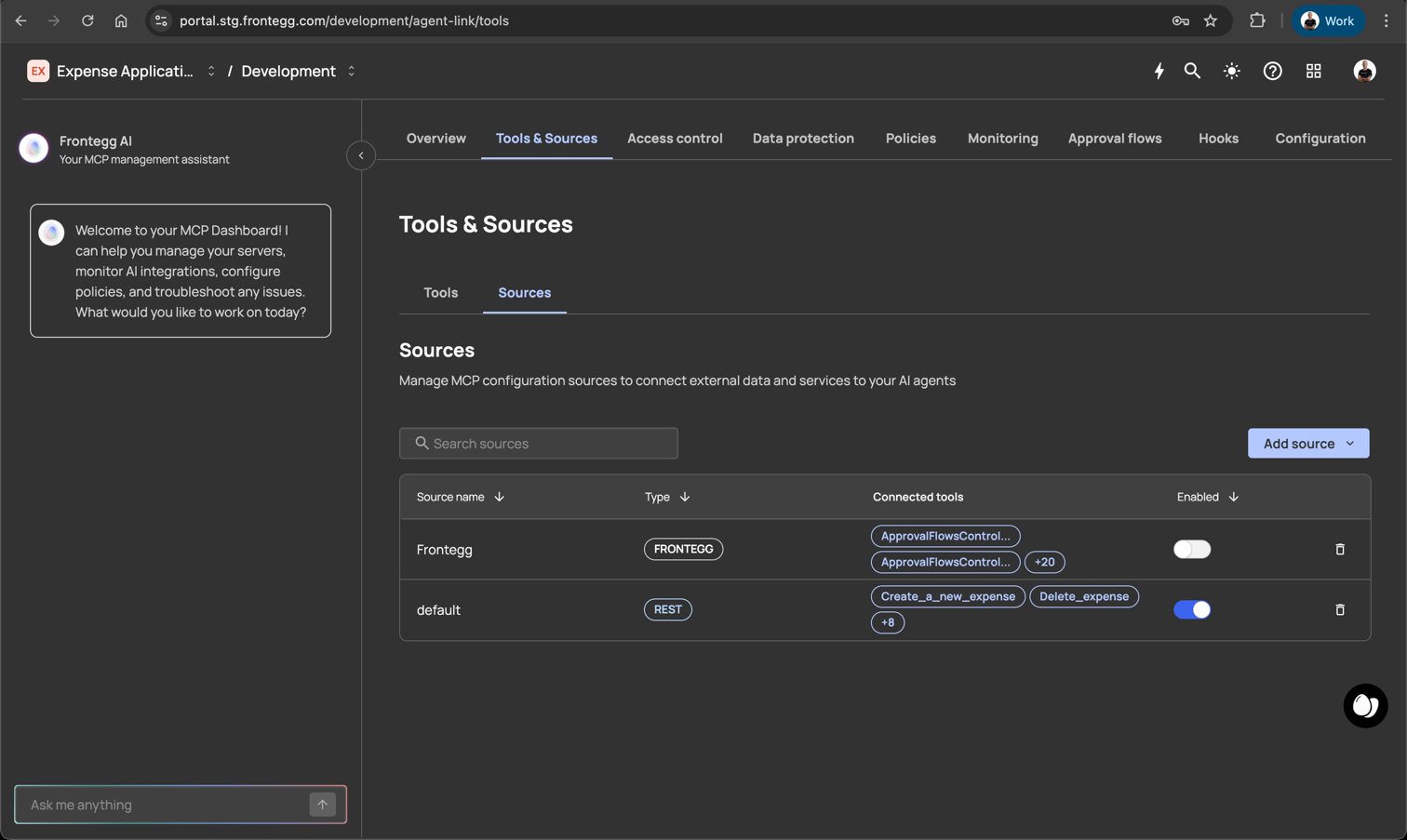
The Sources screen displays all connected sources with the following information:
| Column | Description |
|---|---|
| Source name | The display name for the source (e.g., "Frontegg", "default"). |
| Type | The source type: REST, GRAPHQL, FRONTEGG, or MCP. |
| Connected tools | The tools generated from this source, shown as badges. |
| Enabled | A toggle to enable or disable the source. |
Each source also has a delete button for permanent removal.
Agen for SaaS supports three source types, each designed for a different API paradigm.
A REST source connects to a REST API using an OpenAPI (Swagger) specification. When you add a REST source, Agen for SaaS parses the specification and extracts all endpoints as individual tools.
To add a REST source:
- Click Add source and select REST.
- Enter a Source name (required).
- Enter the API base URL (required) — this is where tool requests are forwarded (e.g.,
https://api.yourdomain.com). - Provide your OpenAPI specification using one of two methods:
- Upload file — Upload a JSON or YAML file containing your OpenAPI spec.
- Paste code — Paste the OpenAPI JSON directly into the code editor.
- Click Generate tools to extract endpoints and parameters from the specification.
- Click Save to finalize the source.
The code editor displays the OpenAPI specification with syntax highlighting. A minimal OpenAPI 3.0 template is provided by default:
{
  "openapi": "3.0.0",
  "info": {
    "title": "API",
    "version": "1.0.0"
  },
  "paths": {
    "/": {
      "get": {
        "summary": "Get API",
        "responses": {
          "200": {
            "description": "OK"
          }
        }
      }
    }
  }
}A GraphQL source connects to a GraphQL API using a schema definition. Agen for SaaS parses the schema and extracts queries, mutations, and types as tools.
To add a GraphQL source:
- Click Add source and select GraphQL.
- Enter a Source name (required).
- Enter the API base URL (required).
- Provide your GraphQL schema using one of two methods:
- Upload file — Upload a
.graphqlor.gqlschema file. - Paste code — Paste the GraphQL SDL directly into the code editor.
- Upload file — Upload a
- Click Generate tools to extract queries and mutations from the schema.
- Click Save to finalize the source.
The code editor includes a commented-out schema template:
# type Query {
#   hello: String
# }An MCP server source connects to a remote MCP-compatible server. Tools are discovered dynamically through the MCP protocol rather than parsed from a static specification.
Adding an MCP source follows a three-step wizard:
Step 1: Configuration
- Enter a Source name (required).
- Enter the MCP URL (required) — the remote MCP server endpoint (e.g.,
https://example.com). - Set the API timeout — the maximum time (in milliseconds) to wait for a response from the remote server. Default:
5000ms. Adjustable with +/- controls.
Step 2: Link
- Generates the connection link between your Agen for SaaS MCP gateway and the remote MCP server.
Step 3: Tools
- Displays the tools discovered from the remote MCP server.
Click Create source to finalize, or Discard to cancel.
When your Agen for SaaS instance is configured, a Frontegg source is automatically available. This built-in source exposes Frontegg's own API capabilities (such as approval flow controllers, geo-fence controllers, and IP restriction controllers) as tools. The Frontegg source type appears as FRONTEGG in the Type column.
Use the toggle in the Enabled column to activate or deactivate a source. Disabling a source prevents all its connected tools from being discoverable by AI agents.
Click the trash icon next to a source to permanently remove it. This also removes all tools generated from that source.