Security engine decisions were previously all-or-nothing — changing a rule affected every user in the environment. Rule overrides let you skip or force a security rule action for specific users, tenants, or IP addresses, without changing the global rule configuration. Teams get fine-grained control where it matters most, while the rule still fires normally for everyone else.
Overrides are configured per security rule, not globally. When a supported rule is triggered during authentication, Frontegg evaluates that rule's overrides before applying the rule's default action.
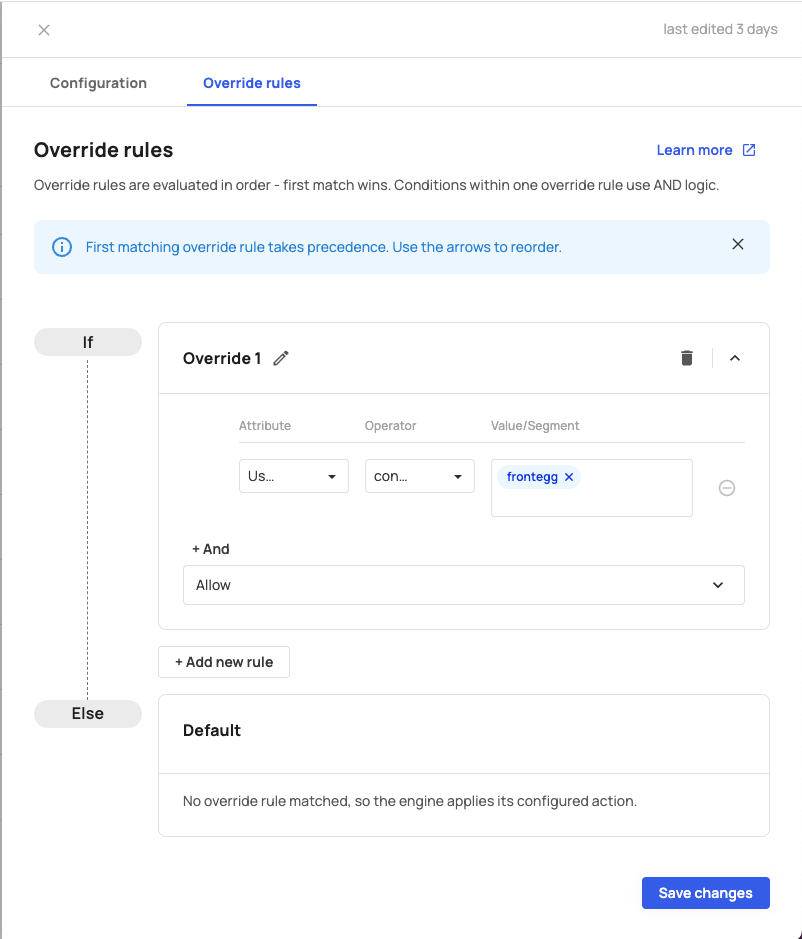
- Overrides are checked in priority order (top to bottom in the portal).
- The first override whose conditions all match wins — its action is applied and evaluation stops.
- If no override matches, the rule runs with its normal global configuration.
Logic within a single override: every condition must match (AND).
Logic across overrides: each override is an independent match path (OR). Priority decides which one wins when more than one could match.
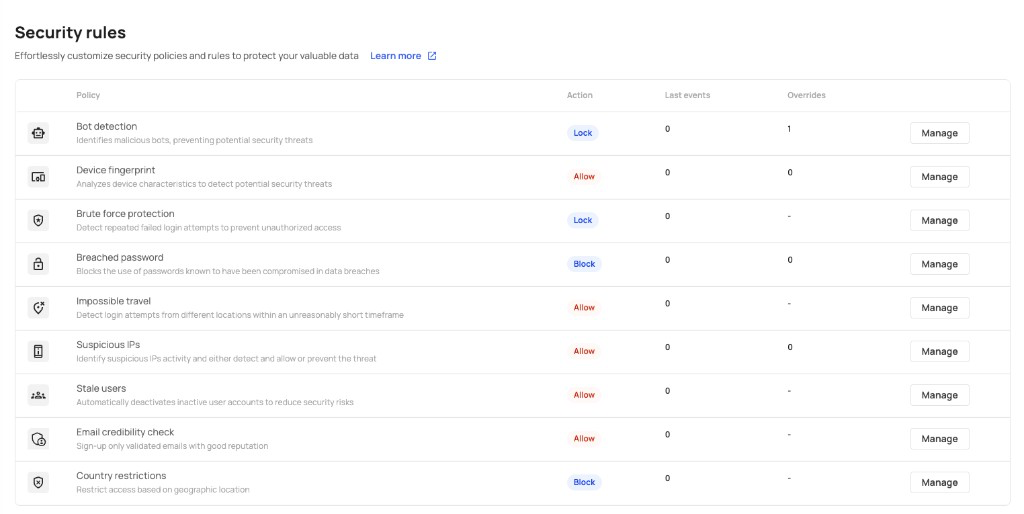
Rule overrides are available in phase one for:
- Suspicious IP
- Breached password
- Device fingerprint
- Bot detection
Other security rules do not support overrides yet. On the Security rules page, the Overrides column shows how many override rules each supported policy has (- means overrides are not available for that rule).
An override can force any action that the underlying rule already supports — and nothing more.
| Rule | Allow | Challenge | Block | Lock |
|---|---|---|---|---|
| Suspicious IP | Yes | Yes | Yes | Yes |
| Bot detection | Yes | Yes | Yes | Yes |
| Breached password | Yes | Yes | Yes | |
| Device fingerprint | Yes | Yes |
For end-user impact of each action, see the corresponding rule guide:
Each override defines one or more conditions. When all conditions in an override match, the override action is applied.
| Attribute | Available on | Description |
|---|---|---|
| User email | All four supported rules | The email address of the user attempting to authenticate |
| Tenant ID | All four supported rules | The tenant (account) the user belongs to |
| IP address | Suspicious IP only | The IP address the request originates from |
| Attribute | Operators |
|---|---|
| User email | Is in list, Contains, Ends with |
| Tenant ID | Is in list, Contains |
| IP address | CIDR match (Suspicious IP only) |
You can invert any condition with NOT — the override applies when the condition does not match (for example, NOT Tenant ID is in list tenant-abc targets every user except those in that tenant).
Available only on Suspicious IP. Matches the request IP against one or more values you provide. Each value can be:
- A single IP address — for example,
203.0.113.45or an IPv6 address - An IP range in CIDR notation — for example,
203.0.113.0/24matches every address from203.0.113.0through203.0.113.255
You can add multiple values to one condition. The condition matches if the request IP matches any of them.
Supported formats are the same as tenant IP restrictions: IPv4, IPv6, and CIDR notation.
| Limit | Value |
|---|---|
| Overrides per rule | Up to 10 |
| Conditions per override | 1 to 5 |
| Values per condition | Up to 100 |
| Override name length | Up to 255 characters |
- Open the Frontegg portal.
- Go to [ENVIRONMENT] → Configurations → Security → Security rules.
- Click Manage on a supported rule.
- Open the Override rules tab.
- Click Add new rule and configure:
- Name — a display name for the override
- Conditions — attribute, operator, and value (use + And to add more conditions)
- Action — Allow, Challenge, Block, or Lock (depending on the rule)
- Reorder overrides to set evaluation priority — the first matching rule wins.
- Click Save changes.
If no override rule matches, the engine applies its configured default action.
Permissions
Permissions
Users with an Admin role in the Frontegg account can configure security rules and overrides from the Security rules page within any environment.
Allow QA test accounts on bot detection
Create an override on Bot detection with action Allow and a user email condition: Ends with → @yourcompany-qa.com. Bot detection still blocks other users according to the global rule.
Challenge a specific tenant on breached password
Create an override on Breached password with action Challenge and a tenant ID condition: Is in list → your tenant ID. Users in that tenant are challenged instead of receiving the global Block action.
Allow a trusted office IP on suspicious IP
Create an override on Suspicious IP with action Allow and an IP address condition: CIDR match → 203.0.113.0/24 (or a single IP such as 203.0.113.45). Requests from that range bypass the global Block action; all other suspicious IPs are still handled by the rule.
Bot detection also supports an Ignored emails list on the rule itself, which lets specific email addresses bypass bot detection entirely.
Use ignored emails for a simple allow-list of test accounts. Use overrides when you need finer control — for example, forcing Challenge or Block for specific tenants, or combining multiple conditions (such as tenant ID and email) in one override.