When you manage multiple applications in the same environment, you can configure MFA separately for each application. MFA enforcement, remember-device settings, and available MFA methods can differ between apps while sharing the same environment and accounts.
By default, your current MFA configuration applies to all applications. Configure MFA per application only when a specific application requires different settings.
| Setting | Vendor | Account |
|---|---|---|
| MFA enforcement (Don't force, Force, Force except enterprise SSO) | Yes | Yes |
| Remember MFA on trusted devices and device expiration | Yes | Yes |
| MFA methods (Authenticator apps, SMS, Email, WebAuthn) | Yes | No |
| Custom authenticator app name | Yes | No |
MFA enforcement and remember-device can be set at both vendor and account level for each application.
MFA methods, custom authenticator app name are vendor-only.
Account admins can enforce stricter MFA policies or adjust remember-device settings in the Frontegg portal or self-service portal when the Security tab is enabled.
Your current MFA configuration applies to all applications. Configure MFA per application only when a specific application needs different settings — enforcement, remember-device, MFA methods, or authenticator app name.
When you save per-application MFA settings, those settings apply only to that application.
MFA per application is configured on the Multi-factor authentication page under [ENVIRONMENT] → Configurations → Security → MFA — not from the Applications menu.
- Open the Frontegg portal.
- Navigate to [ENVIRONMENT] → Configurations → Security → MFA.
When you manage multiple applications, the page includes two tabs:
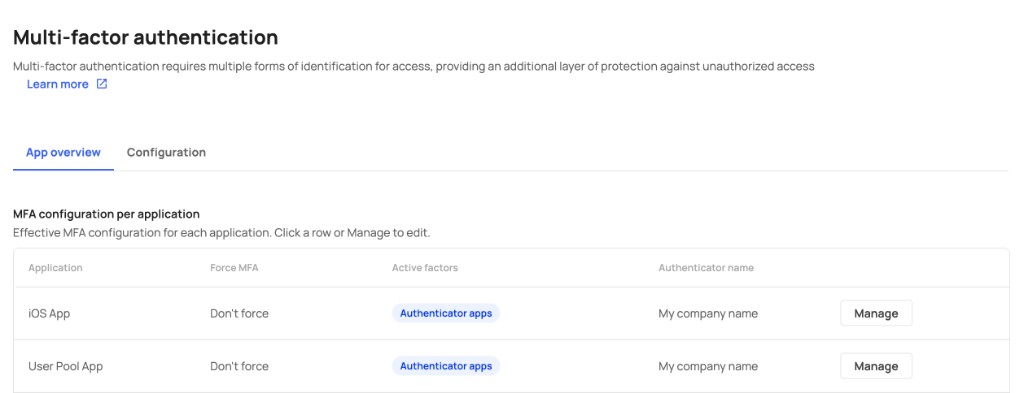
The App overview tab lists all applications and their effective MFA configuration, including Force MFA status, active factors, and authenticator name.
To edit an application, click Manage on the relevant row.
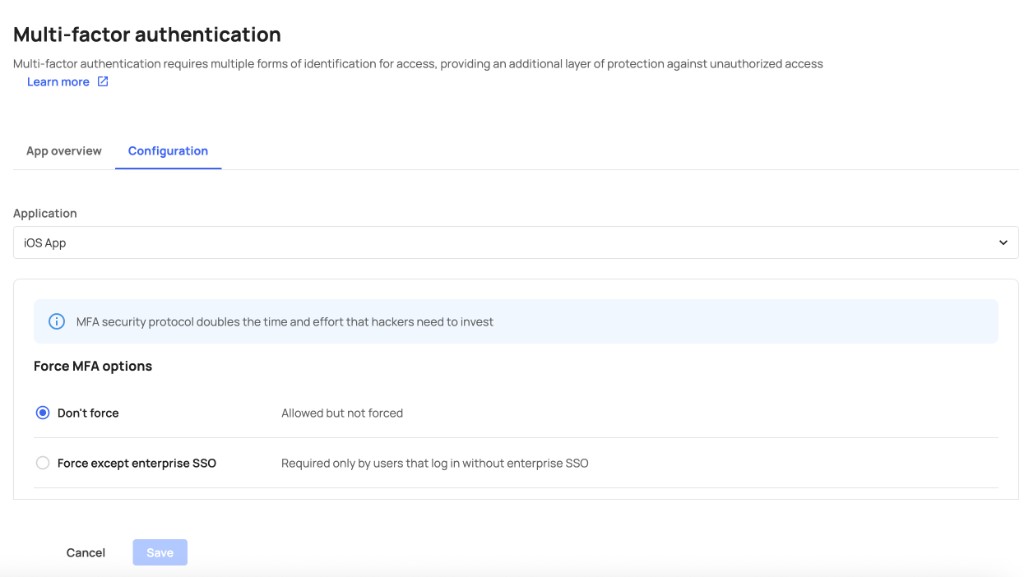
The Configuration tab lets you configure MFA for a specific application:
- Select the application from the Application dropdown.
- Set Force MFA options, remember-device settings, and MFA methods as needed.
- Click Save.
See Selecting MFA methods for details on each MFA method.
See MFA management for additional configuration options.
Account-level MFA settings apply to the selected application. The same account can have different MFA requirements on different applications.
- Open the Frontegg portal.
- Navigate to [ENVIRONMENT] → Management → Accounts.
- Select the account and open the Security Policy tab.
- Select the application from the Application dropdown if the account has multiple applications assigned. With a single application, this step is not required.
- Set the MFA policy and remember-device settings, then click Save.
Repeat steps 4–5 for each application that needs different account-level MFA settings.
For portal steps and screenshots, see Setting MFA policy for specific accounts.
Account admins can also configure MFA from the self-service portal when the Security tab is enabled.
User MFA enrollment
User MFA enrollment
Per-application MFA covers policy (enforcement, methods, remember-device). A user's own MFA enrollment is tied to the user and applies across all applications they are assigned to. Users manage this from the personal space under Implement MFA verification.
When users choose to remember a device after MFA, that trust applies only to the application they signed into. Remembering a device in one application does not skip MFA when the same user signs into a different application.
Device expiration follows the remember-device policy for the relevant application and account.
If a user belongs to multiple accounts, Frontegg applies the strictest MFA rule per user within the same application. For example, if one account forces MFA and another does not, the user must complete MFA when signing into that application.
Different applications can enforce different MFA requirements for the same user.
Multi-account approach to MFA
Multi-account approach to MFA
If a user belongs to multiple accounts and only one enforces MFA, the user will be required to use MFA when signing into the application where that account's policy applies. See MFA management for more details.
When you delete an application, its per-application MFA configuration is removed. Other applications continue to use your current configuration or their own per-application settings.
For embedded login with multiple applications, pass the correct appId in your SDK contextOptions. MFA settings resolve based on the application the user is authenticating into. See Getting started with multi-apps for integration details.
If you call the MFA configuration APIs directly instead of using the Frontegg portal — /resources/configurations/v1/mfa, /mfa/strategies, and /mfa-policy (including /mfa-policy/allow-remember-device) — include the frontegg-application-id header on every request once your environment has applications configured. Without it, these calls fall back to the vendor-level MFA template instead of the application-scoped one you configured.
Application ID header becoming required
Application ID header becoming required
Frontegg is rolling out enforcement so that MFA configuration requests missing the frontegg-application-id header are rejected with a 400 error (ER-01250) instead of silently falling back to the vendor-level template. Update your integrations to send this header by October 31, 2026. Requests through the Frontegg portal and SDKs already send it correctly — this applies only to direct API callers.