To enhance control over user activity in your app, Frontegg offers account domain restriction within your environment settings, allowing you to either allow or block user sign-ups when users belonging to specific domains try to access your app. This option becomes especially useful if you want to fine-tune user traffic by allowing or restricting users from accessing it.
Suppose you aim to enhance user control in your application by implementing Frontegg's domain restriction feature. By enabling this functionality, you can regulate user sign-ups based on specific domain criteria.
As an administrator, you can input the domains from which users can sign up. For example, @xyzcorporation.com and @partnercompany.com. With domain restrictions enabled, users attempting to sign up with email addresses outside the specified domains are notified that their sign-up is restricted.
Domain restriction offers the following finely-grained options:
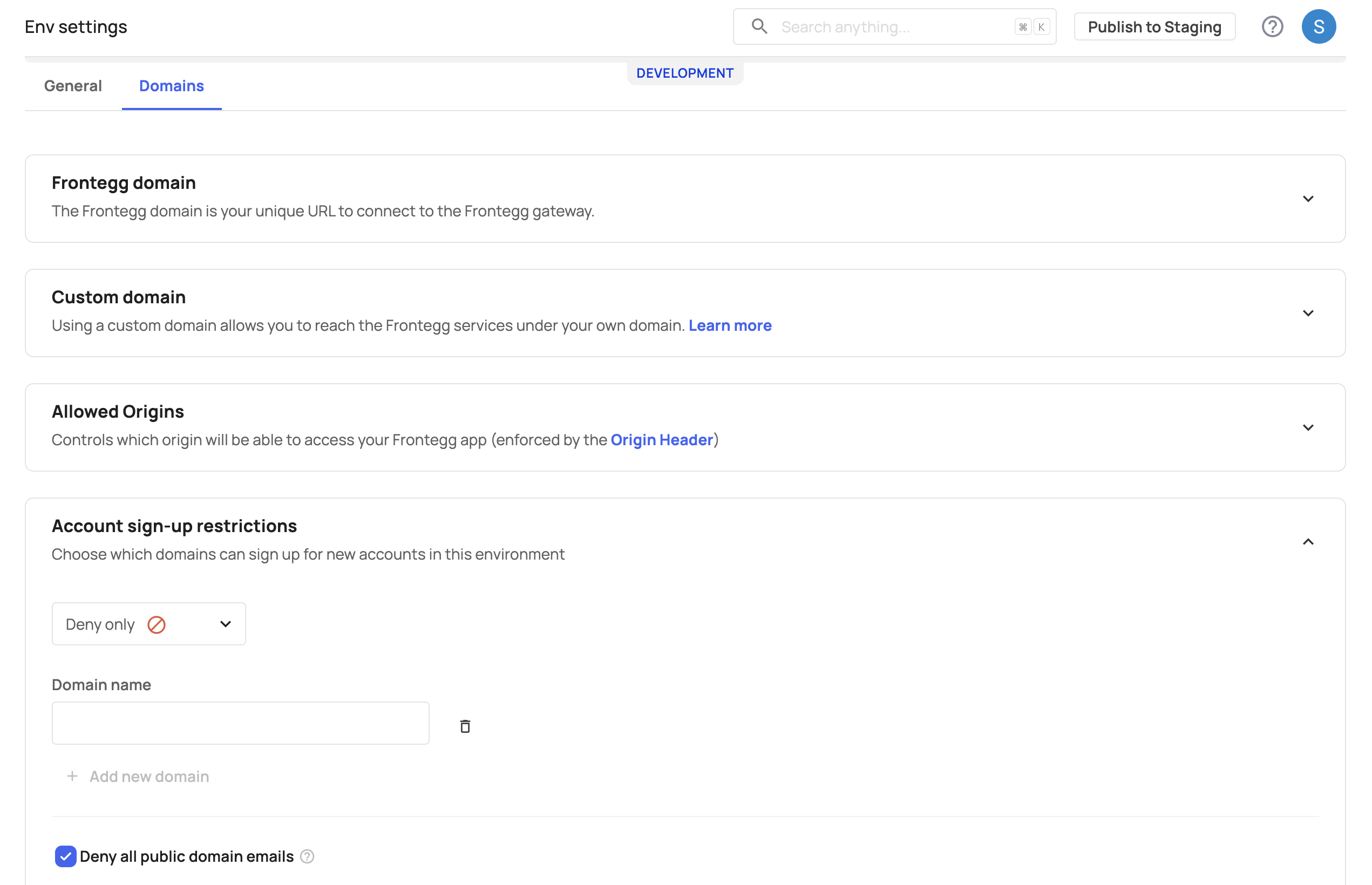
- Deny only - Users belonging to domains in this list are blocked from signing up.
- Allow only - Users belonging to domains in this list are the only ones allowed to sign up for an account in this environment (see note).
- Deny public domain - Users with emails from public domains (e.g., Gmail, Yahoo) are restricted from signing up to this environment.
Environment-specific settings
Environment-specific settings
Note that account sign-up settings are not applied across all of your environments when enabled in one of them. You need to apply these settings separately to initiate them in specific environments.
To set environment restrictions by domain, go to [ENVIRONMENT] → Configurations → Keys & domains → Domains → Account sign-up restrictions. Here, you can either Deny domains, Allow domains, or Deny all public domain emails.
Check out our API Reference to perform domain restriction via API.
The Frontegg portal gives you a centralized interface to manage domain, IP, and country restrictions for accounts within your environment. Use allowlists or denylists to allow or block access based on configured IPs, domains, or countries—IP and country restrictions apply during sign-up and login, while domain restrictions apply during sign-up and invitation.
IP vs. domain vs. country restrictions
IP vs. domain vs. country restrictions
IP restrictions apply to sign-up and logging in, meaning users accessing from a blocked IP will be denied access. Domain restrictions apply to sign-up and invitation, meaning users with a blocked domain cannot register or be invited, but already activated users remain unaffected. Country restrictions apply to sign-up and logging in based on the country resolved from the user's IP address or from a pre-resolved ISO 3166-1 alpha-2 country code. This helps enforce geographic access policies without maintaining individual IP allowlists or blocklists.
To restrict access for a specific IP address, follow these steps:
- Open the Frontegg portal.
- Navigate to a specific account → click the Security tab → choose "Restrictions".
- Enable IP address restriction by toggling the switch.
- Confirm by clicking Enable.
- Select the restriction type from the dropdown menu: Allow only or Deny only.
- Click Add IP.
- Enter the IP address in the IP field. Supported formats: IPv4, IPv6, masks, and CIDR notation.
- (Optional) Add a description for the IP address.
- Click Add.
- To disable an IP restriction without removing the IP from the list, deactivate the toggle in the row of the IP you want to disable.
- To permanently remove an IP restriction, click the bin icon in the row of the IP you want to remove and click Delete IP.
- To switch the restriction type for all IP addresses between Deny only and Allow only, select the required restriction list type from the dropdown menu and click Change.
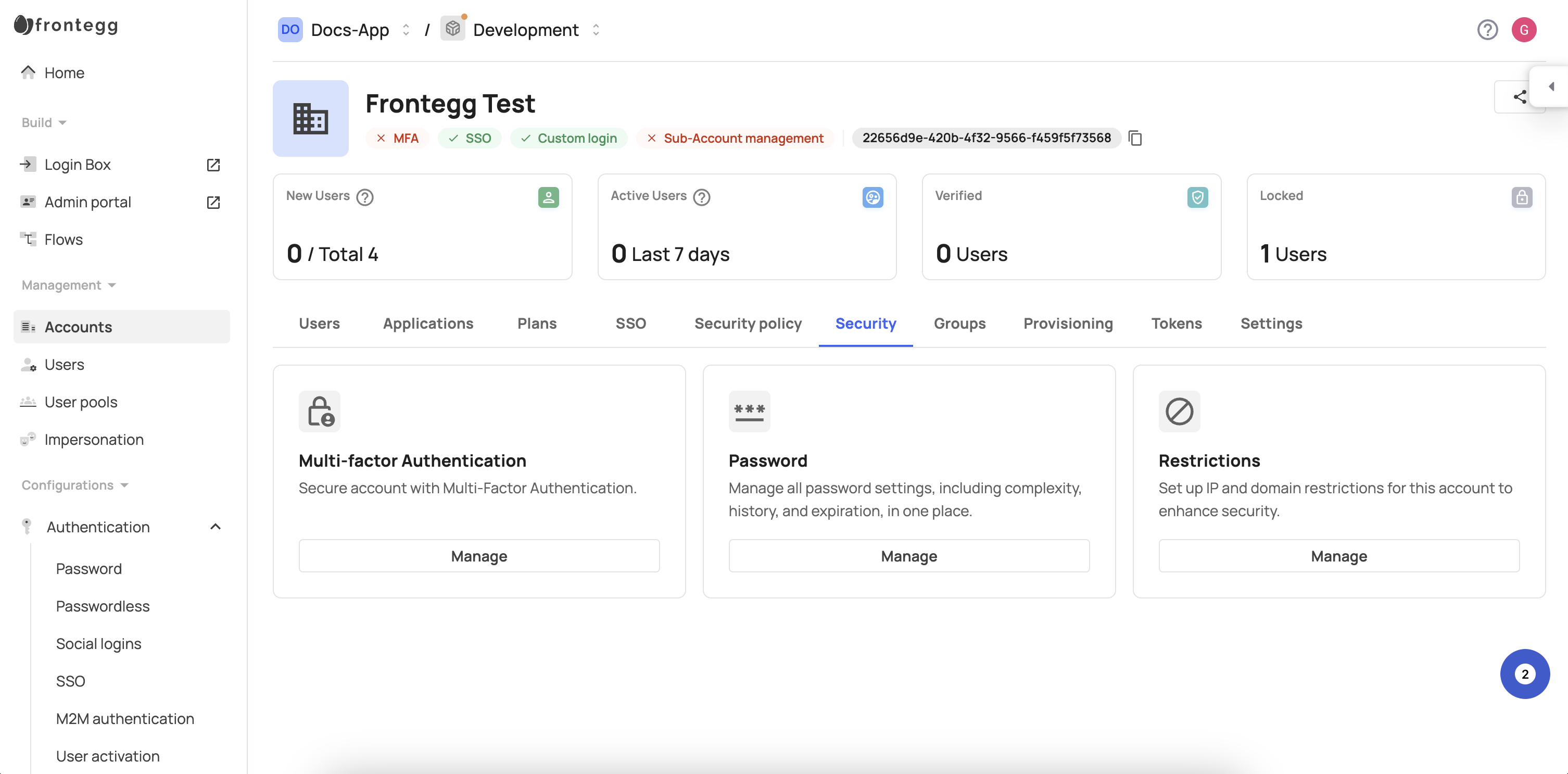
To restrict access for specific domains, follow these steps:
- Open the Frontegg portal.
- Navigate to a specific account → click the Security tab → choose "Restrictions".
- Select the Domain tab.
- Enable Domain restriction by toggling the switch.
- Confirm by clicking Turn on.
- Select the restriction type from the dropdown menu: Allow only or Deny only.
- Click Add domain.
- Enter the domain in the Domain field. The syntax is auto-validated.
- Click Add.
- To permanently remove a domain restriction, click the bin icon in the row of the domain you want to remove and click Delete domain.
- To switch the restriction type for all domains between Deny only and Allow only, select the required restriction list type from the dropdown menu and click Change.
- To block all public domain email addresses, toggle the Block all public domain emails switch on.
To restrict sign-up and login access for specific countries, follow these steps:
Open the Frontegg portal.
Navigate to a specific account.
Click the Security tab.
Choose Restrictions.
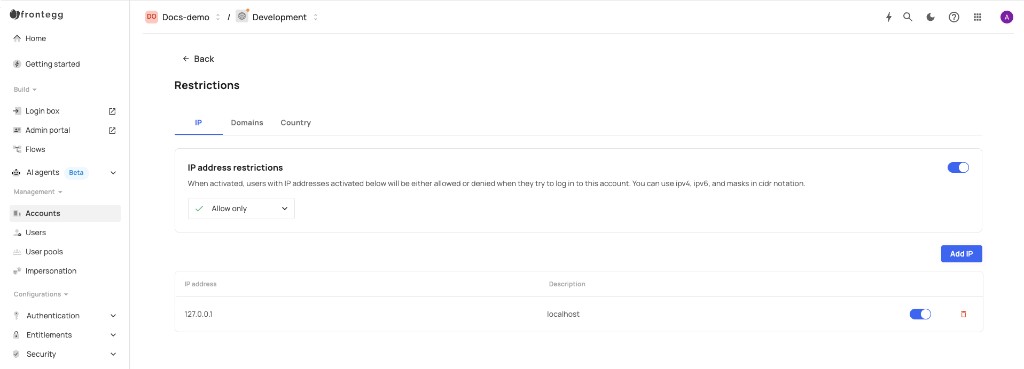
Select the Country tab.
Enable Country restriction by toggling the switch.
Confirm by clicking Enable.
Select the restriction type from the dropdown menu: Allow only or Deny only.
Click Add country.
Select the country from the country list. Country restrictions are stored as ISO 3166-1 alpha-2 country codes.
Click Add.
To disable country restriction, turn off the Country restriction toggle.
To remove a country from the configured list, click the bin icon in the row of the country you want to remove and confirm the deletion.
To switch the restriction type for all countries between Deny only and Allow only, select the required restriction list type from the dropdown menu and click Change.
Notes and limitations
Notes and limitations
- Country detection is based on IP geolocation and may not be fully accurate for users on VPNs, proxies, or networks with outdated geolocation data.
- If country restriction is disabled, sign-up and login attempts are allowed by this rule.
- If country restriction is enabled but the configured country list is empty, sign-up and login attempts are allowed by this rule.
- If the country cannot be resolved, Frontegg applies the configured fail strategy. The default fail strategy is Allow.
- When both account-level and environment-level country policies are enabled, both policies must allow the sign-up or login attempt. An environment-level block cannot be overridden by an account-level policy.