The Lock account option lets you suspend all users in an account from authenticating. Locking is a reversible, account-wide control — unlocking restores normal access immediately.
Use it when you need to disable access for an entire customer organization temporarily or permanently such as during a billing dispute, security investigation, or contract termination.
Account lock applies only to the specific account that is locked. Users who belong to multiple accounts can still log in to their other, unlocked accounts.
While an account is locked:
- Users in that account cannot log in to that account — including username/password, social login, and SSO.
- Existing sessions cannot refresh their tokens, effectively ending access on the next refresh.
- Users cannot switch into the locked account (regular switch and per-application switch).
- Invitations cannot be created, verified, or accepted for the locked account.
Account lock vs. user lock
Account lock vs. user lock
Locking an account is different from locking an individual user. Account lock suspends all users in the account. User lock affects only a single user across all accounts they belong to.
- Lock or unlock a single account from the Backoffice UI.
- Bulk lock or unlock up to 100 accounts per API call.
- React to lock and unlock events in external systems through webhooks.
- Monitor blocked authentication attempts against locked accounts in security logs.
You can lock an account from two locations in the Backoffice:
Option A — Accounts table
- Go to [ENVIRONMENT] → Management → Accounts.
- Open the row actions menu for the account.
- Select Lock account.
- Confirm the action in the dialog.
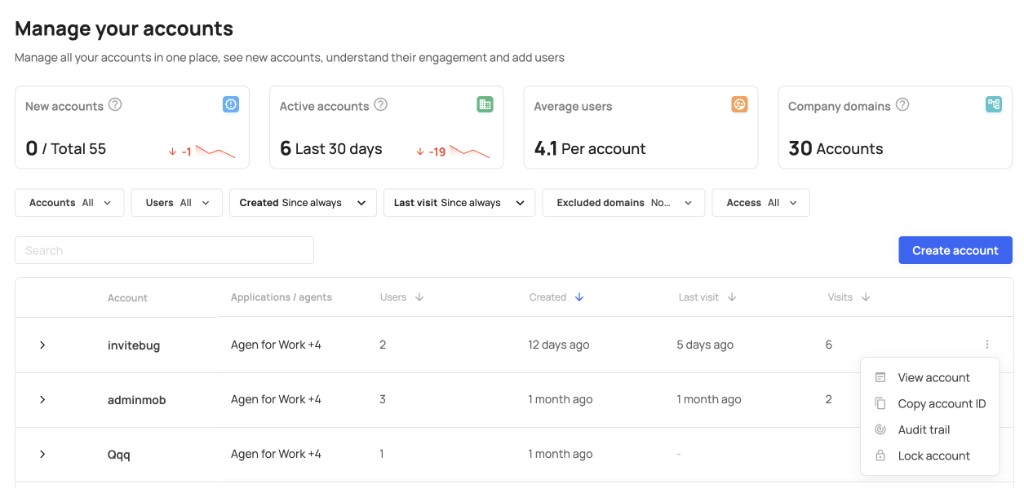
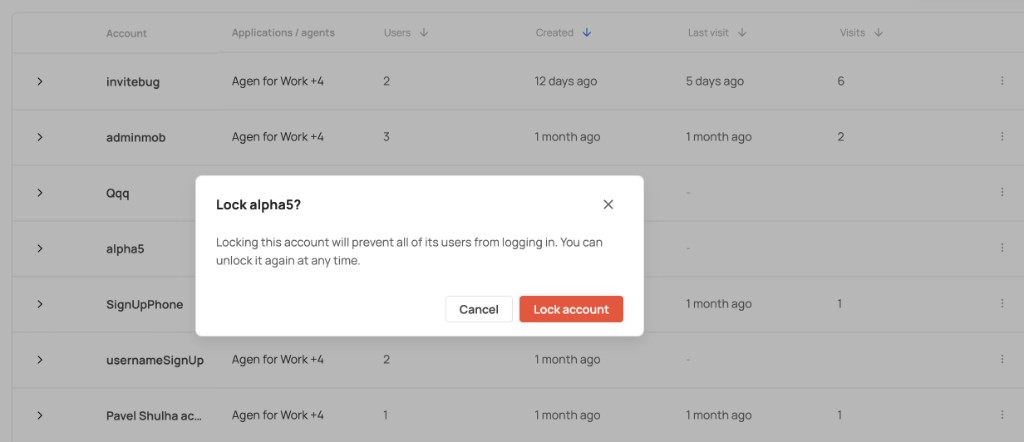
You can also lock multiple accounts using the table's bulk actions.
Option B — Account settings
- Go to [ENVIRONMENT] → Management → Accounts and open an account.
- Open the Settings tab.
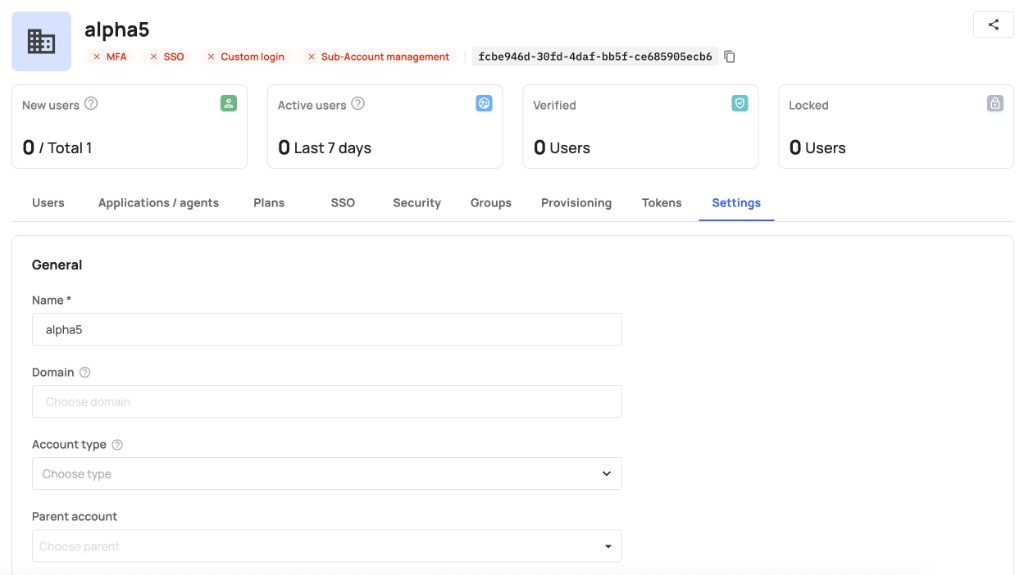
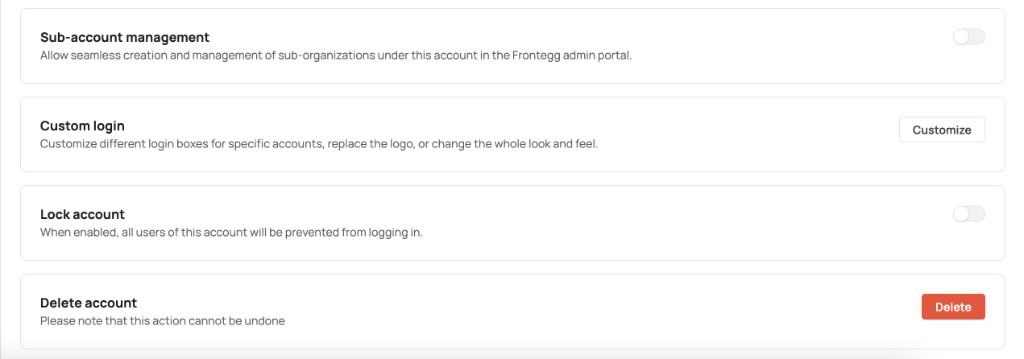
- In the Lock account card, toggle the switch on.
- Confirm the action in the dialog.
| Location | Element |
|---|---|
| Backoffice → Accounts table | Lock icon next to locked account names |
| Backoffice → Accounts table | Row actions menu: Lock account / Unlock account |
| Backoffice → Accounts table | Access filter: All / Locked / Unlocked |
| Single account → Settings tab | Lock account card with toggle |
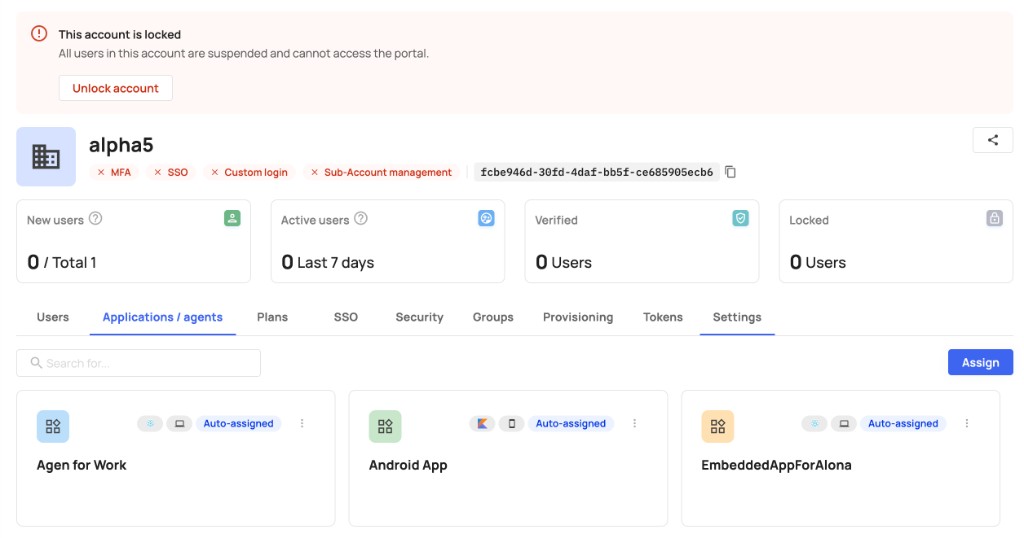
| Single account page | Red "This account is locked" banner with Unlock account button |
| Backoffice → Users table | Lock indicator with tooltip "Account is locked" when the user's primary account is locked |
To unlock an account:
- Accounts table: Open the row actions menu for a locked account and select Unlock account.
- Locked account banner: On a locked account's page, click Unlock account in the red banner at the top of the page.
- Account settings: Toggle off the Lock account switch in the Settings tab.
Users in a locked account cannot complete login. If a user belongs to only one account and that account is locked, login fails.
For social login and SSO, the same lock check applies before authentication completes.
Users who are already logged in when an account is locked retain access until their access token expires. On the next token refresh, the session ends and the user must log in again — which will be blocked while the account remains locked.
Users cannot switch into a locked account. If a user attempts to switch to a locked account, the switch is denied.
While an account is locked:
- New invitation links cannot be created.
- Existing invitation links cannot be verified or accepted.
A user who belongs to multiple accounts is not blocked entirely when one of their accounts is locked. Locked accounts are removed from the user's available accounts during login, and the user can still access their other unlocked accounts.
If a user's only account or the account they are trying to access is locked, login fails.
Use the vendor API to lock or unlock up to 100 accounts per request. Both endpoints return 204 No Content on success and require a valid vendor token.
POST /resources/tenants/v1/lock
Content-Type: application/json

{ "tenantIds": ["tenant-123", "tenant-456"] }POST /resources/tenants/v1/unlock
Content-Type: application/json
{ "tenantIds": ["tenant-123"] }Request limits
Request limits
Each request must include at least one tenant ID and no more than 100 tenant IDs. Requests with an empty array or more than 100 IDs return a 400 Bad Request error.
Existing tenant GET and list endpoints now include an isLocked property in the response:
{
  "tenantId": "tenant-123",
  "name": "Acme Inc",
  "isLocked": true
}Lock and unlock actions are recorded in your environment audit trail:
| Action | Audit action | Description |
|---|---|---|
| Lock | Locked tenants | Number of tenants locked in the request |
| Unlock | Unlocked tenants | Number of tenants unlocked in the request |
Each entry captures who performed the action and how many accounts were affected.
Subscribe to the following webhook events to react to account lock changes in your systems. See the full webhook events table for configuration details.
When a user attempts to authenticate against a locked account, Frontegg logs a security event. Use these logs in the Monitoring section to track blocked login attempts, token refresh failures, account switch denials, and blocked invitation activity.