Frontegg integrates with Twilio to send SMS messages for login and MFA. This guide explains how to use Frontegg's Twilio connector to integrate and manage your own Twilio account. Frontegg supports both Twilio's standard integration and Twilio Verify services, enabling SMS, voice calls, and WhatsApp messaging.
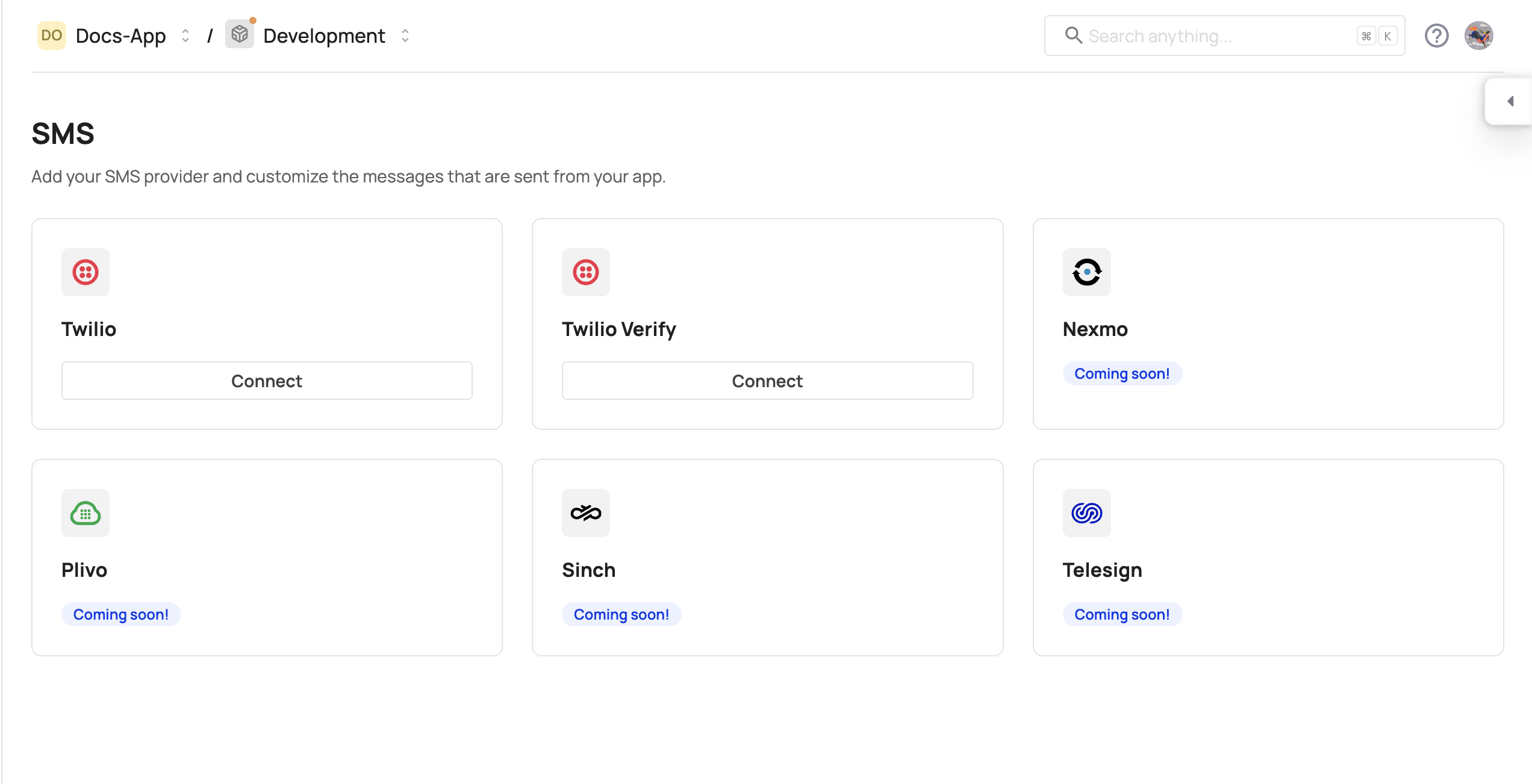
Go to [ENVIRONMENT] → Authentication → SMS, then select Twilio or Twilio Verify to route all messages through your Twilio account. Note that only one option can be used at a time.
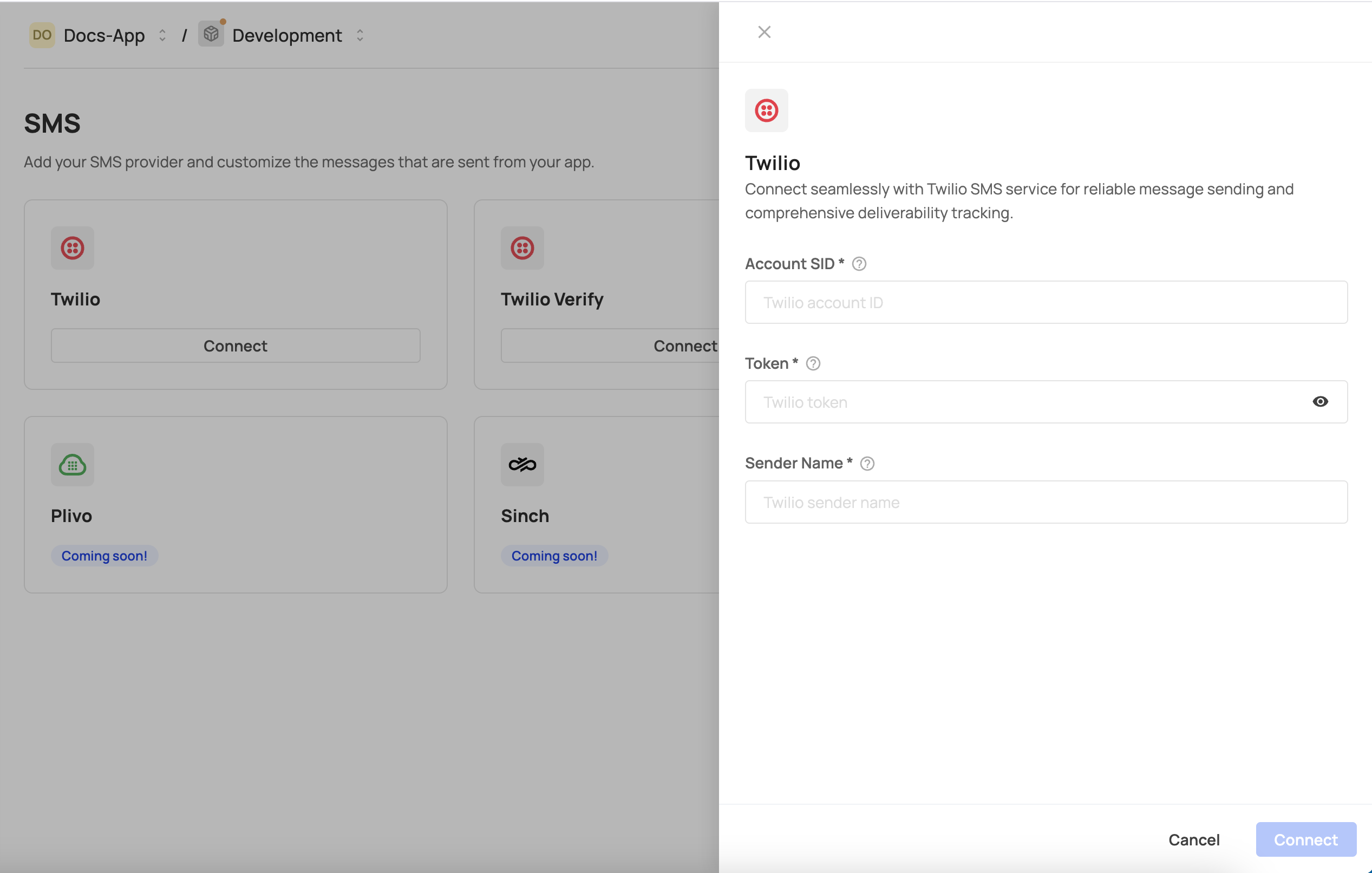
To connect your Twilio account, make sure to fill out the Account SID, Token, and
Sender Name:
Frontegg provides default SMS templates for the supported flows:
- MFA code
- Phone number verification
- SMS code for login
You can create and update your own SMS templates using this API. Each template has a numeric type (detailed below), which is required when creating new templates.
- 0 - MFA template - Your login code is:
{{code}}. Do not share it with anyone. - 1 - Sign-in with SMS template - Your login code is:
{{code}}. Do not share it with anyone. - 2 - Phone verification template - Your verification code is:
{{code}}. Do not share it with anyone. - 3 - Reset password with SMS template - Your password reset code is: {{code}}. Do not share it with anyone.
After completing the setup, all messages will be routed through your Twilio account. You can enable SMS-based MFA for your environment by following this guide, or allow users to sign in via SMS using this guide.
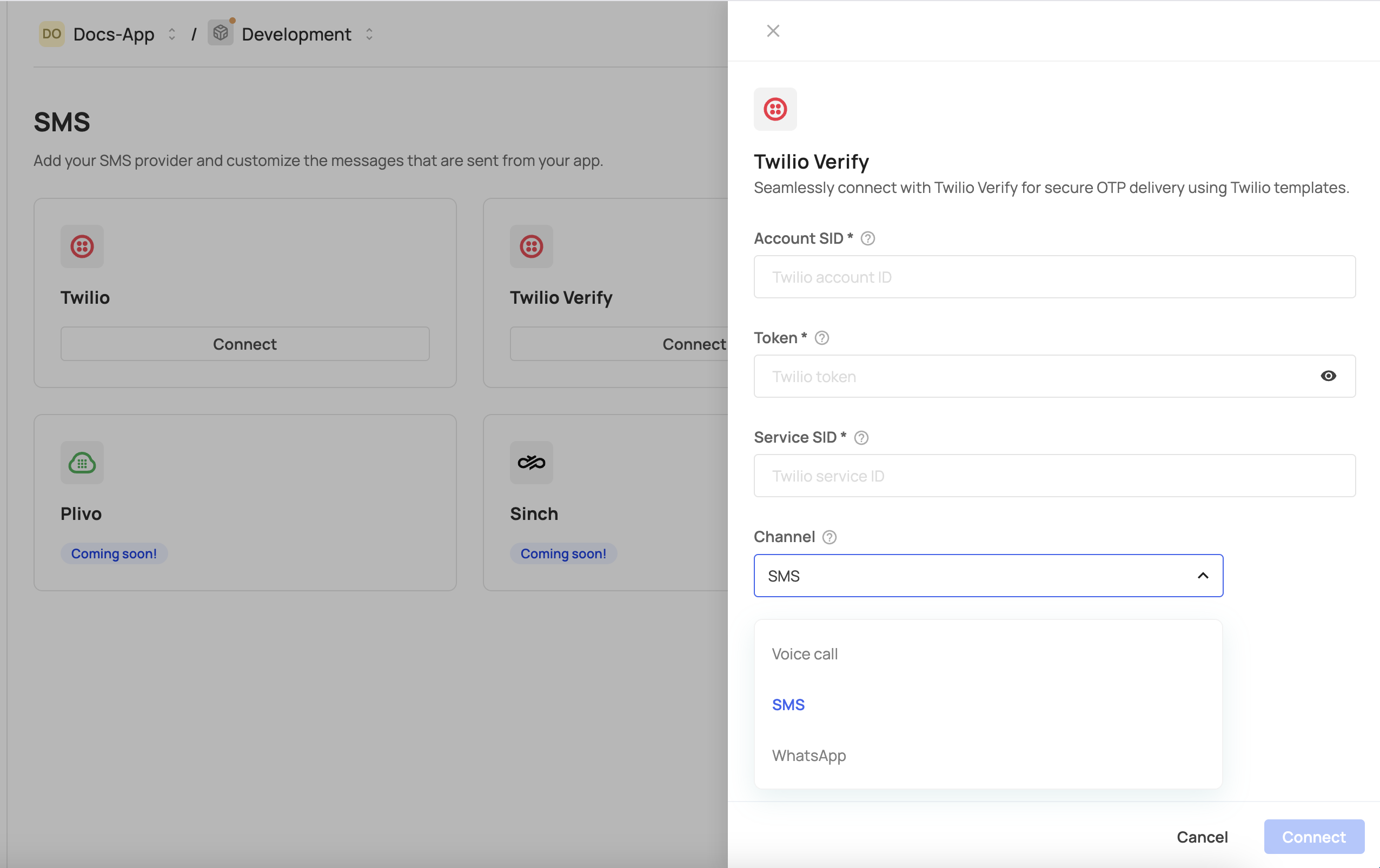
To connect your Twilio account using the Verify service, provide the Account SID, Token, and Service SID, then select the desired messaging channel.
SMS templates
SMS templates
All messages will be routed through the connected services, using the sender name and templates configured within Twilio service.
After completing the setup, all messages will be routed through your Twilio account, and you can allow end users to sign in via SMS using this guide.