The Kong API Gateway is a powerful tool for managing traffic to your cluster. By using the [Kong JWT plugin], you can validate requests to your API to ensure they are authenticated.
Using Kong plugins
Using Kong plugins
This guide assumes you have already installed the Kong JWT plugin. Below is the configuration for using this plugin.
To create a service, run the following command:
curl -i -f -X POST http://localhost:8001/services --data "name=my-cool-service" --data "url=http://httpbin.org"Next, create a route for your service:
curl -i -f -X POST http://localhost:8001/routes --data "service.id={my-cool-service's id}" --data "paths[]=/test"Add the JWT plugin to the route:
curl -X POST http://localhost:8001/route/{route id}/plugins --data "name=jwt"To create a Kong consumer, use the REST API:
curl -d "custom_id=SOME_CONSUMER_ID" http://kong:8001/consumers/- On the Frontegg portal Go to [ENVIRONMENT] ➜ Configurations ➜ Security ➜ JWT.
- Navigate to the JWT signature tab, copy the public key.
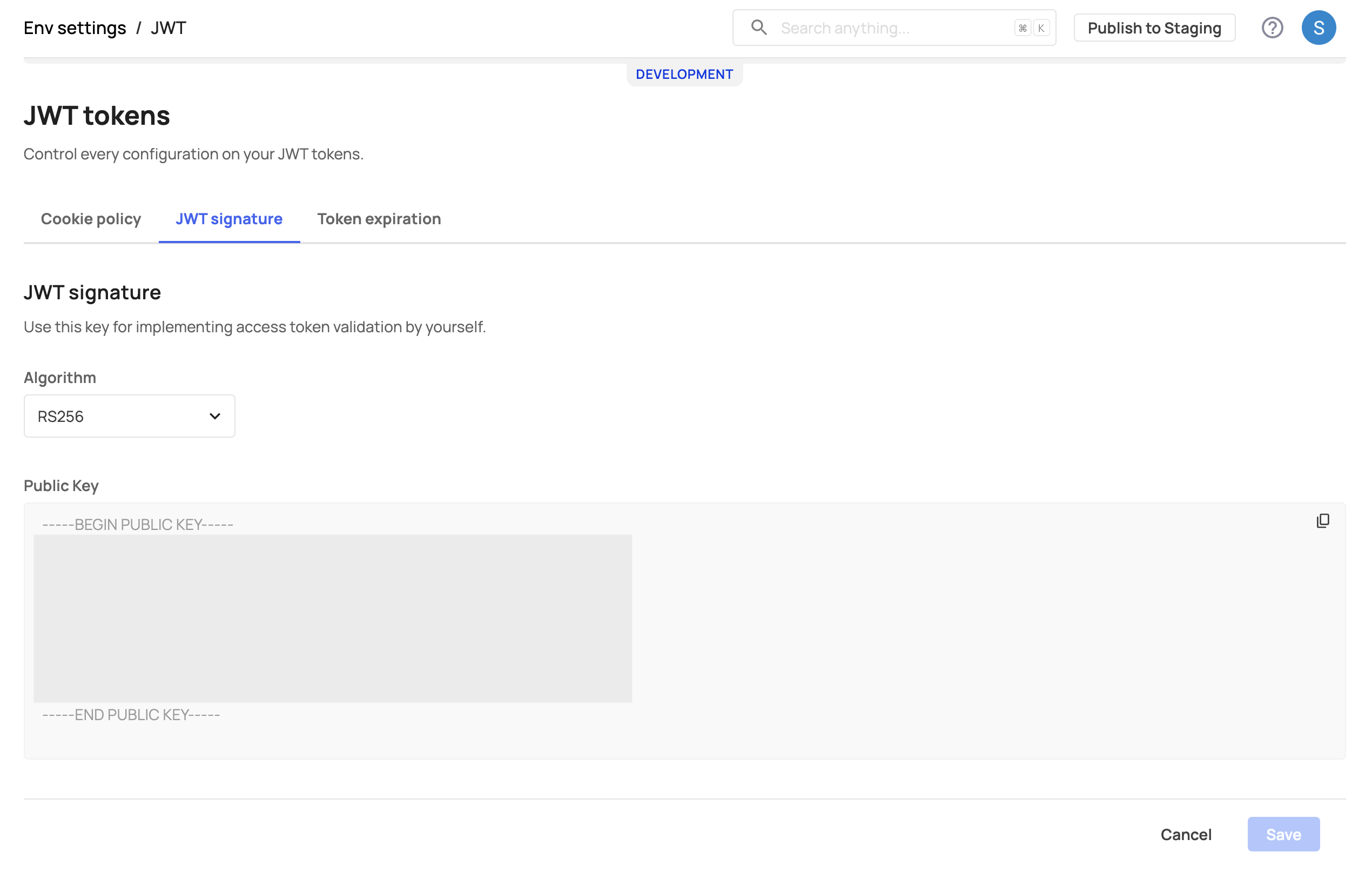
Now, create an RS256 JWT credential using the copied public key:
curl -i -X POST http://localhost:8001/consumers/{consumer}/jwt -F "algorithm=RS256" -F "rsa_public_key=[THE-PUBLIC-KEY-FROM-THE-PORTAL]" -F "key=https://{workspace-url}.frontegg.com/" # the `iss` fieldIssuer validations
Issuer validations
The configuration above validates that the issuer (iss claim) of the JWT is the Frontegg workspace domain. The iss claim validation is enabled by default in the Kong JWT plugin.
To test your configuration, call the test endpoint with a JWT signed by Frontegg:
curl -i http://localhost:8000/test -H "Host:example.com" -H "Authorization:Bearer <TOKEN-FROM-FRONTEGG>"