Frontegg allows users to sign up directly from the login box when the signup feature is enabled. By default, the signup form is displayed with a "Sign in" link, allowing users to switch to the sign-in form.
The authentication mechanism used during sign-up depends on the Sign-in types feature configuration. For an overview of email, username, and phone number as identifiers, see Login identifiers.
When the Allow signup option is enabled, the login box displays the signup form by default, with "Sign in" shown as a link. Users can easily switch between signing up and signing in.
Admins configure which identifier fields appear on the signup form — email, username, and/or phone number — along with optional fields such as name and company name.
- Navigate to the Signup section of the Frontegg Builder.
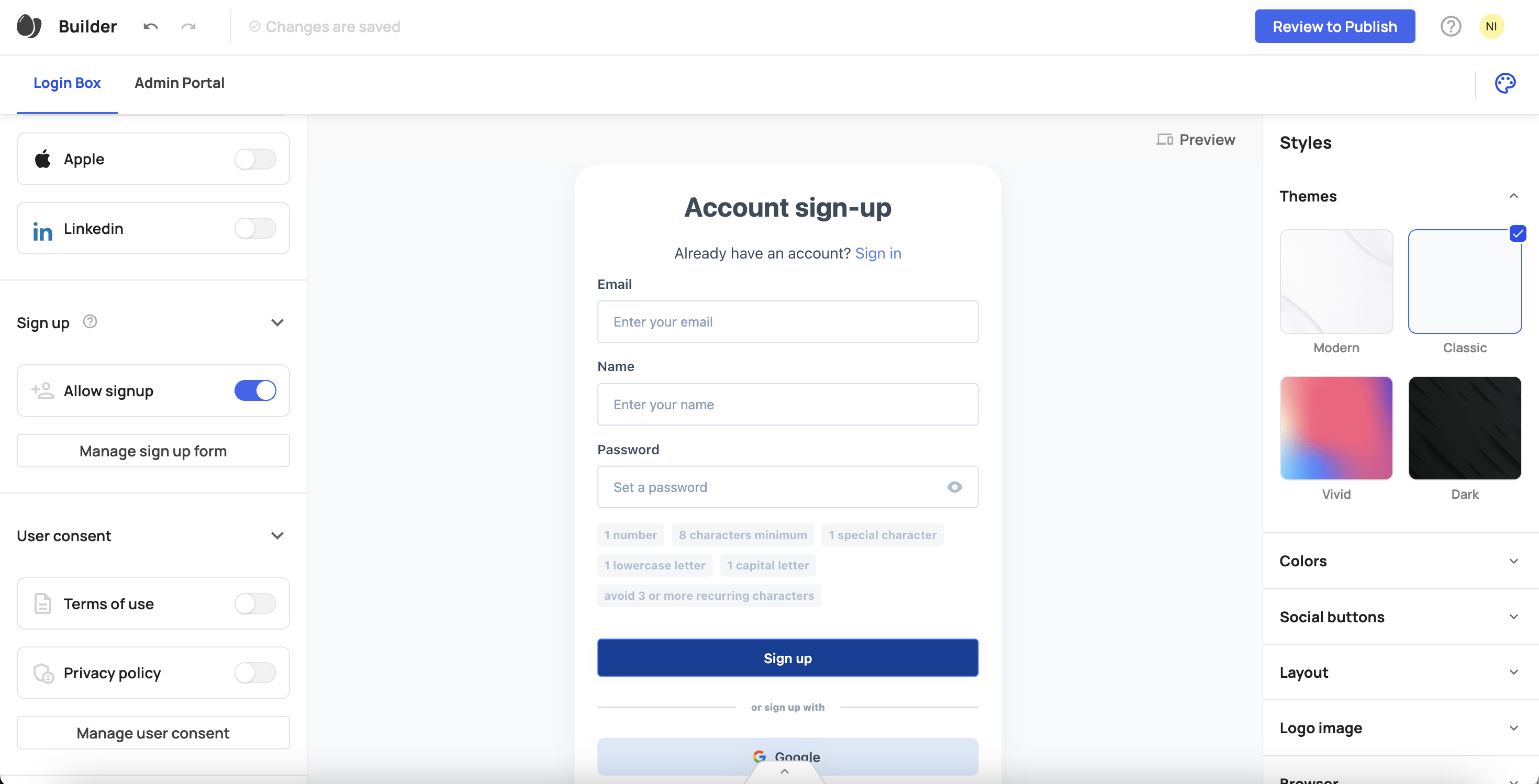
- Enable the toggle for the Allow signup option.
- Click Manage signup form.
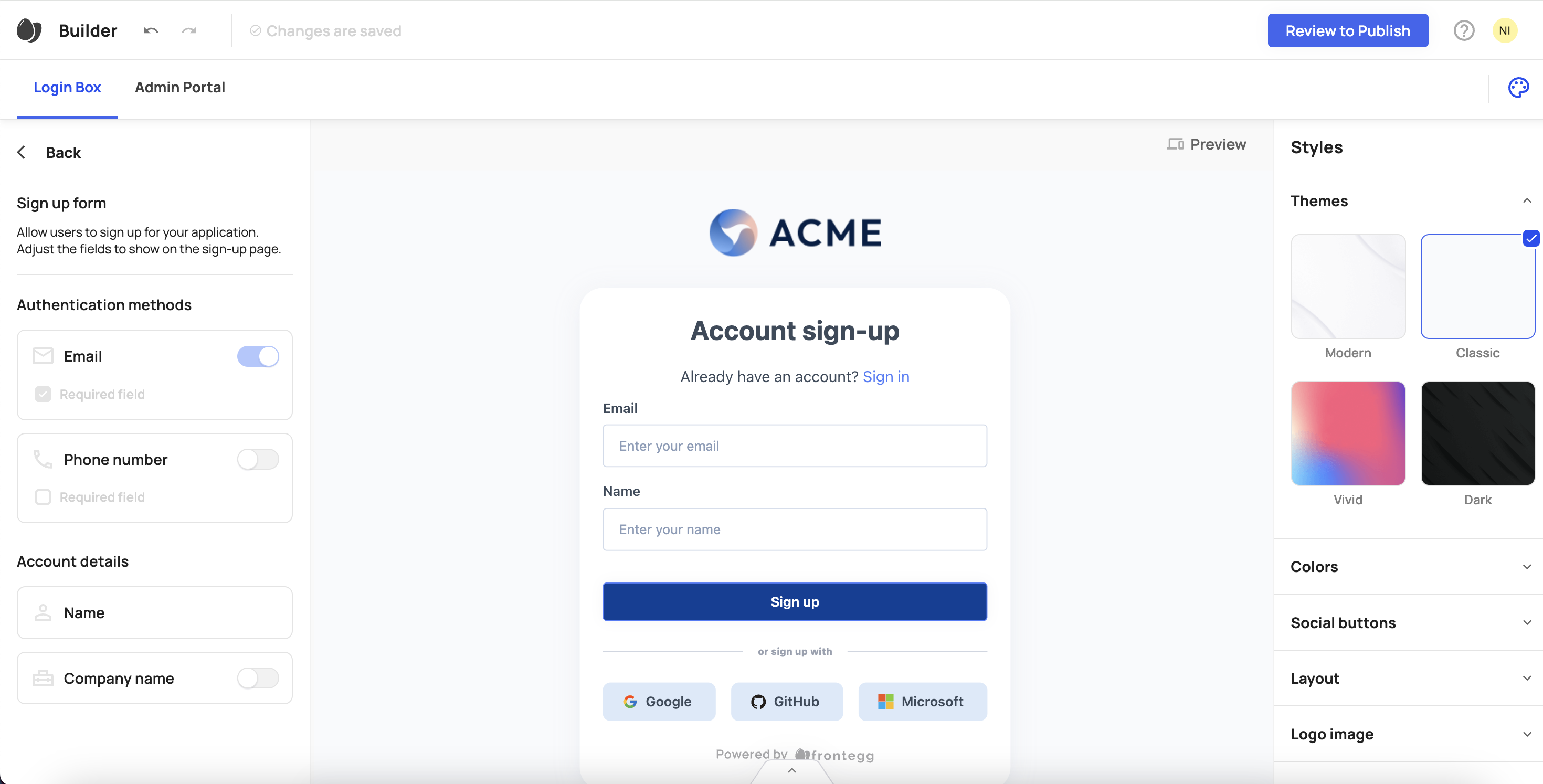
Select the fields to display on the signup form:
- Email (optional)
- Username (optional)
- Phone number (optional)
- Name (mandatory)
- Company name (optional)
At least one login identifier — email, username, or phone number — must be selected. The combinations below are all supported:
| Configuration | Description |
|---|---|
| Email only | Standard sign-up with email verification |
| Email + username | Users provide both; sign in with either identifier and a password |
| Email + phone number | Email verification at sign-up; phone available for SMS sign-in |
| Username + phone number | No email required |
| Username only | Username and password only; no email collected |
Verification behavior depends on which identifiers you require:
- Email — If email verification is enabled for your environment, users receive an activation email before they can sign in. See email verification.
- Username only — When username is the sole identifier, email verification does not apply. Users can sign in immediately after setting a password.
- Phone number — If the phone number is verified during sign-up (based on your field requirements), no additional verification is needed on first SMS sign-in. If it was not verified at sign-up, users verify on their first SMS login. See Sign-up with phone number.
When both email and phone number are required, the flow defaults to email verification. Phone verification can be completed during a subsequent sign-in.
Styles & localizations
Styles & localizations
The additional screen will automatically match your application's styles and logo as configured in the builder. To customize text on each screen, refer to this guide.