Frontegg allows you to configure different authentication methods for users to sign in. You can enable multiple options based on your security and user experience preferences. Which identifier a user enters — email, username, or phone number — depends on the method you enable and how you configured sign-up. See Login identifiers for the full picture.
Provides fast authentication methods:
- Passkeys — Allows users to log in using passkey-based authentication.
- SMS login — Sends a one-time code to the user's phone number for authentication.
Allows users to authenticate via external identity providers:
- OIDC — Supports OpenID Connect-based authentication.
- SAML — Enables authentication via SAML-based identity providers.
If a user doesn't log in using SSO, they will receive a one-time code via email for authentication.
Users can authenticate with the following methods:
- Magic code — Users enter their email or username and receive a one-time code via email.
- Magic link — Users enter their email or username and receive a login link via email.
- Password — Users enter their email or username and a password (optional password strength meter available).
The table below shows which identifier users provide for each enabled method:
| Sign-in method | Identifier users enter |
|---|---|
| Password | Email or username |
| Magic code | Email or username |
| Magic link | Email or username |
| SMS login | Phone number |
| Passkeys | Device-bound; no manual identifier entry |
| SSO | Identity provider credentials |
Make sure the identifiers you enable for sign-in match what you collect at sign-up. For example, if you offer SMS login, include Phone number on the signup form or let users add a phone number in the self-service portal.
- Navigate to the Sign-in types section of the Frontegg Builder.
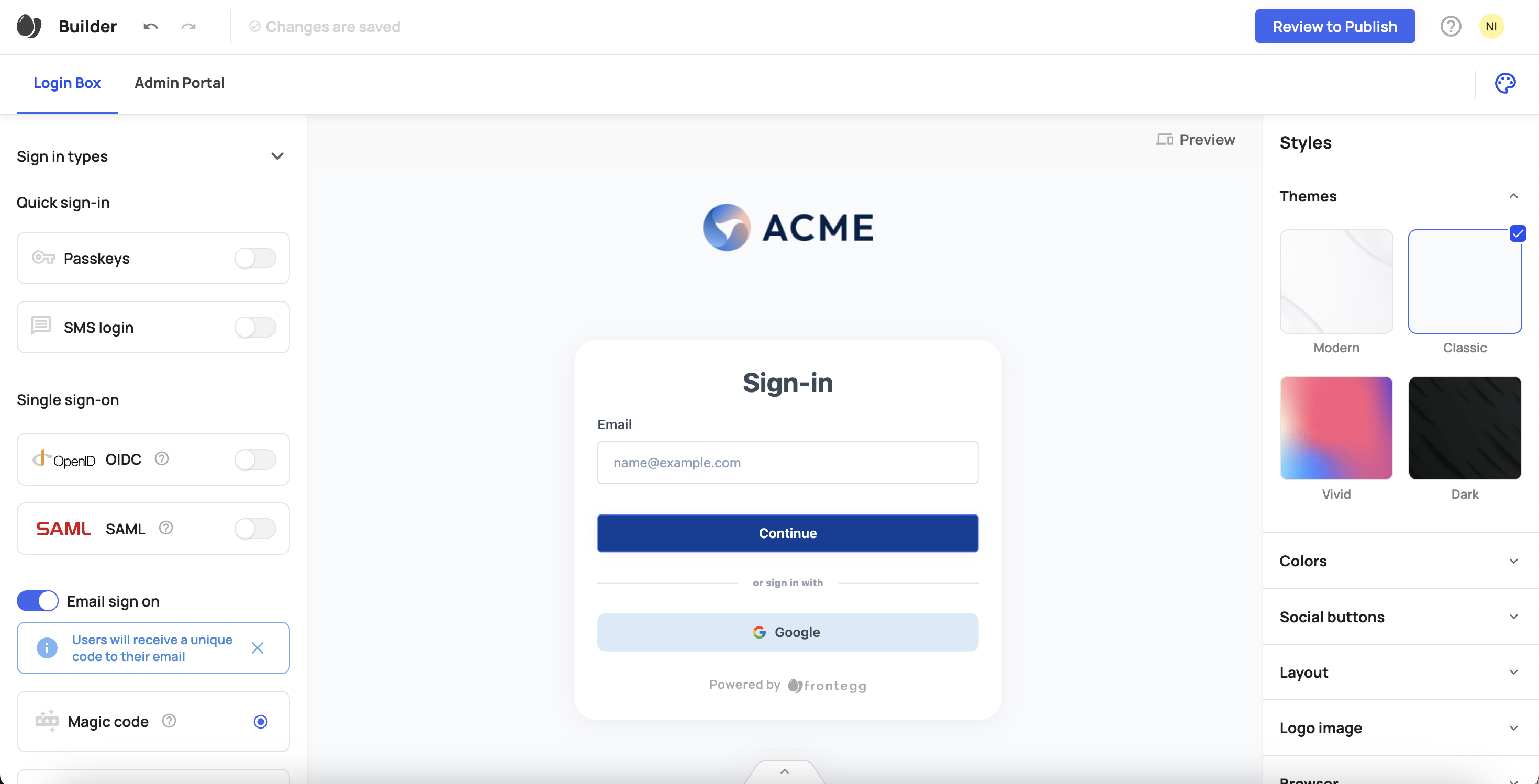
Toggle on the desired sign-in methods:
- Quick sign-in → Enable Passkeys or SMS login.
- Single sign-on (SSO) → Enable OIDC or SAML.
- Email sign-in → Enable Magic code, Magic link, or Password.
If enabling password-based authentication, click Manage Password Strength Meter to adjust password policies. To guide users in choosing strong passwords, toggle on the Password Strength Meter option. This will display strength guidance when users activate their accounts or change their passwords.
Styles & localizations
Styles & localizations
The additional screen will automatically match your application's styles and logo as configured in the builder. To customize text on each screen, refer to this guide.